Importing a comma-separated file into a spreadsheet is where data quietly changes. The import itself reports success, and the damage is in the values.
This guide covers the import setting that matters, the locale problem, and sharing the result.
Turn conversion off
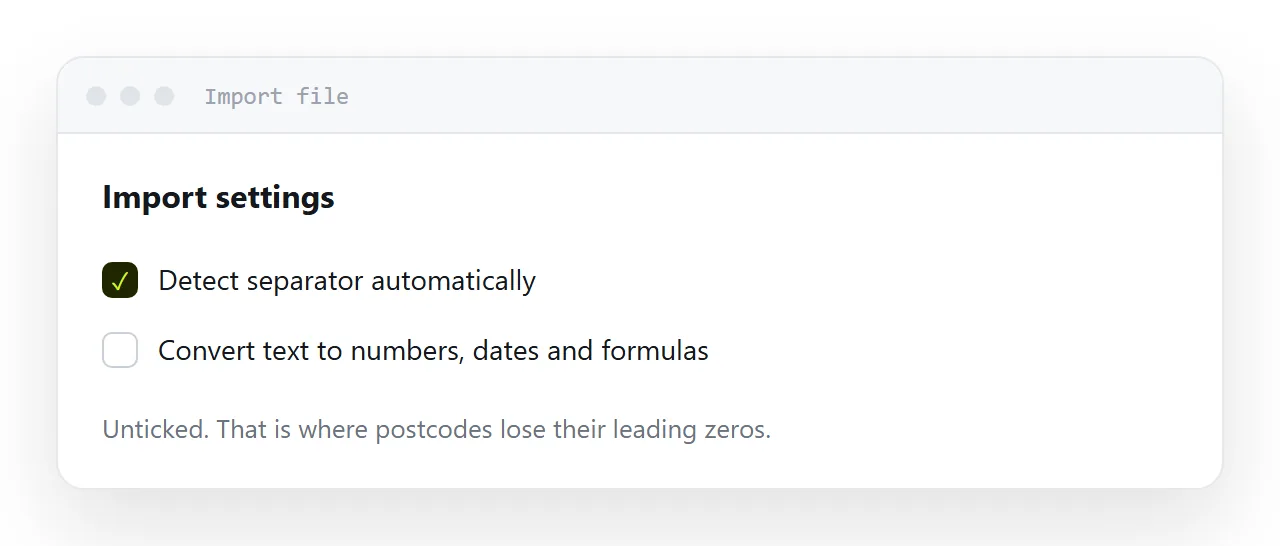
The import dialogue offers a choice about whether to convert text to numbers and dates. It defaults to converting.
Turning it off keeps every value exactly as it appears in the file. Postcodes keep their leading zeros. Product codes that look like dates stay as codes. Long identifiers keep every digit.
The cost is that genuine numbers arrive as text and have to be converted deliberately. That is a visible step you control, rather than an invisible one you discover later.
For anything containing codes, identifiers or reference numbers, this is the correct setting and the default is the wrong one.
The locale decides your dates
A date written as 03/04 is the third of April or the fourth of March depending on where the file came from and where it is being read.
The spreadsheet uses its locale setting to decide, and it does not ask. A file produced in one country and imported in another produces a full column of plausible, wrong dates.
Set the locale to match the source of the data before importing. Changing it afterwards does not undo the interpretation that already happened.
Where you control the format, ask for dates written year first. That form is unambiguous everywhere and it sorts correctly as text.
| Setting | Default | What to use |
|---|---|---|
| Type conversion | On | Off for code columns |
| Locale | Yours | The data's origin |
| Separator | Detected | Check it |
| First row | Data | Header, usually |
Long identifiers lose digits
Numbers beyond fifteen significant digits lose precision. This is a limit of how numbers are stored, not a display setting.
An order reference or an account number past that length comes back changed, and rounding cannot be undone.
Import those columns as text. It is the only thing that works.
Sharing the result
Two different requirements, and they want different things.
Someone who will work in the data needs the sheet. Share it, check the permission carefully, and check every tab.
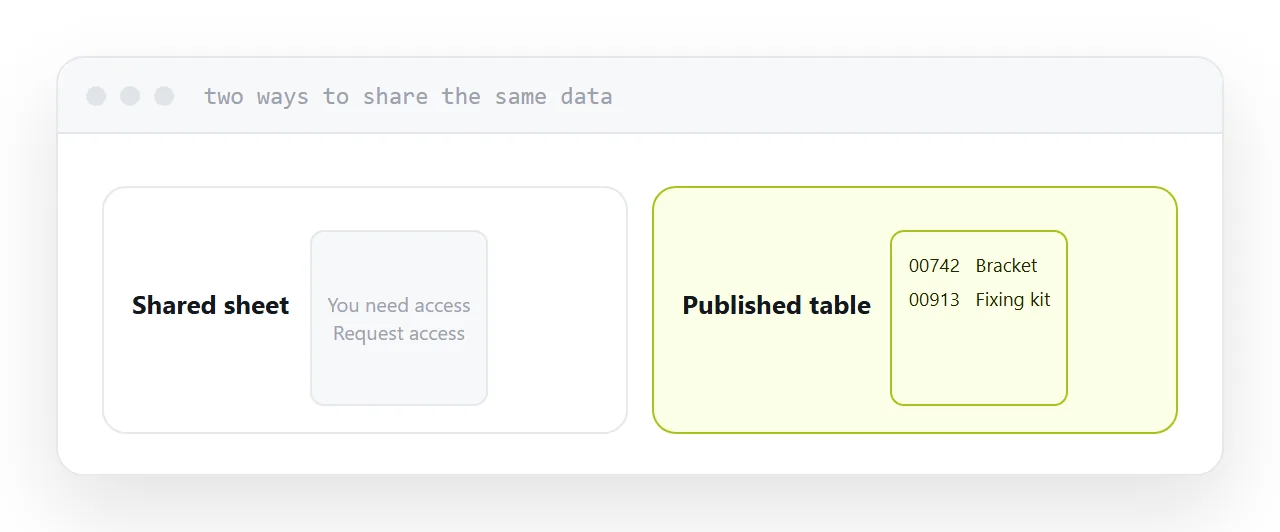
Someone who only needs to read the numbers does not need a spreadsheet. A shared sheet link asks them to be signed in, may show a permission screen, and on a phone the interface is awkward.
Publish a table on a page for readers. It opens in a tap, reads on a phone, and cannot be edited by accident.
Check the other tabs
The most common accident with shared spreadsheets is not the data. It is the second tab.
Internal notes, margins, a list of prospects, working calculations that were never meant to leave. All of it travels with the file when the sheet is shared.
Before sharing anything outside the organisation, look at every tab, including hidden ones.
Two neighbouring cases are worth a look: How to open a CSV file correctly and How to share a spreadsheet as a link.
Put it at an address
Turn conversion off, set the locale before importing, treat long identifiers as text, check every tab before sharing, and publish a table for people who are only reading.
Then the codes that went in are the codes that come out.