Sharing a spreadsheet as a link means publishing the relevant figures as a page, so the recipient reads them on any device without the workbook behind them.
Workbooks are working tools. What travels well is the conclusion, not the machinery.
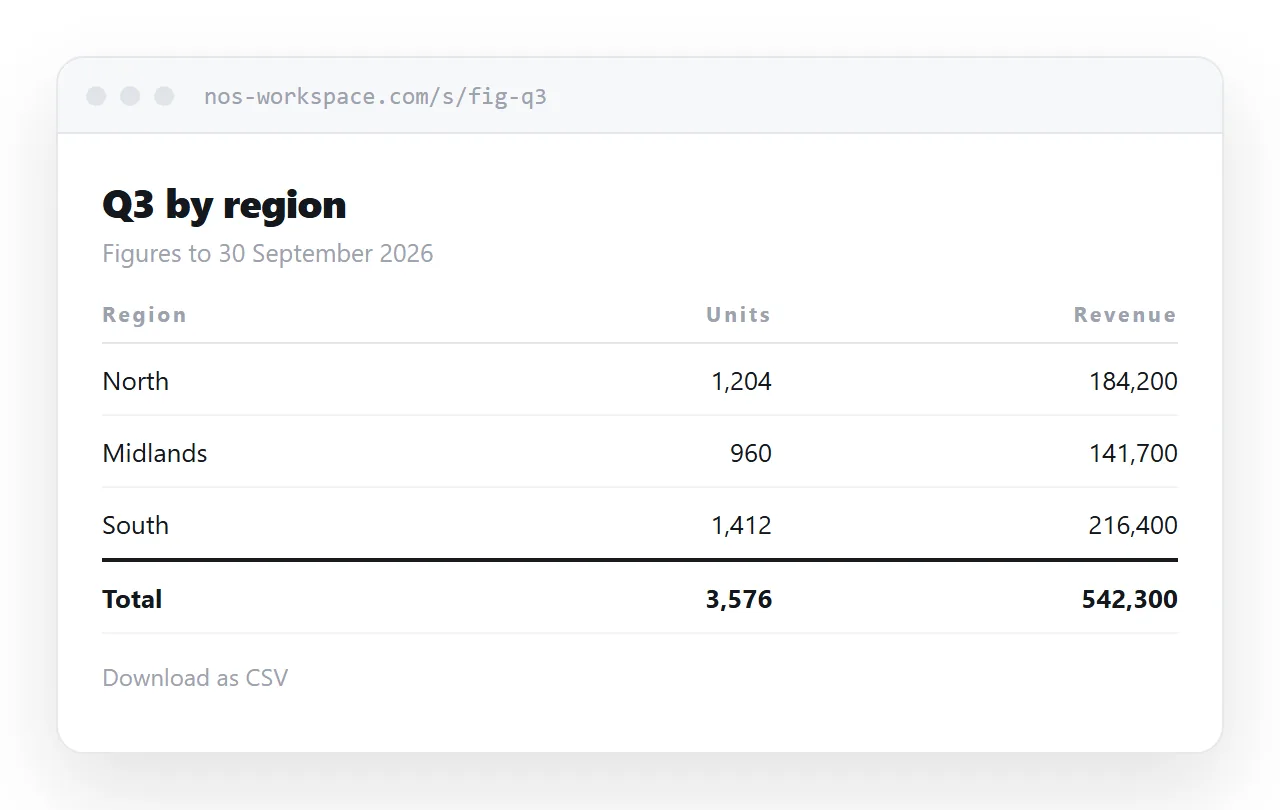
This guide covers what the recipient actually needs, the risk of sending workbooks, keeping a table readable on a phone, and where the file is still the right answer.
The workbook carries more than you think
This is the part worth taking seriously, because it has caused real incidents.
An .xlsx file contains everything in it, whether or not you can see it on screen. Hidden sheets are hidden by a flag, not removed. Rows filtered out of view are still in the data. Cell comments, defined names, and the revision metadata all travel.
| What you see | What you send |
|---|---|
| One summary sheet | Every sheet, including hidden ones |
| Filtered view | All rows |
| Formatted result | The formula and its references |
| Clean layout | Cell comments and notes |
| Current version | Author and edit metadata |
People have sent salary bands, unit costs and full client lists this way, entirely by accident, by forwarding a workbook where the visible sheet looked fine.
A page contains what you put on it and nothing else.
Show results, not calculations
A recipient reading a report wants figures they can trust. A recipient with your workbook can also change them, usually by accident.
Publishing results removes both problems. The numbers are fixed, nothing recalculates unexpectedly, and nobody pastes over a formula and reports a different total back at you.
<table class="fig">
  <thead>
    <tr><th>Region</th><th class="n">Units</th><th class="n">Revenue</th></tr>
  </thead>
  <tbody>
    <tr><td>North</td><td class="n">1,204</td><td class="n">184,200</td></tr>
    <tr><td>Midlands</td><td class="n">960</td><td class="n">141,700</td></tr>
  </tbody>
  <tfoot>
    <tr><th>Total</th><th class="n">2,164</th><th class="n">325,900</th></tr>
  </tfoot>
</table>
.fig td.n, .fig th.n { text-align: right; font-variant-numeric: tabular-nums; }
.fig tfoot th { border-top: 2px solid currentColor; }
Tabular numerals line the digits up so the eye can run down a column. Without them proportional digits wobble and a long column becomes noticeably harder to scan.
Sorting covers most of what readers do
People open a spreadsheet to look something up, sort by a column, or find the biggest number. Only a minority model anything.
A sortable table gives them the first three without giving them a calculation engine. The pattern is in an HTML table with sort and filter.
If the recipient needs to enter their own figures, an editable HTML table handles that without exposing your workbook.
The phone problem is a choosing problem
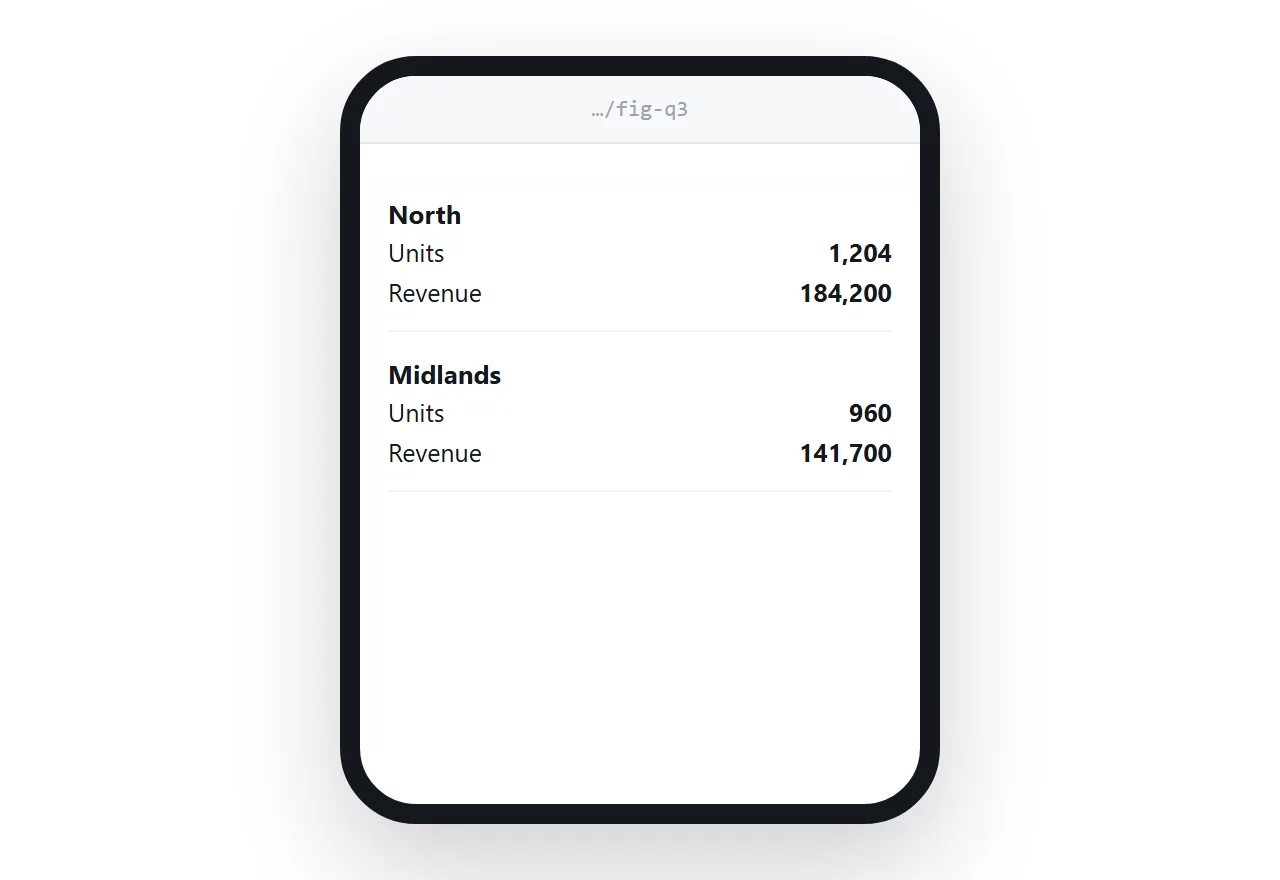
A twenty-column table cannot be shown usefully on a phone. No technique fixes that, so the question is who decides what to drop.
Either you choose the four columns that matter and show those, with the full table available to anyone who wants it, or you collapse each row into a labelled block. The second works well for records and badly for comparison.
@media (max-width: 640px) {
  .fig thead { display: none; }
  .fig tr { display: block; border-bottom: 1px solid #e3e7ec; padding: 0.6rem 0; }
  .fig td { display: flex; justify-content: space-between; border: 0; }
  .fig td::before { content: attr(data-label); color: #5a626c; }
}
More on the approach in making an HTML table responsive.
Offer the data, not the workbook
Some recipients genuinely want the numbers to work with. Give them a CSV download rather than the workbook.
A CSV carries the data and nothing else: no hidden sheets, no formulas, no metadata. It opens in Excel perfectly well, and it cannot leak what you did not put in it.
Going the other direction, turning a page table into a workbook, is covered in convert HTML to Excel.
When to send the file
Send the workbook when the recipient has to model: change assumptions, extend a forecast, or audit a calculation. That is a real need and a page cannot serve it.
Before you do, check what is in it. Unhide every sheet and look, clear the filters, and remove anything that was working rather than output.
Put it at an address
Decide what the reader needs, publish the figures as a page, add sorting if the table is long, and create a share link.
The numbers arrive readable, and your workbook stays yours.