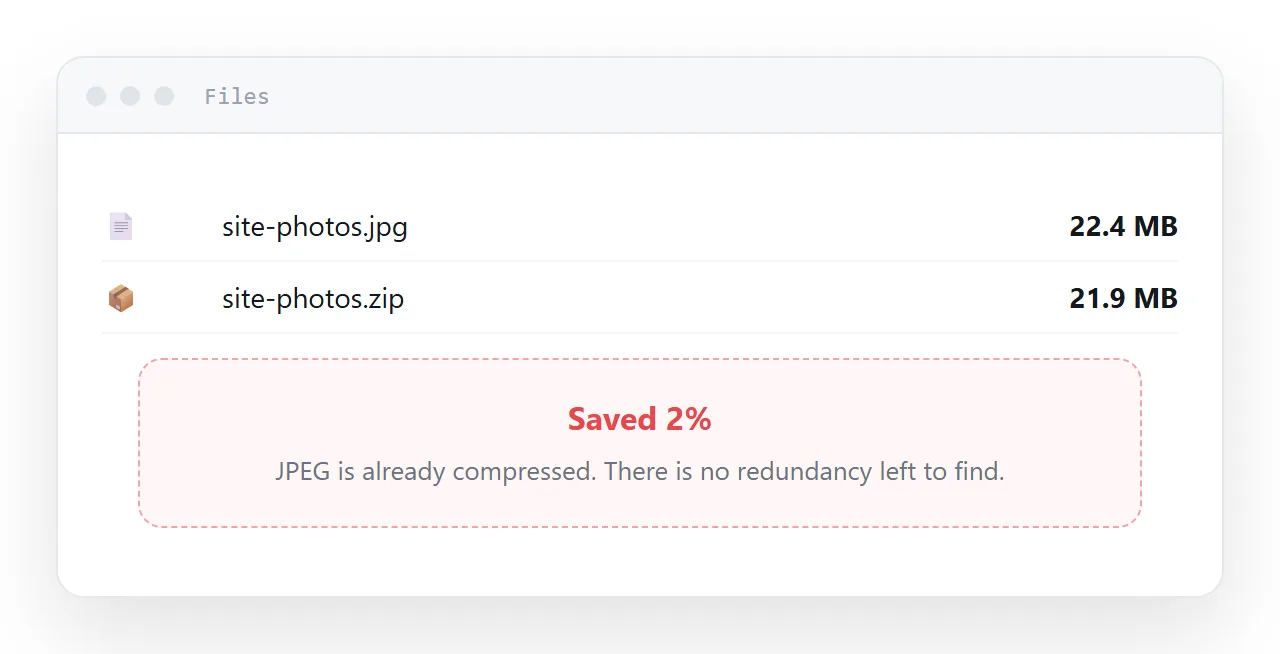
A file that will not get smaller when zipped is almost always a file that was already compressed. The archive is working correctly; there is simply nothing left to squeeze.
Understanding which side of that line your file is on saves the twenty minutes people spend trying different settings.
This guide covers why compression stops working, which formats do compress, why splitting is worse than it looks, and what actually reduces size.
Why it stops working
Compression finds repetition and stores it once. A text file full of repeated words and predictable structure has a great deal of repetition, so it shrinks dramatically.
Modern media and document formats already did that to themselves. A JPEG is a compressed image. An MP4 is compressed video. A .docx or .xlsx is literally a zip archive with a different extension, which is why zipping one produces a zip of a zip that is occasionally larger than the original.
Running compression over compressed data finds nothing because the redundancy is already gone.
| File type | Already compressed | Typical zip saving |
|---|---|---|
| JPEG, HEIC, PNG | Yes | 1-3% |
| MP4, MOV, MKV | Yes | 1-2% |
| Usually | 2-10% | |
| DOCX, XLSX, PPTX | Yes, it is a zip | 0-5% |
| MP3, AAC | Yes | 1-2% |
| TXT, CSV, JSON, XML | No | 60-90% |
| Source code, logs | No | 70-95% |
| BMP, TIFF uncompressed | No | 50-90% |
| WAV | No | 30-60% |
The bottom half of that table is where zipping earns its place, and those are rarely the files breaking a size limit.
A different archive format will not rescue it
7z, rar and zip differ by a few percent on compressible data and by essentially nothing on data that is already compressed.
Higher compression settings behave the same way: slower, marginally smaller on text, no different on media. If zip found 2%, 7z will find 3% and take four times as long.
Splitting is worse than the problem
Splitting an archive into parts gets each piece under a limit and hands the recipient a reassembly job.
They need every part. They need them in order. If one message is delayed, filtered or deleted, they have an incomplete set and often no clear indication of which piece is missing. On a phone, unpacking a multi-part archive is somewhere between awkward and impossible.
You have also multiplied the storage: the same data now sits in several messages in both mailboxes.
What actually reduces size
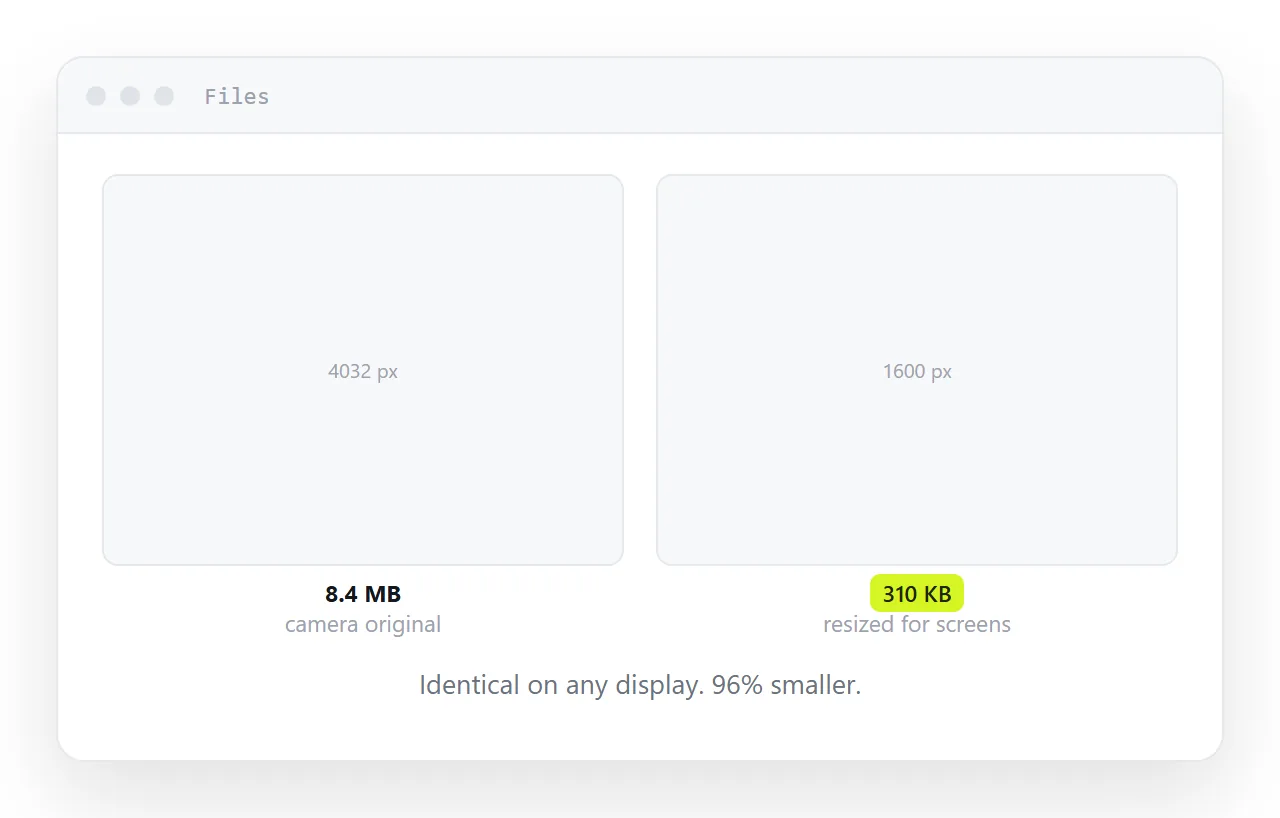
Resizing, for images. This is not compression, it is removing data. A camera original is several thousand pixels wide and 6-24 MB; a screen shows no more detail than a version at about 1600 pixels on the long edge, which lands near 300 KB. That is a 95% reduction with no visible difference on any display.
The same logic applies to video resolution and to PDF export settings, where "print quality" and "screen quality" differ by an order of magnitude and look identical on a laptop.
Removing what is not needed. A PDF exported with embedded fonts and print-resolution images is far larger than one exported for screen. A spreadsheet with ten years of history is larger than the sheet you meant to send.
Stop shrinking and send a link
If the file is already compressed and cannot be resized, the size is the size. No archive format changes that.
Put the content at an address and send the address. The message is then a few kilobytes, no size limit applies at either end, nothing is quarantined, and the recipient opens it without unpacking anything.
For documents and reports, a page is better than the file anyway: it opens on a phone, it can be corrected after sending, and the recipient needs nothing installed. Keep a download on the page for whoever needs the artefact.
Background on the limits you are working against is in email attachment size limit.
Put it at an address
Check whether your file is in the compressible half of the table. If it is not, resize what can be resized and send a link for the rest.
The zip was never going to work, and nothing you do to it will change that.