To open an HTML zip file, extract the whole archive to a folder first, then open the file named index.html inside it. Opening the HTML directly from the zip preview gives you a broken page.
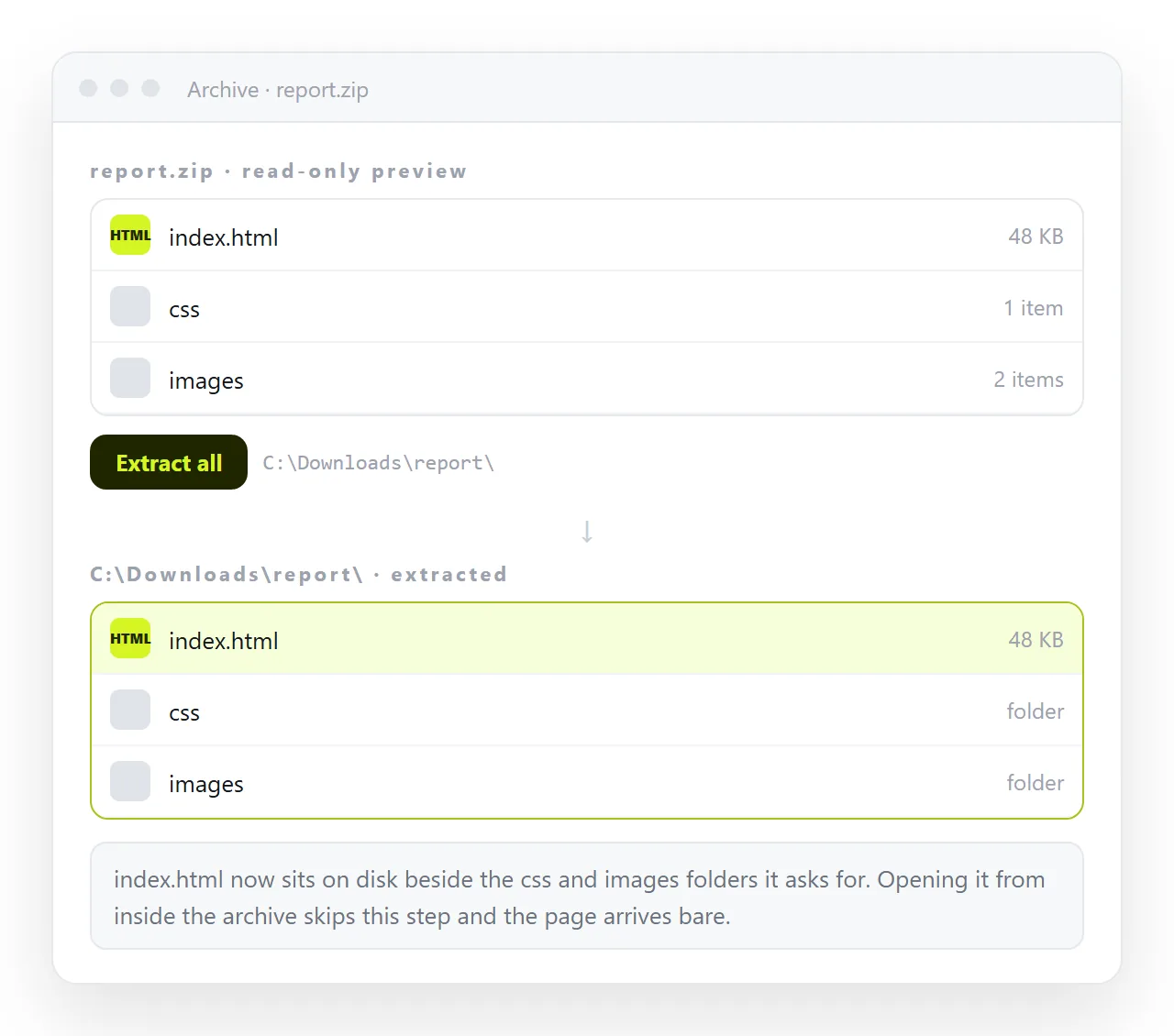
The reason is mechanical. A web page is rarely one file. It points at a stylesheet, images and scripts sitting next to it, and those pointers only resolve when the files are actually on disk together.
Why the zip preview shows a broken page
Windows File Explorer and macOS Finder both let you look inside an archive without unpacking it. That preview is convenient for documents and misleading for web pages.
When you open index.html from the preview, the operating system extracts that one file to a temporary location and hands it to the browser. Its neighbours stay compressed.
The browser then asks for css/style.css and images/logo.png relative to the temporary file, finds nothing, and renders the page without them.
| What you see | What actually happened |
|---|---|
| Unstyled text, default fonts | The stylesheet was not extracted |
| Empty image boxes | The image files were not extracted |
| Charts and tabs missing | The script file was not extracted |
| Page completely blank | The entry file loads its content from a script |
| Page renders correctly | The file was self-contained after all |
The last row happens too, which is why the symptom is confusing. A self-contained HTML file carries its styling and images inline and does not care where it sits.
How to open an HTML zip file properly: extract it first
Windows. Right click the zip, choose Extract All, pick a destination and confirm. Do not drag single files out of the preview window, because that is what produces the broken result.
macOS. Double click the zip. It expands into a folder beside it. Archive Utility does the whole archive by default, so there is no wrong option to pick.
Linux. unzip report.zip -d report from a terminal, or the file manager equivalent.
Extract to a path without unusual characters if you can. A folder deep inside a synced drive with a long path occasionally truncates filenames on Windows, and a truncated filename breaks the link from the HTML to that file.
Finding the file to open
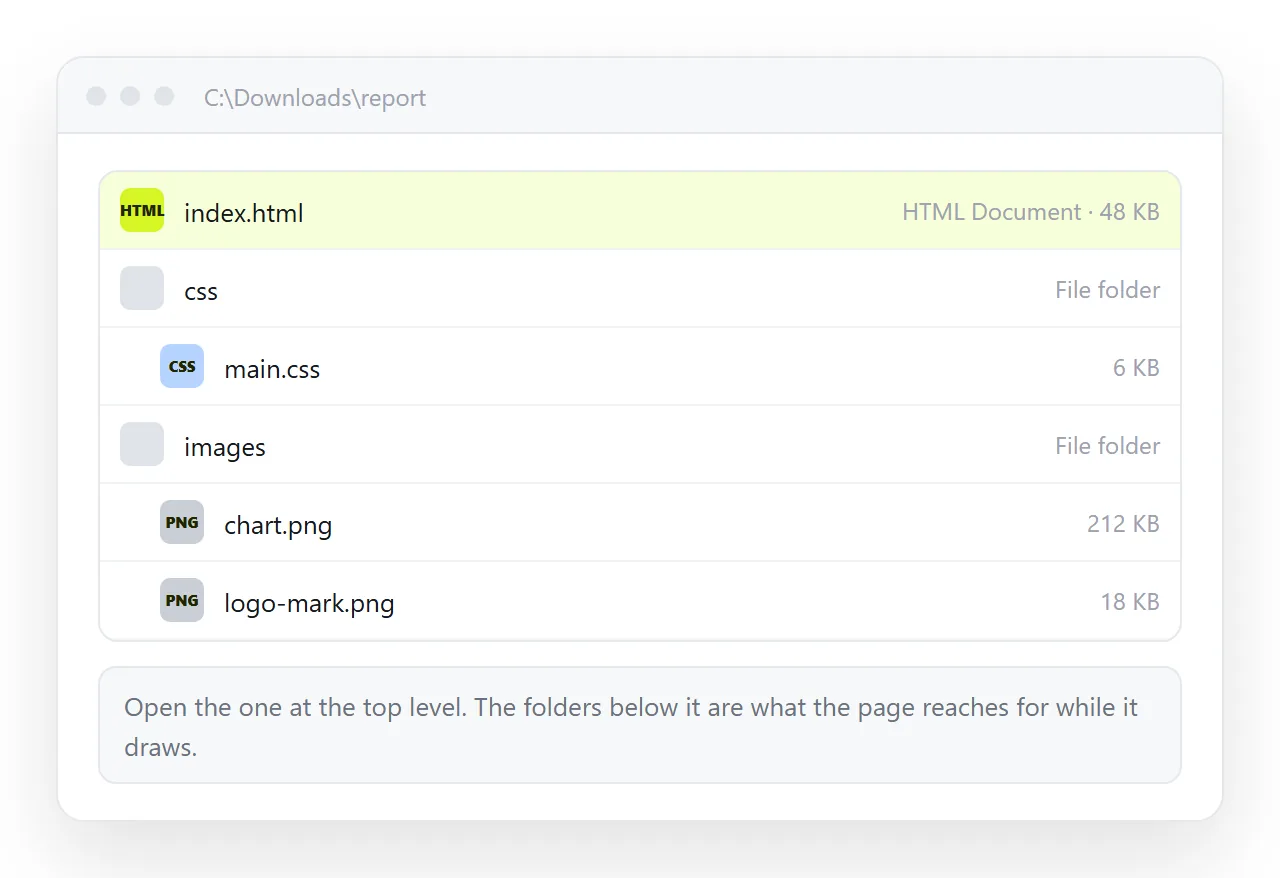
Once extracted, the entry point is almost always index.html in the top level of the folder. That is a long standing convention, and export tools follow it.
If there is no index.html, work through this order:
- Any
.htmlfile sitting at the top level, rather than inside a subfolder. - A file named after the report or the project, such as
report.html. - If several exist, the largest one. Small HTML files in a set are usually chapters, and the big one is usually the whole thing.
- Files inside folders named
assets,static,_filesorlibare parts, not entry points.
Open it by right clicking and choosing Open with, then a browser. That avoids whichever program has claimed .html on your machine.
When the page is still broken after extracting
Extracting fixes most cases. If it does not, the archive itself was built wrong.
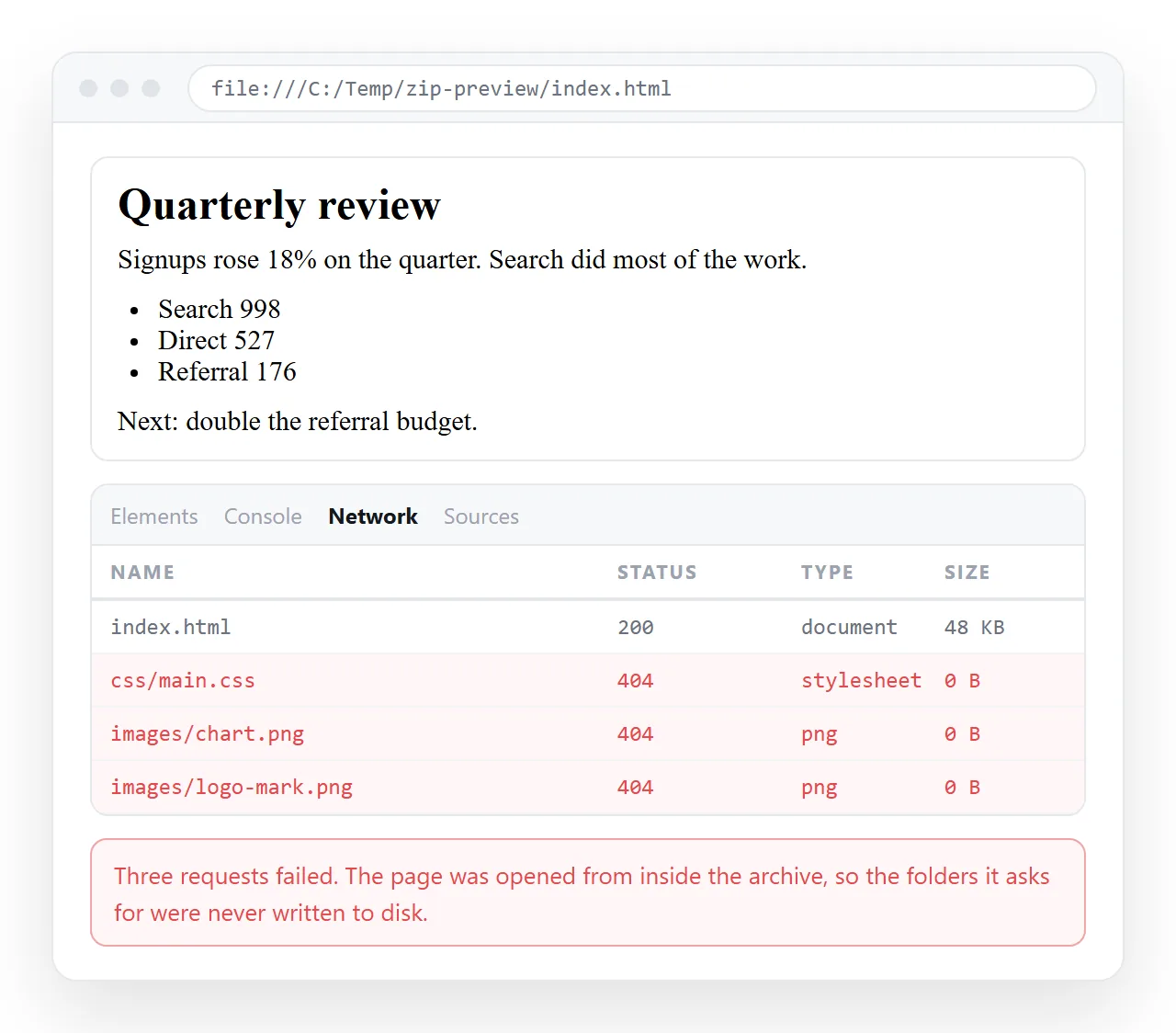
Open the developer tools with F12 and look at the network panel. Failed requests are listed with the exact path the page asked for, which tells you what is missing and where it expected to be.
Two causes account for most of it. The first is a flattened archive: files that lived in css/ are now beside the HTML, so the folder path written in the page no longer matches.
The second is absolute paths. A path beginning with a slash points at the root of a server, and there is no server when the page is opened from disk.
Relative versus absolute paths covers the difference, and images not showing covers the most visible symptom of both.
There is also the file:// limit. A page opened from disk cannot make certain requests that the same page makes without trouble when served from an address.
Data driven reports run into this. The markup and the styling arrive, the content area stays empty, and nothing is actually missing from the folder. Serving the folder locally fixes it:
python -m http.server 8000
Then open http://localhost:8000 and the page fills in.
Archives that are not quite what they look like
A few variants turn up often enough to name.
- A double zip. Extracting produces another archive rather than a folder. Extract again, then look for the entry point.
- A
__MACOSXfolder. Created when the archive was made on macOS. Ignore it, the real files are beside it. - A password on the archive. The password came in a separate message, or it did not and you have to ask.
- A
.7zor.rarrenamed to.zip. The built-in extractor refuses it. A general archive tool opens it. - A single
.htmlinside with nothing else. Likely self-contained, so it should render from anywhere.
A faster route for pages you have to pass on
A zipped folder of HTML is a poor delivery format. It cannot be opened on a phone in any practical way, mail gateways treat archives of HTML with suspicion, and the recipient has to know which file inside it to pick.
If the page is self-contained, or can be made so, put it at an address instead.
Paste the HTML into a NOS document and it renders as a page of its own, then Share, Share link, Create link gives you one line of text to send.
The link opens in one click on any device, and nobody has to hunt for index.html inside a folder they did not create.
The address also stays the same when you correct something, so the version people opened last week is the version they see today.
For a generated report specifically, opening an HTML report covers what tends to be inside those archives and what to check before you pass one on.