Gradio is a Python package that wraps a Python function in a web app. It is not an HTML library, so "Gradio HTML" means one of three things: the gr.HTML component, a page that embeds a Gradio app, or an HTML file doing the same job.
This guide covers what works in a single .html file. That file cannot run your Python.
It can hold the same shape of app: fields, a button and a function. Here is the Gradio quickstart's greet demo as one HTML page. Change the name or the slider and press Submit.
<!doctype html>
<html lang="en">
<head>
<meta charset="utf-8">
<meta name="viewport" content="width=device-width, initial-scale=1">
<title>A function with inputs and outputs, in one HTML file</title>
<style>
  * { box-sizing: border-box; }
  body { margin: 0; padding: 16px; font-family: system-ui, sans-serif; background: #f4f5f7; color: #1d2330; }
  .app { max-width: 560px; margin: 0 auto; display: grid; gap: 14px; grid-template-columns: 1fr 1fr; }
  .panel { background: #fff; border-radius: 12px; padding: 14px; box-shadow: 0 2px 10px rgba(0,0,0,.08); }
  label { display: block; font-size: 13px; font-weight: 600; margin: 0 0 6px; }
  input[type=text] { width: 100%; padding: 9px 10px; font: inherit; border: 1px solid #c9cdd4; border-radius: 8px; }
  input[type=range] { width: 100%; }
  .field { margin-bottom: 14px; }
  .row { display: flex; gap: 8px; }
  button { flex: 1; padding: 9px 10px; font: inherit; font-weight: 600; border-radius: 8px; border: 1px solid #c9cdd4; background: #fff; cursor: pointer; }
  button.go { background: #2563eb; border-color: #2563eb; color: #fff; }
  #out { min-height: 92px; padding: 10px; border: 1px solid #e1e4ea; border-radius: 8px; background: #fafbfc; overflow-wrap: anywhere; }
  .hint { font-size: 12px; color: #5b6270; margin: 10px 0 0; }
  @media (max-width: 520px) { .app { grid-template-columns: 1fr; } }
</style>
</head>
<body>
<form class="app" id="app">
  <div class="panel">
    <div class="field">
      <label for="name">name</label>
      <input type="text" id="name" value="Ada" autocomplete="off">
    </div>
    <div class="field">
      <label for="intensity">intensity: <span id="iv">3</span></label>
      <input type="range" id="intensity" min="1" max="10" value="3">
    </div>
    <div class="row">
      <button type="button" id="clear">Clear</button>
      <button type="submit" class="go">Submit</button>
    </div>
  </div>
  <div class="panel">
    <label for="out">output</label>
    <div id="out" role="status"></div>
    <p class="hint">The same greet function as the Gradio quickstart, written in JavaScript.</p>
  </div>
</form>

<script>
  const form = document.getElementById('app');
  const nameEl = document.getElementById('name');
  const intensity = document.getElementById('intensity');
  const out = document.getElementById('out');

  // the "function" part of the app: inputs in, output out
  function greet(name, n) {
    return 'Hello '.repeat(n) + name + '!';
  }

  function run() {
    out.textContent = greet(nameEl.value, Number(intensity.value));
  }

  form.addEventListener('submit', (e) => {
    e.preventDefault();  // keep the page where it is; no server is involved
    run();
  });
  intensity.addEventListener('input', () => {
    document.getElementById('iv').textContent = intensity.value;
  });
  document.getElementById('clear').addEventListener('click', () => {
    nameEl.value = '';
    intensity.value = 3;
    document.getElementById('iv').textContent = '3';
    out.textContent = '';
  });
  run();
</script>
</body>
</html>
What Gradio is, and why there is no gradio.html
The Gradio quickstart says it needs Python 3.10 or higher and installs with pip install --upgrade gradio. You wrap a function with gr.Interface, call launch(), and the app runs at http://localhost:7860.
That address is a server on your machine. The browser sends the inputs to a Python process, which runs the function and sends the result back.
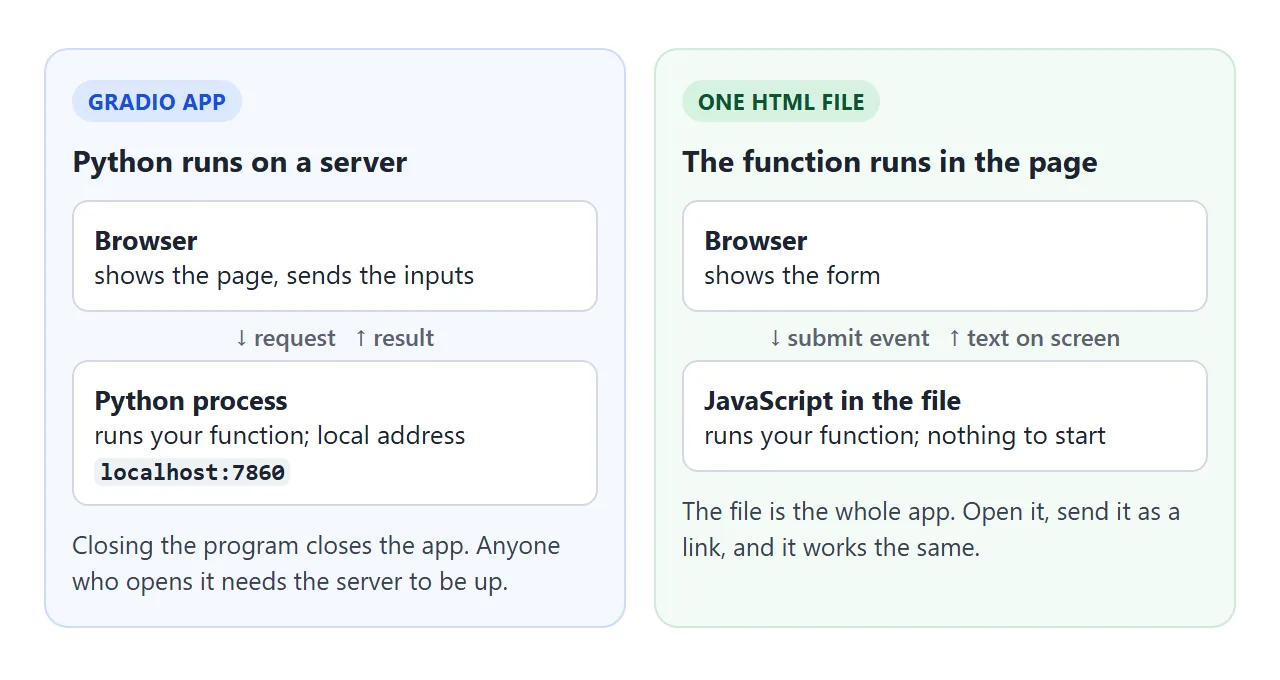
This is why you cannot save a Gradio app as one HTML file and double-click it. The page and the Python are two halves of one running program.
Three meanings of "Gradio HTML"
People searching this phrase want one of three different things. Pick yours before you copy any code.
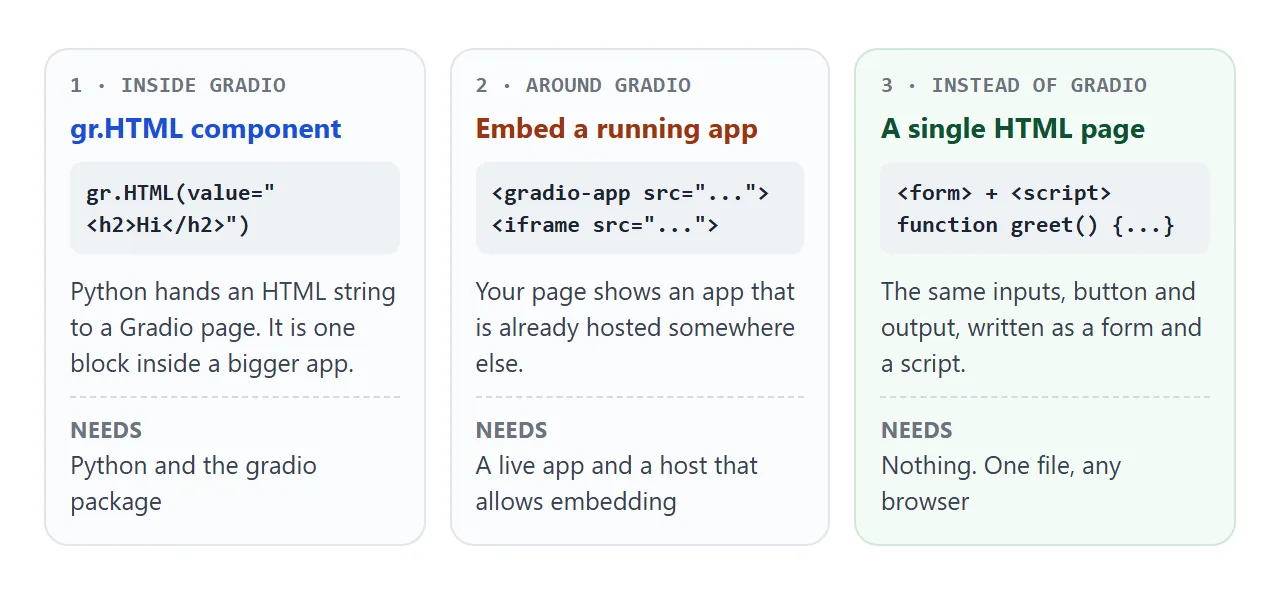
- Inside Gradio: you write Python and want custom markup in the app. Use the
gr.HTMLcomponent. - Around Gradio: you have a hosted app and want it shown on your own page. Use a web component or an iframe.
- Instead of Gradio: you want a page that works from one file with no server. Write a form and a script, as in the example above.
gr.HTML: an HTML string inside a Gradio app
The Gradio documentation describes gr.HTML as a component that creates "arbitrary HTML", which can include CSS and JavaScript. You pass the markup as value:
import gradio as gr

with gr.Blocks() as demo:
    gr.HTML(value="<h2 style='color:#2563eb'>Quarterly report</h2>")

demo.launch()
Its parameters include html_template, css_template and js_on_load for the template, the styles and a script that runs when the component loads. The head parameter takes raw HTML for loading third-party scripts.
The same idea in a plain page is putting a string into an element. Press Show to render the string on the left.
<!doctype html>
<html lang="en">
<head>
<meta charset="utf-8">
<meta name="viewport" content="width=device-width, initial-scale=1">
<title>An HTML string shown on the page</title>
<style>
  * { box-sizing: border-box; }
  body { margin: 0; padding: 16px; font-family: system-ui, sans-serif; background: #f4f5f7; color: #1d2330; }
  .wrap { max-width: 600px; margin: 0 auto; display: grid; gap: 12px; grid-template-columns: 1fr 1fr; }
  h3 { margin: 0 0 6px; font-size: 13px; }
  textarea { width: 100%; height: 190px; padding: 9px; font: 12.5px/1.45 ui-monospace, Consolas, monospace; border: 1px solid #c9cdd4; border-radius: 8px; resize: vertical; }
  #view { height: 190px; overflow: auto; padding: 12px; background: #fff; border-radius: 8px; border: 1px solid #e1e4ea; }
  .row { display: flex; gap: 8px; margin-top: 10px; align-items: center; flex-wrap: wrap; }
  button { padding: 8px 12px; font: inherit; font-weight: 600; border-radius: 8px; border: 1px solid #2563eb; background: #2563eb; color: #fff; cursor: pointer; }
  .note { font-size: 12px; color: #5b6270; flex: 1; min-width: 160px; }
  .full { grid-column: 1 / -1; }
  @media (max-width: 520px) { .wrap { grid-template-columns: 1fr; } textarea, #view { height: 130px; } }
</style>
</head>
<body>
<div class="wrap">
  <div>
    <h3>HTML string (the value)</h3>
    <textarea id="src" spellcheck="false"><h2 style="color:#2563eb">Quarterly report</h2>
<p>Revenue is <b>up</b>.</p>
<ul><li>North</li><li>South</li></ul>
<script>document.body.style.background = 'red'</script></textarea>
  </div>
  <div>
    <h3>Shown on the page</h3>
    <div id="view"></div>
  </div>
  <div class="full">
    <div class="row">
      <button id="show" type="button">Show</button>
      <span class="note" id="note"></span>
    </div>
  </div>
</div>

<script>
  const src = document.getElementById('src');
  const view = document.getElementById('view');
  const note = document.getElementById('note');

  function show() {
    // innerHTML parses the string as markup; text is shown as formatted HTML
    view.innerHTML = src.value;
    note.textContent = 'Shown with innerHTML. The script tag in the string was inserted but did not run.';
  }

  document.getElementById('show').addEventListener('click', show);
  show();
</script>
</body>
</html>
MDN explains that innerHTML keeps script elements from executing, but other markup such as an image with an onerror handler can still run code. When the text is not meant to be markup, set textContent instead, as the first example does.
Embed a running Gradio app in a page
If the app is already hosted, your page only needs to show it. The Gradio sharing guide gives two ways. The first is the web component:
<script type="module"
  src="https://gradio.s3-us-west-2.amazonaws.com/{GRADIO_VERSION}/gradio.js"></script>

<gradio-app src="https://YOUR-SPACE-HOST.hf.space"></gradio-app>
Replace the version placeholder with the Gradio version your app uses. The second is an iframe:
<iframe src="https://YOUR-SPACE-HOST.hf.space" style="border:0" height="600"></iframe>
The guide says web components load lazily and adjust their height to the app, while an iframe usually wants a fixed height. See iframe and iframe not working if the frame stays blank.
Hosting is separate from embedding. The guide says share=True makes a public link that expires after 1 week and runs from your own device while it stays on. It also says Hugging Face Spaces can host an app permanently for free.
An embed needs the page to be allowed to load another site. A NOS share page blocks iframes and requests to other sites, so an embedded app will not appear there. Link to the app's own address instead.
Gradio Lite: Python in the page
Gradio Lite is a JavaScript library that runs Gradio apps in the browser with Pyodide, a Python runtime for WebAssembly. You load it from a CDN and write the Python inside a tag:
<script type="module" crossorigin
  src="https://cdn.jsdelivr.net/npm/@gradio/lite@5.45.0/dist/lite.js"></script>
<link rel="stylesheet"
  href="https://cdn.jsdelivr.net/npm/@gradio/lite@5.45.0/dist/lite.css">

<gradio-lite>
import gradio as gr

def greet(name):
    return "Hello, " + name + "!"

gr.Interface(fn=greet, inputs="textbox", outputs="textbox").launch()
</gradio-lite>
The Lite guide shows the same snippet without a version, which loads the latest. Pinning one, as above, keeps the page from changing under you. 5.45.0 is the newest @gradio/lite version on npm as of 1 October 2026.
The guide lists two limits: apps usually take 5-15 seconds to load the first time, and not every Python package works in Pyodide.
Extra packages go in a gradio-requirements tag and are installed with micropip. In a browser network log on 1 October 2026, the Lite page requested files from pypi.org and files.pythonhosted.org as well as jsDelivr.
That matters for sharing. A NOS page can load scripts from five CDN hosts only, so Gradio Lite is a fit for a page you host yourself, not for a NOS share link.
Build the smallest working page
The page in the first example is four steps. Each Gradio part has a plain HTML equivalent.
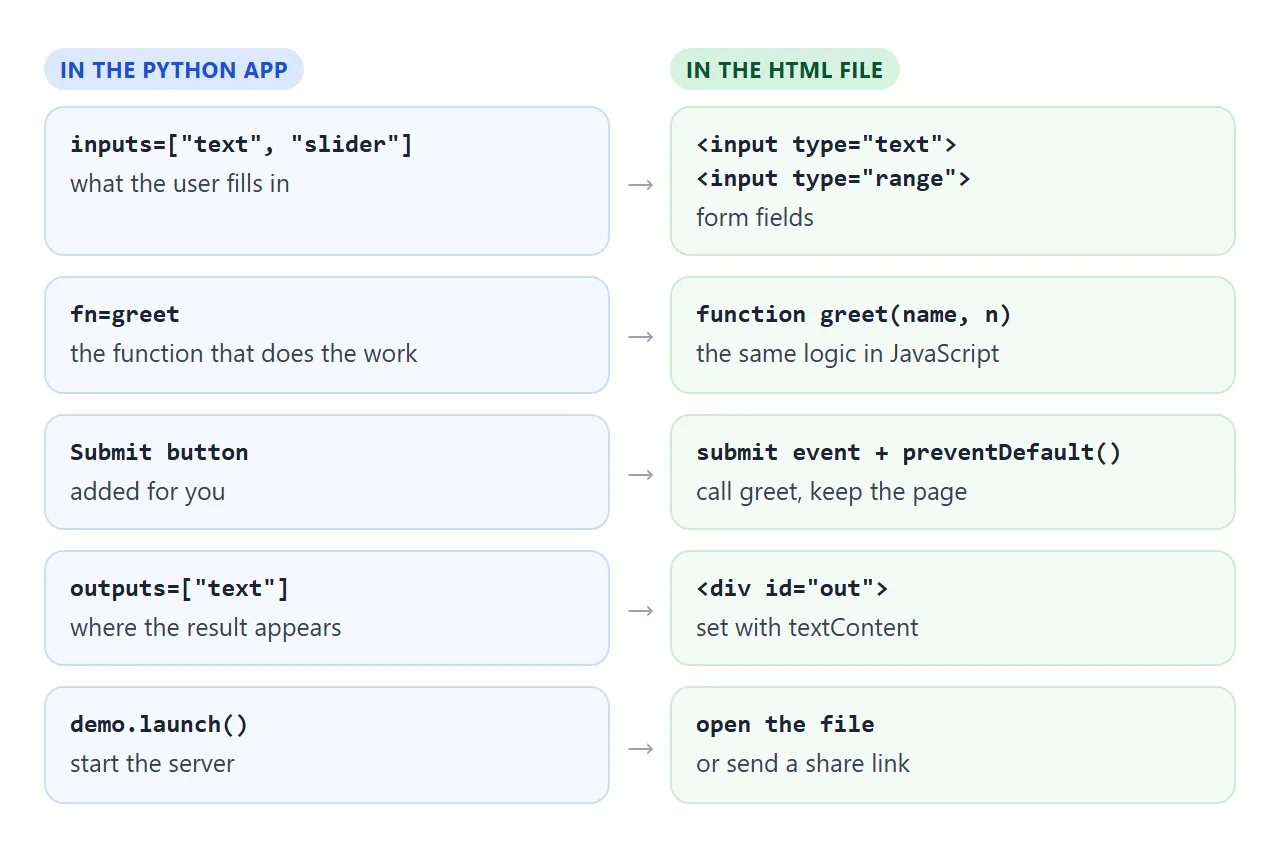
- Write the function. Put the logic in a plain JavaScript function, like
greet(name, n). - Add the fields and a button. A
formwithinputelements, a Submit button and adivfor the output. - Handle the submit event. Call
preventDefault()so the page does not reload, then call your function with the field values. - Show the result. Set the output element's
textContentto what the function returned.
The Interface documentation says a Submit and a Clear button are added by default. In HTML you add them yourself, which also lets you place them where you like. For the reload behaviour see HTML form without an action.
A finished example: text stats
This one adds what Gradio apps usually show around the function: a row of examples, a Clear button, several outputs and a Flag button that keeps a result. Click an example to fill the input and run it.
<!doctype html>
<html lang="en">
<head>
<meta charset="utf-8">
<meta name="viewport" content="width=device-width, initial-scale=1">
<title>Text stats: a small Gradio-style app in one file</title>
<style>
  * { box-sizing: border-box; }
  body { margin: 0; padding: 16px; font-family: system-ui, sans-serif; background: #f4f5f7; color: #1d2330; }
  .app { max-width: 600px; margin: 0 auto; }
  h1 { font-size: 18px; margin: 0 0 12px; }
  .grid { display: grid; gap: 12px; grid-template-columns: 1fr 1fr; }
  .panel { background: #fff; border-radius: 12px; padding: 14px; box-shadow: 0 2px 10px rgba(0,0,0,.08); }
  label, h2 { display: block; font-size: 13px; font-weight: 600; margin: 0 0 6px; }
  textarea { width: 100%; height: 110px; padding: 9px; font: inherit; border: 1px solid #c9cdd4; border-radius: 8px; resize: vertical; }
  .row { display: flex; gap: 8px; margin-top: 10px; }
  button { flex: 1; padding: 9px 8px; font: inherit; font-weight: 600; border-radius: 8px; border: 1px solid #c9cdd4; background: #fff; cursor: pointer; }
  button.go { background: #2563eb; border-color: #2563eb; color: #fff; }
  dl { margin: 0; display: grid; grid-template-columns: auto 1fr; gap: 6px 12px; font-size: 14px; }
  dt { color: #5b6270; }
  dd { margin: 0; font-weight: 600; overflow-wrap: anywhere; }
  .ex { margin-top: 12px; }
  .ex button { flex: none; font-weight: 400; font-size: 12.5px; padding: 6px 10px; margin: 0 6px 6px 0; }
  .flags { margin: 0; padding-left: 18px; font-size: 13px; }
  .empty { font-size: 13px; color: #5b6270; }
  @media (max-width: 520px) { .grid { grid-template-columns: 1fr; } textarea { height: 70px; } }
</style>
</head>
<body>
<div class="app">
  <h1>Text stats</h1>
  <div class="grid">
    <div class="panel">
      <label for="text">text</label>
      <textarea id="text">The quick brown fox jumps over the lazy dog. Then it sleeps.</textarea>
      <div class="row">
        <button id="clear" type="button">Clear</button>
        <button id="go" type="button" class="go">Submit</button>
      </div>
    </div>
    <div class="panel">
      <h2>output</h2>
      <dl>
        <dt>Words</dt><dd id="words">0</dd>
        <dt>Characters</dt><dd id="chars">0</dd>
        <dt>Sentences</dt><dd id="sent">0</dd>
        <dt>Longest word</dt><dd id="long">-</dd>
      </dl>
      <div class="row"><button id="flag" type="button">Flag this result</button></div>
    </div>
  </div>

  <div class="ex">
    <h2>Examples</h2>
    <div id="examples"></div>
  </div>

  <div class="panel" style="margin-top:12px">
    <h2>Flagged (<span id="fc">0</span>)</h2>
    <p class="empty" id="empty">Nothing flagged yet.</p>
    <ol class="flags" id="flags"></ol>
  </div>
</div>

<script>
  const $ = (id) => document.getElementById(id);
  const text = $('text');
  let last = null;  // the most recent result, so Flag can save it

  // the "function": text in, a few numbers out
  function stats(s) {
    const words = s.trim() ? s.trim().split(/\s+/) : [];
    const sentences = (s.match(/[.!?]+(\s|$)/g) || []).length;
    const longest = words.reduce((a, w) => {
      const c = w.replace(/[^\p{L}\p{N}'-]/gu, '');
      return c.length > a.length ? c : a;
    }, '');
    return { words: words.length, chars: s.length, sentences, longest: longest || '-' };
  }

  function run() {
    last = stats(text.value);
    $('words').textContent = last.words;
    $('chars').textContent = last.chars;
    $('sent').textContent = last.sentences;
    $('long').textContent = last.longest;
  }

  $('go').addEventListener('click', run);
  $('clear').addEventListener('click', () => { text.value = ''; run(); text.focus(); });

  $('flag').addEventListener('click', () => {
    if (!last) run();
    const li = document.createElement('li');
    li.textContent = last.words + ' words, ' + last.chars + ' characters, ' + last.sentences + ' sentences';
    $('flags').appendChild(li);
    $('fc').textContent = $('flags').children.length;
    $('empty').hidden = true;
  });

  // examples: one click fills the input and runs the function
  const samples = [
    'Hello world',
    'Gradio turns a Python function into a web page. HTML does the same with a form.',
    'One. Two! Three? Four.'
  ];
  samples.forEach((s) => {
    const b = document.createElement('button');
    b.type = 'button';
    b.textContent = s.length > 22 ? s.slice(0, 22) + '...' : s;
    b.addEventListener('click', () => { text.value = s; run(); });
    $('examples').appendChild(b);
  });

  run();
</script>
</body>
</html>
- Examples: each button sets the textarea value and calls the same
runfunction. - Several outputs: the function returns an object, and each field goes to its own element.
- Flag: it appends a list item built with
textContent, so typed text can never become markup.
When it does not work
| What you see | Cause | Fix |
|---|---|---|
| Python code appears as text in the browser | A .html file does not run Python | Rewrite the logic in JavaScript, or use a Lite tag |
| The embed box is empty | The app is not running, or the host refuses to be framed | Open the app's own address first; check it loads there |
| The embed is missing on a NOS page | NOS blocks iframes and other sites | Link to the app instead of embedding it |
| Lite stays on its loading screen | A dependency could not be installed in the browser | Open the console, read the error, pin or remove the package |
| Console: Can't find a pure Python 3 wheel | micropip found no wheel it can use for a package | List compatible versions in the requirements tag |
| A script inside the HTML string does nothing | Scripts inserted as markup do not execute | Put the script in the page and use an event listener |
| The output disappears on Submit | The form submitted to its own address | Call preventDefault() in the submit handler |
| The share link stopped working | Gradio share links expire after 1 week | Host the app, or share a one-file page instead |
Share it as a link
A Gradio share=True link expires after 1 week and depends on your device staying on. A one-file page has no server behind it, so it needs neither. A screenshot cannot be clicked, and an .html attachment may open as plain code on a phone.
To send the working version, paste the page into a NOS document and choose Create share link. HTML to link walks through it.
The page renders as written and its scripts run, so the people you send it to can use the form themselves. If you change the code later, the same link shows the new version. More on this in share HTML code as a link.