Compressing is a single command and is almost never the part that goes wrong.
Making one
Select the file or folder, hold Control and click, choose Compress. An archive appears beside the original.
Several items at once produce one archive named Archive, which is worth renaming before it leaves your machine, because the recipient will have no idea what it contains.
That is the entire operation and it works identically on every recent version of the system.
What travels with it
A Mac stores metadata alongside files, and compressing carries it in.
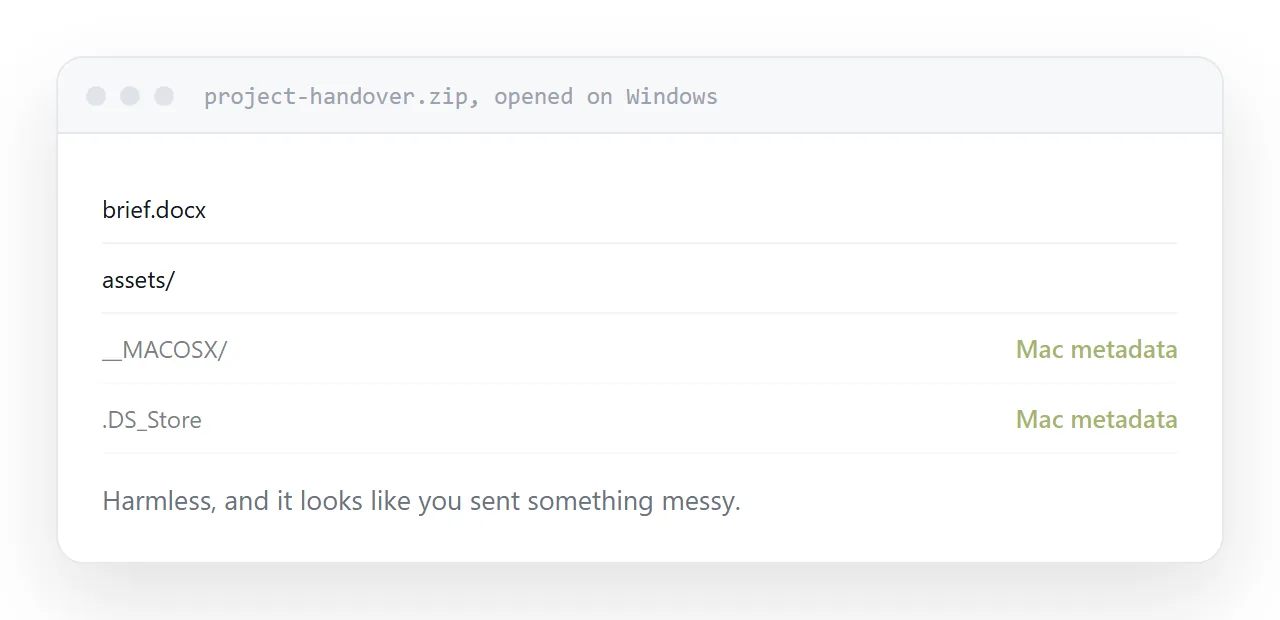
The recipient on Windows opens the archive and sees a folder whose name begins with two underscores, plus hidden store files scattered through the folders. None of it does any harm and all of it looks like you sent something messy.
Removing the hidden store files before compressing takes a moment, or you use a compression tool with the option to exclude them. For anything going to a client, it is worth the moment.
| Situation | Archive? |
|---|---|
| Many files, one transfer | Yes |
| Preserving a folder structure | Yes |
| A single document | No |
| Photographs or video | No, saves nothing |
| Anything to be read | No, publish it |
Two things that defeat it
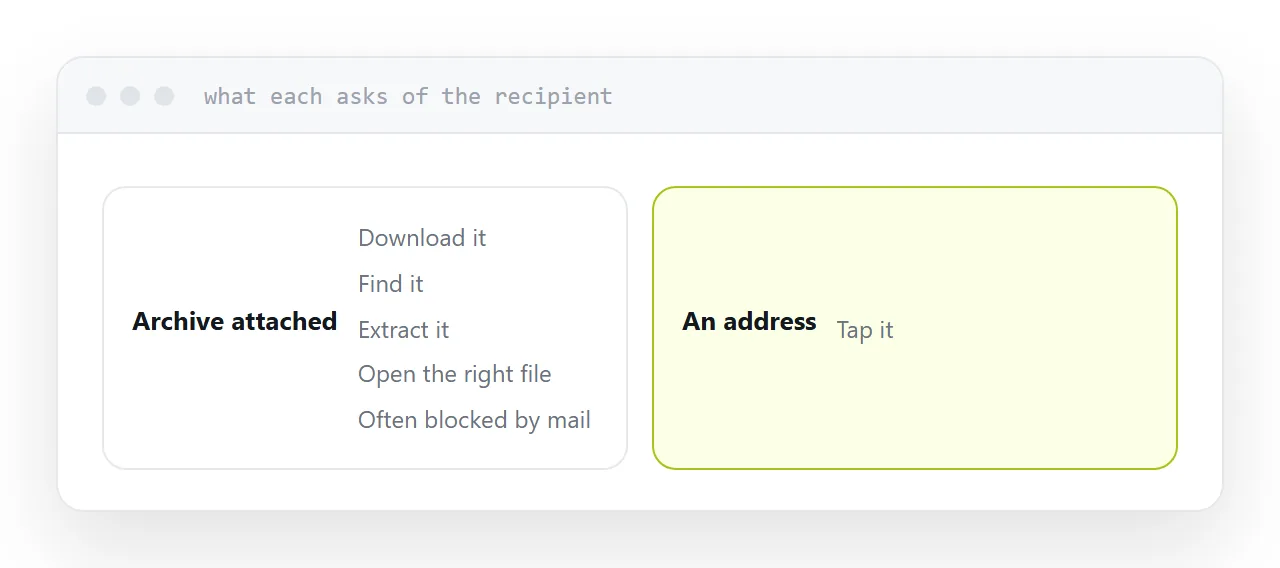
Mail systems block archives. They are a standard route for getting executable content past scanners, so a large share of corporate mail systems reject them and a fair number do so without telling either party. The message simply never arrives.
Phones struggle with them. Opening an archive on a phone means an app, a folder, and knowing where the extracted files went. If your recipient is on a phone, an archive is the format least likely to result in them reading anything.
Compressing does not shrink most things
Photographs, video and fixed-page documents already carry their own compression. Archiving them finds nothing left to remove.
A folder of photographs compresses by roughly one percent. Text, spreadsheets and code compress well, sometimes by ninety percent, which is what the format was designed for.
If the aim is getting under a size limit, compressing a folder of images is the step that does not work.
When an address is the answer
If the recipient needs to read the contents rather than keep the files, none of this applies.
Publish the document or the page at an address and send the address. It opens on any device, it cannot be blocked as an attachment type, and there is nothing to extract.
Keep archives for what they are good at: moving a folder structure intact from one machine to another.
For the surrounding ground, see How to zip a file on Windows and How to unzip files online.
Put it at an address
Control-click to compress, check what is inside before it leaves, skip it for already-compressed files, expect mail systems to reject it, and publish anything that is meant to be read.