Email was not designed to move large files and the limits reflect that. The stated number is not the number that applies.
This guide covers why the limit is lower than advertised, the silent failures, and the three routes that work.
The stated limit is not the real one
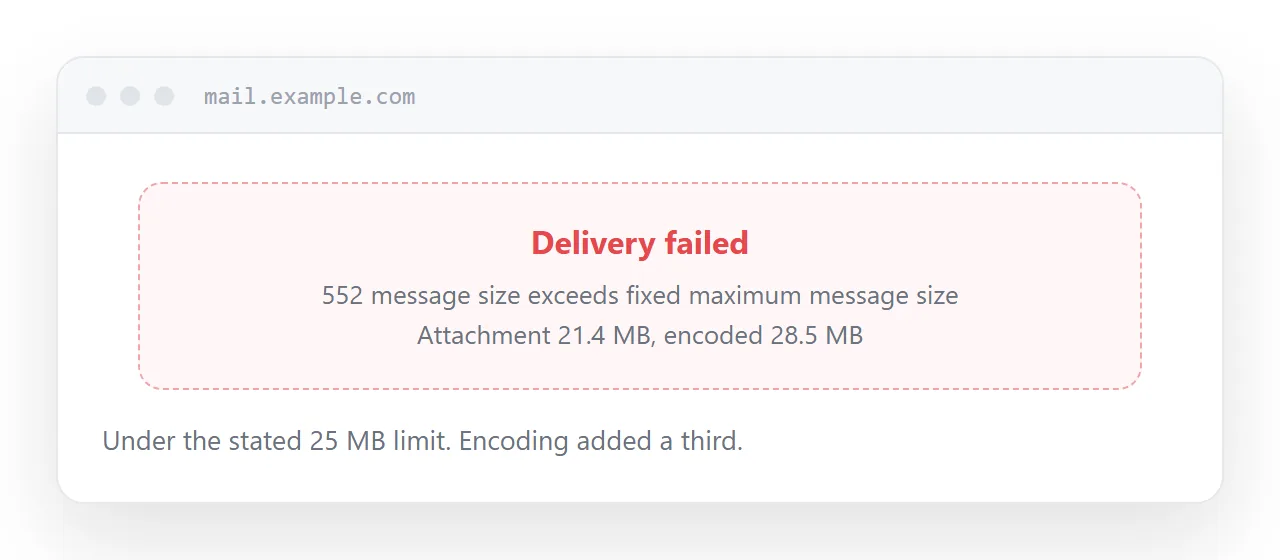
An attachment is encoded before it is sent, and that encoding adds 33% to its size.
So a 20MB file becomes about 27MB in transit and is rejected by a server advertising 25MB. The compose window let you attach it because it was measuring the file, not the message.
Corporate servers commonly enforce 10MB or even 5MB regardless of what the mail provider allows, and the recipient's server has its own limit which may be lower than yours.
Treat 10MB as the practical ceiling for anything going outside your organisation.
Silent failure is the worst part
Bouncing is the good outcome, because at least you know.
Many servers quarantine oversized or suspicious messages without telling the sender. The message appears in your sent folder. Everything looks correct. The recipient never receives anything, and neither of you finds out until somebody asks about it days later.
This is why "I sent it" is not evidence of anything, and why anything with a deadline attached deserves a confirmation.
Compress before anything else
Most oversized files are large for a reason you can fix in two minutes.
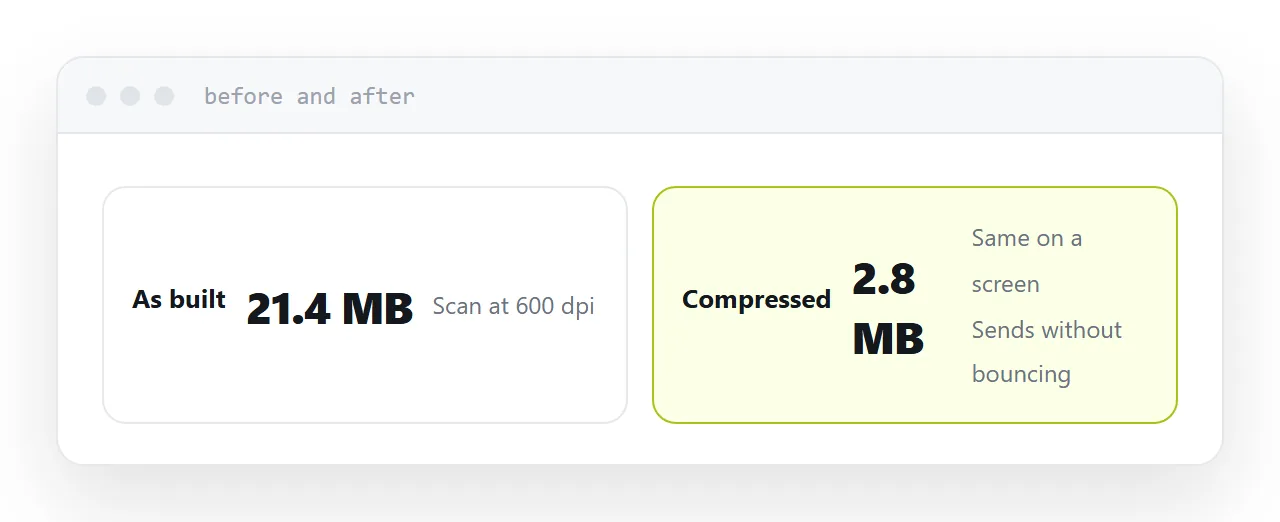
Scanned documents are stacks of photographs. Scanning at a lower resolution, or compressing afterwards, typically cuts them by eighty percent with no readable difference.
Presentations carry images at full resolution. Every presentation tool has a compress-images function, and it usually more than halves the file.
Photographs exported for print are several times larger than anything needed on a screen.
Try this first. It often removes the problem entirely and costs nothing.
| Route | Good for | Limit | Recipient needs |
|---|---|---|---|
| Address | Anything read | None | Nothing |
| Transfer service | Raw video, archives | Large | Nothing |
| Cloud folder | Colleagues | None | An account |
| Attachment | Small files | About 10MB | Nothing |
Do not split it into parts
Multi-part archives look like a solution and are not.
The recipient has to receive every part, put them in one place, and extract them together. On a phone that is not possible at all. And scanners treat multi-part archives with more suspicion than a single file, so the parts are more likely to be blocked than the original was.
Pick the route by what it is
Something they will read. A document, a deck, a report. Put it at an address. No limit, opens in a tap, and you can correct it afterwards.
Raw video or a large archive. A transfer service. This is the case they exist for and they do it well.
Working files for a colleague. A cloud folder, if they already have an account. Not for clients, because of the permission screens.
If this is near what you are doing, What to do when an attachment is too large and Email attachment size limits, and what actually applies cover the cases on either side. How to upload a CSV without it being rejected is also close.
Put it at an address
Compress the images first, assume 10MB is the ceiling, send an address for anything read, use a transfer service for raw video, and confirm it arrived rather than assuming.
Then the deadline does not pass because a server quietly dropped a message.