You cannot count on running HTML inside a Blackboard Ultra document, because Blackboard turns that on only for schools that set it up. The route that does not depend on it: put the page behind a link and add the address as a web link item.
Students tap the item and the quiz opens.
Here is a page you can copy. It is a four-question quiz with feedback after each answer and a score at the end. Try it, then read how to get one like it into your course.
<!doctype html>
<html lang="en">
<head>
<meta charset="utf-8">
<meta name="viewport" content="width=device-width, initial-scale=1">
<title>Water cycle quick check</title>
<style>
  * { box-sizing: border-box; }
  body { margin: 0; padding: 16px; font-family: system-ui, sans-serif; background: #f4f6fa; color: #1d2330; }
  .wrap { max-width: 560px; margin: 0 auto; background: #fff; border-radius: 14px; padding: 20px; box-shadow: 0 4px 16px rgba(0,0,0,.08); }
  h1 { font-size: 20px; margin: 0 0 4px; }
  .meta { font-size: 14px; color: #5b6475; margin-bottom: 14px; }
  .bar { height: 6px; background: #e4e8ef; border-radius: 3px; margin-bottom: 16px; overflow: hidden; }
  .bar i { display: block; height: 100%; width: 0; background: #2563eb; transition: width .25s; }
  .q { font-size: 18px; font-weight: 600; margin-bottom: 12px; }
  .opt { display: block; width: 100%; text-align: left; font: inherit; padding: 12px 14px; margin-bottom: 8px; border: 2px solid #d5dae3; border-radius: 10px; background: #fff; cursor: pointer; min-height: 44px; }
  .opt:hover:not(:disabled) { border-color: #2563eb; }
  .opt.right { border-color: #16a34a; background: #e8f7ee; }
  .opt.wrong { border-color: #dc6803; background: #fff1e0; }
  .why { font-size: 15px; margin: 10px 0; padding: 10px 12px; background: #eef3ff; border-radius: 8px; display: none; }
  .next { font: inherit; font-weight: 600; padding: 11px 20px; border: 0; border-radius: 10px; background: #2563eb; color: #fff; cursor: pointer; min-height: 44px; display: none; }
  .score { font-size: 36px; font-weight: 700; margin: 8px 0; }
</style>
</head>
<body>
<div class="wrap" id="app">
  <h1>Water cycle: quick check</h1>
  <div class="meta" id="meta"></div>
  <div class="bar"><i id="bar"></i></div>
  <div id="stage"></div>
</div>

<script>
  // Edit this list to change the quiz. answer = index of the right option (0 is the first).
  const questions = [
    { q: 'What turns liquid water into water vapor?', options: ['Condensation', 'Evaporation', 'Precipitation'], answer: 1, why: 'Heat from the sun makes liquid water evaporate.' },
    { q: 'Clouds form when water vapor...', options: ['cools and condenses', 'freezes into soil', 'sinks underground'], answer: 0, why: 'Cooling vapor condenses into tiny droplets.' },
    { q: 'Rain, snow and hail are all kinds of...', options: ['evaporation', 'precipitation', 'runoff'], answer: 1, why: 'Water falling from clouds is called precipitation.' },
    { q: 'Water flowing over land into rivers is called...', options: ['runoff', 'vapor', 'condensation'], answer: 0, why: 'Runoff carries water back toward rivers and seas.' }
  ];

  const stage = document.getElementById('stage');
  const meta = document.getElementById('meta');
  const bar = document.getElementById('bar');
  let index = 0, score = 0;

  function show() {
    const item = questions[index];
    meta.textContent = 'Question ' + (index + 1) + ' of ' + questions.length;
    bar.style.width = (index / questions.length * 100) + '%';
    stage.innerHTML = '';

    const q = document.createElement('div');
    q.className = 'q';
    q.textContent = item.q;
    stage.appendChild(q);

    const why = document.createElement('div');
    why.className = 'why';
    const next = document.createElement('button');
    next.className = 'next';
    next.textContent = index === questions.length - 1 ? 'See my score' : 'Next question';
    next.addEventListener('click', () => { index++; index < questions.length ? show() : finish(); });

    item.options.forEach((text, i) => {
      const b = document.createElement('button');
      b.className = 'opt';
      b.textContent = text;
      b.addEventListener('click', () => {
        const buttons = stage.querySelectorAll('.opt');
        buttons.forEach(x => x.disabled = true);
        buttons[item.answer].classList.add('right');
        if (i === item.answer) score++; else b.classList.add('wrong');
        why.textContent = item.why;
        why.style.display = 'block';
        next.style.display = 'inline-block';
      });
      stage.appendChild(b);
    });
    stage.appendChild(why);
    stage.appendChild(next);
  }

  function finish() {
    bar.style.width = '100%';
    meta.textContent = 'Finished';
    stage.innerHTML = '<div class="score">' + score + ' / ' + questions.length + '</div>' +
      '<p>This score is shown only on this screen. Reload the page to try again.</p>';
  }

  show();
</script>
</body>
</html>
Why pasting HTML into a document may not work
Ultra documents have an Add HTML block, but Blackboard Help ties it to a setting: custom HTML or CSS in a document is available when an alternate domain is enabled for the site.
That is a site-level setting, so it can differ from school to school (as of October 2026).
If your documents show no Add HTML block, nothing is wrong with your page. The feature is simply not switched on for you. You can ask your administrator, or skip the question and use a web link, which is a standard item type.
Make it with AI
Ask for one self-contained file. The more exact the request, the less you need to fix. Paste this into ChatGPT, Claude or Gemini and change the topic and level:
Write one complete HTML file for a 5-question multiple-choice quiz
on [topic] for [grade or level].
- Show feedback after each answer, then a score at the end.
- Big tap targets, readable on a phone.
- No external images, no external files, no localStorage.
- Do not collect names or send anything to a server.
- Put the questions in a simple list at the top of the script so
  I can edit them.
Return only the code in a single code block.
Before you use the result, check four things:
- Open it yourself and click through every question, including a wrong answer.
- Read each question and each "right" answer. AI can mark the wrong option as correct.
- Search the code for
http. Links to outside images or files will not load on the shared page. - Expect no results to reach you. The score shows to the student only.
A second kind of page that works well is a self-study set. This one is a deck of flip cards you can edit:
<!doctype html>
<html lang="en">
<head>
<meta charset="utf-8">
<meta name="viewport" content="width=device-width, initial-scale=1">
<title>Vocabulary flashcards</title>
<style>
  * { box-sizing: border-box; }
  body { margin: 0; padding: 16px; font-family: system-ui, sans-serif; background: #f4f6fa; color: #1d2330; }
  .wrap { max-width: 480px; margin: 0 auto; text-align: center; }
  h1 { font-size: 20px; margin: 0 0 4px; }
  .count { font-size: 14px; color: #5b6475; margin-bottom: 12px; }
  .card { width: 100%; min-height: 180px; padding: 24px; border: 0; border-radius: 16px; background: #fff; box-shadow: 0 6px 20px rgba(0,0,0,.1); cursor: pointer; font: inherit; color: inherit; display: flex; flex-direction: column; justify-content: center; align-items: center; gap: 8px; }
  .card .side { font-size: 12px; letter-spacing: .08em; text-transform: uppercase; color: #6b7280; }
  .card .text { font-size: 24px; font-weight: 700; }
  .card.back { background: #eef3ff; }
  .card.back .text { font-size: 19px; font-weight: 500; line-height: 1.4; }
  .row { display: flex; gap: 10px; justify-content: center; margin-top: 14px; flex-wrap: wrap; }
  .row button { font: inherit; font-weight: 600; padding: 11px 18px; border-radius: 10px; border: 2px solid #2563eb; background: #fff; color: #2563eb; cursor: pointer; min-height: 44px; }
  .row button.fill { background: #2563eb; color: #fff; }
  .hint { font-size: 14px; color: #5b6475; margin-top: 12px; }
</style>
</head>
<body>
<div class="wrap">
  <h1>Weather words</h1>
  <div class="count" id="count"></div>
  <button class="card" id="card" aria-live="polite"></button>
  <div class="row">
    <button id="prev">Back</button>
    <button id="known" class="fill">I know this</button>
    <button id="next">Next</button>
  </div>
  <div class="hint" id="hint">Tap the card to flip it.</div>
</div>

<script>
  // Edit this list: one term and one meaning per card.
  const cards = [
    ['Humidity', 'The amount of water vapor in the air.'],
    ['Front', 'The line where two different air masses meet.'],
    ['Barometer', 'A tool that measures air pressure.'],
    ['Drought', 'A long period with much less rain than usual.'],
    ['Forecast', 'A prediction of the weather to come.']
  ];

  const card = document.getElementById('card');
  const count = document.getElementById('count');
  const hint = document.getElementById('hint');
  let i = 0, flipped = false;
  const known = new Set();  // lives only while this page is open

  function draw() {
    card.className = 'card' + (flipped ? ' back' : '');
    card.innerHTML = '<span class="side">' + (flipped ? 'Meaning' : 'Word') + '</span>' +
      '<span class="text"></span>';
    card.querySelector('.text').textContent = cards[i][flipped ? 1 : 0];
    count.textContent = 'Card ' + (i + 1) + ' of ' + cards.length + ' - known: ' + known.size;
  }

  card.addEventListener('click', () => { flipped = !flipped; draw(); });
  document.getElementById('next').addEventListener('click', () => { i = (i + 1) % cards.length; flipped = false; draw(); });
  document.getElementById('prev').addEventListener('click', () => { i = (i - 1 + cards.length) % cards.length; flipped = false; draw(); });
  document.getElementById('known').addEventListener('click', () => {
    known.add(i);
    hint.textContent = known.size === cards.length ? 'All cards known. Nice work.' : 'Marked. Tap Next for another card.';
    draw();
  });

  draw();
</script>
</body>
</html>
Send it as a link
Paste the code into NOS and choose Create share link. The page renders as written and its scripts run, so students can answer and flip cards. HTML to link walks through it.
Anyone with the link can open the page, on a computer or a phone, without an account. Nobody but you can edit it.
If you fix a question later, edit the code in NOS. The same link shows the new version, so your Blackboard item needs no change.
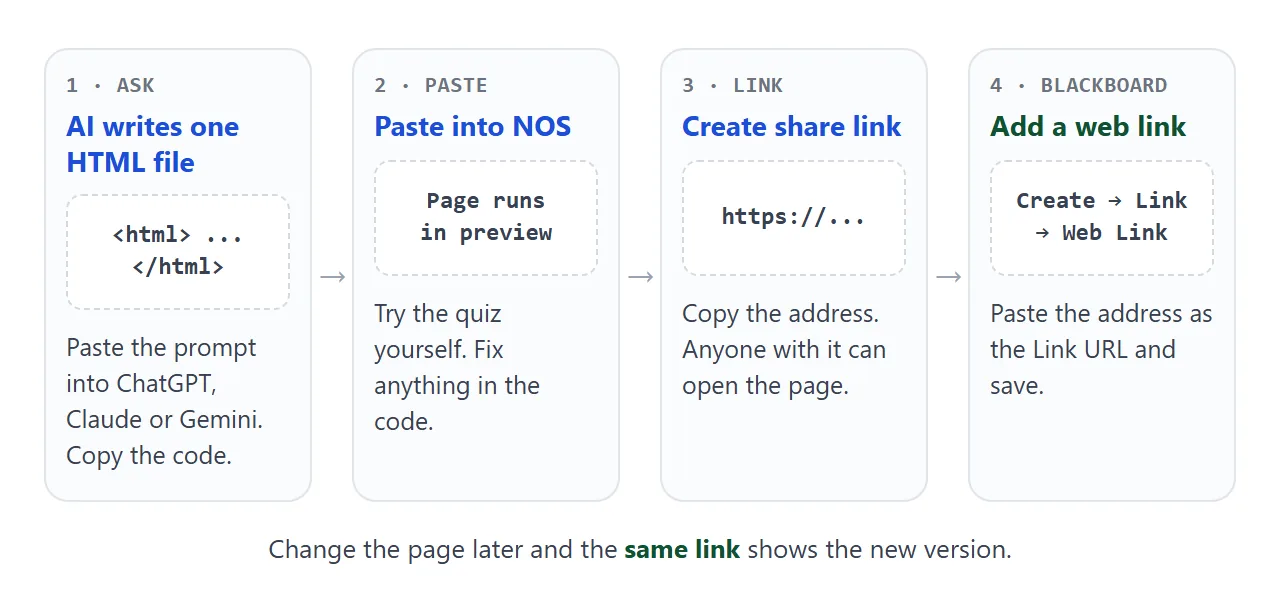
Add the link in Blackboard Ultra
These steps follow Blackboard Help for web links (as of October 2026). Menu names may shift when Blackboard updates.
- On the Course Content page, select the plus where you want the link, then Create.
- In the Create Item panel, choose Link, then the Create Web Link tab.
- Type a Display Name and paste your share link into Link URL.
- Tick Open in a new window. Blackboard Help calls this best practice for external websites.
- Choose whether the item is visible to students, then save.
Keep the item hidden until you have opened it yourself. A page you have not tested is the one students find the typo in.
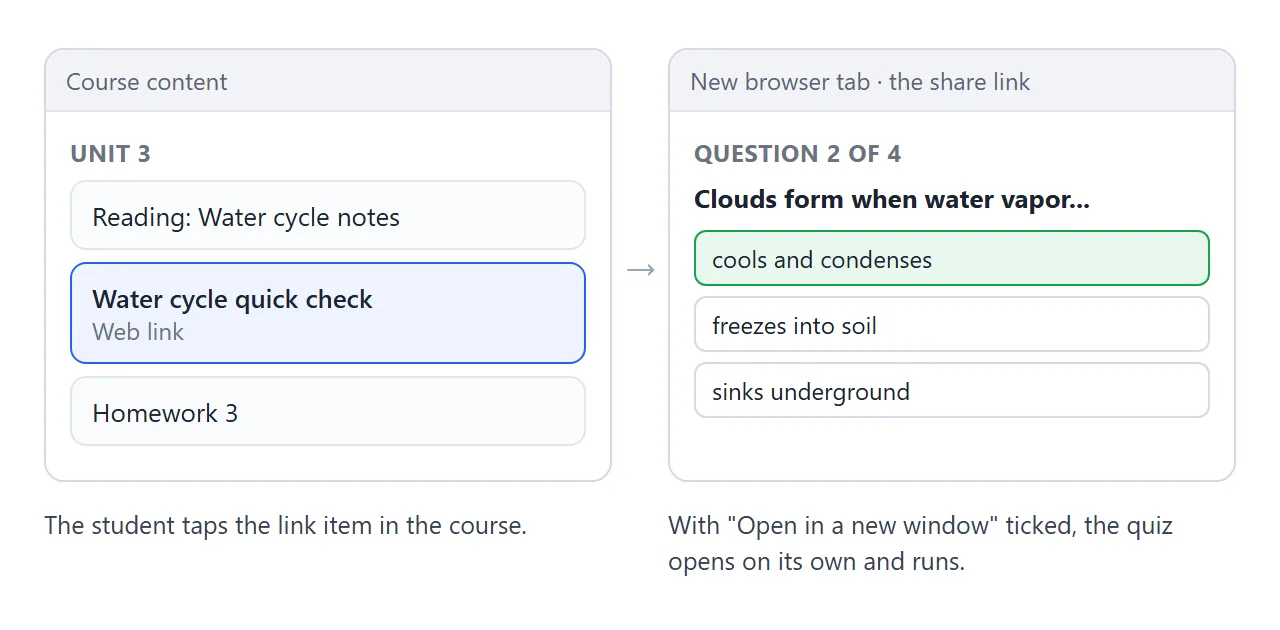
Blackboard Help says that when some content cannot display in the course panel, a banner warns the student that it may not be displayed unless opened in a new window. Ticking the box avoids that.
Ways to get a page into a course
| Route | What it needs | What students get |
|---|---|---|
| Add HTML block in a document | An alternate domain set up by your school | The page inside the document |
| Web link to a share link | Nothing beyond the standard Link item | The page, opened in its own window |
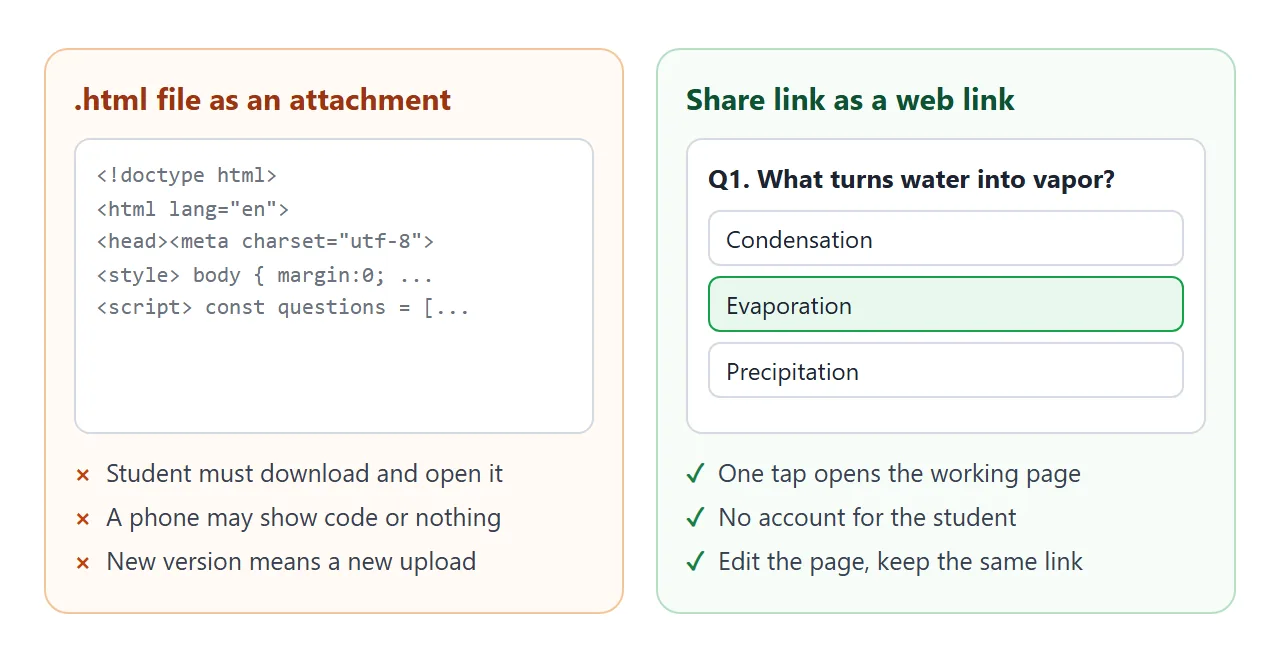
| .html file as an attachment | Students must download and open it | May open as plain code, or not at all, on a phone |
| Link in an email or a QR code on paper | Just the address | The same page, outside the course |
The attachment route is the fragile one. Opening an HTML file on a phone explains why, and HTML file to QR code covers the printed handout.
When it does not work
| What you see | Cause | Fix |
|---|---|---|
| No Add HTML block in your document | Your school has not enabled the alternate domain | Use a web link, or ask your administrator |
| A banner says content may not display | The link is opening in a panel in the course | Edit the item and tick Open in a new window |
| Pictures in the page are missing | The code points to outside images | Ask the AI for inline SVG or CSS shapes instead |
| Students cannot see the item | The item is set to hidden | Change its visibility and save |
| A fixed question still shows the old text | The browser still shows the earlier version | Reload the page. The link itself is unchanged |
| You get no scores back | A shared page does not send answers to you | Use a Blackboard test when you need grades |
If you want the quiz to be more than four questions, HTML quiz shows how a quiz page is built.