To format a number in JavaScript, create an Intl.NumberFormat with a locale and an options object, then call format. The options choose what kind of number it is; the locale chooses how it looks.
const usd = new Intl.NumberFormat('en-US', { style: 'currency', currency: 'USD' });
usd.format(1234.5);  // "$1,234.50"
Try it. Change the number, the locale and the options, and the code under the result follows.
<!doctype html>
<html lang="en">
<head>
<meta charset="utf-8">
<meta name="viewport" content="width=device-width, initial-scale=1">
<title>Intl.NumberFormat playground</title>
<style>
  body { margin: 0; padding: 16px; font-family: system-ui, sans-serif; background: #f4f5f7; color: #1d2330; }
  .grid { display: grid; grid-template-columns: repeat(auto-fit, minmax(150px, 1fr)); gap: 10px; }
  label { display: block; font-size: 12px; font-weight: 600; color: #4b5563; }
  input, select { width: 100%; box-sizing: border-box; margin-top: 4px; padding: 7px; font: inherit; font-size: 14px;
                  border: 1px solid #cfd4dc; border-radius: 8px; background: #fff; }
  .out { margin-top: 14px; background: #fff; border-radius: 12px; padding: 12px 14px; box-shadow: 0 2px 10px rgba(0,0,0,.06); }
  .big { font-size: 28px; font-weight: 650; margin: 4px 0 8px; overflow-wrap: anywhere; }
  .note { font-size: 13px; color: #6b7280; margin: 0; min-height: 1.3em; }
  pre { margin: 10px 0 0; background: #1d2330; color: #e5e7eb; padding: 10px 12px; border-radius: 8px;
        font-size: 12.5px; white-space: pre-wrap; overflow-wrap: anywhere; }
</style>
</head>
<body>
<div class="grid">
  <label>Number <input type="number" id="num" value="1234.5" step="any"></label>
  <label>Locale
    <select id="locale">
      <option value="">Your browser's default</option>
      <option selected>en-US</option><option>en-GB</option><option>de-DE</option>
      <option>fr-FR</option><option>ja-JP</option><option>en-IN</option>
    </select>
  </label>
  <label>Options
    <select id="preset">
      <option value="plain">Plain number</option>
      <option value="usd" selected>Currency: USD</option>
      <option value="eur">Currency: EUR</option>
      <option value="jpy">Currency: JPY</option>
      <option value="percent">Percent</option>
      <option value="unit">Unit: km/h</option>
      <option value="compact">Compact</option>
      <option value="fixed">Always 2 decimals</option>
    </select>
  </label>
</div>

<div class="out">
  <div class="big" id="result"></div>
  <p class="note" id="note"></p>
  <pre id="code"></pre>
</div>

<script>
  const $ = (id) => document.getElementById(id);

  // each preset is an options object for Intl.NumberFormat
  const presets = {
    plain: {},
    usd: { style: 'currency', currency: 'USD' },
    eur: { style: 'currency', currency: 'EUR' },
    jpy: { style: 'currency', currency: 'JPY' },
    percent: { style: 'percent', maximumFractionDigits: 1 },
    unit: { style: 'unit', unit: 'kilometer-per-hour' },
    compact: { notation: 'compact' },
    fixed: { minimumFractionDigits: 2, maximumFractionDigits: 2 },
  };

  const notes = {
    percent: 'Percent multiplies by 100: type 0.256 to get 25.6%.',
    jpy: 'The yen has no minor unit, so it rounds to a whole number.',
    compact: 'Try 1500000 or 12345.',
  };

  function render() {
    const value = Number($('num').value);
    const locale = $('locale').value || undefined;  // undefined = browser default
    const options = presets[$('preset').value];

    $('result').textContent = new Intl.NumberFormat(locale, options).format(value);
    $('note').textContent = notes[$('preset').value] || '';
    // show the call as code, e.g. { style: 'currency', currency: 'USD' }
    const pairs = Object.entries(options).map(([k, v]) => k + ': ' + (typeof v === 'string' ? "'" + v + "'" : v));
    $('code').textContent =
      'new Intl.NumberFormat(' + (locale ? "'" + locale + "'" : 'undefined') + ', ' +
      (pairs.length ? '{ ' + pairs.join(', ') + ' }' : '{}') + ').format(' + value + ');';
  }

  ['num', 'locale', 'preset'].forEach((id) => $(id).addEventListener('input', render));
  render();
</script>
</body>
</html>
The rest of this guide covers each style, decimal places, styling the pieces with formatToParts, and a complete price formatter.
Locale and currency are separate choices
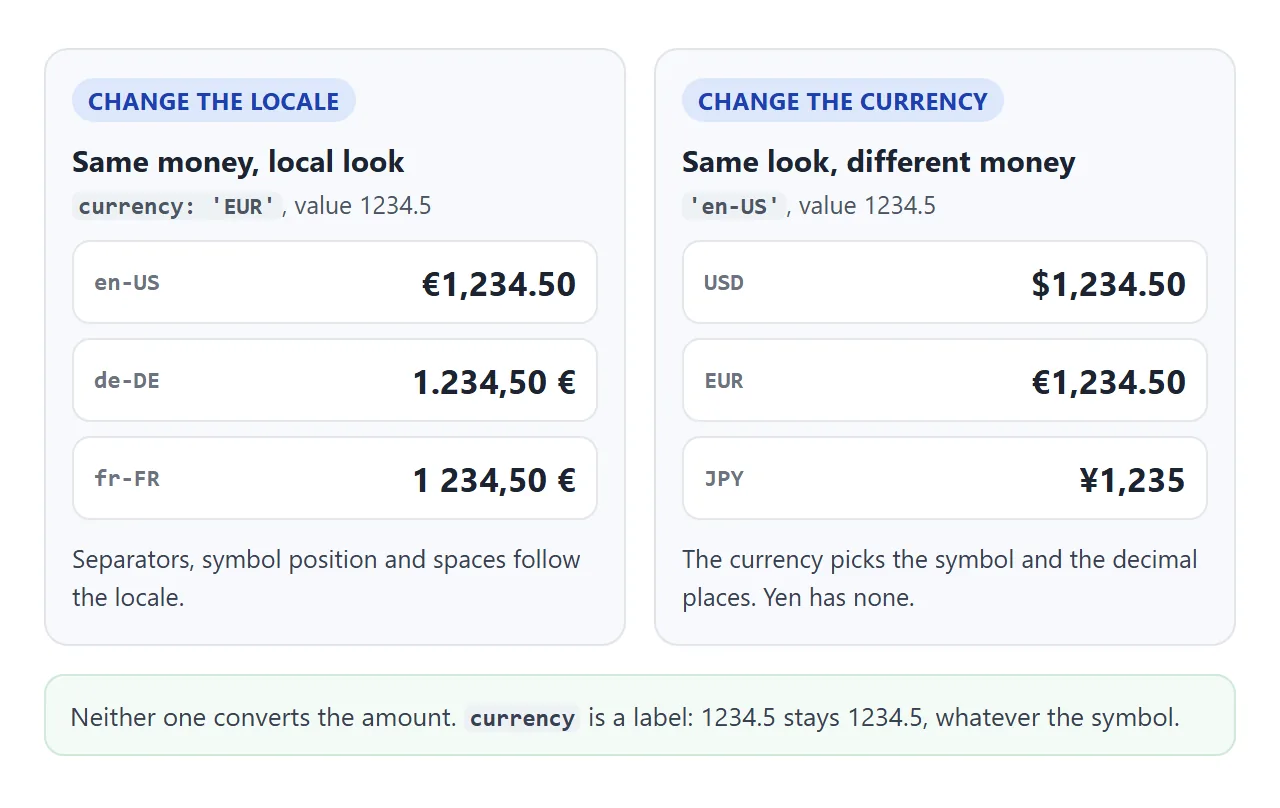
The first argument is a locale, a language tag such as 'en-US', 'de-DE' or 'en-IN'. It decides the decimal mark, the thousands separator, where the symbol goes, and the spaces around it. Pass undefined to use the reader's browser language.
| Locale | format(1234567.891) |
|---|---|
en-US |
1,234,567.891 |
de-DE |
1.234.567,891 |
fr-FR |
1 234 567,891 |
en-IN |
12,34,567.891 |
The French spaces and the space before € in German are no-break space characters, not ordinary spaces. They keep the number on one line, and they matter when a test compares strings.
Tags use a hyphen. 'en_US' with an underscore throws a RangeError.
Currency, percent and unit
The style option has four values: decimal (the default), currency, percent and unit.
const eur = new Intl.NumberFormat('en-US', { style: 'currency', currency: 'EUR' });
eur.format(1234.5);  // "€1,234.50"

const pct = new Intl.NumberFormat('en-US', { style: 'percent' });
pct.format(0.256);   // "26%"

const speed = new Intl.NumberFormat('en-US', { style: 'unit', unit: 'kilometer-per-hour' });
speed.format(88);    // "88 km/h"
Currency needs a three-letter ISO code. It sets the usual decimal places for that money: two for USD and EUR, none for JPY, so ¥1,234.5 prints as ¥1,235. Useful extras:
currencyDisplay: 'code'prints "EUR 1,234.50";'name'prints "1,234.50 euros".currencySign: 'accounting'wraps negatives in brackets: "($42.00)".currencyDisplay: 'narrowSymbol'prints a bare "$" where the locale would otherwise write "US$".
Percent multiplies by 100. Pass 0.256, not 25.6. It rounds to whole percents unless you raise maximumFractionDigits. signDisplay: 'exceptZero' adds a plus sign to gains, as in "+5%".
Unit takes a unit name such as kilogram, liter, celsius or megabyte.
The specification allows a fixed list of simple units, 45 of them in the browsers we tested, and any two can be joined with -per-. An unknown name, such as furlong, throws a RangeError. unitDisplay: 'long' spells it out: "16 liters".
Compact notation: 1.2K and 1.5M
notation: 'compact' shortens large numbers the way a follower count or a dashboard does.
const short = new Intl.NumberFormat('en-US', { notation: 'compact' });
short.format(1234);     // "1.2K"
short.format(12345);    // "12K"
short.format(1500000);  // "1.5M"

const long = new Intl.NumberFormat('en-US', { notation: 'compact', compactDisplay: 'long' });
long.format(1500000);   // "1.5 million"
By default it drops the decimals but keeps at least two digits, so 1234 is 1.2K, 12345 is 12K and 123456 is 123K. Set maximumFractionDigits to change that. The words come from the locale: ja-JP groups by ten thousand and prints "1500万" for 15,000,000.
Compact combines with currency, so style: 'currency' plus notation: 'compact' gives "$2.5M". Browsers ship their own locale data, and the text can differ between them: for 2,500,000,000 in en-GB, our Chrome printed "2.5B" and our Firefox "2.5bn".
Decimal places: minimumFractionDigits and maximumFractionDigits
Two options control the digits after the decimal mark. The minimum pads with zeros; the maximum rounds.
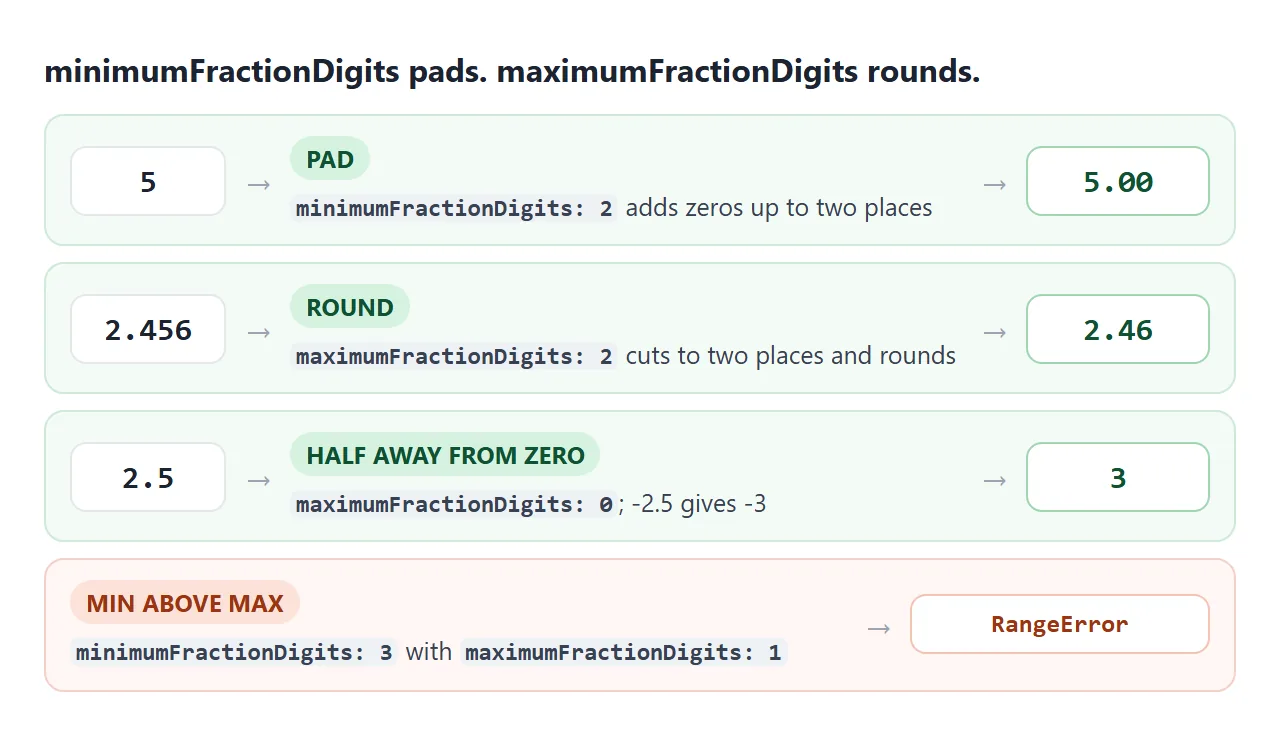
const two = new Intl.NumberFormat('en-US', {
  minimumFractionDigits: 2,
  maximumFractionDigits: 2,
});
two.format(5);      // "5.00"
two.format(2.456);  // "2.46"
The default rounding rounds a half away from zero, so 2.5 becomes 3 and -2.5 becomes -3. If the minimum is larger than the maximum, the constructor throws a RangeError. Set both together when you change one.
Compared with toFixed(2), the formatter also adds thousands separators and a currency symbol, and it follows the reader's locale. toFixed returns "1234.50" everywhere. For whole-number limits, maximumSignificantDigits: 3 turns 123456 into "123,000".
Style the pieces with formatToParts
format returns one string. formatToParts returns the same text as an array of pieces, each with a type such as currency, integer, group, decimal or fraction.
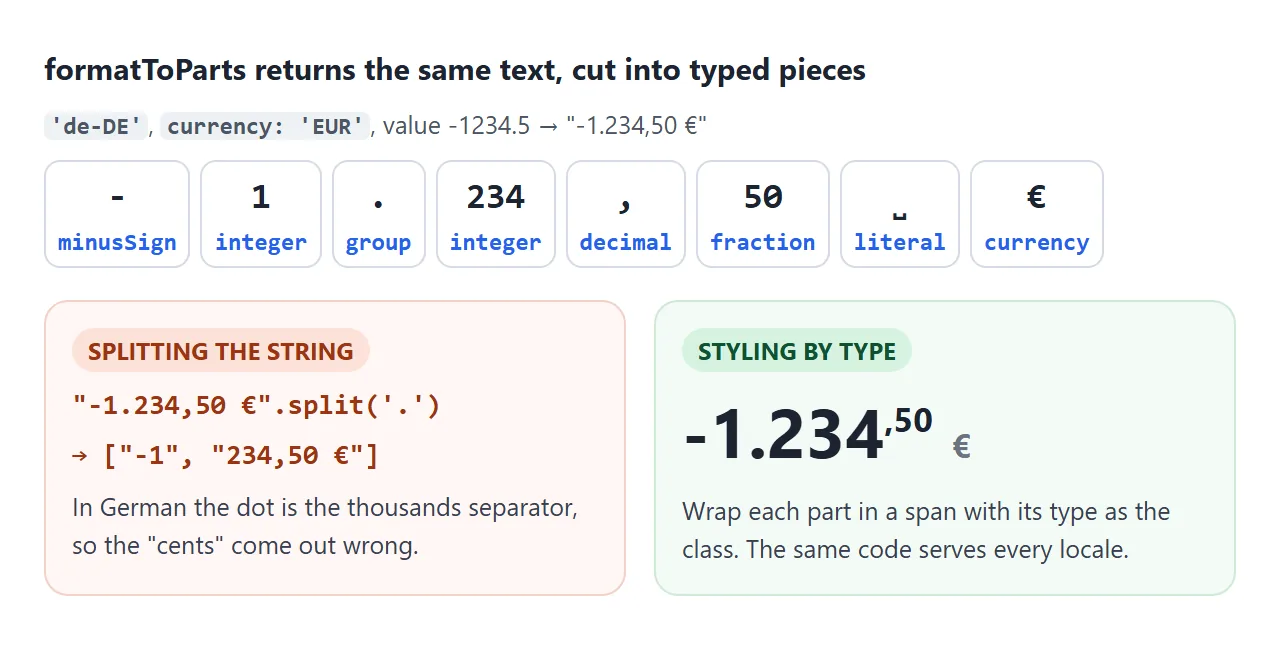
Wrap each piece in a span with its type as the class, and CSS can shrink the cents or grey out the symbol:
const eur = new Intl.NumberFormat('de-DE', { style: 'currency', currency: 'EUR' });
el.innerHTML = eur.formatToParts(-1234.5)
  .map((p) => `<span class="${p.type}">${p.value}</span>`)
  .join('');
Try it with other locales. The chips below the price show the array itself; the space characters appear as their Unicode codes.
<!doctype html>
<html lang="en">
<head>
<meta charset="utf-8">
<meta name="viewport" content="width=device-width, initial-scale=1">
<title>formatToParts</title>
<style>
  body { margin: 0; padding: 16px; font-family: system-ui, sans-serif; background: #f4f5f7; color: #1d2330; }
  .grid { display: grid; grid-template-columns: repeat(auto-fit, minmax(150px, 1fr)); gap: 10px; }
  label { display: block; font-size: 12px; font-weight: 600; color: #4b5563; }
  input, select { width: 100%; box-sizing: border-box; margin-top: 4px; padding: 7px; font: inherit; font-size: 14px;
                  border: 1px solid #cfd4dc; border-radius: 8px; background: #fff; }
  .card { margin-top: 14px; background: #fff; border-radius: 12px; padding: 14px; box-shadow: 0 2px 10px rgba(0,0,0,.06); }
  .price { font-size: 44px; font-weight: 700; line-height: 1.1; overflow-wrap: anywhere; }
  .price .currency { font-size: 22px; color: #6b7280; font-weight: 600; }
  .price .decimal, .price .fraction { font-size: 22px; vertical-align: 16px; }
  .chips { display: flex; flex-wrap: wrap; gap: 6px; margin-top: 14px; }
  .chip { font: 12px ui-monospace, Consolas, monospace; background: #eef1f5; border-radius: 6px; padding: 4px 7px; }
  .chip b { color: #2563eb; }
</style>
</head>
<body>
<div class="grid">
  <label>Amount <input type="number" id="num" value="-1234.5" step="any"></label>
  <label>Locale
    <select id="locale"><option>en-US</option><option selected>de-DE</option><option>fr-FR</option><option>ja-JP</option></select>
  </label>
  <label>Currency
    <select id="cur"><option>EUR</option><option>USD</option><option>JPY</option><option>GBP</option></select>
  </label>
</div>

<div class="card">
  <div class="price" id="price"></div>
  <div class="chips" id="chips"></div>
</div>

<script>
  const $ = (id) => document.getElementById(id);

  function render() {
    const nf = new Intl.NumberFormat($('locale').value, { style: 'currency', currency: $('cur').value });
    const parts = nf.formatToParts(Number($('num').value));

    // one <span> per part, with the part type as its class
    $('price').replaceChildren(...parts.map((p) => {
      const s = document.createElement('span');
      s.className = p.type;
      s.textContent = p.value;
      return s;
    }));

    // the raw array; space characters are shown by their code
    $('chips').replaceChildren(...parts.map((p) => {
      const c = document.createElement('span');
      c.className = 'chip';
      const shown = /\s/.test(p.value)
        ? 'U+' + p.value.charCodeAt(0).toString(16).toUpperCase().padStart(4, '0')
        : p.value;
      c.innerHTML = '<b>' + p.type + '</b> ' + shown;
      return c;
    }));
  }

  ['num', 'locale', 'cur'].forEach((id) => $(id).addEventListener('input', render));
  render();
</script>
</body>
</html>
Splitting the formatted string on "." breaks as soon as the locale changes. In German the dot separates thousands.
A finished example: a price formatter
This cart shows one set of products in five markets. Each market has its own locale and currency, and every number on the card goes through a formatter: prices, a percent discount, weights in kilograms and a compact "sold" count.
<!doctype html>
<html lang="en">
<head>
<meta charset="utf-8">
<meta name="viewport" content="width=device-width, initial-scale=1">
<title>Price formatter</title>
<style>
  body { margin: 0; padding: 16px; font-family: system-ui, sans-serif; background: #f4f5f7; color: #1d2330; }
  label { font-size: 12px; font-weight: 600; color: #4b5563; }
  select, input { font: inherit; font-size: 14px; padding: 6px; border: 1px solid #cfd4dc; border-radius: 8px; background: #fff; }
  .card { margin-top: 12px; background: #fff; border-radius: 12px; padding: 6px 14px 14px; box-shadow: 0 2px 10px rgba(0,0,0,.06); }
  .item { display: grid; grid-template-columns: 1fr 56px auto; gap: 4px 10px; align-items: center; padding: 10px 0; border-bottom: 1px solid #eef0f3; }
  .item small { display: block; color: #6b7280; font-size: 12px; }
  .item input { width: 56px; box-sizing: border-box; }
  .line { font-weight: 600; text-align: right; }
  .sum { display: flex; justify-content: space-between; font-size: 14px; margin-top: 8px; }
  .sum.off { color: #0f7b3e; }
  .total { display: flex; justify-content: space-between; align-items: baseline; margin-top: 10px; font-weight: 700; }
  .total .price { font-size: 32px; }
  .price .fraction, .price .decimal { font-size: .55em; vertical-align: .6em; }
</style>
</head>
<body>
<label>Shop in
  <select id="region">
    <option value="en-US|USD">United States (USD)</option>
    <option value="en-GB|GBP">United Kingdom (GBP)</option>
    <option value="de-DE|EUR">Germany (EUR)</option>
    <option value="ja-JP|JPY">Japan (JPY)</option>
    <option value="en-IN|INR">India (INR)</option>
  </select>
</label>

<div class="card">
  <div id="items"></div>
  <div class="sum"><span>Subtotal</span><span id="subtotal"></span></div>
  <div class="sum off"><span id="offLabel"></span><span id="off"></span></div>
  <div class="total"><span>Total</span><span class="price" id="total"></span></div>
</div>

<script>
  // prices in whole minor units (cents, pence, yen, paise), so sums stay exact
  const products = [
    { name: 'Desk lamp', kg: 1.2, sold: 12400, price: { USD: 4999, GBP: 3999, EUR: 4499, JPY: 6980, INR: 349900 } },
    { name: 'Notebook', kg: 0.35, sold: 1530000, price: { USD: 450, GBP: 375, EUR: 420, JPY: 580, INR: 29900 } },
    { name: 'Chair', kg: 7.8, sold: 860, price: { USD: 18900, GBP: 15900, EUR: 17900, JPY: 26800, INR: 1299900 } },
  ];
  const qty = [1, 3, 1];
  const discount = 0.15;
  const $ = (id) => document.getElementById(id);

  function render() {
    const [locale, currency] = $('region').value.split('|');

    // build each formatter once, then reuse it for every number
    const money = new Intl.NumberFormat(locale, { style: 'currency', currency });
    const digits = money.resolvedOptions().maximumFractionDigits;  // 2 for USD, 0 for JPY
    const toMajor = (minor) => minor / 10 ** digits;
    const pct = new Intl.NumberFormat(locale, { style: 'percent' });
    const kg = new Intl.NumberFormat(locale, { style: 'unit', unit: 'kilogram', maximumFractionDigits: 1 });
    const compact = new Intl.NumberFormat(locale, { notation: 'compact' });

    let subtotal = 0;
    $('items').innerHTML = products.map((p, i) => {
      const line = p.price[currency] * qty[i];
      subtotal += line;
      return '<div class="item"><div>' + p.name +
        '<small>' + money.format(toMajor(p.price[currency])) + ' · ' + kg.format(p.kg) +
        ' · ' + compact.format(p.sold) + ' sold</small></div>' +
        '<input type="number" min="0" value="' + qty[i] + '" data-i="' + i + '" aria-label="Quantity">' +
        '<div class="line">' + money.format(toMajor(line)) + '</div></div>';
    }).join('');

    const off = Math.round(subtotal * discount);
    $('subtotal').textContent = money.format(toMajor(subtotal));
    $('offLabel').textContent = 'Discount ' + pct.format(discount);
    $('off').textContent = money.format(-toMajor(off));

    // formatToParts lets the fraction render smaller
    $('total').innerHTML = money.formatToParts(toMajor(subtotal - off))
      .map((part) => '<span class="' + part.type + '">' + part.value + '</span>').join('');
  }

  $('region').addEventListener('input', render);
  $('items').addEventListener('change', (e) => {
    if (!e.target.dataset.i) return;
    qty[e.target.dataset.i] = Math.max(0, Math.floor(Number(e.target.value)) || 0);
    render();
  });
  render();
</script>
</body>
</html>
Three habits make it hold up:
- Store money as whole minor units. Prices are integers such as 4999 cents. Adding
0.1 + 0.2in JavaScript gives 0.30000000000000004; adding integers stays exact. - Ask the formatter for the decimal places. The formatter's
resolvedOptions()reportsmaximumFractionDigits: 2 for USD, 0 for JPY. Oneminor / 10 ** digitsthen converts every currency. - Build formatters once per render. The
formatproperty is already bound, sovalues.map(money.format)works without a wrapper.
Numbers typed into a page arrive as strings. format accepts a string such as "19.99", but "19,99" becomes "$NaN", so parse and check input first.
HTML input types covers the number field. For a whole price table, see the pricing page in HTML guide or send a quote or invoice as a link.
Dates follow the same pattern with Intl.DateTimeFormat: a locale, an options object and a reusable formatter. Date format in JavaScript covers it, along with time zones and the one-day-off bug.
When it does not work
| What you see | Cause | Fix |
|---|---|---|
TypeError: currency code is required |
style: 'currency' without currency |
Add a code such as currency: 'USD' |
RangeError: invalid language tag |
Underscore in the locale, as in en_US |
Use a hyphen: en-US |
RangeError about fraction digits |
Minimum set higher than maximum | Set both options together |
RangeError: invalid unit |
The unit is not on the supported list | Use a listed unit, or join two with -per- |
| 25 shows as 2,500% | Percent multiplies by 100 | Pass 0.25 |
| "$NaN" | The value was a string with a comma, or empty | Parse with Number() and check isNaN |
| Test fails though the text looks the same | The locale used a no-break space | Compare with formatToParts, or match \u00a0 and \u202f |
| Output differs on another computer | No locale given, so the browser language applies | Pass a locale when the output must be fixed |
| Yen shows no decimals | JPY has no minor unit | Expected; set fraction digits only if you need them |
Share it as a link
Number formats depend on who opens the page. A screenshot shows your locale only, while a live page with undefined as the locale shows each reader their own separators.
To send the working version, paste the page into a NOS document and choose Create share link. HTML to link walks through it.
The page renders as written and its scripts run, so the people you send it to can switch markets and change quantities themselves. If you change the prices or the code later, the same link shows the new version.