If you want a free Kahoot alternative for a class, there are three routes: a live game tool where students join with a code, a form-based quiz that records answers, and a quiz page an AI writes for you that students open from a link.
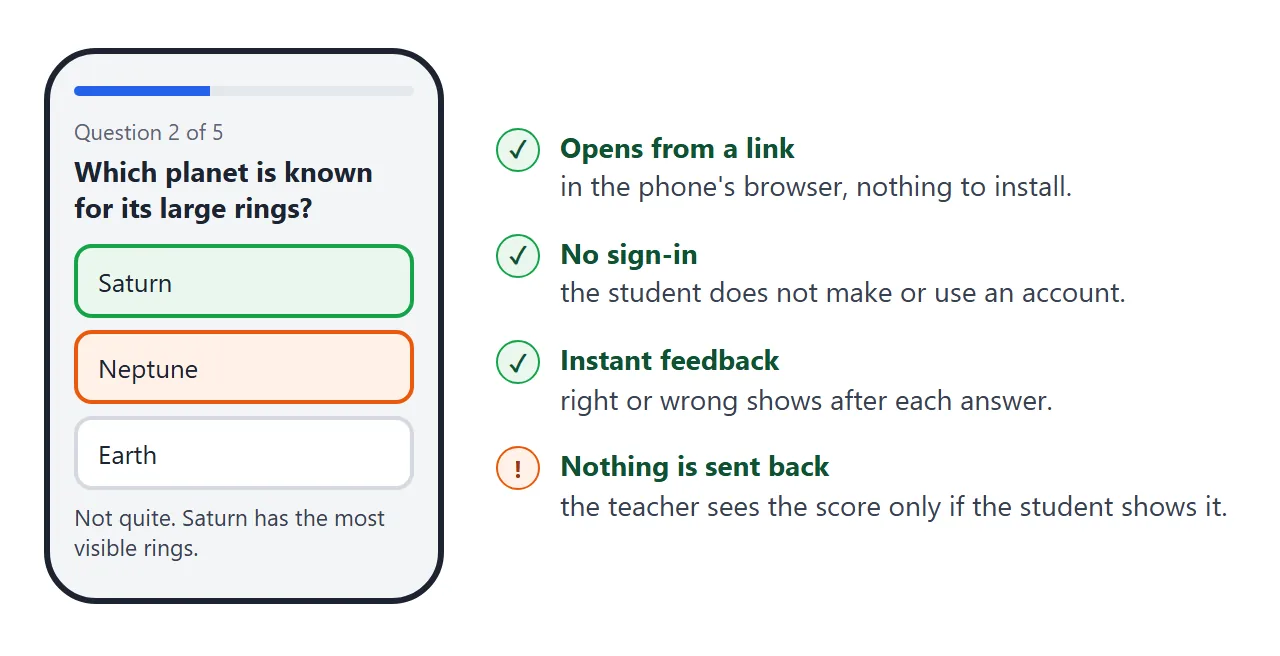
The link version needs no student accounts, and it saves no scores. That trade-off is the whole decision. Here is a working link-style quiz, so you can see what students would get. Pick an answer, then finish it.
<!doctype html>
<html lang="en">
<head>
<meta charset="utf-8">
<meta name="viewport" content="width=device-width, initial-scale=1">
<title>Solar system quick check</title>
<style>
  * { box-sizing: border-box; }
  body { margin: 0; padding: 14px; font-family: system-ui, sans-serif; background: #f4f5f7; color: #1d2330; }
  .card { max-width: 520px; margin: 0 auto; background: #fff; border-radius: 14px; padding: 20px; box-shadow: 0 4px 16px rgba(0,0,0,.08); }
  h1 { font-size: 20px; margin: 0 0 6px; }
  p { margin: 0 0 12px; line-height: 1.45; }
  label { display: block; font-weight: 600; margin-bottom: 6px; }
  input[type=text] { width: 100%; padding: 10px 12px; font-size: 16px; border: 1px solid #c9ced8; border-radius: 8px; margin-bottom: 14px; }
  button { font: inherit; cursor: pointer; }
  .go { background: #2563eb; color: #fff; border: 0; border-radius: 8px; padding: 11px 18px; font-weight: 600; }
  .go:disabled { background: #a9b6d6; cursor: default; }
  .bar { height: 6px; background: #e5e8ee; border-radius: 3px; margin-bottom: 14px; overflow: hidden; }
  .bar i { display: block; height: 100%; background: #2563eb; width: 0; transition: width .2s; }
  .count { font-size: 13px; color: #5b6475; margin-bottom: 6px; }
  .q { font-size: 18px; font-weight: 600; margin-bottom: 12px; }
  .opt { display: block; width: 100%; text-align: left; padding: 12px 14px; margin-bottom: 8px; background: #fff; border: 2px solid #d5d9e0; border-radius: 10px; font-size: 16px; }
  .opt:hover:not(:disabled) { border-color: #2563eb; }
  .opt.right { border-color: #16a34a; background: #eaf7ee; }
  .opt.wrong { border-color: #ea580c; background: #fff1e8; }
  .opt:disabled { cursor: default; color: inherit; }
  .fb { min-height: 44px; font-size: 14.5px; margin: 6px 0 10px; }
  .result { border: 2px dashed #9aa3b2; border-radius: 12px; padding: 14px 16px; margin: 12px 0; background: #fafbfc; }
  .result .big { font-size: 34px; font-weight: 700; color: #1d4ed8; }
  .result .who { font-weight: 600; }
  .note { font-size: 13.5px; color: #5b6475; }
  ul { margin: 6px 0 12px; padding-left: 20px; font-size: 14.5px; }
  [hidden] { display: none !important; }
</style>
</head>
<body>
<div class="card">

  <section id="start">
    <h1>Solar system quick check</h1>
    <p>Five questions. You see the answer after each one.</p>
    <label for="name">Your name</label>
    <input type="text" id="name" autocomplete="off" placeholder="Type your name">
    <button class="go" id="begin" disabled>Start</button>
  </section>

  <section id="play" hidden>
    <div class="bar"><i id="fill"></i></div>
    <div class="count" id="count"></div>
    <div class="q" id="question"></div>
    <div id="options"></div>
    <div class="fb" id="feedback" aria-live="polite"></div>
    <button class="go" id="next" hidden>Next</button>
  </section>

  <section id="end" hidden>
    <h1>All done</h1>
    <div class="result" id="resultCard">
      <div class="who" id="who"></div>
      <div class="big" id="score"></div>
      <div class="note" id="when"></div>
    </div>
    <div id="missed"></div>
    <p class="note">This score is not saved anywhere. Show this screen to your teacher before you close it.</p>
    <button class="go" id="again">Try again</button>
  </section>

</div>

<script>
  // Edit this list to change the quiz. answer = index of the correct option (0 is the first).
  const questions = [
    { q: 'Which planet is closest to the Sun?', options: ['Venus', 'Mercury', 'Mars'], answer: 1,
      why: 'Mercury orbits closest to the Sun.' },
    { q: 'Which planet is known for its large rings?', options: ['Saturn', 'Neptune', 'Earth'], answer: 0,
      why: 'Saturn has the most visible rings.' },
    { q: 'What is the Sun?', options: ['A planet', 'A moon', 'A star'], answer: 2,
      why: 'The Sun is a star at the center of our solar system.' },
    { q: 'Which planet do we live on?', options: ['Earth', 'Jupiter', 'Mercury'], answer: 0,
      why: 'We live on Earth, the third planet from the Sun.' },
    { q: 'Which is the largest planet?', options: ['Mars', 'Jupiter', 'Venus'], answer: 1,
      why: 'Jupiter is the largest planet in the solar system.' }
  ];

  const $ = (id) => document.getElementById(id);
  let index = 0, score = 0, missed = [];

  $('name').addEventListener('input', () => { $('begin').disabled = !$('name').value.trim(); });
  $('name').addEventListener('keydown', (e) => { if (e.key === 'Enter' && !$('begin').disabled) start(); });
  $('begin').addEventListener('click', start);
  $('again').addEventListener('click', () => { $('end').hidden = true; $('start').hidden = false; });
  $('next').addEventListener('click', () => { index++; show(); });

  function start() {
    index = 0; score = 0; missed = [];
    $('start').hidden = true; $('end').hidden = true; $('play').hidden = false;
    show();
  }

  function show() {
    if (index >= questions.length) return finish();
    const item = questions[index];
    $('count').textContent = 'Question ' + (index + 1) + ' of ' + questions.length;
    $('fill').style.width = (index / questions.length * 100) + '%';
    $('question').textContent = item.q;
    $('feedback').textContent = '';
    $('next').hidden = true;
    $('options').innerHTML = '';
    item.options.forEach((text, i) => {
      const b = document.createElement('button');
      b.className = 'opt';
      b.textContent = text;
      b.addEventListener('click', () => pick(i));
      $('options').appendChild(b);
    });
  }

  function pick(i) {
    const item = questions[index];
    const buttons = $('options').children;
    for (let k = 0; k < buttons.length; k++) buttons[k].disabled = true;
    buttons[item.answer].classList.add('right');
    if (i === item.answer) {
      score++;
      $('feedback').textContent = 'Correct. ' + item.why;
    } else {
      buttons[i].classList.add('wrong');
      missed.push(item.q);
      $('feedback').textContent = 'Not quite. ' + item.why;
    }
    $('next').textContent = index === questions.length - 1 ? 'See my result' : 'Next';
    $('next').hidden = false;
  }

  function finish() {
    $('play').hidden = true; $('end').hidden = false;
    $('who').textContent = $('name').value.trim();
    $('score').textContent = score + ' of ' + questions.length;
    $('when').textContent = new Date().toLocaleString();
    $('missed').innerHTML = '';
    if (missed.length) {
      const p = document.createElement('p');
      p.textContent = 'Worth another look:';
      const ul = document.createElement('ul');
      missed.forEach((m) => { const li = document.createElement('li'); li.textContent = m; ul.appendChild(li); });
      $('missed').appendChild(p); $('missed').appendChild(ul);
    }
  }
</script>
</body>
</html>
The result box is built to be shown. It carries the name, the score and the time, and it says plainly that nothing is saved. A student can screenshot it or hold the phone up to you.
Make it with AI
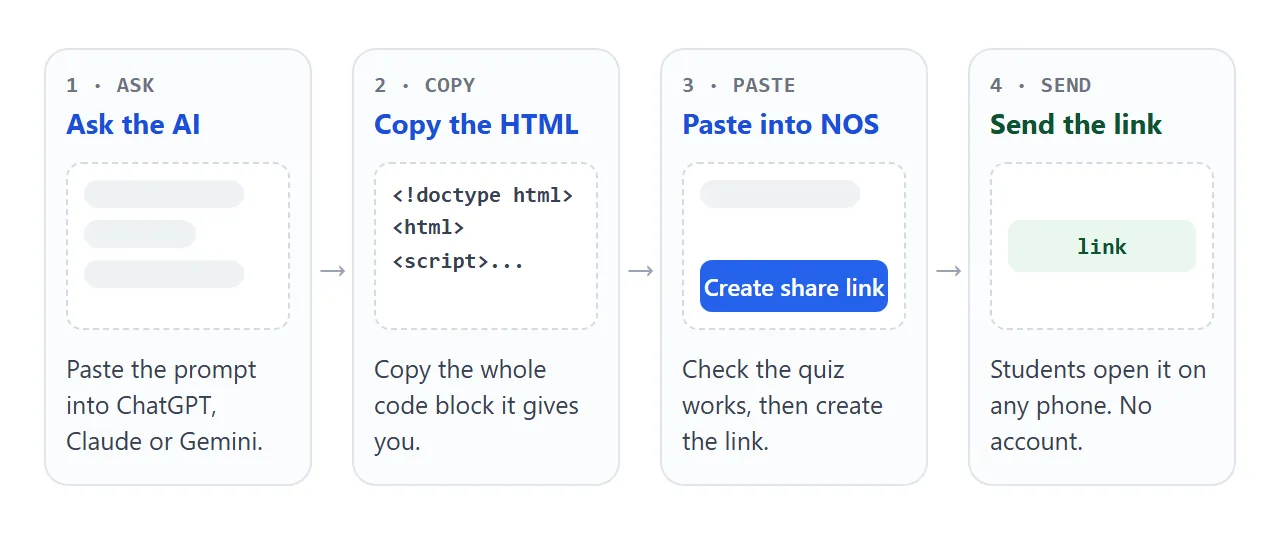
Paste the prompt below into ChatGPT, Claude or Gemini. Replace the topic and grade, and ask for the HTML as one code block.
Make a single-file HTML quiz for my class.
Topic: [your topic]. Grade: [your grade].
- 8 multiple-choice questions, 3 or 4 options each.
- Ask for the student's name first.
- Show one question at a time. After each answer,
  say right or wrong and give a one-line reason.
- At the end show name, score and date in a box
  a student can screenshot. Say the score is not saved.
- Big buttons that work on a phone.
- No external libraries, images, fonts or fetch calls.
- No localStorage, no leaderboard, no login.
- Keep the questions in one array at the top
  of the script so I can edit them.
Then check the result before anyone else sees it:
- Take the quiz yourself, once with every answer right and once with some wrong.
- Check every answer key. AI tools can mark the wrong option as correct, so read each question.
- Look for features that cannot exist, such as a saved leaderboard or a line saying scores were sent to you. Without a server, nothing is sent.
- Try it at phone width. Buttons should be easy to tap.
Send it as a link
Copy the HTML, paste it into a NOS document, and choose Create share link. HTML to link walks through it. The page renders as written, scripts included, so the quiz runs when someone opens the link.
Students open it in a browser, phone included, with no account. They cannot edit your page. If you fix a question later, the same link shows the new version.
For Google Classroom, create an assignment and add the link with the Link option, which Google lists among attachment types (as of October 2026). Students sign in to Classroom as usual, and the quiz page asks for nothing more.
For a code on paper, see QR code link.
Free quiz options compared
The three routes behave differently. Plans and features change, so treat this as a snapshot for October 2026 and check each tool's current help pages.
| Option | How students get in | What you see afterwards | Good for |
|---|---|---|---|
| Live game tool such as Kahoot | A game PIN from the host at kahoot.it, and an account is usually not needed to join | Depends on the tool and your plan | A whole class playing together |
| Google Forms quiz | A link to the form | Answer keys and points, with grades released right after submission or later | Quizzes that need records |
| AI quiz page by link | A link | Nothing, the score stays on the student's screen | Practice, review, exit tickets |
Sharing a quiz this way is close to sharing a file without a login. The difference is that this file is a working page, not a document to read.
What a link quiz cannot do
It cannot keep scores, because there is no server behind the page. When the tab closes, the result is gone. It cannot run a shared live scoreboard for the same reason.
It also cannot hide the answers. The browser needs the key to mark the quiz, so a student who opens the page source can read it. HTML quiz explains why, and HTML quiz code with score shows score bands.
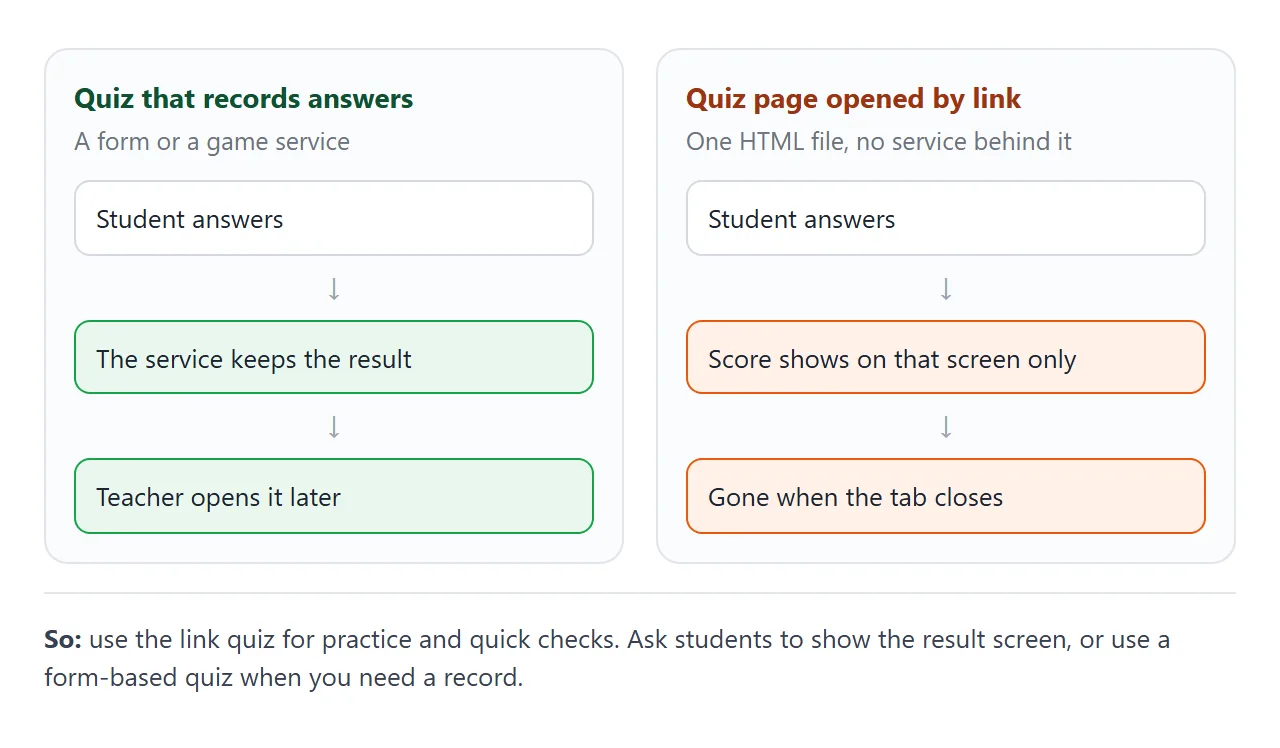
So use it for practice before a test, a warm-up, or a quick check where the student is the one who learns from the score. Use a form-based quiz when a grade has to be recorded.
Run it as a team game on one screen
You can get some of the live-game feel without any student devices. Project this page, let teams talk, reveal the answer, and add points for the teams that got it.
<!doctype html>
<html lang="en">
<head>
<meta charset="utf-8">
<meta name="viewport" content="width=device-width, initial-scale=1">
<title>Team round scoreboard</title>
<style>
  * { box-sizing: border-box; }
  body { margin: 0; padding: 14px; font-family: system-ui, sans-serif; background: #f4f5f7; color: #1d2330; }
  .wrap { max-width: 640px; margin: 0 auto; }
  .board { display: grid; grid-template-columns: repeat(3, 1fr); gap: 8px; margin-bottom: 12px; }
  .team { background: #fff; border-radius: 12px; padding: 10px 8px; text-align: center; box-shadow: 0 2px 8px rgba(0,0,0,.07); border-top: 5px solid var(--c); }
  .team b { display: block; font-size: 14px; }
  .team .pts { font-size: 30px; font-weight: 700; line-height: 1.2; }
  .team .btns { display: flex; gap: 6px; justify-content: center; }
  .team button { width: 44px; height: 36px; border: 1px solid #d5d9e0; background: #fafbfc; border-radius: 8px; font-size: 18px; cursor: pointer; }
  .team button:hover { background: #eef1f5; }
  .stage { background: #fff; border-radius: 14px; padding: 18px; box-shadow: 0 4px 16px rgba(0,0,0,.08); }
  .meta { font-size: 13px; color: #5b6475; margin-bottom: 6px; }
  .q { font-size: 22px; font-weight: 700; margin-bottom: 14px; }
  .opts { display: grid; grid-template-columns: 1fr 1fr; gap: 8px; }
  .o { padding: 14px 12px; border-radius: 10px; border: 2px solid #d5d9e0; font-size: 17px; font-weight: 600; }
  .o.right { border-color: #16a34a; background: #eaf7ee; }
  .actions { margin-top: 14px; display: flex; gap: 8px; flex-wrap: wrap; }
  .actions button { font: inherit; font-weight: 600; padding: 10px 16px; border-radius: 8px; border: 0; background: #2563eb; color: #fff; cursor: pointer; }
  .actions button.alt { background: #e5e8ee; color: #1d2330; }
  .tip { font-size: 13.5px; color: #5b6475; margin-top: 10px; }
  @media (max-width: 480px) { .opts { grid-template-columns: 1fr; } .q { font-size: 19px; } }
</style>
</head>
<body>
<div class="wrap">
  <div class="board" id="board"></div>

  <div class="stage">
    <div class="meta" id="meta"></div>
    <div class="q" id="q"></div>
    <div class="opts" id="opts"></div>
    <div class="actions">
      <button id="reveal">Show answer</button>
      <button id="next" class="alt">Next question</button>
    </div>
    <div class="tip">Teams talk it over, you reveal the answer, then press + for the teams that got it. Points live in this page only.</div>
  </div>
</div>

<script>
  // Edit the questions and team names. answer = index of the correct option.
  const teams = [
    { name: 'Red', color: '#dc2626', pts: 0 },
    { name: 'Blue', color: '#2563eb', pts: 0 },
    { name: 'Green', color: '#16a34a', pts: 0 }
  ];
  const questions = [
    { q: 'What is 7 x 8?', options: ['54', '56', '64', '48'], answer: 1 },
    { q: 'Which word is a noun?', options: ['quickly', 'happy', 'river', 'run'], answer: 2 },
    { q: 'Water freezes at what temperature in Celsius?', options: ['0', '10', '32', '100'], answer: 0 },
    { q: 'Which of these is a mammal?', options: ['Shark', 'Dolphin', 'Trout', 'Octopus'], answer: 1 }
  ];

  const $ = (id) => document.getElementById(id);
  let i = 0;

  function drawBoard() {
    $('board').innerHTML = '';
    teams.forEach((t) => {
      const d = document.createElement('div');
      d.className = 'team';
      d.style.setProperty('--c', t.color);
      d.innerHTML = '<b>' + t.name + '</b><div class="pts">' + t.pts + '</div><div class="btns"></div>';
      [['-', -1], ['+', 1]].forEach(([label, step]) => {
        const b = document.createElement('button');
        b.textContent = label;
        b.setAttribute('aria-label', label + ' point for ' + t.name);
        b.addEventListener('click', () => { t.pts += step; drawBoard(); });
        d.querySelector('.btns').appendChild(b);
      });
      $('board').appendChild(d);
    });
  }

  function drawQuestion() {
    const item = questions[i];
    $('meta').textContent = 'Question ' + (i + 1) + ' of ' + questions.length;
    $('q').textContent = item.q;
    $('opts').innerHTML = '';
    item.options.forEach((text) => {
      const d = document.createElement('div');
      d.className = 'o';
      d.textContent = text;
      $('opts').appendChild(d);
    });
  }

  $('reveal').addEventListener('click', () => {
    $('opts').children[questions[i].answer].classList.add('right');
  });
  $('next').addEventListener('click', () => {
    i = (i + 1) % questions.length;
    drawQuestion();
  });

  drawBoard();
  drawQuestion();
</script>
</body>
</html>
Points exist only while the page stays open, so write the final score on the board. It runs on a laptop or a phone, and the buttons stay big enough to tap.
When it does not work
| What you see | Cause | Fix |
|---|---|---|
| Students say the link will not open on their phone | The file was sent as an attachment, not a link | Send the link, see opening HTML on a phone |
| The score is gone after the tab closes | Nothing is saved by design | Ask students to show the result box first |
| An answer is marked wrong but is right | The AI wrote the wrong key | Fix the array in the code, the link updates |
| The AI added a leaderboard or a save button | It was not told no server exists | Re-run the prompt with the no-leaderboard line, or delete that part |
| An image or font is missing | The code loads it from outside | Ask for inline SVG or system fonts |
| A student reads the answers in the source | The key is in the page | Keep this for practice, not graded tests |