Pagination in JavaScript is one subtraction and one slice. Work out where the page starts with (page - 1) * size, cut that many items out of the array with slice(start, start + size), and draw them. No library and no server are needed.
Try the smallest version first. It pages through 47 items, ten at a time.
<!doctype html>
<html lang="en">
<head>
<meta charset="utf-8">
<meta name="viewport" content="width=device-width, initial-scale=1">
<title>Pagination: the smallest version</title>
<style>
  body { margin: 0; padding: 16px; font-family: system-ui, sans-serif; background: #f4f5f7; color: #1d2330; }
  ul { list-style: none; margin: 0 0 12px; padding: 0; background: #fff; border-radius: 10px;
       box-shadow: 0 4px 14px rgba(0, 0, 0, .08); overflow: hidden; }
  li { padding: 7px 14px; border-bottom: 1px solid #eef0f3; font-size: 14px; }
  li:last-child { border-bottom: 0; }
  .bar { display: flex; align-items: center; gap: 12px; }
  button { font: inherit; font-size: 14px; padding: 8px 14px; border: 1px solid #c9ced8; border-radius: 8px;
           background: #fff; cursor: pointer; }
  button:disabled { opacity: .45; cursor: not-allowed; }
  #status { flex: 1; text-align: center; font-size: 14px; }
</style>
</head>
<body>
<ul id="list"></ul>
<div class="bar">
  <button type="button" id="prev">Previous</button>
  <span id="status" aria-live="polite"></span>
  <button type="button" id="next">Next</button>
</div>

<script>
  const items = Array.from({ length: 47 }, (_, i) => 'Item ' + (i + 1));
  const size = 10;                                   // items per page
  const pages = Math.ceil(items.length / size);      // 47 items -> 5 pages
  let page = 1;                                      // pages count from 1

  const list = document.getElementById('list');
  const prev = document.getElementById('prev');
  const next = document.getElementById('next');
  const label = document.getElementById('status');

  function render() {
    const start = (page - 1) * size;                 // page 1 starts at index 0
    const rows = items.slice(start, start + size).map((text) => {
      const li = document.createElement('li');
      li.textContent = text;                         // text, not HTML
      return li;
    });
    list.replaceChildren(...rows);
    label.textContent ='Page ' + page + ' of ' + pages;
    prev.disabled = page === 1;
    next.disabled = page === pages;
  }

  prev.addEventListener('click', () => { page--; render(); });
  next.addEventListener('click', () => { page++; render(); });
  render();
</script>
</body>
</html>
How the code works, step by step
The example follows five steps, in this order.
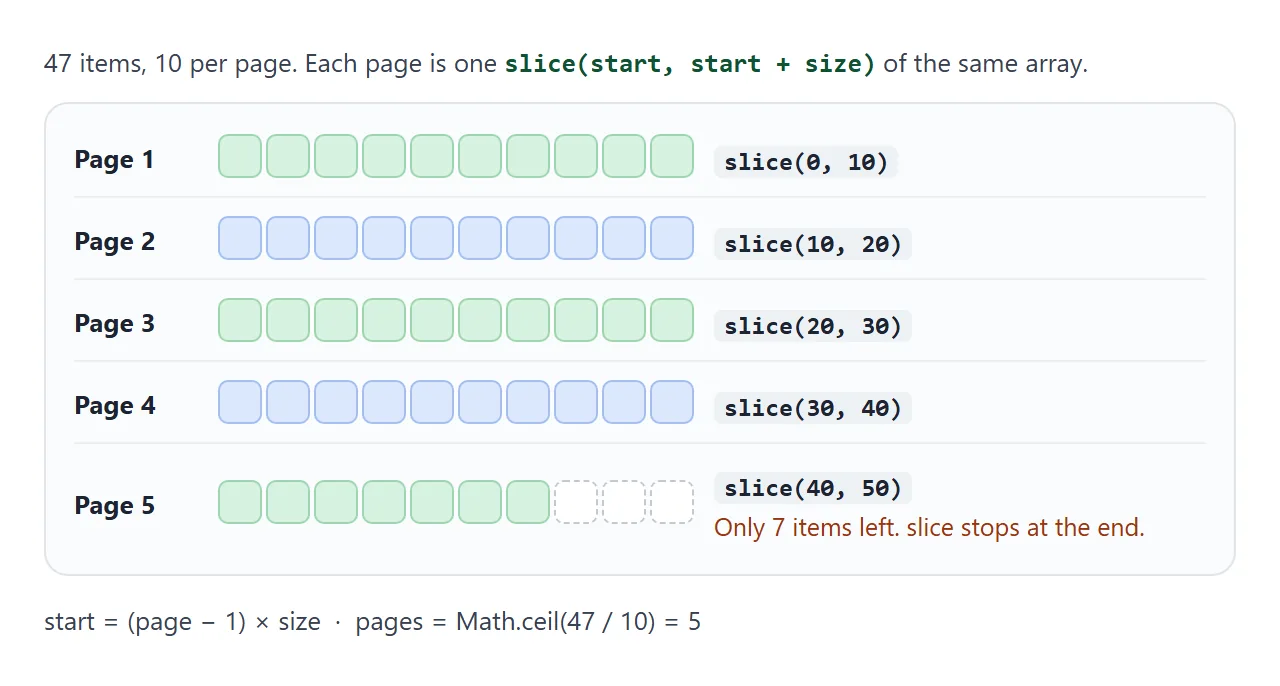
- Keep the data in an array. All 47 items sit in
items. The page only ever draws the slice it needs. - Choose a page size and count the pages.
Math.ceilrounds up, so 47 items at 10 per page make 5 pages, and the last one is short. - Keep the current page in one variable.
pagestarts at 1, so the first page is page 1. - Cut out the page and redraw.
slicereturns a new array and leavesitemsalone.replaceChildrenswaps the old rows for the new ones in one call. - Update the controls. Write "Page 2 of 5", disable Previous on page 1, and disable Next on the last page.
slice does not complain when its end is past the end of the array. It stops at the last item, so page 5 shows 7 rows without any extra code.
A disabled button cannot be pressed or focused, so the first page cannot go back and the last page cannot go forward.
Put text into a row with textContent, not innerHTML. innerHTML parses its input as HTML, so a title that contains tags would turn into markup. textContent keeps it as plain text.
The two numbers that go wrong
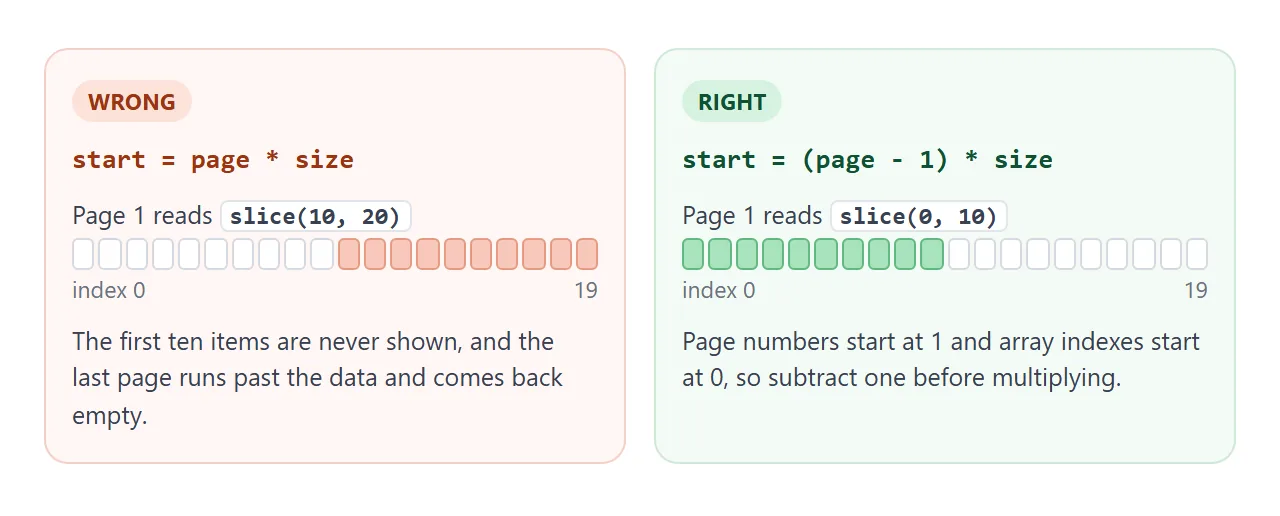
In this code page numbers start at 1, and array indexes start at 0. That gap is behind the first bug. A tempting first attempt uses page * size as the start, and then page 1 begins at index 10.
The second number is the page count. Math.ceil(0 / 10) is 0, so an empty list would read "Page 1 of 0". Force at least one page:
const pages = Math.max(1, Math.ceil(total / size));
Use Math.ceil, not Math.floor. Floor turns 4.7 into 4 and the last 7 items can never be reached.
One more trap sits in a page-size menu. The value of a <select> is always a string, and + joins text when either side is a string, so 10 + '10' is '1010'.
Then slice(10, '1010') returns the rest of the array instead of ten items. Convert first:
const size = Number(select.value);
Add page numbers with a short window
Previous and Next are enough for a short list. With 20 pages, add numbers so readers can jump. Show the first page, the last page, the current page and its neighbours, and fill each gap with an ellipsis.
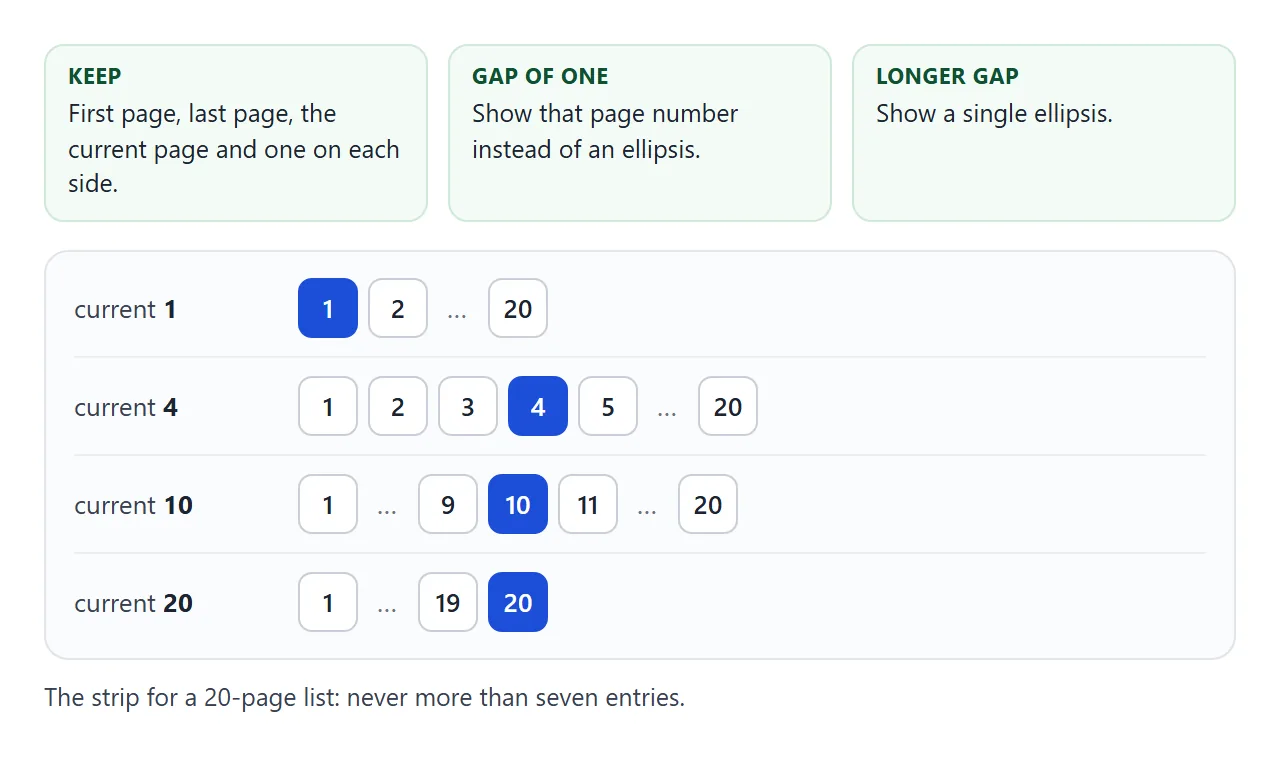
The function builds that list. It returns numbers and the ellipsis character, in order:
function pageList(page, pages) {
  const keep = new Set([1, pages, page - 1, page, page + 1]);
  const out = [];
  let last = 0;
  for (let n = 1; n <= pages; n++) {
    if (!keep.has(n)) continue;
    if (n - last === 2) out.push(last + 1);       // gap of one: show it
    else if (n - last > 2) out.push('\u2026');    // longer gap: ellipsis
    out.push(n);
    last = n;
  }
  return out;
}
<!doctype html>
<html lang="en">
<head>
<meta charset="utf-8">
<meta name="viewport" content="width=device-width, initial-scale=1">
<title>Pagination with page numbers</title>
<style>
  body { margin: 0; padding: 16px; font-family: system-ui, sans-serif; background: #f4f5f7; color: #1d2330; }
  #grid { display: grid; grid-template-columns: repeat(3, 1fr); gap: 10px; margin-bottom: 14px; }
  .tile { background: #fff; border-radius: 10px; padding: 16px 0; text-align: center; font-size: 18px; font-weight: 600;
          box-shadow: 0 4px 14px rgba(0, 0, 0, .08); }
  nav { display: flex; flex-wrap: wrap; gap: 6px; align-items: center; }
  button { font: inherit; font-size: 14px; min-width: 38px; padding: 8px 10px; border: 1px solid #c9ced8;
           border-radius: 8px; background: #fff; cursor: pointer; }
  button:disabled { opacity: .45; cursor: not-allowed; }
  button[aria-current="page"] { background: #1d4ed8; border-color: #1d4ed8; color: #fff; font-weight: 700; }
  .gap { min-width: 20px; text-align: center; color: #6b7280; }
  #status { margin: 12px 0 0; font-size: 14px; color: #374151; }
</style>
</head>
<body>
<div id="grid"></div>
<nav id="nav" aria-label="Pagination"></nav>
<p id="status" aria-live="polite"></p>

<script>
  const total = 120, size = 6;
  const pages = Math.ceil(total / size);             // 20 pages
  let page = 1;

  const grid = document.getElementById('grid');
  const nav = document.getElementById('nav');
  const label = document.getElementById('status');

  // Always keep first, last, current and one either side; fill gaps with "..."
  function pageList(page, pages) {
    const keep = new Set([1, pages, page - 1, page, page + 1]);
    const out = [];
    let last = 0;
    for (let n = 1; n <= pages; n++) {
      if (!keep.has(n)) continue;
      if (n - last === 2) out.push(last + 1);        // a gap of one number: show it
      else if (n - last > 2) out.push('…');     // a longer gap: show an ellipsis
      out.push(n);
      last = n;
    }
    return out;
  }

  function pageButton(label, target, disabled) {
    const b = document.createElement('button');
    b.type = 'button';
    b.textContent = label;
    b.dataset.page = target;
    b.disabled = disabled;
    if (target === page && label === String(page)) b.setAttribute('aria-current', 'page');
    return b;
  }

  function render() {
    const start = (page - 1) * size;
    const tiles = [];
    for (let i = start; i < Math.min(start + size, total); i++) {
      const d = document.createElement('div');
      d.className = 'tile';
      d.textContent = i + 1;
      tiles.push(d);
    }
    grid.replaceChildren(...tiles);

    const parts = [pageButton('Prev', page - 1, page === 1)];
    for (const n of pageList(page, pages)) {
      if (n === '…') {
        const s = document.createElement('span');
        s.className = 'gap';
        s.textContent = n;
        parts.push(s);
      } else parts.push(pageButton(String(n), n, false));
    }
    parts.push(pageButton('Next', page + 1, page === pages));
    nav.replaceChildren(...parts);
    label.textContent ='Page ' + page + ' of ' + pages;
  }

  // One listener on the nav handles every button, even ones created later
  nav.addEventListener('click', (e) => {
    const b = e.target.closest('button[data-page]');
    if (!b) return;
    page = Number(b.dataset.page);
    render();
    nav.querySelector('[aria-current="page"]').focus();  // the old button was replaced, so refocus
  });
  render();
</script>
</body>
</html>
The buttons sit in a <nav aria-label="Pagination">. The current page gets aria-current="page", which MDN describes as marking the current page within a set of pages. The same attribute is the CSS hook for the blue button.
The nav tag guide explains why each nav on a page needs its own label, and aria-label covers the attribute.
One listener on the nav serves every button, including ones created later. closest() finds the nearest button, counting the clicked element itself, and returns null for a click on the ellipsis. addEventListener covers the method.
Every render replaces the buttons, so the one you just pressed no longer exists and keyboard focus is lost. The demo puts focus back on the current page button after each click.
Paginate a table, with search and page size
A table is the same idea with a tbody as the target. This finished version adds what a real one needs: a search box, a rows-per-page menu, and a "Showing 11 to 20 of 95" line.
<!doctype html>
<html lang="en">
<head>
<meta charset="utf-8">
<meta name="viewport" content="width=device-width, initial-scale=1">
<title>Paginated table with search and page size</title>
<style>
  body { margin: 0; padding: 16px; font-family: system-ui, sans-serif; background: #f4f5f7; color: #1d2330; }
  .tools { display: flex; gap: 10px; margin-bottom: 12px; }
  input, select, button { font: inherit; font-size: 14px; padding: 8px 10px; border: 1px solid #c9ced8;
                          border-radius: 8px; background: #fff; }
  input { flex: 1; min-width: 0; }
  table { width: 100%; border-collapse: collapse; background: #fff; border-radius: 10px; overflow: hidden;
          box-shadow: 0 4px 14px rgba(0, 0, 0, .08); font-size: 14px; }
  th, td { padding: 7px 10px; text-align: left; border-bottom: 1px solid #eef0f3; }
  th { background: #eef1f5; font-size: 13px; }
  td.num, th.num { text-align: right; }
  td.empty { text-align: center; color: #6b7280; padding: 24px 10px; }
  .foot { display: flex; flex-wrap: wrap; gap: 10px; align-items: center; justify-content: space-between; margin-top: 12px; }
  #info { font-size: 14px; color: #374151; }
  nav { display: flex; flex-wrap: wrap; gap: 6px; align-items: center; }
  nav button { min-width: 36px; cursor: pointer; }
  nav button:disabled { opacity: .45; cursor: not-allowed; }
  nav button[aria-current="page"] { background: #1d4ed8; border-color: #1d4ed8; color: #fff; font-weight: 700; }
  .gap { min-width: 18px; text-align: center; color: #6b7280; }
</style>
</head>
<body>
<div class="tools">
  <input id="q" type="search" placeholder="Search name or team" aria-label="Search">
  <select id="size" aria-label="Rows per page">
    <option value="5">5 rows</option>
    <option value="10" selected>10 rows</option>
  </select>
</div>

<table>
  <thead><tr><th class="num">#</th><th>Name</th><th>Team</th><th class="num">Score</th></tr></thead>
  <tbody id="body"></tbody>
</table>

<div class="foot">
  <span id="info" aria-live="polite"></span>
  <nav id="nav" aria-label="Pagination"></nav>
</div>

<script>
  const first = ['Ava', 'Ben', 'Cleo', 'Dan', 'Eli', 'Fay', 'Gus', 'Hana', 'Ivy', 'Jon'];
  const last = ['Ng', 'Ortiz', 'Park', 'Quinn', 'Rossi', 'Silva', 'Tran'];
  const teams = ['Red', 'Blue', 'Green', 'Gold', 'Teal'];
  const rows = Array.from({ length: 95 }, (_, i) => ({
    id: i + 1,
    name: first[i % 10] + ' ' + last[(i * 3) % 7],
    team: teams[i % 5],
    score: (i * 37) % 100,
  }));

  let query = '', size = 10, page = 1;

  const tbody = document.getElementById('body');
  const info = document.getElementById('info');
  const nav = document.getElementById('nav');

  function render() {
    const q = query.trim().toLowerCase();
    const found = q ? rows.filter((r) => (r.name + ' ' + r.team).toLowerCase().includes(q)) : rows;
    const pages = Math.max(1, Math.ceil(found.length / size));  // never 0 pages
    page = Math.min(Math.max(page, 1), pages);                  // keep page in range
    const start = (page - 1) * size;
    const slice = found.slice(start, start + size);

    tbody.replaceChildren(...(slice.length ? slice.map(rowEl) : [emptyEl()]));
    info.textContent = found.length
      ? 'Showing ' + (start + 1) + ' to ' + (start + slice.length) + ' of ' + found.length
      : 'No rows match';
    renderNav(pages);
  }

  function rowEl(r) {
    const tr = document.createElement('tr');
    [r.id, r.name, r.team, r.score].forEach((v, i) => {
      const td = document.createElement('td');
      td.textContent = v;
      if (i === 0 || i === 3) td.className = 'num';
      tr.append(td);
    });
    return tr;
  }

  function emptyEl() {
    const tr = document.createElement('tr');
    const td = document.createElement('td');
    td.colSpan = 4;
    td.className = 'empty';
    td.textContent = 'Nothing matches "' + query.trim() + '"';
    tr.append(td);
    return tr;
  }

  function pageList(page, pages) {
    const keep = new Set([1, pages, page - 1, page, page + 1]);
    const out = [];
    let prevN = 0;
    for (let n = 1; n <= pages; n++) {
      if (!keep.has(n)) continue;
      if (n - prevN === 2) out.push(prevN + 1);
      else if (n - prevN > 2) out.push('…');
      out.push(n);
      prevN = n;
    }
    return out;
  }

  function btn(label, target, disabled, current) {
    const b = document.createElement('button');
    b.type = 'button';
    b.textContent = label;
    b.dataset.page = target;
    b.disabled = disabled;
    if (current) b.setAttribute('aria-current', 'page');
    return b;
  }

  function renderNav(pages) {
    const parts = [btn('Prev', page - 1, page === 1, false)];
    for (const n of pageList(page, pages)) {
      if (n === '…') {
        const s = document.createElement('span');
        s.className = 'gap';
        s.textContent = n;
        parts.push(s);
      } else parts.push(btn(String(n), n, false, n === page));
    }
    parts.push(btn('Next', page + 1, page === pages, false));
    nav.replaceChildren(...parts);
  }

  nav.addEventListener('click', (e) => {
    const b = e.target.closest('button[data-page]');
    if (!b) return;
    page = Number(b.dataset.page);
    render();
    nav.querySelector('[aria-current="page"]').focus();
  });

  document.getElementById('q').addEventListener('input', (e) => {
    query = e.target.value;
    page = 1;                                        // a new search starts on page 1
    render();
  });

  document.getElementById('size').addEventListener('change', (e) => {
    const firstShown = (page - 1) * size;            // index of the first row on screen
    size = Number(e.target.value);                   // select gives a string, so convert
    page = Math.floor(firstShown / size) + 1;        // the page that still contains that row
    render();
  });

  render();
</script>
</body>
</html>
Three details make it behave:
- A new search goes back to page 1. Filtering changes the page count, so page 6 may no longer exist. The code sets
page = 1and also clamps the page insiderender(). - A new page size keeps your place.
Math.floor(firstShown / size) + 1finds the page that still contains the first row on screen. - No results is a state, not an error. Show one message row and keep one page, so the controls never read "Page 1 of 0".
Slice last. Filter the full array first, as this demo does, then cut out the page. If you add sorting, sort before you slice too. Table with sort and filter builds those two parts. For a table wider than a phone, see responsive tables.
Where the data comes from: arrays, APIs and libraries
The demos keep every row in an array. If your data lives on a server, the page code barely changes. Ask for one page, get back that page's rows plus the total count, and pass both to the same drawing code.
The total matters, because without it the page cannot know how many numbers to show.
async function loadPage(page, size) {
  const res = await fetch('/api/items?page=' + page + '&limit=' + size);
  const data = await res.json();                  // { rows, total }
  draw(data.rows, Math.max(1, Math.ceil(data.total / size)));
}
The URL and the field names are placeholders for your own server. In NOS, fetch to other sites is blocked, so a shared page keeps its data inside the HTML file.
Scripts from cdnjs.cloudflare.com, cdn.jsdelivr.net and unpkg.com load in a NOS page, so a pagination library from one of them works too. Pin its version in the URL. For slicing a list and drawing a number strip, none of the demos here load anything.
When it does not work
| Symptom | Cause | Fix |
|---|---|---|
| The first ten items never appear | The start is page * size |
Use (page - 1) * size |
| The last few items are unreachable | The page count used Math.floor |
Use Math.ceil |
| An empty list says "Page 1 of 0" | Math.ceil(0) is 0 |
Wrap it in Math.max(1, ...) |
| Page 2 shows everything after page 1 | The page size is a string from a <select> |
Convert it with Number() |
| Clicking a page number submits a form | A button defaults to type="submit" inside a form |
Add type="button" |
| Tab loses its place after a click | The buttons were rebuilt | Focus the current page button after drawing |
| After a search the table looks empty | The old page number is past the new last page | Reset to page 1 and clamp the page |
| Data containing tags looks broken | The rows were written with innerHTML |
Use textContent |
Share it as a link
A paginated page is easier to show than to describe. If the people you send it to will open it on a phone, opening an HTML file on a phone is worth a read first.
To send the working version, paste the page into a NOS document and choose Create share link. HTML to link walks through it.
The page renders as written and its scripts run, so the people you send it to can click through the pages themselves. If you change the code later, the same link shows the new version.