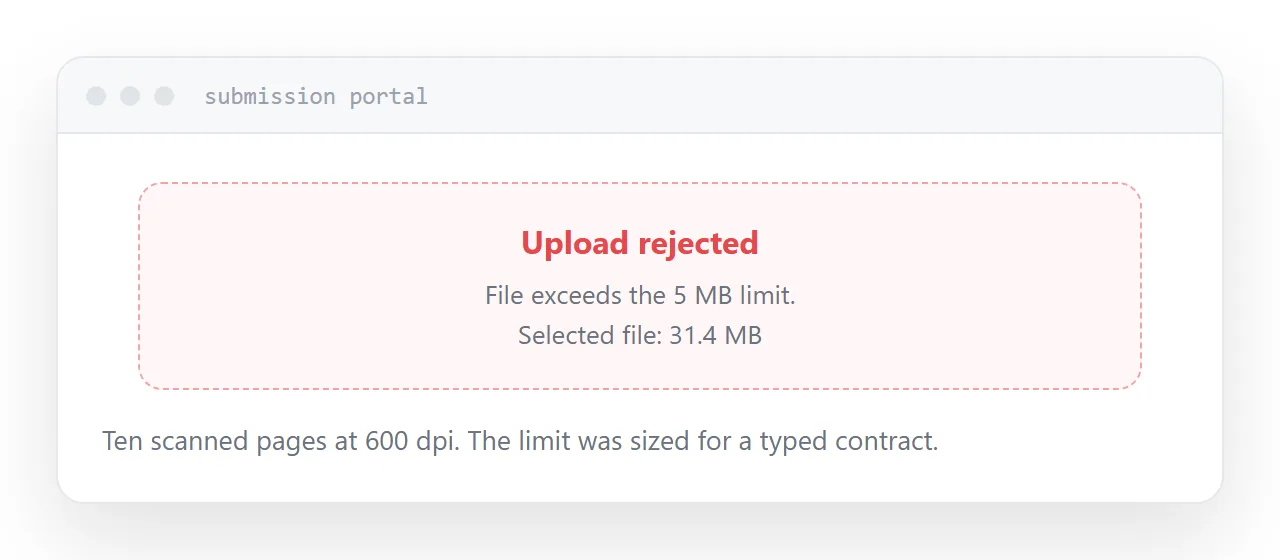
Upload limits are sized for typed documents. Scans are photographs, and that mismatch is the entire problem.
Why the scan is large
Every page is an image. At 600 dots per inch, an A4 page is roughly eight million pixels, and ten of those is a substantial amount of data.
A five-hundred-page typed document can be under two megabytes because it stores characters and positions. A ten-page scan can be thirty because it stores photographs.
So the first question is always whether the document is a scan. If it is, the fix is straightforward.
| Document | Typical size |
|---|---|
| 20-page typed report | 0.3 MB |
| 10-page scan at 600 dpi | 25-40 MB |
| 10-page scan at 200 dpi | 3-5 MB |
| Presentation exported | 10-60 MB |
| Design-led brochure | 20-80 MB |
The one step that works
Re-export with the images compressed.
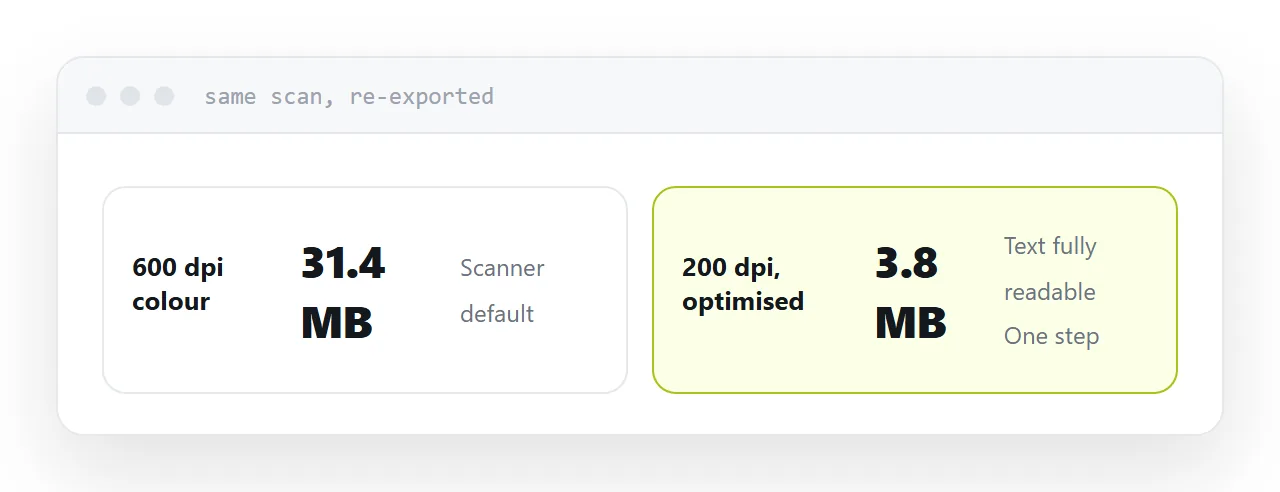
Every document tool has this: reduce file size, optimise, or compress images at export. It resamples the page images to a lower resolution and recompresses them.
Typically eighty percent or more comes off, with no difference visible on a screen. Somebody printing it at A4 might notice; nobody reading it will.
If the document came from a scanner and you still have the original, rescanning at 150 to 200 dots per inch is better still. Text stays completely readable and the size collapses.
Archiving does not help
The format already compresses its contents. Archiving compressed data finds almost nothing left to remove, so a thirty megabyte document becomes a twenty-nine megabyte archive.
Portals also generally reject archives, because they want a document rather than a container.
This is the most commonly attempted fix and it is the one that does not work.
If it is still too large
Split it. Many portals accept several uploads. Split by section with clear names rather than arbitrarily by page count.
Ask about a link. A surprising number of processes accept an address and nobody asks, because the form has an upload button so people assume that is the only route.
Ask about their limit. Some limits are configurable and are set at a default nobody chose.
Prevent it at the source
If you scan regularly, set the scanner to 200 dots per inch and black and white for text documents.
600 dots per inch in colour is a default nobody selected, and it is the source of nearly every oversized document in an organisation. Changing it once fixes every document produced afterwards.
For the surrounding ground, see How to zip a PDF file and How to send large files over email.
Put it at an address
Check whether it is a scan, re-export with images compressed, rescan lower if you can, do not bother archiving, and ask whether a link is accepted.
Then the upload succeeds rather than becoming an afternoon.