Printing is the one output nobody designs for, and it is the one where the failure is physical and in front of somebody.
Twenty lines of print styles fix nearly all of it.
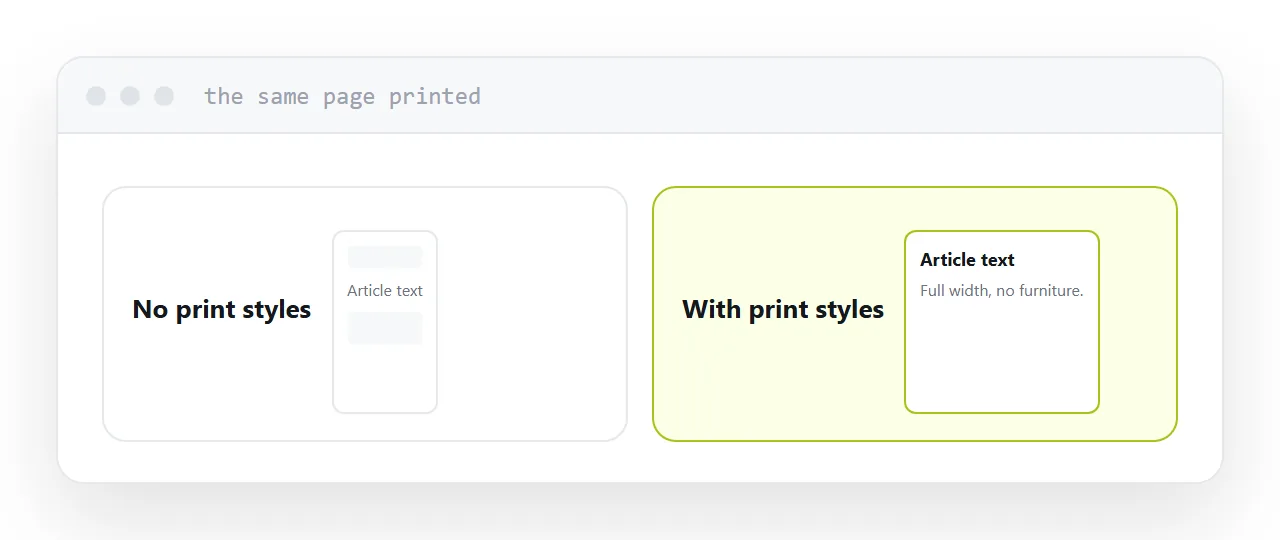
This guide covers the rules that matter and how to test them.
The block that does most of the work
@media print {
  nav, footer, aside, .share, .banner, .cookie { display: none; }

  a[href^="http"]::after { content: " (" attr(href) ")"; font-size: 0.85em; }

  table, figure, img, pre { break-inside: avoid; }
  h1, h2, h3 { break-after: avoid; }

  body { font-size: 11pt; color: #000; background: #fff; }
}
Five rules, each solving something specific.
Hide the furniture. Navigation, footers, share buttons and banners mean nothing on paper and take a third of the page.
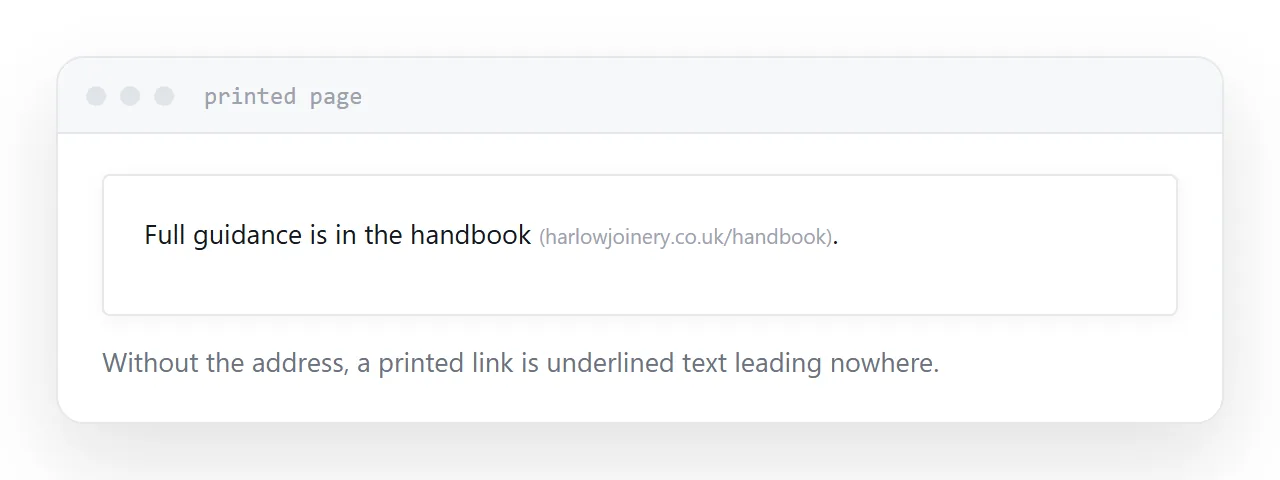
Show the addresses. A printed link is underlined text with no destination. Printing the address after it makes the link useful again. Restrict it to external addresses, or every internal link produces noise.
Keep blocks whole. A table split across a page break loses its header row and becomes unreadable. Same for figures and code blocks.
Keep headings attached. A heading alone at the bottom of a page is the classic printing failure and one rule prevents it.
Set a print size. Screen sizes are too large on paper. Eleven point is a reasonable body size for print.
Page margins and breaks
@page { margin: 2cm; }
.new-page { break-before: page; }
The page rule sets the printed margin, which is separate from anything in your layout.
The break class is useful for documents with real sections: an invoice where terms should start on a fresh page, a report where each chapter begins on its own.
| Problem on paper | Rule |
|---|---|
| Navigation printed | display: none |
| Link destination lost | content: attr(href) |
| Table split in half | break-inside: avoid |
| Heading orphaned | break-after: avoid |
| Section runs on | break-before: page |
Backgrounds
Browsers do not print background colours and images unless the reader enables background graphics.
Most of the time that is what you want. When colour carries meaning, a status column, a highlighted row, a diagram drawn in background layers, it silently removes information.
Two options. Use borders and text labels rather than colour alone, which is better for screen accessibility as well. Or note on the page that background graphics should be enabled when printing.
Test by saving, not by printing
Save the page as a document from the print dialogue. It uses exactly the same rendering path as a printer and costs no paper.
Check four things: the furniture is gone, the tables are whole, no heading sits alone at a page end, and the links show their destinations.
Two minutes, and it is the difference between a page that prints and a page that somebody will complain about.
If this is near what you are doing, How to save a webpage as a PDF and HTML to PDF without losing formatting cover the cases on either side.
Put it at an address
Hide the furniture, print addresses after external links, keep tables and figures whole, keep headings with their text, and test by saving as a document.
Then the page that lives on a screen also works on paper.