To put a QR code on a wedding invitation, build one small web page with the schedule and directions, turn its link into a QR code, and print the code on the card.
The card stays classic and fixed. The page behind it can still change, so a moved shuttle or a closed road does not mean new cards.
This is the page a guest lands on after scanning. Try the schedule buttons, which hide the parts of the day a guest is not invited to.
<!doctype html>
<html lang="en">
<head>
<meta charset="utf-8">
<meta name="viewport" content="width=device-width, initial-scale=1">
<title>Hana and Theo - 12 June 2027</title>
<style>
* { box-sizing: border-box; }
body {
margin: 0; font-family: Georgia, 'Times New Roman', serif; color: #2b2a28;
background: #f6f1e9; line-height: 1.5;
}
.wrap { max-width: 480px; margin: 0 auto; padding: 0 16px 28px; }
header { text-align: center; padding: 28px 0 18px; }
.rings { width: 54px; height: 34px; }
h1 { font-size: 30px; font-weight: 400; margin: 8px 0 2px; letter-spacing: .5px; }
.when { font: 600 13px/1.4 system-ui, sans-serif; letter-spacing: 1.4px; text-transform: uppercase; color: #8a6d3b; }
.notice {
background: #fff4d6; border: 1px solid #ecd48c; border-radius: 10px;
padding: 10px 12px; font: 14px/1.4 system-ui, sans-serif; margin-bottom: 14px;
}
.notice b { color: #7a5a00; }
section { background: #fff; border-radius: 14px; padding: 16px 16px 14px; margin-bottom: 12px; box-shadow: 0 2px 8px rgba(60, 45, 20, .07); }
h2 { font: 700 13px/1 system-ui, sans-serif; letter-spacing: 1.2px; text-transform: uppercase; color: #8a6d3b; margin: 0 0 10px; }
.chips { display: flex; flex-wrap: wrap; gap: 6px; margin-bottom: 10px; }
.chips button {
font: 600 13px/1 system-ui, sans-serif; border: 1px solid #d9cfbd; background: #fff; color: #5a4a2c;
border-radius: 999px; padding: 9px 12px; cursor: pointer;
}
.chips button[aria-pressed="true"] { background: #2f4a3a; border-color: #2f4a3a; color: #fff; }
ol { list-style: none; margin: 0; padding: 0; }
li.item { display: grid; grid-template-columns: 62px 1fr; gap: 8px; padding: 9px 0; border-top: 1px solid #efe8da; font-family: system-ui, sans-serif; font-size: 15px; }
li.item:first-child { border-top: 0; }
li.item time { font-weight: 700; color: #2f4a3a; }
li.item small { display: block; color: #6b6558; font-size: 13px; }
li.item[hidden] { display: none; }
p { margin: 0 0 8px; font-family: system-ui, sans-serif; font-size: 15px; }
.addr { font-weight: 700; }
.btn {
display: inline-block; background: #2f4a3a; color: #fff; text-decoration: none; border-radius: 10px;
padding: 12px 16px; font: 700 15px/1 system-ui, sans-serif; margin: 4px 0 10px;
}
.small { color: #6b6558; font-size: 13px; }
footer { text-align: center; font: 12px/1.5 system-ui, sans-serif; color: #7a7466; }
</style>
</head>
<body>
<div class="wrap">
<header>
<svg class="rings" viewBox="0 0 54 34" fill="none" stroke="#b08d4a" stroke-width="2.5" aria-hidden="true"><circle cx="19" cy="18" r="12"/><circle cx="35" cy="18" r="12"/></svg>
<h1>Hana & Theo</h1>
<div class="when">Saturday 12 June 2027</div>
</header>
<div class="notice"><b>Updated 20 April:</b> the shuttle from Fairhaven station now leaves at 14:00, not 14:15.</div>
<section>
<h2>Schedule</h2>
<div class="chips" id="chips">
<button type="button" data-who="all" aria-pressed="true">Everything</button>
<button type="button" data-who="day" aria-pressed="false">Ceremony and dinner</button>
<button type="button" data-who="eve" aria-pressed="false">Evening only</button>
</div>
<ol id="plan">
<li class="item" data-for="day"><time>14:00</time><span>Shuttle leaves the station<small>Fairhaven station, east exit</small></span></li>
<li class="item" data-for="day"><time>14:30</time><span>Guests arrive<small>Seats in the barn, water on the lawn</small></span></li>
<li class="item" data-for="day"><time>15:00</time><span>Ceremony<small>About 30 minutes</small></span></li>
<li class="item" data-for="day"><time>16:00</time><span>Drinks in the orchard</span></li>
<li class="item" data-for="day"><time>18:00</time><span>Dinner<small>Vegetarian and vegan options</small></span></li>
<li class="item" data-for="eve"><time>20:00</time><span>Evening guests arrive, dancing</span></li>
<li class="item" data-for="eve"><time>23:00</time><span>Last shuttle to the station</span></li>
</ol>
</section>
<section>
<h2>Getting there</h2>
<p class="addr">Willow Barn<br>18 Orchard Lane, Fairhaven</p>
<a class="btn" href="https://www.google.com/maps/dir/?api=1&destination=18+Orchard+Lane+Fairhaven" target="_blank" rel="noopener">Directions in Google Maps</a>
<p><b>By car:</b> park in the field behind the barn. The gate stays open until 23:30.</p>
<p><b>By train:</b> take the shuttle from Fairhaven station, or a taxi (about 10 minutes).</p>
</section>
<section>
<h2>Reply</h2>
<p>Please reply by 15 May. Message Hana at <b>hana.rsvp@example.com</b> with your name and any food needs.</p>
</section>
<footer>Page last edited 20 April 2027. Scan the code on your card again any time for the latest.</footer>
</div>
<script>
// Filter the schedule by the part of the day a guest is invited to
const chips = document.querySelectorAll('#chips button');
const items = document.querySelectorAll('#plan .item');
chips.forEach((chip) => {
chip.addEventListener('click', () => {
const who = chip.dataset.who;
chips.forEach((c) => c.setAttribute('aria-pressed', String(c === chip)));
items.forEach((li) => {
li.hidden = who !== 'all' && li.dataset.for !== who;
});
});
});
</script>
</body>
</html>
What goes on the page, and what stays on the card
The card carries only what will not move: names, date and the code. Everything else that guests ask about goes on the page, where you can fix it later. Wedding invitation HTML covers the page itself in more depth.
- Schedule with times: one line per moment, in order.
- Venue name and address as plain text: guests can copy it into any map app.
- A directions button: a link that opens a map with the address filled in.
- Parking and transport: where to leave the car, when the shuttle runs.
- Reply details: an email address or phone number written out, with a reply-by date.
- A notice line at the top: a short "Updated 20 April" message for changes.
The directions button can be built from the address alone. Google documents this format for its Maps URLs, and says no API key is needed:
https://www.google.com/maps/dir/?api=1&destination=18+Orchard+Lane+Fairhaven
Spaces in the address are written as plus signs or %20. The api=1 part is required. A longer guide to map links is in HTML link to map location.
Make it with AI
Any of ChatGPT, Claude or Gemini can write the page. Fill in the brackets and paste the prompt.
Write one self-contained HTML file: a wedding information page for guests, designed for a phone.
Couple: [names]. Date: [day, date, year]. Venue: [name and address].
Sections in this order: a notice line I can edit, schedule with times, getting there (address as plain text, a directions button, parking, transport), reply details.
Rules: one file, inline CSS, no external scripts, images or fonts, viewport meta tag, one column, body text at least 16px.
Directions button link: https://www.google.com/maps/dir/?api=1&destination=ADDRESS with spaces written as plus signs.
No form that sends data. Reply instructions as plain text: [email or phone], reply by [date].
Return only the HTML.
Check four things in the result:
- The times and the date match your invitation, character by character.
- The address in the directions link is the same address printed on the page.
- Nothing loads from outside, such as pictures or fonts from another site.
- At phone width the page is one column and nothing runs off the edge.
Send it as a link, then make the code
The page needs an address before it can go into a code.
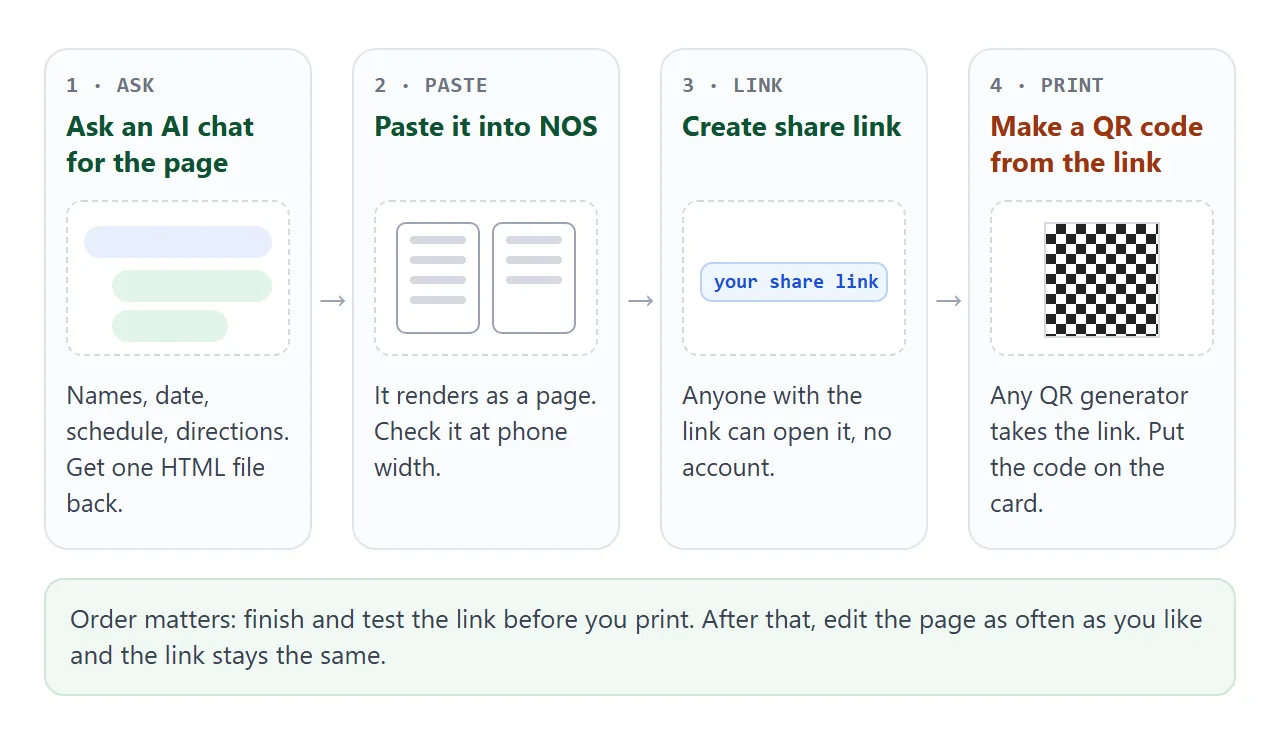
- Paste the HTML into a NOS document. It renders as a page, and its scripts run.
- Choose Create share link. HTML to link walks through it.
- Anyone with the link can open the page in a browser, a phone included, with no account. They cannot edit it.
- Paste the link into a QR code generator of your choice and save the image for your printer.
Editing the code later keeps the same link, so the code you printed keeps working. Do this in the same document and not in a copy.
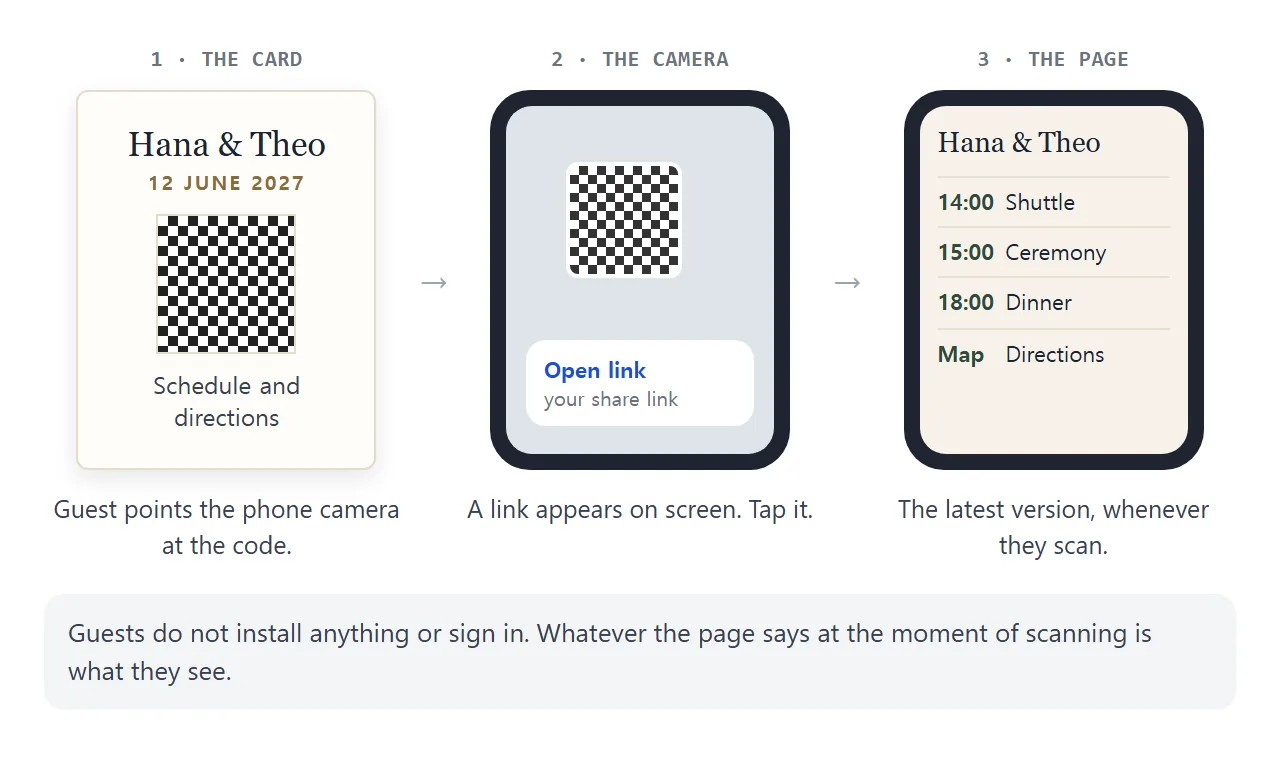
Google's Pixel help describes the camera route: point the camera at the code, wait for the link to appear on screen, and tap it.
It says the Camera scan suggestions setting must be on, and that Quick Settings also has a Scan QR code tile. That is as of October 2026, and other phones differ.
Print once, update later
The point of the whole setup is the gap between the two halves. The card cannot be edited. The page can.
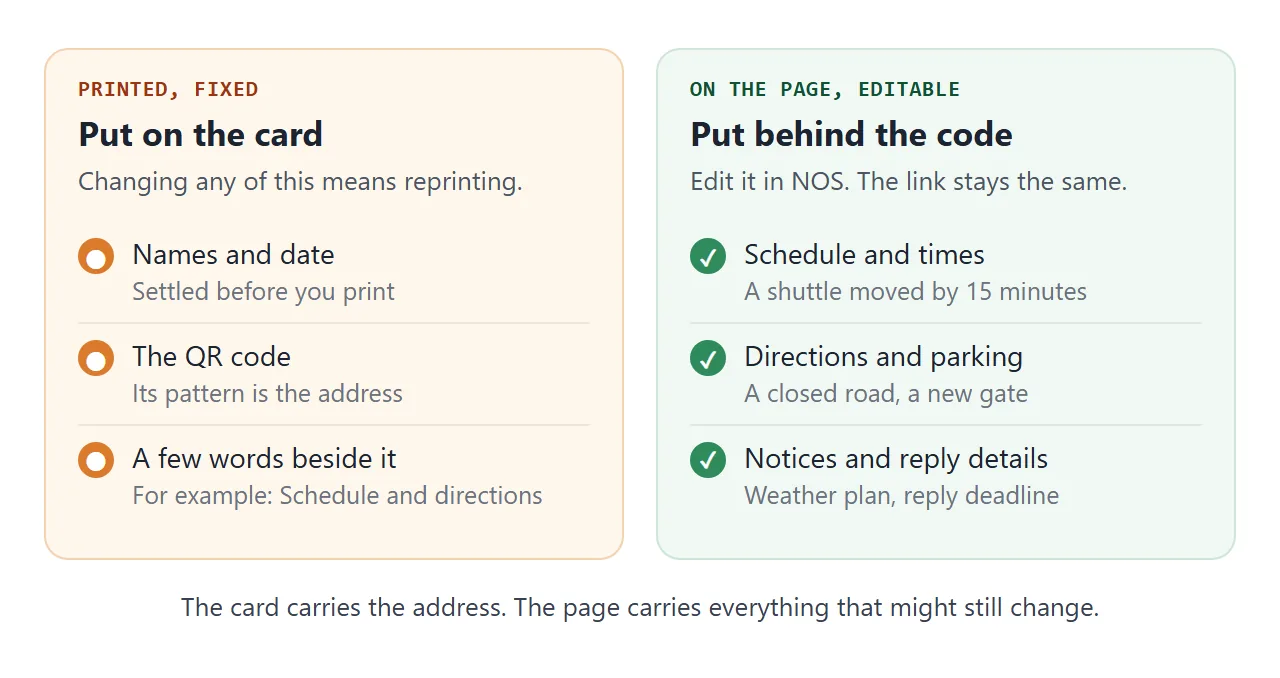
Press the button below to pretend you edited the page. The printed card on the left does not change.
<!doctype html>
<html lang="en">
<head>
<meta charset="utf-8">
<meta name="viewport" content="width=device-width, initial-scale=1">
<title>Print once, update later</title>
<style>
* { box-sizing: border-box; }
body { margin: 0; padding: 14px; font-family: system-ui, sans-serif; background: #eef0f3; color: #1d2330; }
.bar { display: flex; flex-wrap: wrap; gap: 8px; align-items: center; margin-bottom: 12px; }
.bar button {
font: 700 14px/1 system-ui, sans-serif; padding: 11px 14px; border-radius: 10px; border: 0;
background: #2f4a3a; color: #fff; cursor: pointer;
}
.bar button.alt { background: #fff; color: #2f4a3a; border: 1px solid #b9c4bd; }
.bar span { font-size: 13px; color: #4b5563; }
.stage { display: flex; flex-wrap: wrap; gap: 14px; align-items: flex-start; }
.panel { flex: 1 1 250px; min-width: 0; }
.label { font: 700 12px/1 system-ui, sans-serif; letter-spacing: 1px; text-transform: uppercase; color: #6b7280; margin: 0 0 8px; }
.card {
background: #fffdf8; border: 1px solid #e3dccb; border-radius: 6px; padding: 22px 18px; text-align: center;
box-shadow: 0 4px 14px rgba(0, 0, 0, .1); font-family: Georgia, serif;
}
.card h3 { font-weight: 400; font-size: 24px; margin: 0 0 4px; }
.card .d { font: 600 12px/1.4 system-ui, sans-serif; letter-spacing: 1.2px; text-transform: uppercase; color: #8a6d3b; margin-bottom: 14px; }
.card svg { width: 132px; height: 132px; background: #fff; padding: 8px; border: 1px solid #e3dccb; }
.card .cap { font: 14px/1.4 system-ui, sans-serif; margin-top: 10px; }
.card .note { font: 12px/1.4 system-ui, sans-serif; color: #7a7466; margin-top: 6px; }
.phone { background: #1f2430; border-radius: 22px; padding: 10px; max-width: 290px; }
.screen { background: #f6f1e9; border-radius: 14px; padding: 14px; min-height: 300px; font-size: 14px; line-height: 1.45; }
.screen h4 { margin: 0 0 8px; font: 400 20px/1.2 Georgia, serif; }
.row { display: grid; grid-template-columns: 52px 1fr; gap: 6px; padding: 7px 0; border-top: 1px solid #e7dfcf; }
.row b { color: #2f4a3a; }
.tag { display: inline-block; font: 700 11px/1 system-ui, sans-serif; background: #fff4d6; border: 1px solid #ecd48c; color: #7a5a00; border-radius: 999px; padding: 4px 8px; margin-bottom: 8px; }
.tag[hidden] { display: none; }
.url { background: #fff; border-radius: 8px; font: 12px/1 ui-monospace, Consolas, monospace; padding: 8px; margin-bottom: 10px; color: #4b5563; overflow: hidden; text-overflow: ellipsis; white-space: nowrap; }
.status { margin-top: 12px; font-size: 13px; color: #374151; background: #fff; border-radius: 10px; padding: 10px 12px; }
</style>
</head>
<body>
<div class="bar">
<button type="button" id="edit">Edit the page</button>
<button type="button" class="alt" id="reset">Back to first version</button>
</div>
<div class="stage">
<div class="panel">
<p class="label">On paper (never changes)</p>
<div class="card">
<h3>Hana & Theo</h3>
<div class="d">12 June 2027</div>
<svg id="qr" viewBox="0 0 25 25" shape-rendering="crispEdges" aria-label="Sample pattern, not a real QR code"></svg>
<div class="cap">Scan for the schedule and directions</div>
<div class="note">Sample pattern for the demo, not a scannable code.</div>
</div>
</div>
<div class="panel">
<p class="label">On the phone (changes when you edit)</p>
<div class="phone"><div class="screen">
<div class="url">your share link goes here</div>
<span class="tag" id="tag" hidden>Updated</span>
<h4>Hana & Theo</h4>
<div class="row"><b id="t1">14:15</b><span id="a1">Shuttle leaves Fairhaven station</span></div>
<div class="row"><b>15:00</b><span>Ceremony</span></div>
<div class="row"><b>18:00</b><span>Dinner</span></div>
<div class="row"><b>Park</b><span id="park">Field behind the barn</span></div>
</div></div>
</div>
</div>
<div class="status" id="status">Version 1. The card and the address inside the code are fixed once printed.</div>
<script>
// Draw a decorative pattern with three corner squares (a placeholder, not a QR encoder)
const qr = document.getElementById('qr');
let seed = 7;
const rnd = () => (seed = (seed * 16807) % 2147483647) / 2147483647;
const finder = (x, y) => (x < 7 && y < 7) || (x > 17 && y < 7) || (x < 7 && y > 17);
let svg = '';
for (let y = 0; y < 25; y++) {
for (let x = 0; x < 25; x++) {
let on;
if (finder(x, y)) {
const fx = x % 18, fy = y % 18;
const ring = Math.max(Math.abs(fx - 3), Math.abs(fy - 3));
on = ring !== 2;
} else on = rnd() > 0.55;
if (on) svg += '<rect x="' + x + '" y="' + y + '" width="1" height="1" fill="#111"/>';
}
}
qr.innerHTML = svg;
const el = (id) => document.getElementById(id);
el('edit').addEventListener('click', () => {
el('t1').textContent = '14:00';
el('a1').textContent = 'Shuttle leaves Fairhaven station (earlier)';
el('park').textContent = 'Field behind the barn, gate open until 23:30';
el('tag').hidden = false;
el('status').textContent = 'Version 2. Same card, same code, same address. Guests who scan today see the new times.';
});
el('reset').addEventListener('click', () => {
el('t1').textContent = '14:15';
el('a1').textContent = 'Shuttle leaves Fairhaven station';
el('park').textContent = 'Field behind the barn';
el('tag').hidden = true;
el('status').textContent = 'Version 1. The card and the address inside the code are fixed once printed.';
});
</script>
</body>
</html>
A code holds a limited amount of data, and the limit depends on its version and error correction level, according to the people who invented the format. That is the reason the code carries a short link and not the whole schedule.
Ways to put the details on an invitation
| Method | What the guest does | If a time changes | Fits on a card |
|---|---|---|---|
| Details printed on the card | Reads the card | Reprint, or message everyone | Only if short |
| PDF or file sent by email | Opens the file | Send a new file to everyone | No |
| Link typed on the card | Types it by hand | Edit the page | Awkward |
| QR code to a page | Scans with the phone camera | Edit the page, same link | Yes |
Keep the essentials on the card even so. The date and the venue name should survive a guest with no signal.
Printing the code so it scans
Do not trust the screen. Print a proof at the real size on the real paper and scan it with more than one phone.
- Keep the margin. QR Code's maker, Denso Wave, says a margin is required around the code. Do not let a border or a photo touch it.
- Mind the level. If your generator offers an error correction level, the standard defines four. They can restore 7, 15, 25 or 30 percent of the data. A higher level makes a larger, busier pattern.
- Label it. Put a few words beside the code, such as "Schedule and directions".
- Test at the real distance. A card is read in the hand, a sign across a room.
More on sizing and labels is in QR code link.
When it does not work
| Symptom | Cause | Fix |
|---|---|---|
| The camera shows no link | On a Pixel, Camera scan suggestions may be off, or part of the code is outside the frame | Turn the setting on, and fit the whole square on screen |
| Scans on screen, fails on paper | The blank margin was trimmed or covered | Restore the margin and print a new proof |
| The code looks dense and hard to read | A long link, or a high error correction level | Test a printed proof before changing the level |
| The map button opens the wrong place | The address in the link differs from the printed one | Rebuild the link with the same address, spaces as plus signs |
| Replies never arrive | A form that sends to a server is blocked on the page | Use plain text reply instructions |
| Cards show the old schedule | The page was rebuilt in a new document, which has its own link | Edit the original document, since editing keeps the link |