Sending a Word document as a link means publishing its content as a page, so the recipient reads it without downloading a file or having Word installed.
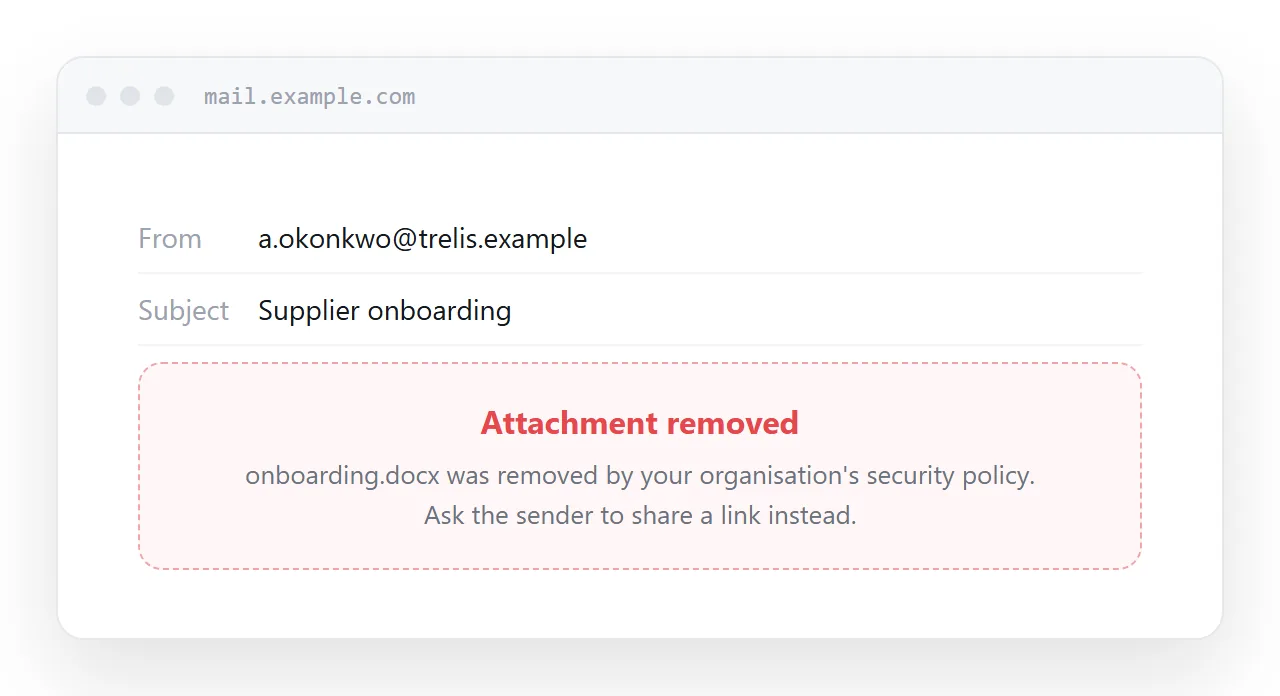
The attachment fails in ways that have nothing to do with the document being bad.
This guide covers why attachments get blocked, what formatting carries across, the table problem, and where the file is still the right thing to send.
What goes wrong with the attachment
| What happens | With a .docx attachment | With a link |
|---|---|---|
| Corporate mail filter | Often quarantined | Usually passes |
| Opened on a phone | Depends what is installed | Opens |
| Layout on a small screen | Paper-sized, needs zooming | Fits the screen |
| Macro-enabled variants | Blocked almost everywhere | Not applicable |
| Six months later | Lost in a downloads folder | Same address |
The filter problem is the one people underestimate. Mail systems have good reason to be careful with documents, since document formats have historically carried macros, and the result is that a proportion of your attachments simply never arrive. You find out when someone chases you.
What formatting carries across
The distinction is between structure and page furniture.
Structure carries: headings, numbered and bulleted lists, tables, bold and italic, links, block quotes, footnotes. All of those have direct equivalents on a page and most convert automatically.
Page furniture does not, because it describes a sheet of paper: fixed page breaks, running headers and footers, page numbers, precise positioning of floating objects, and anything sized in centimetres to fit A4.
That is not a loss for a document being read on a screen. A page has no pages, so page numbers have nothing to number.
If you need the paper version as well, print rules regenerate it from the same page. Details in export HTML to PDF.
Tables are where it breaks
Word tables are built for a fixed width, often eight or ten columns across a landscape page. On a phone that becomes a horizontal scroll, which readers abandon.
Two fixes, depending on the table.
For a table that is genuinely wide, let it scroll inside its own container rather than pushing the whole page sideways.
.table-wrap { overflow-x: auto; -webkit-overflow-scrolling: touch; }
.table-wrap table { min-width: 34rem; }
For a table that is really a list of records, collapse it so each row becomes a labelled block. That pattern is in making an HTML table responsive.
Conversion specifics for Word tables are in Word to HTML table.
Clean up the export
Word exports HTML with a great deal of inline styling, conditional comments, and class names like MsoNormal. It renders, and it is unpleasant to maintain and fights your own typography.
Strip it back to the structure and apply your own styles. The content is the part worth keeping; the markup Word produces around it is not. Guidance in converting Word to HTML.
Keep a download on the page
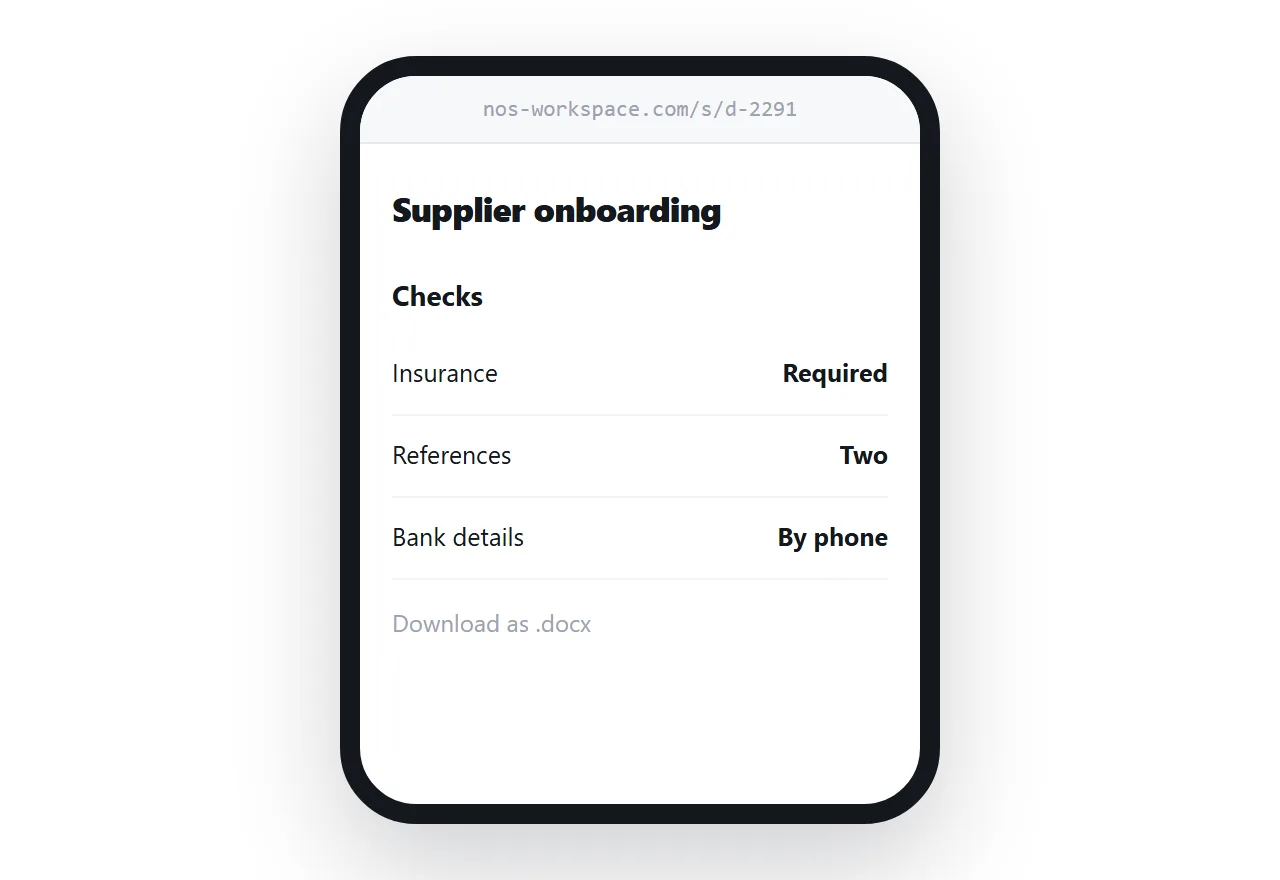
Some recipients need a file. They are filing it, printing it, attaching it to a system, or forwarding it to someone who asked for a document.
Put a download link on the page. That way you maintain one source and still satisfy the people who need an artefact.
When to send the file
Send the .docx when the recipient will edit it: a draft going out for redlines, a template someone will fill in, a document being co-authored by people who work in Word.
Also send the file when a process demands it. Procurement portals, application systems and some legal processes accept a document and nothing else, and arguing about it costs you the outcome.
Put it at an address
Convert the content rather than the layout, check the tables on a narrow screen, offer a download, and create a share link.
The recipient opens it on the phone in their hand, with nothing installed and nothing blocked.