Uploading an archive is a reliable way to publish a site, and the three ways it fails are all visible before you upload anything.
One: the entry file is buried
The single most common fault.
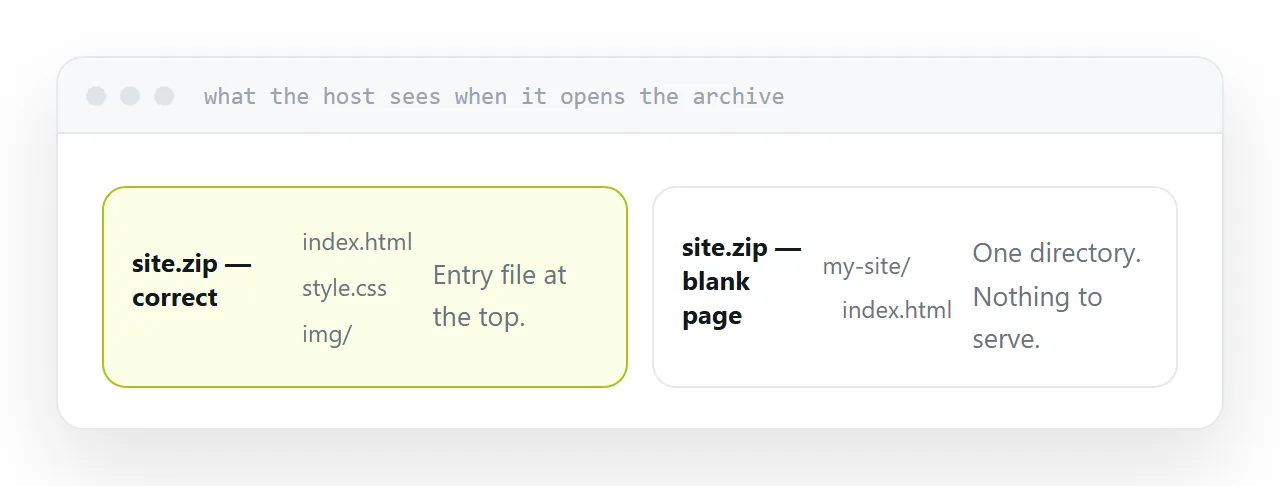
Right-clicking a folder and compressing it produces an archive containing that folder, which contains the site. The host extracts it, looks at the top level for the entry file, finds one directory, and serves nothing.
Open the folder first, select everything inside it, and compress that. The archive should show the entry file the moment it is opened, not after a click.
site.zip
  index.html
  style.css
  img/
Not:
site.zip
  my-site/
    index.html
Two: capitalisation
Local machines usually treat Logo.png and logo.png as the same file. Servers usually do not.
So a page that is perfect on your machine loses half its images the moment it is live, and the pattern is random enough to look like a caching problem.
Check the references against the actual filenames, exactly. It is the fault that wastes the most time because nothing about the symptom points at the cause.
| Fault | Symptom |
|---|---|
| Entry file nested | Blank page or a file list |
| Wrong capitalisation | Some images missing |
| Absolute paths | Styles gone, text unstyled |
| Missing font files | Wrong typeface everywhere |
| Missing favicon | Broken icon in the tab |
Three: absolute paths
A path beginning with a slash means the root of the domain.
Locally that resolves to where you are working. Published under any prefix, it resolves somewhere that does not exist, and the usual result is a page with no styling at all.
Write paths relative to the current file. Then the site works wherever it lands, which is also what makes it portable between hosts.
The check that catches all three
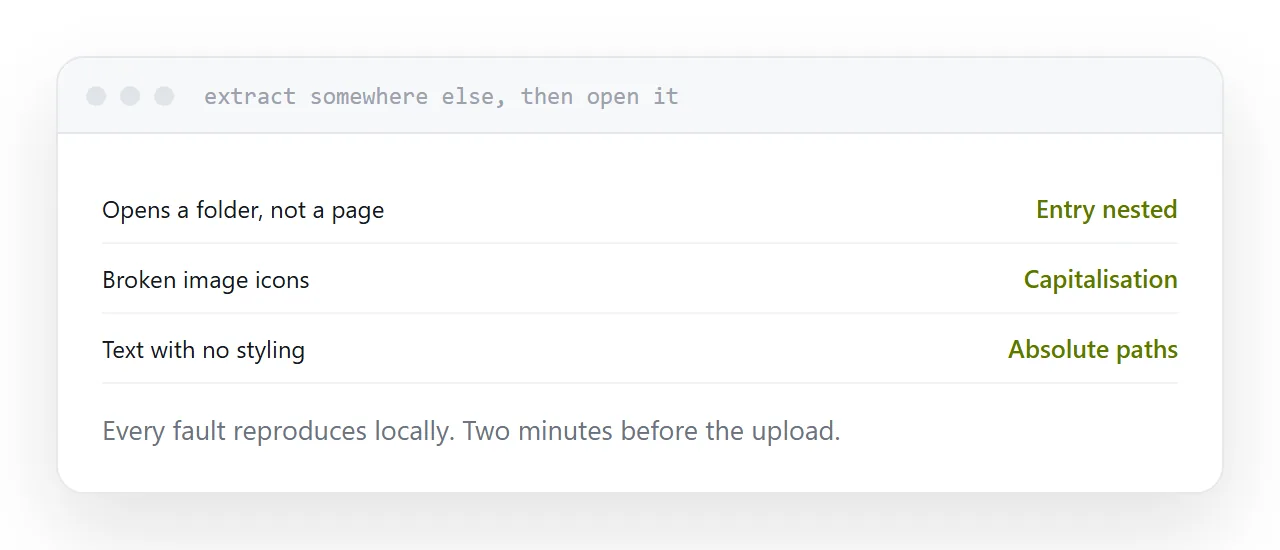
Extract the archive into an empty folder somewhere else on your machine, then open the entry file from there.
Every one of these faults reproduces. A nested entry file means you open a folder instead of a page. Missing assets show as broken images. Absolute paths lose the styling.
Two minutes, and it removes almost every failed upload.
What archiving actually saves
Markup, styles and scripts compress well, frequently by eighty percent or more.
Images and video do not, because they carry their own compression, and they are what make a site heavy. If the archive is large, the fix is optimising the images rather than compressing harder.
Two neighbouring cases are worth a look: How to turn a zip into a website and How to upload an HTML file.
Put it at an address
Put the entry file at the top level, match capitalisation exactly, keep every path relative, include every referenced file, and extract it somewhere else and open it before you upload.