A cafe menu template can be a single web page: a heading for each section, then one line per item with the price on the right.
People ask "Is there any free digital menu software out there?", but a small menu does not need software. One page is enough, and one link carries it to every profile.
Here is a complete example. Tap the section buttons at the top. Notice the sold-out line and the dollar prices.
<!doctype html>
<html lang="en">
<head>
<meta charset="utf-8">
<meta name="viewport" content="width=device-width, initial-scale=1">
<title>Juniper Lane Cafe - Menu</title>
<style>
* { box-sizing: border-box; }
html { scroll-behavior: smooth; }
body { margin: 0; font-family: Georgia, "Times New Roman", serif; background: #faf6ef; color: #2b2118; font-size: 17px; line-height: 1.5; }
header { padding: 26px 20px 14px; text-align: center; }
header h1 { margin: 0; font-size: 28px; letter-spacing: .5px; }
header p { margin: 4px 0 0; font: 14px system-ui, sans-serif; color: #7a6a58; }
nav { position: sticky; top: 0; background: #faf6ef; padding: 10px 14px; display: flex; gap: 8px; overflow-x: auto; border-bottom: 1px solid #e6dccb; }
nav a { flex: none; font: 600 14px system-ui, sans-serif; color: #5a3d22; text-decoration: none; padding: 7px 14px; border: 1px solid #d9c9b0; border-radius: 999px; background: #fff; }
main { max-width: 560px; margin: 0 auto; padding: 8px 20px 40px; }
section { padding-top: 22px; }
h2 { margin: 0 0 6px; font-size: 21px; color: #7a3e12; border-bottom: 2px solid #e6dccb; padding-bottom: 6px; }
.item { display: flex; justify-content: space-between; gap: 16px; padding: 10px 0; border-bottom: 1px dotted #d9c9b0; }
.item b { font-weight: 700; }
.item small { display: block; font: 14px/1.35 system-ui, sans-serif; color: #7a6a58; }
.price { font: 600 16px system-ui, sans-serif; white-space: nowrap; font-variant-numeric: tabular-nums; }
.tag { font: 600 11px system-ui, sans-serif; background: #e7efe0; color: #3b5a2a; border-radius: 4px; padding: 1px 6px; margin-left: 4px; }
.out { opacity: .5; }
.out .price { text-decoration: line-through; }
footer { text-align: center; font: 13px system-ui, sans-serif; color: #7a6a58; padding: 0 20px 28px; }
</style>
</head>
<body>
<header>
<h1>Juniper Lane Cafe</h1>
<p>Open daily 7:30 - 16:00 · Prices in dollars</p>
</header>
<nav>
<a href="#coffee">Coffee</a>
<a href="#tea">Tea</a>
<a href="#breakfast">Breakfast</a>
<a href="#bakery">Bakery</a>
</nav>
<main>
<section id="coffee">
<h2>Coffee</h2>
<div class="item"><div><b>Espresso</b></div><span class="price">3.00</span></div>
<div class="item"><div><b>Flat white</b><small>Double shot, steamed milk</small></div><span class="price">4.50</span></div>
<div class="item"><div><b>Latte</b> <span class="tag">oat milk +0.60</span></div><span class="price">4.80</span></div>
<div class="item out"><div><b>Cold brew</b><small>Sold out today</small></div><span class="price">4.20</span></div>
</section>
<section id="tea">
<h2>Tea</h2>
<div class="item"><div><b>Pot of black tea</b></div><span class="price">3.80</span></div>
<div class="item"><div><b>Mint and ginger infusion</b></div><span class="price">3.80</span></div>
</section>
<section id="breakfast">
<h2>Breakfast</h2>
<div class="item"><div><b>Eggs on toast</b><small>Two eggs, sourdough</small></div><span class="price">8.50</span></div>
<div class="item"><div><b>Granola bowl</b> <span class="tag">vegan</span><small>Oat granola, seasonal fruit</small></div><span class="price">7.20</span></div>
</section>
<section id="bakery">
<h2>Bakery</h2>
<div class="item"><div><b>Butter croissant</b></div><span class="price">3.40</span></div>
<div class="item"><div><b>Cardamom bun</b></div><span class="price">3.90</span></div>
</section>
</main>
<footer>Please ask us about allergens before you order.</footer>
</body>
</html>
Make it with AI
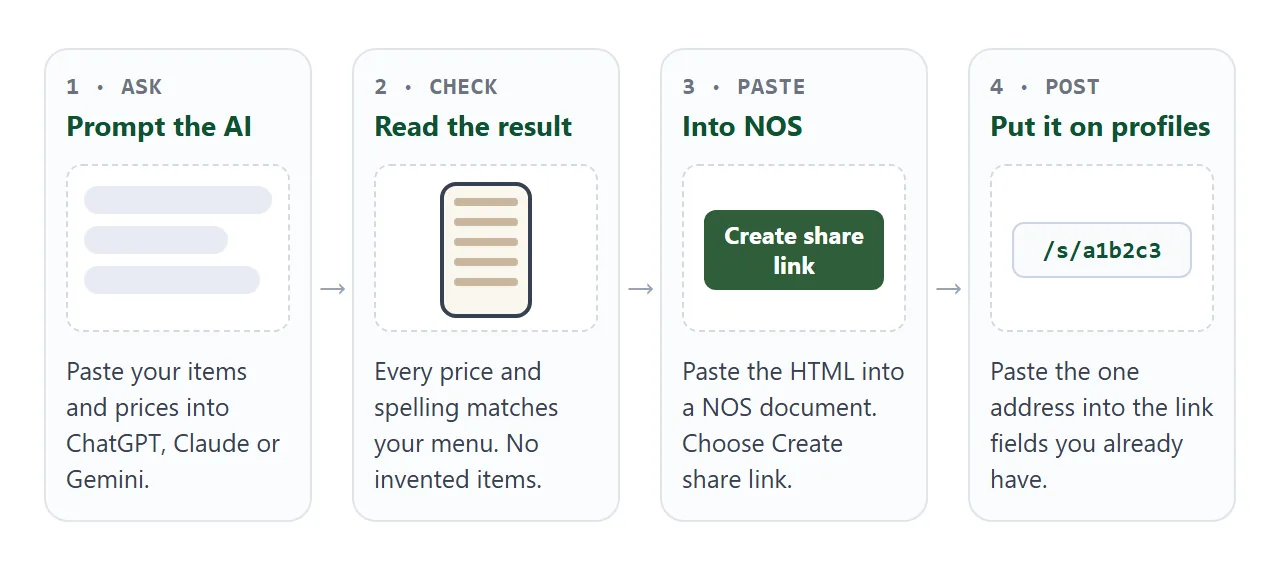
You do not write the HTML. Paste this into ChatGPT, Claude or Gemini, and replace the bracketed parts with your own details.
Write one self-contained HTML file for a cafe menu.
Cafe name: [name]. Hours: [hours]. Currency symbol: [symbol].
Sections and items (name, price, optional short note):
[paste your list here]
Rules:
- Works on a phone: viewport meta tag, large readable text.
- Sticky row of section buttons at the top that jump to each section.
- Name on the left, price on the right, on one line.
- No external images, fonts or scripts. No order form.
- Do not add items, prices or allergen claims I did not give you.
- Put all the text I gave you in the page exactly as written.
ChatGPT and other chat tools put code in a block you can copy, according to OpenAI's help page. Copy the whole block, from the first line to the last.
What to check in the result:
- Every item and price matches your own list, one by one.
- No items, hours or allergen notes you did not write.
- The section buttons all jump to the right place.
- It still looks right when you shrink the browser window narrow.
If something is off, tell the AI what to change in plain words. "Make the prices bold" works.
Send it as a link
Open NOS, create a document, and paste the HTML. It shows as a finished page, and scripts on it run. Then choose Share and Create share link. HTML to link walks through it.
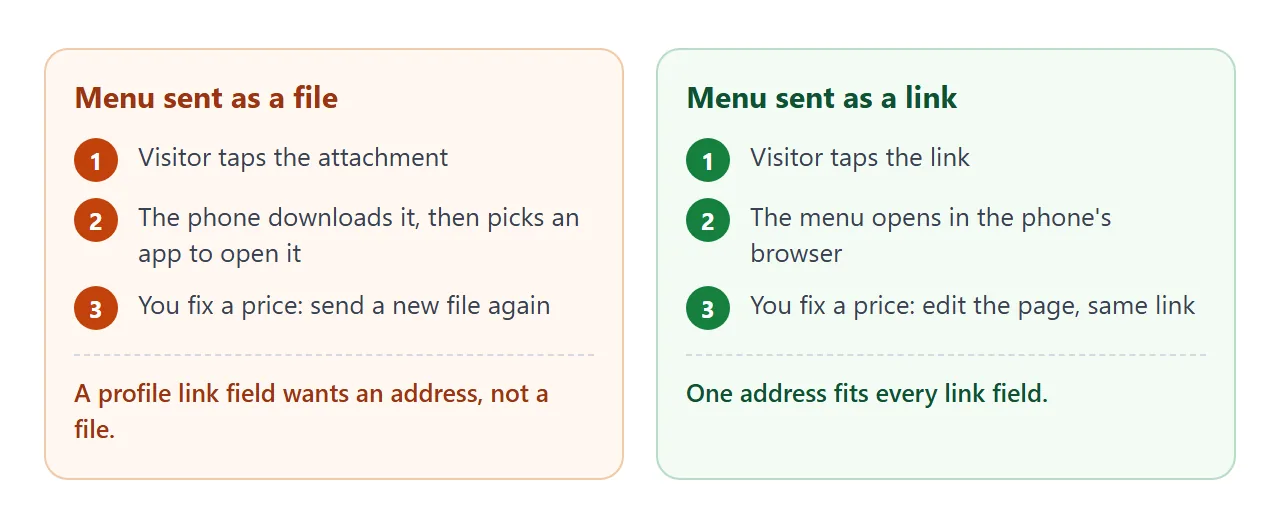
What the visitor sees: the menu opens in their browser, phone included. No account is needed, and they cannot edit it. If you change a price in the code later, the same link shows the new version.
Put the link where people look
You already have places that accept a link. Paste the same address into each one.
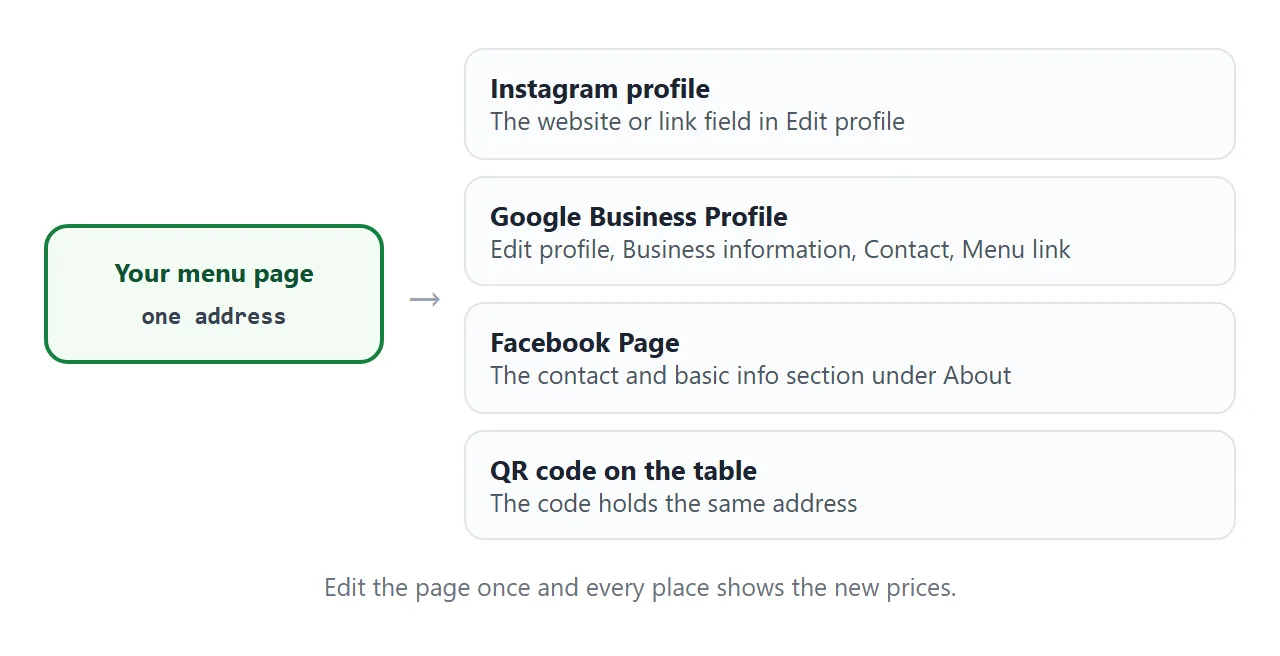
- Instagram: the profile has a link or website field. Instagram's Help Center explains it on the page Add a website to your Instagram profile. Steps can change, so check it as of October 2026.
- Google Business Profile: go to Edit profile, then Business information, then Contact, then Menu link. Google says this is available to food and drink businesses, and updates can take 24 to 48 hours.
- Facebook Page: open About, then the contact and basic info section. Which fields appear depends on your Page category.
- Table or window: a QR code can hold the same address. See QR code link.
Whatever you paste, test it on your own phone first.
What a cafe menu page needs
A good menu page is short and plain. Visitors may open it on a phone, so the page should show prices in a readable column without zooming.
- Section buttons at the top: Coffee, Tea, Breakfast, Bakery. One tap jumps to the section.
- One line per item: the name on the left, the price on the right.
- A short note only when it helps: "Double shot, steamed milk."
- A sold-out state: grey the line out and keep it visible.
- Hours and a request to ask about allergens: keep this to one line each.
For why a menu works better as a page than as a file, see How to put a menu at a link and how to make an online menu.
Ways to share a menu, compared
| Way | What the visitor does | Changing a price | Fits a link field |
|---|---|---|---|
| Photo of the printed menu | Reads an image | Retake and repost | No, it is an image |
| File attachment | Downloads, opens in an app | Send a new file | No, it wants an address |
| Menu page as a link | Taps, reads in the browser | Edit the page, same link | Yes |
The link is also the only one of the three you can keep identical on every profile.
Keep it current: a menu you edit in one place
Prices, specials and sold-out items change. This second example keeps all the items in one list at the top of the code. Change a number or add soldOut: true, and the page redraws. Try the filters.
<!doctype html>
<html lang="en">
<head>
<meta charset="utf-8">
<meta name="viewport" content="width=device-width, initial-scale=1">
<title>Juniper Lane Cafe - Menu board</title>
<style>
  * { box-sizing: border-box; }
  body { margin: 0; font-family: system-ui, sans-serif; background: #f3f1ec; color: #232323; line-height: 1.45; }
  .wrap { max-width: 560px; margin: 0 auto; padding: 22px 18px 40px; }
  h1 { margin: 0 0 2px; font-size: 24px; }
  .sub { margin: 0 0 14px; color: #6b665d; font-size: 14px; }
  .special { background: #fff3d6; border: 1px solid #ecd699; border-radius: 12px; padding: 12px 14px; margin-bottom: 16px; }
  .special b { display: block; font-size: 13px; letter-spacing: .6px; text-transform: uppercase; color: #8a5a00; }
  .filters { display: flex; flex-wrap: wrap; gap: 8px; margin-bottom: 8px; }
  .filters button { font: 600 14px system-ui, sans-serif; padding: 8px 14px; border-radius: 999px; border: 1px solid #cfc9bd; background: #fff; color: #333; cursor: pointer; }
  .filters button[aria-pressed="true"] { background: #2f5d3a; border-color: #2f5d3a; color: #fff; }
  h2 { font-size: 16px; margin: 20px 0 4px; color: #2f5d3a; }
  .row { display: flex; justify-content: space-between; gap: 14px; padding: 10px 0; border-bottom: 1px solid #e3dfd6; }
  .row small { display: block; color: #6b665d; font-size: 13px; }
  .row .p { font-weight: 700; white-space: nowrap; font-variant-numeric: tabular-nums; }
  .row.out { opacity: .5; }
  .row.out .p { text-decoration: line-through; }
  .empty { color: #6b665d; font-size: 14px; padding: 10px 0; }
</style>
</head>
<body>
<div class="wrap">
  <h1>Juniper Lane Cafe</h1>
  <p class="sub">Tap a filter. Edit the list in the script to change the menu.</p>
  <div class="special"><b>Today's special</b><span id="special"></span></div>
  <div class="filters" id="filters"></div>
  <div id="menu"></div>
</div>

<script>
  // 1. Edit only this part: your name, special, and items
  const SPECIAL = 'Pumpkin spice latte, 5.20';
  const ITEMS = [
    { section: 'Coffee',    name: 'Flat white',      price: 4.50, note: 'Double shot, steamed milk' },
    { section: 'Coffee',    name: 'Oat latte',       price: 5.00, tags: ['vegan'] },
    { section: 'Coffee',    name: 'Cold brew',       price: 4.20, soldOut: true },
    { section: 'Breakfast', name: 'Granola bowl',    price: 7.20, tags: ['vegan'], note: 'Oat granola, seasonal fruit' },
    { section: 'Breakfast', name: 'Cheese toastie',  price: 6.80, tags: ['vegetarian'] },
    { section: 'Bakery',    name: 'Butter croissant', price: 3.40, tags: ['vegetarian'] },
    { section: 'Bakery',    name: 'Almond cookie',   price: 2.90, tags: ['vegan'] }
  ];
  const FILTERS = ['all', 'vegan', 'vegetarian'];

  // 2. The rest builds the page from the list
  let current = 'all';
  document.getElementById('special').textContent = SPECIAL;

  function draw() {
    const box = document.getElementById('menu');
    box.innerHTML = '';
    const shown = ITEMS.filter(i => current === 'all' || (i.tags || []).includes(current));
    if (!shown.length) { box.innerHTML = '<p class="empty">Nothing here today.</p>'; return; }
    [...new Set(shown.map(i => i.section))].forEach(sec => {
      const h = document.createElement('h2');
      h.textContent = sec;
      box.appendChild(h);
      shown.filter(i => i.section === sec).forEach(i => {
        const row = document.createElement('div');
        row.className = 'row' + (i.soldOut ? ' out' : '');
        const left = document.createElement('div');
        const name = document.createElement('span');
        name.textContent = i.name + (i.soldOut ? ' (sold out)' : '');
        left.appendChild(name);
        if (i.note) { const s = document.createElement('small'); s.textContent = i.note; left.appendChild(s); }
        const p = document.createElement('span');
        p.className = 'p';
        p.textContent = i.price.toFixed(2);
        row.append(left, p);
        box.appendChild(row);
      });
    });
  }

  const bar = document.getElementById('filters');
  FILTERS.forEach(f => {
    const b = document.createElement('button');
    b.textContent = f === 'all' ? 'All' : f[0].toUpperCase() + f.slice(1);
    b.setAttribute('aria-pressed', f === current);
    b.addEventListener('click', () => {
      current = f;
      bar.querySelectorAll('button').forEach(x => x.setAttribute('aria-pressed', x === b));
      draw();
    });
    bar.appendChild(b);
  });
  draw();
</script>
</body>
</html>
Ask your AI for this version if you change the menu often: "Keep all items in one JavaScript list at the top so I can edit prices easily." Then you only touch that list.
For specials, a one-line banner at the top is enough. Edit it each morning and delete it when it is over. If you also use printed menus, price list link covers keeping a price list current.
When it does not work
| Symptom | Cause | Fix |
|---|---|---|
| Menu shows as code, not a page | You pasted the AI's explanation too, or only part of the block | Copy the whole code block and paste only that |
| Section buttons do nothing | The AI built them without matching section names | Ask it to make each button jump to its section |
| Text is tiny on a phone | The viewport meta tag is missing | Ask the AI to add the viewport meta tag |
| A photo or logo is missing | Pictures from other sites are blocked on shared pages | Ask for a drawn logo or text only |
| Order button does not send | Forms cannot send to a server from the shared page | Use the page for reading, and take orders as before |
| Google still shows the old link | Updates can take 24 to 48 hours | Wait, then check again |
| Cannot find the Instagram link field | Where it sits can change with the app version | Follow the steps on Instagram's help page |