You asked ChatGPT for slides, converted them to PowerPoint, and the text moved or spilled out of its boxes. Changing one bullet then meant asking again and converting again.
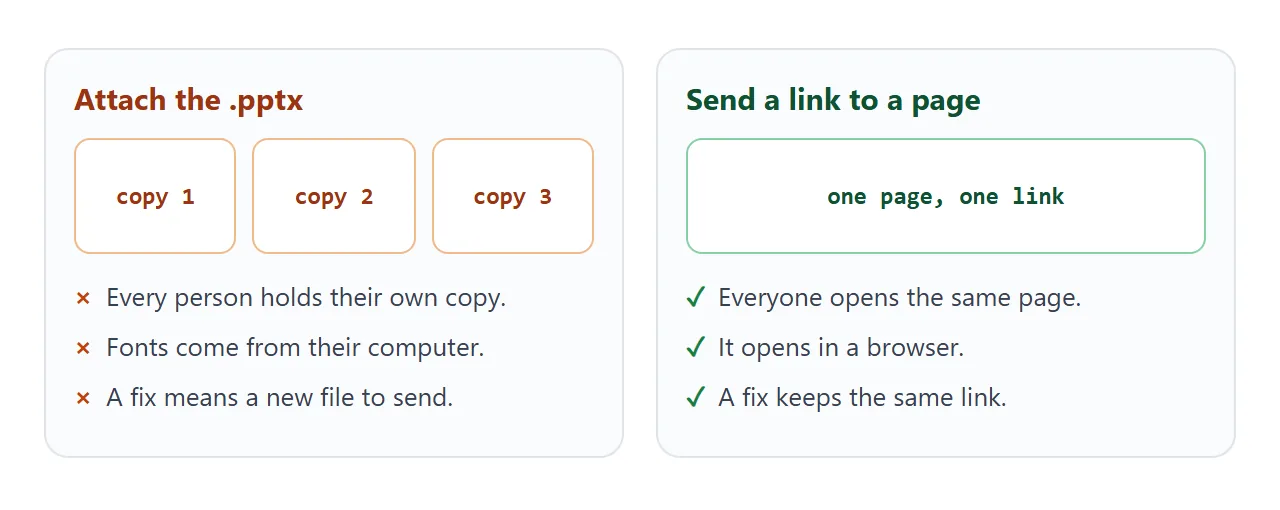
If the people you are sending it to only need to read it, skip the .pptx: ask for the deck as a page and send a link.
Here is what that looks like. It is a short update deck written as a page. Press Next, use the arrow keys, or shrink your window to see it reflow like a phone.
<!doctype html>
<html lang="en">
<head>
<meta charset="utf-8">
<meta name="viewport" content="width=device-width, initial-scale=1">
<title>Q3 update (slide-style page)</title>
<style>
* { box-sizing: border-box; }
body {
margin: 0; height: 100vh; display: flex; flex-direction: column;
font-family: system-ui, "Segoe UI", sans-serif; color: #1d2330; background: #eef1f5;
}
.stage { flex: 1; min-height: 0; padding: 12px 12px 6px; }
.slide {
display: none; height: 100%; overflow: auto; border-radius: 14px;
background: #fff; padding: clamp(14px, 4vw, 28px);
box-shadow: 0 4px 18px rgba(0, 0, 0, .10);
}
.slide.on { display: block; }
.tag { font-size: 12px; letter-spacing: .08em; text-transform: uppercase; color: #0f766e; font-weight: 700; }
h1 { font-size: clamp(22px, 5.5vw, 34px); line-height: 1.15; margin: 8px 0 10px; }
h2 { font-size: clamp(18px, 4.6vw, 26px); line-height: 1.2; margin: 6px 0 12px; }
p, li { font-size: clamp(14px, 3.4vw, 17px); line-height: 1.5; }
ul { padding-left: 20px; margin: 0; }
li { margin-bottom: 6px; }
.bars { display: grid; gap: 10px; margin-top: 4px; }
.bar { display: grid; grid-template-columns: 82px 1fr 44px; gap: 8px; align-items: center; font-size: 14px; }
.track { height: 16px; border-radius: 8px; background: #e5e9ef; overflow: hidden; }
.fill { height: 100%; background: #0f766e; border-radius: 8px; }
.nav {
display: flex; align-items: center; justify-content: space-between; gap: 8px;
padding: 6px 12px 12px;
}
button {
font: inherit; font-weight: 600; padding: 9px 16px; border: 0; border-radius: 9px;
background: #0f766e; color: #fff; cursor: pointer; min-height: 40px;
}
button:disabled { background: #b8c2cc; cursor: default; }
.count { font-size: 14px; color: #4b5563; }
</style>
</head>
<body>
<div class="stage" id="stage">
<section class="slide on">
<div class="tag">Harbor & Pine Supply</div>
<h1>Q3 operations update</h1>
<p>Orders, delivery times and what we change in Q4. Use the buttons, the arrow keys, or swipe the page down on a phone.</p>
</section>
<section class="slide">
<div class="tag">Orders</div>
<h2>Orders shipped each month</h2>
<div class="bars">
<div class="bar"><span>July</span><div class="track"><div class="fill" style="width:62%"></div></div><b>620</b></div>
<div class="bar"><span>August</span><div class="track"><div class="fill" style="width:74%"></div></div><b>740</b></div>
<div class="bar"><span>September</span><div class="track"><div class="fill" style="width:88%"></div></div><b>880</b></div>
</div>
</section>
<section class="slide">
<div class="tag">Delivery</div>
<h2>What helped delivery times</h2>
<ul>
<li>Packing moved to the morning shift.</li>
<li>Two carriers for the north region instead of one.</li>
<li>Daily check of orders older than 48 hours.</li>
</ul>
</section>
<section class="slide">
<div class="tag">Q4</div>
<h2>Three changes for Q4</h2>
<ul>
<li>Add a second packing station.</li>
<li>Move returns handling to Friday.</li>
<li>Review carrier contracts in November.</li>
</ul>
</section>
</div>
<div class="nav">
<button id="prev">Back</button>
<span class="count" id="count"></span>
<button id="next">Next</button>
</div>
<script>
const slides = [...document.querySelectorAll('.slide')];
const prev = document.getElementById('prev');
const next = document.getElementById('next');
const count = document.getElementById('count');
let i = 0;
function show(n) {
i = Math.max(0, Math.min(slides.length - 1, n));
slides.forEach((s, k) => s.classList.toggle('on', k === i));
prev.disabled = i === 0;
next.disabled = i === slides.length - 1;
count.textContent = (i + 1) + ' / ' + slides.length;
}
prev.addEventListener('click', () => show(i - 1));
next.addEventListener('click', () => show(i + 1));
document.addEventListener('keydown', (e) => {
if (e.key === 'ArrowRight') show(i + 1);
if (e.key === 'ArrowLeft') show(i - 1);
});
show(0);
</script>
</body>
</html>
The slides are sections of one HTML page. Only one shows at a time, and the text sizes itself to the screen instead of to a fixed slide.
Why the layout breaks
A .pptx carries text boxes at fixed positions. Microsoft's own help explains that when the recipient's computer lacks a font, PowerPoint substitutes another one, which can change spacing and line breaks. Embedding fonts in the file helps.
Embedding has limits. Microsoft notes that not all TrueType fonts can be embedded, because the font's creator chooses what is allowed. So the same file can look right on your machine and slightly wrong on another.
A page avoids most of this. It can use the fonts every computer already has, and its text wraps to the width of whatever screen opens it.
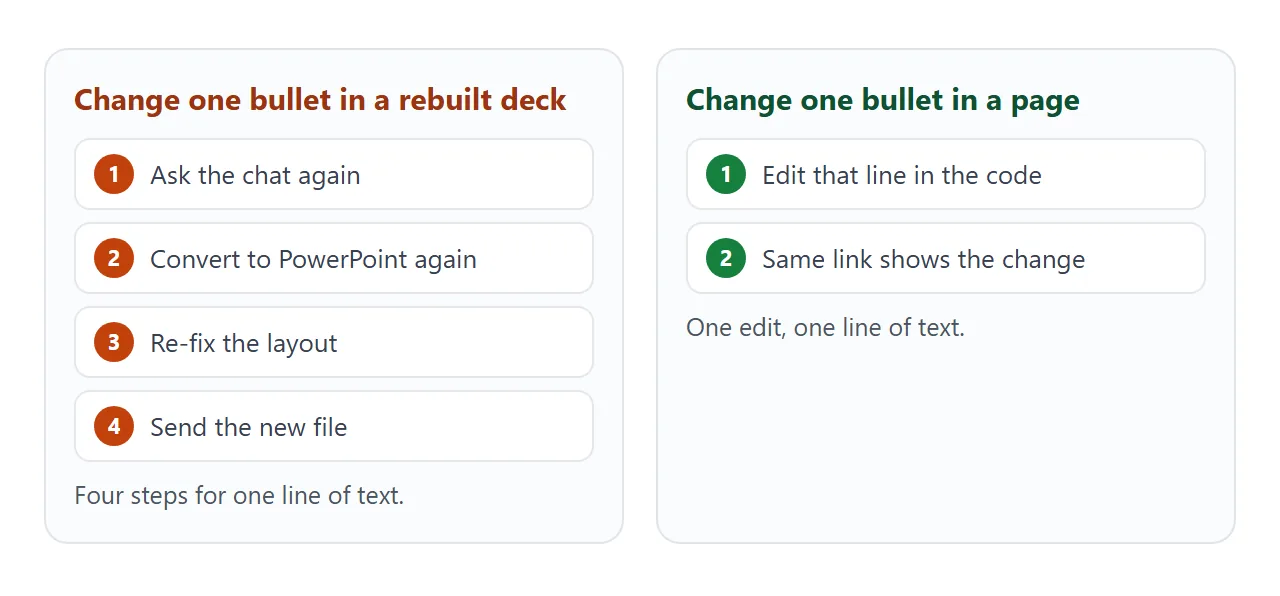
That is the pain behind this article: one writer who built slides with an AI tool described being unable to tweak one bullet without regenerating the whole thing. On a page, a bullet is one line of text you can edit in place.
Make it with AI
Open a new chat in ChatGPT, Claude or Gemini and paste this. Replace the bracketed parts with your own content.
Make my [quarterly update] as ONE self-contained HTML file.
- One section per slide, 6 slides, and only one slide visible at a time.
- Back and Next buttons, and the left and right arrow keys.
- Plain system fonts only. No outside images, no external scripts.
- Draw any chart with CSS or inline SVG.
- Text must fit a phone screen: use relative sizes and let text wrap.
- Put all the wording in plain HTML, not in JavaScript, so I can edit it.
Content: [paste your outline here]
When the code comes back, check four things before you send anything:
- Every slide shows, and Back and Next both work.
- Nothing sits outside the page, such as a logo loaded from another site. NOS blocks outside images.
- Each chart has its numbers written next to it.
- The text is the wording you want. Fix it in the code, not by asking again.
Send it as a link
Copy the code and paste it into NOS. The page renders as written and its scripts run, so the buttons work. Choose Create share link and send the address. HTML to link walks through the steps.
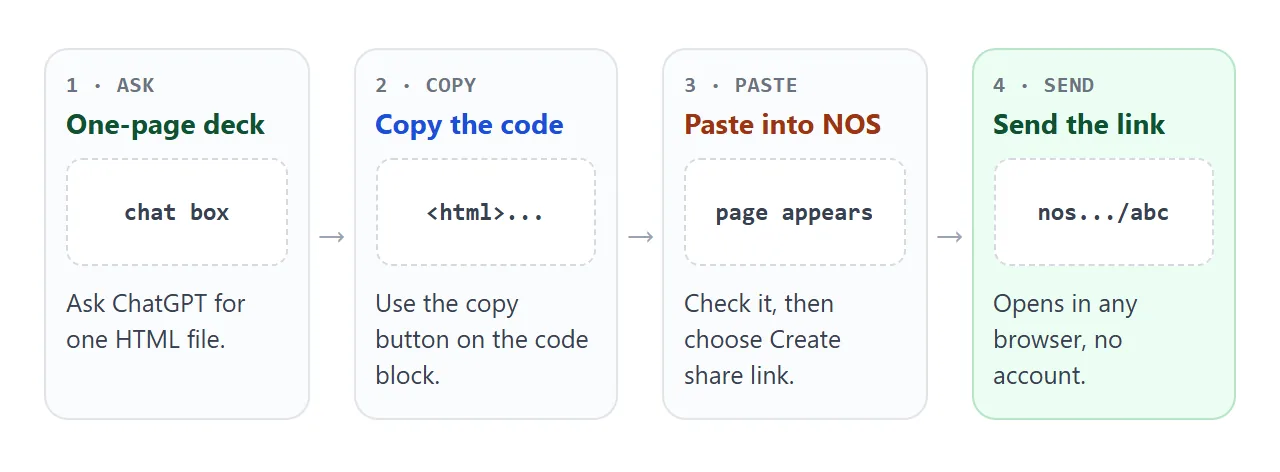
The person who gets the link opens it in a browser, on a computer or a phone, with no account. They can read the page but not edit it.
If you fix a bullet later, you edit your code and the same link shows the new text.
A link is just text, so it goes anywhere you can type: an email, a chat message, a calendar invite. Share HTML in Teams covers that case.
Ways to send a deck compared
The right choice depends on what the reader does with it. As of October 2026, these are the options Microsoft documents for PowerPoint itself, next to a page link.
| Attach a .pptx | Embed fonts, then attach | Page link | |
|---|---|---|---|
| What the reader gets | A file to open | A file to open | A page in the browser |
| Fonts | From their computer | Kept if the font allows embedding | Plain system fonts |
| Reader can edit | Yes | Yes | No |
| After a fix | Send a new file | Send a new file | Same link |
PowerPoint's Share menu lets you copy a link or attach the presentation or a PDF, and the email option needs a Microsoft 365 subscription.
If the reader must edit the slides, send the file. For everyone who just reads, the link is the lighter choice. More on that in sharing a PowerPoint so it opens.
A second page: a meeting recap
Not every deck needs slides. A recap after a meeting works better as a short page with decisions and a checklist. The ticks below work in your browser as you click them.
<!doctype html>
<html lang="en">
<head>
<meta charset="utf-8">
<meta name="viewport" content="width=device-width, initial-scale=1">
<title>Meeting recap</title>
<style>
* { box-sizing: border-box; }
body {
margin: 0; padding: 16px; font-family: system-ui, "Segoe UI", sans-serif;
color: #1d2330; background: #f4f5f7; line-height: 1.5;
}
.page { max-width: 640px; margin: 0 auto; }
h1 { font-size: 22px; margin: 0 0 4px; }
.meta { color: #5b6472; font-size: 14px; margin: 0 0 14px; }
.card { background: #fff; border-radius: 12px; padding: 14px 16px; margin-bottom: 12px; box-shadow: 0 2px 10px rgba(0,0,0,.07); }
h2 { font-size: 16px; margin: 0 0 8px; }
ul { margin: 0; padding-left: 20px; }
li { margin-bottom: 4px; font-size: 15px; }
.task { display: flex; gap: 10px; align-items: flex-start; padding: 8px 0; border-top: 1px solid #edf0f4; font-size: 15px; }
.task:first-of-type { border-top: 0; }
.task input { width: 20px; height: 20px; margin-top: 2px; flex: none; }
.task input:checked + span { color: #6b7280; text-decoration: line-through; }
.who { color: #0f766e; font-weight: 600; }
.progress { height: 10px; border-radius: 6px; background: #e5e9ef; overflow: hidden; margin: 8px 0 4px; }
.progress i { display: block; height: 100%; width: 0; background: #0f766e; transition: width .2s; }
.small { font-size: 13px; color: #5b6472; }
details summary { cursor: pointer; font-weight: 600; font-size: 15px; min-height: 28px; }
details p { margin: 8px 0 0; font-size: 15px; }
</style>
</head>
<body>
<div class="page">
<h1>Weekly planning recap</h1>
<p class="meta">Harbor & Pine Supply · Operations team · Thursday</p>
<div class="card">
<h2>Decisions</h2>
<ul>
<li>The second packing station goes live on the 14th.</li>
<li>Returns are handled on Fridays only.</li>
<li>Carrier review moves to the first week of November.</li>
</ul>
</div>
<div class="card">
<h2>Action items</h2>
<label class="task"><input type="checkbox"><span><span class="who">Mara</span> – order the packing bench</span></label>
<label class="task"><input type="checkbox"><span><span class="who">Jonas</span> – update the returns page</span></label>
<label class="task"><input type="checkbox"><span><span class="who">Priya</span> – collect two carrier quotes</span></label>
<div class="progress"><i id="bar"></i></div>
<div class="small" id="status">0 of 3 done</div>
</div>
<div class="card">
<details>
<summary>Notes from the discussion</summary>
<p>The team compared a second packing station with a longer morning shift. The station was chosen because it keeps the same hours for everyone.</p>
</details>
</div>
</div>
<script>
const boxes = [...document.querySelectorAll('.task input')];
const bar = document.getElementById('bar');
const status = document.getElementById('status');
function update() {
const done = boxes.filter((b) => b.checked).length;
bar.style.width = (done / boxes.length * 100) + '%';
status.textContent = done + ' of ' + boxes.length + ' done';
}
boxes.forEach((b) => b.addEventListener('change', update));
update();
</script>
</body>
</html>
If you are the page owner and tick items in View mode, your changes are saved. A visitor's ticks are not saved, so use this page to show status, not to collect answers.
When it does not work
| What you see | Cause | Fix |
|---|---|---|
| The page shows only code | The chat gave an explanation along with the code | Copy only what is inside the code block |
| A picture is missing | It loads from another website | Ask for a drawing in CSS or inline SVG |
| Only the first slide shows | The code that switches slides did not copy | Copy the whole block, including the script at the end |
| Text is tiny on a phone | The slide uses a fixed size | Ask for relative sizes and wrapping text |
| Someone wants to edit the slides | A page cannot be edited by visitors | Send a .pptx to that person |
| A form does not send | Sending a form to a server is blocked | Ask for the answers to show on the page instead |
For routes from a Claude or Gemini page into a file, see Claude HTML to PPT and Gemini HTML code to PPT. To keep a deck as a page for good, read slide deck to link.