Claude HTML slides look tidy and read like paragraphs. Ask for a deck and you get forty to sixty words per slide, sized to a projector, which is a document on a phone and a wall from the back of a room.
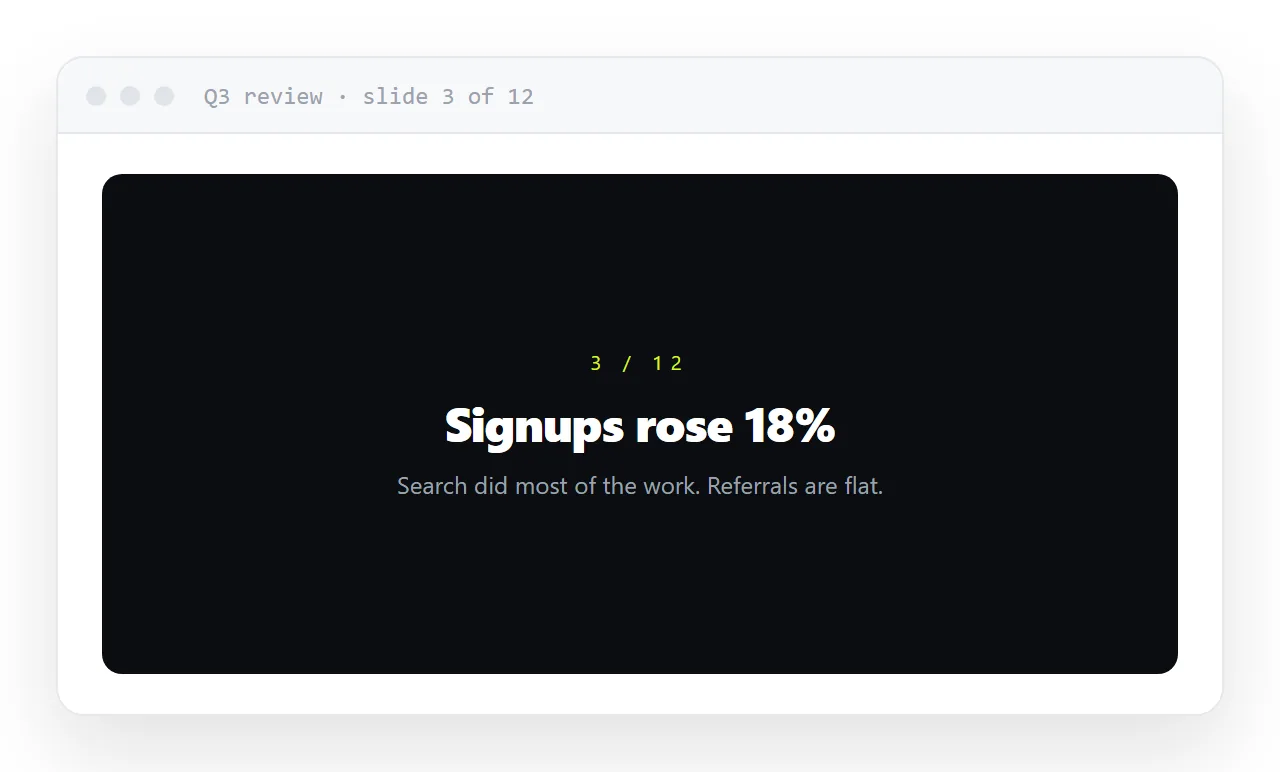
Both problems are fixable in the request rather than afterwards, and the CSS that makes the deck work on a phone and a projector is a dozen lines.
This guide covers the word count rule, slides sized to the screen, stepping between them, the typography that reads from the back, and the four steps to present and share from one link.
Ask for a deck and you get slides that look tidy and read like paragraphs. Both problems are fixable in the request rather than afterwards.
Claude HTML slides, problem one: word count
The request sounds like writing, so you get writing. A generated slide commonly carries forty to sixty words, which is a paragraph with a heading on it.
Fix it in the prompt:
Maximum 18 words per slide. One idea per slide. A headline that states
the point as a sentence, and at most two supporting lines.
If a slide needs more, split it.
That single constraint changes the output more than any styling instruction.
Problem two: fixed dimensions
Generated decks are often sized to a projector — 1920 by 1080, or a fixed aspect ratio. On a phone that becomes a postage stamp, and somebody will read the deck on a phone.
What works on everything:
.slide {
  min-height: 100svh;
  display: grid;
  place-items: center;
  padding: 6vh 5vw;
}
.slide > * { max-width: 760px; }
svh — small viewport height — accounts for phone browser toolbars, so a slide does not end up slightly taller than the visible area and leave a sliver of the next slide showing. A maximum width on the content keeps line length readable on a wide screen without fixing the slide size.
Stepping between slides
.deck { height: 100svh; overflow-y: scroll; scroll-snap-type: y mandatory; }
.slide { scroll-snap-align: start; }
Four lines. Scrolling lands cleanly on each slide instead of stopping between two, and it works with a trackpad, a wheel, arrow keys and a thumb.
Arrow-key stepping, if you want it:
<script>
  var slides = [].slice.call(document.querySelectorAll('.slide'));
  var i = 0;
  document.addEventListener('keydown', function (e) {
    if (e.key === 'ArrowRight' || e.key === 'PageDown') i = Math.min(i + 1, slides.length - 1);
    else if (e.key === 'ArrowLeft' || e.key === 'PageUp') i = Math.max(i - 1, 0);
    else return;
    slides[i].scrollIntoView({ behavior: 'smooth' });
  });
</script>
Include PageDown and PageUp — presentation remotes send those, not arrows.
Typography that reads from the back of a room
| Element | Size | Note |
|---|---|---|
| Headline | clamp(28px, 5vw, 46px) |
Scales with the screen, bounded at both ends |
| Supporting line | clamp(15px, 2vw, 19px) |
Same principle |
| Figure | clamp(30px, 6vw, 56px) |
A number is a headline |
| Kicker | 12px, letter-spaced, uppercase | Orientation, not content |
clamp is what removes the need for a set of media queries: a minimum, a preferred size that scales with the viewport, and a maximum. One line per element.
A prompt that produces a usable deck
One self-contained HTML deck. No libraries.

- one <section class="slide"> per slide, min-height 100svh, content centred
- scroll-snap-type: y mandatory on the container
- max 18 words per slide; headline states the point as a sentence
- font sizes with clamp() so it works on a phone and a projector
- dark background, one accent colour, system font stack
- give each figure its own slide
- readable at 360px wide
Checking the deck on a phone before the room
Narrow the browser to 360px and step through every slide. Anything that overflows sideways, any headline that wraps to four lines, any figure that shrinks below readable is a slide that will fail for the person reading it on the train.
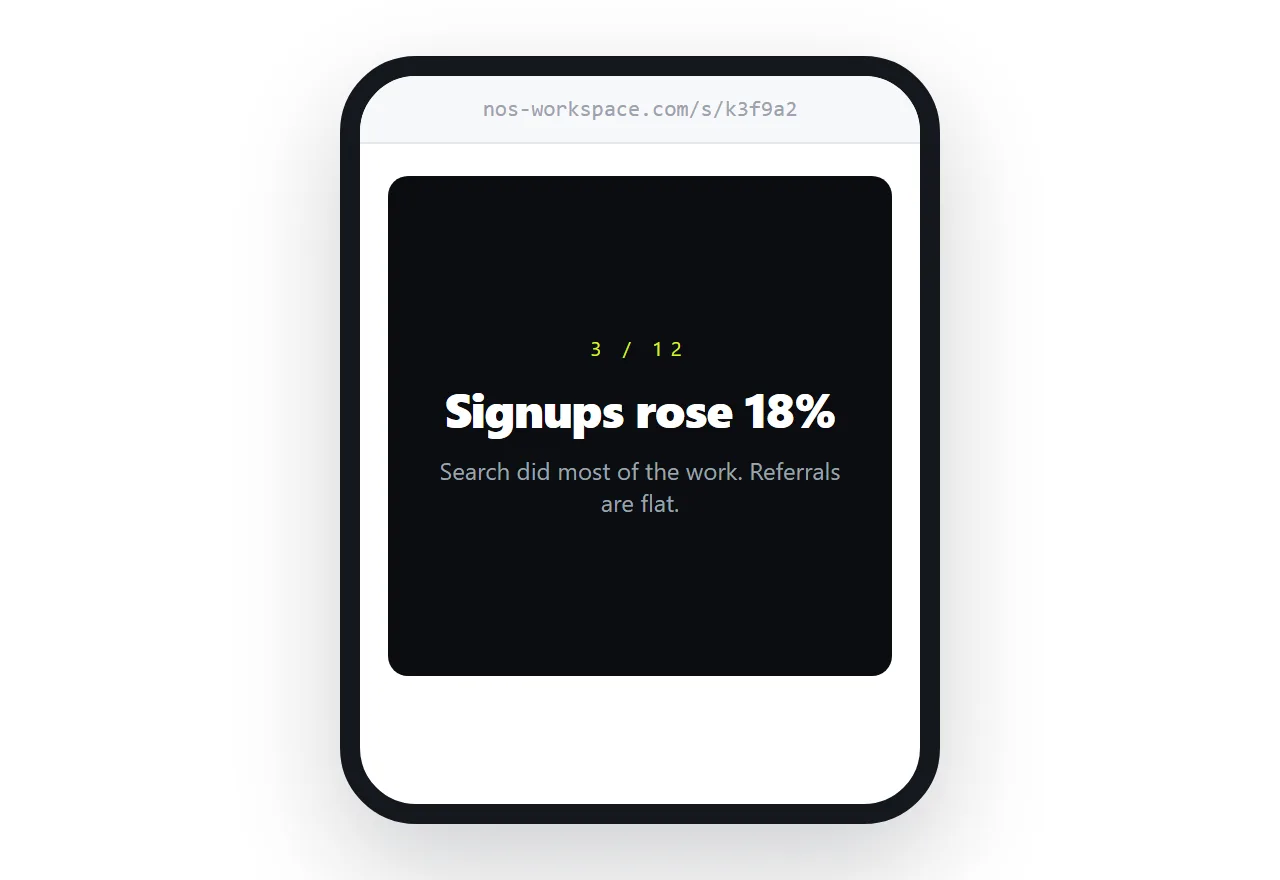
The HTML viewer shows the deck at any width; the fix is almost always shorter words or a smaller clamp() minimum, not a media query.
The handset version of this problem is in Opening an HTML file on a phone.
Presenting and sharing from one address
Publish the page and the same link is the presentation and the handout. Open it, go full screen, step through — no application, no file, no "can you send that deck".
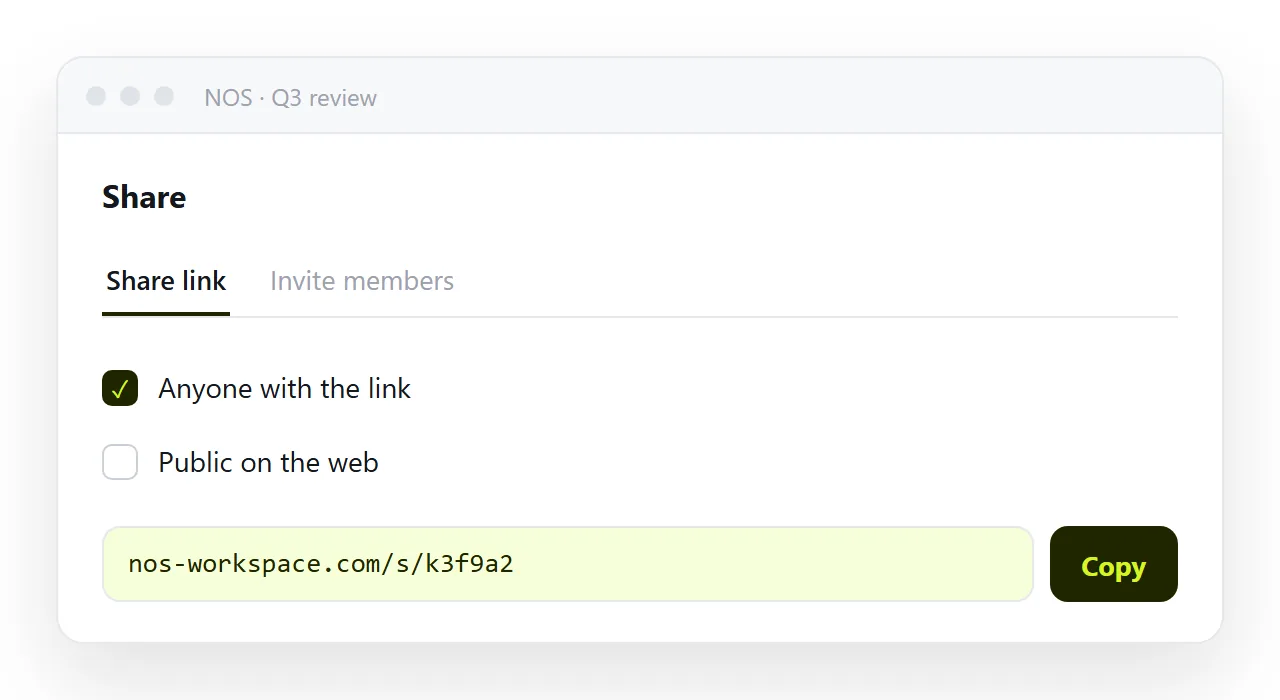
In NOS the pasted deck HTML renders exactly as written at a fixed address and the text on each slide is clickable text. So the figure you notice is wrong the morning after gets typed over, and the link you sent the room is showing the corrected slide — rather than a second file with "final" in its name.
Checklist before presenting
| Check | Why |
|---|---|
| Narrow the window to 360px | Someone will read the deck on a phone |
| Count the words on the busiest slide | Over about 18 and it is a document |
| Open it with the console showing | A failed script leaves a blank slide |
| Press the arrow keys and PageDown | Presentation remotes send PageDown |
| Check the last slide has the ask | Decks get abandoned partway |
The fourth row catches people in the room. A deck that steps with arrow keys and ignores PageDown stops responding the moment you pick up a clicker.
After the meeting
The deck you presented should be the deck they read, at the same address. That means publishing it rather than exporting a file — and it removes the "attached is the final version" email, which is the one that produces four decks with different dates in the filename.
If a figure turns out to be wrong, correct the page. Everyone holding the link is reading the correction, and there is nothing to recall. For the cases where somebody genuinely needs a file, export a PDF from the same page — see generated HTML to PDF.
Images on generated slides
Assistants put a placeholder image on every third slide, referenced by a folder path or a stock-photo address that does not exist. Delete the placeholders.
A slide with a headline and a figure needs no picture; a slide that genuinely needs one needs a real image, resized and embedded or at a full address, or it is an empty box on the projector.
Presenting and sharing the slides: 4 steps
- Put the 18-word rule in the prompt. One idea per slide, a headline that states the point as a sentence, at most two supporting lines. If a slide needs more, it splits.
- Size slides to the screen, not a projector.
min-height: 100svh, content centred, amax-widthon the text,clamp()for every size. - Add snapping and arrow keys, including PageDown. The scroll-snap lines and the key handler above. A presentation remote sends
PageDown, not an arrow. - Paste the deck into a NOS document and present from the link. Share, then Share link, then Create link. Open it, go full screen, step through. The same address is the handout, with the morning-after correction already in it. Turning HTML into a link is this step.