To convert PDF to HTML, decide first whether you want the text or the appearance, because no single route gives you both.
The reason is in the formats. A PDF records that a run of characters sits at a particular point on a sheet of a particular size. It does not record that the run is a heading, or that two runs belong to the same paragraph.
HTML records exactly that structure and lets the browser decide placement. Converting one to the other means reconstructing information that was discarded when the PDF was made.
Check this before anything else
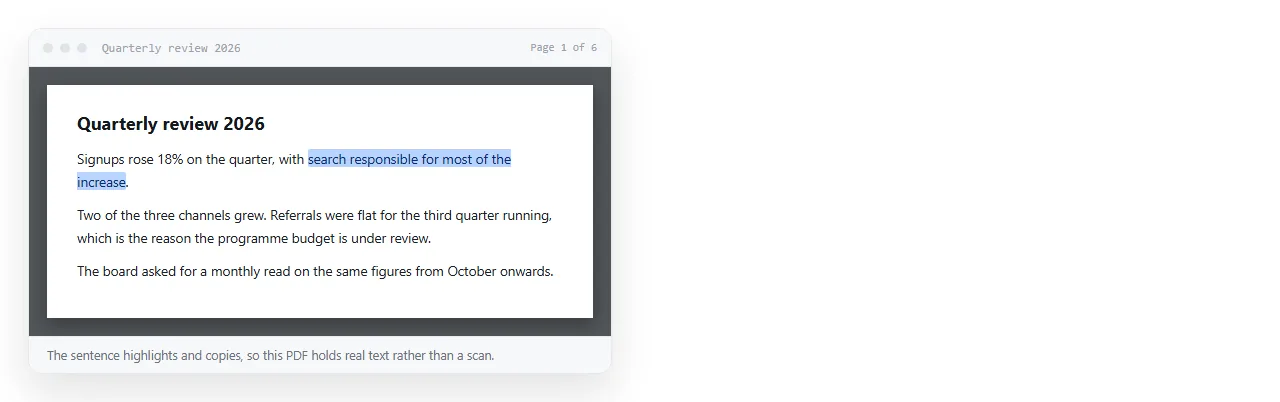
Open the PDF and try to select a sentence.
If the text highlights, there is a text layer and every route below is open to you. If nothing highlights, the pages are pictures, and no converter can read them without optical character recognition first.
A scanned contract and a PDF exported from a word processor look identical on screen and are completely different problems.
Three ways to convert PDF to HTML
| Route | Appearance kept | Reflows on a phone | Effort |
|---|---|---|---|
| Copy text out, rebuild by hand | No | Yes | Highest |
| Automatic converter with CSS output | Close | No | Lowest |
| Export again from the source file | Yes | Yes | Low, if you have it |
The third row is the one worth checking first and the one people skip. If the PDF came from a Word document, a Google Doc or a design file that still exists, export markup from that instead.
Google Docs to HTML covers that route for docs. You get real heading elements and real lists, which is what a converter can never reliably produce.
Route 1: rebuild the content
Slower, and the only route that produces a page worth reading on a phone.
- Select all the text in the PDF and paste it into a plain editor. You get the words with the layout stripped.
- Fix the reading order. Multi column PDFs interleave columns when copied, so check paragraph boundaries.
- Mark up the structure. Headings become
h2andh3, lists becomeulandol, tables becometable. - Pull the images out separately. Most readers export embedded images, or you can capture them.
- Style it once, with flowing CSS rather than positions.
<h2>Scope of work</h2>
<p>The supplier will deliver the items listed below.</p>
<ul>
  <li>Discovery workshop</li>
  <li>Two design rounds</li>
</ul>
That is four lines of structure a converter would have produced as eight positioned boxes. Semantic HTML covers which element to reach for.
Route 2: an automatic converter
Useful when the document is long and appearance matters more than reflow.
Poppler's pdftohtml is the common command line option and produces output with an accompanying stylesheet.
pdftohtml -c -s -noframes report.pdf report.html
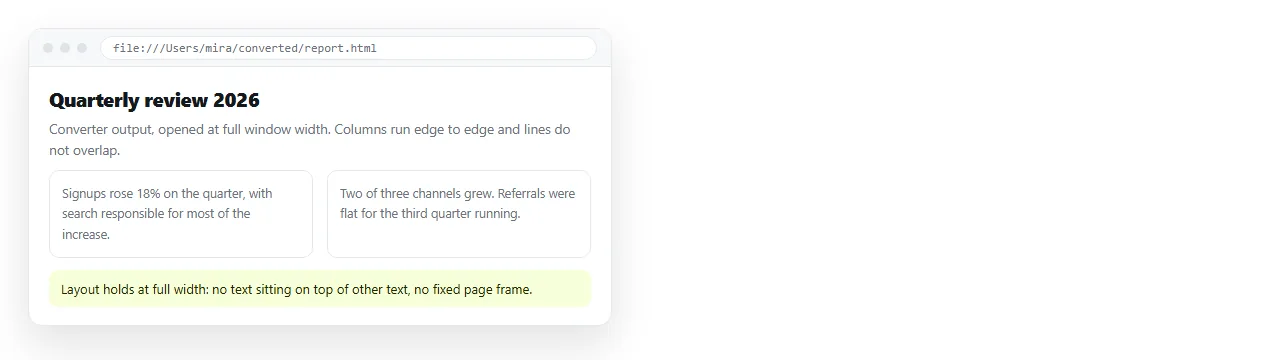
The result renders close to the original at the original width. It is built from absolutely positioned elements, so narrowing the window does not reflow the text, it just clips it.
PDF to HTML with CSS goes into what the generated stylesheet contains and how far it can be cleaned up.
What breaks, in order of likelihood
- Multi column text. Columns interleave, so sentences alternate between them.
- Tables. Usually arrive as loose positioned text with the ruled lines drawn separately or lost.
- Headers and footers. Repeated on every page, and in HTML there are no pages, so they land mid document.
- Fonts. Embedded PDF fonts do not transfer as web fonts. Expect substitution.
- Ligatures and hyphens. Copied text often contains soft hyphens from justified lines.
The header and footer problem is the funniest and the most annoying. A forty page report converts into a page with the company name and a page number stamped through the middle of it thirty nine times.
Deciding by purpose
| You need | Do |
|---|---|
| The text, searchable and readable on a phone | Rebuild by hand |
| A visual archive of the printed original | Converter, accept fixed width |
| To quote a few pages | Copy the text, forget conversion |
| To publish the document as a page | Rebuild, then give it an address |
| The pages as pictures | Export images, skip HTML |
The fourth row is the common real goal, and it is worth separating from the conversion question.
Getting the result in front of people
Once you have HTML, it still has to be somewhere people can open it. A file on your machine has no address.

Paste the HTML into a NOS document and it renders as written, as a page of its own. Share, then Share link, then Create link. Text stays clickable, so the inevitable conversion typos are fixable without another export round.
Turning HTML into a link is that step, and PDF versus a live page sets out when a page is the better deliverable in the first place.
Before you send it, run the check that catches bad output. Drag the browser window narrow. A rebuilt page reflows and stays readable. Converter output stays at its original width and starts clipping.
That one action tells you which kind of file you ended up with, and whether it will survive being opened on a phone.