To copy text to the clipboard with JavaScript, call navigator.clipboard.writeText(text) from inside a click handler and wait for the promise it returns. That is the whole call.
Everything else on this page is the single HTML file around it: a fallback, a visible confirmation, and the reasons a copy fails.
Try it first. Press Copy, then paste into the box. The status line names the route that ran.
<!doctype html>
<html lang="en">
<head>
<meta charset="utf-8">
<meta name="viewport" content="width=device-width, initial-scale=1">
<title>Copy to clipboard</title>
<style>
  body { margin: 0; padding: 18px; font-family: system-ui, sans-serif; background: #f4f5f7; color: #1d2330; }
  .row { display: flex; gap: 10px; align-items: center; flex-wrap: wrap; }
  #src { flex: 1 1 200px; margin: 0; padding: 12px 14px; background: #fff; border: 1px solid #d9dde4; border-radius: 8px; font: 15px ui-monospace, Consolas, monospace; }
  button { min-width: 96px; padding: 11px 16px; font: 600 15px system-ui, sans-serif; color: #fff; background: #2563eb; border: 0; border-radius: 8px; cursor: pointer; }
  button:active { background: #1d4ed8; }
  #status { min-height: 22px; margin: 10px 0 14px; font-size: 14px; color: #0f5132; }
  #status.fail { color: #9a3412; }
  label { display: block; font-size: 13px; color: #4b5563; margin-bottom: 4px; }
  #paste { width: 100%; box-sizing: border-box; height: 64px; padding: 8px 10px; font: 14px system-ui, sans-serif; border: 1px dashed #9aa3b2; border-radius: 8px; resize: none; }
</style>
</head>
<body>
<div class="row">
  <p id="src">npm install left-pad</p>
  <button id="copy">Copy</button>
</div>
<div id="status" role="status"></div>

<label for="paste">Paste test: press Ctrl+V (or long-press, Paste) in the box below</label>
<textarea id="paste"></textarea>

<script>
  async function copyText(text) {
    try {
      await navigator.clipboard.writeText(text);   // modern path, returns a promise
      return 'Clipboard API';
    } catch (err) {
      // refused or missing: copy from a temporary textarea instead
      const ta = document.createElement('textarea');
      ta.value = text;
      ta.style.cssText = 'position:fixed;top:0;left:0;opacity:0';
      document.body.appendChild(ta);
      ta.focus();
      ta.select();
      const ok = document.execCommand('copy');     // old path, returns true or false
      ta.remove();
      if (!ok) throw err;
      return 'execCommand fallback';
    }
  }

  const btn = document.getElementById('copy');
  const status = document.getElementById('status');

  btn.addEventListener('click', async () => {
    try {
      const how = await copyText(document.getElementById('src').textContent);
      status.className = '';
      status.textContent = 'Copied using the ' + how + '. Now paste it below.';
      btn.textContent = 'Copied';
    } catch (err) {
      status.className = 'fail';
      status.textContent = 'Copy was blocked (' + err.name + '). Select the text and press Ctrl+C.';
      btn.textContent = 'Failed';
    }
    setTimeout(() => { btn.textContent = 'Copy'; }, 1500);
  });
</script>
</body>
</html>
The function returns a short label for the route it used, so the page can report it. The same copyText function is the one to copy into your own page.
How the code works, step by step
Every working copy button follows the same five steps.
- Keep the text readable. It sits in an element or a variable, so the handler can pass a plain string.
- Listen for a click. The copy runs because a person pressed the button.
- Call
writeText. It returns a promise that resolves once the clipboard has been updated. - Catch the refusal. If writing is not allowed, the promise rejects with
NotAllowedError. - Tell the reader. Change the label to Copied, or explain what to do instead.
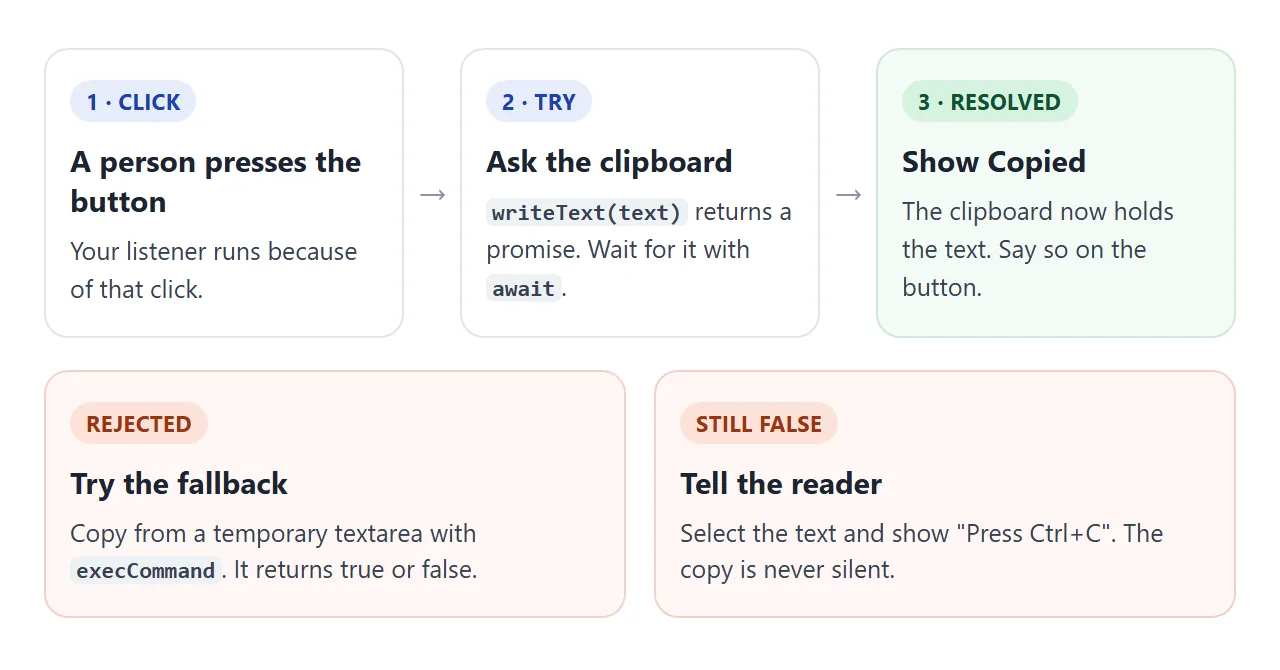
The fallback builds a temporary textarea, fills it with the text, calls focus() and select(), and runs document.execCommand('copy'). MDN notes that select() does not necessarily focus the element, so the code calls focus() first.
Why it works on a click and fails on page load
Browsers treat clipboard writes as something a person should trigger. MDN describes the rule as a mix of permission and recent user interaction, and it differs by browser.
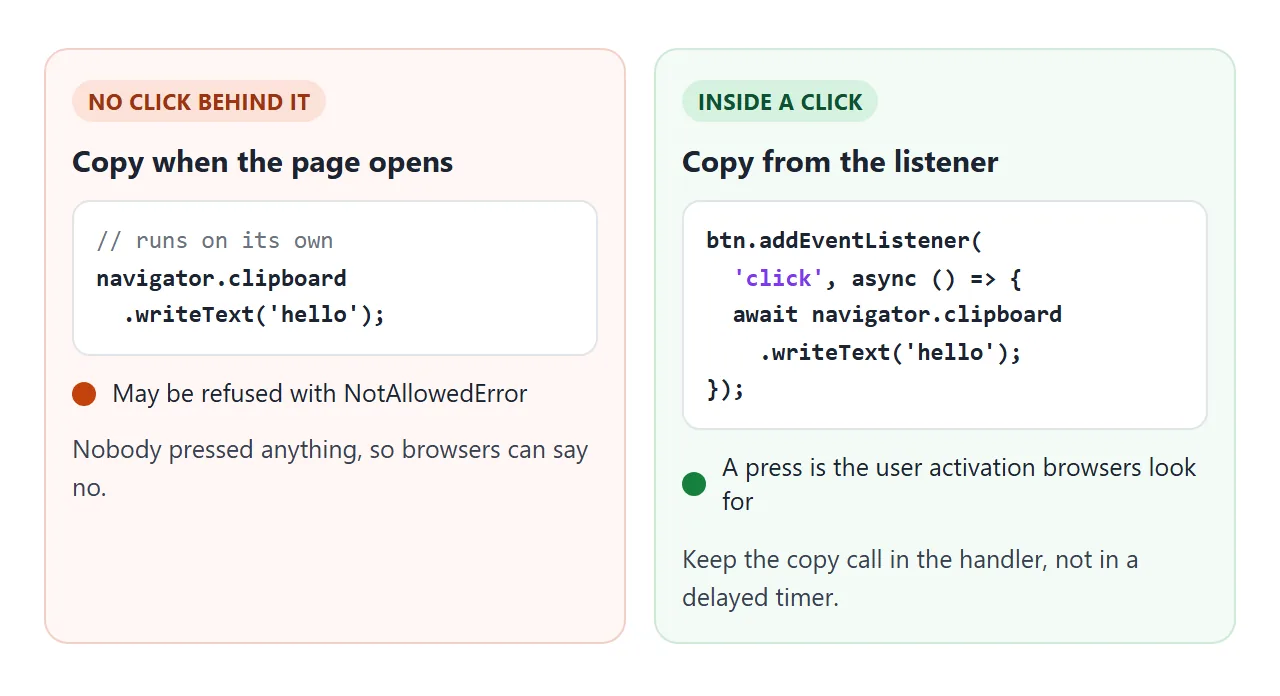
- Chromium browsers: writing needs the
clipboard-writepermission or a recent user interaction. - Firefox and Safari: writing needs a recent user interaction.
- Secure context: the Clipboard API is available on https pages, on localhost and on file URLs. A plain http address is not secure.
- Frames: a framed page is secure only when its parent is. In Chromium, an iframe also needs a Permissions-Policy that allows
clipboard-write.
The frame rule is why a copy button can work in your own file and fail once the page is shown inside someone else's frame. Keep the fallback, and keep the status line.
Three ways to copy, compared
Three routes exist, and they copy different things.
| Route | What it copies | Notes |
|---|---|---|
writeText |
A string you pass in | Returns a promise. MDN recommends it over execCommand |
execCommand('copy') |
The current selection | Deprecated. Returns true only during a user interaction |
copy event |
Whatever you set | Runs when the person copies with Ctrl+C or the menu |
The third route changes what a normal copy puts on the clipboard. It does not need a button:
document.addEventListener('copy', (e) => {
  const picked = document.getSelection().toString();
  e.clipboardData.setData('text/plain', picked + ' (from my page)');
  e.preventDefault();  // use our text instead of the default
});
Copy formatted text, not just text
writeText puts plain text on the clipboard, so a pasted table becomes lines of text. To keep the formatting, write a ClipboardItem that carries both an HTML version and a plain version.
await navigator.clipboard.write([new ClipboardItem({
  'text/html': new Blob([html], { type: 'text/html' }),
  'text/plain': new Blob([text], { type: 'text/plain' }),
})]);
MDN says browsers commonly support writing text, HTML and PNG image data. ClipboardItem.supports(type) lets a page check a type before it writes. The next example offers both copies of one block, and prints the formats it finds when you paste.
<!doctype html>
<html lang="en">
<head>
<meta charset="utf-8">
<meta name="viewport" content="width=device-width, initial-scale=1">
<title>Plain text vs formatted copy</title>
<style>
  body { margin: 0; padding: 16px; font-family: system-ui, sans-serif; background: #f4f5f7; color: #1d2330; }
  #block { background: #fff; border: 1px solid #d9dde4; border-radius: 8px; padding: 10px 14px; }
  #block h3 { margin: 4px 0 8px; font-size: 17px; color: #1e40af; }
  #block table { border-collapse: collapse; width: 100%; font-size: 14px; }
  #block th, #block td { border: 1px solid #c9ced8; padding: 5px 8px; text-align: left; }
  #block th { background: #e8eefc; }
  .btns { display: flex; gap: 8px; flex-wrap: wrap; margin: 12px 0 8px; }
  button { padding: 10px 14px; font: 600 14px system-ui, sans-serif; color: #fff; background: #2563eb; border: 0; border-radius: 8px; cursor: pointer; }
  button.alt { background: #475569; }
  #status { min-height: 20px; font-size: 14px; color: #0f5132; }
  #status.fail { color: #9a3412; }
  label { display: block; font-size: 13px; color: #4b5563; margin: 10px 0 4px; }
  #paste { min-height: 100px; padding: 8px 10px; background: #fff; border: 1px dashed #9aa3b2; border-radius: 8px; font-size: 14px; }
  #types { font-size: 13px; color: #374151; margin-top: 6px; }
</style>
</head>
<body>
<div id="block">
  <h3>Order 1042</h3>
  <table>
    <tr><th>Item</th><th>Qty</th></tr>
    <tr><td>Tea</td><td>2</td></tr>
    <tr><td>Mug</td><td>1</td></tr>
  </table>
</div>

<div class="btns">
  <button id="plain" class="alt">Copy as plain text</button>
  <button id="rich">Copy with formatting</button>
</div>
<div id="status" role="status"></div>

<label for="paste">Paste test: press Ctrl+V (or long-press, Paste) in the box</label>
<div id="paste" contenteditable="true"></div>
<div id="types"></div>

<script>
  const block = document.getElementById('block');
  const status = document.getElementById('status');

  function report(msg, bad) {
    status.className = bad ? 'fail' : '';
    status.textContent = msg;
  }

  async function copyPlain(text) {
    try {
      await navigator.clipboard.writeText(text);
    } catch (err) {
      const ta = document.createElement('textarea');
      ta.value = text;
      ta.style.cssText = 'position:fixed;top:0;left:0;opacity:0';
      document.body.appendChild(ta);
      ta.focus();
      ta.select();
      const ok = document.execCommand('copy');
      ta.remove();
      if (!ok) throw err;
    }
  }

  async function copyRich(el) {
    try {
      // one item, two formats: apps pick the richest one they understand
      await navigator.clipboard.write([new ClipboardItem({
        'text/html': new Blob([el.outerHTML], { type: 'text/html' }),
        'text/plain': new Blob([el.innerText], { type: 'text/plain' }),
      })]);
      return 'ClipboardItem';
    } catch (err) {
      // fallback: select the rendered element, then copy the selection
      const range = document.createRange();
      range.selectNodeContents(el);
      const sel = getSelection();
      sel.removeAllRanges();
      sel.addRange(range);
      const ok = document.execCommand('copy');
      sel.removeAllRanges();
      if (!ok) throw err;
      return 'execCommand on a selection';
    }
  }

  document.getElementById('plain').addEventListener('click', async () => {
    try {
      await copyPlain(block.innerText);
      report('Copied plain text. Paste it: the table becomes tab-separated lines.');
    } catch (err) {
      report('Plain copy was blocked (' + err.name + ').', true);
    }
  });

  document.getElementById('rich').addEventListener('click', async () => {
    try {
      const how = await copyRich(block);
      report('Copied with formatting using ' + how + '. Paste it: the table stays a table.');
    } catch (err) {
      report('Formatted copy was blocked (' + err.name + ').', true);
    }
  });

  // paste event: list which formats the clipboard held
  document.getElementById('paste').addEventListener('paste', (e) => {
    document.getElementById('types').textContent = 'Clipboard held: ' + Array.from(e.clipboardData.types).join(', ');
  });
</script>
</body>
</html>
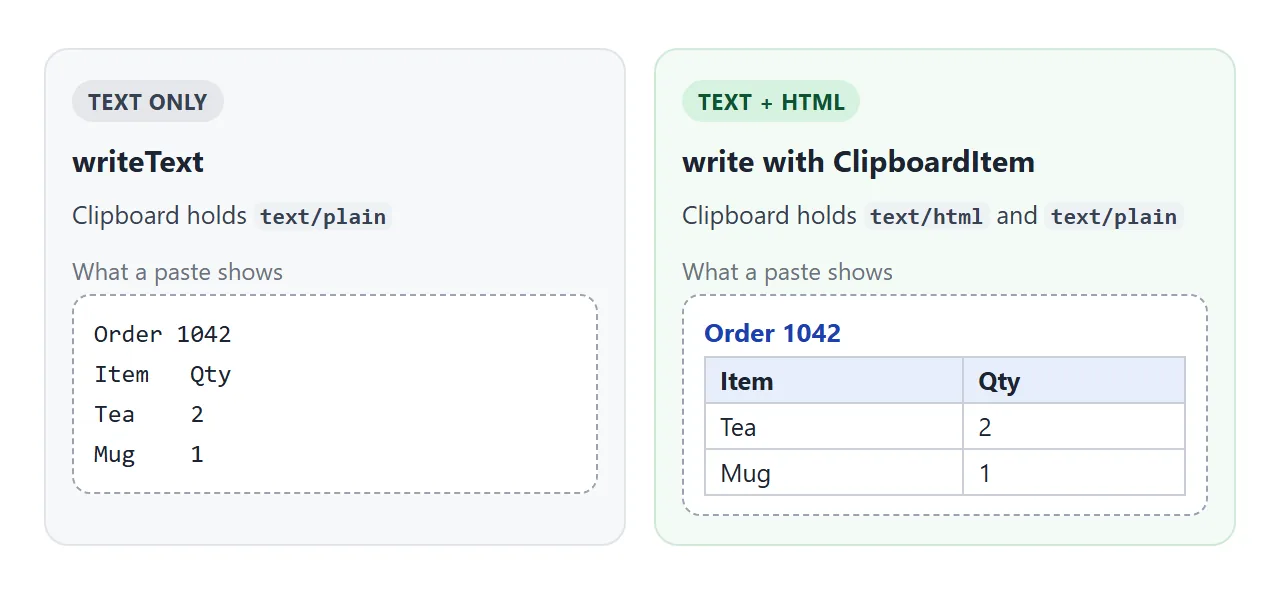
The fallback in this example selects the rendered block and copies the selection, which also carries formatting. Pasting here uses the paste event, where clipboardData.types lists what the clipboard held. A contenteditable div is the box that accepts the pasted table.
In the console and in React
In the browser console, DevTools has a helper: copy(object) copies a string representation of the object to the clipboard. Type it at the console prompt. Code on your page should use navigator.clipboard.
In React, the call is the same and only its place changes. Put it in the button's onClick handler:
<button onClick={() => copyText(text)}>Copy</button>
Pass a function. The React docs point out that onClick={handleClick()} calls the function during rendering, so a copy written that way runs on every render.
A finished example: a reply shelf
Here the same copyText function sits behind three buttons. The snippets fill in the customer name and order number as you type, each button reports its own result, and a failed copy selects the text for Ctrl+C.
<!doctype html>
<html lang="en">
<head>
<meta charset="utf-8">
<meta name="viewport" content="width=device-width, initial-scale=1">
<title>Reply shelf</title>
<style>
  body { margin: 0; padding: 16px; font-family: system-ui, sans-serif; background: #f4f5f7; color: #1d2330; }
  .fields { display: grid; grid-template-columns: 1fr 1fr; gap: 10px; margin-bottom: 12px; }
  label { font-size: 13px; color: #4b5563; display: block; }
  input { width: 100%; box-sizing: border-box; margin-top: 3px; padding: 9px 10px; font: 15px system-ui, sans-serif; border: 1px solid #c9ced8; border-radius: 8px; }
  .snip { background: #fff; border: 1px solid #d9dde4; border-radius: 10px; padding: 10px 12px; margin-bottom: 10px; }
  .snip h4 { margin: 0 0 4px; font-size: 14px; }
  .snip p { margin: 0 0 8px; font-size: 14px; line-height: 1.45; }
  .snip button { min-width: 108px; padding: 9px 14px; font: 600 14px system-ui, sans-serif; color: #fff; background: #2563eb; border: 0; border-radius: 8px; cursor: pointer; }
  .snip button.done { background: #15803d; }
  .snip button.fail { background: #c2410c; }
  .snip.hit { border-color: #2563eb; }
  #paste { width: 100%; box-sizing: border-box; height: 70px; padding: 8px 10px; font: 14px system-ui, sans-serif; border: 1px dashed #9aa3b2; border-radius: 8px; resize: none; }
  @media (max-width: 420px) { .fields { grid-template-columns: 1fr; } }
</style>
</head>
<body>
<div class="fields">
  <label>Customer name <input id="name" value="Dana"></label>
  <label>Order number <input id="order" value="1042"></label>
</div>

<div id="shelf"></div>

<label for="paste">Paste test: press Ctrl+V (or long-press, Paste) in the box</label>
<textarea id="paste"></textarea>

<script>
  const SNIPPETS = [
    { title: 'Shipped', tpl: 'Hi {name}, order #{order} has shipped. You will get a tracking link by email.' },
    { title: 'Delayed', tpl: 'Hi {name}, order #{order} is running a day late. Sorry for the wait.' },
    { title: 'Refund', tpl: 'Hi {name}, the refund for order #{order} is on its way.' },
  ];

  const shelf = document.getElementById('shelf');
  const fields = { name: document.getElementById('name'), order: document.getElementById('order') };

  // fill {name} and {order} from the inputs
  const fill = (tpl) => tpl.replace(/\{(\w+)\}/g, (_, k) => fields[k].value.trim() || '…');

  async function copyText(text) {
    try {
      await navigator.clipboard.writeText(text);
    } catch (err) {
      const ta = document.createElement('textarea');
      ta.value = text;
      ta.style.cssText = 'position:fixed;top:0;left:0;opacity:0';
      document.body.appendChild(ta);
      ta.focus();
      ta.select();
      const ok = document.execCommand('copy');
      ta.remove();
      if (!ok) throw err;
    }
  }

  SNIPPETS.forEach((s) => {
    const box = document.createElement('div');
    box.className = 'snip';
    box.innerHTML = '<h4></h4><p></p><button type="button">Copy</button>';
    box.querySelector('h4').textContent = s.title;
    s.p = box.querySelector('p');
    s.btn = box.querySelector('button');
    shelf.appendChild(box);

    s.btn.addEventListener('click', async () => {
      try {
        await copyText(s.p.textContent);
        s.btn.textContent = 'Copied';
        s.btn.className = 'done';
      } catch (err) {
        // last resort: highlight the text so the reader can press Ctrl+C
        const r = document.createRange();
        r.selectNodeContents(s.p);
        getSelection().removeAllRanges();
        getSelection().addRange(r);
        s.btn.textContent = 'Press Ctrl+C';
        s.btn.className = 'fail';
      }
      setTimeout(() => { s.btn.textContent = 'Copy'; s.btn.className = ''; }, 1500);
    });
  });

  function render() { SNIPPETS.forEach((s) => { s.p.textContent = fill(s.tpl); }); }
  Object.values(fields).forEach((f) => f.addEventListener('input', render));
  render();
</script>
</body>
</html>
- Fill the text before copying. Rebuild each snippet on every
inputevent, and copy the visible text. - Per-button feedback. Each button changes to Copied for about a second and a half, then restores.
- Last resort. If both routes fail, select the text and ask for Ctrl+C.
For button placement, table rows and labels, see HTML copy button. It covers the button itself, and this page covers the copy function behind it.
Reading the clipboard is different
readText() returns a promise with the clipboard's text, but access to read has to be allowed. When it is not, the promise rejects with NotAllowedError. Chromium browsers may ask for a permission, and Firefox and Safari may show a small Paste menu.
For most pages the simpler design is to let the person paste with Ctrl+V and read the paste event, as the example above does.
When it does not work
| Symptom | Cause | Fix |
|---|---|---|
| Click does nothing on an http page | The Clipboard API needs a secure context | Serve over https, or keep the fallback |
NotAllowedError in the console |
No user interaction, or the frame lacks permission | Call it from a click listener; allow clipboard-write in frames |
| In React, it copies at page load | onClick={copy()} runs during render |
Pass a function: onClick={() => copy()} |
| Fallback returns false | No user interaction, or nothing was selected | Run it in the click handler, after select() |
| A table pastes as plain lines | Only text/plain was written |
Write text/html with a ClipboardItem |
| Button works locally, not in a frame | The frame does not allow clipboard writes | Keep the fallback and show its result |
Share it as a link
A copy button has to be pressed to be believed, and a screenshot cannot be pressed. The page also needs its script to travel with it, which self-contained HTML explains.
To send the working version, paste the page into a NOS document and choose Create share link. HTML to link walks through it.
The page renders as written and its scripts run, so the people you send it to can press the buttons themselves. If you change the code later, the same link shows the new version.
Open the link yourself and press each button once. The status line tells you which route ran, and that is the route your readers will get too.