To make a course syllabus website, put the whole syllabus on one scrollable page: course details, a schedule table, grading and policies. Then send one link instead of a file.
Dates move after the first week and a reading gets swapped. A link lets you correct the page without a second version going out.
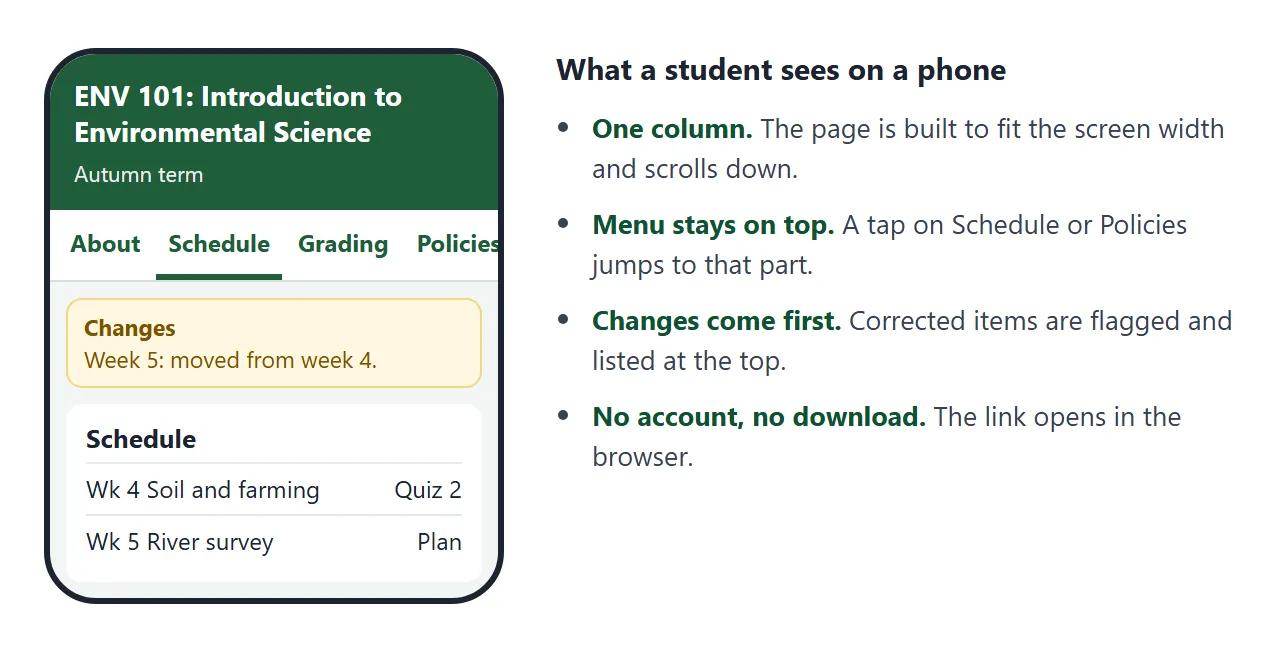
Here is a syllabus page of that kind, for a made-up course. Scroll it, tap the menu at the top, and open a policy. The two flagged rows in the schedule were corrected mid-term and are listed at the top.
<!doctype html>
<html lang="en">
<head>
<meta charset="utf-8">
<meta name="viewport" content="width=device-width, initial-scale=1">
<title>ENV 101 syllabus</title>
<style>
* { box-sizing: border-box; }
html { scroll-behavior: smooth; }
body { margin: 0; font-family: system-ui, sans-serif; background: #f3f6f4; color: #1d2330; line-height: 1.5; }
header { background: #1f5d3a; color: #fff; padding: 22px 16px 18px; }
header .in, main, nav .in { max-width: 720px; margin: 0 auto; }
header h1 { margin: 0 0 4px; font-size: 24px; }
header p { margin: 0; font-size: 14px; opacity: .92; }
nav { position: sticky; top: 0; z-index: 5; background: #fff; border-bottom: 1px solid #d9e0dc; }
nav .in { display: flex; gap: 4px; overflow-x: auto; padding: 0 8px; }
nav a { flex: none; padding: 12px 12px; font-size: 14px; font-weight: 600; color: #1f5d3a; text-decoration: none; border-bottom: 3px solid transparent; }
nav a:hover { border-bottom-color: #1f5d3a; }
main { padding: 16px; }
section { background: #fff; border-radius: 12px; padding: 16px 16px 14px; margin-bottom: 14px; box-shadow: 0 1px 6px rgba(0,0,0,.06); scroll-margin-top: 58px; }
h2 { margin: 0 0 8px; font-size: 18px; }
.facts { display: grid; grid-template-columns: 1fr 1fr; gap: 8px 14px; margin: 0; font-size: 14px; }
.facts dt { font-weight: 700; color: #5b6472; font-size: 12px; text-transform: uppercase; letter-spacing: .03em; }
.facts dd { margin: 0 0 4px; }
.update { background: #fff7e0; border: 1px solid #f2d680; }
.update h2 { color: #7a5200; }
.update ul { margin: 0; padding-left: 18px; font-size: 14px; }
.update:empty, .update[hidden] { display: none; }
table { width: 100%; border-collapse: collapse; font-size: 14px; }
th, td { text-align: left; padding: 8px 6px; border-bottom: 1px solid #e6ebe8; vertical-align: top; }
th { font-size: 12px; color: #5b6472; text-transform: uppercase; letter-spacing: .03em; }
td.wk { font-weight: 700; white-space: nowrap; }
.tag { display: inline-block; margin-left: 4px; padding: 1px 7px; border-radius: 999px; background: #ffe9a8; color: #6b4a00; font-size: 12px; font-weight: 700; }
.note { display: block; font-size: 13px; color: #7a5200; }
.bar { display: flex; height: 26px; border-radius: 6px; overflow: hidden; margin: 6px 0 8px; font-size: 12px; color: #fff; font-weight: 700; }
.bar span { display: flex; align-items: center; justify-content: center; }
details { border-top: 1px solid #e6ebe8; padding: 9px 0; }
details:first-of-type { border-top: 0; }
summary { cursor: pointer; font-weight: 700; font-size: 15px; }
details p { margin: 6px 0 2px; font-size: 14px; }
footer { text-align: center; font-size: 13px; color: #5b6472; padding: 6px 16px 22px; }
@media (max-width: 480px) { .facts { grid-template-columns: 1fr 1fr; } th, td { padding: 7px 4px; font-size: 13px; } th { font-size: 11px; } }
</style>
</head>
<body>
<header><div class="in">
<h1>ENV 101: Introduction to Environmental Science</h1>
<p>Autumn term · Prof. Ana Lindqvist (fictional) · Tuesdays and Thursdays</p>
</div></header>
<nav><div class="in">
<a href="#about">About</a><a href="#schedule">Schedule</a><a href="#grading">Grading</a><a href="#policies">Policies</a><a href="#contact">Contact</a>
</div></nav>
<main>
<section class="update" id="changes" hidden><h2>Changes since the first week</h2><ul id="changeList"></ul></section>
<section id="about">
<h2>About this course</h2>
<p style="margin:0 0 10px;font-size:14px">A first look at ecosystems, energy and water. No lab experience needed.</p>
<dl class="facts">
<div><dt>Room</dt><dd>Science Hall 214</dd></div>
<div><dt>Time</dt><dd>10:00 to 11:15</dd></div>
<div><dt>Text</dt><dd>Course reader (posted weekly)</dd></div>
<div><dt>Prerequisite</dt><dd>None</dd></div>
</dl>
</section>
<section id="schedule">
<h2>Schedule</h2>
<table>
<thead><tr><th>Week</th><th>Topic</th><th>Reading</th><th>Due</th></tr></thead>
<tbody id="rows"></tbody>
</table>
</section>
<section id="grading">
<h2>Grading</h2>
<div class="bar" role="img" aria-label="Quizzes 30, Field report 30, Final project 30, Participation 10">
<span style="width:30%;background:#1f5d3a">Quizzes 30%</span>
<span style="width:30%;background:#2f7f9e">Field report 30%</span>
<span style="width:30%;background:#7a4fa3">Project 30%</span>
<span style="width:10%;background:#9a6b1f">10%</span>
</div>
<p style="margin:0;font-size:14px">Participation is the last 10%. Your lowest quiz score is dropped.</p>
</section>
<section id="policies">
<h2>Policies</h2>
<details open><summary>Late work</summary><p>Work handed in up to two days late loses one grade step. After that it is not accepted unless we agreed a new date before the deadline.</p></details>
<details><summary>Attendance</summary><p>Come when you can. If you will miss a class, tell me by email so I can send the notes.</p></details>
<details><summary>Use of AI tools</summary><p>You may use AI to brainstorm or check your grammar. Say so in a note at the end of your work. The writing and the numbers must be yours.</p></details>
<details><summary>Accessibility</summary><p>If you need an adjustment, tell me in the first two weeks, or later if your situation changes. We will agree on it together.</p></details>
</section>
<section id="contact">
<h2>Contact</h2>
<p style="margin:0;font-size:14px">Email: lindqvist@example.edu (fictional)<br>Office hours: Wednesdays 14:00 to 16:00, Science Hall 307</p>
</section>
</main>
<footer>Last updated week 5. This page is the current version of the syllabus.</footer>
<script>
// To correct the schedule, edit one line below. Add a "note" and it is flagged and listed at the top.
const SCHEDULE = [
{ week: 1, topic: 'What is an ecosystem?', reading: 'Reader ch. 1', due: '-' },
{ week: 2, topic: 'Food webs and energy', reading: 'Reader ch. 2', due: 'Quiz 1' },
{ week: 3, topic: 'The water cycle', reading: 'Reader ch. 3', due: '-' },
{ week: 4, topic: 'Soil and farming', reading: 'Reader ch. 4', due: 'Quiz 2' },
{ week: 5, topic: 'Field trip: river survey', reading: 'Trip sheet', due: 'Field report plan',
note: 'Moved from week 4 because of the weather.' },
{ week: 6, topic: 'Energy sources compared', reading: 'Reader ch. 5', due: 'Quiz 3',
note: 'Reading changed from ch. 6 to ch. 5.' },
{ week: 7, topic: 'Climate and weather data', reading: 'Reader ch. 7', due: 'Field report' },
{ week: 8, topic: 'Project presentations', reading: '-', due: 'Final project' }
];
const rows = document.getElementById('rows');
const list = document.getElementById('changeList');
SCHEDULE.forEach((s) => {
const tr = document.createElement('tr');
const cells = [['wk', 'Wk ' + s.week], ['', s.topic], ['', s.reading], ['', s.due]];
cells.forEach(([cls, text], i) => {
const td = document.createElement('td');
if (cls) td.className = cls;
td.textContent = text;
if (i === 1 && s.note) {
const tag = document.createElement('span');
tag.className = 'tag';
tag.textContent = 'Changed';
td.appendChild(tag);
const n = document.createElement('span');
n.className = 'note';
n.textContent = s.note;
td.appendChild(n);
}
tr.appendChild(td);
});
rows.appendChild(tr);
if (s.note) {
const li = document.createElement('li');
li.textContent = 'Week ' + s.week + ': ' + s.note;
list.appendChild(li);
}
});
if (list.children.length) document.getElementById('changes').hidden = false;
</script>
</body>
</html>
The schedule lives in one list, so a correction is a one-line edit. Add a note to a row and it is flagged and added to the changes box. A reader who opens the link in week 6 sees what moved without comparing two files.
Make it with AI
You do not need to write the page yourself. Paste your syllabus text into ChatGPT, Claude or Gemini with this prompt.
Make one HTML page from the syllabus below. A sticky menu at the top
jumps to About, Schedule, Grading, Policies and Contact. Put the
schedule in one JavaScript list near the bottom, one row per week:
week, topic, reading, due. If a row has a "note" field, flag the row
and list the note in a "Changes" box at the top. Policies go in
collapsible sections. Large text, works on a phone. No outside
libraries, images or fonts. Do not save data anywhere.

[paste your syllabus here]
Then check the result before you send it:
- Every date and due item. Compare the schedule with your own document, row by row. An AI can drop or shift a date without saying so.
- Every policy. Make sure the wording is yours. A rule the AI invented is now your rule.
- Phone width. Make the browser window narrow. The table should still be readable.
Send it as a link
- Copy all of the code the AI returned.
- Paste it into a NOS document. The page renders and its scripts run, so test the menu yourself.
- Choose Create share link and copy the address. HTML to link walks through it.
- Send that address once, wherever students look.
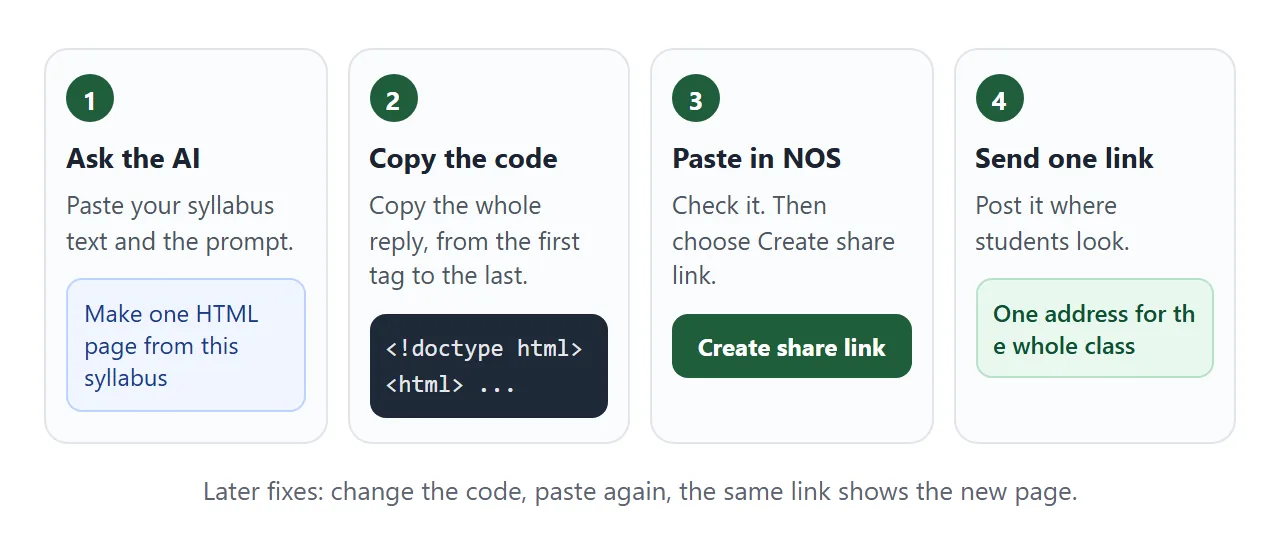
Anyone with the link can open the page in a browser, on a phone or a laptop, without an account. They cannot edit it.
If a phone shows a sent file as plain text instead of a page, see opening an HTML file on a phone.
Google's Classroom help says you can attach a link when you create an assignment or a material post. For a material, choose Create, then Material, then Add, then Link.
The same help says a posted item can be changed with More, then Edit. As of October 2026 the menus may differ by device, so check the current help page.
For a paper copy, print the link as a QR code. QR code link explains why a printed code stays useful when the page behind it changes.
Correct it mid-term without a second version
Syllabus corrections come in three kinds: a date moves, a reading changes, a policy is added. In all three the fix is the same.
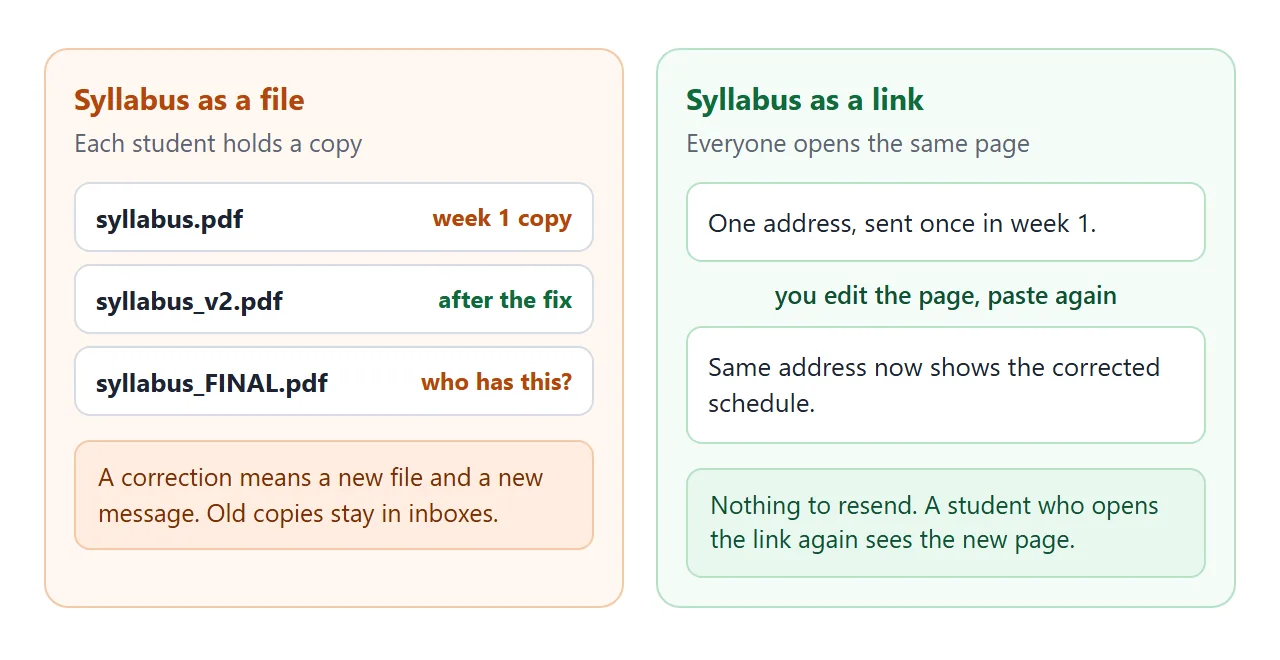
Change the line in the code, or paste the code back to the AI and say what changed. Paste the new code into the same NOS document. The link already in students' messages and in your class platform now shows the corrected page.
Give corrections a visible place. In the first example, the note on a row flags it and also lists it at the top. Students who read the syllabus in week 1 can see what changed since.
Ways to send a syllabus compared
| File attachment | Link to a page | |
|---|---|---|
| What students hold | A copy | An address |
| After a correction | Send a new file | Edit once, same link |
| On a phone | Depends on the phone and app | Opens in the browser |
| Which version is current | Unclear | Always the page |
A file still has a place. If you need a signed or archived copy, keep your document as the record. Use the page for what students read all term.
A shorter page for a younger class
Not every course needs a schedule table. This outline for a school class uses one card per unit, with a button to open or close them all. The units are one list near the bottom of the code.
<!doctype html>
<html lang="en">
<head>
<meta charset="utf-8">
<meta name="viewport" content="width=device-width, initial-scale=1">
<title>Grade 9 Science: term outline</title>
<style>
* { box-sizing: border-box; }
body { margin: 0; padding: 14px; font-family: system-ui, sans-serif; background: #eef3f8; color: #1d2330; line-height: 1.45; }
.wrap { max-width: 560px; margin: 0 auto; }
h1 { font-size: 22px; margin: 0 0 2px; }
.sub { margin: 0 0 12px; font-size: 14px; color: #5b6472; }
.tools { display: flex; gap: 8px; margin-bottom: 12px; }
button { font: inherit; font-size: 14px; font-weight: 700; padding: 9px 14px; border: 0; border-radius: 8px; background: #2563eb; color: #fff; cursor: pointer; }
button.ghost { background: #e0e6ef; color: #1d2330; }
.card { background: #fff; border-radius: 12px; padding: 4px 14px; margin-bottom: 10px; box-shadow: 0 1px 6px rgba(0,0,0,.07); }
details { padding: 10px 0; }
summary { cursor: pointer; font-weight: 700; font-size: 16px; display: flex; justify-content: space-between; gap: 10px; }
summary small { font-weight: 600; font-size: 12px; color: #5b6472; white-space: nowrap; align-self: center; }
ul { margin: 8px 0 4px; padding-left: 20px; font-size: 14px; }
.box { background: #fff; border-radius: 12px; padding: 12px 14px; box-shadow: 0 1px 6px rgba(0,0,0,.07); font-size: 14px; }
.box h2 { font-size: 16px; margin: 0 0 6px; }
.box p { margin: 0 0 6px; }
</style>
</head>
<body>
<div class="wrap">
<h1>Grade 9 Science: term outline</h1>
<p class="sub">Room B12 · Mr. Okafor (fictional) · Tap a unit to see what we will do.</p>
<div class="tools">
<button type="button" id="openAll">Open all</button>
<button type="button" id="closeAll" class="ghost">Close all</button>
</div>
<div class="card" id="units"></div>
<div class="box">
<h2>Bring to every lesson</h2>
<p>Notebook, pencil, calculator, and the homework sheet.</p>
<h2>Questions?</h2>
<p>Write in the class planner or email okafor@example.edu (fictional). I answer within two school days.</p>
</div>
</div>
<script>
// Edit this list to change the page. One entry per unit.
const UNITS = [
{ name: 'Unit 1: Cells', weeks: 'Weeks 1-3', items: ['Use a microscope', 'Plant and animal cells', 'Quiz in week 3'] },
{ name: 'Unit 2: Forces', weeks: 'Weeks 4-6', items: ['Speed and acceleration', 'Build a ramp and measure', 'Lab report due week 6'] },
{ name: 'Unit 3: Chemistry basics', weeks: 'Weeks 7-9', items: ['Atoms and the periodic table', 'Mixtures and reactions', 'Test in week 9'] },
{ name: 'Unit 4: Earth systems', weeks: 'Weeks 10-12', items: ['Rocks and plate movement', 'Weather maps', 'Group poster in week 12'] }
];
const box = document.getElementById('units');
UNITS.forEach((u, i) => {
const d = document.createElement('details');
if (i === 0) d.open = true;
const s = document.createElement('summary');
s.appendChild(document.createTextNode(u.name));
const w = document.createElement('small');
w.textContent = u.weeks;
s.appendChild(w);
d.appendChild(s);
const ul = document.createElement('ul');
u.items.forEach((t) => {
const li = document.createElement('li');
li.textContent = t;
ul.appendChild(li);
});
d.appendChild(ul);
box.appendChild(d);
});
const all = () => box.querySelectorAll('details');
document.getElementById('openAll').addEventListener('click', () => all().forEach((d) => (d.open = true)));
document.getElementById('closeAll').addEventListener('click', () => all().forEach((d) => (d.open = false)));
</script>
</body>
</html>
Ask the AI for this one by changing the prompt: "one collapsible card per unit with weeks and a list of what we will do, plus a Bring to every lesson box."
When it does not work
| Symptom | Cause | Fix |
|---|---|---|
| Students see code, not a page | The file was sent as an attachment and opened as text | Send the link, not the file |
| A date is wrong on the page | The AI changed or dropped it | Fix the line in the code, paste again |
| The menu does not jump | A line was lost when copying | Copy all of the AI's code again |
| Images or fonts are missing | They come from another website, which the page blocks | Ask for a version with no outside images or fonts |
| Students cannot tick items off | The page saves nothing for visitors | Ask them to keep their own list, or use your class platform |
| You cannot see who opened it | NOS does not record opens | Ask students to confirm in your class platform |
If your class already uses a platform, send course materials covers keeping one address per session, and share AI-generated HTML explains what to check before you send any page an AI wrote.