"Email templates in Outlook" means a saved email you can reuse, in the Outlook mail app. Outlook stores the template, but the design comes from somewhere else.
The most reliable source is a small HTML file built with tables and inline styles, because classic Outlook for Windows reads mail with a Word-based HTML engine rather than a browser engine.
Here is the smallest version that holds together. Edit the text and the example reruns.
<!doctype html>
<html lang="en">
<head>
<meta charset="utf-8">
<meta name="viewport" content="width=device-width, initial-scale=1">
<title>Outlook-safe email template</title>
</head>
<body style="margin:0; padding:0; background-color:#eef1f5;">
<!-- Outer table: full width background -->
<table role="presentation" width="100%" cellpadding="0" cellspacing="0" border="0" bgcolor="#eef1f5">
  <tr>
    <td align="center" style="padding:20px 10px;">
      <!-- Inner table: the 600px email. width attribute, not max-width -->
      <table role="presentation" width="600" cellpadding="0" cellspacing="0" border="0" bgcolor="#ffffff" style="width:100%; max-width:600px;">
        <tr>
          <td bgcolor="#1f4e79" style="padding:18px 24px; font-family:Arial, sans-serif; font-size:20px; font-weight:bold; color:#ffffff;">
            Acme Studio
          </td>
        </tr>
        <tr>
          <td style="padding:24px; font-family:Arial, sans-serif; font-size:15px; line-height:150%; color:#1d2330;">
            <p style="margin:0 0 12px 0;">Hi [First name],</p>
            <p style="margin:0 0 18px 0;">Your order <b>[Order number]</b> has shipped. It should arrive on [Date].</p>
            <!-- Button: a padded table cell around a link -->
            <table role="presentation" cellpadding="0" cellspacing="0" border="0">
              <tr>
                <td bgcolor="#1f7a3e" style="padding:12px 22px;">
                  <a href="https://example.com/track" style="font-family:Arial, sans-serif; font-size:15px; font-weight:bold; color:#ffffff; text-decoration:none;">Track the parcel</a>
                </td>
              </tr>
            </table>
          </td>
        </tr>
        <tr>
          <td style="padding:14px 24px; font-family:Arial, sans-serif; font-size:12px; line-height:150%; color:#6b7280; border-top:1px solid #e1e4ea;">
            Acme Studio, 1 Example Street. You get this mail because you ordered from us.
          </td>
        </tr>
      </table>
    </td>
  </tr>
</table>
</body>
</html>
Everything in it is plain HTML from before the CSS layout era: width attributes, bgcolor, padding on <td> cells, and a style attribute on every piece of text. That is on purpose.
Where Outlook keeps email templates
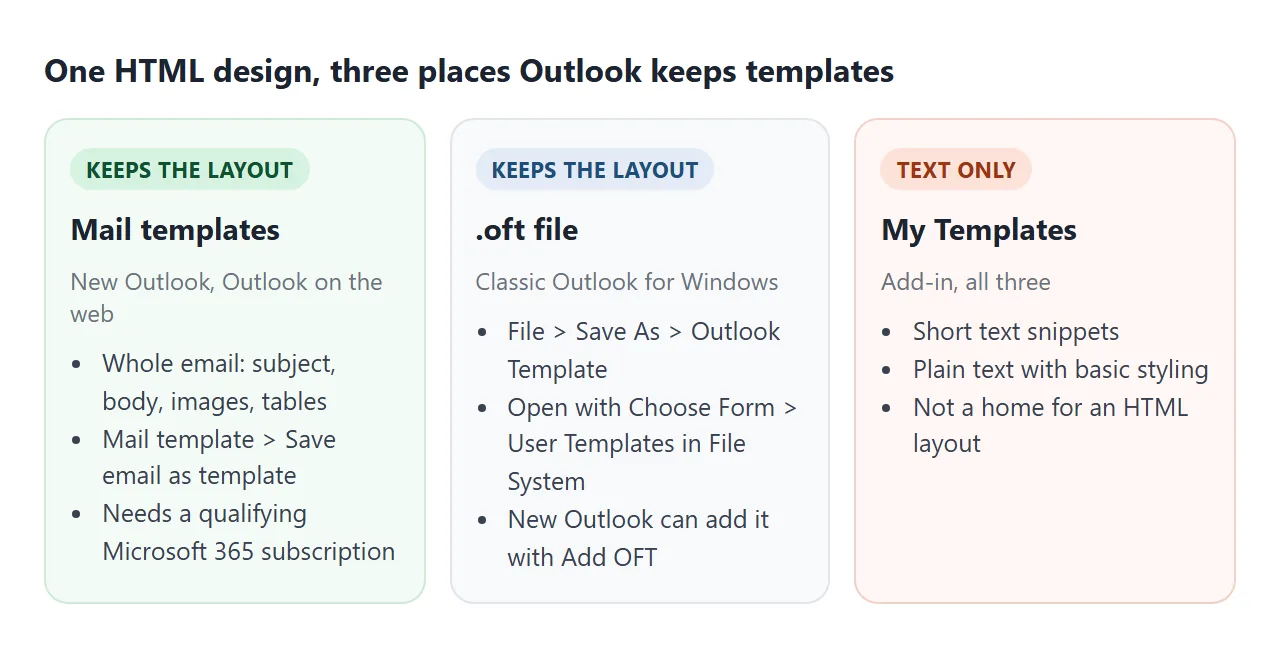
Outlook has three template features, and they keep different things. Pick the one that keeps a layout.
| Feature | Where | What it keeps |
|---|---|---|
| Mail templates | New Outlook, Outlook on the web | The whole email: recipients, subject, body, formatting, images, tables, attachments |
Outlook Template (.oft) |
Classic Outlook for Windows | The email draft as a file |
| My Templates add-in | New Outlook, web, classic | Short text snippets, plain text with basic styling |
Microsoft notes that Mail templates need a qualifying Microsoft 365 subscription. New Outlook and Outlook on the web can also download a template as an .oft file, and add .oft files from your computer with Add OFT.
Why the HTML has to be built with tables
Microsoft's reference for the Word engine, written for Outlook 2007, lists the CSS it skips. The list includes max-width, float, position and background-image. Elements such as script, form and button are unsupported too.
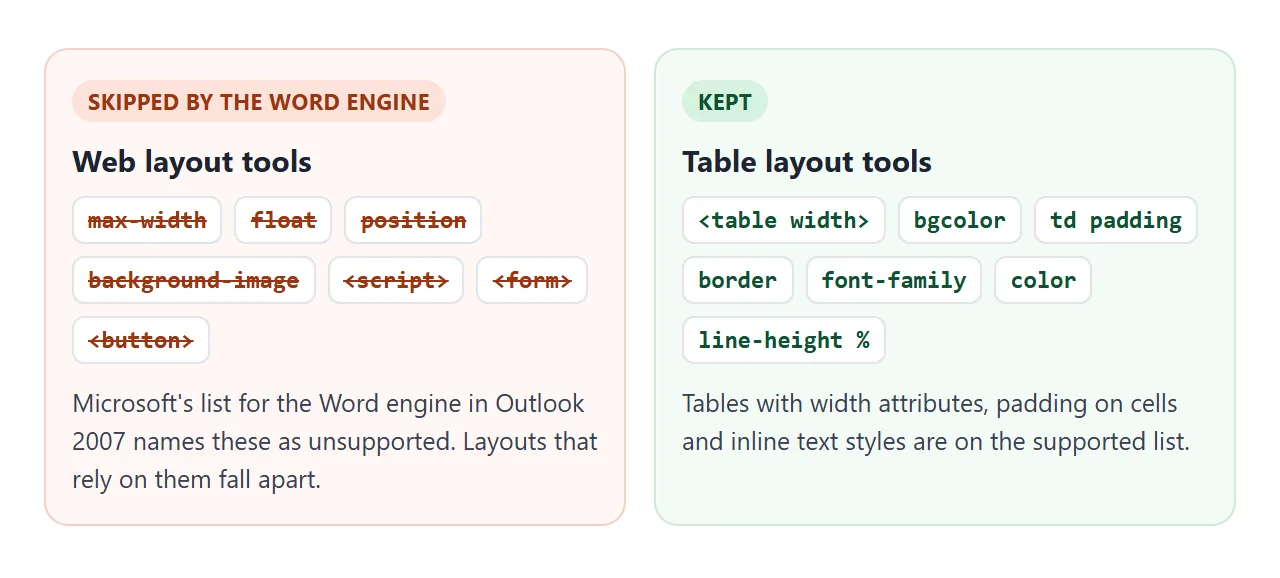
Compare the same card built two ways. Press the button to remove the properties the Word engine skips. This only imitates the effect in your browser, it is not Outlook.
<!doctype html>
<html lang="en">
<head>
<meta charset="utf-8">
<meta name="viewport" content="width=device-width, initial-scale=1">
<title>Web layout vs table layout</title>
<style>
  body { margin: 0; padding: 14px; font-family: system-ui, sans-serif; background: #f4f5f7; color: #1d2330; }
  .bar { display: flex; gap: 10px; align-items: center; flex-wrap: wrap; margin-bottom: 12px; font-size: 14px; }
  button { font: inherit; padding: 8px 14px; border-radius: 8px; border: 1px solid #1f4e79; background: #1f4e79; color: #fff; cursor: pointer; }
  .cols { display: grid; grid-template-columns: repeat(auto-fit, minmax(260px, 1fr)); gap: 14px; }
  .label { font-size: 13px; font-weight: 700; margin: 0 0 6px; }
  .box { background: #fff; border: 1px dashed #c9ced8; padding: 10px; }
  #status { font-size: 13px; color: #9a3412; }
</style>
</head>
<body>
<div class="bar">
  <button id="toggle" type="button">Remove what the Word engine skips</button>
  <span id="status"></span>
</div>

<div class="cols">
  <div>
    <p class="label">A: built like a web page</p>
    <div class="box" id="web">
      <div style="max-width:320px; margin:0 auto; background-image:linear-gradient(135deg,#1f4e79,#3b82c4); border-radius:14px; padding:16px; color:#fff; font-family:Arial, sans-serif;">
        <div style="display:flex; gap:10px; align-items:center;">
          <div style="width:40px; height:40px; border-radius:50%; background:#fff; color:#1f4e79; font-weight:bold; text-align:center; line-height:40px;">A</div>
          <div style="font-size:17px; font-weight:bold;">Your invoice is ready</div>
        </div>
        <p style="margin:12px 0; line-height:1.5;">Amount due: 120.00</p>
        <a href="#" style="display:inline-block; background:#fff; color:#1f4e79; padding:10px 16px; border-radius:20px; text-decoration:none; font-weight:bold;">View invoice</a>
      </div>
    </div>
  </div>
  <div>
    <p class="label">B: built with tables</p>
    <div class="box" id="tbl">
      <table role="presentation" width="320" cellpadding="0" cellspacing="0" border="0" align="center" bgcolor="#1f4e79" style="width:100%; max-width:320px;">
        <tr>
          <td width="56" style="padding:16px 0 0 16px;">
            <table role="presentation" cellpadding="0" cellspacing="0" border="0"><tr>
              <td width="40" height="40" bgcolor="#ffffff" align="center" style="font-family:Arial, sans-serif; font-weight:bold; color:#1f4e79;">A</td>
            </tr></table>
          </td>
          <td style="padding:16px 16px 0 0; font-family:Arial, sans-serif; font-size:17px; font-weight:bold; color:#ffffff;">Your invoice is ready</td>
        </tr>
        <tr>
          <td colspan="2" style="padding:12px 16px; font-family:Arial, sans-serif; line-height:150%; color:#ffffff;">Amount due: 120.00</td>
        </tr>
        <tr>
          <td colspan="2" style="padding:0 16px 16px;">
            <table role="presentation" cellpadding="0" cellspacing="0" border="0"><tr>
              <td bgcolor="#ffffff" style="padding:10px 16px;"><a href="#" style="font-family:Arial, sans-serif; font-weight:bold; color:#1f4e79; text-decoration:none;">View invoice</a></td>
            </tr></table>
          </td>
        </tr>
      </table>
    </div>
  </div>
</div>

<script>
  // Properties listed as unsupported by Word's HTML engine, plus border-radius,
  // which is not on its supported list. This only imitates the effect.
  const skipped = ['max-width', 'background-image', 'border-radius', 'float', 'position'];
  const saved = new Map();
  let stripped = false;

  document.getElementById('toggle').addEventListener('click', (e) => {
    stripped = !stripped;
    document.querySelectorAll('#web [style], #tbl [style]').forEach((el) => {
      if (stripped) {
        saved.set(el, el.getAttribute('style'));
        skipped.forEach((p) => el.style.removeProperty(p));
      } else {
        el.setAttribute('style', saved.get(el));
      }
    });
    e.target.textContent = stripped ? 'Put the CSS back' : 'Remove what the Word engine skips';
    document.getElementById('status').textContent = stripped ? 'Removed: ' + skipped.join(', ') : '';
  });
</script>
</body>
</html>
Card A did nothing wrong as a web page. It just leaned on background-image for its colour and on border-radius for its shape. Card B has a plain bgcolor and a fixed width, so there is nothing for the engine to drop.
Rules that keep a template intact
Microsoft's email rendering guide for Dynamics 365 has an Outlook (Classic) section that adds a few practical rules.
- Put spacing on table cells. The guide says the Word-based engine has limited support for margin and padding on other elements, and recommends padding on
td. - Write line height as a percentage. It says numeric values such as
line-height: 1.5are not supported. Use150%. - Keep the email 600 to 800 pixels wide. The same guide gives this range to avoid sideways scrolling.
- Use solid colours, not background images. Give every coloured block a
bgcolor. - Inline the CSS. Put styles in the
styleattribute of each element. Inline CSS explains how.
A good template also leaves room for the text that changes. Mark those parts with placeholders in square brackets, such as [First name], so they are easy to spot before you press send.
Fill in the placeholders before you save
When the same email goes out often with different details, a small page can fill the placeholders for you. Type in the fields and the preview and the HTML both update.
<!doctype html>
<html lang="en">
<head>
<meta charset="utf-8">
<meta name="viewport" content="width=device-width, initial-scale=1">
<title>Fill in an email template</title>
<style>
body { margin: 0; padding: 14px; font-family: system-ui, sans-serif; background: #f4f5f7; color: #1d2330; }
form { display: grid; grid-template-columns: repeat(auto-fit, minmax(150px, 1fr)); gap: 10px; margin-bottom: 12px; }
label { font-size: 13px; font-weight: 600; display: grid; gap: 4px; }
input { font: inherit; padding: 8px; border: 1px solid #c9ced8; border-radius: 6px; }
.preview { background: #eef1f5; padding: 10px; border: 1px solid #dde1e8; }
.row { display: flex; gap: 10px; align-items: center; margin: 12px 0 6px; flex-wrap: wrap; }
button { font: inherit; padding: 8px 14px; border-radius: 8px; border: 0; background: #1f7a3e; color: #fff; cursor: pointer; }
#msg { font-size: 13px; color: #0f5132; }
textarea { width: 100%; box-sizing: border-box; height: 150px; font: 12px/1.4 ui-monospace, Consolas, monospace; }
</style>
</head>
<body>
<form id="fields">
<label>First name <input name="name" value="Dana"></label>
<label>Order number <input name="order" value="A-1042"></label>
<label>Delivery date <input name="date" value="3 October"></label>
</form>
<div class="preview" id="preview"></div>
<div class="row">
<button id="copy" type="button">Copy the HTML</button>
<span id="msg"></span>
</div>
<textarea id="out" readonly aria-label="Email HTML"></textarea>
<!-- The template. [Brackets] mark the parts that change per email. -->
<template id="tpl">
<table role="presentation" width="600" cellpadding="0" cellspacing="0" border="0" bgcolor="#ffffff" style="width:100%; max-width:600px;">
<tr><td bgcolor="#1f4e79" style="padding:16px 22px; font-family:Arial, sans-serif; font-size:19px; font-weight:bold; color:#ffffff;">Acme Studio</td></tr>
<tr><td style="padding:22px; font-family:Arial, sans-serif; font-size:15px; line-height:150%; color:#1d2330;">
<p style="margin:0 0 12px 0;">Hi [First name],</p>
<p style="margin:0 0 16px 0;">Your order <b>[Order number]</b> has shipped. It should arrive on [Date].</p>
<table role="presentation" cellpadding="0" cellspacing="0" border="0"><tr>
<td bgcolor="#1f7a3e" style="padding:11px 20px;"><a href="https://example.com/track" style="font-family:Arial, sans-serif; font-weight:bold; color:#ffffff; text-decoration:none;">Track the parcel</a></td>
</tr></table>
</td></tr>
</table>
</template>
<script>
const form = document.getElementById('fields');
const tpl = document.getElementById('tpl').innerHTML.trim();
// Turn typed text into safe HTML text (so "<" cannot become a tag)
const esc = (s) => s.replace(/&/g, '&').replace(/</g, '<').replace(/>/g, '>').replace(/"/g, '"');
function render() {
const d = new FormData(form);
const html = tpl
.replaceAll('[First name]', esc(d.get('name')))
.replaceAll('[Order number]', esc(d.get('order')))
.replaceAll('[Date]', esc(d.get('date')));
document.getElementById('preview').innerHTML = html;
document.getElementById('out').value = html;
}
form.addEventListener('input', render);
form.addEventListener('submit', (e) => e.preventDefault());
document.getElementById('copy').addEventListener('click', async () => {
const out = document.getElementById('out');
const msg = document.getElementById('msg');
try {
await navigator.clipboard.writeText(out.value);
msg.textContent = 'Copied.';
} catch {
out.select(); // clipboard blocked: select it so Ctrl+C / Cmd+C works
msg.textContent = 'Selected. Press Ctrl+C or Cmd+C.';
}
});
render();
</script>
</body>
</html>
The page swaps each placeholder with replaceAll and escapes what you type, so a stray < cannot turn into a tag. The template itself lives in a <template> element, which the browser does not display.
How to save it as an Outlook template
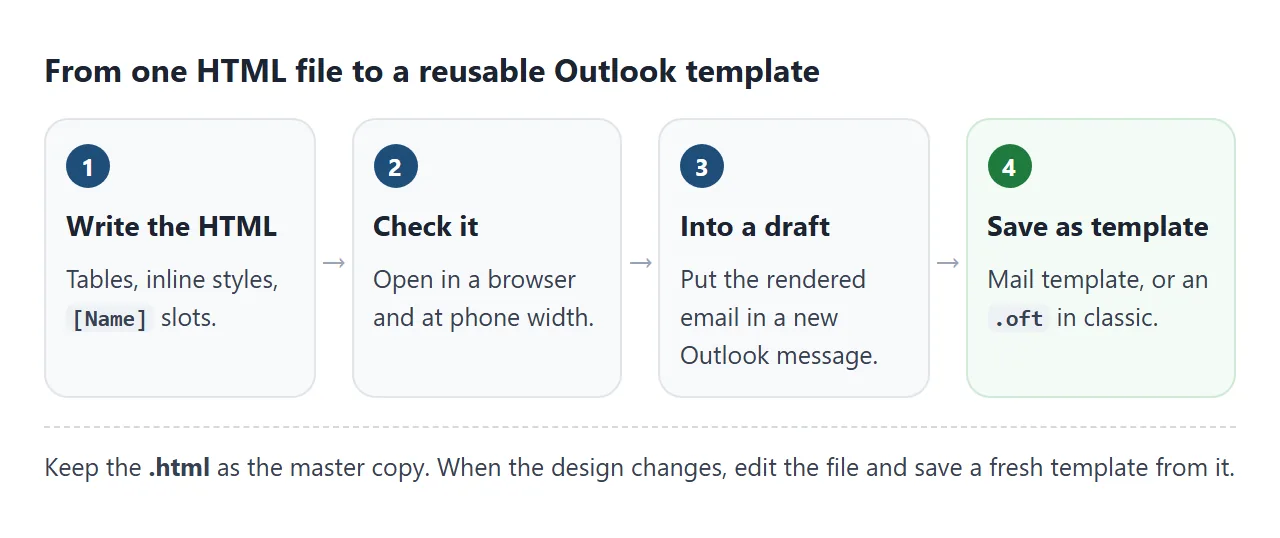
- Build the email as tables. One outer table for the background, one inner table with
width="600". - Inline every style on the cells and text.
- Mark the changing parts with placeholders.
- Check it in a browser at desktop and phone width.
- Save it in Outlook. Get the email into a new message, then save it as a template.
Getting HTML into the body of a new message is the fiddly step, and the routes differ by Outlook version. How to send an HTML email in Outlook covers them.
To save it, use Mail template > Save email as template in new Outlook or on the web.
In classic Outlook, use File > Save As and choose Outlook Template. To reuse a classic template, go to New Items > More Items > Choose Form and pick User Templates in File System.
When it does not work
| What you see | Cause | Fix |
|---|---|---|
| The email fills the whole window in classic Outlook | max-width is skipped |
Add width="600" to the table |
| A coloured header turns white | The colour came from background-image or a gradient |
Use bgcolor on the cell |
| Spacing differs from the browser | Margin or padding on a div or p |
Pad the td instead |
| Line spacing differs from the browser | A unitless line-height |
Write it as a percentage |
A <button> shows no button |
<button> is not supported |
Use a padded table cell around a link |
| Saved template comes back as plain text | It was saved in My Templates | Use Mail templates or an .oft |
For more layout fixes, see HTML not displaying correctly in Outlook. For a version that covers other mail apps, start from the HTML email template guide.
Share it as a link
Before a template goes into Outlook, someone usually has to approve it. An .html attachment may arrive as code, and a screenshot cannot show the phone width or let anyone copy the source.
To share the working version, paste the page into a NOS document and choose Create share link. HTML to link walks through it.
The page renders as written and its scripts run, so reviewers can type into the placeholder form themselves. If you change the code later, the same link shows the new version.