To hide an element when it is clicked, listen for click and set the element's hidden property to true. The browser then stops rendering it. The CSS side is one rule, needed only when the element has its own display value.
Try it. Press the × on any note, then bring them back.
<!doctype html>
<html lang="en">
<head>
<meta charset="utf-8">
<meta name="viewport" content="width=device-width, initial-scale=1">
<title>Hide an element on click</title>
<style>
body { margin: 0; padding: 16px; font-family: system-ui, sans-serif; background: #f4f5f7; }
.note {
display: flex; align-items: center; gap: 10px;
margin-bottom: 10px; padding: 12px 14px; border-radius: 10px;
background: #fff; box-shadow: 0 3px 10px rgba(0, 0, 0, .08); font-size: 15px;
}
.note span { flex: 1; }
/* display: flex above would beat the hidden attribute, so restate it */
.note[hidden] { display: none; }
.close {
width: 32px; height: 32px; border: 0; border-radius: 8px;
background: #eef0f3; font-size: 18px; cursor: pointer;
}
.close:hover { background: #e1e4e9; }
.reset { margin-top: 6px; padding: 8px 12px; border: 1px solid #c9cdd4; border-radius: 8px; background: #fff; cursor: pointer; }
</style>
</head>
<body>
<div class="note"><span>Your changes were saved.</span><button type="button" class="close" aria-label="Close">×</button></div>
<div class="note"><span>2 new comments on this page.</span><button type="button" class="close" aria-label="Close">×</button></div>
<div class="note"><span>Tip: press the × to hide a note.</span><button type="button" class="close" aria-label="Close">×</button></div>
<button type="button" class="reset" id="reset">Show them again</button>
<script>
document.querySelectorAll('.close').forEach((btn) => {
btn.addEventListener('click', () => {
// hide the whole note, not just the button that was clicked
btn.closest('.note').hidden = true;
});
});
document.getElementById('reset').addEventListener('click', () => {
document.querySelectorAll('.note').forEach((n) => { n.hidden = false; });
});
</script>
</body>
</html>
The whole script is one listener per button:
btn.addEventListener('click', () => {
  btn.closest('.note').hidden = true;
});
Hide the element you clicked, or its parent
Usually the thing you click is not the thing that should vanish. A close button sits inside a notice, and the notice is what should go.
closest('.note') starts at the button, walks up through its parents and returns the first element that matches the selector. Setting hidden on that ancestor hides the button along with everything else inside it.
To hide the clicked element itself, use btn.hidden = true instead. Use element.remove() only if you never need it back. hidden keeps the element in the page, so hidden = false shows it again.
Give the button type="button". Inside a form, a button without a type submits the form.
Why hidden sometimes does nothing
The hidden attribute tells the browser not to render the element. But any display value in your own CSS overrides it. A note styled display: flex stays on screen with hidden set.
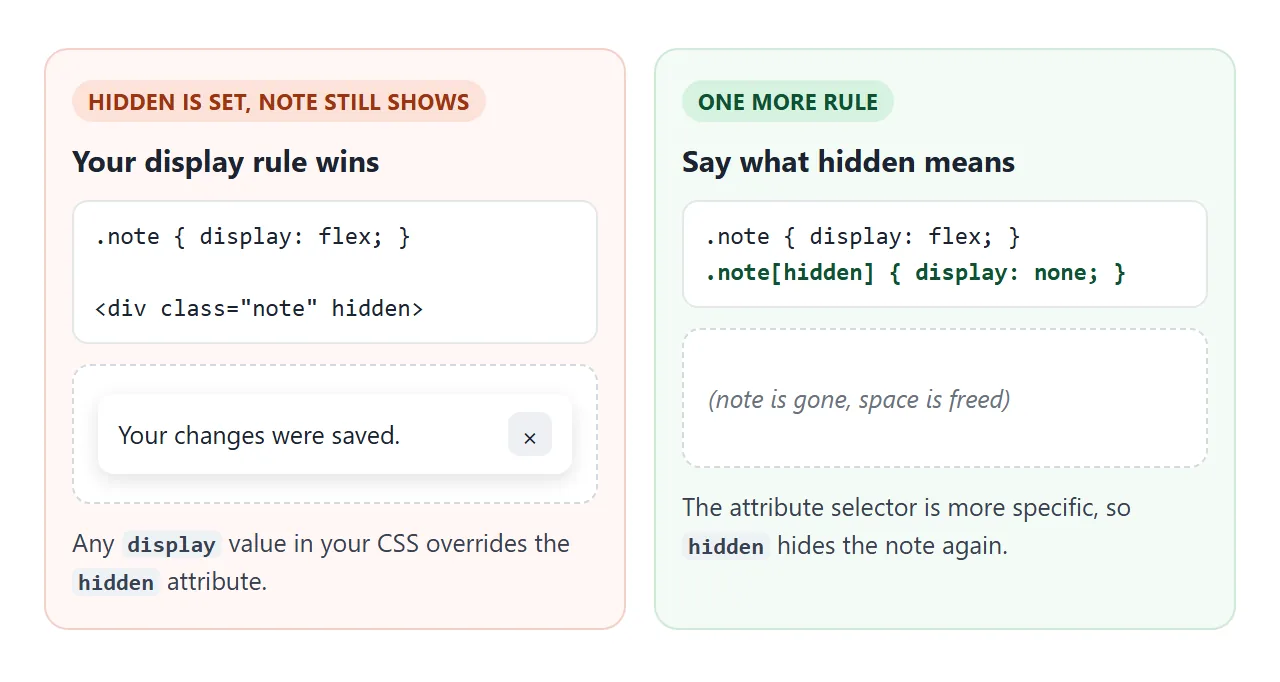
The fix is one more rule, which the first demo already has:
.note { display: flex; }
.note[hidden] { display: none; }
.note[hidden] is a class plus an attribute selector, so it is more specific than .note alone and wins.
display, visibility or opacity: which one hides it
If you hide with a class instead of hidden, the property in that class matters. Three look alike on screen and behave differently.
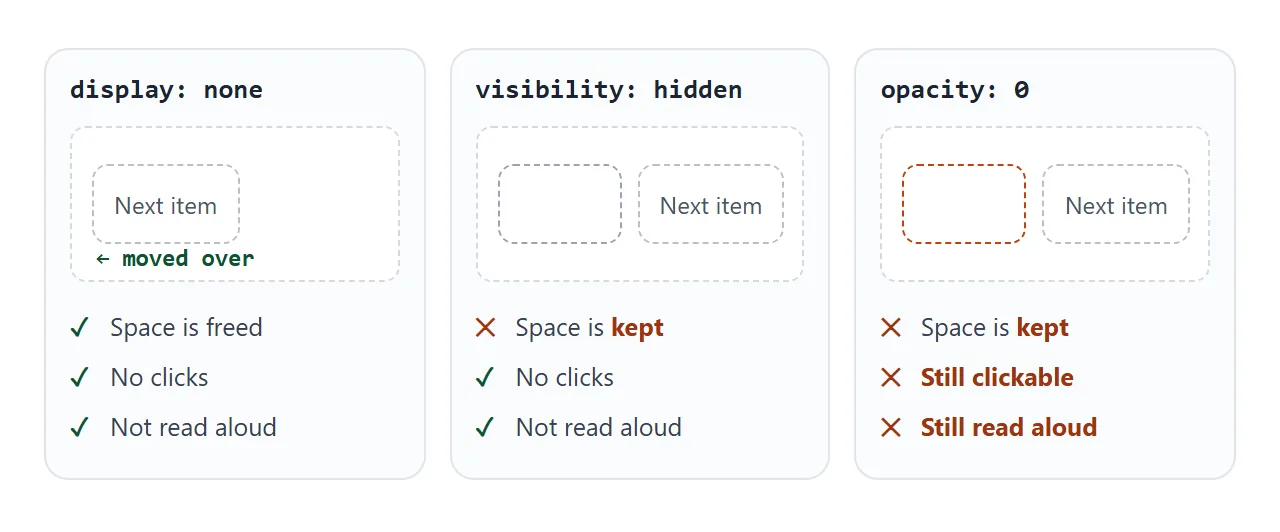
Click each blue box below. Then click the empty spot where it was, and watch the counter.
<!doctype html>
<html lang="en">
<head>
<meta charset="utf-8">
<meta name="viewport" content="width=device-width, initial-scale=1">
<title>display vs visibility vs opacity</title>
<style>
  body { margin: 0; padding: 14px; font-family: system-ui, sans-serif; background: #f4f5f7; font-size: 14px; }
  .lane { margin-bottom: 12px; }
  .lane code { font-size: 13px; color: #5b6270; }
  .row { display: flex; align-items: center; gap: 8px; margin-top: 4px; }
  .box {
    width: 120px; padding: 12px 0; border: 0; border-radius: 10px;
    background: #2563eb; color: #fff; font: inherit; cursor: pointer;
  }
  .next { padding: 12px; border-radius: 10px; background: #fff; border: 1px dashed #b9bfc9; }
  /* the three ways to hide, one per lane */
  .gone-display { display: none; }
  .gone-visibility { visibility: hidden; }
  .gone-opacity { opacity: 0; }
  .foot { display: flex; align-items: center; gap: 10px; flex-wrap: wrap; }
  .foot button { padding: 8px 12px; border: 1px solid #c9cdd4; border-radius: 8px; background: #fff; cursor: pointer; }
</style>
</head>
<body>
<div class="lane"><code>display: none</code>
  <div class="row"><button type="button" class="box" data-way="display">Click to hide</button><span class="next">Next item</span></div></div>
<div class="lane"><code>visibility: hidden</code>
  <div class="row"><button type="button" class="box" data-way="visibility">Click to hide</button><span class="next">Next item</span></div></div>
<div class="lane"><code>opacity: 0</code>
  <div class="row"><button type="button" class="box" data-way="opacity">Click to hide</button><span class="next">Next item</span></div></div>
<div class="foot">
  <button type="button" id="reset">Reset</button>
  <span>Clicks on a hidden box: <b id="count">0</b></span>
</div>

<script>
  let count = 0;
  document.querySelectorAll('.box').forEach((box) => {
    box.addEventListener('click', () => {
      const cls = 'gone-' + box.dataset.way;
      // already hidden and still clicked? count it
      if (box.classList.contains(cls)) document.getElementById('count').textContent = ++count;
      box.classList.add(cls);
    });
  });

  document.getElementById('reset').addEventListener('click', () => {
    document.querySelectorAll('.box').forEach((box) => { box.className = 'box'; });
    count = 0;
    document.getElementById('count').textContent = 0;
  });
</script>
</body>
</html>
| Property | Space in the layout | Takes clicks | Reached with Tab | Read by screen readers |
|---|---|---|---|---|
display: none |
Freed | No | No | No |
visibility: hidden |
Kept | No | No | No |
opacity: 0 |
Kept | Yes | Yes | Yes |
For a close button, display: none or the hidden attribute takes the element out of the layout completely. visibility: hidden fits when the content below must not move. opacity: 0 on its own only makes the element see-through.
For toggling a section open and closed again, see show and hide a div.
Can CSS hide an element on click without JavaScript?
Not with :active. That pseudo-class matches only while the element is being pressed, so an element hidden with :active comes back as soon as the mouse button is released.
What does work is a checkbox. Clicking a <label> activates the checkbox it points to, and :checked matches while that box is ticked. The general sibling combinator ~ then reaches the element after it:
<style>
  #close-tip:checked ~ .tip { display: none; }
</style>

<input type="checkbox" id="close-tip" hidden>
<div class="tip">
  Drag the corner to resize.
  <label for="close-tip">Close</label>
</div>
The catch is the keyboard. In our test, Tab skipped both the hidden checkbox and the label, so a keyboard user cannot close the tip.
When the element has to work for everyone, a real <button> and one line of script is the safer choice. For a no-script panel that opens and closes, an accordion built on details is keyboard friendly.
Fade it out, then hide it
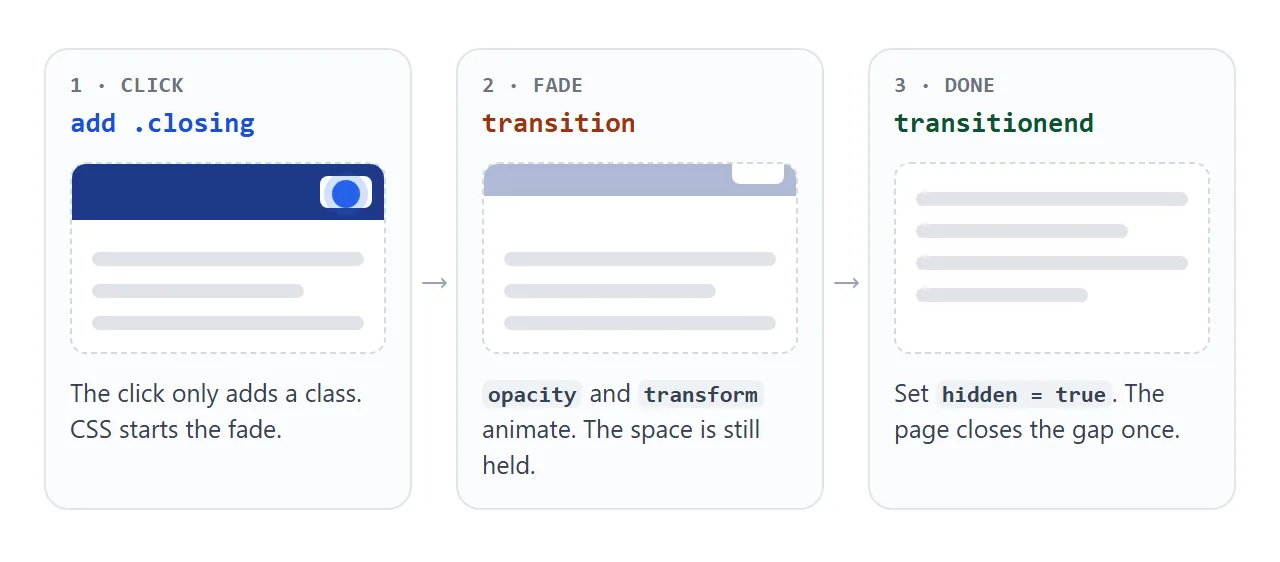
In the first demo, hidden takes effect in one step. For a softer exit, let CSS fade the element first and set hidden when the fade ends.
<!doctype html>
<html lang="en">
<head>
<meta charset="utf-8">
<meta name="viewport" content="width=device-width, initial-scale=1">
<title>Dismissible banner</title>
<style>
  body { margin: 0; font-family: system-ui, sans-serif; background: #fff; color: #1d2330; }
  .bar {
    display: flex; align-items: center; gap: 12px; flex-wrap: wrap;
    padding: 12px 16px; background: #1e3a8a; color: #fff;
    transition: opacity .3s ease, transform .3s ease;
  }
  .bar p { flex: 1; min-width: 180px; margin: 0; font-size: 15px; }
  .bar button {
    padding: 8px 14px; border: 0; border-radius: 8px;
    background: #fff; color: #1e3a8a; font: 600 14px system-ui, sans-serif; cursor: pointer;
  }
  .bar.closing { opacity: 0; transform: translateY(-100%); }
  .bar[hidden] { display: none; }  /* display: flex would otherwise win */
  main { padding: 16px; }
  main h1 { margin: 0 0 8px; font-size: 22px; }
  main h1:focus { outline: none; }
  main p { margin: 0 0 12px; line-height: 1.5; color: #4b5563; }
  #again { padding: 8px 12px; border: 1px solid #c9cdd4; border-radius: 8px; background: #fff; cursor: pointer; }
  @media (prefers-reduced-motion: reduce) { .bar { transition: none; } }
</style>
</head>
<body>
<div class="bar" id="bar" role="region" aria-label="Announcement">
  <p>The office is closed on Friday. Orders placed that day ship Monday.</p>
  <button type="button" id="dismiss">Got it</button>
</div>
<main>
  <h1 id="title" tabindex="-1">Spring catalogue</h1>
  <p>The banner fades and slides up, then it is hidden. The page below moves up once, at the end.</p>
  <button type="button" id="again">Bring the banner back</button>
</main>

<script>
  const bar = document.getElementById('bar');
  const reduce = matchMedia('(prefers-reduced-motion: reduce)');

  function finish() {
    bar.hidden = true;
    document.getElementById('title').focus();  // focus was on the button that just vanished
  }

  document.getElementById('dismiss').addEventListener('click', () => {
    if (reduce.matches) return finish();  // no transition, so no transitionend either
    bar.classList.add('closing');
  });

  // opacity and transform each fire transitionend; react to one of them
  bar.addEventListener('transitionend', (e) => {
    if (e.propertyName === 'opacity' && bar.classList.contains('closing')) finish();
  });

  document.getElementById('again').addEventListener('click', () => {
    bar.classList.remove('closing');
    bar.hidden = false;
  });
</script>
</body>
</html>
- Click: add a
closingclass that setsopacity: 0, with atransitionon the banner. - Wait: listen for
transitionend. It fires once for each property that transitioned, so checke.propertyName. - Hide: set
hidden = true. The space closes once, after the fade.
bar.addEventListener('transitionend', (e) => {
  if (e.propertyName === 'opacity') bar.hidden = true;
});
Respect prefers-reduced-motion. The demo turns the transition off for those users and hides the banner at once. That branch matters: a transition with a zero duration fires no transitionend, so waiting for it would leave the banner on screen.
Where keyboard focus goes
The button that was just clicked is inside the element you hid. In our test, focus then fell back to the page body, so the next Tab press did not start from where the element was.
The banner demo moves focus to the next heading instead. Give the heading tabindex="-1" so it can take focus from script, then call focus() on it right after hiding.
When it does not work
| What you see | Cause | Fix |
|---|---|---|
hidden is set but the element still shows |
A display rule in your CSS overrides it |
Add a [hidden] rule with display: none |
| Only the × disappears | hidden was set on the button |
Use closest() to reach the container |
| The page reloads on click | The button is inside a form and has no type | Add type="button" |
| It is invisible but still takes clicks | It was hidden with opacity: 0 |
Use display: none or hidden |
| A gap is left behind | visibility: hidden keeps the space |
Switch to display: none |
| It comes back when the mouse is released | :active was used |
Use a click listener or a checkbox |
| After the fade it never hides | No transitionend (zero duration, or a different property) |
Check propertyName, hide at once under reduced motion |
Share it as a link
A close button is easier to try than to describe. Send a screenshot and the reader cannot press anything.
To send the working version, paste the page into a NOS document and choose Create share link. HTML to link walks through it.
The page renders as written and its scripts run, so the people you send it to can close the notes themselves. If you change the code later, the same link shows the new version.