To show and hide a div in HTML, either wrap it in a <details> element and let the browser do the work, or toggle a CSS class on it from a button.
Those two cover almost every HTML show hide div case. The rest of this page is about which one fits your file, and the three ways the toggle quietly stops working after you send the page to someone.
The four HTML show hide div methods
| Method | Script needed | Keyboard and screen reader | Best for |
|---|---|---|---|
<details> and <summary> |
No | Handled by the browser | FAQs, long appendices, notes |
hidden attribute |
One line | Announced as removed | Showing one of several panels |
| CSS class toggle | One line | Needs aria-expanded |
Anything with an animation |
Inline style.display |
One line | Needs aria-expanded |
Quick tests only |
The last row works and is the one most snippets teach. It is also the one that puts presentation into your script, so the appearance of the section lives in two files at once.
The no script version
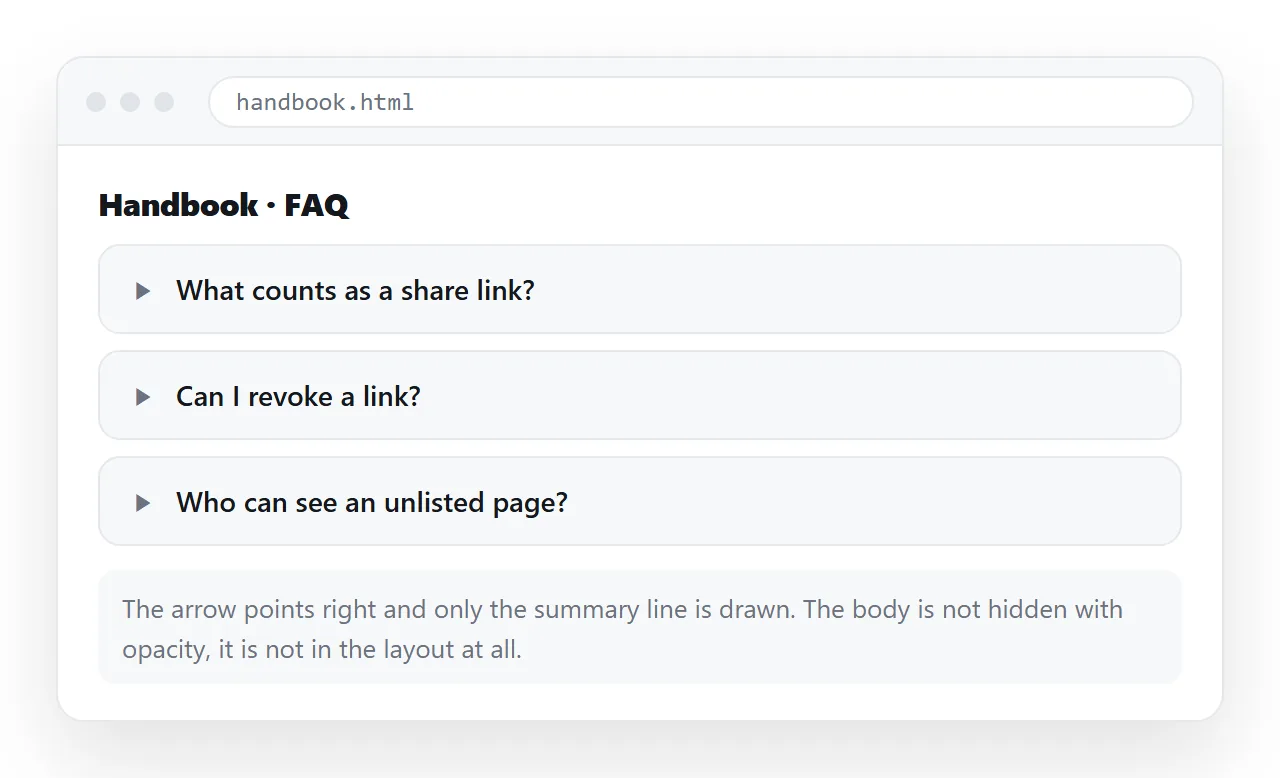
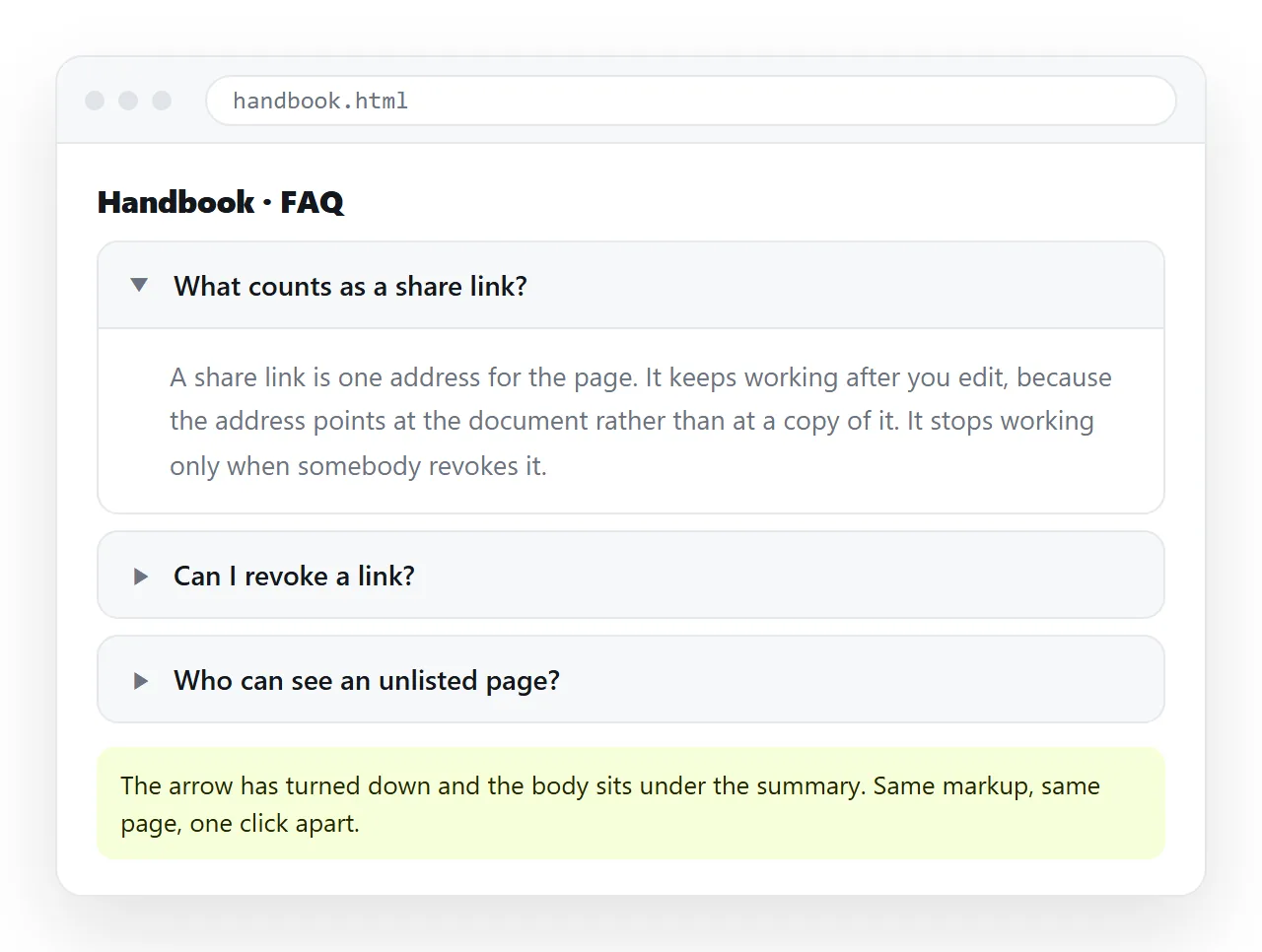
<details> is an HTML element, not a pattern. The browser renders the summary as a clickable line and keeps everything after it collapsed until clicked.
<details>
  <summary>Delivery terms</summary>
  <div>
    Orders confirmed before 14:00 ship the same working day.
  </div>
</details>
Add the open attribute to start expanded. Style the marker with the ::marker pseudo element if the default triangle is wrong for the page.
The reason to prefer this: keyboard access, the disclosure role and the find-in-page behaviour all come free. Every hand built toggle has to re-earn them.
Toggling a class from a button
When the trigger is not next to the content, or when you want a transition, use a class.
<button type="button" data-target="notes">Notes</button>
<div id="notes" class="is-hidden">Rates are provisional until signed.</div>

<style>
  .is-hidden { display: none; }
</style>

<script>
  document.querySelectorAll('[data-target]').forEach(function (b) {
    b.addEventListener('click', function () {
      var el = document.getElementById(b.dataset.target);
      var hidden = el.classList.toggle('is-hidden');
      b.setAttribute('aria-expanded', String(!hidden));
    });
  });
</script>
Two details in there matter more than the toggle itself.
aria-expanded tells a screen reader whether the section is currently open. Without it the button is announced the same way in both states.
type="button" stops the button submitting a surrounding form. Inside a <form>, a button with no type is a submit button, which is a very common cause of a page that reloads on every click.
Why display none is not the same as invisible
Three CSS declarations look similar and behave differently. Choosing the wrong one is the usual reason a hidden div still takes up space, or still gets read aloud.
display: noneremoves the box entirely. Nothing reserves space, and assistive technology skips it.visibility: hiddenkeeps the space and hides the paint. Layout below it does not move.opacity: 0keeps the space and keeps the element clickable. A transparent button still takes clicks.
For a show hide div you almost always want the first. Use the second only when the layout must not jump.
Animating the change
display cannot be transitioned directly in older engines, which is why so many toggles snap open. The usual workaround is to animate height or opacity and switch display at the end.
.panel { max-height: 0; overflow: hidden; transition: max-height .2s ease; }
.panel.is-open { max-height: 40rem; }
The trade is that max-height has to be larger than the real content, and the animation speed changes with the gap. For long sections this is noticeable, so keep the value close to the real height.
The three ways it breaks after you share it
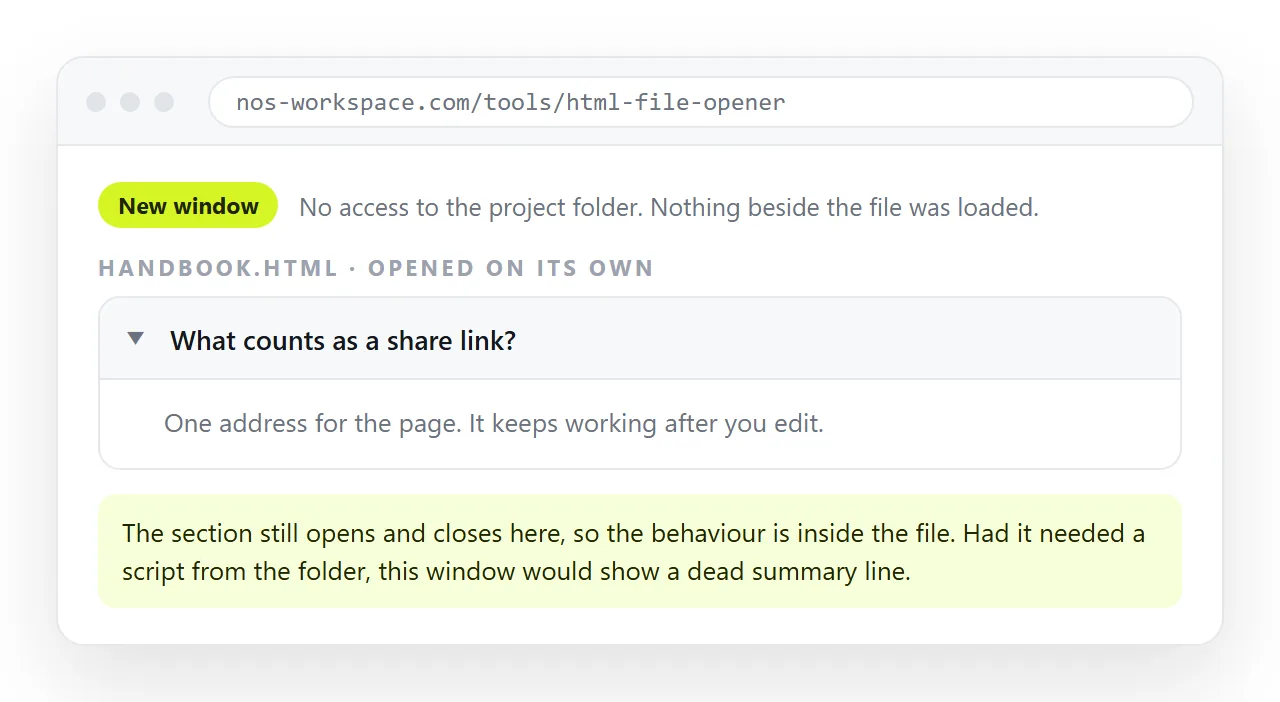
The script was outside the file. A toggle that lives in a separate .js file next to the page will not travel with an attachment. Inline the script, or make the file self-contained.
The page was sent as a file rather than an address. A .html attachment often opens in a code editor or stops inside a phone's file manager, so the toggle is never reached. Sharing it as a link removes that whole class of failure.
It was printed. A collapsed section prints collapsed, so the reader of the paper copy loses the content entirely. Force everything open for print:
@media print {
  .is-hidden, .panel { display: block !important; max-height: none !important; }
  details { display: block; }
  details > div { display: block !important; }
}
Print stylesheets cover the rest of that problem.
Showing one of several panels
A toggle that hides one div is rarely the whole job. More often there are several panels and exactly one should be visible.
Do not write one listener per panel. Hide all of them, then show the target.
function show(id) {
  document.querySelectorAll('.panel').forEach(function (p) {
    p.hidden = p.id !== id;
  });
}
Using the hidden property rather than a class keeps the state in one place. The catch is that hidden is overridden by any display value in your CSS, so this rule breaks it:
.panel { display: block; } /* now hidden does nothing */
Guard against that once:
[hidden] { display: none !important; }
If the panel choice comes from a select rather than buttons, the same function works, driven by the change event. That version is in show hide div based on dropdown.
Remembering the state
A toggle resets on every reload, which is irritating for a section the same person opens every time.
Store the state against the panel id:
localStorage.setItem('panel:notes', 'open');
Read it back on load and apply it before the first paint if you can, or the section visibly flickers open. Browser storage covers the limits, including that it is per device and cleared with the browser data.
Checking it the way a reader will
Open the file in the HTML file opener, which has never seen your project folder. Click the toggle once in each direction.
If it works there, it will work for the reader. If it does nothing, the script did not load, and the browser console will name the missing file.
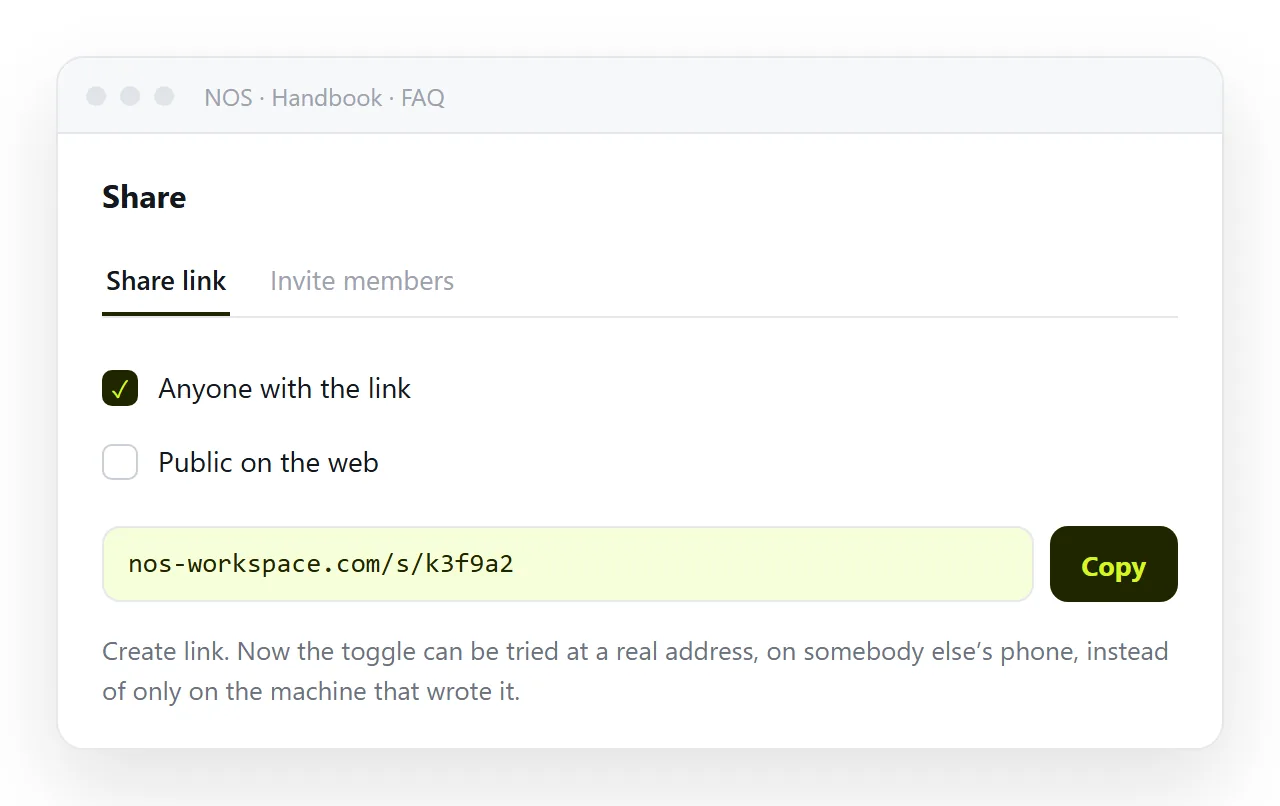
When the page is ready, paste the HTML into a NOS document. It renders as a page of its own with the script running, and the text stays clickable so you can correct a line without touching the markup around the toggle.
The address does not change when you edit, so the link you sent still points at the corrected version. The online HTML editor is the place to make those corrections if you would rather stay in code.