To turn an HTML animation into a GIF you either screen record the page and convert the video, or capture frames in the browser and encode them. No browser exports a GIF from a running page on its own.
Pick by what the animation is. CSS keyframes and third party widgets go the recording route. A canvas or a scripted timeline you wrote yourself can be captured exactly.
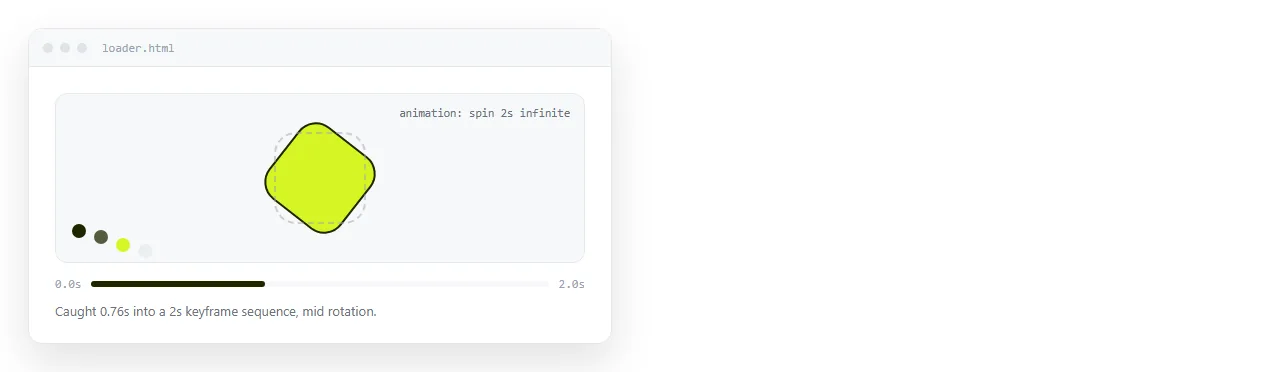
The two routes compared
| Screen record | Capture frames in code | |
|---|---|---|
| Works with CSS keyframes | Yes | Only if driven from script |
| Timing accuracy | Whatever the recorder captured | Exact, frame by frame |
| Resolution | Screen resolution | Any size you set |
| Setup time | About a minute | An hour the first time |
| Dropped frames | Possible under load | None |
Route one: record and convert
- Set the browser window to the size you want the GIF to be. Recording large and shrinking later softens text.
- Record the region with the operating system recorder, or the browser dev tools recorder.
- Trim the clip to the loop point so the GIF repeats cleanly.
- Convert to GIF with a palette pass, which is what keeps colours from banding.
ffmpeg -i clip.mp4 -vf "fps=12,scale=640:-1:flags=lanczos,palettegen" palette.png
ffmpeg -i clip.mp4 -i palette.png -lavfi "fps=12,scale=640:-1:flags=lanczos [x]; [x][1:v] paletteuse" out.gif
Two passes, because GIF allows 256 colours per frame and letting the encoder choose them from your actual footage is the difference between clean and muddy.
The numbers to change are fps and the width in scale. Start at 12 and 640.
Route two: capture frames in the browser
Only viable when you can step the animation. That means a canvas render loop, or a timeline you advance yourself.
const frames = [];
const total = 36;

for (let i = 0; i < total; i++) {
  drawScene(ctx, i / total);          // your render, given a 0 to 1 progress
  frames.push(ctx.getImageData(0, 0, canvas.width, canvas.height));
}
Then hand the frames to a GIF encoder library. The important part is that drawScene takes progress as an argument rather than reading a clock, which also makes the animation testable.
For a non canvas page, capture each step as an image of the rendered DOM instead. That is what HTML to image does for a single frame, repeated once per step.
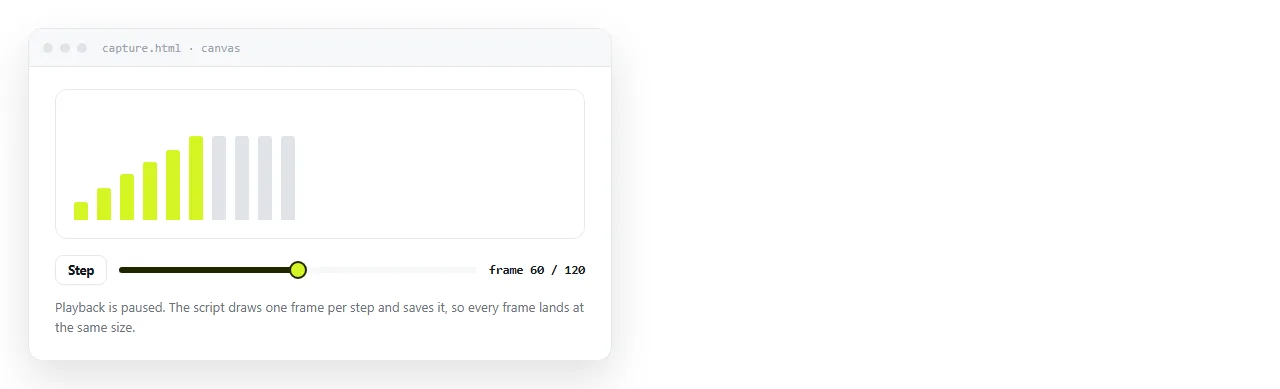
Stepping a CSS animation
Pure CSS keyframes cannot be paused at an arbitrary point from the outside in a reliable way. Move the animation to the Web Animations API and you get a seekable object.
const anim = el.animate(
  [{ transform: 'translateY(24px)', opacity: 0 },
   { transform: 'translateY(0)',    opacity: 1 }],
  { duration: 600, easing: 'cubic-bezier(.2,.7,.3,1)', fill: 'both' }
);
anim.pause();
anim.currentTime = 300;   // exactly half way
This is also how animation on page load becomes testable, since you can hold it at any point and look at it.
Making the loop seamless
A GIF that jumps at the loop point draws attention to itself. Two ways to avoid it.
- End where you began. Design the animation so the last frame matches the first, then drop the duplicate final frame before encoding.
- Hold at the end. Add a half second of the final state and let the restart read as deliberate rather than as a stutter.
For an interface clip, the second is usually better. Readers need a moment on the end state to understand what happened, and a tight loop denies them that.
Set the loop count explicitly if the destination respects it. Infinite is the default and is right for a short clip. A long one that loops forever is a distraction beside text.
Keeping the file small
GIF has no motion compression. Every frame is stored whole, so the levers are blunt and effective.
- Dimensions. Halving both sides cuts the file to roughly a quarter.
- Frame rate. 12 frames per second reads as smooth for interface motion. 30 is video habit.
- Duration. Three seconds that loop beats twelve seconds that play once.
- Colours. Flat interface colours compress well. Gradients and shadows do not.
- Crop. Record the component, not the whole browser window with its toolbars.
A three second, 640 pixel wide, 12 frame per second interface clip usually lands between 1 and 3 megabytes. A full screen 30 frame recording of the same thing can be ten times that.
Where GIFs still make sense
Not a large list, and worth checking before spending the time.
- Ticket and issue systems that accept image attachments but not video.
- Older email clients, where a GIF animates and a video does not play at all.
- Documentation that has to work offline as a single folder of files.
- Chat surfaces that autoplay images inline but put video behind a click.
Everywhere else, an MP4 or WebM of the same clip is smaller and sharper, and a link to the live page beats both.
Accessibility of a moving image
An animation the reader cannot pause is a problem for some people, and a GIF has no controls at all.
- Keep it under five seconds if it loops, or make it play once.
- Avoid rapid flashing. More than three flashes per second is a known seizure risk.
- Give it real
alttext describing what happens, not the file name. See alt text. - Put the same information in the surrounding words, so nothing depends on watching it.
A video element with controls solves the pause problem outright, which is another reason to prefer it where it is accepted.
When not to make a GIF at all
If the destination accepts a link, send the page. A GIF is a lossy 256 colour copy of something that already runs everywhere, and it cannot be corrected without redoing the whole export.
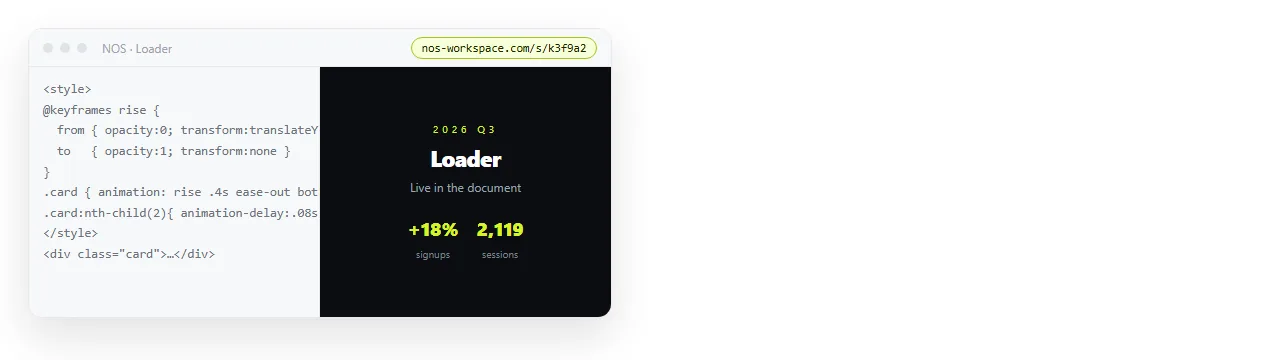
Paste the HTML into a NOS document and it renders with the animation running, at full colour and full resolution, on any device. Copy the share link and send that.
Editing a duration later is an edit to the page, and the link already points at the new version. A GIF sent last week is still the old timing, in a thread nobody scrolls back through.
The comparison in screenshot against live page applies here with more force, since a GIF loses colour depth and timing on top of everything a screenshot loses. Keep the GIF for surfaces that genuinely accept images only.