A <div> and a <span> do the same job at different sizes: each wraps content so CSS and JavaScript can reach it, and neither adds meaning.
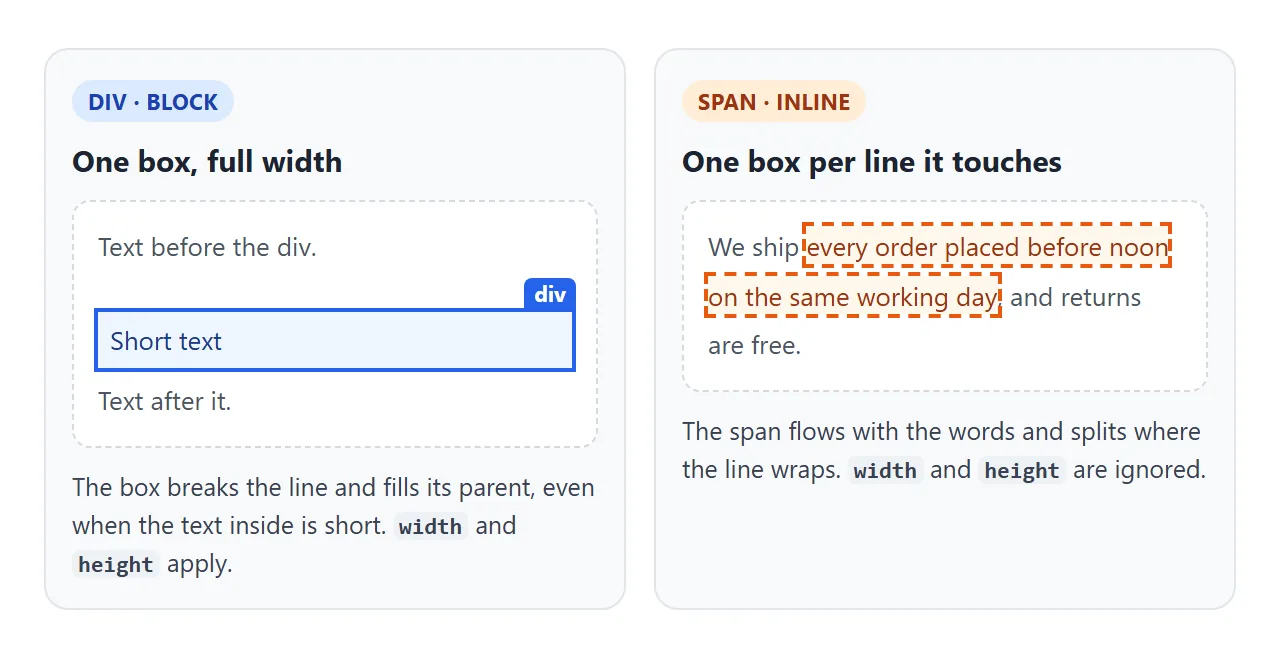
The difference is the box. A div is block: it starts on a new line and fills its parent's width. A span is inline: it flows inside a line of text.
Press the button to see the boxes the browser draws for each one.
<!doctype html>
<html lang="en">
<head>
<meta charset="utf-8">
<meta name="viewport" content="width=device-width, initial-scale=1">
<title>div vs span: layout boxes</title>
<style>
  body { margin: 0; padding: 16px; font: 16px/1.6 system-ui, sans-serif; background: #f4f5f7; color: #1d2330; }
  .stage { position: relative; max-width: 420px; padding: 14px 16px; background: #fff; border-radius: 10px; }
  .stage p { margin: 0 0 10px; }
  .hi { background: #fef3c7; }
  .note { padding: 8px 10px; background: #e0f2fe; border-radius: 6px; }
  button { font: inherit; padding: 8px 14px; border: 0; border-radius: 8px; background: #1d2330; color: #fff; cursor: pointer; margin-bottom: 12px; }
  /* the overlay layer that draws each layout box */
  .layer { position: absolute; inset: 0; pointer-events: none; }
  .box { position: absolute; outline: 2px solid; }
  .box.blk { outline-color: #2563eb; }
  .box.inl { outline-color: #ea580c; outline-style: dashed; }
  .box span { position: absolute; top: -18px; left: -2px; font: 700 11px/16px system-ui; padding: 0 5px; color: #fff; border-radius: 4px 4px 0 0; }
  .blk span { background: #2563eb; } .inl span { background: #ea580c; }
  #out { font-size: 14px; color: #4b5563; margin-top: 12px; }
</style>
</head>
<body>
<button id="toggle" aria-pressed="false">Show boxes</button>
<div class="stage" id="stage">
  <p>We ship <span class="hi" data-box>every order placed before noon on the same working day</span>, and returns are free.</p>
  <div class="note" data-box>A div starts on a new line and fills the width.</div>
  <p style="margin:10px 0 0">Text after the div starts on a new line too.</p>
  <div class="layer" id="layer"></div>
</div>
<div id="out"></div>

<script>
  const stage = document.getElementById('stage');
  const layer = document.getElementById('layer');
  const out = document.getElementById('out');
  const btn = document.getElementById('toggle');
  let on = false;

  function draw() {
    layer.innerHTML = '';
    out.textContent = '';
    if (!on) return;
    const base = stage.getBoundingClientRect();
    const lines = [];
    stage.querySelectorAll('[data-box]').forEach((el) => {
      const display = getComputedStyle(el).display;
      const rects = el.getClientRects();  // one rect per line for inline, one for block
      [...rects].forEach((r, i) => {
        const b = document.createElement('div');
        b.className = 'box ' + (display === 'inline' ? 'inl' : 'blk');
        b.style.cssText = `left:${r.left - base.left}px;top:${r.top - base.top}px;width:${r.width}px;height:${r.height}px`;
        if (i === 0) b.innerHTML = `<span>${el.tagName.toLowerCase()}</span>`;
        layer.append(b);
      });
      lines.push(`${el.tagName.toLowerCase()}: display ${display}, ${rects.length} box(es)`);
    });
    out.textContent = lines.join(' | ');
  }

  btn.addEventListener('click', () => {
    on = !on;
    btn.textContent = on ? 'Hide boxes' : 'Show boxes';
    btn.setAttribute('aria-pressed', on);
    draw();
  });
  addEventListener('resize', draw);
</script>
</body>
</html>
The span gets two boxes because its words wrap onto a second line. The div gets one box as wide as its container, even though its text is short.
Block vs inline: what the boxes show
The browser turns every element into one or more layout boxes. What kind of box depends on the element's display value, and the two tags start with different defaults.
<div> |
<span> |
|
|---|---|---|
Default display |
block |
inline |
| Starts a new line | Yes | No |
| Width | Fills the parent | As wide as its words |
| Boxes when text wraps | One | One per line |
width and height |
Apply | Ignored |
| Meaning (role) | None (generic) | None (generic) |
| May contain | Blocks and inline content | Text and inline elements only |
In JavaScript, el.getClientRects() returns those boxes. For the wrapped span above it returns two rectangles; for the div, one. The demos on this page draw their outlines from that call.
Check for a meaningful element first
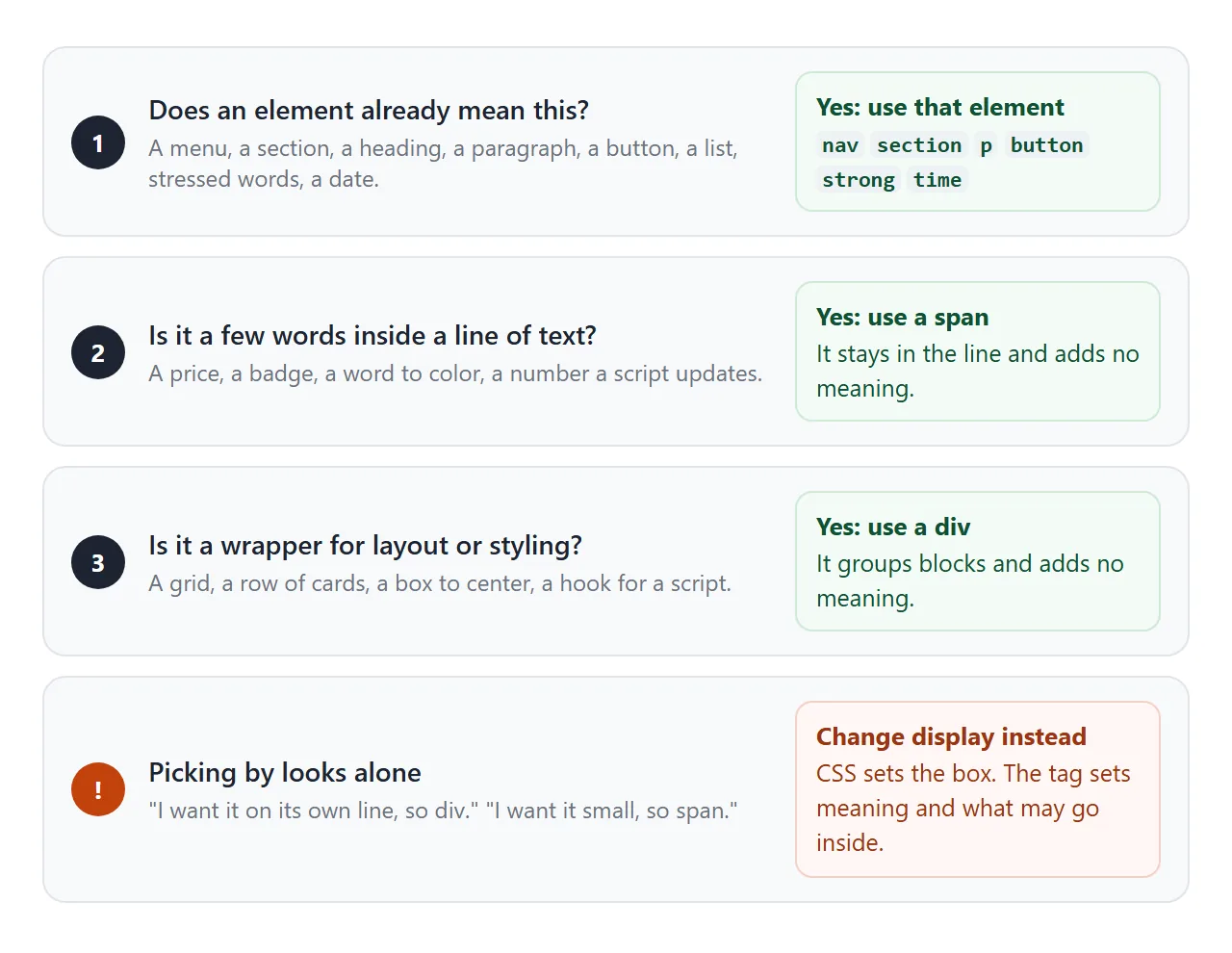
A "div or span?" question often has a third answer: neither. HTML has elements that say what the content is, and they come with behaviour you would otherwise rebuild by hand.
| If it is... | Use | Not |
|---|---|---|
| A block of text | <p> |
<div> |
| A heading | <h2>, <h3> |
a bold <div> |
| Something to click that does an action | <button> |
a <div> with a click listener |
| A menu of links | <nav> |
<div class="menu"> |
| A self-contained card or post | <article> |
<div class="card"> |
| Important or stressed words | <strong>, <em> |
a styled <span> |
| A date or time | <time> |
<span class="date"> |
The button row matters most. A div with a click listener cannot be reached with the Tab key, and Enter and Space do not press it. A real <button> does all of that without extra code. Semantic HTML walks through the full list of substitutions.
What is left after this check is pure grouping: a wrapper for a grid, a box to center, a price to color, a number a script updates. That is where div and span belong.
When a span is right, and when a div is
Use a span for a few words inside a line of text:
- a price or a unit you want to color
- a small badge next to a title
- a number a script rewrites, such as a cart count
- a word wrapped so a script can animate it
Use a div for a wrapper around blocks:
- the container that gets
display: gridordisplay: flex - a box you need to center
- a group that shares a class or a background
- the mount point a script fills in
The HTML span tag article covers the span side in more depth, including why width does nothing on it: the HTML span tag.
Changing display does not change the tag
CSS can give any element any box. A span with display: block takes its own line and fills the width. A div with display: inline flows in the text and ignores width. Try every combination:
<!doctype html>
<html lang="en">
<head>
<meta charset="utf-8">
<meta name="viewport" content="width=device-width, initial-scale=1">
<title>div vs span: change display</title>
<style>
  body { margin: 0; padding: 16px; font: 16px/1.6 system-ui, sans-serif; background: #f4f5f7; color: #1d2330; }
  .controls { display: flex; flex-wrap: wrap; gap: 10px; margin-bottom: 12px; }
  label { font-size: 14px; }
  select { font: inherit; padding: 4px 6px; margin-left: 4px; }
  .stage { position: relative; max-width: 420px; padding: 14px 16px; background: #fff; border-radius: 10px; }
  /* the same styles on whichever element is chosen */
  #target { width: 150px; height: 60px; padding: 6px 10px; background: #fef3c7; border: 1px solid #f59e0b; }
  .layer { position: absolute; inset: 0; pointer-events: none; }
  .box { position: absolute; outline: 2px dashed #ea580c; }
  table { margin-top: 12px; border-collapse: collapse; font-size: 14px; background: #fff; }
  td { padding: 4px 10px; border: 1px solid #e1e4ea; }
  td:first-child { color: #6b7280; }
</style>
</head>
<body>
<div class="controls">
  <label>Element <select id="tag"><option>span</option><option>div</option></select></label>
  <label>display <select id="disp">
    <option value="">(default)</option><option>inline</option><option>block</option><option>inline-block</option>
  </select></label>
</div>
<div class="stage" id="stage">
  <div id="line">Text before <span id="target">the chosen element</span> and text after it in the same line.</div>
  <div class="layer" id="layer"></div>
</div>
<table>
  <tr><td>Tag</td><td id="rTag"></td></tr>
  <tr><td>Computed display</td><td id="rDisp"></td></tr>
  <tr><td>Layout boxes</td><td id="rBoxes"></td></tr>
  <tr><td>Measured width</td><td id="rW"></td></tr>
</table>

<script>
  const $ = (id) => document.getElementById(id);
  const stage = $('stage'), layer = $('layer');

  function render() {
    // rebuild the element with the chosen tag, keep its id, text and styles
    const old = $('target');
    const el = document.createElement($('tag').value);
    el.id = 'target';
    el.textContent = old.textContent;
    el.style.display = $('disp').value;  // empty string = the tag's default
    old.replaceWith(el);

    // outline every box the element produced
    layer.innerHTML = '';
    const base = stage.getBoundingClientRect();
    const rects = [...el.getClientRects()];
    rects.forEach((r) => {
      const b = document.createElement('div');
      b.className = 'box';
      b.style.cssText = `left:${r.left - base.left}px;top:${r.top - base.top}px;width:${r.width}px;height:${r.height}px`;
      layer.append(b);
    });

    $('rTag').textContent = '<' + el.tagName.toLowerCase() + '>';
    $('rDisp').textContent = getComputedStyle(el).display;
    $('rBoxes').textContent = rects.length;
    const w = Math.round(el.getBoundingClientRect().width);
    // 150px width + 20px padding + 2px border = 172px when width applies
    $('rW').textContent = w + 'px' + (w === 172 ? ' (width: 150px applied)' : ' (width ignored, sized by the text)');
  }

  $('tag').addEventListener('change', render);
  $('disp').addEventListener('change', render);
  addEventListener('resize', render);
  render();
</script>
</body>
</html>
Two things stay with the tag, whatever the display value:
- What it may contain. A span with
display: blockshould still hold only text and inline elements. The content rules come from the tag, not the CSS. - Where it may go. A div with
display: inlineis still a div, so it still may not sit inside a paragraph.
So pick the tag for what the content is and where it sits in the markup, then use CSS for the box.
inline-block is the common middle ground: it stays in the line and accepts width, height and vertical padding. CSS display covers every value, and the CSS box model explains how padding and borders add to the width.
Nesting rules that bite
A div inside a paragraph is the classic mistake, and the browser fixes it in a way that surprises people. A paragraph cannot contain a block like a div, so the HTML parser closes the paragraph as soon as it meets the <div>:
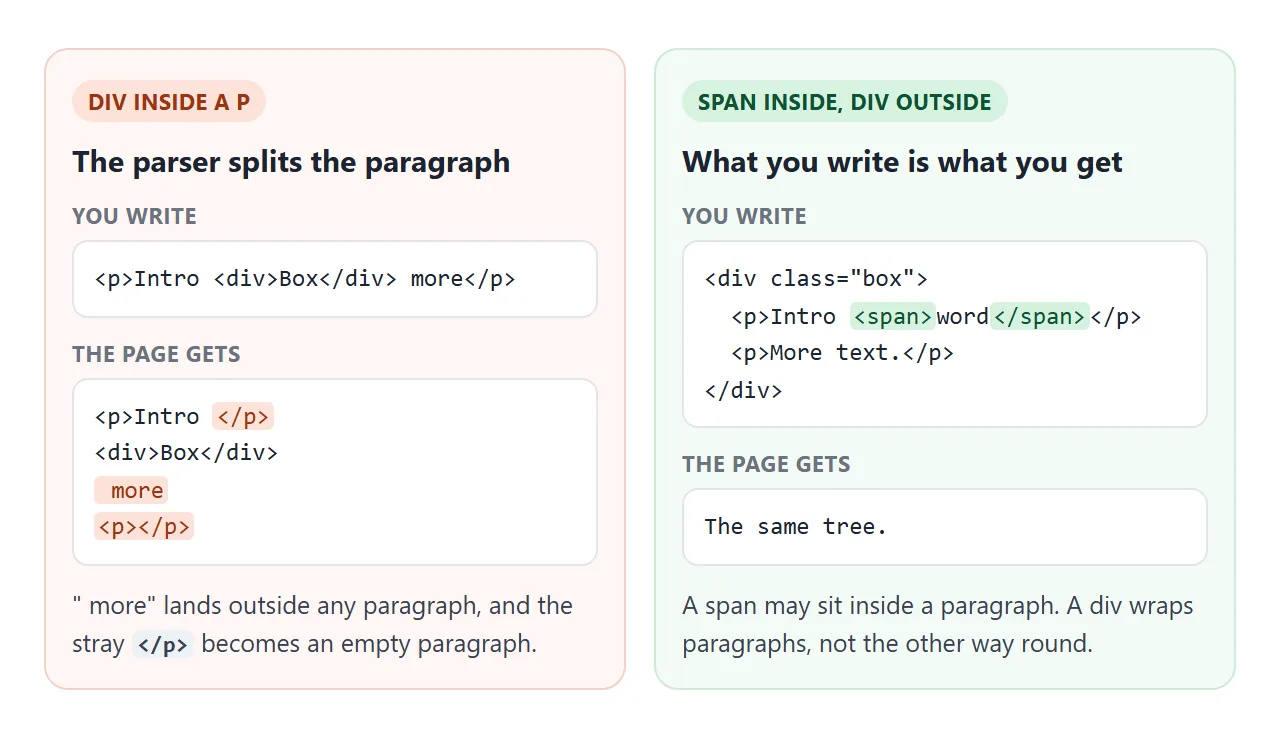
Written:
<p>Intro <div>Box</div> more</p>
What the page actually contains:
<p>Intro </p><div>Box</div> more<p></p>
The stray </p> at the end becomes a new, empty paragraph. Styles meant for the paragraph now miss " more", and a script looking for the div inside the p finds nothing.
Other rules worth knowing:
- div inside span: not valid. The parser keeps it where you wrote it, but the span's inline box is split around the block, and a validator flags it. Make the outer element a div.
- div inside a button or a heading: not valid either. Both take inline content only. Use a span inside them.
- div inside a link: allowed. A link takes the content model of its parent, so a whole card can be one link.
- span inside anything that holds text: fine.
A finished example: a card built the right way
This card uses each element for what it is. The grid wrapper is a div, because it is pure layout.
Each card is an <article>, the title an <h3>, the text a <p>, the features a list, and the action a <button>. Spans appear only for the price, the badge and the count.
<!doctype html>
<html lang="en">
<head>
<meta charset="utf-8">
<meta name="viewport" content="width=device-width, initial-scale=1">
<title>div vs span: a finished card</title>
<style>
  body { margin: 0; padding: 16px; font: 15px/1.5 system-ui, sans-serif; background: #f4f5f7; color: #1d2330; }
  button { font: inherit; cursor: pointer; }
  #toggle { padding: 8px 14px; border: 0; border-radius: 8px; background: #1d2330; color: #fff; margin-bottom: 14px; }
  #page { position: relative; }
  /* div: pure layout, no meaning needed */
  .grid { display: grid; grid-template-columns: repeat(auto-fit, minmax(220px, 1fr)); gap: 14px; }
  .card { background: #fff; border-radius: 12px; padding: 14px 16px; }
  .card h3 { margin: 0 0 6px; font-size: 17px; }
  .card p { margin: 0 0 8px; }
  .card ul { margin: 0 0 10px; padding-left: 18px; }
  /* span: a styling hook inside a line */
  .price { font-weight: 700; color: #0f766e; }
  .badge { display: inline-block; padding: 0 8px; border-radius: 99px; background: #dbeafe; font-size: 13px; }
  .buy { padding: 7px 12px; border: 1px solid #1d2330; border-radius: 8px; background: #fff; }
  .count { display: inline-block; min-width: 20px; margin-left: 6px; border-radius: 99px; background: #1d2330; color: #fff; font-size: 12px; }
  .layer { position: absolute; inset: 0; pointer-events: none; }
  .box { position: absolute; outline: 1.5px solid #2563eb; }
  .box.inl { outline: 1.5px dashed #ea580c; }
  .box i { position: absolute; top: -1px; right: -1px; font: 700 10px/14px system-ui; font-style: normal; padding: 0 4px; color: #fff; background: #2563eb; }
  .box.inl i { background: #ea580c; top: -15px; left: -1px; right: auto; }
  .show .card p { line-height: 2.4; }  /* room for the labels while they are shown */
</style>
</head>
<body>
<button id="toggle" aria-pressed="false">Show tags</button>
<div id="page">
  <div class="grid">
    <article class="card">
      <h3>Desk lamp</h3>
      <p>Now <span class="price">$39</span> <span class="badge">new</span>, ships in <strong>2 days</strong>.</p>
      <ul><li>Warm and cool light</li><li>USB-C power</li></ul>
      <button class="buy">Add to cart<span class="count">0</span></button>
    </article>
    <article class="card">
      <h3>Wall clock</h3>
      <p>Now <span class="price">$24</span>, <em>silent</em> movement.</p>
      <ul><li>30 cm face</li><li>One AA battery</li></ul>
      <button class="buy">Add to cart<span class="count">0</span></button>
    </article>
  </div>
  <div class="layer" id="layer"></div>
</div>

<script>
  const page = document.getElementById('page');
  const layer = document.getElementById('layer');
  const btn = document.getElementById('toggle');
  let on = false;

  // label every element with its tag: solid = block-level box, dashed = inline
  function draw() {
    layer.innerHTML = '';
    if (!on) return;
    const base = page.getBoundingClientRect();
    page.querySelectorAll('.grid, .grid *').forEach((el) => {
      const inline = getComputedStyle(el).display === 'inline';
      [...el.getClientRects()].forEach((r, i) => {
        const b = document.createElement('div');
        b.className = 'box' + (inline ? ' inl' : '');
        b.style.cssText = `left:${r.left - base.left}px;top:${r.top - base.top}px;width:${r.width}px;height:${r.height}px`;
        if (i === 0) b.innerHTML = `<i>${el.tagName.toLowerCase()}</i>`;
        layer.append(b);
      });
    });
  }

  btn.addEventListener('click', () => {
    on = !on;
    btn.textContent = on ? 'Hide tags' : 'Show tags';
    btn.setAttribute('aria-pressed', on);
    page.classList.toggle('show', on);
    draw();
  });

  // the buttons work too: the span inside each one holds the count
  page.querySelectorAll('.buy').forEach((b) => {
    b.addEventListener('click', () => {
      const c = b.querySelector('.count');
      c.textContent = Number(c.textContent) + 1;
      draw();
    });
  });
  addEventListener('resize', draw);
</script>
</body>
</html>
<div class="grid">
  <article class="card">
    <h3>Desk lamp</h3>
    <p>Now <span class="price">$39</span>, ships in <strong>2 days</strong>.</p>
    <button>Add to cart<span class="count">0</span></button>
  </article>
</div>
Inside the grid, the only div is the grid itself, and the spans are three small hooks per card. Everything else says what it is, so no ARIA attributes are needed to describe it.
When it does not work
| What you see | Cause | Fix |
|---|---|---|
width or height on a span does nothing |
Inline boxes ignore them | display: inline-block or block |
| A background on a span has ragged, broken edges | The span wrapped into several line boxes | Expected; use inline-block to keep one box |
| A div inside a p leaves text unstyled | The parser closed the p before the div | Use a span inside, or make the outer element a div |
| An empty paragraph appears after your text | A stray </p> after a block inside a p |
Move the block out of the paragraph |
| Two spans sit side by side, but two divs stack | Default display: inline vs block | Set display on the parent (flex or grid) |
| A clickable div cannot be reached with Tab | A div is not focusable and has no key handling | Use a <button> |
Share it as a link
Layout boxes are easier to show than to explain. A screenshot of the demo cannot be toggled, and an .html attachment may open as plain code on a phone.
To send the working version, paste the page into a NOS document and choose Create share link. HTML to link walks through it.
The page renders as written and its scripts run, so the people you send it to can press the buttons and see the boxes themselves. If you change the code later, the same link shows the new version.