On GitHub Pages you do not convert the files yourself. The Markdown to HTML GitHub Pages route is a build: Pages runs Jekyll on the branch you publish from, and Jekyll converts every .md file into an .html file at the matching address.
Commit index.md and the site serves index.html. Commit docs/setup.md and the site serves /docs/setup/. You push Markdown and read HTML.
That default is the whole feature, and it is also the source of most of the confusion. This covers switching it on, the front matter that decides how the page looks, and the cases where you convert the files yourself instead.
How the Markdown to HTML GitHub Pages build works
| Approach | Who converts | Best when |
|---|---|---|
| Let Jekyll build | GitHub, on every push | You are writing docs in Markdown and want a consistent theme |
| Commit HTML and add .nojekyll | You, before pushing | The HTML is already finished, or generated by another tool |
Both publish at the same kind of address. The difference is where the conversion happens and how much control you have over the output.
Route 1: let the build convert it
- Put the Markdown in the repository. Root, or a
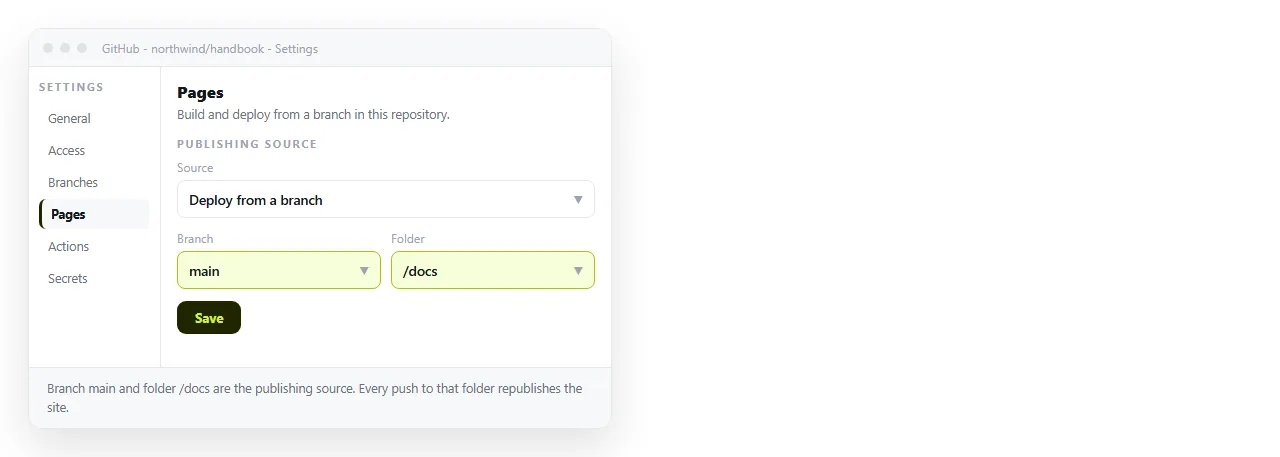
docsfolder. Name the entry pageindex.md. - Turn Pages on. Repository Settings, then Pages, then pick the branch and folder as the publishing source.
- Wait for the build. It runs on push and normally finishes in well under a minute.
- Open the published address. The
.mdextension is gone; the address is the file name without it.
Nothing is installed locally. You never see the HTML unless you look at the page source, which is fine until something renders wrong.
Front matter decides how it looks
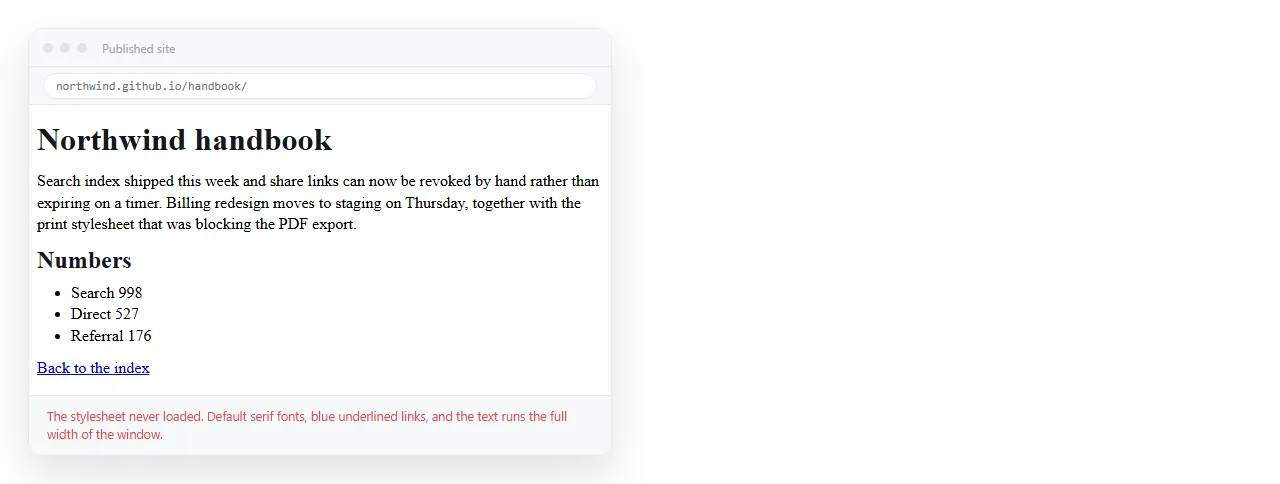
Without front matter a Markdown file converts to bare tags with no layout. The page works and looks unstyled.
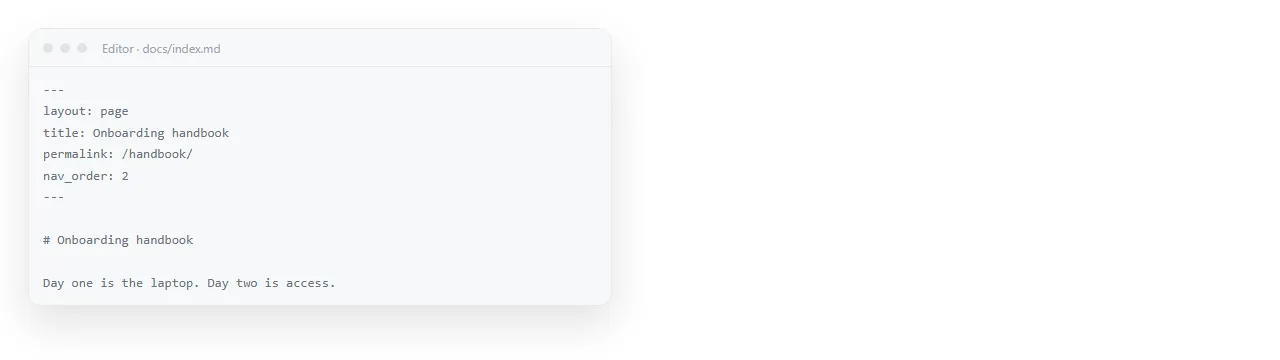
Front matter is a small YAML block at the very top of the file, between two lines of three dashes.
---
layout: default
title: Setup guide
---
The layout line points at a template from the theme set in _config.yml. The title line feeds the <title> tag and usually the page heading.
Set the theme once in _config.yml at the repository root:
theme: jekyll-theme-minimal
title: Project docs
That is the smallest configuration that produces a styled site.
When the Markdown shows up as raw text
Two causes, and they look identical in the browser.
A .nojekyll file exists. It disables the build, so Pages serves the .md file as a plain download or as text. Remove it if you wanted the conversion.
The file is not being built. Files and folders whose names begin with an underscore are treated as Jekyll internals and are not copied to the output. Rename them.
If neither applies, check the Actions tab. A failed build leaves the previous version of the site in place, which reads as "my change did nothing".
Route 2: convert the Markdown yourself
Sometimes you want the HTML exactly as you wrote it. A generated dashboard, a page with its own script, or output from another tool.
In that case convert first, using a converter or a script from converting Markdown to HTML, commit the .html files, and add an empty .nojekyll file at the root.
Pages then publishes the folder as static files. What you commit is what readers get, byte for byte. Keep the page self-contained so nothing depends on a neighbour file.
Links and images that break after the build
The most common failure after a successful build is a page that renders with no styling or no images.
- Relative paths shift.
setup.mdpublishes at/setup/, one level deeper than you expect, soimages/logo.pngresolves one folder off. Relative versus absolute paths explains the rule. - Project sites live in a subfolder. A site at
user.github.io/projectbreaks any path starting with a slash, because that slash means the domain root. - Case matters. The build runs on Linux.
Logo.PNGandlogo.pngare different files there and the same file on your Mac.
Caching after you push
The build finishing is not the same as the reader seeing the change. Pages sits behind a CDN and browsers cache aggressively.
Load the address with a throwaway query string on the end to confirm the new version exists. If it does, the build worked and you are looking at cache. Cache busting covers the durable fixes.
When a repository is more than you need
The build route assumes a repository, a branch, a settings page and a wait. That is a reasonable price for documentation that several people edit.
For one page that needs an address today, it is a lot of moving parts. Paste the converted HTML into a NOS document instead and the document has its own address immediately.
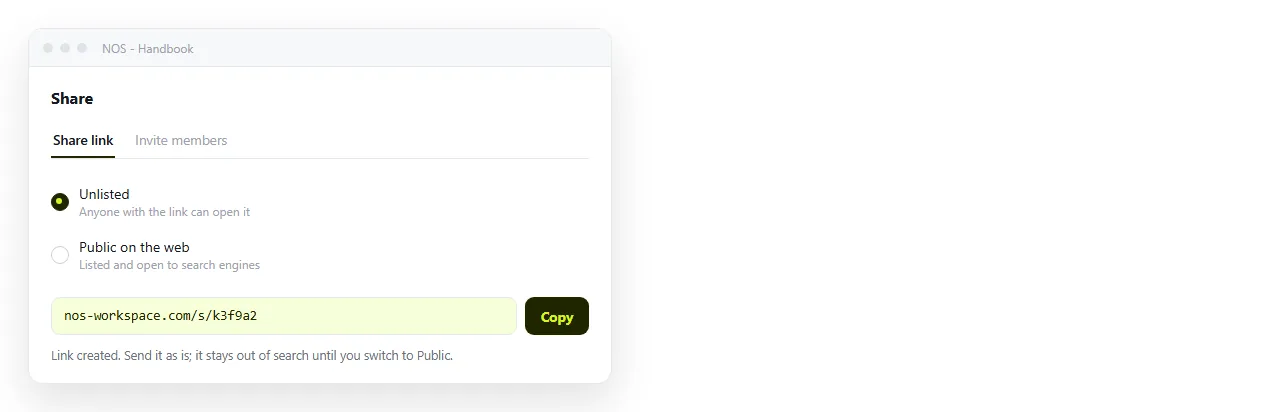
There is no build, so there is nothing to fail silently. Editing the text does not change the address, and a correction reaches everyone who already has the link.
Use Pages when the content belongs beside the code and several people commit to it. Use a document when the page is the deliverable and the audience is a link away. Static host versus document compares the two in more detail.