An open house flyer does two jobs. The paper catches a passer-by with the address, the time and one picture. A QR code on it opens a page with everything else: more photos, room details, the price and how to reach you.
Build the page first, then print the code.
Here is a complete details page to start from. It has a banner with the viewing time, three photos to switch between, expandable room notes and tappable contact buttons. Try the photo buttons and the notes.
<!doctype html>
<html lang="en">
<head>
<meta charset="utf-8">
<meta name="viewport" content="width=device-width, initial-scale=1">
<title>Open house - 14 Alder Court</title>
<style>
  * { box-sizing: border-box; }
  body { margin: 0; font-family: system-ui, sans-serif; font-size: 17px; line-height: 1.5; color: #1f2933; background: #f7f5f0; }
  main { max-width: 640px; margin: 0 auto; background: #fff; padding-bottom: 28px; }
  .banner { background: #1f4e3d; color: #fff; text-align: center; padding: 10px 14px; font-weight: 700; }
  .banner small { display: block; font-weight: 400; font-size: 15px; opacity: .92; }
  .hero { padding: 0; }
  .hero svg { display: block; width: 100%; height: auto; }
  .thumbs { display: flex; gap: 8px; padding: 10px 16px 0; }
  .thumbs button { flex: 1; padding: 8px 4px; font: inherit; font-size: 14px; border: 1px solid #cfd6d2; border-radius: 8px; background: #fff; color: #1f2933; cursor: pointer; }
  .thumbs button[aria-pressed="true"] { background: #1f4e3d; color: #fff; border-color: #1f4e3d; }
  .cap { margin: 6px 16px 0; font-size: 14px; color: #5b6770; min-height: 21px; }
  .head { padding: 10px 16px 0; }
  .head h1 { margin: 0; font-size: 26px; line-height: 1.2; }
  .price { margin: 2px 0 0; font-size: 22px; font-weight: 700; color: #1f4e3d; }
  .addr { margin: 0; color: #5b6770; font-size: 15px; }
  .facts { display: grid; grid-template-columns: repeat(3, 1fr); gap: 8px; padding: 14px 16px 0; }
  .facts div { text-align: center; background: #f1f5f2; border-radius: 10px; padding: 8px 4px; }
  .facts b { display: block; font-size: 20px; }
  .facts span { font-size: 13px; color: #5b6770; }
  h2 { margin: 22px 16px 6px; font-size: 19px; }
  .visit { margin: 0 16px; padding: 12px 14px; background: #fff7e0; border: 1px solid #f0d9a0; border-radius: 12px; }
  .visit p { margin: 0; }
  .visit .when { font-weight: 700; font-size: 18px; }
  .visit .note { font-size: 15px; color: #5b4a22; margin-top: 4px; }
  ul.feat { margin: 0; padding: 0 16px 0 36px; }
  ul.feat li { margin: 2px 0; }
  details { margin: 0 16px; border-bottom: 1px solid #e5e8e6; padding: 8px 0; }
  summary { cursor: pointer; font-weight: 600; }
  details p { margin: 6px 0 2px; font-size: 16px; color: #374151; }
  .agent { margin: 0 16px; padding: 14px; border: 1px solid #cfd6d2; border-radius: 12px; }
  .agent .nm { margin: 0; font-weight: 700; font-size: 18px; }
  .agent .co { margin: 0 0 8px; color: #5b6770; font-size: 15px; }
  .agent .row { margin: 2px 0; }
  .agent a { color: #1b5fb4; font-weight: 600; }
  .btns { display: flex; gap: 8px; margin-top: 10px; flex-wrap: wrap; }
  .btns a { flex: 1 1 130px; text-align: center; padding: 11px 8px; border-radius: 10px; text-decoration: none; background: #1f4e3d; color: #fff; }
  .btns a.alt { background: #fff; color: #1f4e3d; border: 2px solid #1f4e3d; }
  .fine { margin: 14px 16px 0; font-size: 14px; color: #5b6770; }
</style>
</head>
<body>
<main>
  <div class="banner">Open house this Saturday, 1:00 to 3:00 pm
    <small>Come in, no appointment needed</small></div>

  <div class="hero" id="hero"></div>
  <div class="thumbs" id="thumbs">
    <button type="button" data-i="0" aria-pressed="true">Front</button>
    <button type="button" data-i="1" aria-pressed="false">Kitchen</button>
    <button type="button" data-i="2" aria-pressed="false">Garden</button>
  </div>
  <p class="cap" id="cap"></p>

  <div class="head">
    <h1>14 Alder Court</h1>
    <p class="addr">Larkspur Heights</p>
    <p class="price">$489,000</p>
  </div>

  <div class="facts">
    <div><b>3</b><span>bedrooms</span></div>
    <div><b>2</b><span>bathrooms</span></div>
    <div><b>1,640</b><span>sq ft</span></div>
  </div>

  <h2>Visit</h2>
  <div class="visit">
    <p class="when">Saturday, 1:00 to 3:00 pm</p>
    <p class="note">Parking on Alder Court. Please sign in on the paper sheet by the front door.</p>
  </div>

  <h2>Highlights</h2>
  <ul class="feat">
    <li>New kitchen with a south-facing window</li>
    <li>Fenced back garden</li>
    <li>Single garage and driveway</li>
    <li>Ten minutes to Larkspur station</li>
  </ul>

  <h2>More about the house</h2>
  <details><summary>Rooms</summary><p>Living room 14 x 16 ft. Kitchen with dining area 12 x 18 ft. Primary bedroom 13 x 14 ft. Two further bedrooms.</p></details>
  <details><summary>Outside</summary><p>Garden of about 40 x 60 ft, patio, shed and a single garage.</p></details>
  <details><summary>Questions to ask the agent</summary><p>Heating, roof age, what is included in the sale and when you can move in.</p></details>

  <h2>Your agent</h2>
  <div class="agent">
    <p class="nm">Dana Whitfield</p>
    <p class="co">Larkspur Realty</p>
    <p class="row">Phone: <a href="tel:+15550142020">(555) 014-2020</a></p>
    <p class="row">Email: <a href="mailto:dana@larkspur-realty.example">dana@larkspur-realty.example</a></p>
    <div class="btns">
      <a href="tel:+15550142020">Call Dana</a>
      <a class="alt" href="mailto:dana@larkspur-realty.example?subject=14%20Alder%20Court">Email Dana</a>
    </div>
  </div>

  <p class="fine">Details are given in good faith. Measurements are approximate. Please check anything important when you visit.</p>
</main>

<script>
  // Three simple pictures drawn with SVG, so no image files are needed
  const scenes = [
    { cap: 'Front of the house', svg:
      '<svg viewBox="0 0 640 300" role="img" aria-label="Front of the house"><rect width="640" height="300" fill="#cfe6f5"/><rect y="220" width="640" height="80" fill="#9ccc8a"/><rect x="190" y="110" width="260" height="120" fill="#e8d9bd"/><polygon points="170,115 320,45 470,115" fill="#8a4b3a"/><rect x="298" y="160" width="44" height="70" fill="#5b3a29"/><rect x="215" y="140" width="55" height="45" fill="#bfe0ee"/><rect x="370" y="140" width="55" height="45" fill="#bfe0ee"/></svg>' },
    { cap: 'The new kitchen', svg:
      '<svg viewBox="0 0 640 300" role="img" aria-label="The kitchen"><rect width="640" height="300" fill="#f3ead8"/><rect x="40" y="40" width="150" height="110" fill="#bfe0ee"/><rect y="200" width="640" height="100" fill="#c9b79a"/><rect x="230" y="120" width="370" height="90" fill="#fff"/><rect x="230" y="120" width="370" height="16" fill="#1f4e3d"/><rect x="250" y="150" width="60" height="50" fill="#d9dfdc"/><rect x="330" y="150" width="60" height="50" fill="#d9dfdc"/><rect x="410" y="150" width="60" height="50" fill="#d9dfdc"/></svg>' },
    { cap: 'The back garden', svg:
      '<svg viewBox="0 0 640 300" role="img" aria-label="The back garden"><rect width="640" height="300" fill="#d7ecf7"/><rect y="150" width="640" height="150" fill="#8fc27a"/><rect y="120" width="640" height="40" fill="#b88a5a"/><circle cx="130" cy="110" r="52" fill="#4f8f4a"/><rect x="123" y="150" width="14" height="50" fill="#6b4a2f"/><circle cx="500" cy="100" r="40" fill="#5da057"/><rect x="494" y="135" width="12" height="40" fill="#6b4a2f"/><rect x="260" y="200" width="150" height="60" fill="#d9d2c4"/></svg>' }
  ];
  const hero = document.getElementById('hero');
  const cap = document.getElementById('cap');
  const buttons = document.querySelectorAll('#thumbs button');

  function show(i) {
    hero.innerHTML = scenes[i].svg;
    cap.textContent = scenes[i].cap;
    buttons.forEach((b, n) => b.setAttribute('aria-pressed', String(n === i)));
  }
  buttons.forEach((b, n) => b.addEventListener('click', () => show(n)));
  show(0);
</script>
</body>
</html>
The house, the agent and the phone number are invented. Copy the code into your own file and swap in your listing, or let an AI chat do it, as below.
Make it with AI
You do not have to write the HTML yourself. Paste this prompt into ChatGPT, Claude or Gemini, and put your real listing at the bottom.
Make my open house details page as ONE complete HTML file for people reading on a phone.
- A banner at the top with the open house day and time.
- The address, price, bedrooms, bathrooms and size as large, clear facts.
- A row of three buttons that switch between three photo areas. Draw simple placeholders with inline SVG, no outside images.
- A short list of highlights, and expandable notes for rooms and outside.
- A line that says: "Please sign in on the paper sheet by the front door."
- An agent box with my name, company, phone and email, with a Call button and an Email button. Show the phone number as plain text too.
- Body text 17px or larger, white background, dark text.
- No external images, fonts or scripts. Everything inside the one file.
- Include the viewport meta tag.
My listing:
[address, price, bedrooms, bathrooms, size, time, highlights, my contact details]
Then check the result before you use it:
- Every fact matches your listing: price, size, time and address. An AI can round a number or invent a feature.
- Your phone number and email are exactly right. Tap the buttons on your own phone.
- The viewport tag is in the head. MDN explains that without it, a phone may draw the page in a wider virtual window and shrink it, so the text comes out tiny.
- Photos are inside the file or left out. Outside images are blocked on a share link, so draw placeholders inside the file or leave pictures out.
Send it as a link
Paste the HTML into a NOS document and choose Create share link. HTML to link walks through it. You get a web address.
Anyone with it can open the page in a browser, on a phone or a computer, without an account, and they cannot edit it.
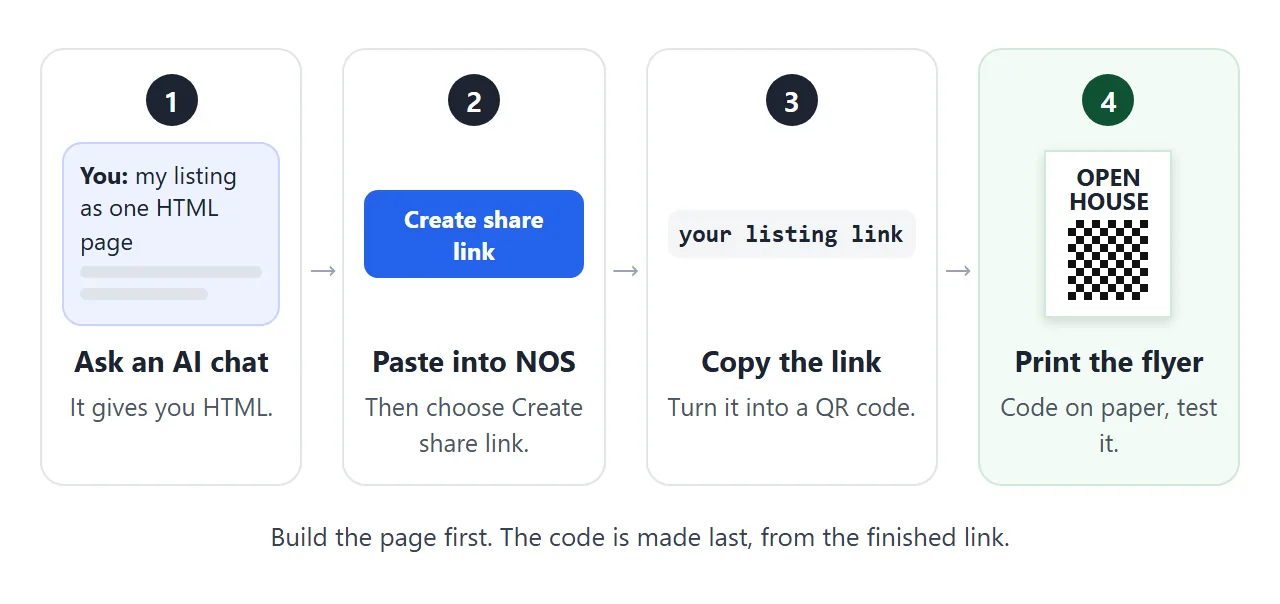
The page renders as written and its scripts run, so the photo buttons and the expandable notes work for visitors. If you change the code later, the same link shows the new version.
Open the link on your own phone before you go further. If it reads badly there, it will read badly at the door. For more on listings and links, see Advertise a property.
Make the QR code and print the flyer
Open your share link in Chrome on a computer. Chrome has a Create QR code option for the page you have open.
As of October 2026, Chrome Help puts it under Cast, save, and share in the Chrome menu, and lets you copy the code or download it. Menu names can change, so search Chrome Help if yours looks different.
Any other QR code maker works too, if the code holds your link directly.
Now lay out the sheet. This one updates as you type. Change the words, then swap the striped square for your downloaded code.
<!doctype html>
<html lang="en">
<head>
<meta charset="utf-8">
<meta name="viewport" content="width=device-width, initial-scale=1">
<title>Open house flyer sheet</title>
<style>
  * { box-sizing: border-box; }
  body { margin: 0; padding: 16px; font-family: system-ui, sans-serif; background: #eef0f3; color: #1f2933; }
  .wrap { max-width: 780px; margin: 0 auto; display: flex; flex-wrap: wrap; gap: 20px; align-items: flex-start; justify-content: center; }
  .controls { flex: 1 1 240px; max-width: 320px; }
  label { display: block; margin: 0 0 4px; font-size: 14px; font-weight: 600; }
  input[type=text] { width: 100%; padding: 9px 10px; margin-bottom: 12px; font: inherit; font-size: 16px; border: 1px solid #c9ced6; border-radius: 8px; background: #fff; }
  .hint { font-size: 13px; color: #4b5563; line-height: 1.45; margin: 0; }
  .sheet { flex: 0 0 auto; width: 320px; background: #fff; box-shadow: 0 6px 22px rgba(0, 0, 0, .16); padding: 18px 18px 16px; text-align: center; }
  .sheet .tag { margin: 0; font-size: 13px; letter-spacing: .14em; text-transform: uppercase; color: #1f4e3d; font-weight: 700; }
  .sheet h1 { margin: 2px 0 0; font-size: 34px; line-height: 1.05; }
  .sheet .when { margin: 6px 0 10px; font-size: 20px; font-weight: 700; color: #8a4b3a; }
  .art svg { display: block; width: 100%; height: auto; }
  .sheet .addr { margin: 10px 0 2px; font-size: 20px; font-weight: 700; }
  .sheet .line { margin: 0; font-size: 15px; color: #4b5563; }
  .qrbox { position: relative; width: 160px; height: 160px; margin: 12px auto 6px; border: 2px dashed #9ca3af; display: grid; place-items: center; }
  .qrbox::before { content: ""; position: absolute; inset: 20px; border: 2px solid #1f2933; background: repeating-linear-gradient(45deg, #f3f4f6 0 8px, #fff 8px 16px); }
  .qrbox span { position: relative; z-index: 1; background: #fff; padding: 2px 6px; font-size: 12px; font-weight: 700; }
  .scan { margin: 0; font-size: 18px; font-weight: 700; }
  .agent { margin: 10px 0 0; padding-top: 8px; border-top: 1px solid #e5e7eb; font-size: 13px; color: #374151; }
  .link { margin: 4px 0 0; font-size: 12px; color: #4b5563; word-break: break-all; }
</style>
</head>
<body>
<div class="wrap">
  <div class="controls">
    <label for="addr">Address</label>
    <input type="text" id="addr" value="14 Alder Court">

    <label for="when">Day and time</label>
    <input type="text" id="when" value="Sat 1:00 to 3:00 pm">

    <label for="scan">Words beside the code</label>
    <input type="text" id="scan" value="Scan for photos and details">

    <label for="agent">Agent and phone</label>
    <input type="text" id="agent" value="Dana Whitfield, Larkspur Realty, 555-0142">

    <label for="url">Printed link (your share link)</label>
    <input type="text" id="url" value="https://example.com/14-alder-court">

    <p class="hint">The dashed square is the code plus its clear margin. Replace the striped square with the code you download.</p>
  </div>

  <div class="sheet">
    <p class="tag">Open house</p>
    <h1>Come in and look around</h1>
    <p class="when" id="outWhen">Sat 1:00 to 3:00 pm</p>
    <div class="art">
      <svg viewBox="0 0 640 300" role="img" aria-label="Drawing of a house"><rect width="640" height="300" fill="#cfe6f5"/><rect y="220" width="640" height="80" fill="#9ccc8a"/><rect x="190" y="110" width="260" height="120" fill="#e8d9bd"/><polygon points="170,115 320,45 470,115" fill="#8a4b3a"/><rect x="298" y="160" width="44" height="70" fill="#5b3a29"/><rect x="215" y="140" width="55" height="45" fill="#bfe0ee"/><rect x="370" y="140" width="55" height="45" fill="#bfe0ee"/></svg>
    </div>
    <p class="addr" id="outAddr">14 Alder Court</p>
    <p class="line">3 bedrooms, 2 bathrooms</p>
    <div class="qrbox"><span>QR code here</span></div>
    <p class="scan" id="outScan">Scan for photos and details</p>
    <p class="link" id="outUrl">https://example.com/14-alder-court</p>
    <p class="agent" id="outAgent">Dana Whitfield, Larkspur Realty, 555-0142</p>
  </div>
</div>

<script>
  // Copy each field into the matching spot on the sheet as you type
  const pairs = [['addr', 'outAddr'], ['when', 'outWhen'], ['scan', 'outScan'], ['agent', 'outAgent'], ['url', 'outUrl']];
  pairs.forEach(([from, to]) => {
    const src = document.getElementById(from);
    const out = document.getElementById(to);
    const update = () => { out.textContent = src.value; };
    src.addEventListener('input', update);
    src.addEventListener('change', update);
  });
</script>
</body>
</html>
Print the code as large as the space allows. Denso Wave's QR code site says larger modules are easier to read.
It also says a code needs a clear margin four modules wide on every side, with nothing printed in it. Keep photos and frames off that margin.
Put words beside the code that say what the visitor gets. A bare square invites no one to scan it. Always test the printed copy, not the screen you designed it on.
What goes on paper and what goes on the page
A flyer is read quickly, at a distance, often outdoors. The page is read slowly, on a phone, once someone is curious. Split the content to fit.
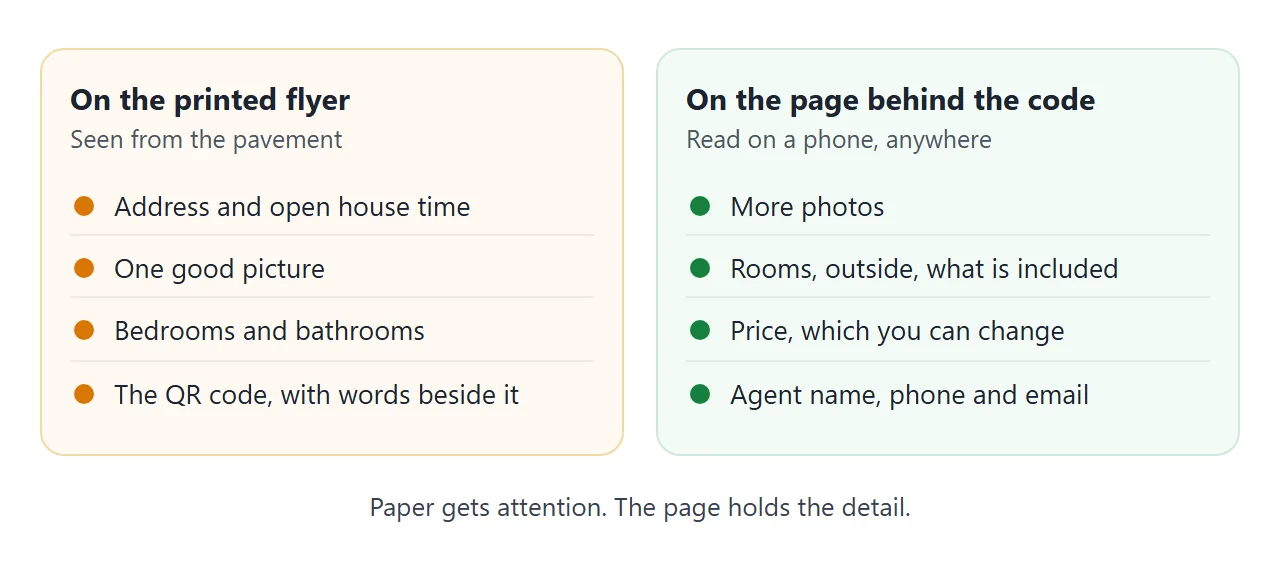
Put the day and time on both. The paper tells people when to come, and the page tells anyone who scans it later that same thing, and you can change it if the time moves.
After the open house, edit the banner. Change it to something like "Open house is over, call to arrange a visit". The printed flyers on posts and boards then still lead somewhere useful.
Sign-in sheets: what the page cannot do
If you ask visitors to sign in, note that a page on a NOS share link cannot collect those names for you.
A form on the page works inside the page, but sending a form to a server is blocked, and what a visitor types is not saved for you.
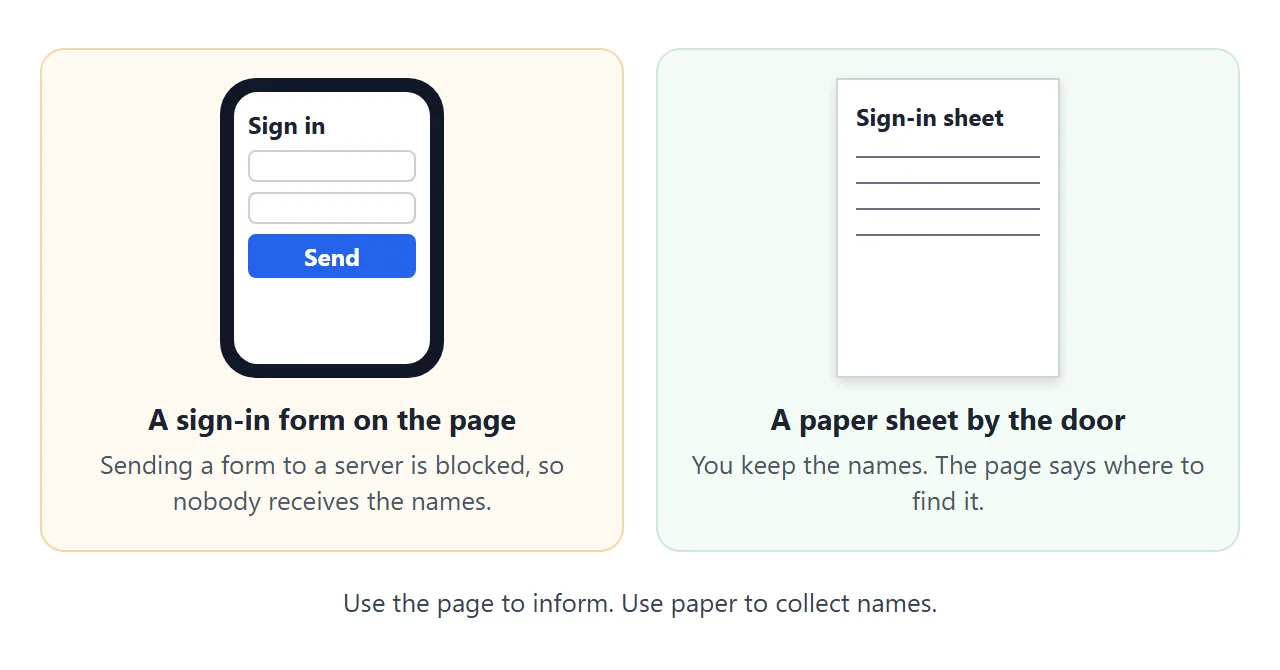
The simple answer is a paper sheet by the door. Say so on the page, as the demo does, so people who arrive by code know where to sign.
For visitors who want to talk afterwards, the page can show a Call button and an Email button. MDN describes tel links, which let cellular devices dial a number, and mailto links, which address an email.
Show the number as text as well, so it can be copied, and tap the buttons on your own phone to check.
Ways to share an open house compared
The same listing can reach people in different ways. What changes is what happens when a detail moves.
| Way to share | What a visitor gets | When the price or time changes |
|---|---|---|
| Printed flyer only | Whatever fits on the sheet | Print and replace every copy |
| A PDF sent by message | A file laid out for paper | Make a new PDF and send it again |
| A QR code to a share link | A page that opens in the browser, no account | Edit the page. The link stays the same |
The code works with anything that has an address. What matters is whether the page behind it can change. For the thinking behind that, see QR code link, and for a longer look at sending a brochure as a page, Brochure link.
When it does not work
| What you see | Cause | Fix |
|---|---|---|
| The phone camera shows nothing | Code too small, shadowed, blurry or glared | Print larger, light it, hold steady, show the whole square |
| It scans on screen but not on paper | Code printed too small, or the margin was cropped | Reprint larger with a four-module white margin |
| An Android camera offers no link | Camera scan suggestions is off | Turn it on in Camera settings, or use Quick Settings |
| The page opens with tiny text | The viewport tag is missing | Ask the AI to add the viewport meta tag |
| Photos are missing | Outside images are blocked | Draw them inside the file, or leave them out |
| A sign-in form sends nothing | Sending a form to a server is blocked | Use a paper sheet at the door |
| The flyer shows an old price | You made a new link instead of editing the old document | Edit the original document and use its link |