A research poster QR code is a square on your poster that opens a one-page summary on the visitor's phone. Ask an AI to write the page from your text, paste it into NOS, create a share link, and turn the link into a code.
On Quora, someone asks "For presenting academic research, what are some alternatives to PowerPoint presentations?" A poster with a code is one answer: the wall shows the headline, and the phone holds the detail.
Here is the kind of page the code can open. Tap the tabs, then switch the chart to a table.
<!doctype html>
<html lang="en">
<head>
<meta charset="utf-8">
<meta name="viewport" content="width=device-width, initial-scale=1">
<title>One-page poster summary</title>
<style>
  * { box-sizing: border-box; }
  body { margin: 0; font-family: system-ui, sans-serif; background: #f3f5f8; color: #1d2330; line-height: 1.5; }
  .page { max-width: 640px; margin: 0 auto; padding: 18px 16px 28px; }
  .tag { font-size: 12px; font-weight: 700; letter-spacing: .4px; color: #1d4ed8; text-transform: uppercase; }
  h1 { font-size: 22px; line-height: 1.25; margin: 6px 0 6px; }
  .by { font-size: 14px; color: #4b5563; margin: 0 0 14px; }
  .take { background: #fff; border-left: 5px solid #1d4ed8; border-radius: 8px; padding: 12px 14px; font-size: 16px; font-weight: 600; box-shadow: 0 1px 3px rgba(0,0,0,.08); }
  .tabs { display: flex; gap: 6px; margin: 16px 0 10px; }
  .tabs button { flex: 1; font: inherit; font-size: 14px; font-weight: 600; padding: 9px 6px; border: 1px solid #c9d0db; background: #fff; border-radius: 8px; cursor: pointer; color: #374151; }
  .tabs button[aria-selected="true"] { background: #1d4ed8; border-color: #1d4ed8; color: #fff; }
  .panel { background: #fff; border-radius: 10px; padding: 14px 16px; box-shadow: 0 1px 3px rgba(0,0,0,.08); font-size: 15px; }
  .panel[hidden] { display: none; }
  .panel p { margin: 0 0 10px; }
  .panel p:last-child { margin-bottom: 0; }
  .bar-row { display: grid; grid-template-columns: 78px 1fr 44px; gap: 8px; align-items: center; margin: 8px 0; font-size: 14px; }
  .track { background: #e8ecf3; border-radius: 6px; height: 22px; overflow: hidden; }
  .fill { height: 100%; border-radius: 6px; }
  .fill.a { background: #1d4ed8; }
  .fill.b { background: #94a3b8; }
  .small { font-size: 13px; color: #6b7280; }
  .toggle { font: inherit; font-size: 13px; padding: 5px 10px; border: 1px solid #c9d0db; background: #fff; border-radius: 6px; cursor: pointer; margin-top: 8px; }
  table { border-collapse: collapse; width: 100%; font-size: 14px; margin-top: 8px; }
  th, td { text-align: left; padding: 6px 8px; border-bottom: 1px solid #e5e7eb; }
  .foot { margin-top: 14px; font-size: 13px; color: #4b5563; }
  .foot b { color: #1d2330; }
</style>
</head>
<body>
<div class="page">
  <div class="tag">Regional Student Research Day · Poster 14</div>
  <h1>Does a 10-minute walk before a quiz help recall?</h1>
  <p class="by">Dana Whitcombe and Ravi Ito · Sample page with made-up data</p>

  <div class="take" id="take">Students who walked for ten minutes scored a little higher on a recall quiz than students who sat. The gap was small, and 48 students is a small group.</div>

  <div class="tabs" role="tablist">
    <button role="tab" aria-selected="true" data-tab="results">Results</button>
    <button role="tab" aria-selected="false" data-tab="methods">Methods</button>
    <button role="tab" aria-selected="false" data-tab="limits">Limits</button>
  </div>

  <div class="panel" id="results" role="tabpanel">
    <p><b>Average quiz score out of 10</b></p>
    <div id="bars">
      <div class="bar-row"><span>Walked</span><div class="track"><div class="fill a" data-v="7.4"></div></div><b>7.4</b></div>
      <div class="bar-row"><span>Sat</span><div class="track"><div class="fill b" data-v="6.9"></div></div><b>6.9</b></div>
    </div>
    <div id="tablewrap" hidden>
      <table>
        <tr><th>Group</th><th>Students</th><th>Average</th></tr>
        <tr><td>Walked</td><td>24</td><td>7.4</td></tr>
        <tr><td>Sat</td><td>24</td><td>6.9</td></tr>
      </table>
    </div>
    <button class="toggle" id="swap" type="button">Show as table</button>
  </div>

  <div class="panel" id="methods" role="tabpanel" hidden>
    <p>48 students were split into two groups of 24. Both groups read the same short text.</p>
    <p>One group walked around the building for ten minutes. The other sat quietly. Then everyone took the same ten-question quiz.</p>
  </div>

  <div class="panel" id="limits" role="tabpanel" hidden>
    <p>Only one school year took part, and the quiz covered one text.</p>
    <p>The gap of 0.5 points could be chance. A larger study would be needed before anyone relies on it.</p>
  </div>

  <p class="foot"><b>Questions?</b> Find us at the poster, or write to ravi.ito@example.edu. This page has no sign-in and no tracking script. Last updated: 1 October 2026.</p>
</div>

<script>
  // Tabs: show one panel at a time
  const tabs = document.querySelectorAll('.tabs button');
  const panels = ['results', 'methods', 'limits'];
  tabs.forEach((btn) => {
    btn.addEventListener('click', () => {
      tabs.forEach((b) => b.setAttribute('aria-selected', String(b === btn)));
      panels.forEach((id) => { document.getElementById(id).hidden = id !== btn.dataset.tab; });
    });
  });

  // Bars: width is the score out of 10
  document.querySelectorAll('.fill').forEach((f) => { f.style.width = (parseFloat(f.dataset.v) * 10) + '%'; });

  // Chart or table of the same numbers
  const swap = document.getElementById('swap');
  swap.addEventListener('click', () => {
    const bars = document.getElementById('bars');
    const table = document.getElementById('tablewrap');
    const showTable = table.hidden;
    table.hidden = !showTable;
    bars.hidden = showTable;
    swap.textContent = showTable ? 'Show as chart' : 'Show as table';
  });
</script>
</body>
</html>
The page has no sign-in and no tracking script. A visitor reads it and leaves, and you are not collecting anything about them.
Make it with AI
Open ChatGPT, Claude or Gemini and paste a prompt like this, then paste your abstract and results under it. Check your lab's or supervisor's rules before you paste unpublished data into any AI chat.
Make one complete HTML file: a one-page summary of my
research poster, opened on a phone after a QR scan.
Use only the text I paste below. Do not add facts,
numbers or citations that are not in it.
Layout: title, authors, a one-sentence takeaway, then
buttons for Results, Methods and Limits that show one
panel each. Show the main result as a bar chart drawn
with CSS or inline SVG, with a button to switch to a
table. End with my contact email and the date.
Rules: works at phone width, one font, two colours, all
CSS and JavaScript inside the file. No external
scripts, no tracking, no sign-in, no outside images.

MY TEXT:
(paste your abstract and results here)
Then check the result before you print anything:
- Numbers: compare every figure with your poster and your data. An AI can invent one you never gave it.
- Limits: the Limits panel should say what your poster says, no more and no less.
- Outside loads: search the code for the letters http. Images from other sites are blocked in NOS, and so is fetching data from them.
- Phone width: shrink the browser window and look for text running off the side.
If something is off, reply in the same chat with one change at a time.
Send it as a link
- Copy the whole HTML block from the chat, from the first line to the last.
- Paste it into a NOS document. The page appears as written, with its tabs and buttons working.
- Click a wrong word on the page and type the right one. Editing without code shows how.
- Choose Share, then Create share link, and copy the link.
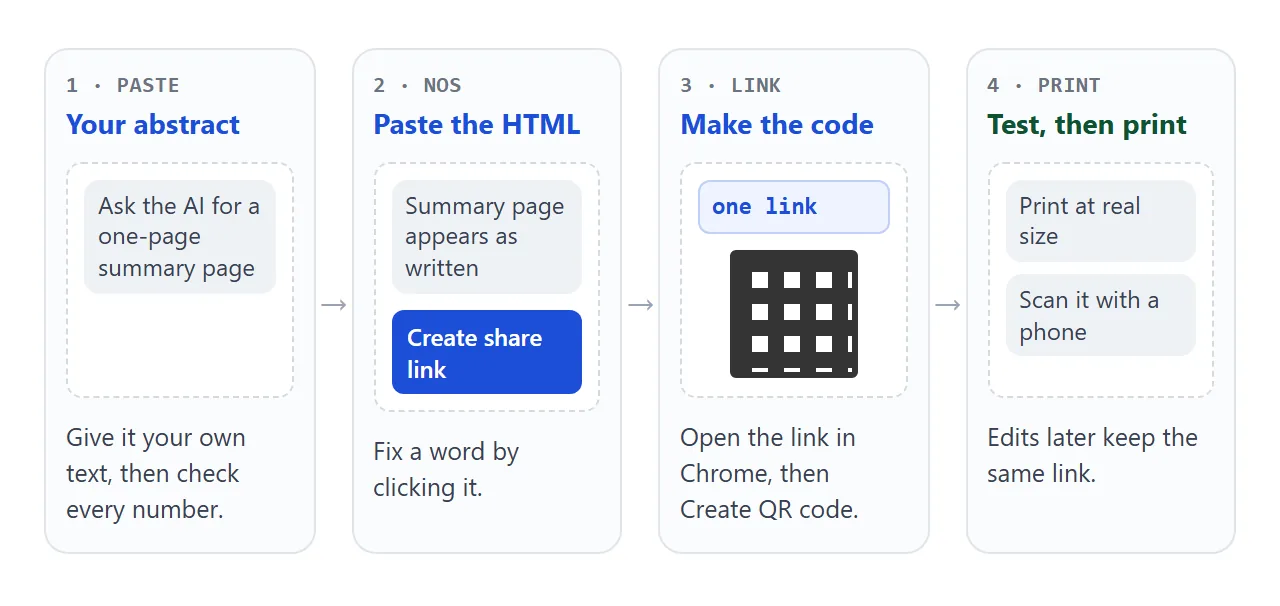
Whoever opens the link sees your page in their browser, on a phone too. They need no account and cannot edit it. If you fix a line later, edit it in the same document and the same link shows the new version.
Turn the link into a QR code
NOS makes the page and its link. The square itself comes from a code generator, and Chrome has one built in.
Chrome Help says that on a computer you open the page, select More, then Cast, save, and share, then Create QR code. You can then copy the QR link or select Download. Google describes this as of October 2026.
Open your share link in Chrome and use that menu. Then check the printed result on the real paper:
- Print a proof at the real size and scan it with a phone, from the distance a visitor will stand.
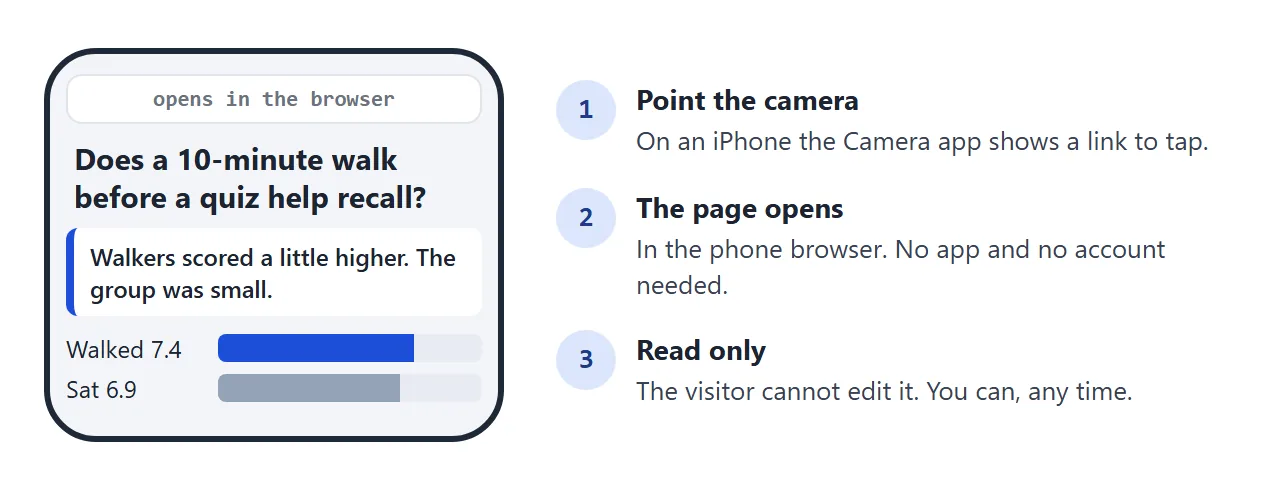
- Scan it on more than one phone if you can. Apple says the iPhone Camera app shows a tappable link when it sees a code.
- Add a caption beside the square, such as "Scan for the one-page summary", so people know why to point a phone at it.
The poster below shows one way to lay it out. The square is only a placeholder pattern, so it will not scan. Press After a scan to see the phone side.
<!doctype html>
<html lang="en">
<head>
<meta charset="utf-8">
<meta name="viewport" content="width=device-width, initial-scale=1">
<title>Poster layout with a QR corner</title>
<style>
  * { box-sizing: border-box; }
  body { margin: 0; font-family: system-ui, sans-serif; background: #e9edf3; color: #1d2330; }
  .wrap { max-width: 640px; margin: 0 auto; padding: 14px 12px 20px; }
  .ctl { display: flex; gap: 8px; margin-bottom: 12px; }
  .ctl button { flex: 1; font: inherit; font-size: 14px; font-weight: 600; padding: 9px 6px; border: 1px solid #c1c9d6; background: #fff; border-radius: 8px; cursor: pointer; }
  .ctl button[aria-pressed="true"] { background: #1d4ed8; border-color: #1d4ed8; color: #fff; }
  .poster { background: #fff; border-radius: 6px; box-shadow: 0 6px 18px rgba(0,0,0,.18); padding: 14px; }
  .poster[hidden], .phone[hidden] { display: none; }
  .head { background: #1e3a8a; color: #fff; border-radius: 4px; padding: 10px 12px; }
  .head h1 { font-size: 17px; margin: 0 0 3px; line-height: 1.25; }
  .head p { margin: 0; font-size: 12px; opacity: .85; }
  .cols { display: grid; grid-template-columns: 1fr 1fr; gap: 10px; margin-top: 10px; }
  .box { border: 1px solid #d5dae3; border-radius: 4px; padding: 8px 10px; font-size: 12px; line-height: 1.4; }
  .box b { display: block; font-size: 12px; color: #1e3a8a; margin-bottom: 3px; text-transform: uppercase; letter-spacing: .3px; }
  .fig { height: 54px; border-radius: 3px; margin-top: 6px; background: linear-gradient(90deg, #1d4ed8 74%, #e8ecf3 74%) 0 0 / 100% 18px no-repeat, linear-gradient(90deg, #94a3b8 69%, #e8ecf3 69%) 0 28px / 100% 18px no-repeat; }
  .qrbox { display: grid; grid-template-columns: 96px 1fr; gap: 10px; align-items: center; margin-top: 10px; border: 2px solid #1e3a8a; border-radius: 4px; padding: 8px 10px; }
  .qrbox svg { width: 96px; height: 96px; display: block; background: #fff; }
  .qrbox strong { font-size: 14px; display: block; margin-bottom: 3px; }
  .qrbox span { font-size: 12px; color: #4b5563; line-height: 1.4; display: block; }
  .note { font-size: 12px; color: #6b7280; margin: 8px 2px 0; }
  .phone { max-width: 270px; margin: 0 auto; border: 4px solid #1f2937; border-radius: 28px; background: #f3f5f8; padding: 12px 12px 16px; }
  .addr { font: 600 11px ui-monospace, Consolas, monospace; background: #fff; border: 1px solid #d5dae3; border-radius: 8px; padding: 5px 8px; text-align: center; color: #4b5563; }
  .phone h2 { font-size: 15px; margin: 10px 0 6px; line-height: 1.25; }
  .phone .take { background: #fff; border-left: 4px solid #1d4ed8; border-radius: 6px; padding: 8px 10px; font-size: 13px; font-weight: 600; }
  .phone .mini { display: grid; grid-template-columns: repeat(3, 1fr); gap: 5px; margin-top: 8px; }
  .phone .mini i { font-style: normal; font-size: 11px; text-align: center; padding: 6px 2px; border-radius: 6px; background: #1d4ed8; color: #fff; }
  .phone .mini i + i { background: #fff; color: #374151; border: 1px solid #c9d0db; }
  .cap { text-align: center; font-size: 12px; color: #4b5563; margin-top: 10px; }
</style>
</head>
<body>
<div class="wrap">
  <div class="ctl">
    <button type="button" id="b1" aria-pressed="true">On the wall</button>
    <button type="button" id="b2" aria-pressed="false">After a scan</button>
  </div>

  <div class="poster" id="poster">
    <div class="head">
      <h1>Does a 10-minute walk before a quiz help recall?</h1>
      <p>Dana Whitcombe and Ravi Ito · Poster 14 · made-up sample</p>
    </div>
    <div class="cols">
      <div class="box"><b>Question</b>Does light movement before a quiz change what students remember?</div>
      <div class="box"><b>Result</b>Walked 7.4, sat 6.9 out of 10.<div class="fig"></div></div>
    </div>
    <div class="qrbox">
      <svg id="qr" viewBox="0 0 25 25" shape-rendering="crispEdges" role="img" aria-label="Placeholder pattern, not a real QR code"></svg>
      <div>
        <strong>Scan for the one-page summary</strong>
        <span>Opens in your phone browser. No app, no account.</span>
      </div>
    </div>
    <p class="note">The square on the left is a placeholder pattern. It will not scan.</p>
  </div>

  <div class="phone" id="phone" hidden>
    <div class="addr">opens in the browser</div>
    <h2>Does a 10-minute walk before a quiz help recall?</h2>
    <div class="take">Walkers scored a little higher. The gap was small and the group was small.</div>
    <div class="mini"><i>Results</i><i>Methods</i><i>Limits</i></div>
    <div class="cap">What the person sees after tapping the link</div>
  </div>
</div>

<script>
  // Draw a placeholder pattern: three corner squares plus fixed noise
  const svg = document.getElementById('qr');
  const N = 25;
  let seed = 7;
  const rnd = () => { seed = (seed * 16807) % 2147483647; return seed / 2147483647; };
  let out = '';
  const finder = (x, y) => {
    out += '<rect x="' + x + '" y="' + y + '" width="7" height="7" fill="#111"/>' +
           '<rect x="' + (x + 1) + '" y="' + (y + 1) + '" width="5" height="5" fill="#fff"/>' +
           '<rect x="' + (x + 2) + '" y="' + (y + 2) + '" width="3" height="3" fill="#111"/>';
  };
  const inFinder = (x, y) => (x < 8 && y < 8) || (x > N - 9 && y < 8) || (x < 8 && y > N - 9);
  for (let y = 0; y < N; y++) {
    for (let x = 0; x < N; x++) {
      if (!inFinder(x, y) && rnd() > 0.52) out += '<rect x="' + x + '" y="' + y + '" width="1" height="1" fill="#111"/>';
    }
  }
  finder(0, 0); finder(N - 7, 0); finder(0, N - 7);
  svg.innerHTML = out;

  // Switch between the wall view and the phone view
  const b1 = document.getElementById('b1');
  const b2 = document.getElementById('b2');
  function show(phone) {
    document.getElementById('poster').hidden = phone;
    document.getElementById('phone').hidden = !phone;
    b1.setAttribute('aria-pressed', String(!phone));
    b2.setAttribute('aria-pressed', String(phone));
  }
  b1.addEventListener('click', () => show(false));
  b2.addEventListener('click', () => show(true));
</script>
</body>
</html>
QR code link goes further on sizing a printed code, and File to QR code explains why a code holds an address, not a file.
Keep the details on the page, not the code
A printed code is fixed. A page is not. That difference is the reason to point the code at a page you control.
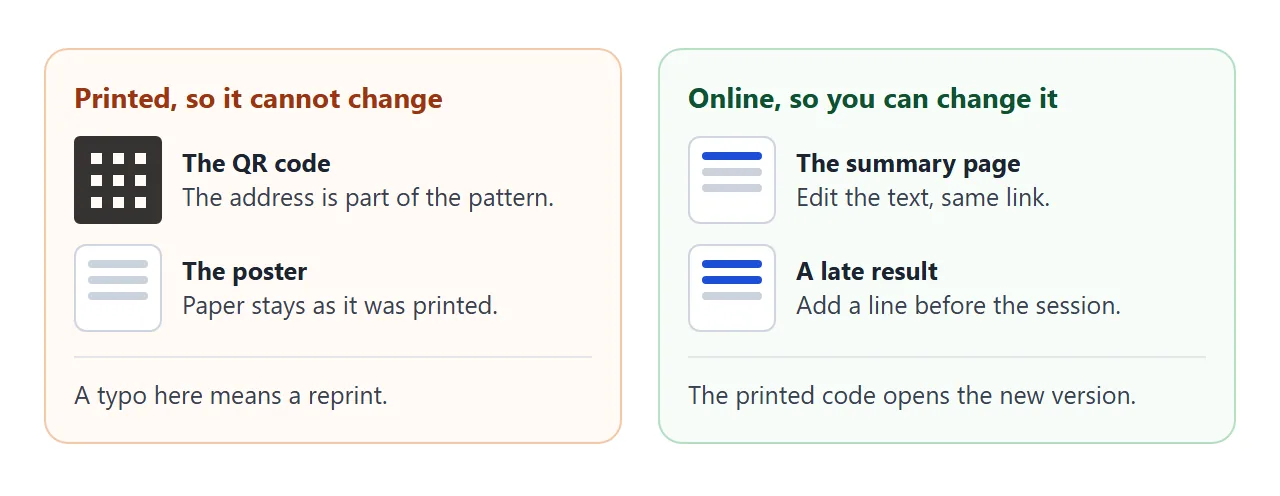
Posters often change late. A co-author asks for a wording fix, or a last run of the data moves a number.
With a link, you edit the text in the same NOS document before the session, and the code on paper still opens the right page.
The page is also where an unclear sentence from the poster can be spelled out. For a fuller version of a finished paper, Research paper link covers what to share and what to leave to the published record.
Ways to hand over the detail, compared
| Way | What the visitor does | If you fix a number after printing |
|---|---|---|
| Everything on the poster | Reads it standing at the wall | Reprint the poster |
| Paper handouts | Takes a sheet | Reprint the sheets |
| Your email on the poster | Types an address, waits for a reply | Send the new version to each person |
| QR code to a NOS link | Points a phone | Edit once, same code |
The last row is the only one where the version a visitor reads is always the current one. Treat the page like a notice board: anyone with the link can open it, so leave off anything you may not show in public.
When it does not work
| What you see | Cause | Fix |
|---|---|---|
| The phone does nothing at the code | The print is too small or too blurry | Print a proof at a larger size and scan it again |
| The code opens a blank page | The address was copied wrongly | Open the link in a browser first, then make the code from it |
| A chart does not show | The AI loaded a library from another site | Ask for CSS or inline SVG instead |
| A number does not match the poster | The AI guessed or changed it | Click the number and type the right one |
| Your edit does not appear | You edited in the AI chat, not NOS | Make the change in the NOS document |
| Visitors cannot edit the page | Share links are read only | Edit it yourself in your document |