A restaurant menu QR code is two separate things: a menu page at a web address, and a code that holds that address. Build the page first, copy its link, then turn the link into a code.
The code never has to change, because only the page behind it does.
Here is a complete menu page to start from. It has tappable section names, a vegetarian filter, a Today box and one sold-out dish. Scroll it, tap a section, tick the filter.
<!doctype html>
<html lang="en">
<head>
<meta charset="utf-8">
<meta name="viewport" content="width=device-width, initial-scale=1">
<title>Harbor Lane Kitchen - Menu</title>
<style>
  * { box-sizing: border-box; }
  body {
    margin: 0; font-family: system-ui, sans-serif; font-size: 17px; line-height: 1.5;
    color: #1f2933; background: #fffdf8;
  }
  header { padding: 22px 18px 10px; text-align: center; }
  header h1 { margin: 0; font-size: 26px; letter-spacing: .01em; }
  header p { margin: 4px 0 0; color: #6b7280; font-size: 15px; }
  nav {
    position: sticky; top: 0; z-index: 2; display: flex; gap: 8px; overflow-x: auto;
    padding: 10px 14px; background: #fffdf8; border-bottom: 1px solid #eee6d6;
  }
  nav a {
    flex: none; padding: 8px 14px; border-radius: 99px; background: #f3ead8;
    color: #5b4a22; text-decoration: none; font-weight: 600; font-size: 15px;
  }
  main { max-width: 640px; margin: 0 auto; padding: 4px 18px 40px; }
  .filter { display: flex; align-items: center; gap: 8px; margin: 14px 0 0; font-size: 15px; color: #374151; }
  .filter input { width: 20px; height: 20px; }
  section { padding-top: 6px; }
  h2 { margin: 22px 0 6px; font-size: 20px; color: #7a4b12; }
  .today { background: #fff3d6; border: 1px solid #f0d9a0; border-radius: 12px; padding: 4px 14px 8px; margin-top: 16px; }
  .today h2 { margin-top: 10px; }
  .dish { display: flex; justify-content: space-between; gap: 14px; padding: 10px 0; border-bottom: 1px solid #f0e8d8; }
  .dish:last-child { border-bottom: 0; }
  .name { font-weight: 600; }
  .desc { display: block; font-weight: 400; font-size: 15px; color: #6b7280; }
  .price { font-variant-numeric: tabular-nums; font-weight: 600; white-space: nowrap; }
  .tag { display: inline-block; margin-left: 4px; padding: 0 7px; border-radius: 6px; background: #e8efe6; color: #2f5d34; font-size: 12px; font-weight: 600; font-style: normal; }
  .sold { opacity: .55; }
  .sold .price { text-decoration: line-through; }
  .sold .name::after { content: "  Sold out"; font-size: 13px; color: #b45309; font-weight: 700; }
  .hide { display: none; }
</style>
</head>
<body>
<header>
  <h1>Harbor Lane Kitchen</h1>
  <p>Menu, updated Thursday</p>
</header>

<nav>
  <a href="#today">Today</a>
  <a href="#starters">Starters</a>
  <a href="#mains">Mains</a>
  <a href="#desserts">Desserts</a>
  <a href="#drinks">Drinks</a>
</nav>

<main>
  <label class="filter"><input type="checkbox" id="veg"> Show vegetarian dishes only</label>

  <div class="today" id="today">
    <h2>Today</h2>
    <div class="dish" data-veg="no"><span class="name">Grilled hake, brown butter<span class="desc">Capers, new potatoes</span></span><span class="price">$24</span></div>
    <div class="dish" data-veg="yes"><span class="name">Fig and burrata <em class="tag">veg</em><span class="desc">Honey, toasted seeds</span></span><span class="price">$14</span></div>
  </div>

  <section id="starters">
    <h2>Starters</h2>
    <div class="dish" data-veg="yes"><span class="name">Tomato soup <em class="tag">veg</em><span class="desc">Basil oil, sourdough</span></span><span class="price">$8</span></div>
    <div class="dish" data-veg="no"><span class="name">Crab cakes<span class="desc">Lemon mayonnaise. Contains shellfish, egg</span></span><span class="price">$13</span></div>
    <div class="dish sold" data-veg="yes"><span class="name">Roasted beet salad <em class="tag">veg</em></span><span class="price">$11</span></div>
  </section>

  <section id="mains">
    <h2>Mains</h2>
    <div class="dish" data-veg="no"><span class="name">Roast chicken<span class="desc">Garlic, rosemary, seasonal greens</span></span><span class="price">$21</span></div>
    <div class="dish" data-veg="yes"><span class="name">Mushroom risotto <em class="tag">veg</em><span class="desc">Parmesan. Contains milk</span></span><span class="price">$18</span></div>
    <div class="dish" data-veg="no"><span class="name">Beef burger<span class="desc">Cheddar, pickles, fries. Contains gluten, milk</span></span><span class="price">$17</span></div>
  </section>

  <section id="desserts">
    <h2>Desserts</h2>
    <div class="dish" data-veg="yes"><span class="name">Lemon tart <em class="tag">veg</em><span class="desc">Contains gluten, egg, milk</span></span><span class="price">$8</span></div>
    <div class="dish" data-veg="yes"><span class="name">Chocolate pot <em class="tag">veg</em><span class="desc">Contains milk</span></span><span class="price">$7</span></div>
  </section>

  <section id="drinks">
    <h2>Drinks</h2>
    <div class="dish" data-veg="yes"><span class="name">Sparkling water</span><span class="price">$3</span></div>
    <div class="dish" data-veg="yes"><span class="name">Fresh lemonade</span><span class="price">$4</span></div>
    <div class="dish" data-veg="yes"><span class="name">Filter coffee</span><span class="price">$3</span></div>
  </section>
</main>

<script>
  const veg = document.getElementById('veg');
  const dishes = document.querySelectorAll('.dish');

  // Hide every dish not marked vegetarian while the box is ticked
  veg.addEventListener('change', () => {
    dishes.forEach((d) => d.classList.toggle('hide', veg.checked && d.dataset.veg !== 'yes'));
  });
</script>
</body>
</html>
Copy the code into your own file and swap in your restaurant name, dishes and prices. Or let an AI chat do it for you, as below.
Make it with AI
You do not have to write the HTML yourself. Paste this prompt into ChatGPT, Claude or Gemini, and put your own dishes at the bottom.
Make my restaurant menu as ONE complete HTML file for people reading on a phone.
- Page title: [restaurant name]. A line under it: "Menu, updated [day]".
- A sticky row of section links at the top (Today, Starters, Mains, Desserts, Drinks) that jump to each section.
- One line per dish: name on the left, price on the right, a short grey description below.
- Allergens as plain text after the description, for example "Contains milk, egg".
- Body text 17px or larger, white background, dark text.
- A "Today" box at the top that I can edit each morning.
- No external images, fonts or scripts. Everything inside the one file.
- Include the viewport meta tag.
My dishes and prices, one per line (name - price - allergens):
[paste your list here]
Then check the result before you use it:
- Every dish name and price matches your real menu. An AI can round a price or invent a dish.
- Allergen text says what your kitchen says, not what the AI guessed.
- The viewport tag is in the head. MDN explains that without it, a phone may draw the page in a wider virtual window and shrink it, so the text comes out tiny.
- Pictures are drawn inside the file or left out. Outside images are blocked on a share link.
Send it as a link
Paste the HTML into a NOS document and choose Create share link. HTML to link walks through it. You get a web address.
Anyone with it can open the menu in a browser, on a phone or a computer, without an account, and they cannot edit it.
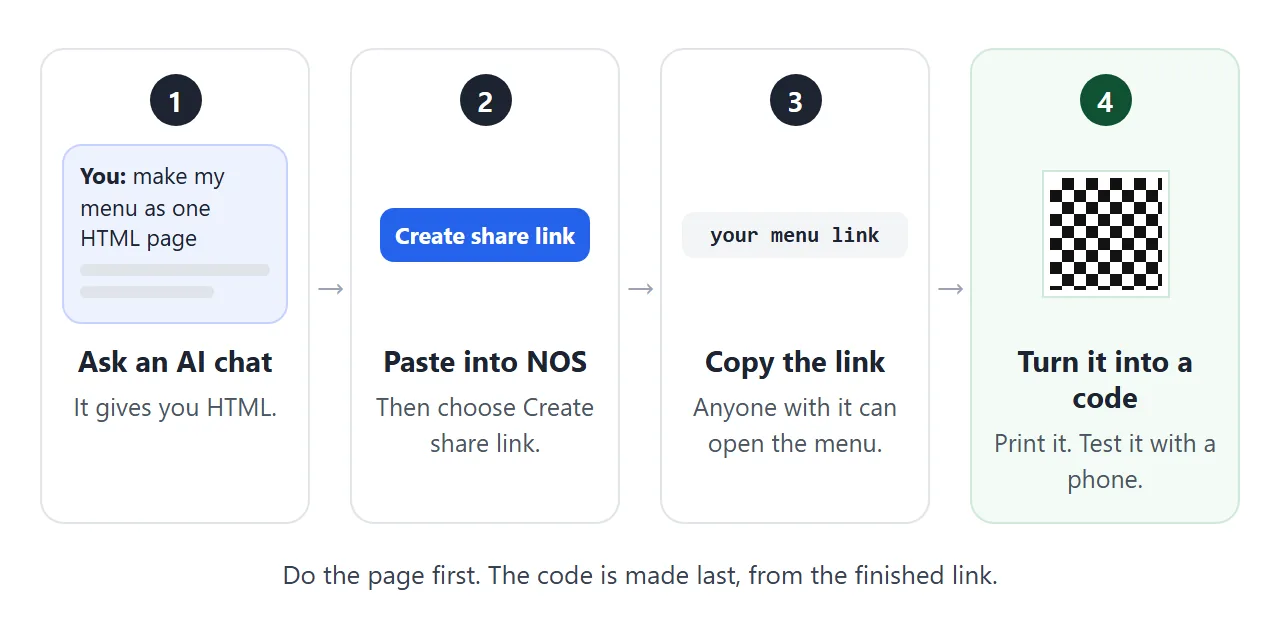
The page renders as written and its scripts run, so the section links and the vegetarian filter work for your customers. If you change the code later, the same link shows the new version.
Open the link on your own phone before you go further. If it reads badly there, it will read badly at the table. A longer look at the menu itself is in Menu link.
Make the QR code from the link
Open your share link in Chrome on a computer. Chrome has a Create QR code option for the page you have open.
As of October 2026, Chrome Help puts it under Cast, save, and share in the Chrome menu, and offers to copy the code or download it. Menu names can change, so search Chrome Help for the option name if yours looks different.
Any other QR code maker also works, as long as the code holds your link directly. Check by scanning it and reading the address your phone shows before the page opens.
Keep the address short if you can. Denso Wave's QR code site says that more data needs more modules and a larger code. A shorter link gives a code with fewer, and so bigger, modules at the same printed size.
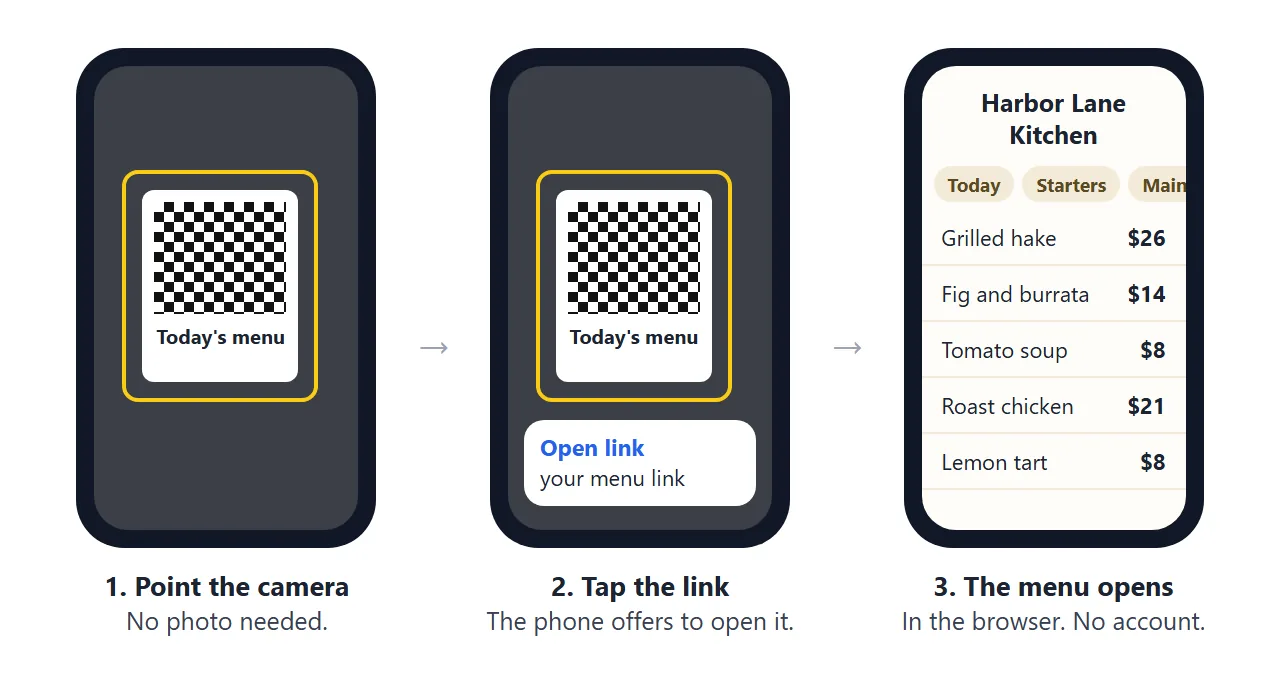
Now scan it yourself. On an iPhone, open the Camera app, hold the phone so the code appears, and tap the link.
On a Pixel phone, open Camera, point it at the code and tap the link that appears. Google notes that Camera scan suggestions has to be turned on.
Print it so it scans
A QR code needs a clear margin of four modules on every side, and nothing printed inside it. If you place the code on a card, leave that white border. Do not let a frame, a photo or text touch the code.
Denso Wave also says to print as large as the space allows, since bigger modules are easier to read. Put a few words beside the code that say what you get, such as "Today's menu". A bare square invites no one to scan it.
<!doctype html>
<html lang="en">
<head>
<meta charset="utf-8">
<meta name="viewport" content="width=device-width, initial-scale=1">
<title>Table card layout</title>
<style>
  * { box-sizing: border-box; }
  body { margin: 0; padding: 16px; font-family: system-ui, sans-serif; background: #eef0f3; color: #1f2933; }
  .wrap { max-width: 760px; margin: 0 auto; display: flex; flex-wrap: wrap; gap: 20px; align-items: flex-start; justify-content: center; }
  .controls { flex: 1 1 250px; max-width: 340px; }
  label { display: block; margin: 0 0 4px; font-size: 14px; font-weight: 600; }
  input[type=text], select { width: 100%; padding: 9px 10px; margin-bottom: 14px; font: inherit; font-size: 16px; border: 1px solid #c9ced6; border-radius: 8px; background: #fff; }
  .hint { font-size: 13px; color: #4b5563; line-height: 1.45; margin: 0; }
  .card {
    flex: 0 0 auto; width: 270px; background: #fff; border-radius: 12px; padding: 22px 20px 18px;
    text-align: center; box-shadow: 0 6px 22px rgba(0, 0, 0, .14);
  }
  .card h1 { margin: 0 0 2px; font-size: 20px; }
  .card .sub { margin: 0 0 14px; font-size: 14px; color: #6b7280; }
  .qrbox {
    position: relative; width: 190px; height: 190px; margin: 0 auto 12px;
    border: 2px dashed #9ca3af; background: #fff; display: grid; place-items: center;
  }
  /* the white margin around a real code is part of the code: keep it clear */
  .qrbox::before { content: ""; position: absolute; inset: 24px; border: 2px solid #1f2933; background: repeating-linear-gradient(45deg, #f3f4f6 0 8px, #fff 8px 16px); }
  .qrbox span { position: relative; z-index: 1; background: #fff; padding: 2px 8px; font-size: 13px; font-weight: 700; }
  .label { margin: 0; font-size: 22px; font-weight: 700; line-height: 1.2; }
  .addr { margin: 8px 0 0; font-size: 13px; color: #4b5563; word-break: break-all; }
</style>
</head>
<body>
<div class="wrap">
  <div class="controls">
    <label for="label">Words beside the code</label>
    <select id="label">
      <option>Today's menu</option>
      <option>Menu and prices</option>
      <option>Order from your table</option>
      <option>See what is on today</option>
    </select>

    <label for="name">Restaurant name</label>
    <input type="text" id="name" value="Harbor Lane Kitchen">

    <label for="addr">Printed address (your share link)</label>
    <input type="text" id="addr" value="https://example.com/your-menu-link">

    <p class="hint">The dashed square is the code plus its clear margin. Nothing is printed inside the dashed line except the code. Replace the striped square with the code you download.</p>
  </div>

  <div class="card" id="card">
    <h1 id="outName">Harbor Lane Kitchen</h1>
    <p class="sub">Scan with your phone camera</p>
    <div class="qrbox"><span>QR code here</span></div>
    <p class="label" id="outLabel">Today's menu</p>
    <p class="addr" id="outAddr">https://example.com/your-menu-link</p>
  </div>
</div>

<script>
  const pairs = [['label', 'outLabel'], ['name', 'outName'], ['addr', 'outAddr']];

  // Copy each field into the matching spot on the card as you type
  pairs.forEach(([from, to]) => {
    const src = document.getElementById(from);
    const out = document.getElementById(to);
    const update = () => { out.textContent = src.value; };
    src.addEventListener('input', update);
    src.addEventListener('change', update);
  });
</script>
</body>
</html>
Google's Pixel help advises scanning in good light and avoiding shadows or glare on the code. Take that into account when you pick a spot and a finish for the card. Always test the printed copy, not the screen it was designed on.
Change dishes and prices on the same link
This is the reason to use a link. When the hake goes from $24 to $26, you do not reprint anything.
- Open the same document in NOS.
- Change the price in the code. Or paste the current page into your AI chat and ask: "Change the hake to $26 and mark the risotto as sold out. Return the whole file."
- Put the result back in the same document.
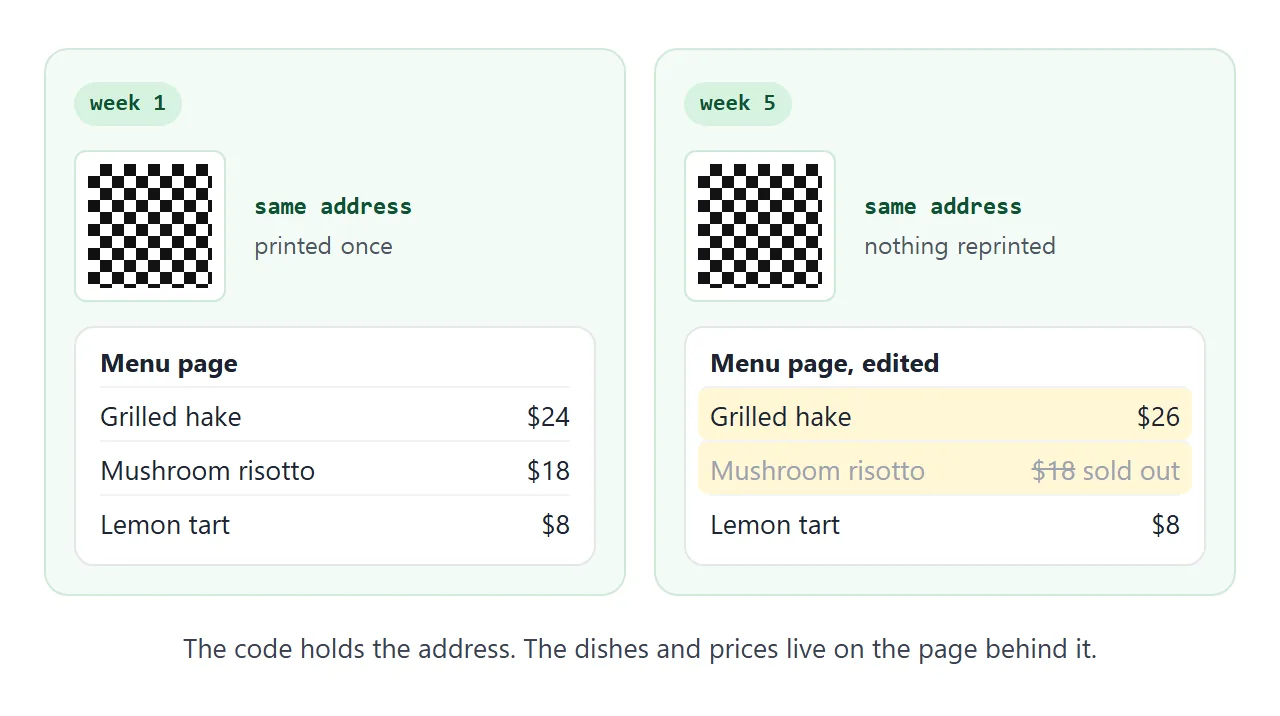
Visitors who open the link now see the new version. To mark a dish as out, give it the sold class in the demo page above. It greys the dish and strikes through the price.
Ways to put a menu behind a code
The code works with anything that has an address. What changes is what happens on the day a price moves.
| What the code points at | Changing a price | What the customer opens |
|---|---|---|
| A menu page at a share link | Edit the page. The link stays the same | A page in the browser, no account |
| A PDF file | Make a new PDF. The code works only if the new file keeps the old address | The file, as laid out when it was made |
| A photo of the paper menu | Take a new photo and replace the old one | An image, with no text to search |
If you already have a PDF behind your codes, QR code link explains how to move to a page. For what to put first on the page, see Host a menu.
When it does not work
| What you see | Cause | Fix |
|---|---|---|
| The phone camera shows nothing | Code too small, shadowed, blurry or glared | Print larger, light it, hold steady, show the whole square |
| It scans on screen but not on paper | Code printed too small, or the margin was cropped | Reprint larger with a four-module white margin |
| An Android camera offers no link | Camera scan suggestions is off | Turn it on in Camera settings, or use Quick Settings |
| The page opens with tiny text | The viewport tag is missing | Ask the AI to add the viewport meta tag |
| Pictures are missing | Outside images are blocked | Draw them inside the file, or drop them |
| An order form does not send | Sending a form to a server is blocked | Use the page for reading only |
| The table still shows an old price | You made a new link instead of editing the old document | Edit the original document and use its link |