In Squarespace, a Code block is a block you add to a page and fill with HTML. Set its Type to HTML, wrap CSS in <style> tags and JavaScript in <script> tags, and the block shows the result instead of the code.
Here, "code block" means this Squarespace block, not a styled box for showing source code.
Try the whole snippet first. It is the style, the markup and the script a block would hold, shown as a page you can click.
<!doctype html>
<html lang="en">
<head>
<meta charset="utf-8">
<meta name="viewport" content="width=device-width, initial-scale=1">
<title>Code block snippet</title>
</head>
<body style="margin:0;padding:16px;font-family:system-ui,sans-serif;background:#f4f5f7">

<!-- Paste from here ... -->
<style>
  .sq-card { max-width: 340px; padding: 16px 18px; border-radius: 12px;
    background: #fff; border: 1px solid #dfe3ea; }
  .sq-card h3 { margin: 0 0 4px; font-size: 18px; }
  .sq-card p { margin: 0 0 12px; color: #475063; font-size: 15px; }
  .sq-card .sq-btn { padding: 10px 16px; border: 0; border-radius: 8px;
    background: #1d4ed8; color: #fff; font-size: 15px; cursor: pointer; }
  .sq-card .sq-more { margin: 12px 0 0; font-weight: 600; color: #0f5132; }
</style>

<div class="sq-card" id="sq-card-1">
  <h3>Open studio day</h3>
  <p>Saturday, 10:00 to 16:00. Everyone is welcome.</p>
  <button class="sq-btn" type="button">Show address</button>
  <p class="sq-more" hidden>12 Example Street, second floor (sample text)</p>
</div>

<script>
  // The wrapper function keeps the names private to this block
  (function () {
    var card = document.getElementById('sq-card-1');
    var btn = card.querySelector('.sq-btn');
    var more = card.querySelector('.sq-more');
    btn.addEventListener('click', function () {
      more.hidden = !more.hidden;
      btn.textContent = more.hidden ? 'Show address' : 'Hide address';
    });
  })();
</script>
<!-- ... to here -->

</body>
</html>
The same three parts, without the page wrapper, look like this:
<style>
  .sq-card { padding: 16px; border-radius: 12px; background: #fff; }
</style>

<div class="sq-card" id="sq-card-1">
  <button class="sq-btn" type="button">Show address</button>
</div>

<script>
  (function () {
    var btn = document.querySelector('#sq-card-1 .sq-btn');
    btn.addEventListener('click', function () { /* toggle text here */ });
  })();
</script>
Squarespace's code blocks help page is the reference for the block itself. Everything below is about what to put inside it.
Three places code can go
A code block is one of three spots. Which one fits depends on whether the code belongs to one spot on a page, to the whole site, or to every page's header and footer.
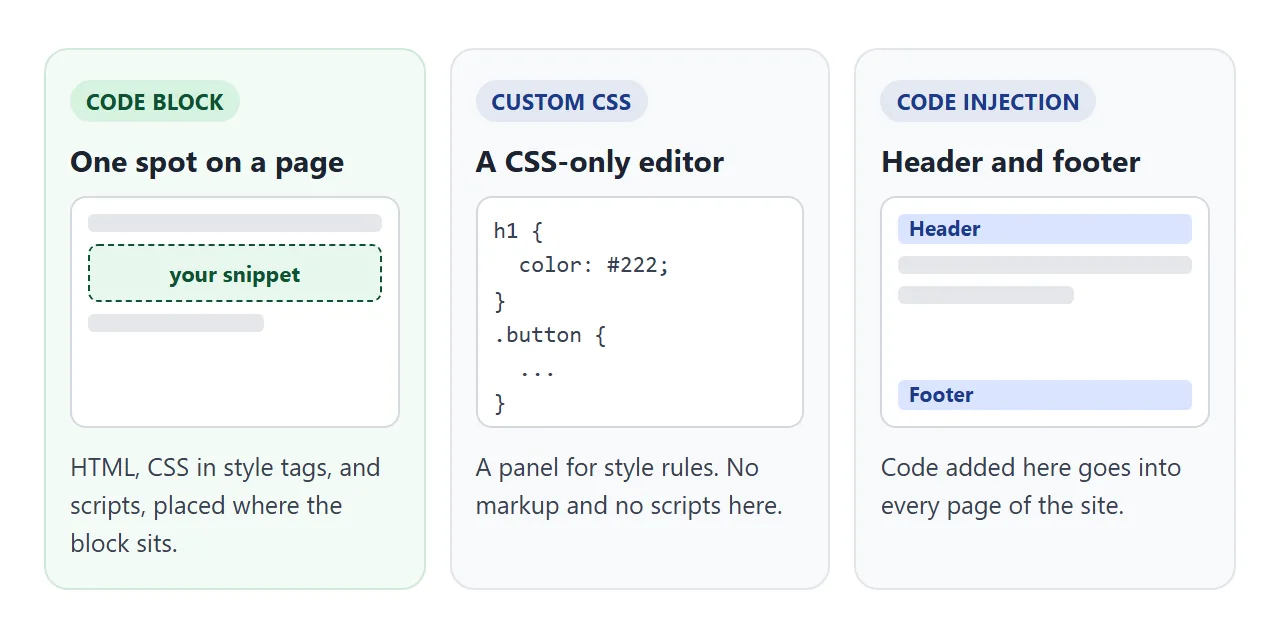
| Place | What goes in | Where it applies |
|---|---|---|
| Code block | HTML, CSS in style tags, scripts | The page, post or area holding the block |
| Custom CSS panel | CSS only | Styles you write once in a separate editor |
| Code injection | HTML and scripts | Header and footer of every page |
Squarespace's custom code overview lists these side by side, along with the plans each one needs. It also says code-based customisation falls outside the scope of its support, so a working test copy of your snippet is worth having.
How to add it: 5 steps
- Test the snippet in one file. Write the style, markup and script together and check it works. A file you can open or share is easier to fix than a live page.
- Add a Code block. Edit the page, hover over the section, click Add block or +, then choose Code.
- Open the block editor. Click the pencil icon on the block and paste the snippet into the text field.
- Set the Type to HTML. CSS and JavaScript types show their code as text by default.
- Check the live page. If the code is invisible while you are logged in, use Preview in Safe Mode, then open the published page on a phone.
Paste a fragment, not a whole page
Your test file is a complete page, with a doctype, a head and a body. The code block is not a page. It is a spot inside one, and the page around it already has its own body.
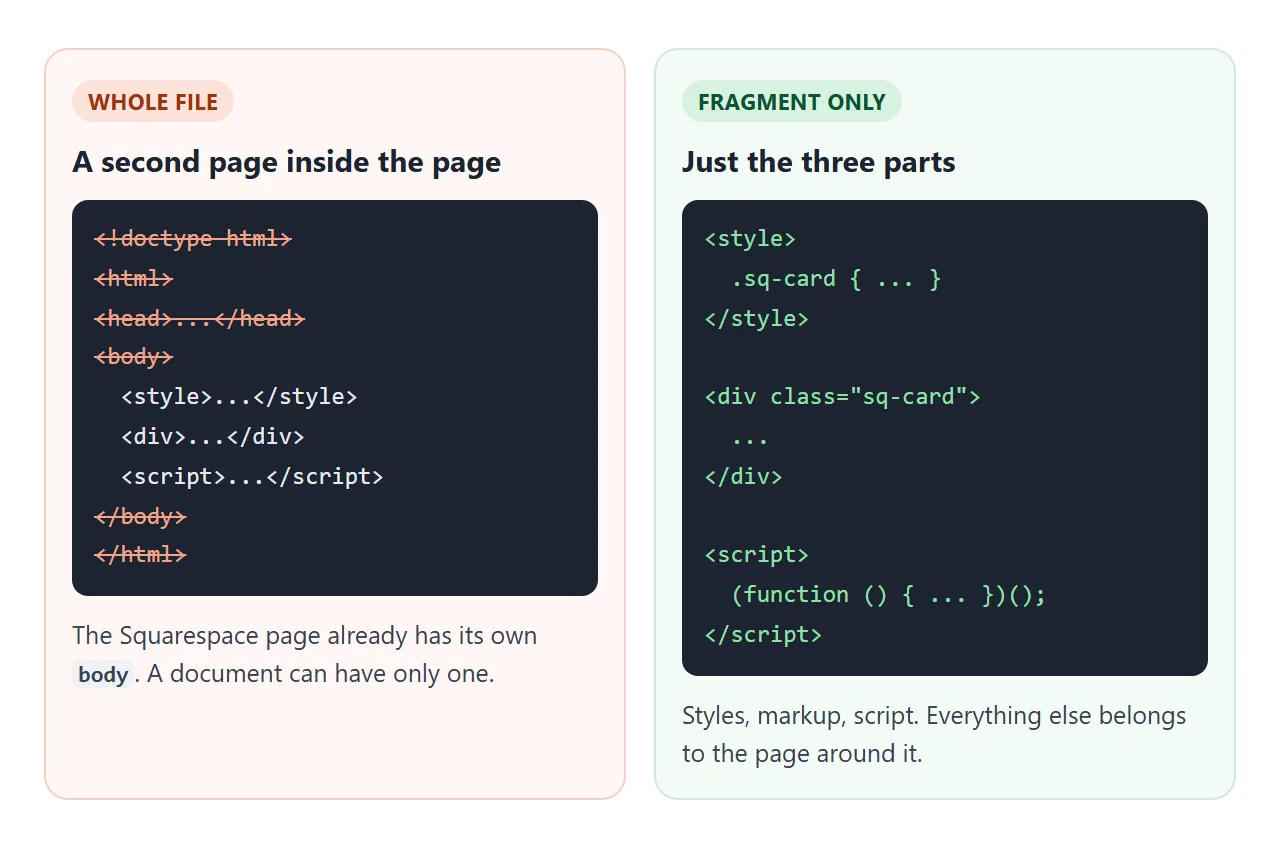
MDN's body element page says there can be only one body in a document.
So copy from the first style tag to the last script tag and leave the wrapper behind. Page-level settings such as the viewport meta tag stay with Squarespace.
CSS in a code block: style tags and the Type setting
The most common surprise is code that appears on the page as text. Squarespace's help page says blocks set to CSS or JavaScript display their code as text by default.
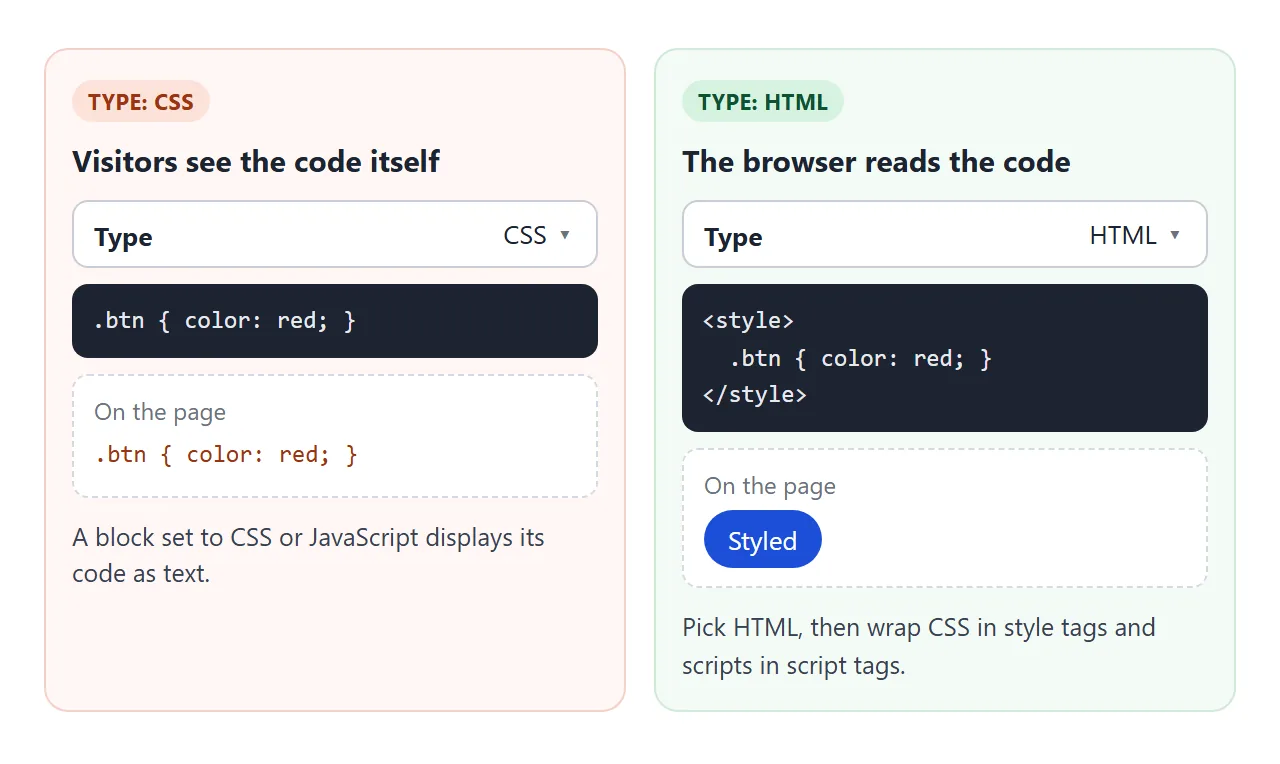
The fix is the Type menu. Choose HTML, then put your rules between <style> and </style>. The same page names a Display Source switch, which is meant for showing code snippets to readers, so leave it off when you want the code to run.
If your CSS lives in a separate file rather than in the snippet, why CSS does not load covers that case.
Keep your CSS from restyling the whole page
MDN says CSS in a style element applies to the contents of the document containing it. A code block sits inside your Squarespace page, so its rules can reach the theme's own buttons and headings, not just your snippet.
<!doctype html>
<html lang="en">
<head>
<meta charset="utf-8">
<meta name="viewport" content="width=device-width, initial-scale=1">
<title>A bare selector restyles the whole page</title>
<style>
  body { margin: 0; padding: 14px; font-family: system-ui, sans-serif; background: #f4f5f7; color: #1d2330; }
  .modes { display: flex; gap: 8px; flex-wrap: wrap; margin-bottom: 12px; }
  button { padding: 7px 11px; border: 1px solid #c9cdd4; border-radius: 6px; background: #fff; color: #1d2330; font-size: 13px; cursor: pointer; }
  .modes button { padding: 8px 12px; border-radius: 8px; background: #fff; color: #1d2330; font-size: 14px; }
  .modes button[aria-pressed="true"] { background: #1d2330; color: #fff; border-color: #1d2330; }
  .page { background: #fff; border: 1px solid #dfe3ea; border-radius: 12px; padding: 12px; }
  .nav { display: flex; gap: 8px; align-items: center; padding-bottom: 10px; border-bottom: 1px dashed #c9cdd4; margin-bottom: 10px; }
  .nav b { flex: 1; font-size: 14px; }
  .label { font-size: 12px; color: #5b6270; margin: 0 0 6px; }
  .block { padding: 10px; border-radius: 8px; background: #f8f9fb; }
  pre { margin: 12px 0 0; padding: 10px; border-radius: 8px; background: #1d2330; color: #e6e9ef; font-size: 13px; line-height: 1.5; white-space: pre-wrap; }
</style>
<!-- The style element below is the one the buttons swap -->
<style id="swap"></style>
</head>
<body>

<div class="modes">
  <button type="button" id="m-none" aria-pressed="true">No code block CSS</button>
  <button type="button" id="m-bare" aria-pressed="false">Bare "button" rule</button>
  <button type="button" id="m-scoped" aria-pressed="false">Scoped ".sq-btn" rule</button>
</div>

<div class="page">
  <div class="nav"><b>Site header (your theme)</b><button type="button">Menu</button><button type="button">Cart</button></div>
  <p class="label">Code block</p>
  <div class="block"><button type="button" class="sq-btn">Book now</button></div>
</div>

<pre id="shown"></pre>

<script>
  const css = {
    none: '/* nothing added */',
    bare: 'button {\n  background: #c2410c;\n  color: #fff;\n  border-radius: 99px;\n}',
    scoped: '.sq-btn {\n  background: #c2410c;\n  color: #fff;\n  border-radius: 99px;\n}'
  };
  const swap = document.getElementById('swap');
  const shown = document.getElementById('shown');

  function pick(mode) {
    swap.textContent = css[mode];            // rules apply to the whole document
    shown.textContent = css[mode];
    for (const m of ['none', 'bare', 'scoped']) {
      document.getElementById('m-' + m).setAttribute('aria-pressed', String(m === mode));
    }
  }
  for (const m of ['none', 'bare', 'scoped']) {
    document.getElementById('m-' + m).addEventListener('click', () => pick(m));
  }
  pick('none');
</script>
</body>
</html>
A bare button rule changed the site header too. A rule starting with a class you chose, such as .sq-btn, touched only your block. Put one prefix on every class in the snippet and start each rule with it.
If your rule seems ignored, the theme may have a rule with higher specificity. When two selectors tie, the last one declared wins. Lengthen your selector before reaching for !important, which MDN calls a bad practice.
Keep scripts from colliding
Two code blocks on one page share one global scope. MDN's let page says declaring a let or const name in one script and again in another script causes a redeclaration error.
Wrap each block's script in a function that runs at once. MDN describes this pattern, an IIFE, as a way to avoid polluting the global namespace. The snippet above does exactly that.
Place the script after the markup it touches. MDN says inline scripts run immediately, before the browser parses the rest of the page, so elements below the script do not exist yet.
A finished example: a price toggle
This one uses everything above: a class prefix on every rule, a wrapped script, and a layout that wraps on a narrow screen. Squarespace says it cannot guarantee how custom code works with its responsive design, so test at phone width.
<!doctype html>
<html lang="en">
<head>
<meta charset="utf-8">
<meta name="viewport" content="width=device-width, initial-scale=1">
<title>Monthly / yearly price toggle</title>
</head>
<body style="margin:0;padding:14px;font-family:system-ui,sans-serif;background:#f4f5f7">

<style>
  .sq-price { --sq-accent: #1d4ed8; max-width: 520px; margin: 0 auto; color: #1d2330; }
  .sq-price .sq-switch { display: flex; align-items: center; gap: 10px; margin-bottom: 14px; font-size: 15px; }
  .sq-price .sq-toggle { position: relative; width: 48px; height: 28px; padding: 0; border: 0; border-radius: 99px; background: #c9cdd4; cursor: pointer; }
  .sq-price .sq-toggle::after { content: ""; position: absolute; top: 3px; left: 3px; width: 22px; height: 22px; border-radius: 50%; background: #fff; transition: transform .15s; }
  .sq-price .sq-toggle[aria-checked="true"] { background: var(--sq-accent); }
  .sq-price .sq-toggle[aria-checked="true"]::after { transform: translateX(20px); }
  .sq-price .sq-grid { display: grid; grid-template-columns: repeat(auto-fit, minmax(180px, 1fr)); gap: 12px; }
  .sq-price .sq-plan { padding: 16px; border-radius: 12px; background: #fff; border: 1px solid #dfe3ea; }
  .sq-price .sq-plan h3 { margin: 0 0 6px; font-size: 16px; }
  .sq-price .sq-amount { font-size: 30px; font-weight: 700; }
  .sq-price .sq-per { font-size: 14px; color: #5b6270; }
  .sq-price .sq-note { margin: 8px 0 0; min-height: 18px; font-size: 13px; color: #0f5132; }
  .sq-price .sq-small { margin: 12px 0 0; font-size: 12px; color: #5b6270; }
</style>

<div class="sq-price" id="sq-price-1">
  <div class="sq-switch">
    <span>Monthly</span>
    <button class="sq-toggle" type="button" role="switch" aria-checked="false" aria-label="Bill yearly"></button>
    <span>Yearly</span>
  </div>
  <div class="sq-grid">
    <div class="sq-plan"><h3>Starter</h3><span class="sq-amount" data-month="9" data-year="90">9</span><span class="sq-per"></span><p class="sq-note"></p></div>
    <div class="sq-plan"><h3>Studio</h3><span class="sq-amount" data-month="19" data-year="190">19</span><span class="sq-per"></span><p class="sq-note"></p></div>
  </div>
  <p class="sq-small">Sample prices for the demo.</p>
</div>

<script>
  (function () {
    var root = document.getElementById('sq-price-1');
    var toggle = root.querySelector('.sq-toggle');
    var plans = root.querySelectorAll('.sq-plan');

    function render(yearly) {
      toggle.setAttribute('aria-checked', String(yearly));
      plans.forEach(function (plan) {
        var amount = plan.querySelector('.sq-amount');
        var month = Number(amount.dataset.month);
        var year = Number(amount.dataset.year);
        amount.textContent = '$' + (yearly ? year : month);
        plan.querySelector('.sq-per').textContent = yearly ? ' / year' : ' / month';
        plan.querySelector('.sq-note').textContent = yearly ? 'Saves $' + (month * 12 - year) + ' a year' : '';
      });
    }

    toggle.addEventListener('click', function () {
      render(toggle.getAttribute('aria-checked') !== 'true');
    });
    render(false);
  })();
</script>

</body>
</html>
- One root element: the script looks things up inside
#sq-price-1, never on the whole document. - Data in attributes: each price carries its monthly and yearly value, so editing a price means editing one attribute.
- Flexible layout: a grid with
auto-fitcolumns puts two cards side by side, or stacks them on a phone.
When it does not work
| What you see | Cause | Fix |
|---|---|---|
| The code appears as text | Type is CSS or JavaScript, or Display Source is on | Set Type to HTML, wrap CSS in style tags |
| Nothing shows while you edit | Squarespace sometimes hides code for logged-in users | Use Preview in Safe Mode |
| The button does nothing on the live site | JavaScript needs a plan that allows it | Check the plan list on the code blocks help page |
| Theme buttons or headings changed | A bare selector such as button |
Start every rule with your own class |
| Your style is ignored | A theme rule has higher specificity | Lengthen the selector |
| The second block's script errors | Both scripts declare the same name | Wrap each script in a function |
| The script cannot find its element | It runs before the markup is parsed | Put the script after the markup |
| The block looks wrong on a phone | Fixed widths in the snippet | Use max-width and a flexible grid |
Squarespace also sets a size limit of 400 KB on a code block, which its help page puts at around 300,000 characters. A snippet like the ones here is far below that. Large data belongs elsewhere.
Share it as a link
A snippet is easier to review as a working page than as a description. A screenshot cannot be clicked, and an .html attachment may open as plain code on a phone. A self-contained file is the simplest thing to send.
To send the working version, paste the page into a NOS document and choose Create share link. HTML to link walks through it.
The page renders as written and its scripts run, so the person you send it to can click the card and flip the toggle. If you change the code, the same link shows the new version.
Your Squarespace theme has its own styles, so look at the final result on the real page too. For another tool that takes HTML, see embedding HTML in Notion.