SVGSVGElement is the JavaScript interface behind the <svg> tag. This guide uses the web-platform meaning: the DOM object you get when you select an inline <svg> in an HTML page, not a library.
It is the page's handle on a drawing. Read its size, find parts of it, convert click positions and control its animation.
Try it first. The page below holds one <svg>. The buttons change its viewBox and one colour, and the readout is read live from the object.
<!doctype html>
<html lang="en">
<head>
<meta charset="utf-8">
<meta name="viewport" content="width=device-width, initial-scale=1">
<title>SVGSVGElement basics</title>
<style>
  body { margin: 0; padding: 14px; font-family: system-ui, sans-serif; background: #f4f5f7; color: #1d2330; }
  svg { display: block; max-width: 100%; height: auto; background: #fff; border: 1px solid #d5d9e0; border-radius: 10px; }
  .row { margin: 10px 0; display: flex; gap: 8px; flex-wrap: wrap; }
  button { font: inherit; padding: 8px 12px; border: 1px solid #c9ced8; border-radius: 8px; background: #fff; cursor: pointer; }
  pre { margin: 0; padding: 10px 12px; background: #1d2330; color: #d8e1f0; border-radius: 10px; font: 12.5px/1.6 ui-monospace, Consolas, monospace; white-space: pre-wrap; }
</style>
</head>
<body>
<svg id="art" width="300" height="150" viewBox="0 0 300 150">
  <rect x="0" y="0" width="300" height="150" fill="#eef4ff"/>
  <circle id="dot" cx="90" cy="75" r="36" fill="#2563eb"/>
  <rect x="170" y="45" width="90" height="60" rx="8" fill="#16a34a"/>
</svg>

<div class="row">
  <button id="zoom">Zoom in (viewBox 150 x 75)</button>
  <button id="reset">Reset</button>
  <button id="color">Recolour the circle</button>
</div>

<pre id="out"></pre>

<script>
  // querySelector('svg') returns an SVGSVGElement
  const svg = document.querySelector('svg');
  const out = document.getElementById('out');

  function show() {
    out.textContent =
      'svg instanceof SVGSVGElement: ' + (svg instanceof SVGSVGElement) + '\n' +
      'svg.width.baseVal.value:      ' + svg.width.baseVal.value + '\n' +
      'svg.viewBox.baseVal.width:    ' + svg.viewBox.baseVal.width + '\n' +
      'svg.viewBox.baseVal.height:   ' + svg.viewBox.baseVal.height;
  }

  // viewBox is read-only: change the attribute, then read baseVal again
  document.getElementById('zoom').addEventListener('click', () => {
    svg.setAttribute('viewBox', '0 0 150 75');
    show();
  });
  document.getElementById('reset').addEventListener('click', () => {
    svg.setAttribute('viewBox', '0 0 300 150');
    show();
  });

  // getElementById on the svg searches inside that svg
  let on = false;
  document.getElementById('color').addEventListener('click', () => {
    on = !on;
    svg.getElementById('dot').setAttribute('fill', on ? '#dc2626' : '#2563eb');
  });

  show();
</script>
</body>
</html>
The steps behind that demo:
- Write the
<svg>inline in the page and give it anid. - Select it with
document.querySelector('svg')orgetElementById. - Read sizes through
baseVal, not as plain numbers. - Change things with
setAttribute, then read the property again.
For the tag itself, see SVG in HTML and the svg tag.
What the interface gives you
The object keeps everything an element has, and adds the svg extras. MDN lists the inheritance chain as shown here.
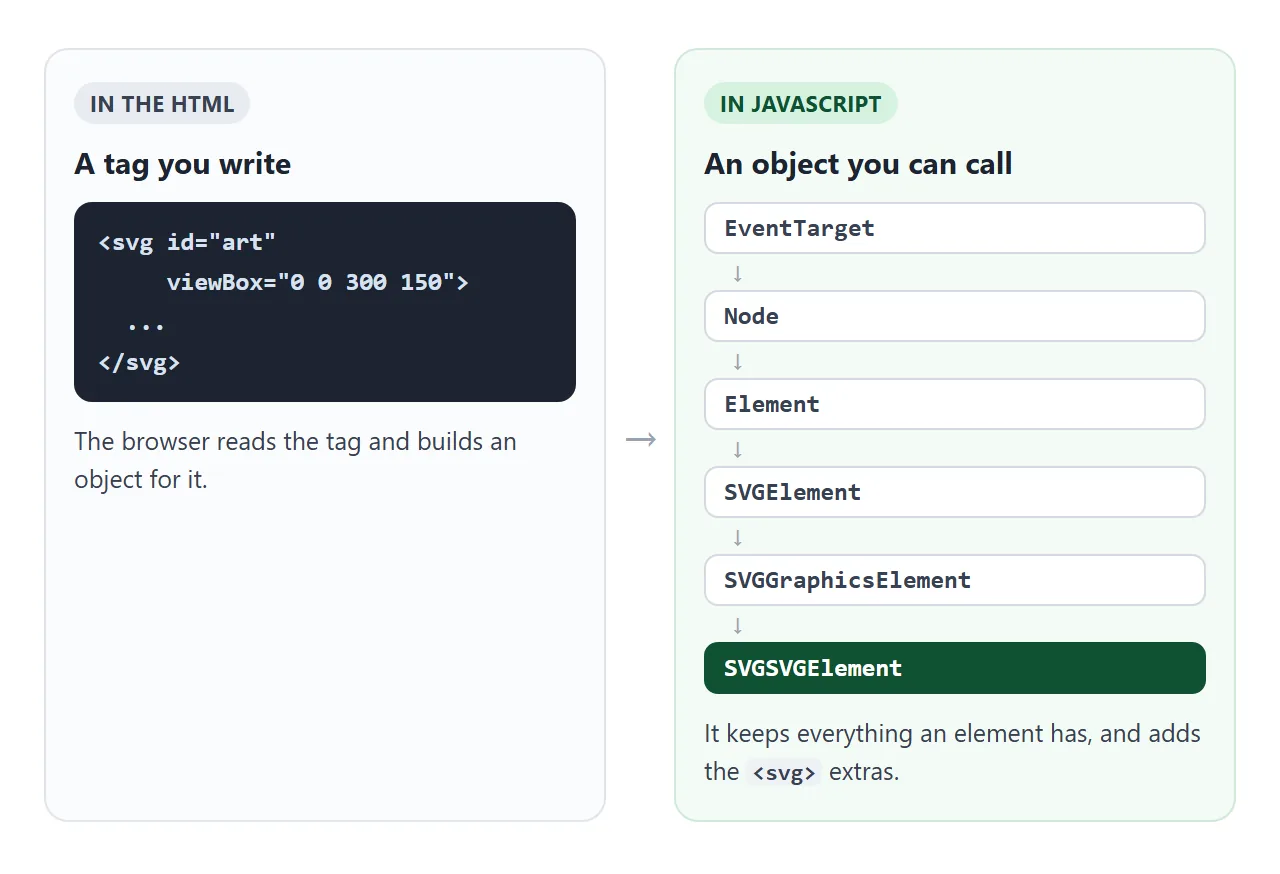
That means addEventListener, setAttribute and querySelector all work on it. Selecting elements with querySelector and the DOM in JavaScript cover those.
The members that are specific to svg fall into four groups.
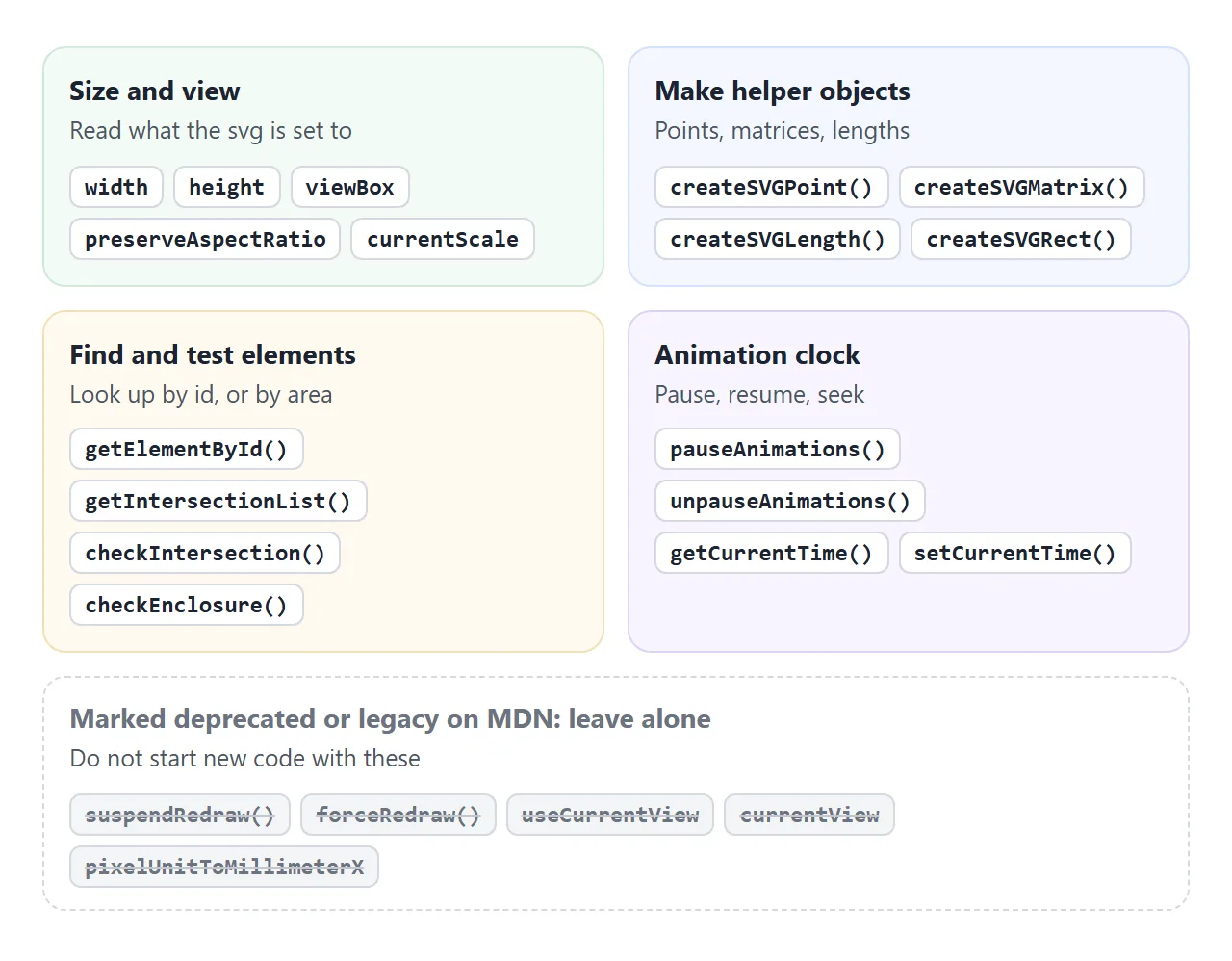
| Member | What MDN says it does |
|---|---|
viewBox |
Returns an SVGAnimatedRect for the viewBox attribute |
width, height |
Return an SVGAnimatedLength for the attribute |
createSVGPoint() |
Creates a DOMPoint at (0,0), outside any document tree |
getElementById() |
Searches the svg for an element with that id |
pauseAnimations() |
Pauses all running animations in the svg |
setCurrentTime() |
Sets the svg's animation clock, in seconds |
currentScale |
Scale factor of the outermost svg, writable |
MDN marks suspendRedraw(), forceRedraw(), useCurrentView, currentView and the ...ToMillimeter properties as deprecated or legacy. Leave them out of new code.
Read sizes through baseVal
The first surprise: svg.width is not a number. It is an SVGAnimatedLength, an object with a read-only baseVal and a read-only animVal. animVal equals baseVal unless the attribute is being animated.
The number is one level further down:
const svg = document.querySelector('svg');
svg.width.baseVal.value;      // 300, in user units
svg.viewBox.baseVal.width;    // width of the viewBox
viewBox works the same way. It is read-only, so svg.viewBox = '0 0 10 10' changes nothing. Call setAttribute('viewBox', ...) and read baseVal again, as the first demo does.
Turn a click into SVG coordinates
A click gives you pixels. Shapes inside the svg live in user units, the coordinates of the viewBox. When the svg is scaled to fit its container, the two differ, and using pixels as units puts the mark in the wrong place.
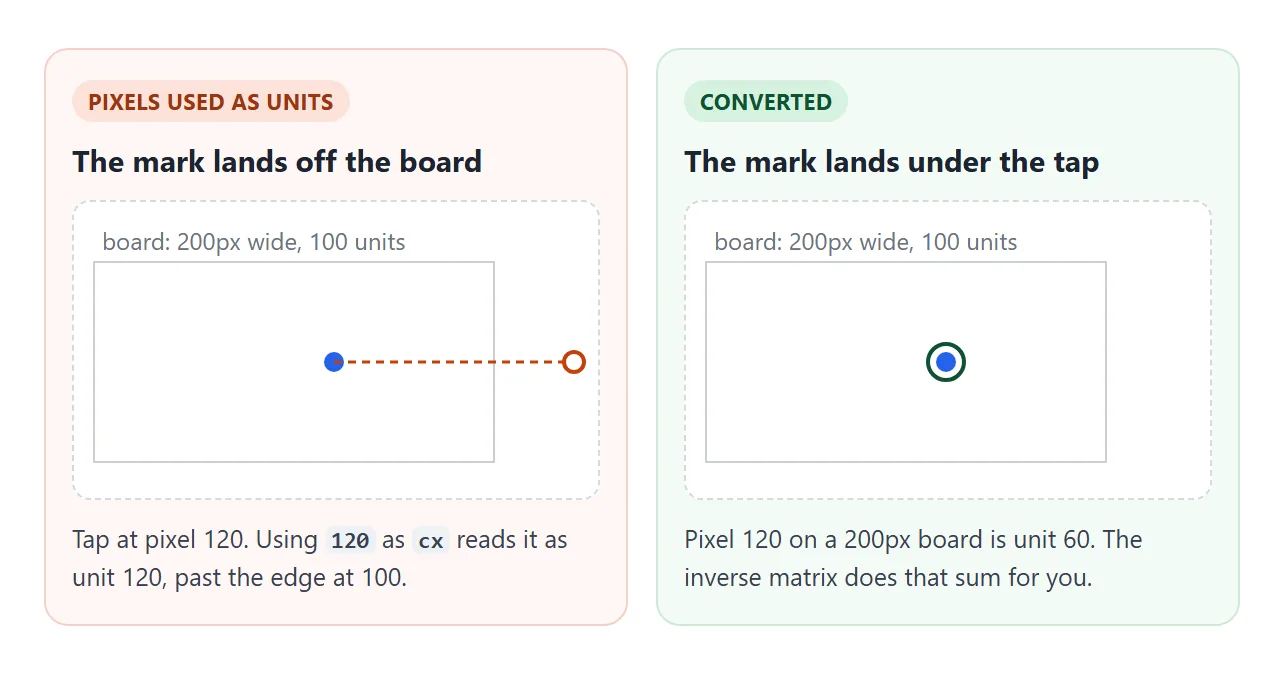
The svg can do the conversion. Make a point with createSVGPoint(), fill in the pixel position, and run it through the inverse of getScreenCTM():
const pt = svg.createSVGPoint();   // a DOMPoint at 0,0
pt.x = e.clientX;
pt.y = e.clientY;
const p = pt.matrixTransform(svg.getScreenCTM().inverse());
// p.x and p.y are now in user units
getScreenCTM() returns a DOMMatrix, inverse() returns a new matrix and leaves the original alone, and matrixTransform() returns a new point. At any svg size, the green mark in the next demo lands under the pointer.
<!doctype html>
<html lang="en">
<head>
<meta charset="utf-8">
<meta name="viewport" content="width=device-width, initial-scale=1">
<title>Click position to SVG coordinates</title>
<style>
  body { margin: 0; padding: 14px; font-family: system-ui, sans-serif; background: #f4f5f7; color: #1d2330; }
  svg { display: block; width: 100%; max-width: 520px; height: auto; background: #fff; border: 1px solid #d5d9e0; border-radius: 10px; cursor: crosshair; }
  .legend { margin: 10px 0 6px; font-size: 14px; }
  .g { color: #15803d; font-weight: 700; }
  .o { color: #c2410c; font-weight: 700; }
  pre { margin: 8px 0 0; padding: 10px 12px; background: #1d2330; color: #d8e1f0; border-radius: 10px; font: 12.5px/1.6 ui-monospace, Consolas, monospace; white-space: pre-wrap; }
  button { font: inherit; padding: 6px 12px; border: 1px solid #c9ced8; border-radius: 8px; background: #fff; cursor: pointer; }
</style>
</head>
<body>
<svg id="board" viewBox="0 0 100 50">
  <path d="M0 25H100M50 0V50" stroke="#e1e4ea" stroke-width=".5"/>
  <g id="marks"></g>
</svg>

<p class="legend"><span class="g">Green</span> = converted with getScreenCTM().
<span class="o">Orange ring</span> = pixels used as units.</p>
<button id="clear">Clear</button>
<pre id="out">Click or tap the board.</pre>

<script>
  const svg = document.getElementById('board');
  const marks = document.getElementById('marks');
  const out = document.getElementById('out');
  const NS = 'http://www.w3.org/2000/svg';

  function dot(x, y, attrs) {
    const c = document.createElementNS(NS, 'circle');
    c.setAttribute('cx', x);
    c.setAttribute('cy', y);
    c.setAttribute('r', 2);
    c.setAttribute('pointer-events', 'none');
    for (const k in attrs) c.setAttribute(k, attrs[k]);
    marks.appendChild(c);
  }

  svg.addEventListener('click', (e) => {
    // 1) a point object from the svg, filled with screen pixels
    const pt = svg.createSVGPoint();
    pt.x = e.clientX;
    pt.y = e.clientY;
    // 2) the inverse of getScreenCTM() turns pixels into user units
    const p = pt.matrixTransform(svg.getScreenCTM().inverse());

    // the common mistake: pixels relative to the svg, used as units
    const r = svg.getBoundingClientRect();
    const px = e.clientX - r.left, py = e.clientY - r.top;

    dot(p.x, p.y, { fill: '#16a34a' });
    dot(px, py, { fill: 'none', stroke: '#ea580c', 'stroke-width': 0.6 });

    out.textContent =
      'pixels in svg: ' + px.toFixed(0) + ', ' + py.toFixed(0) + '\n' +
      'user units:    ' + p.x.toFixed(1) + ', ' + p.y.toFixed(1) + '\n' +
      'svg width now: ' + r.width.toFixed(0) + 'px for a viewBox 100 wide';
  });

  document.getElementById('clear').addEventListener('click', () => {
    marks.innerHTML = '';
    out.textContent = 'Click or tap the board.';
  });
</script>
</body>
</html>
You can run the same conversion inside a pointer event handler: see JavaScript pointer events.
Pause and seek animations
SVG can animate itself with elements such as <animate> and <animateTransform>. The svg element owns the clock for those. pauseAnimations() stops it, unpauseAnimations() resumes it, and setCurrentTime() jumps to a time in seconds.
<!doctype html>
<html lang="en">
<head>
<meta charset="utf-8">
<meta name="viewport" content="width=device-width, initial-scale=1">
<title>SVG animation clock</title>
<style>
  body { margin: 0; padding: 14px; font-family: system-ui, sans-serif; background: #f4f5f7; color: #1d2330; }
  svg { display: block; width: 100%; max-width: 520px; height: auto; background: #fff; border: 1px solid #d5d9e0; border-radius: 10px; }
  .row { margin: 10px 0; display: flex; gap: 8px; flex-wrap: wrap; }
  button { font: inherit; padding: 8px 12px; border: 1px solid #c9ced8; border-radius: 8px; background: #fff; cursor: pointer; }
  pre { margin: 0; padding: 10px 12px; background: #1d2330; color: #d8e1f0; border-radius: 10px; font: 12.5px/1.6 ui-monospace, Consolas, monospace; }
</style>
</head>
<body>
<svg id="stage" viewBox="0 0 200 70">
  <circle cx="20" cy="22" r="10" fill="#2563eb">
    <animate attributeName="cx" values="20;180;20" dur="4s" repeatCount="indefinite"/>
  </circle>
  <rect x="85" y="40" width="30" height="22" rx="4" fill="#16a34a">
    <animateTransform attributeName="transform" type="rotate" from="0 100 51" to="360 100 51" dur="3s" repeatCount="indefinite"/>
  </rect>
</svg>

<div class="row">
  <button id="pause">pauseAnimations()</button>
  <button id="resume">unpauseAnimations()</button>
  <button id="rewind">setCurrentTime(0)</button>
</div>

<pre id="out"></pre>

<script>
  const svg = document.getElementById('stage');
  const out = document.getElementById('out');

  document.getElementById('pause').addEventListener('click', () => svg.pauseAnimations());
  document.getElementById('resume').addEventListener('click', () => svg.unpauseAnimations());
  document.getElementById('rewind').addEventListener('click', () => svg.setCurrentTime(0));

  // read the svg's own animation clock a few times a second
  setInterval(() => {
    out.textContent =
      'getCurrentTime():   ' + svg.getCurrentTime().toFixed(1) + ' s\n' +
      'animationsPaused(): ' + svg.animationsPaused();
  }, 100);
</script>
</body>
</html>
MDN describes these methods for SVG's own animations, the ones written with <animate>, <animateMotion> and <animateTransform>.
Create an svg from script
To build a drawing from JavaScript, use createElementNS with the SVG namespace. MDN notes that createElement('svg') returns an HTMLUnknownElement, and the drawing is not rendered.
const NS = 'http://www.w3.org/2000/svg';
const svg = document.createElementNS(NS, 'svg');
svg.setAttribute('viewBox', '0 0 100 50');
const c = document.createElementNS(NS, 'circle');
c.setAttribute('cx', 50);
c.setAttribute('cy', 25);
c.setAttribute('r', 20);
svg.appendChild(c);
document.body.appendChild(svg);
The click demo uses the same call to add its marks. To make an svg fit its container, see scaling an SVG to fit.
When it does not work
| Symptom | Cause | Fix |
|---|---|---|
svg.width prints an object |
It is an SVGAnimatedLength | Use svg.width.baseVal.value |
Assigning to svg.viewBox does nothing |
viewBox is read-only |
Call setAttribute('viewBox', ...) |
| A script-made svg never shows | Made with createElement |
Use createElementNS and the SVG namespace |
| Clicks land in the wrong spot | Pixels used as user units | Convert with the inverse of getScreenCTM() |
currentScale has no effect |
The svg is not outermost | MDN: it is always 1 on nested svg |
pauseAnimations() seems ignored |
The motion is not made with animate elements | MDN describes it for those elements only; pause other motion its own way |
querySelector returns the wrong svg |
Several svgs on the page | Give each an id and select by id |
Share it as a link
An svg that reacts to clicks is hard to judge from a screenshot, and an .html attachment may open as plain code on a phone. Send the working page instead.
Paste the page into a NOS document and choose Create share link. HTML to link walks through it.
The page renders as written and its scripts run, so the people you send it to can click the board and pause the animation themselves. If you change the code later, the same link shows the new version.