Vue is a JavaScript framework for building user interfaces. Its docs list "enhancing static HTML without a build step" as one way to use it.
That is all a single HTML file needs: one script tag that loads Vue, a template written in your HTML, and a few lines that start the app.
Try it first. Type a name and click the button.
<!doctype html>
<html lang="en">
<head>
<meta charset="utf-8">
<meta name="viewport" content="width=device-width, initial-scale=1">
<title>Vue in one HTML file</title>
<style>
  body { margin: 0; padding: 20px; font-family: system-ui, sans-serif; background: #f4f6f5; color: #1d2330; }
  [v-cloak] { display: none; }  /* hide {{ }} until Vue has mounted */
  .card { max-width: 420px; padding: 16px 18px; border-radius: 12px; background: #fff; box-shadow: 0 4px 14px rgba(0,0,0,.1); }
  input { font: inherit; padding: 8px 10px; border: 1px solid #c9d2cd; border-radius: 8px; width: 100%; box-sizing: border-box; }
  button { font: inherit; margin-top: 12px; padding: 9px 16px; border: 0; border-radius: 8px; background: #42b883; color: #fff; cursor: pointer; }
  h2 { margin: 12px 0 0; font-size: 20px; }
</style>
</head>
<body>
<!-- Everything inside #app is the template -->
<div id="app" class="card" v-cloak>
  <label>Your name <input v-model="name" placeholder="Type here"></label>
  <h2 id="greeting">Hello, {{ name || 'stranger' }}!</h2>
  <button id="count" @click="count++">Clicked {{ count }} {{ count === 1 ? 'time' : 'times' }}</button>
</div>

<!-- 1. Load Vue (pinned version, production build) -->
<script src="https://unpkg.com/vue@3.5.43/dist/vue.global.prod.js"></script>
<!-- 2. Then create the app and mount it -->
<script>
  const { createApp } = Vue;

  createApp({
    data() {
      return { name: '', count: 0 };   // the page re-renders when these change
    }
  }).mount('#app');
</script>
</body>
</html>
There is no npm, no Node.js and no build tool here. The browser downloads Vue from unpkg, then the second script hands it the data.
How the page works: load, create, mount
Every single-file Vue page follows the same three steps.
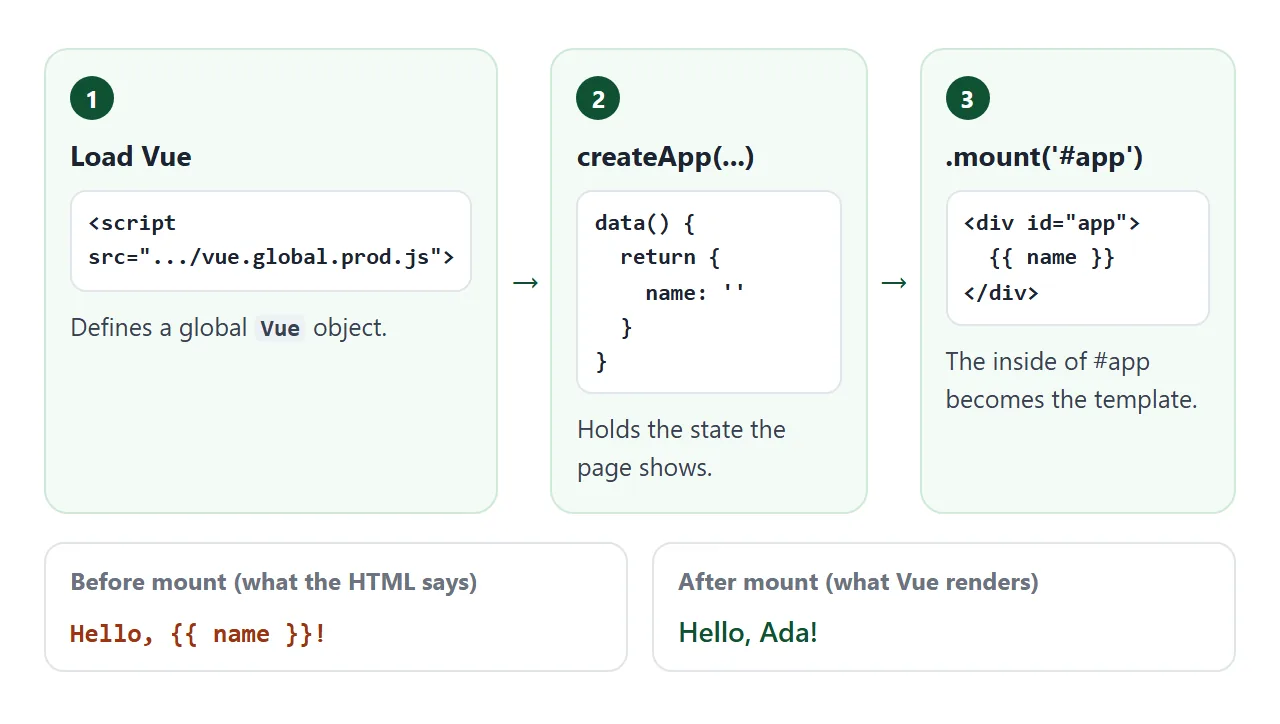
- Load Vue. The global build defines one global object,
Vue, that holds every API. - Create the app.
Vue.createApp()takes the root component. Itsdata()function returns the state the page shows. - Mount it.
.mount('#app')takes a CSS selector or an element. When the root component has notemplateoption, Vue uses the element's contents as the template.
From then on, Vue tracks the data. When name or count changes, Vue updates the page to match.
The v-cloak attribute and the CSS rule [v-cloak] { display: none; } hide the container until it is mounted. Without them, a slow connection can show raw {{ name }} text for a moment.
Which Vue file to load
The Vue package ships several browser files. Only two suit a page with the template written in the HTML.
| File | What it is | Use it for |
|---|---|---|
vue.global.js |
Full build with warnings for common mistakes | Writing and debugging |
vue.global.prod.js |
Same, minified, development checks removed | The page you share |
vue.runtime.global.prod.js |
No template compiler | Not for in-page templates |
vue.esm-browser.prod.js |
ES module version | import in a module script |
Put the exact version in the URL so the page does not change when Vue releases an update. The current release on npm today is 3.5.43:
<script src="https://unpkg.com/vue@3.5.43/dist/vue.global.prod.js"></script>
The Vue docs name unpkg, jsDelivr and cdnjs. All three served this version in our test. The runtime-only file left the container empty, without an error.
Data, events and lists: five attributes
Vue's template syntax is HTML with a few extra attributes. These five cover most single-page tools:
| Attribute | What it does | Example |
|---|---|---|
v-model |
Two-way binding on a form input | v-model="name" |
@click |
Short for v-on:click, attaches a listener |
@click="count++" |
:class |
Short for v-bind:class, binds an attribute |
:class="{ done: item.done }" |
v-if |
Renders the element only when the value is true | v-if="items.length === 0" |
v-for |
Repeats the element for each item | v-for="item in items" |
Values inside {{ }} are inserted as text, not as HTML. A user who types <b> sees the characters, not bold text.
Give each v-for row a :key with a unique id. The Vue docs recommend a key whenever possible. It matters most when rows hold inputs or components, because it keeps each row's state with the right item.
In-DOM templates: three HTML rules still apply
Because the template sits in your HTML, the browser parses it before Vue sees it. Three HTML rules change what Vue receives.
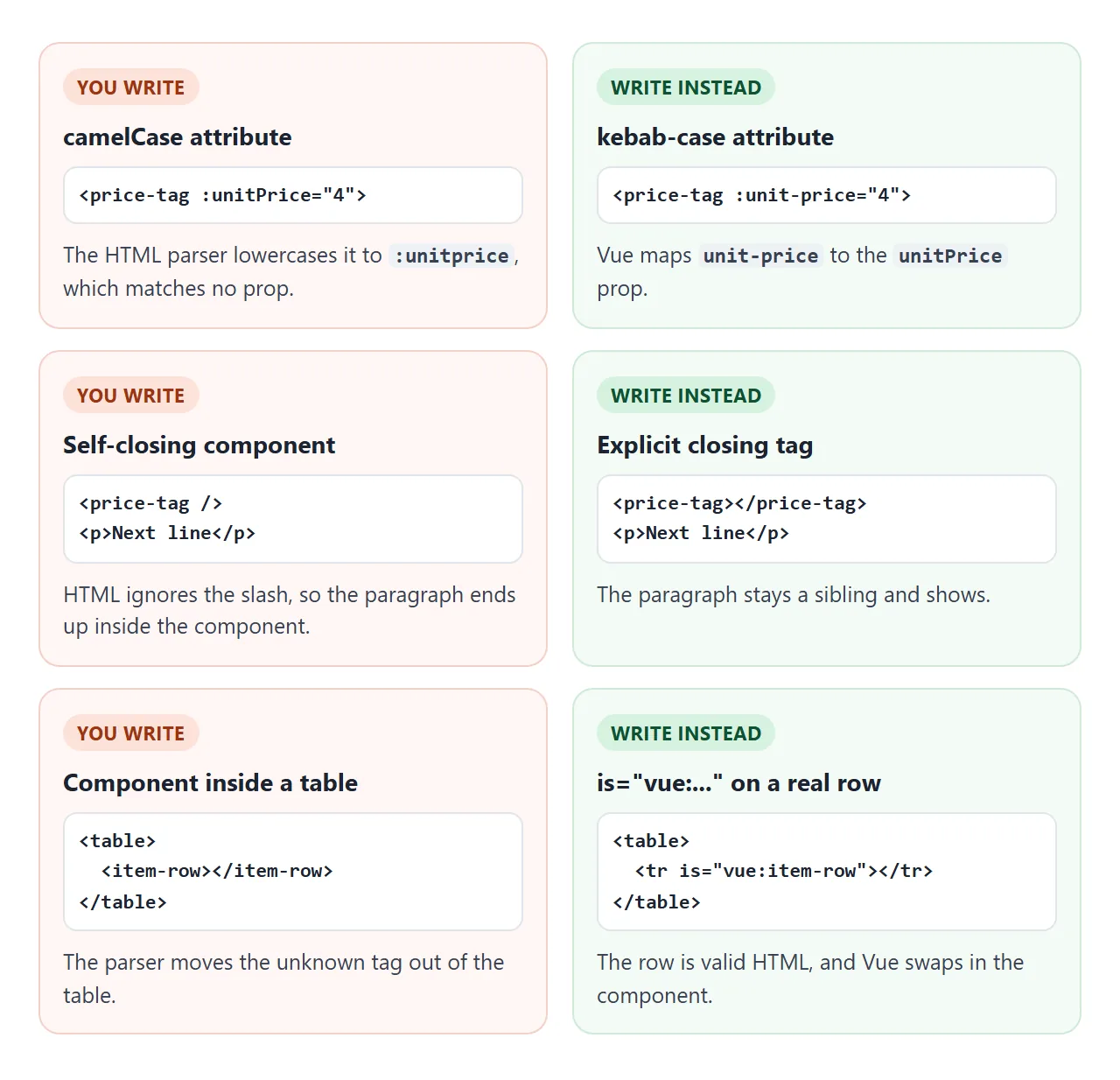
- Case. HTML attribute names are case-insensitive, so the browser lowercases
:unitPrice. Write:unit-priceand Vue matches it to theunitPriceprop. - Self-closing tags. HTML ignores the slash in
<price-tag />, so the next elements end up inside the component. Always write<price-tag></price-tag>. - Placement.
<table>,<ul>,<ol>and<select>only accept certain children. Use a real<tr>or<li>withis="vue:item-row".
Here are the first two side by side. The component is identical; only the HTML differs.
<!doctype html>
<html lang="en">
<head>
<meta charset="utf-8">
<meta name="viewport" content="width=device-width, initial-scale=1">
<title>In-DOM template rules</title>
<style>
body { margin: 0; padding: 16px; font-family: system-ui, sans-serif; background: #f4f6f5; color: #1d2330; }
.row { display: grid; grid-template-columns: 1fr 1fr; gap: 12px; }
@media (max-width: 520px) { .row { grid-template-columns: 1fr; } }
.box { padding: 12px 14px; border-radius: 10px; background: #fff; border: 1px solid #e1e4ea; }
.bad { background: #fff7f5; border-color: #f3d1c8; }
.good { background: #f4fbf6; border-color: #cfe9d7; }
h3 { margin: 0 0 8px; font-size: 14px; }
code { font-size: 12px; background: #eef1f5; padding: 1px 4px; border-radius: 4px; }
.tag { display: inline-block; margin: 4px 0; padding: 4px 10px; border-radius: 99px; background: #e8f6ef; color: #0f5132; font-weight: 600; }
.note { margin: 6px 0 0; font-size: 13px; color: #555; }
</style>
</head>
<body>
<div id="app" class="row">
<div class="box bad" id="bad">
<h3>camelCase prop, self-closing tag</h3>
<code><price-tag :unitPrice="4" /></code><br>
<price-tag :unitPrice="4" />
<p class="note">This line is swallowed into the tag above.</p>
</div>
<div class="box good" id="good">
<h3>kebab-case prop, closing tag</h3>
<code><price-tag :unit-price="4"></price-tag></code><br>
<price-tag :unit-price="4"></price-tag>
<p class="note">This line shows, because the tag was closed.</p>
</div>
</div>
<script src="https://unpkg.com/vue@3.5.43/dist/vue.global.prod.js"></script>
<script>
const app = Vue.createApp({});
// A tiny component. In JavaScript the prop is camelCase: unitPrice
app.component('price-tag', {
props: ['unitPrice'],
template: '<span class="tag">Price: {{ unitPrice === undefined ? "missing" : "$" + unitPrice }}</span>'
});
app.mount('#app'); // register components first, then mount
</script>
</body>
</html>
These rules apply only to templates in the page. A template string inside app.component() is read by Vue's own parser, which accepts /> and camelCase.
A finished example: a shopping list
This version uses the Composition API: setup() returns ref values and computed values instead of a data() object.
<!doctype html>
<html lang="en">
<head>
<meta charset="utf-8">
<meta name="viewport" content="width=device-width, initial-scale=1">
<title>Vue shopping list</title>
<style>
  body { margin: 0; padding: 18px; font-family: system-ui, sans-serif; background: #f4f6f5; color: #1d2330; }
  [v-cloak] { display: none; }
  .card { max-width: 460px; padding: 16px 18px; border-radius: 12px; background: #fff; box-shadow: 0 4px 14px rgba(0,0,0,.1); }
  h1 { margin: 0 0 10px; font-size: 20px; }
  form { display: flex; gap: 8px; }
  input[type=text] { flex: 1; min-width: 0; font: inherit; padding: 8px 10px; border: 1px solid #c9d2cd; border-radius: 8px; }
  button { font: inherit; padding: 8px 14px; border: 0; border-radius: 8px; background: #42b883; color: #fff; cursor: pointer; }
  ul { list-style: none; margin: 12px 0; padding: 0; }
  li { display: flex; align-items: center; gap: 10px; padding: 8px 4px; border-bottom: 1px solid #eef0f2; }
  li.done span { text-decoration: line-through; color: #9aa3ad; }
  li span { flex: 1; }
  .del { background: none; color: #b42318; padding: 2px 8px; }
  .bar { display: flex; flex-wrap: wrap; gap: 6px; align-items: center; font-size: 14px; color: #555; }
  .bar button { background: #eef1f5; color: #1d2330; padding: 5px 10px; }
  .bar button.on { background: #1d2330; color: #fff; }
  .left { margin-right: auto; }
</style>
</head>
<body>
<div id="app" class="card" v-cloak>
  <h1>Shopping list</h1>
  <!-- .prevent stops the form from reloading the page -->
  <form @submit.prevent="add">
    <input type="text" v-model.trim="draft" placeholder="Add an item" aria-label="New item">
    <button>Add</button>
  </form>

  <ul>
    <!-- key tells Vue which row is which when the list changes -->
    <li v-for="item in shown" :key="item.id" :class="{ done: item.done }">
      <input type="checkbox" v-model="item.done" :aria-label="'Got ' + item.text">
      <span>{{ item.text }}</span>
      <button class="del" @click="remove(item.id)" aria-label="Remove">✕</button>
    </li>
  </ul>
  <p v-if="shown.length === 0">Nothing here.</p>

  <div class="bar">
    <span class="left" id="left">{{ left }} left of {{ items.length }}</span>
    <button v-for="f in ['all', 'todo', 'done']" :key="f" :class="{ on: filter === f }" @click="filter = f">{{ f }}</button>
  </div>
</div>

<script src="https://unpkg.com/vue@3.5.43/dist/vue.global.prod.js"></script>
<script>
  const { createApp, ref, computed } = Vue;

  createApp({
    setup() {
      let nextId = 3;
      const items = ref([
        { id: 1, text: 'Bread', done: true },
        { id: 2, text: 'Coffee', done: false }
      ]);
      const draft = ref('');
      const filter = ref('all');

      // computed values update by themselves when items or filter change
      const left = computed(() => items.value.filter(i => !i.done).length);
      const shown = computed(() => items.value.filter(i =>
        filter.value === 'all' || (filter.value === 'done') === i.done));

      function add() {
        if (!draft.value) return;
        items.value.push({ id: nextId++, text: draft.value, done: false });
        draft.value = '';
      }
      function remove(id) {
        items.value = items.value.filter(i => i.id !== id);
      }

      // everything returned here can be used in the template
      return { items, draft, filter, left, shown, add, remove };
    }
  }).mount('#app');
</script>
</body>
</html>
- ref.
ref([])wraps a value so Vue can track it. In JavaScript you read and changeitems.value; in the template you writeitems. - computed.
leftandshownrecalculate wheneveritemsorfilterchanges. - Return it. Only what
setup()returns is visible in the template. A plainletvariable shows its first value and never updates. - Forms.
@submit.preventstops the page from reloading, so the form stays inside the page.
The same list without a framework is in a to-do list in plain HTML, if you want to compare the two.
What needs a build step
Some Vue features only exist in a project built with Node.js. The Vue docs say that without a build step you cannot use the Single-File Component syntax.
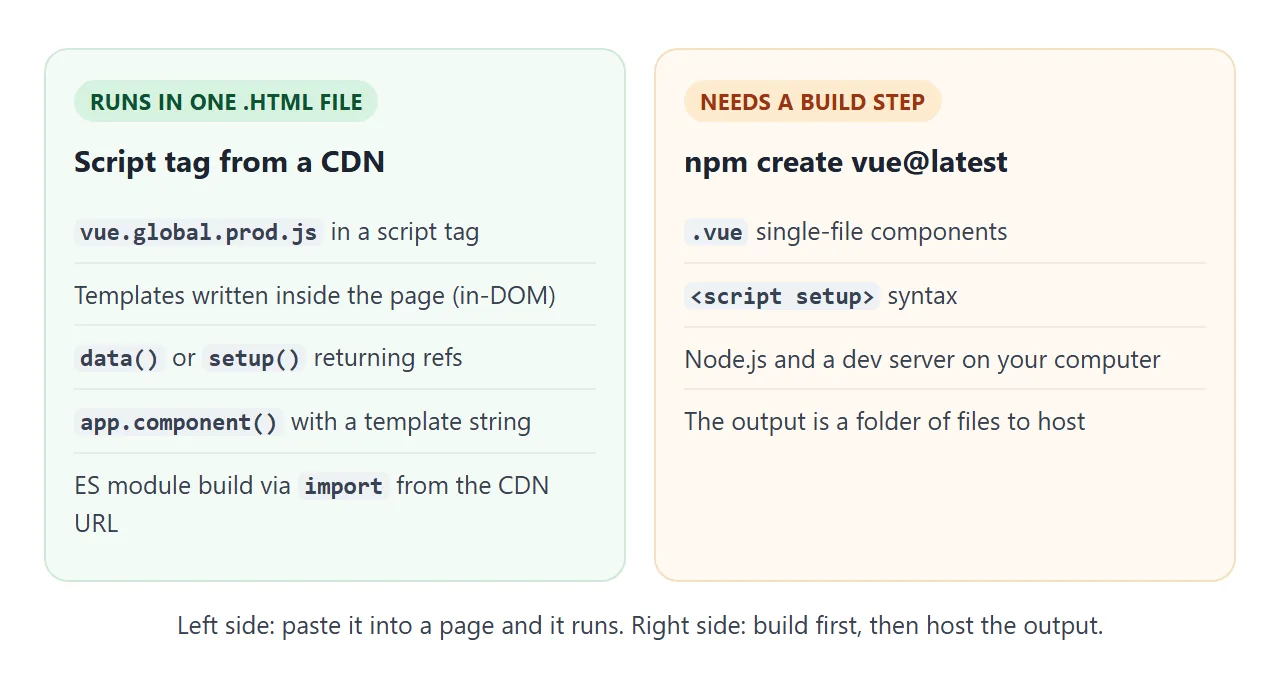
.vue files and <script setup> are compiled before the browser sees them. The official starting point is npm create vue@latest, which runs create-vue and sets up a Vite project:
npm create vue@latest     # needs Node.js ^22.18.0 or >=24.12.0
cd my-app
npm install
npm run dev               # development server
npm run build             # production files in ./dist
That ./dist folder is several files, not one page. If you only need the ES module build, you can import it straight from the CDN in a single file:
<div id="app">{{ msg }}</div>
<script type="module">
  import { createApp } from 'https://unpkg.com/vue@3.5.43/dist/vue.esm-browser.prod.js'
  createApp({ data: () => ({ msg: 'Hello' }) }).mount('#app')
</script>
Opened from disk, this worked in our test. Splitting your own code into .js module files did not: Chromium blocked them on file://, as the Vue docs warn. Keep everything in one file, or see why file:// pages behave differently.
When it does not work
| What you see | Cause | Fix |
|---|---|---|
Vue is not defined in the console |
Your script runs before the Vue tag, or the URL is wrong | Put the Vue tag first and check the URL |
Raw {{ name }} stays on the page |
The script ran before the element existed | Put the scripts after the container |
| The container is empty | A runtime-only build | Load vue.global.prod.js |
| A prop is always undefined | camelCase attribute in the HTML | Write it in kebab-case |
| Content after a component disappears | Self-closing component tag | Add an explicit closing tag |
| A value never updates on screen | A plain variable returned from setup() |
Wrap it in ref() |
| The page reloads on submit | No .prevent on the form |
Use @submit.prevent |
For errors that are not about Vue, HTML and JavaScript not working goes through the general checks.
Share it as a link
A Vue page is meant to be clicked. A screenshot cannot be typed into, and an .html attachment may open as plain code on a phone.
To send the working version, paste the page into a NOS document and choose Create share link. HTML to link walks through it.
The page renders as written, its scripts run, and Vue loads from the CDN, so the people you send it to can use the app without an account. If you change the code later, the same link shows the new version.