To make sound with the Web Audio API, create one AudioContext, build a chain of nodes such as an oscillator and a gain node, and connect the end of the chain to ctx.destination, the speakers.
Nothing plays until the context is running, and that needs a click.
Try it. The status line shows the context's state and its clock. Watch both change on the first click.
<!doctype html>
<html lang="en">
<head>
<meta charset="utf-8">
<meta name="viewport" content="width=device-width, initial-scale=1">
<title>AudioContext: play a note</title>
<style>
  body { margin: 0; padding: 18px; font-family: system-ui, sans-serif; background: #f4f5f7; color: #1d2330; }
  .panel { max-width: 420px; background: #fff; border-radius: 12px; padding: 16px 18px; box-shadow: 0 4px 16px rgba(0, 0, 0, .08); }
  label { display: block; margin: 0 0 12px; font-size: 14px; }
  select, input { width: 100%; margin-top: 4px; font-size: 15px; }
  button { font-size: 16px; padding: 10px 18px; border: 0; border-radius: 8px; background: #2563eb; color: #fff; cursor: pointer; }
  #status { margin-top: 12px; font: 13px ui-monospace, Consolas, monospace; color: #4b5563; }
</style>
</head>
<body>
<div class="panel">
  <label>Wave <select id="wave">
    <option>sine</option><option>triangle</option><option>square</option><option>sawtooth</option>
  </select></label>
  <label>Pitch: <span id="hz">440</span> Hz
    <input id="freq" type="range" min="110" max="880" value="440"></label>
  <button id="play">Play a note</button>
  <div id="status"></div>
</div>

<script>
  // One context for the whole page. It may start "suspended" until the user clicks.
  const ctx = new AudioContext();
  const wave = document.getElementById('wave');
  const freq = document.getElementById('freq');
  const status = document.getElementById('status');

  freq.addEventListener('input', () => document.getElementById('hz').textContent = freq.value);

  document.getElementById('play').addEventListener('click', async () => {
    if (ctx.state === 'suspended') await ctx.resume();  // the click unlocks audio

    const t = ctx.currentTime;
    const osc = new OscillatorNode(ctx, { type: wave.value, frequency: +freq.value });
    const gain = new GainNode(ctx, { gain: 0 });
    osc.connect(gain).connect(ctx.destination);  // oscillator -> volume -> speakers

    gain.gain.setValueAtTime(0, t);
    gain.gain.linearRampToValueAtTime(0.3, t + 0.02);  // fade in over 20 ms
    gain.gain.setTargetAtTime(0, t + 0.5, 0.05);       // fade out after 0.5 s
    osc.start(t);
    osc.stop(t + 1);  // an oscillator plays once; make a new one per note
  });

  // Show the context's state and its clock
  function show() {
    status.textContent = 'state: ' + ctx.state + '   currentTime: ' + ctx.currentTime.toFixed(2) + ' s';
    requestAnimationFrame(show);
  }
  show();
</script>
</body>
</html>
This guide is about generating and shaping sound. To play an MP3 or other sound file, play sound in JavaScript covers new Audio() and its autoplay error.
Nodes, a graph and one context
The Web Audio API works like a set of patch cables. Each node does one job, and connect() joins the output of one node to the input of the next.
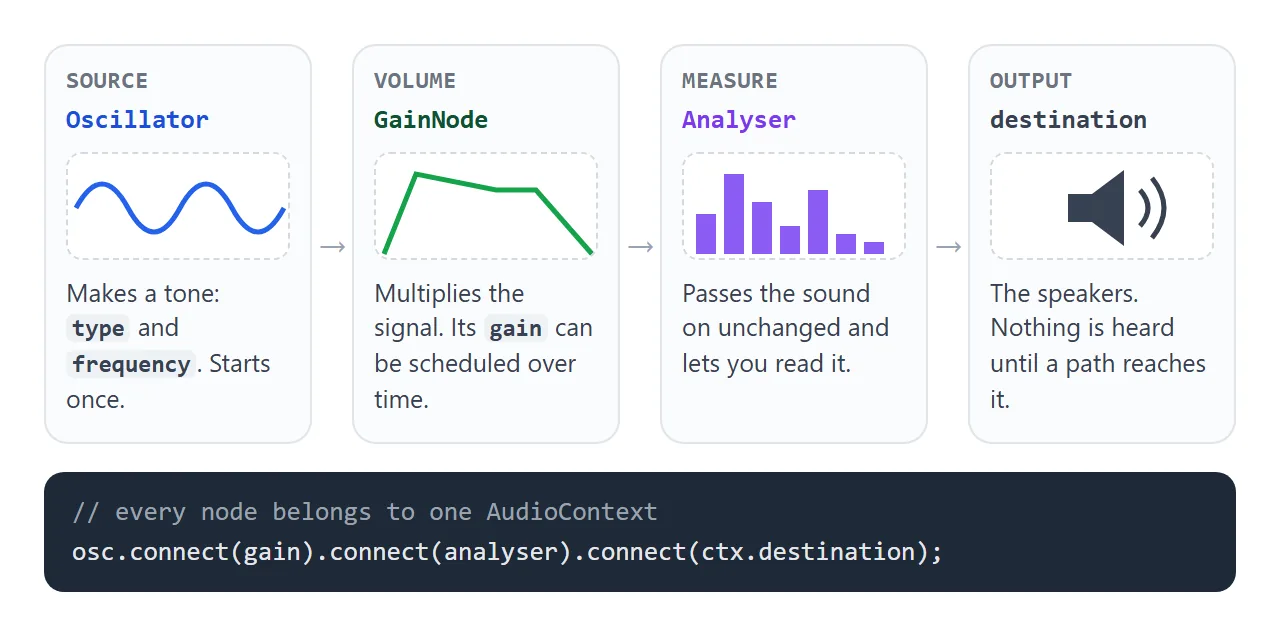
OscillatorNodemakes a tone.typepicks one of four wave shapes, andfrequencysets the pitch in hertz.GainNodemultiplies the signal by itsgainvalue. It is the volume knob, and the tool for fades.AnalyserNodepasses the sound on unchanged and lets script read it.ctx.destinationis the output device.
connect() returns the node you connected to, so a chain fits on one line:
const ctx = new AudioContext();
const osc = new OscillatorNode(ctx, { type: 'sine', frequency: 440 });
const gain = new GainNode(ctx, { gain: 0.3 });
osc.connect(gain).connect(ctx.destination);
osc.start();
Every node belongs to the context it was made with. Create the context once and reuse it; create nodes freely.
The autoplay rule: suspended until a gesture
Open the first example and read the status line before clicking. It can say suspended with the clock at 0.00. Browsers can hold a new context in that state until the visitor clicks, taps or presses a key.
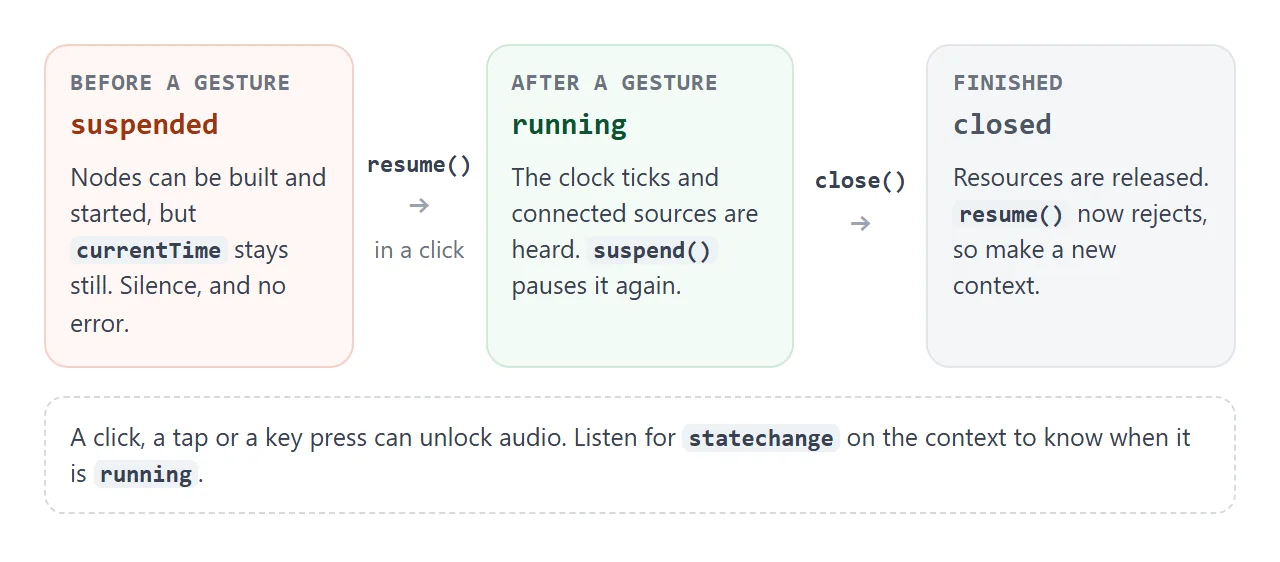
A suspended context throws no error. Oscillators start, but the context's clock does not move, so there is silence. The fix is to resume it from inside a user gesture:
button.addEventListener('click', async () => {
  if (ctx.state === 'suspended') await ctx.resume();
  playNote();
});
resume() returns a promise. Awaiting it before scheduling notes means the first note is timed on a running clock. If you would rather show a label such as Sound on, listen for the context's statechange event.
When a page is completely done with sound, ctx.close() releases the resources. A closed context cannot be resumed: resume() rejects with InvalidStateError, so make a new one.
Envelopes: why notes click and how gain ramps fix it
A speaker cone follows the signal exactly. If a tone starts at full volume, or stop() cuts it in the middle of a wave, the signal jumps in one step. That jump is heard as a click.
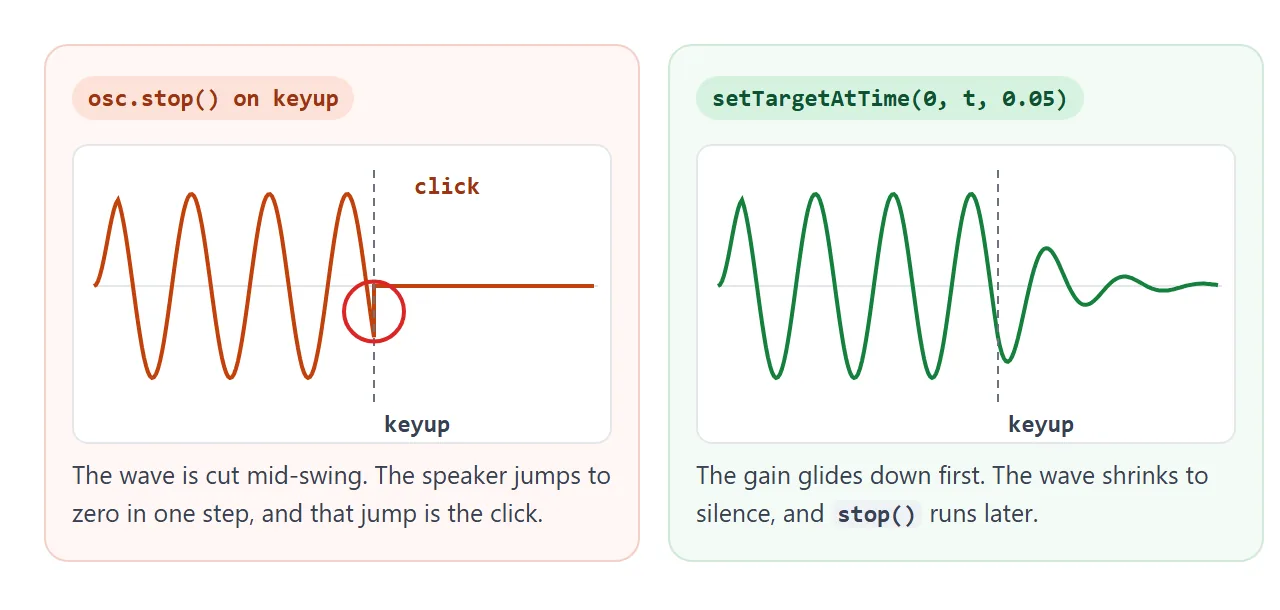
The cure is an envelope: schedule the gain instead of switching it. Hold each pad below and compare. The line is the measured loudness of the output.
<!doctype html>
<html lang="en">
<head>
<meta charset="utf-8">
<meta name="viewport" content="width=device-width, initial-scale=1">
<title>Gain envelope vs hard start and stop</title>
<style>
  body { margin: 0; padding: 16px; font-family: system-ui, sans-serif; background: #f4f5f7; color: #1d2330; }
  .pads { display: grid; grid-template-columns: 1fr 1fr; gap: 12px; max-width: 480px; }
  .pad {
    height: 110px; border-radius: 12px; border: 2px solid; font-size: 15px; font-weight: 600;
    touch-action: none; user-select: none; -webkit-user-select: none; cursor: pointer;
  }
  #hard { background: #fff7f5; border-color: #f3b8a6; color: #9a3412; }
  #soft { background: #f4fbf6; border-color: #a7dbb7; color: #0f5132; }
  .pad.down { filter: brightness(.93); }
  canvas { display: block; width: 100%; max-width: 480px; height: 150px; margin-top: 12px; background: #fff; border-radius: 10px; }
  p { font-size: 13px; color: #4b5563; margin: 8px 0 0; max-width: 480px; }
</style>
</head>
<body>
<div class="pads">
  <button class="pad" id="hard">Hold: hard on/off</button>
  <button class="pad" id="soft">Hold: envelope</button>
</div>
<canvas id="scope" width="960" height="300"></canvas>
<p>The line is the loudness of the output, measured with an AnalyserNode. Listen for a click when a hard note starts and stops.</p>

<script>
  const ctx = new AudioContext();
  const analyser = new AnalyserNode(ctx, { fftSize: 1024 });
  analyser.connect(ctx.destination);

  function noteOn(smooth) {
    const t = ctx.currentTime;
    const osc = new OscillatorNode(ctx, { frequency: 330 });
    const gain = new GainNode(ctx, { gain: 0 });
    osc.connect(gain).connect(analyser);
    if (smooth) {
      gain.gain.setValueAtTime(0, t);
      gain.gain.linearRampToValueAtTime(0.4, t + 0.03);  // attack: 30 ms
    } else {
      gain.gain.value = 0.4;  // full volume at once
    }
    osc.start(t);
    return { osc, gain, smooth };
  }

  function noteOff(v) {
    const t = ctx.currentTime;
    if (!v.smooth) { v.osc.stop(); return; }  // cut the wave wherever it is
    const g = v.gain.gain;
    g.cancelScheduledValues(t);    // drop the attack ramp if it is still running
    g.setValueAtTime(g.value, t);  // hold the level we are at now
    g.setTargetAtTime(0, t, 0.08); // then glide down to silence
    v.osc.stop(t + 0.6);
  }

  for (const [id, smooth] of [['hard', false], ['soft', true]]) {
    const pad = document.getElementById(id);
    let voice = null;
    pad.addEventListener('pointerdown', (e) => {
      ctx.resume();  // pressing a pad counts as the user gesture
      pad.setPointerCapture(e.pointerId);
      pad.classList.add('down');
      voice = noteOn(smooth);
    });
    pad.addEventListener('lostpointercapture', () => {  // release or cancel
      pad.classList.remove('down');
      if (voice) noteOff(voice);
      voice = null;
    });
  }

  // Draw the output level over the last few seconds
  const cv = document.getElementById('scope'), g2 = cv.getContext('2d');
  const buf = new Float32Array(analyser.fftSize);
  const levels = new Array(240).fill(0);
  function draw() {
    analyser.getFloatTimeDomainData(buf);
    let peak = 0;
    for (const s of buf) peak = Math.max(peak, Math.abs(s));
    levels.push(peak); levels.shift();
    g2.clearRect(0, 0, cv.width, cv.height);
    g2.strokeStyle = '#2563eb'; g2.lineWidth = 4; g2.beginPath();
    levels.forEach((v, i) => {
      const x = i * cv.width / (levels.length - 1), y = cv.height - 20 - v * 500;
      i ? g2.lineTo(x, y) : g2.moveTo(x, y);
    });
    g2.stroke();
    requestAnimationFrame(draw);
  }
  draw();
</script>
</body>
</html>
All scheduling uses the context's clock, ctx.currentTime, in seconds. The attack is a short linear ramp from zero:
const t = ctx.currentTime;
gain.gain.setValueAtTime(0, t);
gain.gain.linearRampToValueAtTime(0.4, t + 0.03);  // 30 ms attack
The release needs care, because the key can come up while the attack is still running. Cancel what is scheduled, pin the current level, then glide down:
const g = gain.gain;
g.cancelScheduledValues(t);
g.setValueAtTime(g.value, t);   // start the fade from where we are
g.setTargetAtTime(0, t, 0.08);  // glide towards 0
osc.stop(t + 0.6);              // stop after the fade
setTargetAtTime moves a set fraction of the remaining distance per time constant. After one time constant (here 0.08 s) the gain is 63% of the way to zero. After five, less than 1% is left, so stop the oscillator around then.
| Method | What it does | Watch out |
|---|---|---|
setValueAtTime |
Jumps to a value at a time | A jump at audible volume clicks |
linearRampToValueAtTime |
Straight line to a value | The ramp starts at the previous event, so set one first |
exponentialRampToValueAtTime |
Curved ramp | The target cannot be 0 (RangeError) |
setTargetAtTime |
Glides towards a value | Never lands exactly; stop the source later |
cancelScheduledValues |
Removes events from a time on | Follow it with setValueAtTime |
Build a small keyboard synth
The finished example turns this into an instrument. Play it with the mouse, a finger or the computer keys A to K. Hold two keys for a chord.
<!doctype html>
<html lang="en">
<head>
<meta charset="utf-8">
<meta name="viewport" content="width=device-width, initial-scale=1">
<title>Keyboard synth with a visualiser</title>
<style>
  body { margin: 0; padding: 14px; font-family: system-ui, sans-serif; background: #111827; color: #e5e7eb; }
  .wrap { max-width: 520px; margin: 0 auto; }
  .bar { display: flex; gap: 10px; align-items: center; flex-wrap: wrap; font-size: 14px; margin-bottom: 10px; }
  select, button { font-size: 14px; padding: 5px 8px; border-radius: 6px; border: 1px solid #374151; background: #1f2937; color: #e5e7eb; }
  #state { font: 12px ui-monospace, Consolas, monospace; color: #9ca3af; }
  canvas { display: block; width: 100%; height: 130px; background: #0b1020; border-radius: 10px; }
  .keys { position: relative; height: 170px; margin-top: 12px; touch-action: none; user-select: none; -webkit-user-select: none; }
  .key { position: absolute; top: 0; box-sizing: border-box; border-radius: 0 0 6px 6px; display: flex; align-items: flex-end; justify-content: center; padding-bottom: 6px; font: 12px ui-monospace, Consolas, monospace; }
  .white { height: 100%; background: #f9fafb; color: #6b7280; border: 1px solid #9ca3af; z-index: 1; }
  .black { height: 60%; background: #1f2937; color: #9ca3af; border: 1px solid #000; z-index: 2; }
  .key.on { background: #60a5fa; color: #fff; }
  p { font-size: 13px; color: #9ca3af; margin: 8px 0 0; }
</style>
</head>
<body>
<div class="wrap">
  <div class="bar">
    <label>Wave <select id="wave"><option>triangle</option><option>sine</option><option>square</option><option>sawtooth</option></select></label>
    <button id="view">Show: waveform</button>
    <span id="state"></span>
  </div>
  <canvas id="viz" width="1040" height="260"></canvas>
  <div class="keys" id="keys"></div>
  <p>Tap or hold the keys, or play with your keyboard: A W S E D F T G Y H U J K.</p>
</div>

<script>
  const ctx = new AudioContext();
  const master = new GainNode(ctx, { gain: 0.25 });  // overall volume, so chords do not distort
  const analyser = new AnalyserNode(ctx, { fftSize: 2048 });
  master.connect(analyser).connect(ctx.destination);

  // 13 notes from C4 (MIDI 60) to C5, and the computer key for each
  const LETTERS = 'awsedftgyhujk';
  const notes = [...LETTERS].map((k, i) => ({ midi: 60 + i, key: k, black: [1, 3, 6, 8, 10].includes(i) }));
  const hz = (midi) => 440 * 2 ** ((midi - 69) / 12);  // A4 = MIDI 69 = 440 Hz

  // Draw the keyboard: 8 white keys, black keys on top
  const keysEl = document.getElementById('keys');
  const W = 100 / 8;  // white key width in %
  let white = 0;
  for (const n of notes) {
    n.el = document.createElement('div');
    n.el.className = 'key ' + (n.black ? 'black' : 'white');
    n.el.textContent = n.key.toUpperCase();
    n.el.style.left = (n.black ? white * W - W * 0.3 : white * W) + '%';
    n.el.style.width = (n.black ? W * 0.6 : W) + '%';
    if (!n.black) white++;
    keysEl.append(n.el);
  }

  const voices = new Map();  // midi -> { osc, gain }, one voice per held note

  function noteOn(n) {
    if (voices.has(n.midi)) return;
    if (ctx.state === 'suspended') ctx.resume();
    const t = ctx.currentTime;
    const osc = new OscillatorNode(ctx, { type: document.getElementById('wave').value, frequency: hz(n.midi) });
    const gain = new GainNode(ctx, { gain: 0 });
    osc.connect(gain).connect(master);
    gain.gain.setValueAtTime(0, t);
    gain.gain.linearRampToValueAtTime(1, t + 0.015);    // attack
    gain.gain.setTargetAtTime(0.6, t + 0.015, 0.1);     // decay to a sustain level
    osc.start(t);
    voices.set(n.midi, { osc, gain });
    n.el.classList.add('on');
  }

  function noteOff(n) {
    const v = voices.get(n.midi);
    if (!v) return;
    const t = ctx.currentTime, g = v.gain.gain;
    g.cancelScheduledValues(t);
    g.setValueAtTime(g.value, t);
    g.setTargetAtTime(0, t, 0.06);  // release
    v.osc.stop(t + 0.5);
    voices.delete(n.midi);
    n.el.classList.remove('on');
  }

  // Computer keyboard
  const byKey = Object.fromEntries(notes.map((n) => [n.key, n]));
  document.addEventListener('keydown', (e) => {
    const n = byKey[e.key.toLowerCase()];
    if (!n || e.repeat || e.ctrlKey || e.metaKey) return;  // ignore auto-repeat
    noteOn(n);
  });
  document.addEventListener('keyup', (e) => {
    const n = byKey[e.key.toLowerCase()];
    if (n) noteOff(n);
  });
  window.addEventListener('blur', () => notes.forEach(noteOff));  // no stuck notes

  // Mouse and touch: each pointer holds one note, and can slide to the next key
  const held = new Map();  // pointerId -> note
  function pointerNote(e) {
    const el = document.elementFromPoint(e.clientX, e.clientY);
    return notes.find((n) => n.el === el);
  }
  keysEl.addEventListener('pointerdown', (e) => {
    keysEl.setPointerCapture(e.pointerId);
    const n = pointerNote(e);
    if (n) { held.set(e.pointerId, n); noteOn(n); }
  });
  keysEl.addEventListener('pointermove', (e) => {
    if (!held.has(e.pointerId)) return;
    const n = pointerNote(e), old = held.get(e.pointerId);
    if (n && n !== old) { noteOff(old); held.set(e.pointerId, n); noteOn(n); }
  });
  keysEl.addEventListener('lostpointercapture', (e) => {
    const n = held.get(e.pointerId);
    if (n) noteOff(n);
    held.delete(e.pointerId);
  });

  // Visualiser: waveform or frequency bars from the AnalyserNode
  const cv = document.getElementById('viz'), g2 = cv.getContext('2d');
  const viewBtn = document.getElementById('view');
  let bars = false;
  viewBtn.addEventListener('click', () => {
    bars = !bars;
    viewBtn.textContent = 'Show: ' + (bars ? 'frequency bars' : 'waveform');
  });
  const wave = new Uint8Array(analyser.fftSize);          // 2048 samples
  const freq = new Uint8Array(analyser.frequencyBinCount); // 1024 bins

  function draw() {
    g2.clearRect(0, 0, cv.width, cv.height);
    if (bars) {
      analyser.getByteFrequencyData(freq);
      const shown = 128, bw = cv.width / shown;  // the low bins hold these notes
      g2.fillStyle = '#60a5fa';
      for (let i = 0; i < shown; i++) {
        const h = freq[i] / 255 * cv.height;
        g2.fillRect(i * bw, cv.height - h, bw - 2, h);
      }
    } else {
      analyser.getByteTimeDomainData(wave);  // 128 = silence
      g2.strokeStyle = '#34d399'; g2.lineWidth = 3; g2.beginPath();
      for (let i = 0; i < wave.length; i++) {
        const x = i / (wave.length - 1) * cv.width, y = wave[i] / 255 * cv.height;
        i ? g2.lineTo(x, y) : g2.moveTo(x, y);
      }
      g2.stroke();
    }
    document.getElementById('state').textContent = 'AudioContext: ' + ctx.state;
    requestAnimationFrame(draw);
  }
  draw();
</script>
</body>
</html>
Three ideas make it work:
- One voice per note. A
Mapholds the oscillator and gain node of each sounding note. Key down adds a voice; key up releases it. - Pitch from a note number. The note numbering used by MIDI puts A4 at 69 and 440 Hz. Each step is one semitone, a factor of the twelfth root of 2.
- A master gain. Every voice goes into one shared
GainNodeset to 0.25, so a chord does not overload the output.
const hz = (midi) => 440 * 2 ** ((midi - 69) / 12); // 60 = C4
Holding a key makes the keyboard repeat keydown, with e.repeat set to true after the first one. The synth ignores repeats, or each repeat would start another voice.
A blur listener releases every voice, because the keyup of a key released after the window lost focus does not reach the page. The addEventListener guide covers these events.
On screen, the keys use pointer events with touch-action: none, so a finger can slide from key to key without scrolling the page.
Draw the sound with an AnalyserNode
An AnalyserNode sits in the chain and changes nothing. On each frame, the script copies its latest data into an array and draws it on a canvas. The synth draws a waveform by default; the button switches to frequency bars.
const analyser = new AnalyserNode(ctx, { fftSize: 2048 });
master.connect(analyser).connect(ctx.destination);

const wave = new Uint8Array(analyser.fftSize);          // 2048 values
const bars = new Uint8Array(analyser.frequencyBinCount); // 1024 values
analyser.getByteTimeDomainData(wave);  // 128 means silence
analyser.getByteFrequencyData(bars);   // 0 to 255 per bin
- Waveform:
getByteTimeDomainDatacopies the latestfftSizesamples. 128 is the centre line. - Frequency bars:
getByteFrequencyDatafillsfrequencyBinCountvalues, half offftSize. Each bin is the sample rate divided byfftSizehertz wide. - Redraw: call it from requestAnimationFrame, which matches the screen's refresh. Drawing on a canvas covers the drawing calls.
The notes on this keyboard have their base pitch below bin 30, so the example draws only the first 128 bins, which leaves room for overtones. Drawing all 1024 would squeeze the notes into a thin strip at the left.
When it does not work
| What you see | Cause | Fix |
|---|---|---|
Silence, no error, currentTime stuck at 0 |
The context is suspended |
ctx.resume() inside a click or key handler |
InvalidStateError on start() |
The oscillator was started before | New OscillatorNode per note |
| A click at the start or end of a note | Gain jumps, or stop() cuts the wave |
Ramp in, setTargetAtTime out, stop later |
RangeError from a ramp |
exponentialRampToValueAtTime to 0 |
Use setTargetAtTime(0, ...), or ramp to 0.0001 |
| Notes never stop | The keyup was missed, or voices were not tracked |
Keep a Map of voices, release all on blur |
| Chords distort | The voices add up past full scale | Route voices through a master gain below 1 |
| The visualiser is a flat line | The analyser is not in the sound's path | Connect the chain through the analyser |
Share it as a link
A synth is something people want to press, not read about. A recording loses the playing, and an .html attachment may open as plain code on a phone.
To send the working version, paste the page into a NOS document and choose Create share link. HTML to link walks through it.
The page renders as written and its scripts run, so the people you send it to can play the keys themselves. If you change the code later, the same link shows the new version.