"Webpack" here is the JavaScript bundler on npm, not a web page feature. Install it with npm, run it with npx, and it writes one script file that a normal HTML page loads with a script tag.
npm install webpack webpack-cli --save-dev
npx webpack
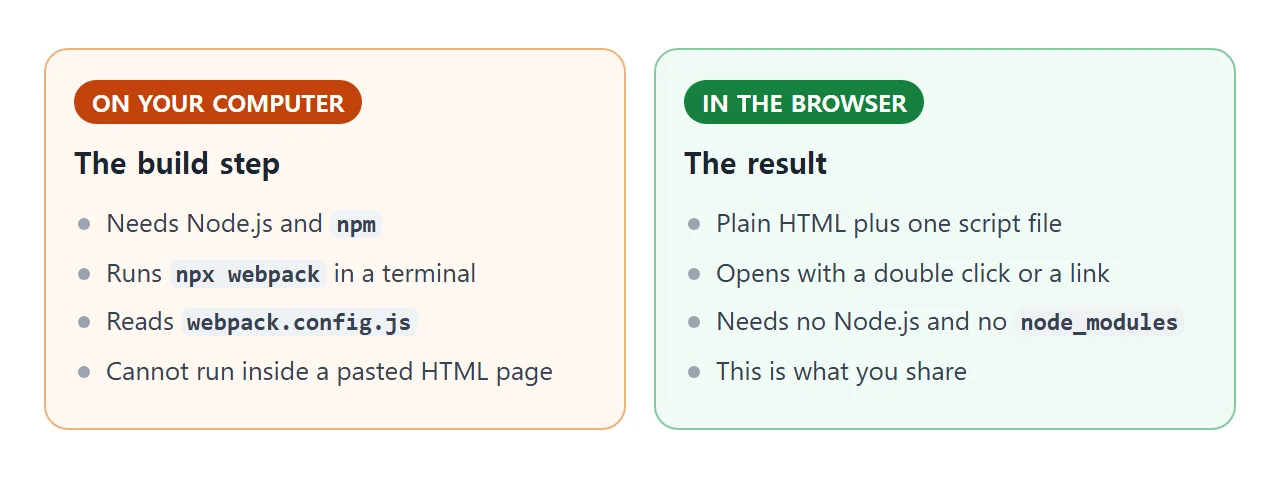
The build itself cannot run inside an HTML file. What a plain page can show is the idea: many modules, one script. Press the button below.
<!doctype html>
<html lang="en">
<head>
<meta charset="utf-8">
<meta name="viewport" content="width=device-width, initial-scale=1">
<title>What a bundle looks like</title>
<style>
body { margin: 0; padding: 14px; font-family: system-ui, sans-serif; background: #f4f5f7; color: #1d2330; }
h1 { font-size: 16px; margin: 0 0 4px; }
p { margin: 0 0 10px; font-size: 13.5px; line-height: 1.45; color: #4b5563; }
pre { margin: 0 0 10px; padding: 10px 12px; background: #fff; border: 1px solid #e1e4ea; border-radius: 8px;
font: 12.5px/1.5 ui-monospace, Consolas, monospace; overflow-x: auto; white-space: pre; }
button { font: 600 14px system-ui, sans-serif; padding: 9px 16px; border: 0; border-radius: 8px;
background: #2563eb; color: #fff; cursor: pointer; }
#out { min-height: 54px; border-color: #86c9a0; background: #f0faf4; }
</style>
</head>
<body>
<h1>One file, three modules</h1>
<p>A bundle keeps each source file in a table and runs the entry file. This is a simplified picture, not webpack's real output.</p>
<pre id="code">// one script, three modules
const modules = {
'math.js': (module) => { module.exports = { add: (a, b) => a + b }; },
'greet.js': (module) => { module.exports = (n) => 'Hello, ' + n; },
'index.js': (module, require) => {
const { add } = require('math.js');
const greet = require('greet.js');
module.exports = greet('bundle') + ' - 2 + 3 = ' + add(2, 3);
},
};</pre>
<button id="run" type="button">Run index.js</button>
<pre id="out">Press the button.</pre>
<script>
const modules = {
'math.js': (module) => { module.exports = { add: (a, b) => a + b }; },
'greet.js': (module) => { module.exports = (n) => 'Hello, ' + n; },
'index.js': (module, require) => {
const { add } = require('math.js');
const greet = require('greet.js');
module.exports = greet('bundle') + ' - 2 + 3 = ' + add(2, 3);
},
};
const cache = {};
function req(id) {
if (cache[id]) return cache[id].exports; // each module runs once
const module = cache[id] = { exports: {} };
modules[id](module, req);
return module.exports;
}
document.getElementById('run').addEventListener('click', () => {
document.getElementById('out').textContent = req('index.js');
});
</script>
</body>
</html>
What webpack does
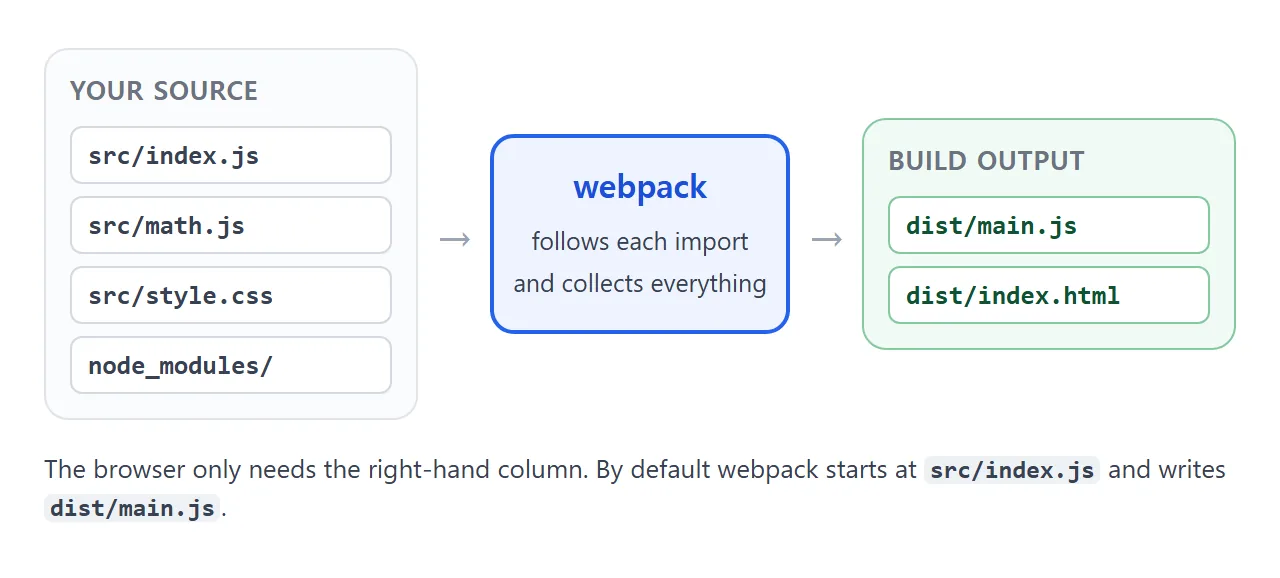
Webpack's own docs call it a static module bundler. It starts at an entry file, follows every import, and gathers what it finds into output files. Five words from its core concepts page are enough to start.
| Word | What it means |
|---|---|
| Entry | Where webpack starts reading. Default: ./src/index.js |
| Output | Where the bundle goes. Default: ./dist/main.js |
| Loaders | Turn other file types into modules webpack can include |
| Plugins | Wider jobs, such as optimizing the bundle or generating HTML |
| Mode | development, production or none, each with its own built-in settings |
Install it and run it
Do this in a project folder that has Node.js and npm. The getting started guide says its examples use webpack-cli 7, which needs Node.js 20.9.0 or later.
- Install both packages with the first command above.
webpackis the bundler, andwebpack-cliruns it from the command line. - Write
src/index.js. Import your other files from it. - Run
npx webpack. Webpack follows the imports and writesdist/main.js. - Load that file from a page. Point a script tag at
main.js.
Nothing else is needed for a first build, because the entry and output defaults already match the folders above. Add a webpack.config.js when you want to change them.
Make the HTML page
Webpack builds scripts, not pages. The html-webpack-plugin fills that gap: it generates an index.html that serves your bundles, and it puts the script in the head with the defer loading strategy.
// webpack.config.js
const HtmlWebpackPlugin = require("html-webpack-plugin");

module.exports = {
  mode: "production",
  entry: "./src/index.js",
  output: { filename: "main.js", path: __dirname + "/dist" },
  plugins: [new HtmlWebpackPlugin()],
};
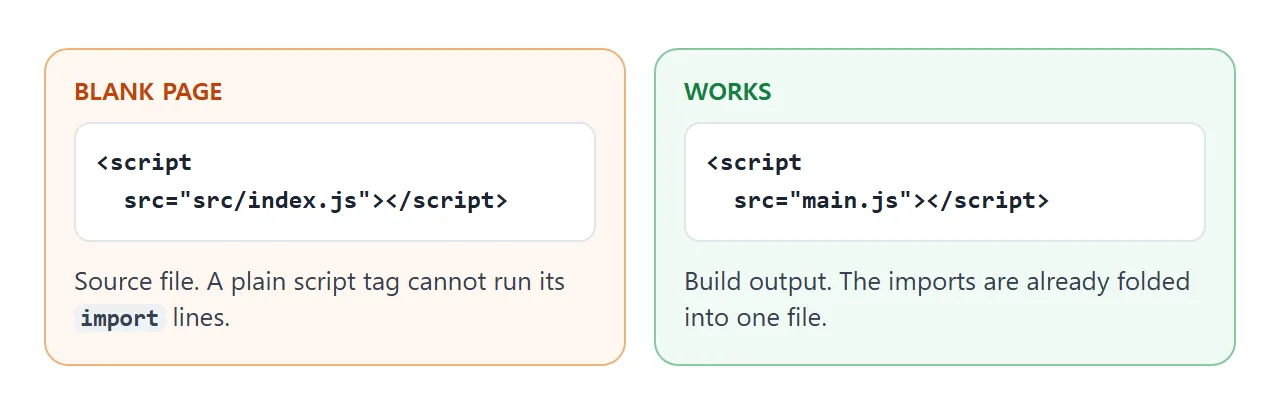
Install the plugin first. If you write the page by hand instead, point it at the built file, not the source.
npm i --save-dev html-webpack-plugin
Get everything into one HTML file
Two files, a page and a script, are easy to lose on the way to someone. To make one file, paste the contents of dist/main.js into a script tag at the end of the body.
<body>
  <div id="app"></div>
  <script>
    /* paste dist/main.js here */
  </script>
</body>
Put the script after the elements it uses. The defer attribute has no effect on a script without a src, so an inline script runs as soon as it is reached.
Images can join the file too. The asset/inline type exports a data URI, and asset/source exports a file's text as a string. Try the whole idea in the page below: edit two modules, bundle them, and read the single HTML file it writes.
<!doctype html>
<html lang="en">
<head>
<meta charset="utf-8">
<meta name="viewport" content="width=device-width, initial-scale=1">
<title>Mini bundler to one HTML file</title>
<style>
body { margin: 0; padding: 14px; font-family: system-ui, sans-serif; background: #f4f5f7; color: #1d2330; }
h1 { font-size: 16px; margin: 0 0 4px; }
p { margin: 0 0 10px; font-size: 13.5px; line-height: 1.45; color: #4b5563; }
label { display: block; font: 700 12px ui-monospace, Consolas, monospace; color: #0f5132; margin: 8px 0 3px; }
textarea { width: 100%; box-sizing: border-box; height: 84px; padding: 8px 10px; border: 1px solid #cfd5df; border-radius: 8px;
font: 12.5px/1.45 ui-monospace, Consolas, monospace; resize: vertical; white-space: pre; }
button { font: 600 14px system-ui, sans-serif; padding: 9px 16px; border: 0; border-radius: 8px;
background: #2563eb; color: #fff; cursor: pointer; margin: 10px 0; }
#result { padding: 10px 12px; min-height: 36px; background: #f0faf4; border: 1px solid #86c9a0; border-radius: 8px; font-size: 14px; }
#page { width: 100%; box-sizing: border-box; height: 150px; background: #fff; }
.note { font-size: 12.5px; color: #6b7280; margin: 6px 0 0; }
</style>
</head>
<body>
<h1>Mini bundler</h1>
<p>Edit the two modules, then bundle. You get one script and one HTML page you could save as a file.</p>
<label for="m-math">math.js</label>
<textarea id="m-math" spellcheck="false">module.exports = {
area: (w, h) => w * h,
};</textarea>
<label for="m-index">index.js (entry)</label>
<textarea id="m-index" spellcheck="false">const { area } = require('math.js');
result('A 6 x 7 card has area ' + area(6, 7));</textarea>
<button id="go" type="button">Bundle and run</button>
<label for="result">Result of running the bundle</label>
<div id="result">Not run yet.</div>
<label for="page">The single HTML file</label>
<textarea id="page" readonly spellcheck="false"></textarea>
<p class="note">Any closing script tag inside the code is written as <\/script so it cannot end the script early.</p>
<script>
const $ = (id) => document.getElementById(id);
function bundle(mods, entry) {
// wrap each module in a function and keep them in one table
const table = Object.keys(mods).map((name) =>
JSON.stringify(name) + ': function (module, require) {\n' + mods[name] + '\n}'
).join(',\n');
return '(function () {\n' +
'var modules = {\n' + table + '\n};\n' +
'var cache = {};\n' +
'function require(id) {\n' +
' if (cache[id]) return cache[id].exports;\n' +
' var module = cache[id] = { exports: {} };\n' +
' modules[id](module, require);\n' +
' return module.exports;\n' +
'}\n' +
'require(' + JSON.stringify(entry) + ');\n' +
'})();';
}
// a closing script tag inside inline code would end the script element
const safe = (code) => code.replace(/<\/script/gi, '<\\/script');
// the bundled code calls this to show its answer
window.result = (text) => { $('result').textContent = text; };
$('go').addEventListener('click', () => {
const code = bundle({
'math.js': $('m-math').value,
'index.js': $('m-index').value,
}, 'index.js');
$('result').textContent = 'Running...';
const s = document.createElement('script');
s.textContent = code;
try { document.body.appendChild(s); } catch (err) { $('result').textContent = 'Error: ' + err.message; }
s.remove();
$('page').value =
'<!doctype html>\n<html>\n<head><meta charset="utf-8"><title>Bundled</title></head>\n<body>\n<div id="result"></div>\n' +
'<script>\nwindow.result = function (t) { document.getElementById("result").textContent = t; };\n' +
safe(code) + '\n<\/script>\n</body>\n</html>';
});
// errors inside an injected script surface here, not in try/catch
window.addEventListener('error', (e) => { $('result').textContent = 'Error: ' + e.message; });
</script>
</body>
</html>
One detail matters. The HTML standard says the script text must not contain a closing script tag, and recommends writing it as \x3C/script>. A built bundle that contains that string inside a text value will cut your page off unless it is escaped.
Skip the build when you can
If you only need a library, you may not need webpack. A script tag can load it from a CDN, pinned to one version, and the library adds itself to the page. The lodash README names the global _.
<!doctype html>
<html lang="en">
<head>
<meta charset="utf-8">
<meta name="viewport" content="width=device-width, initial-scale=1">
<title>A library without a build step</title>
<style>
  body { margin: 0; padding: 14px; font-family: system-ui, sans-serif; background: #f4f5f7; color: #1d2330; }
  h1 { font-size: 16px; margin: 0 0 4px; }
  p { margin: 0 0 10px; font-size: 13.5px; line-height: 1.45; color: #4b5563; }
  textarea { width: 100%; box-sizing: border-box; height: 64px; padding: 8px 10px; border: 1px solid #cfd5df; border-radius: 8px;
             font: 14px ui-monospace, Consolas, monospace; resize: vertical; }
  .row { display: flex; gap: 8px; margin: 8px 0 10px; flex-wrap: wrap; }
  button { font: 600 14px system-ui, sans-serif; padding: 9px 14px; border: 0; border-radius: 8px;
           background: #2563eb; color: #fff; cursor: pointer; }
  button.alt { background: #fff; color: #1d2330; border: 1px solid #cfd5df; }
  pre { margin: 0; padding: 10px 12px; min-height: 48px; background: #f0faf4; border: 1px solid #86c9a0; border-radius: 8px;
        font: 13px/1.5 ui-monospace, Consolas, monospace; white-space: pre-wrap; overflow-wrap: anywhere; }
  #status { font-size: 12.5px; color: #6b7280; margin-bottom: 8px; }
</style>
<!-- the library arrives with a plain script tag, pinned to one version -->
<script src="https://cdnjs.cloudflare.com/ajax/libs/lodash.js/4.17.21/lodash.min.js"></script>
</head>
<body>
<h1>lodash from a script tag</h1>
<p>No npm, no config. Type words separated by spaces.</p>
<div id="status"></div>
<textarea id="words">pear apple fig banana cherry date plum</textarea>
<div class="row">
  <button id="sort" type="button">Sort by length</button>
  <button id="chunk" type="button">Chunk by 3</button>
  <button id="shuffle" class="alt" type="button">Shuffle</button>
</div>
<pre id="out">Pick an action.</pre>

<script>
  const status = document.getElementById('status');
  const out = document.getElementById('out');
  const words = () => document.getElementById('words').value.split(/\s+/).filter(Boolean);

  // the script tag above created a global called _ (lodash)
  if (typeof _ === 'undefined') {
    status.textContent = 'lodash did not load. Check the connection.';
  } else {
    status.textContent = 'lodash ' + _.VERSION + ' loaded.';
  }

  const show = (v) => { out.textContent = JSON.stringify(v); };
  document.getElementById('sort').addEventListener('click', () => {
    if (typeof _ !== 'undefined') show(_.sortBy(words(), 'length'));
  });
  document.getElementById('chunk').addEventListener('click', () => {
    if (typeof _ !== 'undefined') show(_.chunk(words(), 3));
  });
  document.getElementById('shuffle').addEventListener('click', () => {
    if (typeof _ !== 'undefined') show(_.shuffle(words()));
  });
</script>
</body>
</html>
Reach for webpack when you have your own modules to combine, or many dependencies. Reach for a script tag when one library is enough. A related walkthrough with a CSS framework is Add Tailwind to an HTML file.
Development and production mode
If you do not set a mode, webpack uses production, which enables minification. Development mode defaults the devtool setting to eval, so each module runs inside eval(). The docs call that pretty fast, but line numbers do not map back to your original code.
For a file you plan to paste or share, use production, or set devtool: false to get plain output. Minification explains what the smaller file trades away.
When it does not work
| What you see | Cause | Fix |
|---|---|---|
| Blank page, console error about import | The page loads src/index.js, not the build |
Point the script tag at dist/main.js |
| Command not found | webpack or webpack-cli is not installed locally | Install both, run npx webpack |
| Module script blocked when opened by double click | MDN: modules loaded from file:// hit CORS errors | Use a classic script tag, or a web server |
| Bare import like "lodash" fails in the browser | Browsers need a URL or relative path, unless an import map is set | Bundle it with webpack, or add an import map |
| Page cuts off partway through the script | The code contains a closing script tag | Write it as \x3C/script> |
| Inline script cannot find your element | The script runs before the element exists | Move it to the end of the body |
Output is full of eval( |
Development mode defaults devtool to eval | Use production, or set devtool to false |
| Files 404 after uploading to a folder | The public path points somewhere else | Check output.publicPath, which defaults to auto |
For the folder problem in full, see Host a built front end as static files. For other scripts that do nothing, see HTML JavaScript not working.
Share it as a link
A built page is easier to show than to explain. A dist folder with several files is easy to break on the way, and a screenshot cannot be clicked. A single inline file is one thing to send.
To send the working version, paste the page into a NOS document and choose Create share link. HTML to link walks through it.
The page renders as written and its scripts run, so the people you send it to can press the buttons themselves. If you change the code later, the same link shows the new version.