A church newsletter template is a page with fixed places for the things that come back every week: service times, announcements, prayer requests, dates and a contact line.
Someone on Quora asks which tools people use to make the weekly Episcopal Church bulletin, because it is "a time consuming task". Much of that time goes on layout. With a template you only replace the words.
Here is a weekly page you can copy. Use the Larger text button to see how it reads for someone who finds small print hard.
<!doctype html>
<html lang="en">
<head>
<meta charset="utf-8">
<meta name="viewport" content="width=device-width, initial-scale=1">
<title>This Week at Larkspur Lane</title>
<style>
  * { box-sizing: border-box; }
  body { margin: 0; font-family: Georgia, 'Times New Roman', serif; background: #f3efe6; color: #2b2a28; font-size: 17px; line-height: 1.55; }
  body.large { font-size: 21px; }
  .page { max-width: 640px; margin: 0 auto; background: #fffdf8; }
  header { background: #2f4b43; color: #fff; padding: 22px 20px 18px; }
  header small { display: block; letter-spacing: .12em; text-transform: uppercase; font: 600 12px system-ui, sans-serif; opacity: .8; }
  header h1 { margin: 4px 0 2px; font-size: 1.6em; line-height: 1.2; }
  header p { margin: 0; opacity: .9; font-size: .92em; }
  .bar { display: flex; justify-content: space-between; align-items: center; gap: 10px; padding: 10px 20px; background: #e8e2d3; font: 14px system-ui, sans-serif; }
  .bar button { font: 600 14px system-ui, sans-serif; padding: 8px 12px; border: 1px solid #2f4b43; background: #fff; color: #2f4b43; border-radius: 8px; cursor: pointer; }
  section { padding: 16px 20px; border-bottom: 1px solid #ece6d6; }
  h2 { margin: 0 0 8px; font-size: 1.1em; color: #2f4b43; }
  .times { display: grid; grid-template-columns: 1fr 1fr; gap: 10px; }
  .times div { background: #f3efe6; border-radius: 10px; padding: 10px 12px; }
  .times b { display: block; font: 700 1.25em Georgia, serif; color: #2f4b43; }
  .times span { font: .8em system-ui, sans-serif; color: #5b574f; }
  ul { margin: 0; padding-left: 20px; }
  li { margin: 0 0 6px; }
  .note { font: .82em system-ui, sans-serif; color: #5b574f; margin: 8px 0 0; }
  footer { padding: 16px 20px 22px; font: .9em system-ui, sans-serif; color: #4a463f; }
  a { color: #1f5f8b; }
</style>
</head>
<body>
<div class="page">
  <header>
    <small>Larkspur Lane Community Church</small>
    <h1>This week: October 4</h1>
    <p>A short note for the week ahead</p>
  </header>

  <div class="bar">
    <span>Reading on a phone?</span>
    <button id="size" type="button" aria-pressed="false">Larger text</button>
  </div>

  <section>
    <h2>Sunday</h2>
    <div class="times">
      <div><b>9:00 am</b><span>Worship in the sanctuary</span></div>
      <div><b>10:30 am</b><span>Coffee and Sunday school</span></div>
    </div>
  </section>

  <section>
    <h2>Announcements</h2>
    <ul>
      <li><b>Food pantry:</b> Saturday, 9 am to noon. Doors open at the side entrance.</li>
      <li><b>Choir:</b> Wednesday, 7 pm. New voices are welcome.</li>
      <li><b>Fall potluck:</b> October 18 after worship. Sign-up sheet is in the hall.</li>
    </ul>
  </section>

  <section>
    <h2>Prayer requests</h2>
    <ul>
      <li>For those traveling this week</li>
      <li>For the new school year, students and teachers</li>
      <li>For the families we serve through the pantry</li>
    </ul>
    <p class="note">Names are shared only with permission.</p>
  </section>

  <section>
    <h2>Coming up</h2>
    <ul>
      <li>Oct 11: Youth lunch</li>
      <li>Oct 18: Fall potluck</li>
      <li>Oct 25: Hymn sing, 4 pm</li>
    </ul>
  </section>

  <footer>
    Questions? Email <a href="mailto:office@example.org">office@example.org</a> or call the church office on 555-0142.
  </footer>
</div>

<script>
  const btn = document.getElementById('size');
  btn.addEventListener('click', () => {
    // Toggle bigger text for members who find 17px too small
    const large = document.body.classList.toggle('large');
    btn.textContent = large ? 'Normal text' : 'Larger text';
    btn.setAttribute('aria-pressed', large);
  });
</script>
</body>
</html>
What a weekly template needs
Keep the order the same every week, so members learn where to look. The page above uses five parts.
- Sunday times first. The thing most people open the page for.
- Announcements. Three or four lines, each starting with a bold name.
- Prayer requests. General requests are easier to keep current than names.
- Coming up. The next three dates.
- Contact. One email address or phone number for questions.
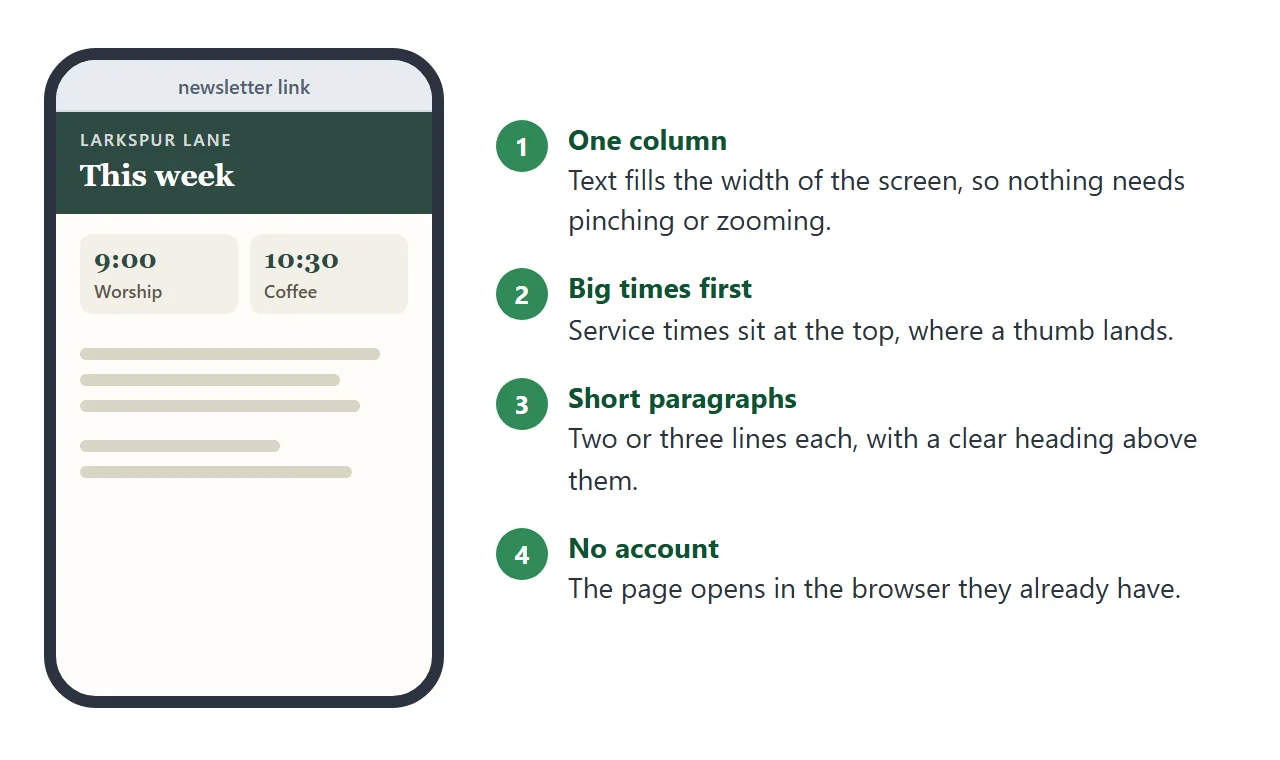
Fewer sections is better. A page that fits two or three thumb swipes on a phone gets read to the end.
Make it with AI
Paste the prompt below into ChatGPT, Claude or Gemini, then add your own notes under it. Replace the church name and date.
Write a church newsletter as ONE complete HTML file.
Church: [your church name]. Week of: [date].
Sections in this order: Sunday times, Announcements,
Prayer requests, Coming up, Contact.
Rules:
- One column, readable on a phone (include a viewport meta tag).
- Body text at least 17px, high contrast, a simple serif font.
- No external images, no scripts that load from other sites.
- Use only the facts in my notes. Where something is missing,
  write TODO instead of inventing it.
My notes:
[paste your announcements, times and prayer requests here]
Then check the result before you send it:
- Times and dates. Compare each one with your own notes. An AI can swap a time without any warning.
- TODO markers. Search for TODO and fill each one in or delete the line.
- Names. Remove any name you do not have permission to share.
- Phone view. Open the page on a phone and look for text that runs off the edge.
Send it as a link
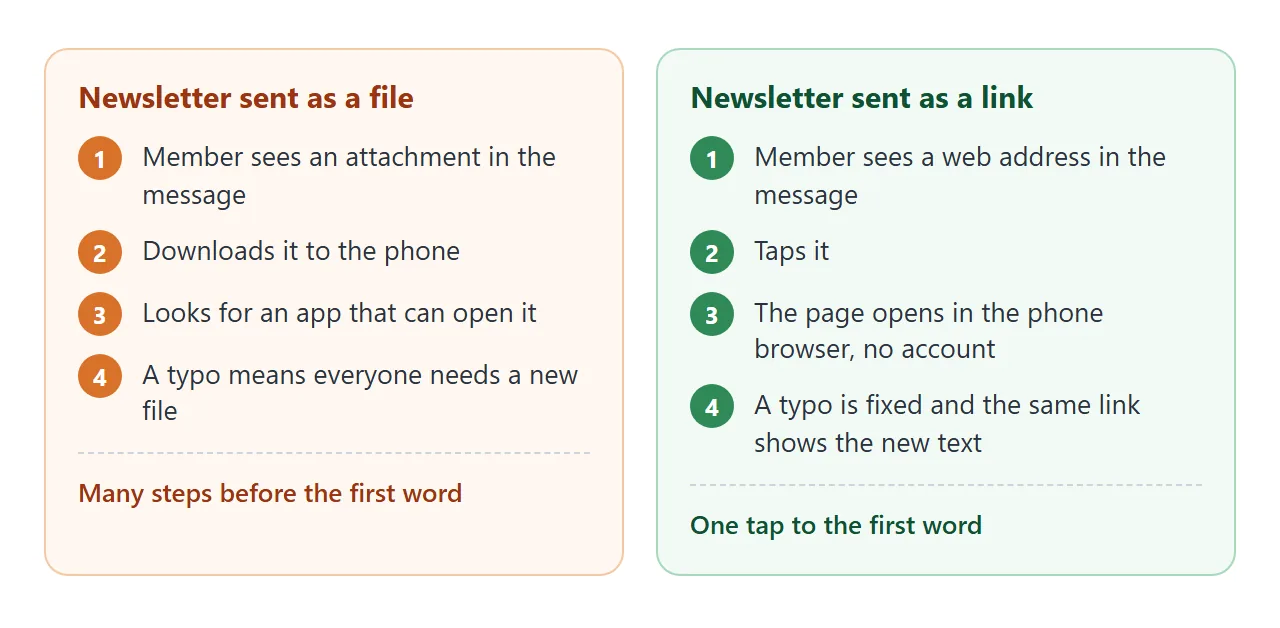
An HTML file attached to a message has to be downloaded and opened in a browser, which is a lot to ask of a member holding a phone. Why links beat attachments and opening an HTML file on a phone cover that in detail.
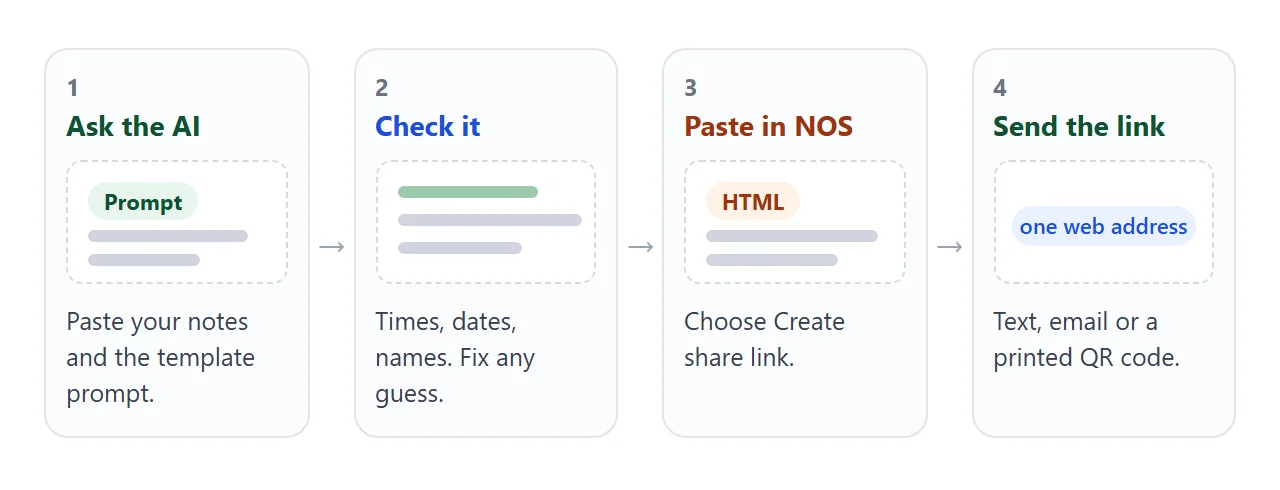
Paste the HTML into a NOS document and choose Create share link. HTML to link walks through it. The person who opens the link sees the finished page in their browser, phone included, with no account. They cannot edit it.
If you find a typo after sending, change the code in your NOS document. The same link shows the new version.
Anything that carries text can carry a link: a text message, an email or a group chat. How an app previews a link depends on the app, so send yourself the link first and look at it.
For paper, a QR code on the printed bulletin can point at the same page, as in QR code link.
Ways to share the newsletter compared
| Attached file | Share link | QR code on paper | |
|---|---|---|---|
| What the member does | Download, then open | Tap | Scan with the phone camera |
| Fix after sending | Send a new file | Edit, same link | Edit, same code |
| Needs an account to read | No | No | No |
| Best for | Keeping a copy | Weekly sending | Bulletin and noticeboard |
A second template: the monthly calendar
A weekly note suits news. A monthly page suits dates. This one lists the month and lets a member tap a group, so a parent sees only the children's events.
<!doctype html>
<html lang="en">
<head>
<meta charset="utf-8">
<meta name="viewport" content="width=device-width, initial-scale=1">
<title>October at Larkspur Lane</title>
<style>
  * { box-sizing: border-box; }
  body { margin: 0; font-family: system-ui, sans-serif; background: #f4f6f8; color: #1f2933; line-height: 1.5; }
  .wrap { max-width: 640px; margin: 0 auto; padding: 18px 16px 28px; }
  h1 { margin: 0 0 2px; font-size: 1.45rem; }
  .sub { margin: 0 0 14px; color: #52606d; font-size: .95rem; }
  .filters { display: flex; flex-wrap: wrap; gap: 8px; margin-bottom: 14px; }
  .filters button { font: 600 .9rem system-ui, sans-serif; padding: 9px 14px; border-radius: 999px; border: 1px solid #9aa5b1; background: #fff; color: #1f2933; cursor: pointer; }
  .filters button[aria-pressed="true"] { background: #2f4b43; border-color: #2f4b43; color: #fff; }
  ul { list-style: none; margin: 0; padding: 0; }
  li { display: grid; grid-template-columns: 62px 1fr; gap: 12px; background: #fff; border: 1px solid #e1e5ea; border-radius: 12px; padding: 12px; margin-bottom: 10px; }
  .date { text-align: center; background: #eef2ee; border-radius: 8px; padding: 6px 0; color: #2f4b43; }
  .date b { display: block; font-size: 1.35rem; line-height: 1.1; }
  .date span { font-size: .75rem; text-transform: uppercase; letter-spacing: .06em; }
  .what b { display: block; }
  .what span { color: #52606d; font-size: .9rem; }
  .tag { display: inline-block; margin-top: 4px; font-size: .75rem; padding: 1px 8px; border-radius: 999px; background: #e6eef5; color: #1f5f8b; }
  li[hidden] { display: none; }
  .empty { color: #52606d; }
</style>
</head>
<body>
<div class="wrap">
  <h1>October at Larkspur Lane</h1>
  <p class="sub">Tap a group to see only what is for you.</p>

  <div class="filters" id="filters">
    <button type="button" data-f="all" aria-pressed="true">All</button>
    <button type="button" data-f="worship" aria-pressed="false">Worship</button>
    <button type="button" data-f="kids" aria-pressed="false">Kids and youth</button>
    <button type="button" data-f="serve" aria-pressed="false">Serving</button>
  </div>

  <ul id="events">
    <li data-g="worship"><div class="date"><b>4</b><span>Oct</span></div><div class="what"><b>Sunday worship</b><span>9:00 am, sanctuary</span><br><span class="tag">Worship</span></div></li>
    <li data-g="serve"><div class="date"><b>10</b><span>Oct</span></div><div class="what"><b>Food pantry</b><span>9 am to noon, side entrance</span><br><span class="tag">Serving</span></div></li>
    <li data-g="kids"><div class="date"><b>11</b><span>Oct</span></div><div class="what"><b>Youth lunch</b><span>After worship, fellowship hall</span><br><span class="tag">Kids and youth</span></div></li>
    <li data-g="worship"><div class="date"><b>18</b><span>Oct</span></div><div class="what"><b>Fall potluck</b><span>After worship, bring a dish to share</span><br><span class="tag">Worship</span></div></li>
    <li data-g="kids"><div class="date"><b>21</b><span>Oct</span></div><div class="what"><b>Children's craft evening</b><span>6 pm, Room 2</span><br><span class="tag">Kids and youth</span></div></li>
    <li data-g="worship"><div class="date"><b>25</b><span>Oct</span></div><div class="what"><b>Hymn sing</b><span>4 pm, sanctuary</span><br><span class="tag">Worship</span></div></li>
    <li data-g="serve"><div class="date"><b>28</b><span>Oct</span></div><div class="what"><b>Visiting team</b><span>10 am, meet in the hall</span><br><span class="tag">Serving</span></div></li>
  </ul>
</div>

<script>
  const buttons = document.querySelectorAll('#filters button');
  const items = document.querySelectorAll('#events li');

  buttons.forEach((b) => {
    b.addEventListener('click', () => {
      const f = b.dataset.f;
      buttons.forEach((x) => x.setAttribute('aria-pressed', x === b));
      // Show an item when "all" is chosen or its group matches
      items.forEach((li) => { li.hidden = !(f === 'all' || li.dataset.g === f); });
    });
  });
</script>
</body>
</html>
To make your own, give the AI your list of dates and ask for "the same page with these events and these groups". Each event needs a group name, which is how the buttons know what to hide.
One link for every week, or a new one
Because editing keeps the same link, you have a choice.
- One standing link. Edit the page each week. Put the link on a printed card or QR code once. Last week's issue is replaced.
- A new document each week. Every issue keeps its own link, so you have an archive. Send the new link each time.
Pick the first if members like one place to look. Pick the second if people ask for old issues. For the email side of a newsletter, see HTML email newsletter and digital newsletter.
When it does not work
| What you see | Cause | Fix |
|---|---|---|
| The AI invents a time or a name | It filled a gap in your notes | Say "write TODO where missing" and check every detail |
| Text is tiny on a phone | The page has no viewport tag or fixed widths | Ask the AI to add the viewport tag and a single column |
| An image does not show | It loads from another site, which is blocked | Ask for shapes or inline SVG instead of an image address |
| A form on the page does not send | Sending a form to a server is blocked | Use an email address or a separate sign-up sheet |
| The page shows code instead of a layout | Only part of the HTML was pasted | Paste the whole file, from the first line to the closing html tag |
| A member says the link will not open | The link was cut in the message | Send it again on its own line |