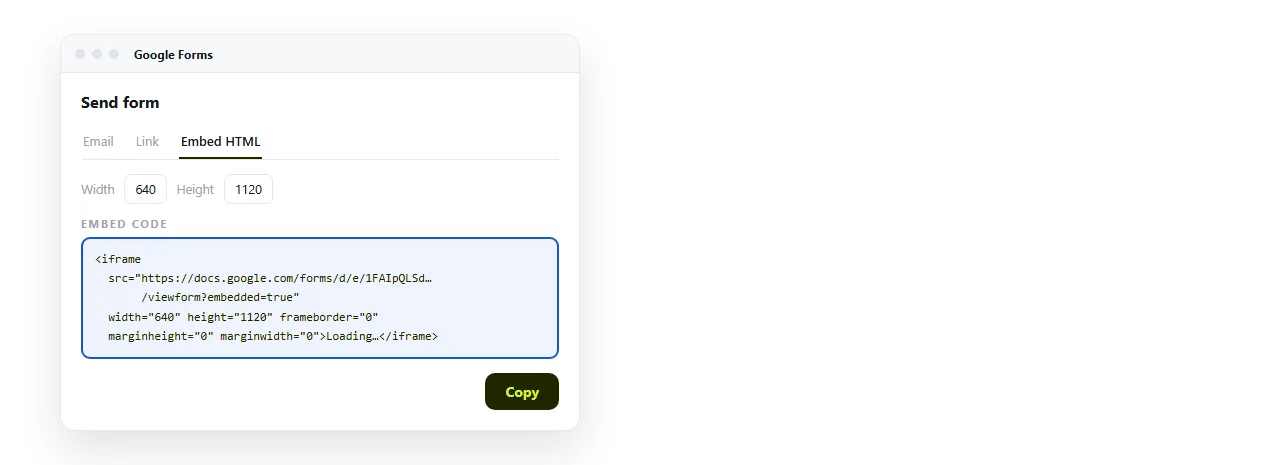
To embed a Google Form in HTML, open the form, click Send, choose the angle-bracket tab, and paste the iframe it gives you:
<iframe
  src="https://docs.google.com/forms/d/e/FORM_ID/viewform?embedded=true"
  width="640" height="800" frameborder="0"
  marginheight="0" marginwidth="0">Loading...</iframe>
The embedded=true parameter is what strips the Google header and footer. Without it you get the whole form page inside your frame, chrome and all.
The height is the whole problem
Everything else about this embed is routine. The height is not, and it is worth understanding why.
A frame loaded from another domain cannot tell your page how tall its content is. The browser blocks that read for security reasons, so no script of yours can measure it.
That leaves one option: you set a number and check the result. There is no automatic fit.
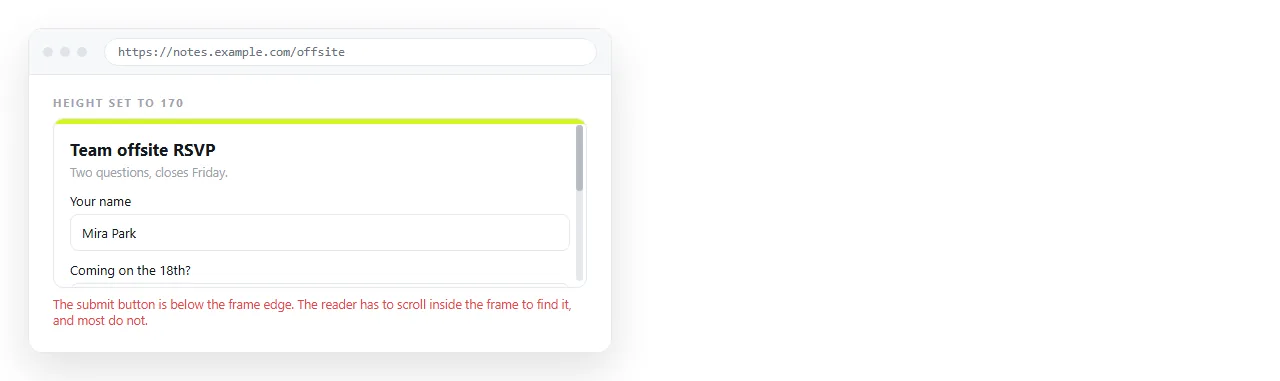
Set it too short and the submit button is below the fold of the frame, so readers scroll inside a box inside a page. Many will not realise there is more.
Set it generously instead. Extra blank space under the form is a much smaller problem than a hidden submit button.
.form-embed iframe {
  width: 100%;
  height: 1100px;
  border: 0;
  display: block;
}
Remember the confirmation screen
The form gets taller in one place people forget: after submission. The thank-you message replaces the questions and is usually shorter, which is fine.
The risk runs the other way with long forms that have page breaks. Section two may be taller than section one, and your height was measured on section one.
Test every section before you publish. Click through the form inside the frame rather than on its own page.
What you can and cannot control
| Thing | Controlled by | Reachable from your CSS |
|---|---|---|
| Question layout, colours, header image | Google Forms theme settings | No |
| Frame width and height | Your CSS or the attributes | Yes |
| Border, radius, shadow around the frame | Your CSS | Yes |
| Font inside the form | Forms theme | No |
| Whether the Google header shows | The embedded=true parameter |
Through the address only |
The practical consequence: set the form theme to something close to your page before embedding. Matching afterwards is not possible.
Prefilling fields
Forms can generate a link with answers already filled. Use the form's own Get pre-filled link option, then take the entry. parameters from the result.
Append them to the embed address, keeping embedded=true:
<iframe src="https://docs.google.com/forms/d/e/FORM_ID/viewform?embedded=true&entry.123456=Marketing"></iframe>
This is how one embedded form serves several pages while still recording which page the response came from. Give each page a different prefilled value in a hidden or short-answer field.
A Google Form embed in HTML, or a plain link
An embed keeps the reader on your page. A link sends them away and back. Both collect the same responses.
| Situation | Better choice |
|---|---|
| Short form, on a page people already read | Embed |
| Long multi-section form | Link |
| Form inside an email | Link, because mail clients strip frames |
| Form that must work on phones without double scrolling | Link |
| Page where the form is the only purpose | Either, but a link is one fewer failure point |
Mail clients are the firm case. Almost every client removes iframes, so a form embedded in an email body shows nothing. Send the address instead.
If you are building the surrounding page rather than the form, turning a form into a link covers the HTML-form version of the same job.
Getting the page itself to the reader
An embedded form is only useful if the host page opens. That is where these pages usually fail, not in the iframe.
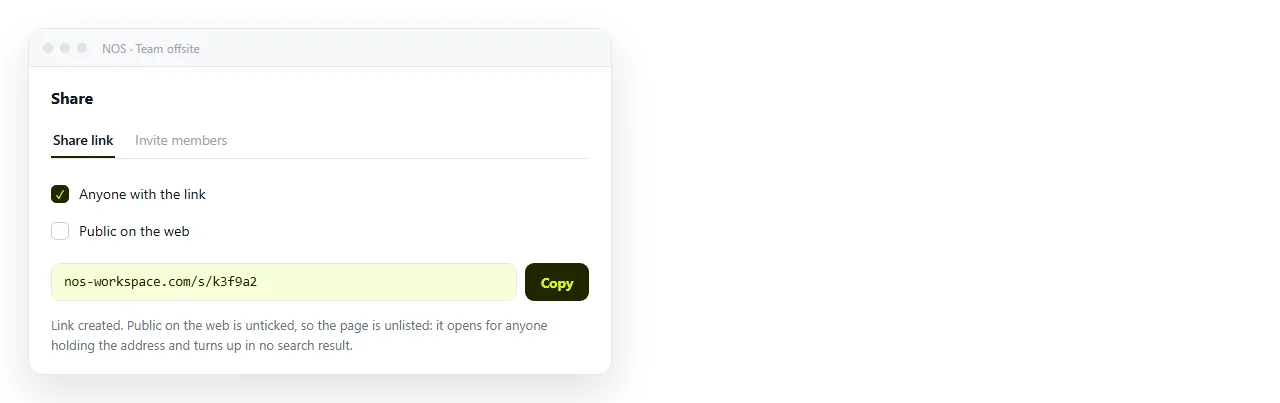
Sent as an .html attachment, the page is often stripped by mail filters, and on a phone it lands in storage and stops. Why links beat attachments sets out the failure modes.
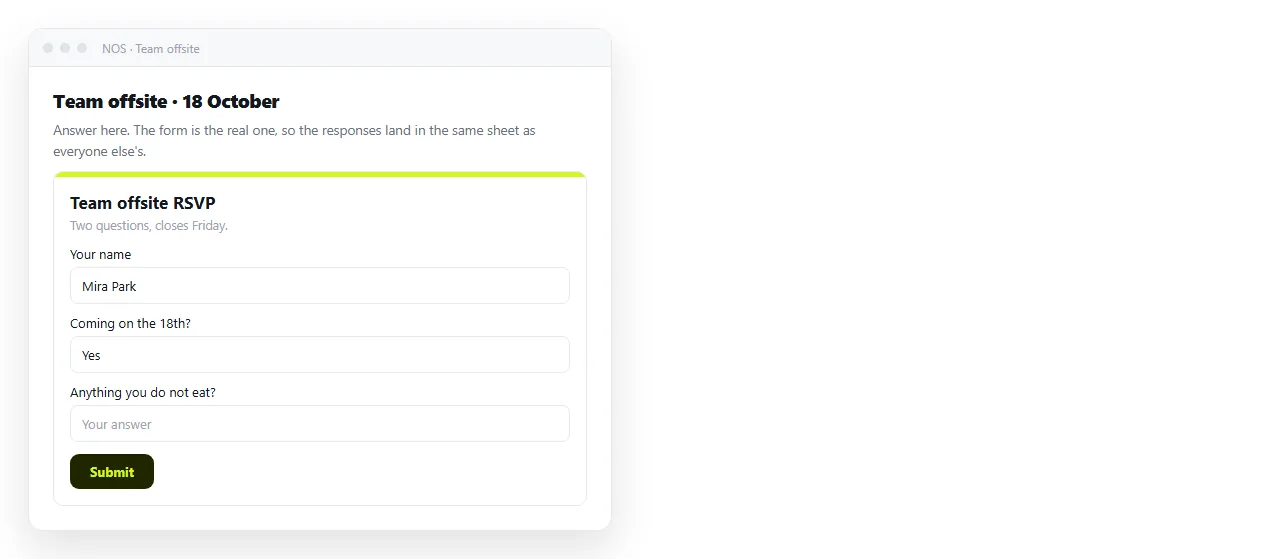
Paste the HTML into a NOS document instead. It renders as written, frame included, and the document has its own address to send.
The address survives edits. When you add an explanation above the form or raise the frame height, the link you already sent shows the corrected page.
A block you can paste as is
<section class="form-embed">
  <h2>Request access</h2>
  <p>Two minutes. We reply the same day.</p>
  <iframe
    src="https://docs.google.com/forms/d/e/FORM_ID/viewform?embedded=true"
    title="Access request form"
    width="100%" height="1100" style="border:0">Loading...</iframe>
</section>
Add the title attribute, which Google's copied code omits. It is the only label a screen reader gets for the frame, and it costs nothing.
If the form is one part of a larger page you are assembling, the HTML editor online lets you adjust the height and see the result without a save-and-refresh cycle.
Before you publish, check these
- Open the page signed out. A form restricted to your organisation shows a sign-in wall to outside readers, and you will never see it while signed in.
- Submit a test response. Confirm it reaches the linked sheet, then delete the row.
- Scroll to the bottom inside the frame. The submit button has to be visible without an inner scrollbar.
- Check on a phone. Narrow screens make forms taller, so the height that worked on a desktop is often short by a section.
- Read the confirmation message. It is the last thing the reader sees, and the default text says nothing about what happens next.
The second and fourth items catch most of what goes wrong after publishing. Both take under a minute and neither requires touching the markup again.