The <h2> tag is the heading of a main section of a page. The page title is the one <h1>, each big section under it starts with an <h2>, and <h3> to <h6> split those sections into smaller parts.
<h1>Weekend bread</h1>
<h2>Ingredients</h2>
<h2>Method</h2>
<h3>Mix and rest</h3>
<h3>Shape</h3>
Try it below. Tick the box to label every heading with its tag and see the levels that the page is built from.
<!doctype html>
<html lang="en">
<head>
<meta charset="utf-8">
<meta name="viewport" content="width=device-width, initial-scale=1">
<title>h2 and h3 headings</title>
<style>
  body { margin: 0; padding: 14px 18px; font-family: system-ui, sans-serif; color: #1d2330; background: #fff; }
  h1 { font-size: 24px; margin: 0 0 6px; }
  h2 { font-size: 19px; margin: 18px 0 4px; }
  h3 { font-size: 16px; margin: 10px 0 2px; }
  p  { font-size: 14px; line-height: 1.45; margin: 0; color: #4b5563; }
  .bar { display: block; font-size: 14px; margin-bottom: 10px; padding-bottom: 10px; border-bottom: 1px solid #e5e7eb; }

  /* "Show the tags": label every heading with its tag name and indent it by level */
  .tags :is(h1, h2, h3, h4, h5, h6)::before {
    font: 700 11px/1 ui-monospace, Consolas, monospace;
    color: #fff; background: #2563eb; border-radius: 4px;
    padding: 3px 5px; margin-right: 8px; vertical-align: 3px;
  }
  .tags h1::before { content: "h1"; }
  .tags h2::before { content: "h2"; background: #0f766e; }
  .tags h3::before { content: "h3"; background: #9333ea; }
  .tags h3, .tags h3 + p { margin-left: 22px; }
</style>
</head>
<body>
<label class="bar"><input type="checkbox" id="show"> Show the tags</label>

<main id="page">
  <h1>Weekend bread</h1>
  <p>A plain loaf you can start on Saturday morning.</p>

  <h2>Ingredients</h2>
  <p>Flour, water, salt and a little yeast.</p>

  <h2>Method</h2>
  <h3>Mix and rest</h3>
  <p>Stir everything together and leave it for an hour.</p>
  <h3>Shape</h3>
  <p>Fold the dough into a ball on a floured table.</p>
  <h3>Bake</h3>
  <p>40 minutes in a hot oven, lid on for the first half.</p>

  <h2>Storing it</h2>
  <p>Wrap it in a cloth. It keeps for two days.</p>
</main>

<script>
  // Toggle a class; the CSS above does the labelling
  document.getElementById('show').addEventListener('change', (e) => {
    document.getElementById('page').classList.toggle('tags', e.target.checked);
  });
</script>
</body>
</html>
The main title itself, how many h1 elements to use and how to size it are in the h1 tag guide. This guide is about everything under it.
h2 to h6: what each level is for
Headings are ranks in an outline, like the numbers in 1, 1.1 and 1.1.1. Each level is a part of the nearest heading above it with a smaller number.
| Tag | Use it for | Default size (HTML standard) |
|---|---|---|
<h2> |
Main sections of the page | 1.5em |
<h3> |
Parts of an h2 section | 1.17em |
<h4> |
Parts of an h3 | 1em, same as body text |
<h5> |
Parts of an h4 | 0.83em, smaller than body text |
<h6> |
Parts of an h5 | 0.67em |
Most pages need only h2 and h3, sometimes h4. If a page reaches h5 and h6, it is usually worth checking whether some of those are really labels rather than sections.
The sizes column is the browser's starting point, not a rule. Change it in CSS whenever you like. Font size in CSS covers the units.
Pick the level from the parent, not the look
To choose a level, look up the page to the nearest heading this new one belongs under. Take its number and add one.
Coming back out works the other way: when a new main section starts, it is an h2 again, however deep the previous one went.
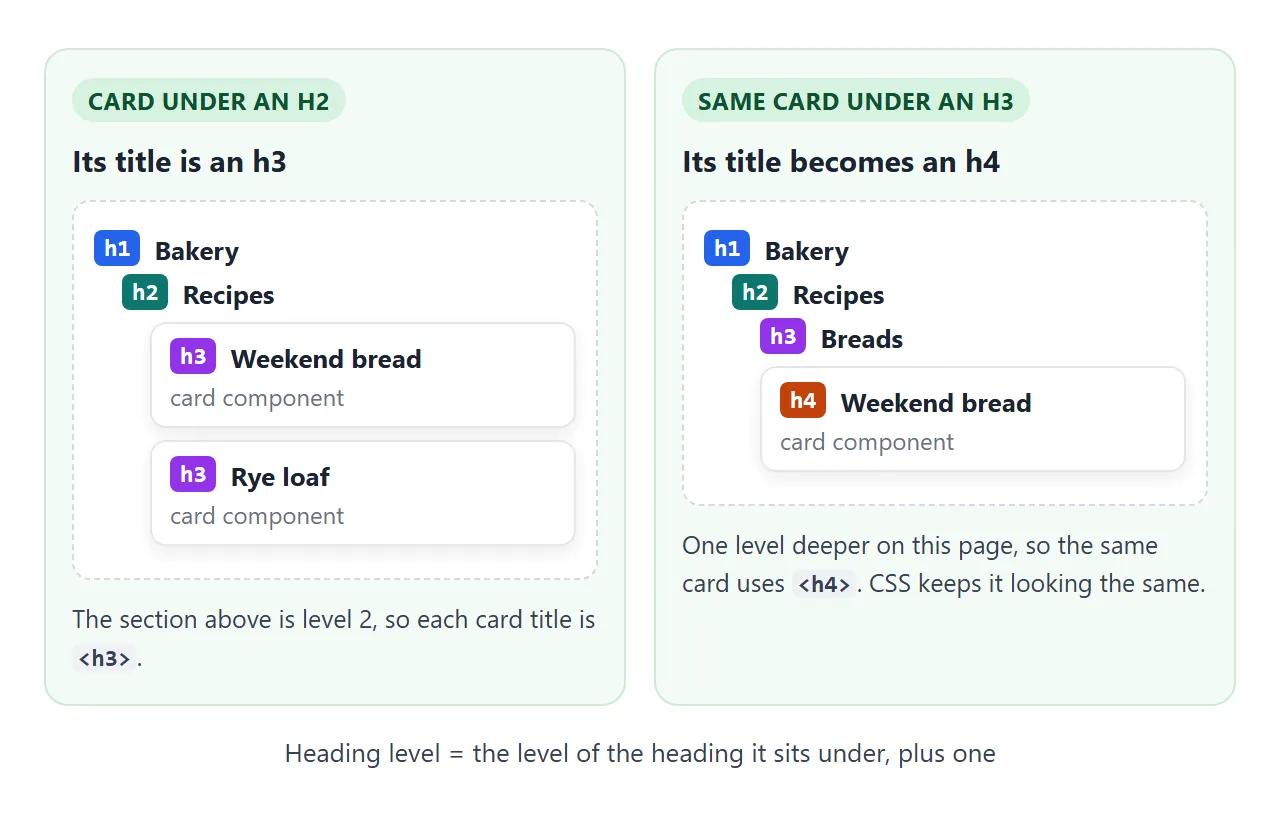
This matters most for reusable blocks such as cards, teasers and sidebars. The same card can sit under an h2 on one page and under an h3 on another. Its title level should follow.
In a template or a component, make the level a setting and keep the look in a class:
<!-- under an h2 section -->
<h3 class="card-title">Weekend bread</h3>

<!-- the same card, one level deeper -->
<h4 class="card-title">Weekend bread</h4>
.card-title { font-size: 1.1rem; margin: 0 0 .25em; }
The class gives both the same size, so the page looks unchanged while each outline stays correct.
Not every bold line is a heading
A heading starts a section: something with content of its own under it. "Price", "In stock" and "Weight" on a small product card are labels for a single value. As headings, they turn the outline into a long list of labels.
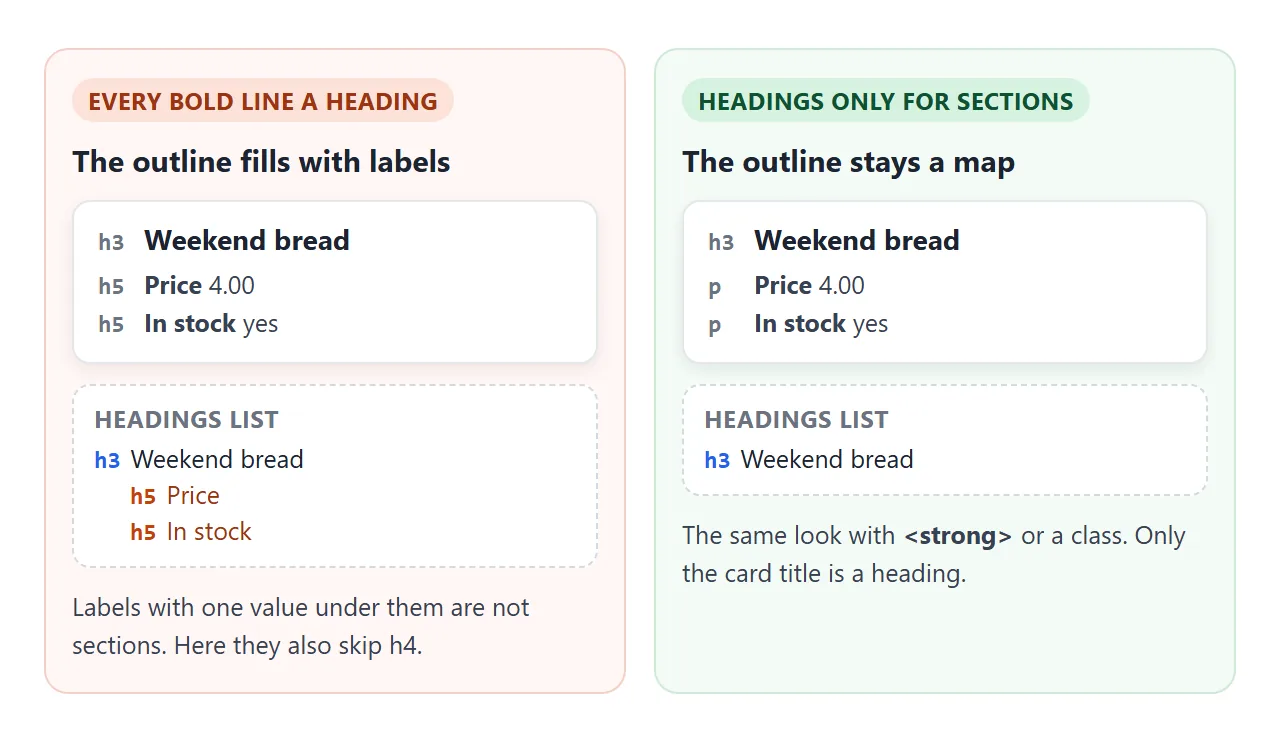
For a bold label, use <strong> inside a paragraph, or a class on a <p> or <span>. The strong tag guide covers when bold also means important. For label and value pairs, a description list (<dl>, <dt>, <dd>) is another option.
The opposite also happens: a section title built as <div class="title">. It looks like a heading, but nothing that reads the markup sees one. Semantic HTML has more of these swaps.
Title and subtitle: hgroup
A subtitle or tagline under a heading is not a section of its own. Marking it as an h2 adds an empty section to the outline. The <hgroup> element exists for this case:
<hgroup>
  <h1>Weekend bread</h1>
  <p>A plain loaf for Saturday</p>
</hgroup>
In the current HTML standard, an hgroup holds exactly one heading, h1 to h6, plus paragraphs before or after it. The p stays a paragraph, so the outline has one entry. Compare the three ways to write it:
<!doctype html>
<html lang="en">
<head>
<meta charset="utf-8">
<meta name="viewport" content="width=device-width, initial-scale=1">
<title>Title and subtitle: h2 vs hgroup</title>
<style>
  body { margin: 0; padding: 12px; font-family: system-ui, sans-serif; background: #f4f5f7; color: #1d2330; }
  .pick { display: flex; flex-wrap: wrap; gap: 6px 16px; font-size: 14px; margin-bottom: 10px; }
  .box { background: #fff; border-radius: 10px; padding: 12px 14px; box-shadow: 0 2px 8px rgba(0, 0, 0, .08); margin-bottom: 10px; }
  .label { font-size: 12px; font-weight: 700; color: #6b7280; text-transform: uppercase; letter-spacing: .4px; margin-bottom: 6px; }
  #view h1 { font-size: 22px; margin: 0; }
  #view h2, #view p { font-size: 15px; font-weight: 400; color: #6b7280; margin: 2px 0 0; }
  pre { margin: 0; font: 13px/1.5 ui-monospace, Consolas, monospace; white-space: pre-wrap; color: #1d4ed8; }
  #found { margin: 0; padding-left: 18px; font-size: 14px; line-height: 1.6; }
  #verdict { margin-top: 8px; font-size: 13px; padding: 6px 8px; border-radius: 6px; }
  .bad { background: #fff7ed; color: #9a3412; }
  .good { background: #ecfdf3; color: #0f5132; }
</style>
</head>
<body>
<div class="pick">
  <label><input type="radio" name="v" value="h2" checked> h1 + h2</label>
  <label><input type="radio" name="v" value="hgroup"> hgroup</label>
  <label><input type="radio" name="v" value="p"> h1 + p</label>
</div>

<div class="box"><div class="label">What the reader sees</div><div id="view"></div></div>
<div class="box"><div class="label">The markup</div><pre id="code"></pre></div>
<div class="box">
  <div class="label">Headings in the outline</div>
  <ol id="found"></ol>
  <div id="verdict"></div>
</div>

<script>
  const versions = {
    h2: ['<h1>Weekend bread</h1>\n<h2>A plain loaf for Saturday</h2>',
         'The subtitle is listed as a section heading, with nothing under it.', 'bad'],
    hgroup: ['<hgroup>\n  <h1>Weekend bread</h1>\n  <p>A plain loaf for Saturday</p>\n</hgroup>',
             'One heading. hgroup ties the p to it as its subtitle.', 'good'],
    p: ['<h1>Weekend bread</h1>\n<p>A plain loaf for Saturday</p>',
        'One heading. The subtitle is an ordinary paragraph.', 'good'],
  };

  function show(key) {
    const [html, note, cls] = versions[key];
    const view = document.getElementById('view');
    view.innerHTML = html;
    document.getElementById('code').textContent = html;

    // List every heading element inside the rendered markup
    const list = document.getElementById('found');
    list.innerHTML = '';
    view.querySelectorAll('h1, h2, h3, h4, h5, h6').forEach((h) => {
      const li = document.createElement('li');
      li.textContent = h.tagName.toLowerCase() + ': ' + h.textContent;
      list.append(li);
    });

    const v = document.getElementById('verdict');
    v.textContent = note;
    v.className = cls;
  }

  document.querySelectorAll('input[name=v]').forEach((r) =>
    r.addEventListener('change', () => show(r.value)));
  show('h2');
</script>
</body>
</html>
An earlier version of the standard allowed several headings inside hgroup, with only the highest one counting. That was changed, so older tutorials that show <hgroup><h1>…<h2>…</hgroup> are out of date.
A plain <p> after the heading, as in the third option, is also fine. hgroup adds only the grouping. It works the same with an h2 or h3 for a section title and its subheading.
How people and tools use your headings
Headings are the page's map for anyone who cannot, or does not want to, read top to bottom.
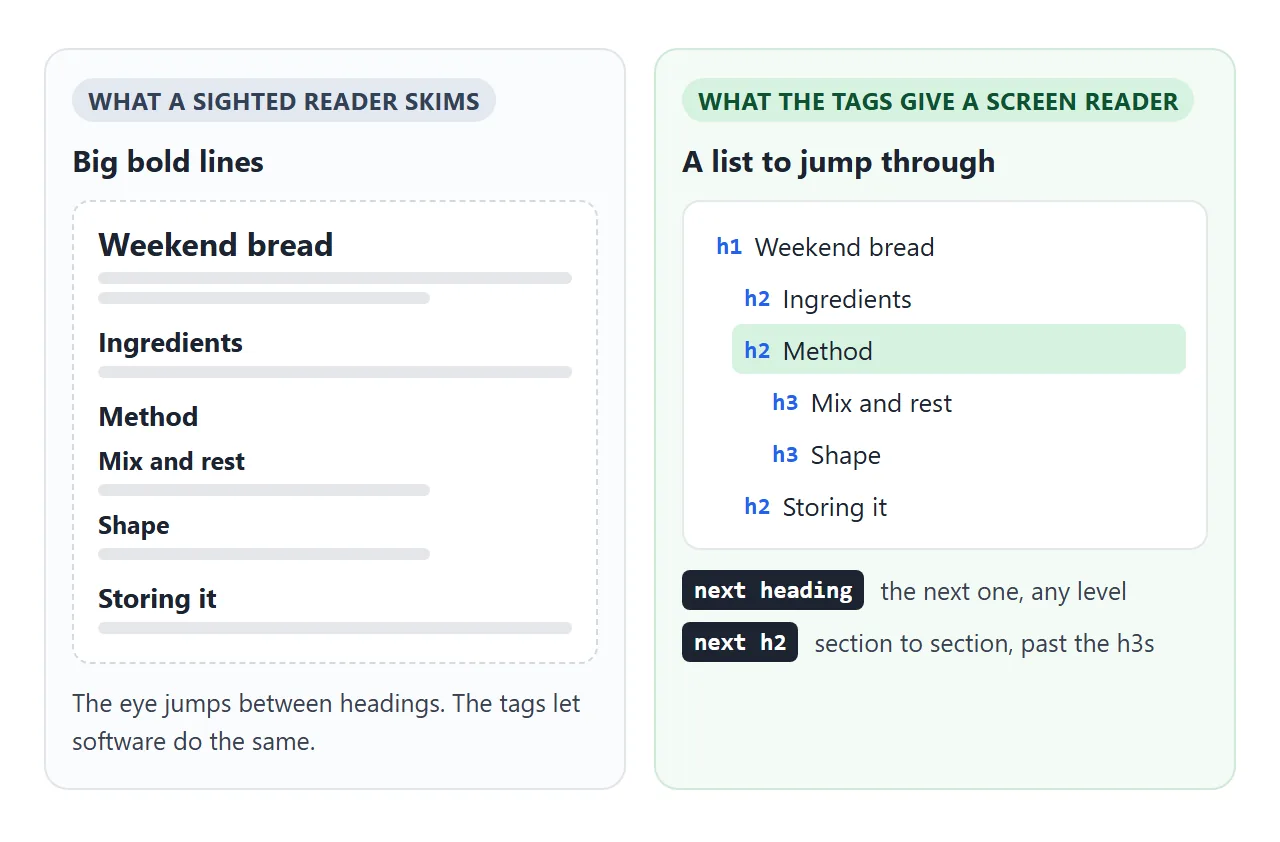
- Screen readers list the headings of a page and move between them. NVDA and JAWS, for example, use the H key for the next heading and the keys 1 to 6 for the next heading at that level.
- Search engines read headings along with the rest of the text to see what a page covers and how it is divided.
- Tables of contents are often generated from the
h2elements. Give each one anidand it can be linked, as in building a table of contents and linking to a section on the same page.
Every one of these reads only real heading elements. The look of a line has no effect.
When the markup cannot be changed to an h tag, ARIA can mark a heading: <div role="heading" aria-level="2">. It is a fallback. A real <h2> does the same with less code.
A live outline viewer
The quickest check is to list a page's headings the way software sees them. One line of JavaScript collects them in document order:
document.querySelectorAll('h1, h2, h3, h4, h5, h6')
The viewer below does that for any HTML you paste. It indents each heading by its level and flags three things it can detect for sure: a skipped level on the way down, more than one h1, and a heading with no text.
<!doctype html>
<html lang="en">
<head>
<meta charset="utf-8">
<meta name="viewport" content="width=device-width, initial-scale=1">
<title>Heading outline viewer</title>
<style>
  body { margin: 0; padding: 12px; font-family: system-ui, sans-serif; background: #f4f5f7; color: #1d2330; }
  .box { background: #fff; border-radius: 10px; padding: 12px 14px; box-shadow: 0 2px 8px rgba(0, 0, 0, .08); margin-bottom: 10px; }
  .label { font-size: 12px; font-weight: 700; color: #6b7280; text-transform: uppercase; letter-spacing: .4px; margin-bottom: 6px; }
  textarea { box-sizing: border-box; width: 100%; height: 190px; font: 13px/1.45 ui-monospace, Consolas, monospace; border: 1px solid #d5d9e0; border-radius: 8px; padding: 8px; resize: vertical; }
  .btns { display: flex; flex-wrap: wrap; gap: 8px; margin-top: 8px; }
  button { font: inherit; font-size: 13px; padding: 6px 10px; border: 1px solid #cbd2dc; border-radius: 7px; background: #fff; cursor: pointer; }
  #count { font-size: 13px; color: #4b5563; margin-bottom: 6px; }
  #outline { list-style: none; margin: 0; padding: 0; font-size: 14px; }
  #outline li { padding: 3px 8px; margin: 2px 0; border-left: 2px solid #e5e7eb; }
  #outline code { font-size: 12px; color: #2563eb; margin-right: 6px; }
  #outline li.bad { border-left-color: #ea580c; background: #fff7ed; }
  #outline .why { display: block; font-size: 12px; color: #9a3412; }
  #summary { margin-top: 8px; font-size: 13px; padding: 6px 8px; border-radius: 6px; }
  .warn { background: #fff7ed; color: #9a3412; }
  .ok { background: #ecfdf3; color: #0f5132; }
</style>
</head>
<body>
<div class="box">
  <div class="label">Paste a page's HTML</div>
  <textarea id="src" spellcheck="false" aria-label="HTML to check"></textarea>
  <div class="btns">
    <button id="messy" type="button">Sample with problems</button>
    <button id="clean" type="button">Fixed sample</button>
  </div>
</div>

<div class="box">
  <div class="label">Heading outline</div>
  <div id="count"></div>
  <ul id="outline"></ul>
  <div id="summary"></div>
</div>

<script>
  const samples = {
    messy: `<h1>Weekend bread</h1>
<h1>A plain loaf for Saturday</h1>
<h2>Ingredients</h2>
<h4>Flour</h4>
<h2>Method</h2>
<h3>Mix and rest</h3>
<h3></h3>
<h5>Price: free</h5>`,
    clean: `<hgroup>
  <h1>Weekend bread</h1>
  <p>A plain loaf for Saturday</p>
</hgroup>
<h2>Ingredients</h2>
<h3>Flour</h3>
<h2>Method</h2>
<h3>Mix and rest</h3>
<h3>Shape</h3>
<p><strong>Price:</strong> free</p>`,
  };
  const src = document.getElementById('src');

  function check() {
    // Parse the text into a separate, inert document (its scripts do not run)
    const doc = new DOMParser().parseFromString(src.value, 'text/html');
    const heads = [...doc.querySelectorAll('h1, h2, h3, h4, h5, h6')];
    const out = document.getElementById('outline');
    out.innerHTML = '';
    let prev = 0, problems = 0;
    const h1s = heads.filter((h) => h.tagName === 'H1').length;

    heads.forEach((h) => {
      const level = Number(h.tagName[1]);   // "H3" -> 3
      const text = h.textContent.trim();
      const why = [];
      if (prev && level > prev + 1) why.push('skips from h' + prev + ' to h' + level);
      if (level === 1 && h1s > 1) why.push('more than one h1');
      if (!text) why.push('empty heading');

      const li = document.createElement('li');
      li.style.marginLeft = (level - 1) * 16 + 'px';   // indent by level
      li.innerHTML = '<code>h' + level + '</code>';
      li.append(text || '(no text)');
      if (why.length) {
        li.className = 'bad';
        const s = document.createElement('span');
        s.className = 'why';
        s.textContent = why.join(', ');
        li.append(s);
        problems++;
      }
      out.append(li);
      prev = level;
    });

    document.getElementById('count').textContent = heads.length + ' headings found';
    const sum = document.getElementById('summary');
    const notes = [];
    if (!heads.length) notes.push('no headings at all');
    else if (!h1s) notes.push('no h1');
    if (problems) notes.push(problems + ' heading(s) to look at');
    sum.textContent = notes.length ? 'Check: ' + notes.join(', ') + '.' : 'No skipped levels, one h1, no empty headings.';
    sum.className = notes.length ? 'warn' : 'ok';
  }

  src.addEventListener('input', check);
  document.getElementById('messy').addEventListener('click', () => { src.value = samples.messy; check(); });
  document.getElementById('clean').addEventListener('click', () => { src.value = samples.clean; check(); });
  src.value = samples.messy;
  check();
</script>
</body>
</html>
The key parts of the code:
DOMParserturns the pasted text into a separate document. Its scripts do not run and nothing is added to the viewer page.Number(h.tagName[1])reads the level from the tag name, soH3gives 3.level > prev + 1catches a skip on the way down. Going back up, fromh4toh2, is normal and is not flagged.
A tool can see levels, not meaning. It cannot tell that "Price" should be a label, not a heading. Read the outline yourself too: it should read like a table of contents for the page.
To check a live page instead, paste the querySelectorAll line into the browser's developer console on that page.
When it does not work
| What you see | Cause | Fix |
|---|---|---|
| The outline jumps from h2 to h4 | A heading was chosen for its size | Use h3 and set font-size in CSS |
| A subtitle shows up as an empty section | The tagline under the title is an h2 |
Make it a <p>, wrapped with the heading in hgroup if you like |
| The headings list is full of "Price", "Date" and similar | Labels were written as h4 to h6 |
Use <strong> or a class on a <p> |
| A card title is h3 on one page and wrong on another | The level is fixed inside a reused component | Make the level a setting, keep the look in a class |
| A bold title never appears in the headings list | It is a styled <div> or <p> |
Use a real h2 or h3 |
| An h5 looks smaller than the text around it | Default size is 0.83em | Set font-size on it, and check whether it should be an h5 at all |
Share it as a link
Heading structure is easier to check in the working page than in a screenshot. Someone can tick "Show the tags" or paste their own HTML into the viewer, and see the outline for themselves. An .html attachment may open as plain code on a phone.
To send the working version, paste the page into a NOS document and choose Create share link. HTML to link walks through it.
The page renders as written and its scripts run, so the outline viewer works for whoever opens it. If you fix the headings later, the same link shows the new version.