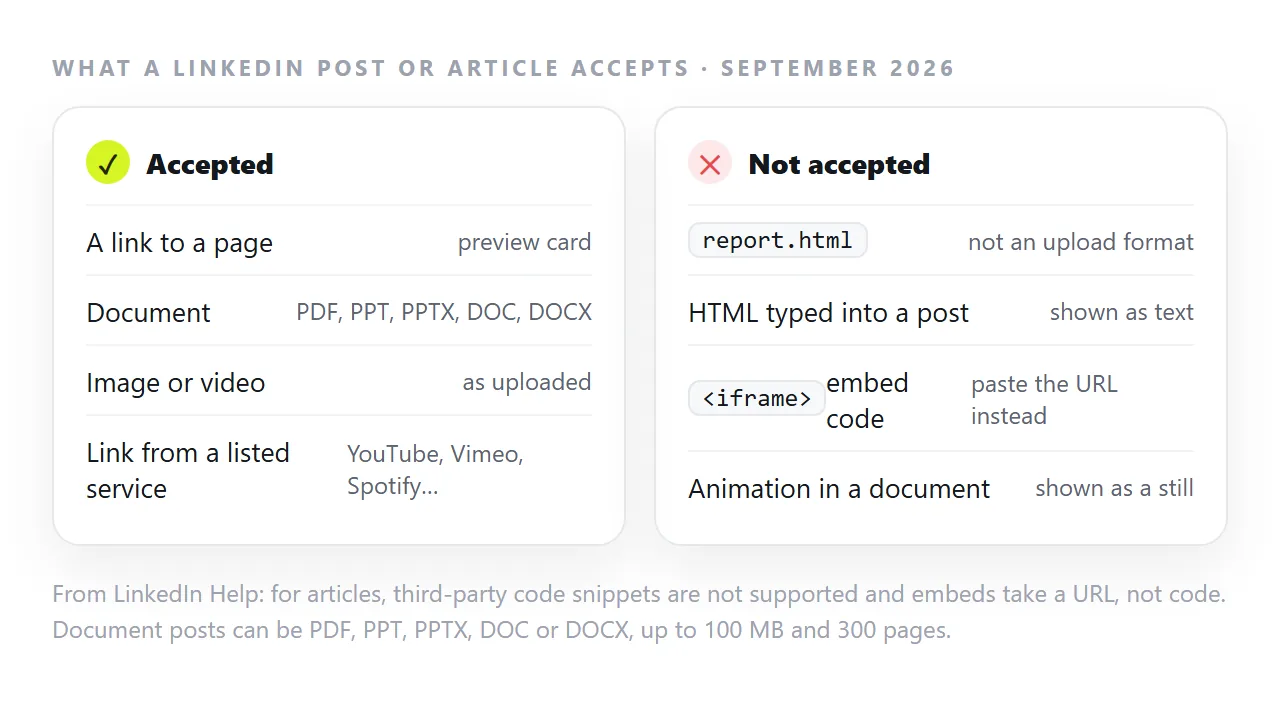
A LinkedIn post has no field for HTML. For articles, LinkedIn Help states that third-party code snippets are not supported and asks for a URL rather than embed code, and .html is not one of the file types a document post accepts. To share an interactive page, share a link to it.
This guide covers what each LinkedIn format accepts, where a link fits, and how to make the preview card show the right title and picture.
What LinkedIn accepts, format by format
Posts take text, links, mentions and hashtags, plus media you upload: images, video and documents. Tags you type into a post are shown as text.
Articles accept embeds from a list of services. LinkedIn Help asks you to paste the URL of the content, not its embed code, and names services such as YouTube, Vimeo, Spotify, SlideShare and SoundCloud. LinkedIn Help lists the services it embeds; for other addresses, post the link.
Document posts accept PDF, PPT, PPTX, DOC and DOCX, up to 100 MB and 300 pages (as of September 2026). LinkedIn notes that videos and other animations inside a document are shown as still images.
None of the three has a place for an .html file or a block of HTML. That rules out the two things people usually try first: uploading the file, and pasting the code.
Where the page can go instead
That leaves three routes: turn the page into a document, post a picture of it, or put the page at an address and post the link.
| Route | What people see in the feed | What survives |
|---|---|---|
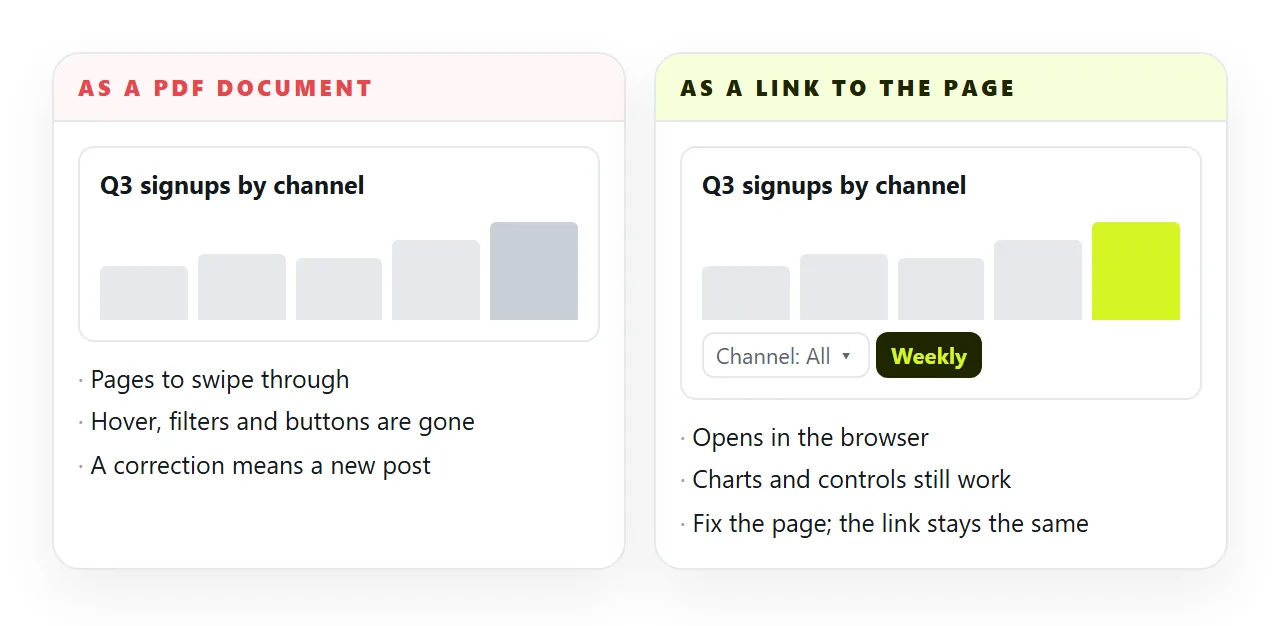
| Export to PDF, post as a document | Pages to swipe through | Text, layout and colours. Hover, filters, buttons and live data do not |
| Screenshot as an image | One picture | The look of one screen |
| Link to the page | A preview card | The page itself, including hover, filters and charts |
A document post is a good fit when the page is finished and static, such as a one-page summary. A link is the fit when the point is interaction: a chart people can hover, a calculator, a filterable table, a demo.
The two also combine well. A document gives people something to swipe through in the feed, and a link in the text takes them to the working version.
How LinkedIn builds the link preview
When a post contains an address, LinkedIn reads a few tags from the page's head and turns them into a card. LinkedIn Help lists the ones it uses:
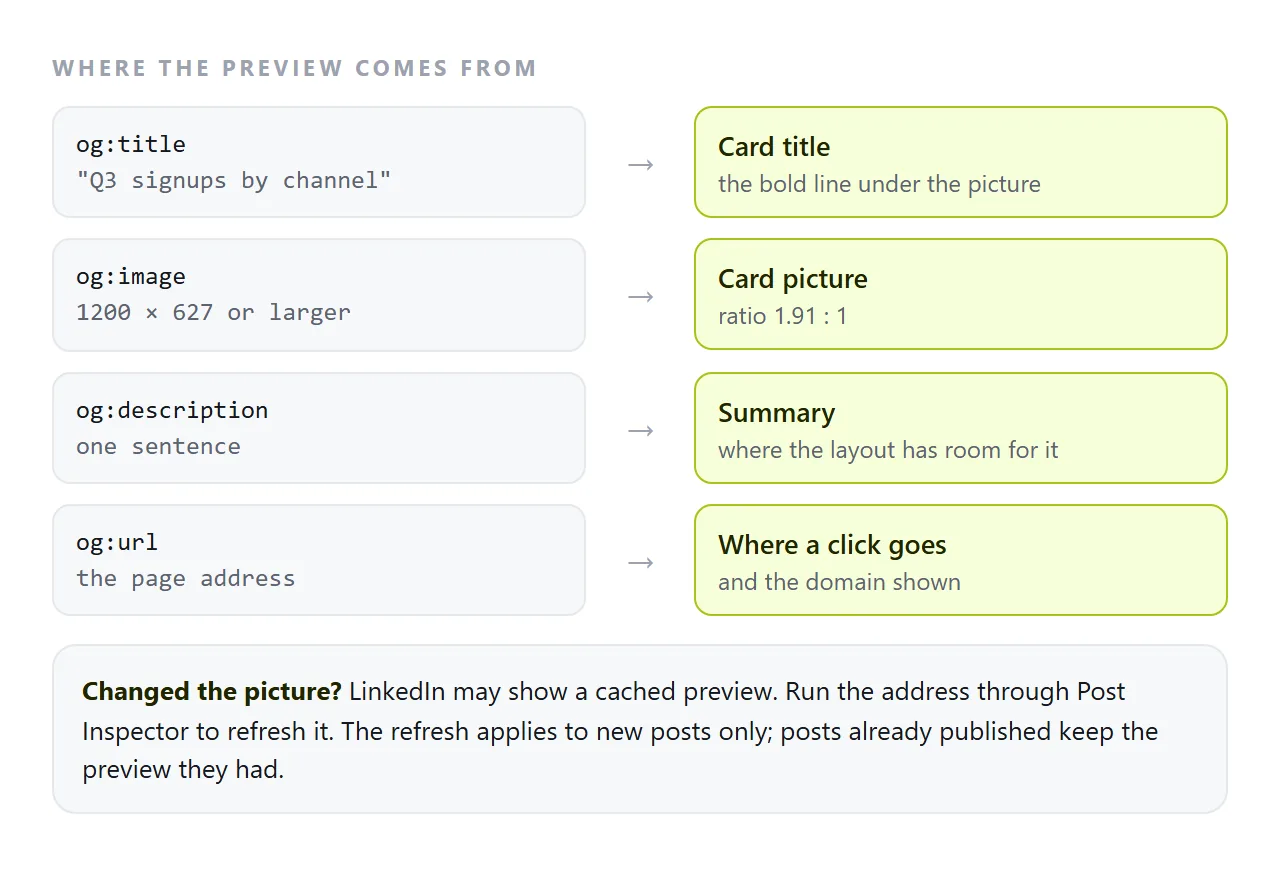
<meta property="og:title" content="Q3 signups by channel">
<meta property="og:description" content="Weekly signups by source, July to September.">
<meta property="og:image" content="https://example.com/q3-card.png">
<meta property="og:url" content="https://example.com/q3">
LinkedIn's guidance for the picture is at least 1200 by 627 pixels, at a ratio of 1.91 to 1. LinkedIn Help notes that images under 401 pixels wide show as a small thumbnail. Open Graph tags explains each tag in more detail.
LinkedIn may show a cached preview, so a changed picture or title may not appear straight away. Run the address through Post Inspector to fetch it again. LinkedIn notes that this updates new posts only; posts already published keep the card they had.
How to share the page as a link: 4 steps
- Give the page an address. Paste the HTML into a NOS document and copy the link from Share › Share link. Turning HTML into a link is one paste. The page renders as written, and its scripts run.
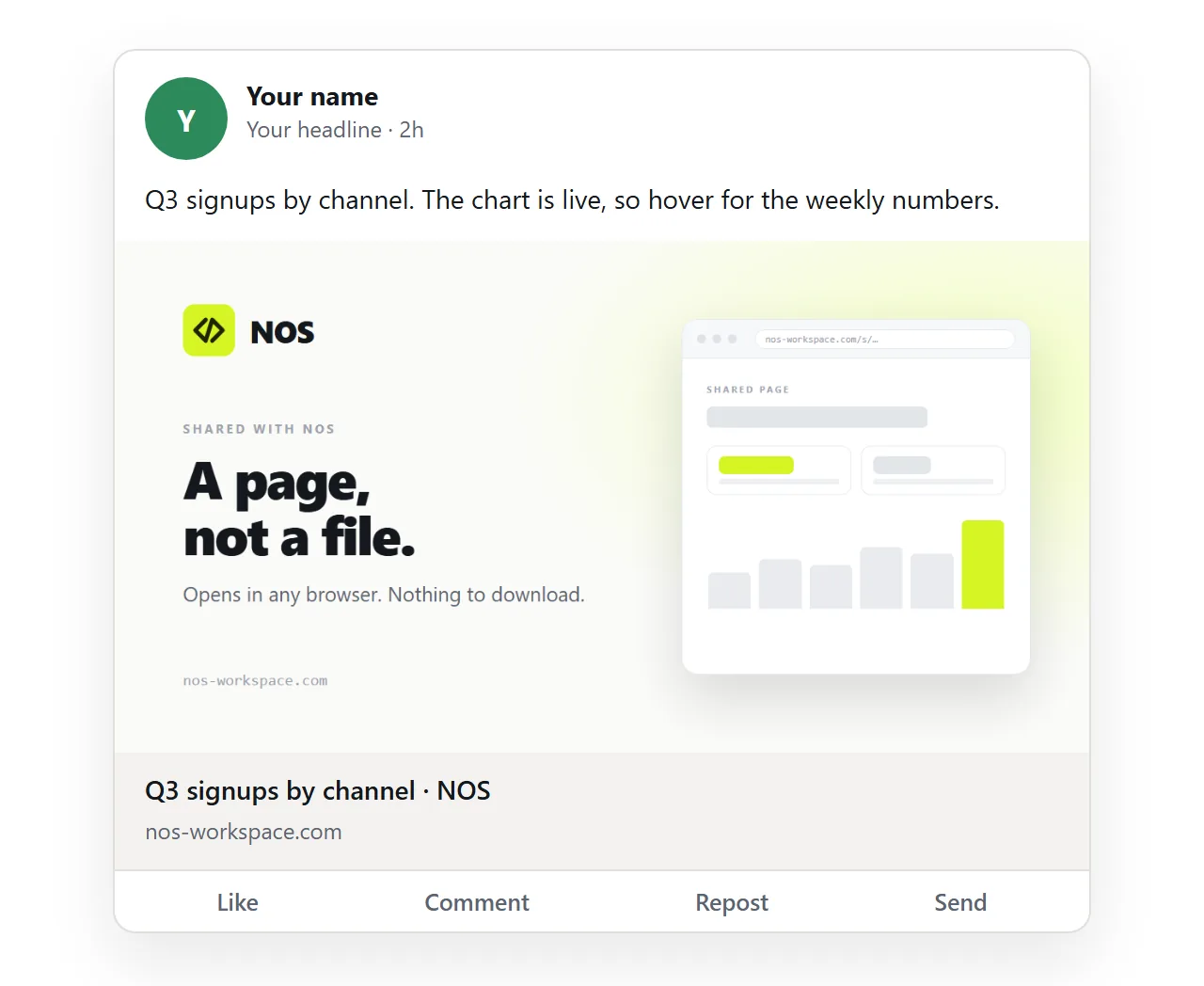
- Check the preview. NOS share links carry a title taken from your page, a description and a 1200 by 630 card image. Paste the address into Post Inspector to see how LinkedIn reads it.
- Post the link with a line of context. Say what the page shows and what to try: "Q3 signups by channel. Hover a bar for the weekly numbers."
- Fix the page, not the post. If a number changes after you post, edit the page. The link in your post already points at the corrected version, so there is no second post and the card in the first one still works.
Before you post
A few checks that save a deleted post:
- Open the link in a private window. If the page needs a login, LinkedIn may not be able to read its tags, and the card can show the login page or nothing.
- Look at it on a phone. Check that the page is readable at phone width. Opening an HTML page on a phone covers what breaks.
- Check the numbers are ones you can share. A link is public to anyone who has it. Remove anything internal before you post.
The same question in other apps
LinkedIn is not the only app without a place for an HTML file: Slack shows a file card and Discord shows a code preview. Across all of them, a link is handled the same way, which is why a link usually beats an attachment.
In NOS the pasted HTML becomes a page at a fixed address. You can change the wording by clicking it, and the link you posted keeps pointing at the current version however many times you revise it.