The HTML to PDF keep links problem has one fix: print from a browser with Save as PDF, and make sure every address is absolute before you do it.
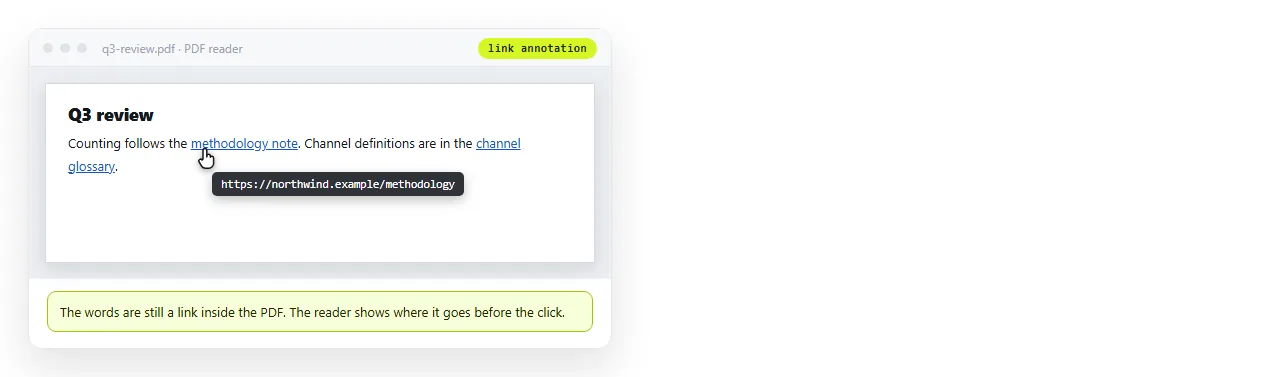
Browser printing carries anchor elements through as real link annotations. The clickable area follows the text, so what you see underlined in the page is what is clickable in the file.
HTML to PDF keep links: what each route does
| Export route | Links survive | Text selectable |
|---|---|---|
| Browser Print, Save as PDF | Yes | Yes |
| Command line headless browser print | Yes | Yes |
| Screenshot, then place in a PDF | No | No |
| HTML to image, then convert | No | No |
| Word or Docs as an intermediate step | Usually | Yes |
The split is simple. Anything that turns the page into a picture at any point has already thrown the link data away, and no later step can recover it.
The relative address trap
This is the failure people misread as the converter being broken. Your page contains a link like this.
<a href="/reports/q3">Q3 detail</a>
On a website that resolves against the site it is served from. In a PDF sitting in someone's downloads folder there is no site, so the link has nothing to attach to and does nothing.
The fix is to make it absolute before exporting.
<a href="https://example.com/reports/q3">Q3 detail</a>
Relative versus absolute paths covers the distinction in general. For PDF export the rule has no exceptions: every outgoing link must be a full address.
Watch for the same problem in images. A relative src will not render in the print preview either, which is a separate and equally common cause of a half empty export.
There is a shortcut if the page is already served somewhere. Add a <base href="https://example.com/"> element in the head and relative links resolve against it.
Browsers apply that when rendering, and the printed output inherits the resolved addresses. It is one line, and it fixes every relative link in the document at once.
Check a link in the preview afterwards, because a base element with a missing trailing slash resolves one level higher than you expect.
Writing the address out for paper
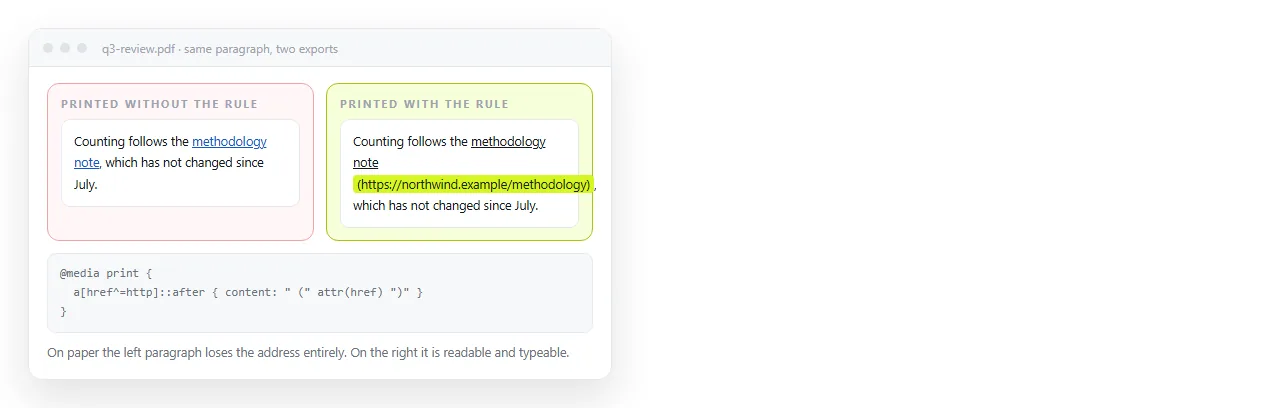
A clickable link is useless on a printed sheet. If the PDF might be printed, put the address in the text.
@media print {
  a[href^="http"]::after {
    content: " (" attr(href) ")";
    font-size: 0.85em;
    color: #555;
  }
}
The ^="http" part restricts this to external links. Without it every internal anchor and every mailto gets an ugly bracket after it.
Long addresses will wrap badly in a narrow column. If the document is full of links, a numbered reference list at the end reads better than inline brackets.
Print stylesheets covers this alongside the other rules worth adding before an export.
In-page anchors are the unreliable ones
A table of contents that links to headings on the same page is the case that behaves inconsistently.
Sometimes the browser turns href="#summary" into an internal jump in the PDF. Sometimes it produces a dead link. It depends on the browser and the version, so treat it as untested until you have tested it.
If a working table of contents matters, check it in a reader after every export. If it does not work, page numbers in the contents list are the reliable fallback.
Before you send the file
Four checks, and they take about a minute.
- Click one external link. Confirms the annotation layer exists at all.
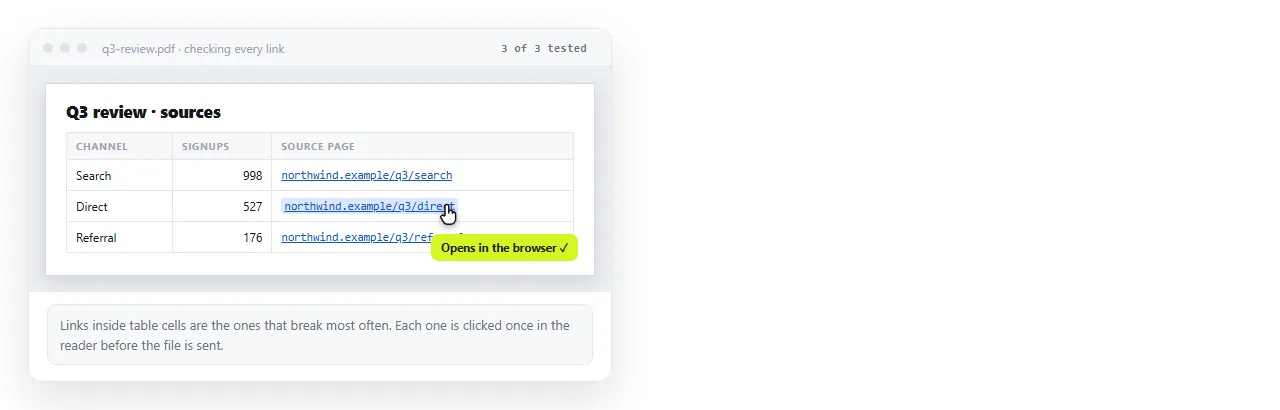
- Click one link inside a table. Table cells are where link areas most often end up misaligned.
- Click one anchor in the contents. The unreliable case.
- Look at the link text. A link reading "click here" gives a two word target and tells the reader nothing.
When the links are the point of the document
If the document is mostly navigation, a set of references, an index, a dashboard that links to detail views, then the PDF is fighting you.
A PDF freezes. Any address it contains is correct only until the destination moves, and the reader has no way to know when that happened.
The alternative is to keep the thing as a page. Paste the HTML into a NOS document and it renders as written, links live. Share, then Share link, then Create link gives it an address.
Links stay clickable because they never stopped being HTML. Correcting a broken one is an edit, not a re-export and a second email.
Turning HTML into a link is that step on its own, and PDF versus a live page sets out where each format belongs.
Related export problems
While you are in the print dialog, two other settings are usually wrong at the same time. Background graphics is off by default, which strips colour, and a mobile media query may be firing at paper width.
HTML to PDF without losing formatting covers both. Fitting the export onto one page covers the scaling side.