You cannot open an HTML file in Canva. Canva takes images, video and document imports such as PDF and presentation files, and markup is not one of the accepted inputs.
That is a short answer to a question that usually hides a longer one. People ask "can I open an HTML file in Canva" for two different reasons, and the reasons need different solutions.

Can I open an HTML file in Canva? What the inputs are
Canva works with finished visual material, not with source.
- Uploads take images and video, which is why the capture route works.
- Imports take document formats such as PDF and presentation files.
- Embeds take a URL, so a page that is already published can be referenced.
- Markup has no route in, as a file or as pasted text.
That last point is the one worth internalising. There is no converter to look for and no setting to find, so the question becomes what to do with the page instead.
Which problem are you actually solving
| Why you want it in Canva | What to do |
|---|---|
| The page is the content, you need a designed wrapper | Capture it as an image and place that |
| The page is the deliverable, Canva is only the surround | Give the page an address and link to it |
| The page has charts or tables people will interrogate | Keep it live, link it, do not flatten it |
| You want the page's text as editable design elements | Rebuild it in Canva, there is no import route |
The last row is worth being blunt about. No conversion path turns markup into Canva elements, so if you need the text as design objects, that is retyping.
Before retyping anything, check whether the design work is actually required. A page that already renders correctly on every device may need a cover image and nothing else.
Route one: the page as an image
This is the answer when the page is finished and Canva is providing the surround.
- Render the page. Open it in the HTML file opener so you are capturing the finished layout rather than a code view.
- Check it survives alone. Missing images and fonts show up here first. Self contained HTML is the fix.
- Capture it. HTML to image produces a picture of the rendered page.
- Upload the image into Canva and place it like any other element.

What you lose is everything the page did. Tooltips, sorting, tabs and hover states become a flat picture, and the numbers freeze at the moment of capture. Screenshot versus live page sets out that trade in full.
Route two: the page at an address
This is the answer when the content matters more than the wrapper, which is most business material.
- Paste the HTML into a NOS document. It renders as written, dark theme, charts and scripts included.
- Create the share link. Share, then Share link, then Create link. Unlisted by default, so only people with the link can open it. Tick Public on the web if it should be findable.
- Use the link where the deck would have gone, or beside it.

Canva's embed element takes a URL, so a page with an address can be referenced rather than flattened. A file on your desktop cannot be, which is the real reason the original question comes up.
The hybrid that usually wins
In practice most people want both, and the combination is cheap.
- The image in the deck for the cover, the summary slide and anything that needs Canva's typography.
- The link under it for the version people will actually click when they want the detail.
- Corrections on the page, not in the deck. The address does not move when a figure changes, so the link you put in the deck in March still points at the current numbers.
Turning a slide deck into a link covers the case where the deck itself should be the page.
Before you capture anything
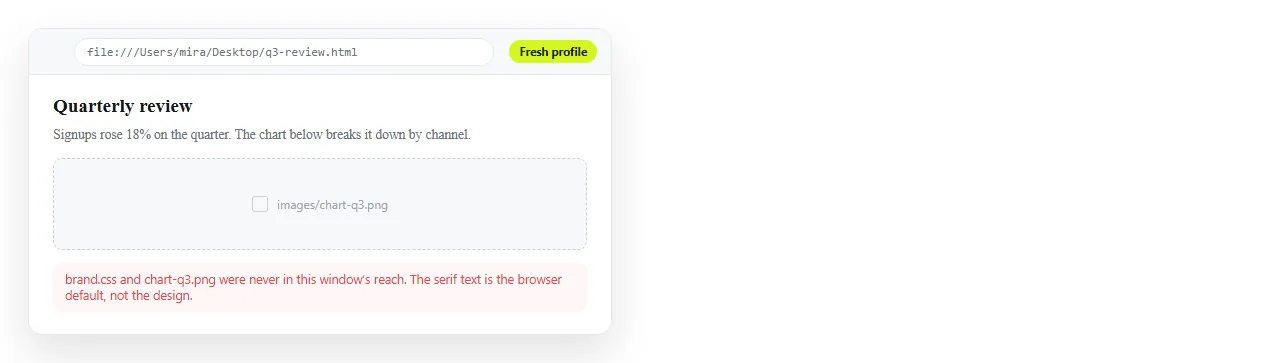
- Does the page render outside its folder? If not, the capture will contain the gaps.
- Are images embedded or on full addresses? See images not showing.
- Is the text large enough to survive scaling? A wide page shrunk into a slide loses small type first.
- Does anything move? Animations and charts drawn on load may not be finished when the capture happens.
- Is the content going to change? If yes, plan for the link, because you will be recapturing otherwise.
- Is the capture wide or tall? A long page shrinks badly into a slide. Capture the section that matters rather than the whole document.
What to tell the person who sent you the file
If HTML keeps arriving because someone assumed you would put it in a deck, the shorter path is for them to send a link.
A link opens on any device, keeps the charts working, and stays current after their next correction.
You can still capture an image from it for the cover slide. The difference is that you will be capturing the current version rather than an attachment that arrived last Thursday.
Turning HTML into a link is the step to send them, and it takes one paste on their side.