You cannot open an HTML file in Figma directly. Figma imports design files, images and vector formats, and there is no built in route that turns markup into a frame.
What to do instead depends on what you need from the page. Three different needs hide behind the question "can I open an HTML file in Figma", so start by naming yours.
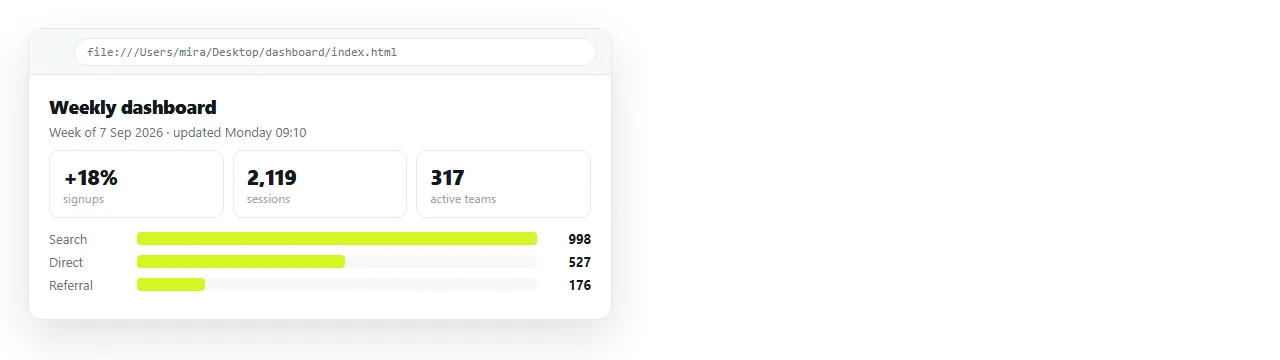
Can I open an HTML file in Figma? What the imports accept
Figma's file handling is built around design formats and assets.
- Design files and vectors come in as editable objects.
- Images come in as placed bitmaps, which is the capture route below.
- Markup has no import route, as a file or as pasted text.
- Community plugins can generate layers from a page, which is a conversion rather than an import.
Knowing that saves the search for a menu item that does not exist. The useful question is what the page is for in the design file, and there are three honest answers.
Three needs, three routes
| What you need | Route | What it costs |
|---|---|---|
| Pixels to annotate | Capture the page as an image, place it on the canvas | Flat, frozen at capture time |
| Layers to edit | A community plugin that converts a page into layers | Output varies, needs checking |
| Live behaviour to review | Open the page at an address beside the file | Nothing, it is a browser tab |
| A record for a handoff | The link plus a capture in the file | Two artefacts to keep aligned |
Route one: capture it as an image
This is the fastest route and the right one for a review pass with comments.
- Render the page. Open it in the HTML file opener so the capture comes from the finished layout, not a code view.
- Check nothing is missing. Absent images and fonts appear here first. See images not showing.
- Capture it. HTML to image produces a picture of the rendered page.
- Place the image on the canvas and annotate over it.
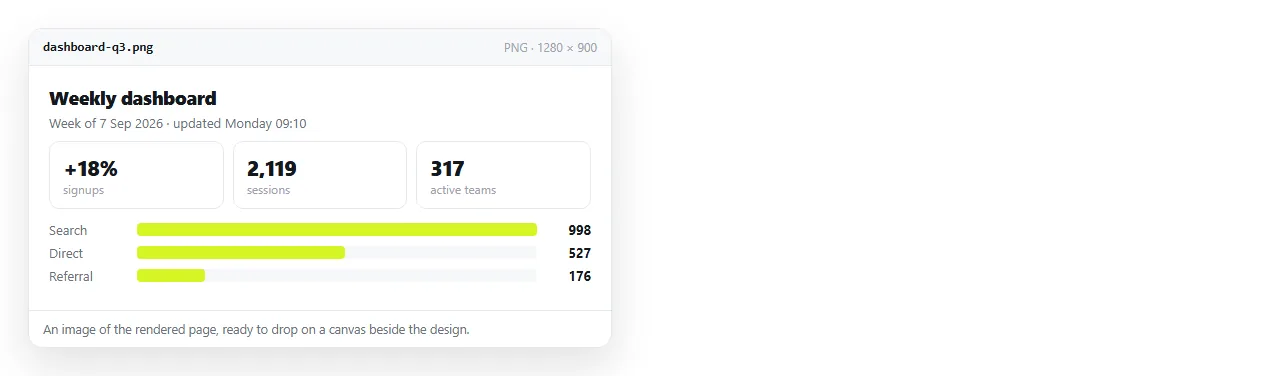
The image is flat and frozen, which for annotation is a feature. It is also why the image should never be the thing anyone builds from a week later. Screenshot versus live page covers that difference.
Route two: plugins that produce layers
Community plugins that turn a page or a URL into Figma layers exist, and they are useful when you genuinely need to restyle something that already exists.
Expect divergence. Layouts built with modern CSS, content positioned by script and web fonts that do not resolve are the usual sources of difference between the page and the imported result.
Two practical habits make the output safer to work with.
- Compare against the live page, not against the capture, before you build on the layers.
- Treat the import as a starting point. Any structure you rely on should be checked rather than assumed.
Route three: keep the page live
For a working review, the page at an address beats any import, because it shows the real behaviour at real widths.
- Paste the HTML into a NOS document. It renders as written, dark theme, charts and scripts included.
- Create the share link. Share, then Share link, then Create link. Unlisted by default, so only people with the link can open it.
- Open it beside the design file and resize the window to check the breakpoints.
- Put the link in the file next to the annotated capture.
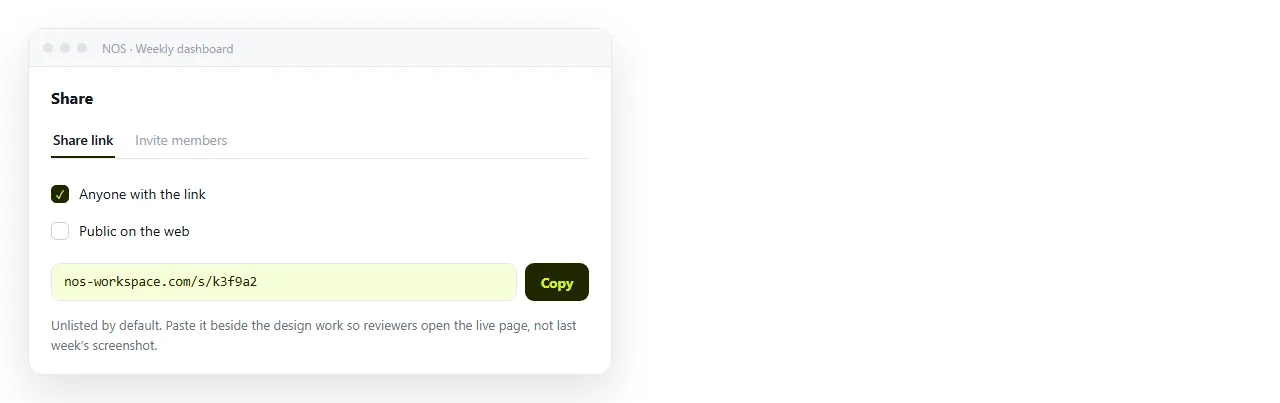
Sharing an HTML file is the general version of this step, and it applies whether the reviewer is a designer or a client.
Why the live page matters for design review
A frame is one width, one state, one moment. A built page is none of those things.
Behaviour. Hover, focus, sorting and expansion only exist on the page, and they are where most implementation disagreements live.
Breakpoints. Dragging the window edge shows the real reflow. A capture shows the width you happened to capture at. Media queries is the underlying mechanism.
Type rendering. Fonts fall back, line lengths shift. Fonts not loading is what you are checking for.
Dark mode. The page may follow the system setting. See dark mode CSS.
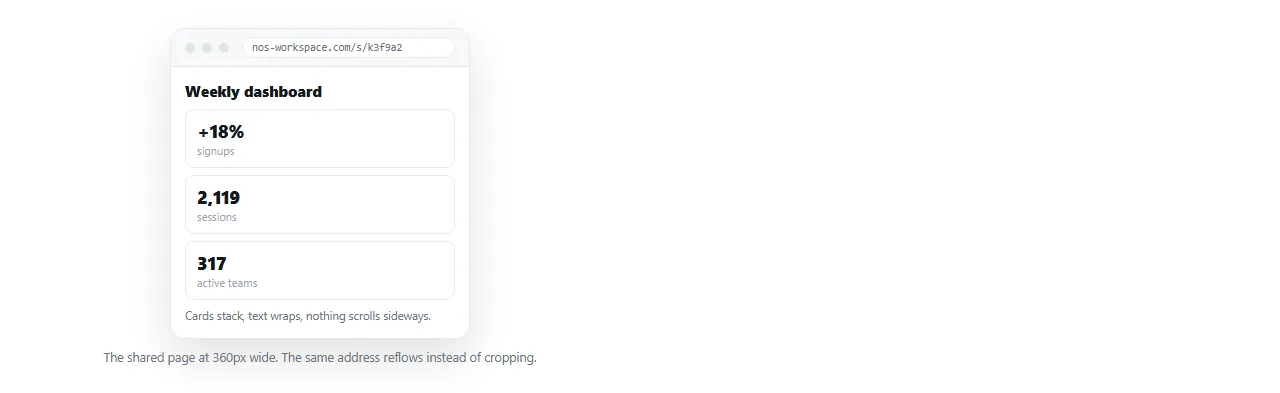
A workable handoff pattern
- The link as the reference, because it stays current when the page is corrected.
- A capture in the design file, dated, as the record of what was reviewed.
- Comments on the capture, so the annotation has a fixed surface to sit on.
- Text corrections on the page itself. In a document that renders the HTML, the words stay clickable, so a wrong label is a retype rather than a ticket.
The one thing to avoid is letting the capture become the source of truth. It cannot change, and the page will, which is how a design file and a shipped page quietly drift apart.
Sending the result back out
Design review usually ends with someone outside the file needing to see the outcome.
A Figma link asks that person to understand a design tool. A page link asks them to tap once, and on a phone that difference decides whether it is looked at.
So keep the built page as the thing you circulate. Paste the HTML into a document, create the share link, and send that to the client or the stakeholder.
Corrections to wording can happen there too. The text in the rendered page stays clickable, so a label agreed in review is a retype rather than another round trip through the design file and back.