A PWA (progressive web app) is a web page that the browser can also install as an app: it gets an icon, opens in its own window and, if you add a service worker, opens with no network.
Your app can stay in one HTML file. Installing needs a small manifest file and icons, and offline reloads need one extra JavaScript file.
Start by asking what your page can do where it runs right now. This check runs in the example frame below:
<!doctype html>
<html lang="en">
<head>
<meta charset="utf-8">
<meta name="viewport" content="width=device-width, initial-scale=1">
<title>PWA readiness check</title>
<style>
  body { margin: 0; padding: 16px; font-family: system-ui, sans-serif; background: #f4f5f7; color: #1d2330; }
  h1 { font-size: 17px; margin: 0 0 10px; }
  ul { list-style: none; margin: 0; padding: 0; background: #fff; border-radius: 12px; box-shadow: 0 2px 10px rgba(0,0,0,.08); }
  li { display: flex; justify-content: space-between; gap: 10px; padding: 10px 14px; border-top: 1px solid #eef0f3; font-size: 14px; }
  li:first-child { border-top: 0; }
  .v { font-weight: 600; text-align: right; }
  .yes { color: #0f7a3d; } .no { color: #b45309; }
  button { margin-top: 12px; font: inherit; padding: 9px 14px; border: 0; border-radius: 8px; background: #2563eb; color: #fff; cursor: pointer; }
  #log { margin-top: 10px; font: 13px/1.45 ui-monospace, Consolas, monospace; white-space: pre-wrap; word-break: break-word; }
</style>
</head>
<body>
<h1>What can this page do right now?</h1>
<ul>
  <li>Secure context (HTTPS) <span class="v" id="secure"></span></li>
  <li>Service worker API <span class="v" id="sw"></span></li>
  <li>Manifest linked <span class="v" id="manifest"></span></li>
  <li>Display mode <span class="v" id="mode"></span></li>
  <li>Network <span class="v" id="net"></span></li>
</ul>
<button id="try">Try to register sw.js</button>
<div id="log"></div>

<script>
  function show(id, ok, text) {
    const el = document.getElementById(id);
    el.textContent = text;
    el.className = 'v ' + (ok ? 'yes' : 'no');
  }

  show('secure', window.isSecureContext, window.isSecureContext ? 'yes' : 'no');

  // Reading navigator.serviceWorker can throw in a sandboxed frame
  try {
    const ok = 'serviceWorker' in navigator && !!navigator.serviceWorker;
    show('sw', ok, ok ? 'available' : 'missing');
  } catch (e) {
    show('sw', false, 'blocked (' + e.name + ')');
  }

  const link = document.querySelector('link[rel="manifest"]');
  show('manifest', !!link, link ? 'yes' : 'no');

  // display-mode tells you if the page was opened as an installed app
  const modes = ['standalone', 'minimal-ui', 'fullscreen'];
  const mode = modes.find(m => matchMedia('(display-mode: ' + m + ')').matches) || 'browser';
  show('mode', mode !== 'browser', mode);

  function net() { show('net', navigator.onLine, navigator.onLine ? 'online' : 'offline'); }
  net();
  window.addEventListener('online', net);
  window.addEventListener('offline', net);

  document.getElementById('try').addEventListener('click', async () => {
    const log = document.getElementById('log');
    try {
      const reg = await navigator.serviceWorker.register('sw.js');
      log.textContent = 'Registered. Scope: ' + reg.scope;
    } catch (e) {
      log.textContent = 'Failed: ' + e.name + '\n' + e.message;
    }
  });
</script>
</body>
</html>
In the article's example frame, the service worker row says blocked. The frame is sandboxed without allow-same-origin, so the page has no origin of its own and service workers are switched off.
Opened from your disk, the button fails with a different error. Both are covered below.
What one HTML file can and cannot do
A single file with inline CSS and JavaScript is already a working app. Once it has loaded, nothing in it needs the network, so buttons and inputs keep working offline. What it cannot do alone is install, or reload with no connection.
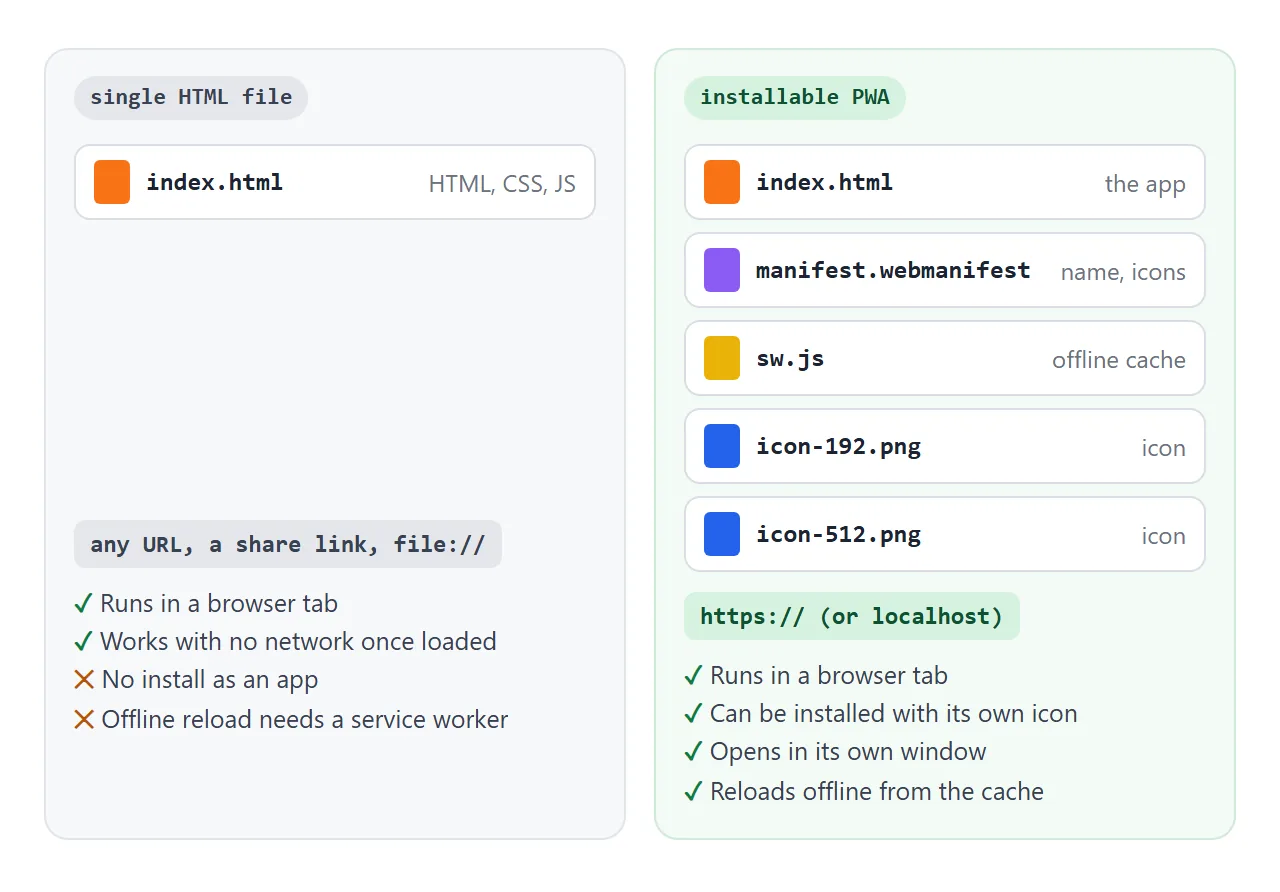
| Feature | One HTML file | Needs |
|---|---|---|
| Run in a browser tab | Yes | Nothing |
| Keep working offline after it loaded | Yes | Inline CSS and JS |
| Install with its own icon | No | Manifest, icons, HTTPS |
| Reload with no network | No | Service worker, HTTPS |
| Know it was opened as an app | Yes | The display-mode media query |
The manifest: name, icons and display
The web app manifest is a JSON file that tells the browser the app's name, icons and how to open it. Fill in the form to build one, then download it:
<!doctype html>
<html lang="en">
<head>
<meta charset="utf-8">
<meta name="viewport" content="width=device-width, initial-scale=1">
<title>Manifest builder</title>
<style>
  body { margin: 0; padding: 16px; font-family: system-ui, sans-serif; background: #f4f5f7; color: #1d2330; }
  form { display: grid; grid-template-columns: 1fr 1fr; gap: 10px 12px; background: #fff; padding: 14px; border-radius: 12px; box-shadow: 0 2px 10px rgba(0,0,0,.08); }
  label { display: flex; flex-direction: column; gap: 4px; font-size: 13px; font-weight: 600; min-width: 0; }
  input, select { font: inherit; font-weight: 400; padding: 7px 8px; border: 1px solid #cfd4dc; border-radius: 7px; min-width: 0; }
  input[type=color] { padding: 2px; height: 36px; }
  .icon { display: flex; align-items: center; gap: 10px; font-size: 13px; color: #4b5563; margin: 12px 0 6px; }
  .icon img { width: 48px; height: 48px; border-radius: 12px; }
  pre { margin: 0; background: #1d2330; color: #e5e7eb; padding: 12px; border-radius: 10px; font: 12.5px/1.45 ui-monospace, Consolas, monospace; white-space: pre-wrap; word-break: break-word; }
  a { display: inline-block; margin-top: 10px; font-size: 14px; color: #2563eb; }
</style>
</head>
<body>
<form id="f">
  <label>Name <input name="name" value="Score Keeper"></label>
  <label>Short name <input name="short_name" value="Score" maxlength="12"></label>
  <label>Theme color <input type="color" name="theme_color" value="#2563eb"></label>
  <label>Display
    <select name="display">
      <option>standalone</option><option>minimal-ui</option><option>fullscreen</option><option>browser</option>
    </select>
  </label>
</form>
<div class="icon"><img id="preview" alt="Icon preview"> Icon preview, drawn as an inline SVG</div>
<pre id="out"></pre>
<a id="dl" download="manifest.webmanifest">Download manifest.webmanifest</a>

<script>
  const form = document.getElementById('f');
  let blobUrl = '';

  function build() {
    const d = Object.fromEntries(new FormData(form));
    const letter = (d.short_name || d.name || '?').trim().charAt(0).toUpperCase();
    // A square icon as SVG, so the preview needs no image file
    const svg = '<svg xmlns="http://www.w3.org/2000/svg" viewBox="0 0 100 100">' +
      '<rect width="100" height="100" rx="22" fill="' + d.theme_color + '"/>' +
      '<text x="50" y="68" font-size="52" text-anchor="middle" fill="#fff" font-family="sans-serif">' + letter + '</text></svg>';
    document.getElementById('preview').src = 'data:image/svg+xml,' + encodeURIComponent(svg);

    const manifest = {
      name: d.name,
      short_name: d.short_name,
      start_url: '.',
      display: d.display,
      theme_color: d.theme_color,
      background_color: '#ffffff',
      icons: [
        { src: 'icon-192.png', sizes: '192x192', type: 'image/png' },
        { src: 'icon-512.png', sizes: '512x512', type: 'image/png' }
      ]
    };
    const json = JSON.stringify(manifest, null, 2);
    document.getElementById('out').textContent = json;

    // Offer the JSON as a file download
    if (blobUrl) URL.revokeObjectURL(blobUrl);
    blobUrl = URL.createObjectURL(new Blob([json], { type: 'application/manifest+json' }));
    document.getElementById('dl').href = blobUrl;
  }

  form.addEventListener('input', build);
  form.addEventListener('submit', (e) => e.preventDefault());
  build();
</script>
</body>
</html>
Link it from the <head> of your page:
<link rel="manifest" href="manifest.webmanifest">
MDN lists what Chromium-based browsers need before they offer to install: name or short_name, icons with a 192px and a 512px image, start_url, and display or display_override. prefer_related_applications must be false or missing.
The page must be served over HTTPS, or from localhost or 127.0.0.1 while you develop.
Relative paths in start_url and icon src are resolved against the manifest's URL, not the page's. Keeping the manifest next to index.html avoids surprises.
The service worker: what makes it work offline
A service worker is a script the browser runs in the background for your site. It can catch every request the page makes and answer from a cache. That is what lets the app reload with no network.
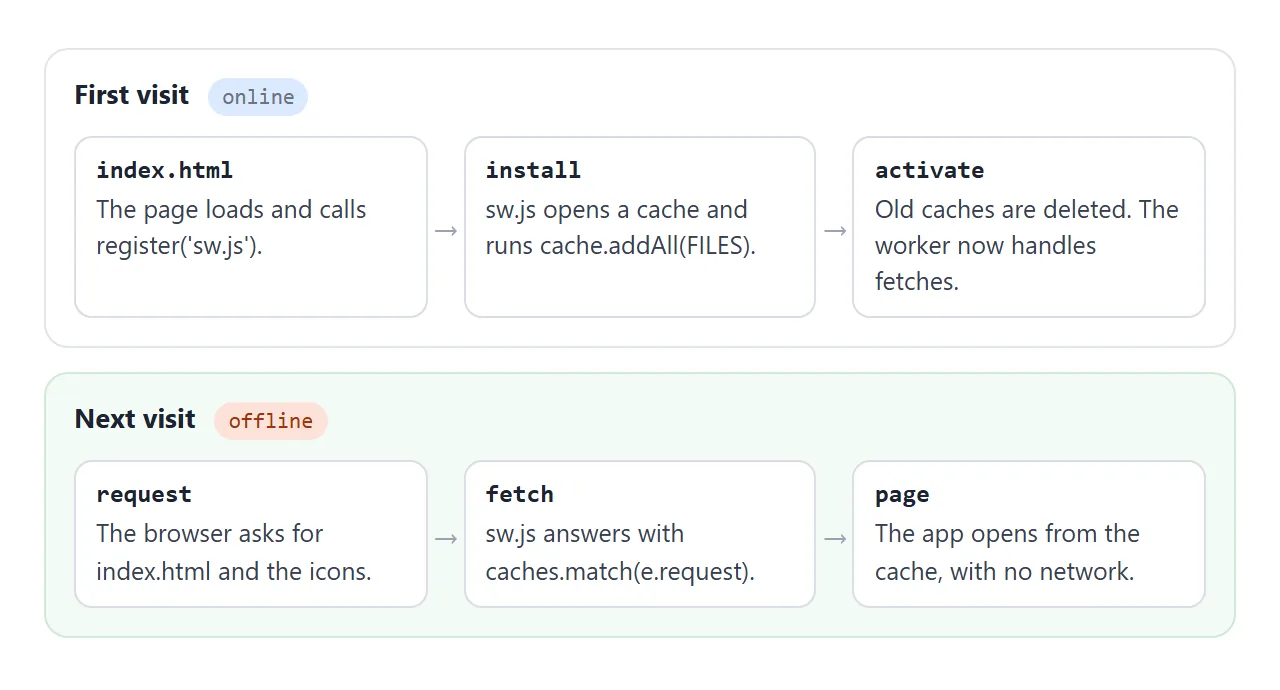
This is a complete sw.js for a small app. Change score-v1 to score-v2 whenever you change a file, so the new version is cached and the old cache is deleted:
const CACHE = 'score-v1';
const FILES = ['./', 'index.html', 'manifest.webmanifest', 'icon-192.png', 'icon-512.png'];

// Install: download every file into the cache
self.addEventListener('install', (e) => {
  e.waitUntil(caches.open(CACHE).then((cache) => cache.addAll(FILES)));
});

// Activate: delete caches from older versions
self.addEventListener('activate', (e) => {
  e.waitUntil(caches.keys().then((keys) =>
    Promise.all(keys.filter((k) => k !== CACHE).map((k) => caches.delete(k)))));
});

// Fetch: answer from the cache first, then the network
self.addEventListener('fetch', (e) => {
  e.respondWith(caches.match(e.request).then((hit) => hit || fetch(e.request)));
});
Register it at the end of the page's script:
if ('serviceWorker' in navigator) {
  navigator.serviceWorker.register('sw.js');
}
Why a service worker cannot live inside the HTML file
The worker has to be a real file. register() only accepts an http: or https: URL on the same origin as the page, so a data: or blob: URL built inside your HTML is refused. The page must also be a secure context.
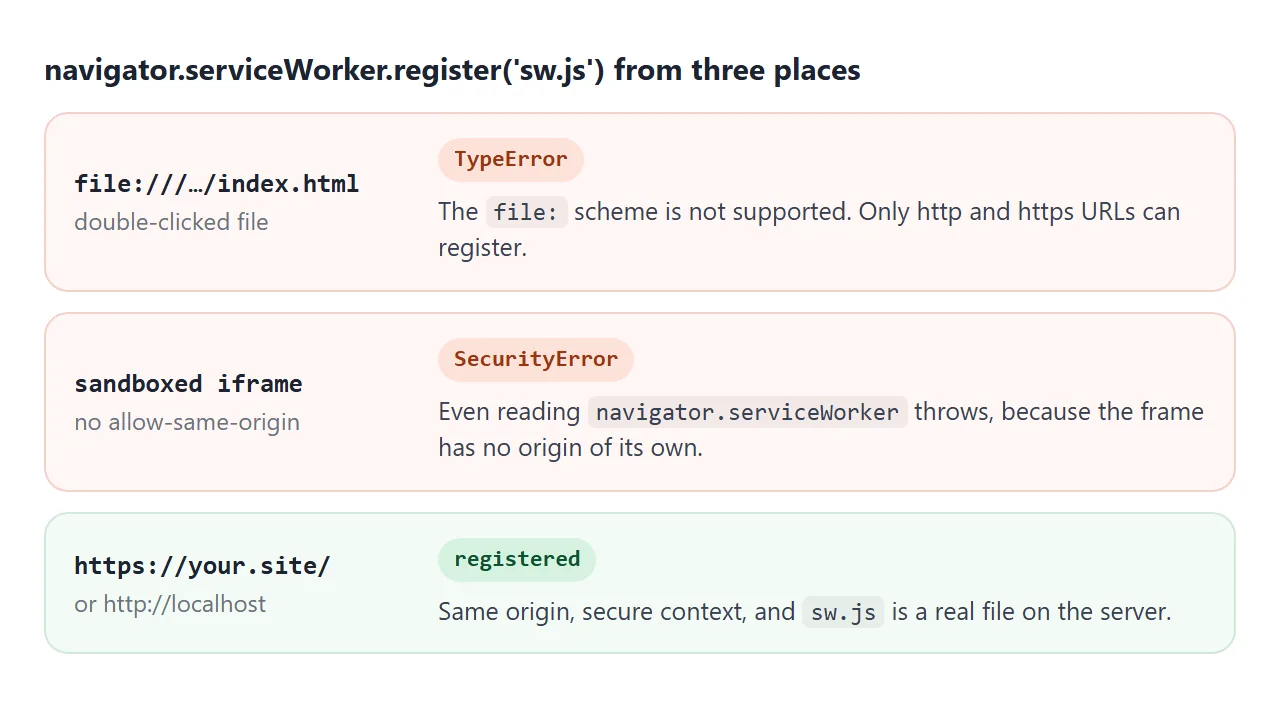
- Double-clicked file: Chromium rejects it with a
TypeErrorbecause thefile:protocol is not supported. The file:// protocol explains what else changes for local files. - Sandboxed frame: without
allow-same-originthe frame has no origin, and readingnavigator.serviceWorkerthrows aSecurityError. See the sandbox attribute. - HTTPS or localhost: it registers. What HTTPS is covers why browsers require it.
A finished app, ready for the two extra files
Here is the single-file app itself. The scores, the reset button and the online chip all run from this one file. Turn off your connection after it loads and it keeps counting.
<!doctype html>
<html lang="en">
<head>
<meta charset="utf-8">
<meta name="viewport" content="width=device-width, initial-scale=1">
<meta name="theme-color" content="#2563eb">
<title>Score Keeper</title>
<!-- When hosted, add: <link rel="manifest" href="manifest.webmanifest"> -->
<style>
* { box-sizing: border-box; }
body { margin: 0; min-height: 100vh; font-family: system-ui, sans-serif; background: #f4f5f7; color: #1d2330; display: flex; flex-direction: column; }
header { display: flex; justify-content: space-between; align-items: center; padding: 12px 16px; background: #2563eb; color: #fff; }
header b { font-size: 17px; }
.chip { font-size: 12px; padding: 4px 9px; border-radius: 99px; background: rgba(255,255,255,.2); }
.chip.off { background: #f59e0b; color: #1d2330; }
main { flex: 1; display: grid; grid-template-columns: 1fr 1fr; gap: 12px; padding: 14px; }
.team { background: #fff; border-radius: 14px; box-shadow: 0 2px 10px rgba(0,0,0,.08); padding: 12px; text-align: center; }
.team input { width: 100%; font: 600 15px system-ui, sans-serif; text-align: center; border: 0; border-bottom: 1px dashed #cfd4dc; padding: 4px; }
.score { font-size: 56px; font-weight: 700; margin: 10px 0; font-variant-numeric: tabular-nums; }
.btns { display: flex; gap: 8px; }
.btns button { flex: 1; font-size: 22px; padding: 10px 0; border: 0; border-radius: 10px; cursor: pointer; background: #e8eefc; color: #1e40af; }
.btns button.plus { background: #2563eb; color: #fff; }
footer { display: flex; justify-content: space-between; align-items: center; gap: 10px; padding: 0 14px 14px; font-size: 13px; color: #4b5563; }
footer button { font: inherit; padding: 7px 12px; border: 1px solid #cfd4dc; border-radius: 8px; background: #fff; cursor: pointer; }
</style>
</head>
<body>
<header><b>Score Keeper</b><span class="chip" id="net">online</span></header>
<main>
<div class="team" data-team="0"><input value="Home" aria-label="Team name"><div class="score">0</div>
<div class="btns"><button class="minus" aria-label="Minus one">−</button><button class="plus" aria-label="Plus one">+</button></div></div>
<div class="team" data-team="1"><input value="Away" aria-label="Team name"><div class="score">0</div>
<div class="btns"><button class="minus" aria-label="Minus one">−</button><button class="plus" aria-label="Plus one">+</button></div></div>
</main>
<footer><span id="mode"></span><button id="reset">Reset</button></footer>
<script>
// All code and styles live in this one file: nothing else to download
const scores = [0, 0];
document.querySelectorAll('.team').forEach((team) => {
const i = Number(team.dataset.team);
const out = team.querySelector('.score');
team.querySelector('.plus').addEventListener('click', () => { scores[i]++; out.textContent = scores[i]; });
team.querySelector('.minus').addEventListener('click', () => { scores[i] = Math.max(0, scores[i] - 1); out.textContent = scores[i]; });
});
document.getElementById('reset').addEventListener('click', () => {
scores.fill(0);
document.querySelectorAll('.score').forEach((s) => (s.textContent = '0'));
});
// A hint only: navigator.onLine can say "online" without real internet
const chip = document.getElementById('net');
function net() {
chip.textContent = navigator.onLine ? 'online' : 'offline';
chip.classList.toggle('off', !navigator.onLine);
}
window.addEventListener('online', net);
window.addEventListener('offline', net);
net();
const installed = matchMedia('(display-mode: standalone)').matches;
document.getElementById('mode').textContent = installed ? 'Running as an installed app' : 'Running in a browser tab';
</script>
</body>
</html>
Two details make it PWA-ready. It checks the display-mode media query to know whether it was opened as an installed app:
const installed = matchMedia('(display-mode: standalone)').matches;
And it treats navigator.onLine as a hint only, because MDN warns that true does not guarantee internet access.
To turn it into an installable PWA, put these files in one folder and upload the folder to any static HTTPS host, such as GitHub Pages:
index.html            the app, plus <link rel="manifest"> and register('sw.js')
manifest.webmanifest  name, start_url, display, icons
sw.js                 the service worker above
icon-192.png          192 x 192 icon
icon-512.png          512 x 512 icon
How people install it depends on the browser. MDN describes an Install icon in the address bar in Chromium-based desktop browsers, File > Add to Dock in Safari on macOS, and the Share menu on iOS 16.4 and later.
When it does not work
| What you see | Cause | Fix |
|---|---|---|
TypeError: URL protocol not supported |
Page opened as a file:// file |
Serve it from localhost or an HTTPS host |
SecurityError reading navigator.serviceWorker |
Sandboxed iframe without allow-same-origin |
Open the page in its own tab on your own origin |
| No install option appears | Manifest missing a required member or icon size | Add name, start_url, display and both icon sizes |
| No service worker is registered | One path in cache.addAll returns an error |
Make every listed file exist, spelled exactly |
| Users still see the old version | Same cache name after editing | Bump the cache name, such as score-v2 |
| Works on localhost, not on a phone over Wi-Fi | A LAN http:// address is not secure |
Test on an HTTPS host |
| Icons or start page are wrong | Paths resolved against the manifest's folder | Keep the manifest next to index.html |
Share it as a link
Before you set up hosting, you can let people try the app itself. A screenshot cannot be tapped, and an attached .html file may open as plain code on a phone.
Paste the single-file page into a NOS document and choose Create share link. HTML to link walks through it. The page renders as written and its scripts run, so anyone with the link can press the buttons without an account.
If you change the code later, the same link shows the new version. When you want the install icon and offline reloads, put the five files above on your own HTTPS host.