A wine list is one page where the bottles are grouped by section, such as sparkling, white, red and dessert. Each line gives the name, the place, the year and the price. You can put it online as one HTML page, without menu software.
People often ask whether there is any free digital menu software. For one list the question is smaller. You need a page that reads well on a phone and is easy to change when a bottle sells out.
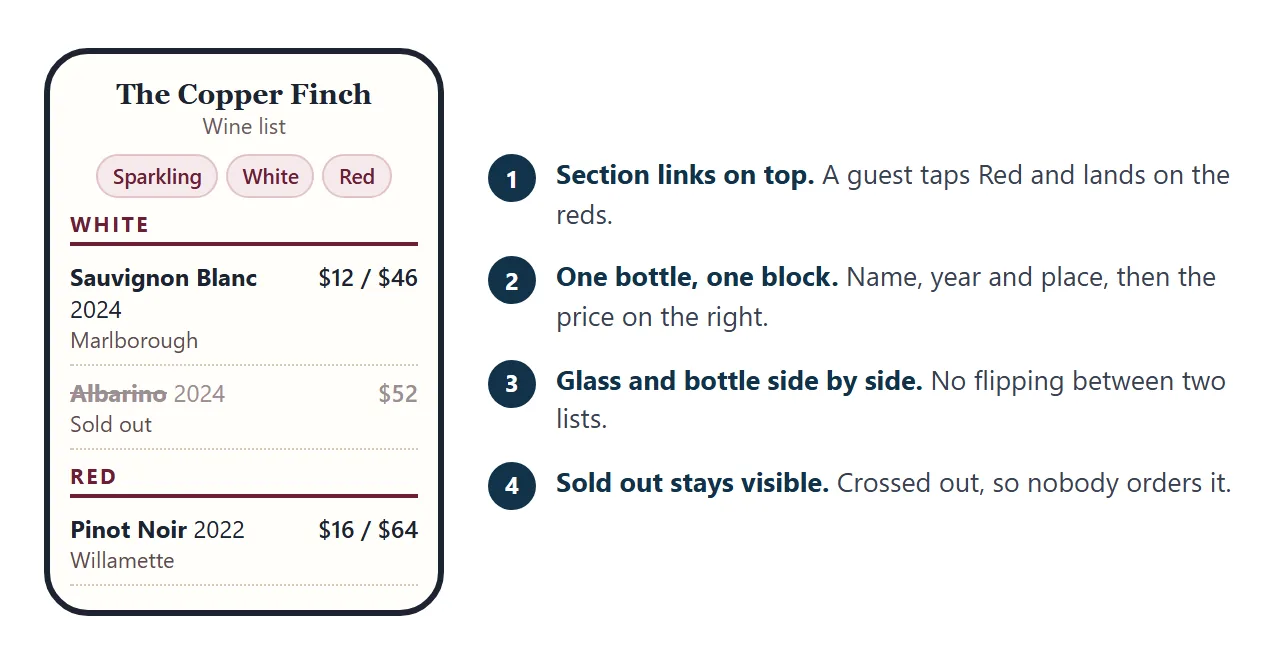
The example below is a made-up wine bar. Tap a section at the top to jump to it, or press By the glass only.
<!doctype html>
<html lang="en">
<head>
<meta charset="utf-8">
<meta name="viewport" content="width=device-width, initial-scale=1">
<title>Wine list</title>
<style>
  * { box-sizing: border-box; }
  body { margin: 0; padding: 16px; font-family: Georgia, "Times New Roman", serif; color: #2a1d22; background: #f6f0e8; line-height: 1.45; }
  .wrap { max-width: 720px; margin: 0 auto; background: #fffdf9; border: 1px solid #e3d7c6; border-radius: 12px; padding: 20px 20px 24px; }
  header { text-align: center; border-bottom: 1px solid #e3d7c6; padding-bottom: 12px; }
  h1 { margin: 0; font-size: 1.6rem; letter-spacing: .02em; }
  .sub { margin: 4px 0 0; font: .82rem system-ui, sans-serif; color: #6b5a5f; }
  nav { display: flex; flex-wrap: wrap; gap: 8px; justify-content: center; margin: 14px 0 6px; font-family: system-ui, sans-serif; }
  nav a, nav button { font: 600 .85rem system-ui, sans-serif; color: #6b1f35; background: #f6e9ec; border: 1px solid #e2c3cb; border-radius: 999px; padding: 7px 14px; text-decoration: none; cursor: pointer; }
  nav button[aria-pressed=true] { background: #6b1f35; color: #fff; border-color: #6b1f35; }
  h2 { margin: 22px 0 4px; font-size: 1rem; letter-spacing: .14em; text-transform: uppercase; color: #6b1f35; border-bottom: 2px solid #6b1f35; padding-bottom: 4px; scroll-margin-top: 8px; }
  .wine { display: grid; grid-template-columns: 1fr auto; gap: 2px 14px; padding: 10px 0; border-bottom: 1px dotted #d8cbb8; }
  .name { font-weight: 700; }
  .year { font-weight: 400; color: #6b5a5f; }
  .where { grid-column: 1; font: .85rem system-ui, sans-serif; color: #5d4c51; }
  .note { grid-column: 1; font: italic .85rem Georgia, serif; color: #5d4c51; }
  .price { grid-column: 2; grid-row: 1 / span 2; text-align: right; font: .9rem system-ui, sans-serif; white-space: nowrap; }
  .price b { display: block; }
  .price span { color: #6b5a5f; font-size: .8rem; }
  .wine.out .name, .wine.out .where, .wine.out .price { color: #9b8f92; }
  .wine.out .name { text-decoration: line-through; }
  .tag { display: inline-block; font: 700 .7rem system-ui, sans-serif; letter-spacing: .06em; text-transform: uppercase; color: #8a3b00; background: #fdeacc; border-radius: 4px; padding: 1px 6px; margin-left: 6px; }
  .glassonly .wine.noglass { display: none; }
  footer { margin-top: 18px; font: .8rem system-ui, sans-serif; color: #6b5a5f; text-align: center; }
</style>
</head>
<body>
<div class="wrap" id="list">
  <header>
    <h1>The Copper Finch</h1>
    <p class="sub">Wine list · prices effective 1 October 2026 · USD · made-up example</p>
  </header>
  <nav id="nav" aria-label="Sections"></nav>
  <div id="out"></div>
  <footer>Please ask us about anything not listed. Sold-out bottles stay on the list so you know they exist.</footer>
</div>

<script>
  // Edit this list to change the wine list. One line is one bottle.
  // glass or bottle can be null. Set out: true to mark a bottle sold out.
  const SECTIONS = ['Sparkling', 'White', 'Red', 'Dessert'];
  const WINES = [
    { sec: 'Sparkling', name: 'Casa Verrano Prosecco', where: 'Veneto, Italy', year: 'NV', glass: 11, bottle: 44 },
    { sec: 'Sparkling', name: 'Larkspur Brut Rose', where: 'Loire Valley, France', year: 'NV', glass: null, bottle: 58 },
    { sec: 'White', name: 'Hollow Creek Sauvignon Blanc', where: 'Marlborough, New Zealand', year: '2024', glass: 12, bottle: 46 },
    { sec: 'White', name: 'Domaine Aubrey Chablis', where: 'Burgundy, France', year: '2023', glass: 15, bottle: 62 },
    { sec: 'White', name: 'Ostra Albarino', where: 'Rias Baixas, Spain', year: '2024', glass: 13, bottle: 52, out: true },
    { sec: 'White', name: 'Fenwick Dry Riesling', where: 'Mosel, Germany', year: '2023', glass: 11, bottle: 42 },
    { sec: 'Red', name: 'Marlowe Pinot Noir', where: 'Willamette Valley, Oregon', year: '2022', glass: 16, bottle: 64 },
    { sec: 'Red', name: 'Bodega Quintana Rioja Crianza', where: 'Rioja, Spain', year: '2020', glass: 13, bottle: 50 },
    { sec: 'Red', name: 'Stonebridge Malbec', where: 'Mendoza, Argentina', year: '2023', glass: 12, bottle: 46 },
    { sec: 'Red', name: 'Tenuta Brandolo Barolo', where: 'Piedmont, Italy', year: '2019', glass: null, bottle: 118, note: 'We open this one an hour ahead. Ask us.' },
    { sec: 'Dessert', name: 'Quill Late Harvest Riesling', where: 'Finger Lakes, New York', year: '2021', glass: 10, bottle: null },
  ];

  const money = (n) => '$' + n;
  const out = document.getElementById('out');
  const nav = document.getElementById('nav');

  // Build the jump links and the glass toggle
  nav.innerHTML = SECTIONS.map((s) => '<a href="#' + s.toLowerCase() + '">' + s + '</a>').join('')
    + '<button type="button" id="glass" aria-pressed="false">By the glass only</button>';

  // Build one block per section from the list above
  out.innerHTML = SECTIONS.map((s) => {
    const rows = WINES.filter((w) => w.sec === s).map((w) => {
      const price = (w.glass ? '<b>' + money(w.glass) + ' <span>glass</span></b>' : '')
        + (w.bottle ? '<b>' + money(w.bottle) + ' <span>bottle</span></b>' : '');
      return '<div class="wine' + (w.out ? ' out' : '') + (w.glass ? '' : ' noglass') + '">'
        + '<div class="name">' + w.name + ' <span class="year">' + w.year + '</span>'
        + (w.out ? '<span class="tag">Sold out</span>' : '') + '</div>'
        + '<div class="where">' + w.where + '</div>'
        + (w.note ? '<div class="note">' + w.note + '</div>' : '')
        + '<div class="price">' + price + '</div></div>';
    }).join('');
    return '<h2 id="' + s.toLowerCase() + '">' + s + '</h2>' + rows;
  }).join('');

  const glassBtn = document.getElementById('glass');
  glassBtn.addEventListener('click', () => {
    const on = glassBtn.getAttribute('aria-pressed') !== 'true';
    glassBtn.setAttribute('aria-pressed', on);
    document.getElementById('list').classList.toggle('glassonly', on);
  });
</script>
</body>
</html>
The page is built from one list of bottles at the top of the code. A sold-out bottle stays on the page, crossed out, so a guest sees it exists and nobody orders one that is gone.
What goes on a wine list
Keep each section short enough to scan with a thumb. A guest looking for a red wants the reds, not the whole page.
| Part | What to write | Keep it to |
|---|---|---|
| Date line | When these prices became current, and the currency | One line at the top |
| Sections | One per type of wine | The sections you really sell |
| Bottle line | Name, place and year | Three details |
| Price | Glass and bottle side by side | Two numbers |
| Note | What a server would say, such as a decanting time | One short line |
| Sold out | Keep the bottle, cross it out | A tag, not a deletion |
For a wine with no year, write NV, as the example does. For the wider question of an online menu, see how to make an online menu.
Make it with AI
Give an AI your real bottles and ask for one HTML file. Paste this into ChatGPT, Claude or Gemini, then add your list at the end.
Make a wine list as ONE self-contained HTML file.
Order: header with the venue name and the date prices
took effect, a row of links that jump to each section,
then the sections (Sparkling, White, Red, Dessert).
Each bottle shows name, place, year, glass price, bottle price.
Keep all bottles in ONE list at the top of the script,
one line per bottle: sec, name, where, year, glass, bottle, out.
Build the page from that list. A bottle with out: true
shows crossed out with a Sold out tag and stays on the page.
Rules: use only the wines and prices I give. Never invent
a wine, a year, a price or a tasting note. Where I gave
nothing, write TODO.
Inline CSS and JavaScript only, no external images or fonts.
No localStorage. One column that reads well at 390 px wide.
My wines:
[paste your list]
Then check the result before a guest sees it.
- Every bottle is yours. AI likes to add a believable region, year or tasting note. Delete anything you did not give.
- Prices match your printed list. Compare line by line.
- No TODO is left. Search the page for it.
- Sold out works. Set one bottle to true and see it crossed out.
- It reads on a phone. Open it on one. If text is tiny, see the viewport meta tag.
Change a bottle without a reprint
A printed list or a PDF changes by editing a file and replacing every copy. The page changes by editing one line.
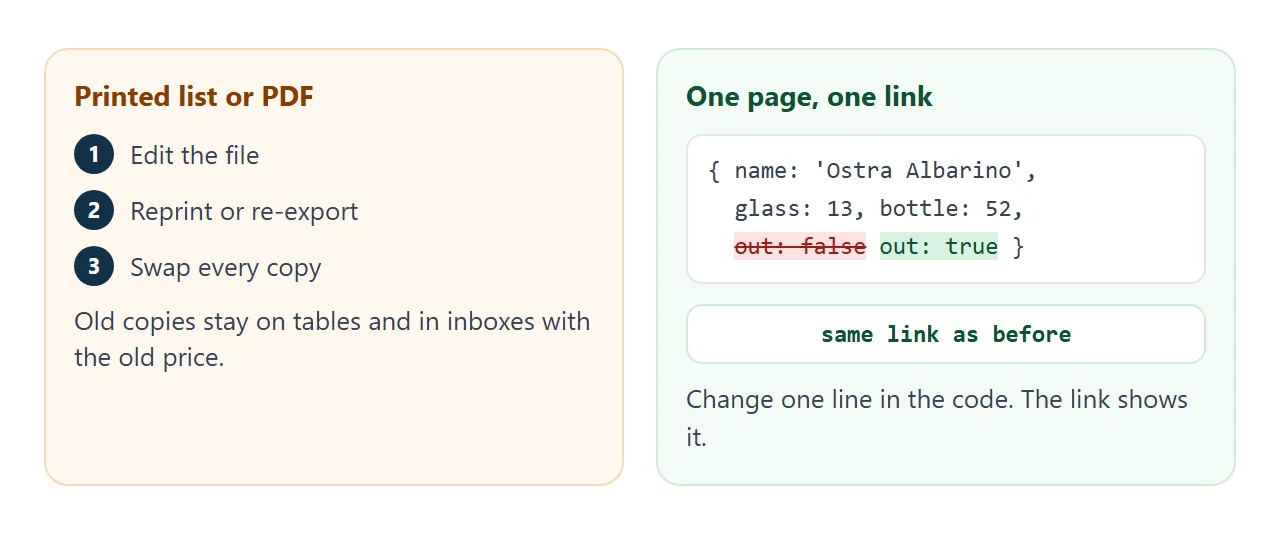
Try the idea below. Click a name, a year or a price and type. Press Sold out to cross a bottle out, Remove to delete it, or add a bottle to a section.
<!doctype html>
<html lang="en">
<head>
<meta charset="utf-8">
<meta name="viewport" content="width=device-width, initial-scale=1">
<title>Wine list: click text to change a bottle</title>
<style>
  * { box-sizing: border-box; }
  body { margin: 0; padding: 16px; font-family: system-ui, -apple-system, "Segoe UI", sans-serif; color: #2a1d22; background: #f6f0e8; line-height: 1.45; }
  .wrap { max-width: 720px; margin: 0 auto; }
  .hint { background: #fff7e0; border: 1px solid #ecd9a0; border-radius: 10px; padding: 10px 14px; font-size: .88rem; margin-bottom: 12px; }
  .card { background: #fffdf9; border: 1px solid #e3d7c6; border-radius: 12px; padding: 16px 18px; }
  h1 { margin: 0 0 2px; font: 700 1.3rem Georgia, serif; }
  .sub { margin: 0 0 6px; font-size: .82rem; color: #6b5a5f; }
  h2 { margin: 16px 0 4px; font-size: .85rem; letter-spacing: .14em; text-transform: uppercase; color: #6b1f35; border-bottom: 2px solid #6b1f35; padding-bottom: 3px; }
  .wine { display: grid; grid-template-columns: 1fr auto; gap: 4px 10px; align-items: start; padding: 9px 0; border-bottom: 1px dotted #d8cbb8; }
  .wine .name { font: 700 1rem Georgia, serif; }
  .wine .where { font-size: .85rem; color: #5d4c51; }
  .price { text-align: right; white-space: nowrap; font-size: .92rem; }
  [contenteditable] { border-radius: 4px; outline: 1px dashed transparent; padding: 0 2px; }
  [contenteditable]:hover { outline-color: #c9a9b2; background: #fbf3f5; }
  [contenteditable]:focus { outline: 2px solid #6b1f35; background: #fff; }
  .tools { grid-column: 1 / -1; display: flex; gap: 8px; }
  .tools button, .add { font: 600 .78rem system-ui, sans-serif; color: #6b1f35; background: #f6e9ec; border: 1px solid #e2c3cb; border-radius: 8px; padding: 6px 10px; cursor: pointer; min-height: 32px; }
  .add { margin-top: 8px; }
  .wine.out .name { text-decoration: line-through; color: #9b8f92; }
  .wine.out .where, .wine.out .price { color: #9b8f92; }
  .wine.out .tools .so { background: #fdeacc; color: #8a3b00; border-color: #efc98f; }
</style>
</head>
<body>
<div class="wrap">
  <p class="hint"><strong>Practice page.</strong> Click a name, a year or a price and type. Press Sold out or Remove, or add a bottle. Reload and it resets. On your real page you change the line in the code.</p>
  <div class="card">
    <h1>The Copper Finch</h1>
    <p class="sub">Wine list · made-up example</p>
    <div id="sections"></div>
  </div>
</div>

<script>
  const SECTIONS = ['Sparkling', 'White', 'Red'];
  const wines = [
    { sec: 'Sparkling', name: 'Casa Verrano Prosecco', where: 'Veneto, Italy, NV', price: '$44' },
    { sec: 'White', name: 'Hollow Creek Sauvignon Blanc', where: 'Marlborough, New Zealand, 2024', price: '$46' },
    { sec: 'White', name: 'Fenwick Dry Riesling', where: 'Mosel, Germany, 2023', price: '$42' },
    { sec: 'Red', name: 'Marlowe Pinot Noir', where: 'Willamette Valley, Oregon, 2022', price: '$64' },
    { sec: 'Red', name: 'Stonebridge Malbec', where: 'Mendoza, Argentina, 2023', price: '$46' },
  ];
  const root = document.getElementById('sections');

  // Rebuild the whole list from the wines array
  function draw() {
    root.innerHTML = SECTIONS.map((s) => '<h2>' + s + '</h2>'
      + wines.map((w, i) => w.sec !== s ? '' :
        '<div class="wine' + (w.out ? ' out' : '') + '" data-i="' + i + '">'
        + '<div><div class="name" contenteditable="true" data-f="name">' + w.name + '</div>'
        + '<div class="where" contenteditable="true" data-f="where">' + w.where + '</div></div>'
        + '<div class="price" contenteditable="true" data-f="price">' + w.price + '</div>'
        + '<div class="tools"><button type="button" class="so" data-act="out">' + (w.out ? 'Back on' : 'Sold out') + '</button>'
        + '<button type="button" data-act="del">Remove</button></div></div>').join('')
      + '<button type="button" class="add" data-add="' + s + '">+ Add a ' + s.toLowerCase() + '</button>').join('');
  }

  // Typing in any text field saves into the array (no redraw, so the cursor stays)
  root.addEventListener('input', (e) => {
    const row = e.target.closest('.wine');
    if (row && e.target.dataset.f) wines[row.dataset.i][e.target.dataset.f] = e.target.textContent;
  });

  root.addEventListener('click', (e) => {
    const b = e.target.closest('button');
    if (!b) return;
    if (b.dataset.add) wines.push({ sec: b.dataset.add, name: 'New wine', where: 'Region, year', price: '$0' });
    const row = b.closest('.wine');
    if (row && b.dataset.act === 'out') wines[row.dataset.i].out = !wines[row.dataset.i].out;
    if (row && b.dataset.act === 'del') wines.splice(row.dataset.i, 1);
    draw();
  });

  draw();
</script>
</body>
</html>
This is practice only, and the page forgets your changes on reload. On your real list you change the code. Open the document in NOS, find the bottle's line, change the price or the sold-out value, and the link shows it.
Send it as a link
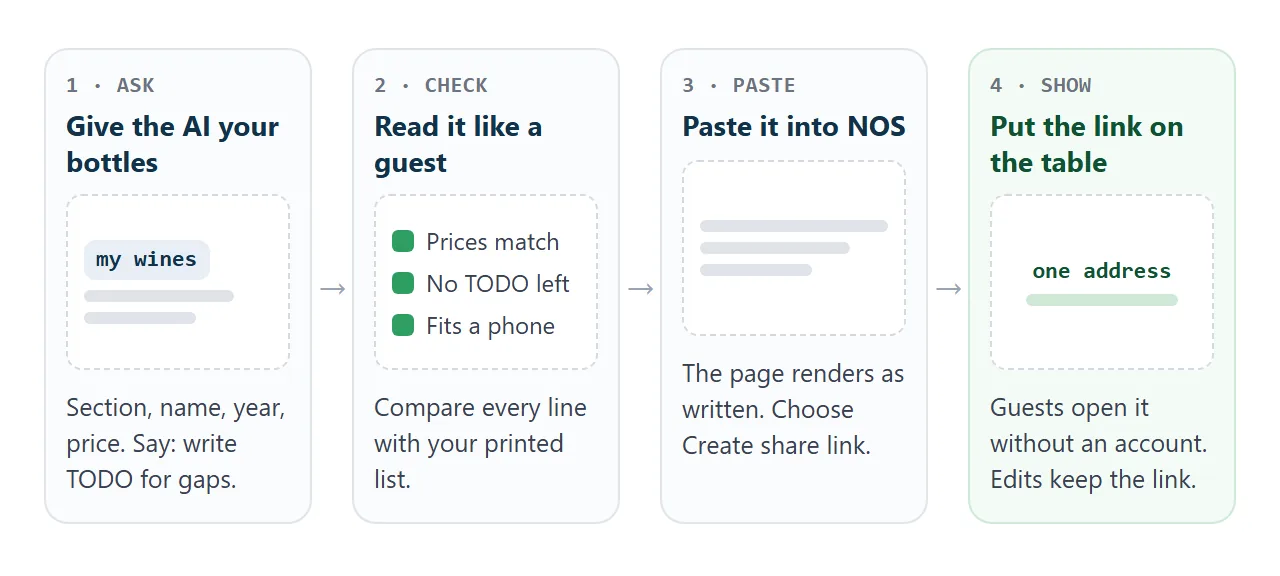
- Open a NOS document and paste the HTML in. The page renders as written, scripts included, so the section links and the toggle work.
- Choose Create share link. HTML to link walks through it.
- Use the link where guests look: your website, a message, or a card on the table.
A guest taps the link and the page opens in their browser, on a phone too. They need no account and cannot edit it. When a bottle sells out, edit the code in your NOS document. The same link shows the new version.
NOS does not show who opened the page. Anyone with the link can open it, so leave out what you would not put on a public notice board, such as what a bottle costs you.
For a card on the table, a QR code can point to the same link. Any QR generator that accepts a web address will do. Scan it with a phone before you print. See QR code link. For food, see menu link.
Link, PDF or printed card
| Link to the page | Printed card | ||
|---|---|---|---|
| What the guest does | Taps and reads | Downloads, zooms | Reads the card |
| Changing a price | Edit, same link | Export and send again | Reprint |
| A bottle sells out | Mark it, same link | New file | Cross out by hand or reprint |
| Old copies | One address, one version | Stay in inboxes | Stay on tables |
| Use it when | The list changes | A guest asks for a file | You want paper on the table |
If you need a file, make a PDF from the same page. In Chrome on a computer, choose File, then Print, then Save as PDF (Chrome Help, as of October 2026). For more on the choice, see HTML vs PDF for clients.
When it does not work
| Symptom | Cause | Fix |
|---|---|---|
| A wine or price you never gave appears | The AI filled a gap | Delete it and run the prompt again with only your bottles |
| TODO shows on the page | A gap was left unfilled | Fill it, or remove the line |
| A sold-out bottle looks normal | Its sold-out value is not set | Set it on that bottle's line and check again |
| A section link does not jump | The link and the section name differ | Ask the AI to match each link to its section |
| Your logo is missing | Images loaded from other sites are blocked | Use text, or an inline SVG drawn in the page |
| The page looks tiny on a phone | No viewport tag, or a wide fixed layout | Ask for one column and a viewport tag |
| Guests cannot order from the page | A form cannot send data to a server | Keep it a list; guests tell the staff |