A good back to school newsletter is one page that answers three questions: what to bring, how the day runs, and who to contact. Start from the free template below, ask an AI chat to fill it in, and send families a link, not a file.
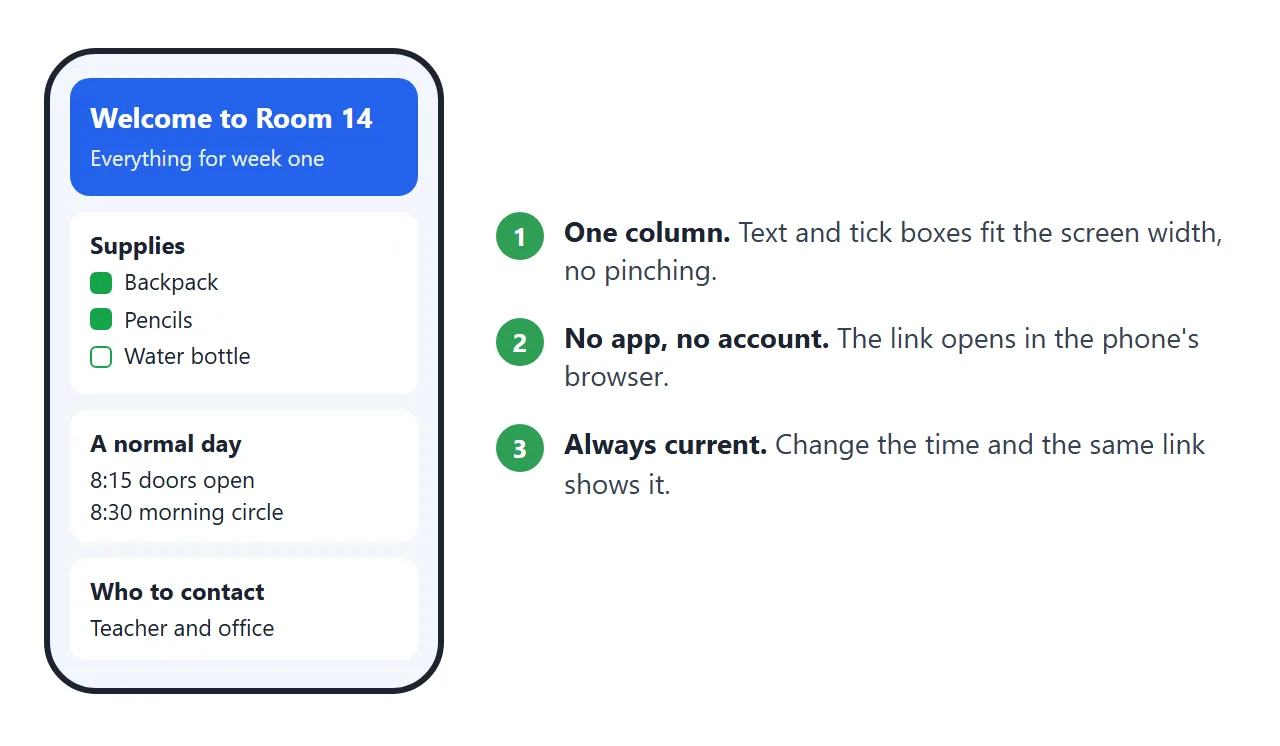
Try the template first. Tick the supplies, then scroll to see the rest. This is the whole page, and you can edit its code and copy it.
<!doctype html>
<html lang="en">
<head>
<meta charset="utf-8">
<meta name="viewport" content="width=device-width, initial-scale=1">
<title>Welcome to Room 14</title>
<style>
  * { box-sizing: border-box; }
  body { margin: 0; font-family: system-ui, sans-serif; background: #f3f6fb; color: #1d2330; line-height: 1.5; }
  .wrap { max-width: 640px; margin: 0 auto; padding: 14px; }
  .hero { background: linear-gradient(135deg, #2563eb, #1e40af); color: #fff; border-radius: 16px; padding: 22px 20px; position: relative; overflow: hidden; }
  .hero svg { position: absolute; right: 12px; top: 10px; width: 64px; opacity: .9; }
  .hero h1 { margin: 0 0 4px; font-size: 26px; line-height: 1.2; padding-right: 70px; }
  .hero p { margin: 0; font-size: 15px; opacity: .95; }
  .card { background: #fff; border-radius: 14px; padding: 16px 18px; margin-top: 12px; box-shadow: 0 1px 3px rgba(0,0,0,.08); }
  h2 { margin: 0 0 8px; font-size: 18px; }
  .day { display: flex; gap: 12px; align-items: center; }
  .day b { font-size: 22px; color: #1e40af; }
  ul.check { list-style: none; margin: 0; padding: 0; }
  ul.check li { padding: 9px 0; border-bottom: 1px solid #eef0f4; }
  ul.check li:last-child { border-bottom: 0; }
  label { display: flex; gap: 12px; align-items: center; cursor: pointer; font-size: 16px; }
  input[type=checkbox] { width: 22px; height: 22px; accent-color: #16a34a; flex: none; }
  input:checked + span { text-decoration: line-through; color: #6b7280; }
  .count { font-size: 14px; color: #475569; margin: 0 0 6px; }
  .bar { height: 8px; background: #e5e7eb; border-radius: 4px; overflow: hidden; margin-bottom: 8px; }
  .bar i { display: block; height: 100%; width: 0; background: #16a34a; transition: width .2s; }
  table { width: 100%; border-collapse: collapse; font-size: 15px; }
  td { padding: 7px 0; border-bottom: 1px solid #eef0f4; vertical-align: top; }
  td:first-child { width: 92px; color: #1e40af; font-weight: 600; }
  tr:last-child td { border-bottom: 0; }
  .contact p { margin: 4px 0; font-size: 15px; }
  .note { background: #fff7e6; border-left: 4px solid #f59e0b; border-radius: 8px; padding: 10px 12px; font-size: 14px; margin-top: 10px; }
</style>
</head>
<body>
<div class="wrap">

  <div class="hero">
    <svg viewBox="0 0 64 64" aria-hidden="true"><rect x="8" y="22" width="48" height="34" rx="4" fill="#fbbf24"/><rect x="14" y="30" width="36" height="6" fill="#fff" opacity=".8"/><path d="M8 22 L32 6 L56 22 Z" fill="#f59e0b"/></svg>
    <h1>Welcome to Room 14</h1>
    <p>Ms. Alder's class, Maple Grove School. Everything for the first week is on this page.</p>
  </div>

  <div class="card">
    <div class="day"><b>Wed</b><div><strong>First day: doors open at 8:15</strong><br>Bring your child to the side entrance. Lessons start at 8:30.</div></div>
  </div>

  <div class="card">
    <h2>Supplies to bring</h2>
    <p class="count" id="count">0 of 6 packed</p>
    <div class="bar"><i id="bar"></i></div>
    <ul class="check">
      <li><label><input type="checkbox"><span>Backpack with a name tag</span></label></li>
      <li><label><input type="checkbox"><span>2 pencils and an eraser</span></label></li>
      <li><label><input type="checkbox"><span>Glue stick and safety scissors</span></label></li>
      <li><label><input type="checkbox"><span>Water bottle</span></label></li>
      <li><label><input type="checkbox"><span>Folder for papers going home</span></label></li>
      <li><label><input type="checkbox"><span>Indoor shoes for the gym</span></label></li>
    </ul>
    <div class="note">Notebooks and art supplies are provided by the classroom.</div>
  </div>

  <div class="card">
    <h2>A normal day</h2>
    <table>
      <tr><td>8:15</td><td>Doors open, unpack, read quietly</td></tr>
      <tr><td>8:30</td><td>Morning circle and maths</td></tr>
      <tr><td>10:15</td><td>Snack and outdoor break</td></tr>
      <tr><td>12:00</td><td>Lunch</td></tr>
      <tr><td>1:00</td><td>Reading, writing, project time</td></tr>
      <tr><td>3:00</td><td>Pick-up at the side entrance</td></tr>
    </table>
  </div>

  <div class="card contact">
    <h2>Who to contact</h2>
    <p><strong>Ms. Alder (teacher):</strong> alder@maplegrove.example</p>
    <p><strong>School office:</strong> 555-0142, open 8:00 to 4:00</p>
    <p><strong>Absence?</strong> Tell the office by 8:30.</p>
  </div>

</div>

<script>
  // Count the ticked boxes and fill the progress bar
  const boxes = document.querySelectorAll('input[type=checkbox]');
  const count = document.getElementById('count');
  const bar = document.getElementById('bar');

  function update() {
    const done = [...boxes].filter((b) => b.checked).length;
    count.textContent = done + ' of ' + boxes.length + ' packed';
    bar.style.width = (done / boxes.length * 100) + '%';
  }
  boxes.forEach((b) => b.addEventListener('change', update));
</script>
</body>
</html>
Nothing in it needs an app or an account. It is one HTML page, and the names, times and email address are made up. Replace them with yours.
What goes on the page
Families read this on a phone, often once, in a hurry. Keep to what they will act on in the first week.
- First day: the date, the door they use and the time it opens.
- Supplies: a short list with tick boxes. Say what the classroom already provides.
- A normal day: times and one line each.
- Contacts: who to email, the office phone number and what to do about an absence.
Leave out the full year plan. A second page for later in the term is easier to read than one long page now.
Make it with AI
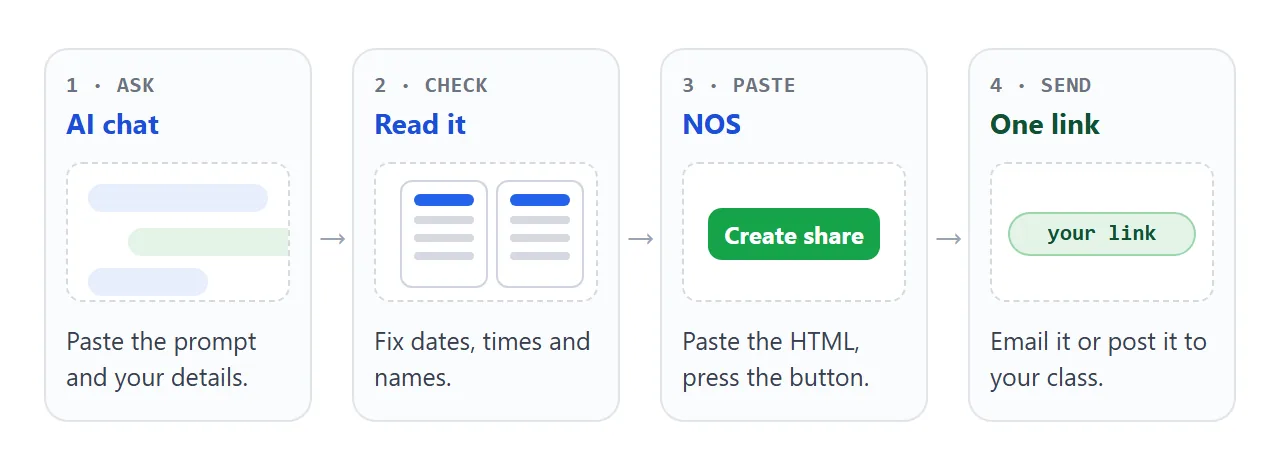
Paste this into ChatGPT, Claude or Gemini and replace the square brackets. Use the same details you would put in a printed letter.
Write ONE complete HTML file: a back-to-school welcome page
for families of my class.

Page rules:
- Works on a phone: include the viewport meta tag, one column.
- No external files, images, fonts or scripts. All CSS and
  JavaScript inside the file. Use inline SVG for any picture.
- Large readable text, blue and white colours.
- No forms and no login.

Sections, in this order:
1. Title banner: "Welcome to [room name]", teacher name, school.
2. First day card: [day], doors open [time], entrance [where].
3. Supplies: a checklist with tick boxes and a counter
   "X of N packed". Items: [list]. Note: [what the class
   provides].
4. A normal day: a two-column table of times and activities:
   [times and activities].
5. Who to contact: [teacher email], [office phone and hours],
   [absence rule].

Return only the HTML.
When the page comes back, check it before anyone else sees it:
- Read every time, date and email address. AI can change a detail you did not ask it to change.
- Tick the boxes. The counter should move.
- Resize the preview to a narrow width. Nothing should run off the side.
- Look for links or images that point to other sites. They may not load in a shared page, so ask the chat to remove them.
If something is wrong, tell the chat exactly what to change. Ask for the whole file again each time. Fixing AI-generated HTML covers the usual faults.
Send it as a link
Copy the HTML from the chat. Paste it into a NOS document and choose Create share link. HTML to link walks through it.
The page renders as written, and its scripts run, so the tick boxes work. Anyone with the link can open it in a browser, on a phone too, with no account. They can read it but not edit it.
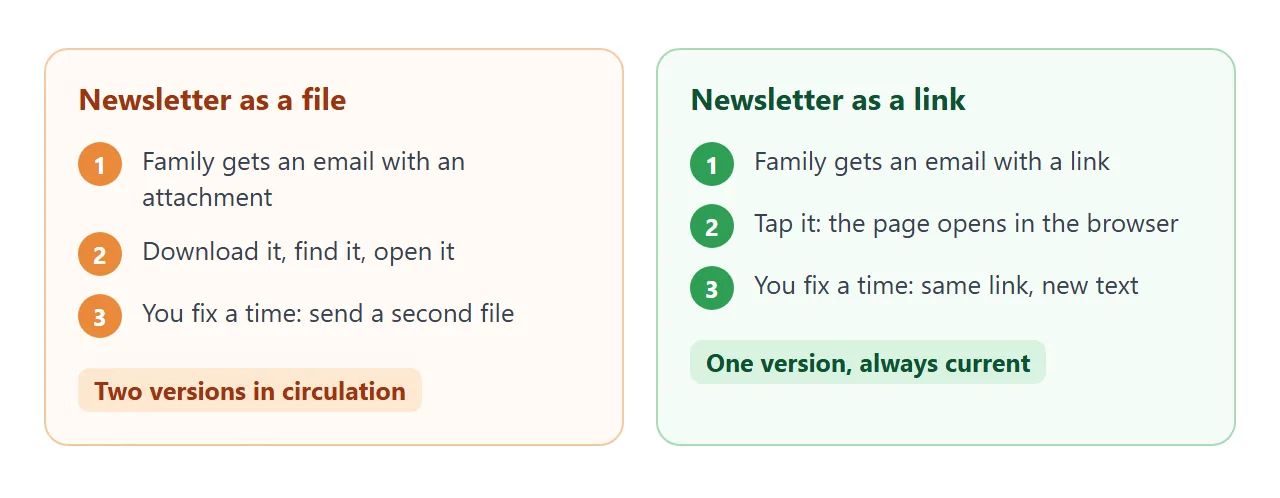
If a time changes, edit the code in NOS. The same link then shows the new version, so you never send a correction. A link also avoids the file problems in why links beat attachments.
Where to put the link
Open the link yourself first, then pick the route that matches how your families already hear from you.
- Email. In Gmail, select the words you want to link, press Insert link (or Ctrl + K) and paste the address. Other mail apps have a similar command.
- Google Classroom. An announcement on the Stream and a material post on the Classwork page can both carry a Link attachment. Plans and school settings differ, so check what your school account shows.
- Paper. Put a QR code of the link on the printed first-day sheet. See QR code link.
Ways to send the newsletter compared
| Paper letter | File attachment | Link to a page | |
|---|---|---|---|
| Family needs | Nothing | A way to open the file | A browser |
| Fixing a mistake | Print and send again | Send a second file | Edit; same link |
| Tick boxes that work | No | Only if the file opens as a page | Yes |
| Easy to find later | Lives in a bag | Buried in email | Tap the same link |
You can use two routes at once: the link by email, and the same link as a QR code on paper for families who do not check email.
For newsletters in general, see digital newsletter. For a whole term of handouts, see send course materials.
A second layout is below. It puts each day of the first week behind a tab, with a short question list. Use it if families ask more about specific days.
<!doctype html>
<html lang="en">
<head>
<meta charset="utf-8">
<meta name="viewport" content="width=device-width, initial-scale=1">
<title>First week at a glance</title>
<style>
  * { box-sizing: border-box; }
  body { margin: 0; font-family: system-ui, sans-serif; background: #f6f4fb; color: #1f1b2e; line-height: 1.5; }
  .wrap { max-width: 640px; margin: 0 auto; padding: 14px; }
  h1 { margin: 4px 0 2px; font-size: 24px; }
  .sub { margin: 0 0 12px; color: #5b5675; font-size: 15px; }
  .tabs { display: grid; grid-template-columns: repeat(5, 1fr); gap: 6px; }
  .tabs button { padding: 10px 0; border: 0; border-radius: 10px; background: #e6e1f5; color: #3b2f7a; font: 600 15px system-ui, sans-serif; cursor: pointer; }
  .tabs button[aria-selected=true] { background: #5b3fd0; color: #fff; }
  .panel { background: #fff; border-radius: 14px; padding: 16px 18px; margin-top: 10px; box-shadow: 0 1px 3px rgba(0,0,0,.08); min-height: 150px; }
  .panel h2 { margin: 0 0 6px; font-size: 18px; }
  .panel ul { margin: 6px 0 0; padding-left: 20px; }
  .panel li { margin: 3px 0; }
  .qa { margin-top: 12px; }
  details { background: #fff; border-radius: 12px; padding: 12px 16px; margin-top: 8px; box-shadow: 0 1px 3px rgba(0,0,0,.08); }
  summary { font-weight: 600; cursor: pointer; }
  details p { margin: 8px 0 0; font-size: 15px; color: #413b5c; }
</style>
</head>
<body>
<div class="wrap">
  <h1>First week at a glance</h1>
  <p class="sub">Year 3, Room 9. Tap a day to see what to bring.</p>

  <div class="tabs" role="tablist">
    <button role="tab" aria-selected="true" data-day="0">Mon</button>
    <button role="tab" aria-selected="false" data-day="1">Tue</button>
    <button role="tab" aria-selected="false" data-day="2">Wed</button>
    <button role="tab" aria-selected="false" data-day="3">Thu</button>
    <button role="tab" aria-selected="false" data-day="4">Fri</button>
  </div>
  <div class="panel" id="panel"></div>

  <div class="qa">
    <details><summary>What if my child is late?</summary><p>Come to the front office first. They will write a late slip and walk your child to class.</p></details>
    <details><summary>Where do I drop off?</summary><p>Use the east gate. The gate opens at 8:10 and closes at 8:35.</p></details>
    <details><summary>Who do I contact with a question?</summary><p>Mr. Okafor, class teacher: okafor@riverside.example. Replies come within two school days.</p></details>
  </div>
</div>

<script>
  // One entry per day: a heading and a list of things to bring or know
  const days = [
    { title: 'Monday: meet your class', items: ['Backpack and water bottle', 'Name tag, already written', 'Signed contact form'] },
    { title: 'Tuesday: library day', items: ['Library bag', 'Reading book from home, if you have one'] },
    { title: 'Wednesday: art and music', items: ['Old T-shirt to paint in', 'Indoor shoes'] },
    { title: 'Thursday: sports kit', items: ['Sports shoes', 'Hat and sunscreen', 'Spare socks'] },
    { title: 'Friday: sharing circle', items: ['One small thing to show the class', 'Folder with signed forms'] },
  ];
  const panel = document.getElementById('panel');
  const tabs = document.querySelectorAll('.tabs button');

  function show(i) {
    const d = days[i];
    panel.innerHTML = '<h2>' + d.title + '</h2><ul>' + d.items.map((t) => '<li>' + t + '</li>').join('') + '</ul>';
    tabs.forEach((t, n) => t.setAttribute('aria-selected', n === i ? 'true' : 'false'));
  }
  tabs.forEach((t, i) => t.addEventListener('click', () => show(i)));
  show(0);
</script>
</body>
</html>
When it does not work
| What you see | Cause | Fix |
|---|---|---|
| The page is tiny on a phone | The viewport tag is missing | Ask the chat to add the viewport meta tag |
| A picture shows a broken icon | It points to another website | Replace it with an inline SVG or remove it |
| The tick boxes do nothing | The script is missing or broken | Ask the chat to include a script that counts the ticks |
| The AI added a form or an email button | The prompt did not rule it out | Ask for a page with no forms |
| The link opens but shows old times | You edited a copy, not the page you shared | Open the NOS document that made the link and edit there |
| An attachment will not open on a phone | The phone has no app for that file | Send the link instead |
If the page shows as plain code, see opening an HTML file on a phone.