Here, Electron means the desktop app framework, not the particle. It bundles Chromium and Node.js, so a folder with an index.html can open in its own window on Windows, macOS and Linux. The HTML is the same HTML you would put on a web page.
Start with the page itself, since that is the part you write. This is the kind of index.html an Electron window loads. It runs here in a browser, and it checks for a desktop helper before using it.
<!doctype html>
<html lang="en">
<head>
<meta charset="utf-8">
<meta name="viewport" content="width=device-width, initial-scale=1">
<title>Electron index.html</title>
<style>
  body {
    margin: 0; padding: 16px; font-family: system-ui, sans-serif;
    background: #f4f5f7; color: #1d2330;
  }
  h1 { font-size: 20px; margin: 0 0 6px; }
  p { margin: 0 0 12px; line-height: 1.45; }
  #info {
    padding: 12px 14px; border-radius: 10px; background: #fff;
    border: 1px solid #e1e4ea; font: 14px/1.5 ui-monospace, Consolas, monospace;
  }
  #info.desktop { border-color: #9ad2ad; background: #f4fbf6; }
  button {
    margin-top: 12px; padding: 9px 14px; font: inherit; border: 0;
    border-radius: 8px; background: #2563eb; color: #fff; cursor: pointer;
  }
</style>
</head>
<body>
<h1>Hello from index.html</h1>
<p>The same file opens in a browser tab or in an Electron window.</p>
<div id="info"></div>
<button id="fake" type="button">Pretend the preload script ran</button>

<script>
  const info = document.getElementById('info');

  // In an Electron app, a preload script exposes window.versions. In a browser it does not exist.
  function show() {
    if (window.versions) {
      info.className = 'desktop';
      info.textContent = 'Inside a desktop shell. Chrome ' + window.versions.chrome() +
        ', Electron ' + window.versions.electron();
    } else {
      info.className = '';
      info.textContent = 'Plain browser: window.versions is undefined.';
    }
  }

  document.getElementById('fake').addEventListener('click', () => {
    // Stand-in for what preload.js would expose. The values are placeholders.
    window.versions = { chrome: () => '(from preload)', electron: () => '(from preload)' };
    show();
  });

  show();
</script>
</body>
</html>
Nothing in that file is Electron-only. The only desktop-specific line is the check for window.versions, which is a name used in Electron's own tutorial.
The three files an Electron app needs
An Electron project is a small npm project. You need Node.js and npm installed, then you add Electron as a development dependency.
npm init
npm install --save-dev electron
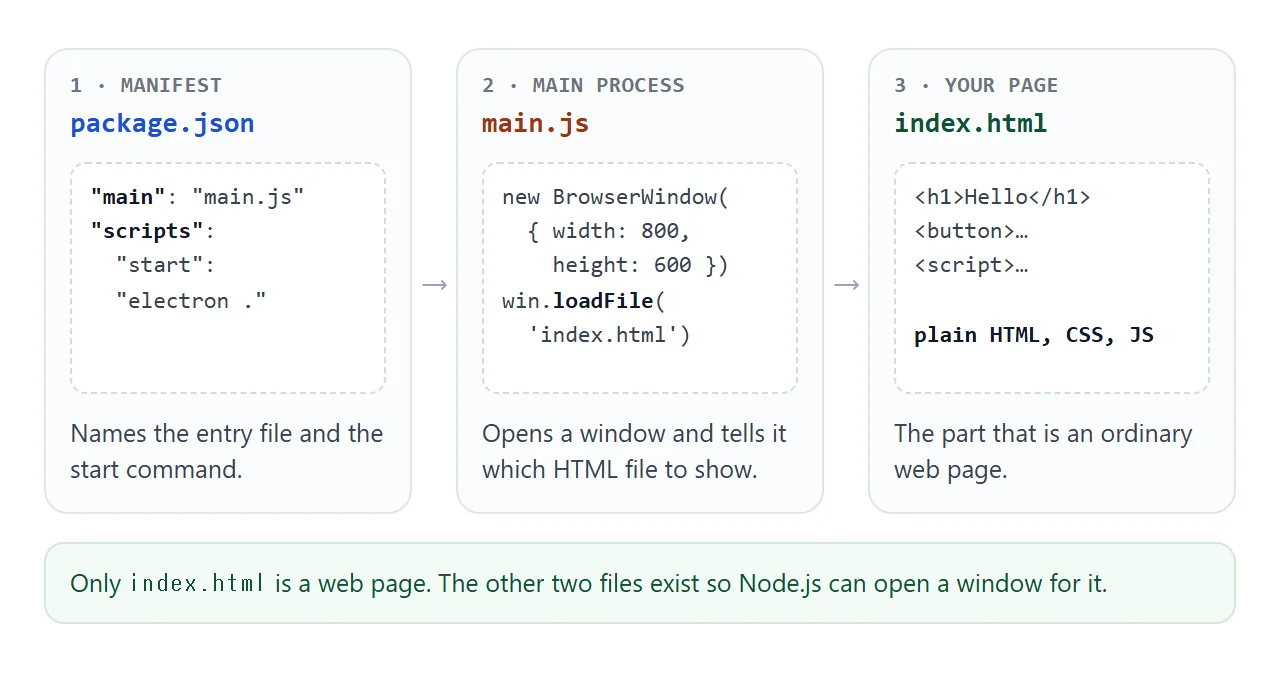
In package.json, set the entry file and a start command:
{
  "main": "main.js",
  "scripts": { "start": "electron ." }
}
Then main.js opens a window and loads the HTML:
const { app, BrowserWindow } = require('electron')

const createWindow = () => {
  const win = new BrowserWindow({ width: 800, height: 600 })
  win.loadFile('index.html')   // path relative to the app folder
}

app.whenReady().then(createWindow)
Put your page in index.html next to it and run npm start. loadFile takes a path to an HTML file relative to the root of your application.
Two processes: your page and the main script
Electron runs two kinds of process. The main process starts the app, opens windows and can use Node.js. Each window runs a renderer process, which draws your HTML like a browser tab.
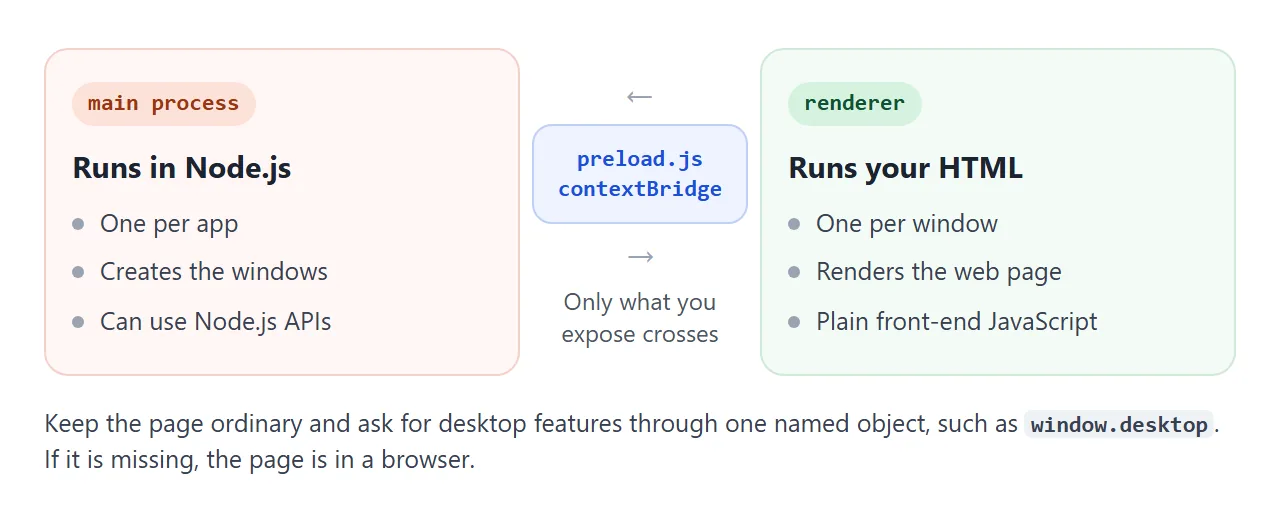
A page should not call Node.js directly. A preload script runs before the page and can hand it selected functions through contextBridge. Context isolation, which keeps the preload code and the page in separate contexts, has been the default since Electron 12.
// preload.js
const { contextBridge } = require('electron')
contextBridge.exposeInMainWorld('versions', {
  electron: () => process.versions.electron
})
Point the window at that file through the webPreferences option in main.js:
const path = require('node:path')
const win = new BrowserWindow({
  width: 800,
  height: 600,
  webPreferences: { preload: path.join(__dirname, 'preload.js') }
})
The page can now read versions.electron(). Expose small, named functions, never the whole ipcRenderer object.
Write the page so it works in both places
If the page only uses the web platform plus one optional object, the same file serves a desktop window and a browser tab. Check for the object, use it when it is there, and fall back when it is not.
<!doctype html>
<html lang="en">
<head>
<meta charset="utf-8">
<meta name="viewport" content="width=device-width, initial-scale=1">
<title>One page, two homes</title>
<style>
  body { margin: 0; padding: 16px; font-family: system-ui, sans-serif; background: #f4f5f7; color: #1d2330; }
  .seg { display: flex; gap: 6px; margin-bottom: 12px; }
  .seg button {
    flex: 1; padding: 9px 8px; font: inherit; font-size: 14px; cursor: pointer;
    border: 1px solid #cfd5df; border-radius: 8px; background: #fff; color: #1d2330;
  }
  .seg button[aria-pressed="true"] { background: #1d2330; color: #fff; border-color: #1d2330; }
  textarea {
    width: 100%; box-sizing: border-box; height: 84px; padding: 10px; font: 15px/1.4 system-ui, sans-serif;
    border: 1px solid #cfd5df; border-radius: 8px; resize: none;
  }
  #save {
    margin-top: 10px; padding: 9px 16px; font: inherit; border: 0; border-radius: 8px;
    background: #2563eb; color: #fff; cursor: pointer;
  }
  #out {
    margin-top: 12px; padding: 12px 14px; min-height: 64px; border-radius: 10px;
    background: #fff; border: 1px solid #e1e4ea; font: 13.5px/1.5 ui-monospace, Consolas, monospace;
    white-space: pre-wrap; overflow-wrap: anywhere;
  }
  #out.native { background: #f4fbf6; border-color: #9ad2ad; }
  #out.web { background: #fff8f1; border-color: #f0c8a8; }
</style>
</head>
<body>
<div class="seg" role="group" aria-label="Where the page runs">
  <button type="button" id="b-web" aria-pressed="true">Browser tab</button>
  <button type="button" id="b-app" aria-pressed="false">Desktop shell (simulated)</button>
</div>

<textarea id="note" aria-label="Note">Buy coffee filters.</textarea>
<button id="save" type="button">Save note</button>
<div id="out">Press Save note.</div>

<script>
  const out = document.getElementById('out');
  const note = document.getElementById('note');
  const bWeb = document.getElementById('b-web');
  const bApp = document.getElementById('b-app');

  // A preload script would expose something like this. Here it is a stand-in that returns a promise.
  const fakeDesktop = {
    saveText: (text) => Promise.resolve('main process wrote ' + text.length + ' characters to disk')
  };

  function setMode(app) {
    bWeb.setAttribute('aria-pressed', String(!app));
    bApp.setAttribute('aria-pressed', String(app));
    if (app) window.desktop = fakeDesktop; else delete window.desktop;
    out.className = '';
    out.textContent = 'Press Save note.';
  }

  async function save() {
    const text = note.value;
    if (window.desktop && window.desktop.saveText) {
      // Desktop shell: hand the work to the main process
      out.className = 'native';
      out.textContent = 'window.desktop found.\n' + await window.desktop.saveText(text);
    } else {
      // Browser: fall back to something a web page can do on its own
      out.className = 'web';
      out.textContent = 'No window.desktop. Fallback: keep it on the page.\n"' + text + '"';
    }
  }

  bWeb.addEventListener('click', () => setMode(false));
  bApp.addEventListener('click', () => setMode(true));
  document.getElementById('save').addEventListener('click', save);
</script>
</body>
</html>
In the example, window.desktop plays the part of something a preload script would expose. The page decides at the moment of the click, so it needs no separate version for each home.
A finished example: a focus timer
A timer is a good first window. It needs no files on disk, no network and no Node.js. It is plain HTML that happens to feel like an app.
<!doctype html>
<html lang="en">
<head>
<meta charset="utf-8">
<meta name="viewport" content="width=device-width, initial-scale=1">
<title>Focus timer</title>
<style>
  body {
    margin: 0; min-height: 100vh; display: grid; place-items: center;
    font-family: system-ui, sans-serif; background: #f4f5f7; color: #1d2330;
  }
  .app { text-align: center; padding: 16px; width: 100%; max-width: 340px; box-sizing: border-box; }
  #time { font: 700 64px/1 ui-monospace, Consolas, monospace; margin: 8px 0 14px; }
  #time.done { color: #0f5132; }
  .row { display: flex; gap: 8px; justify-content: center; margin: 10px 0; }
  button {
    padding: 10px 14px; font: inherit; font-size: 15px; border-radius: 8px;
    border: 1px solid #cfd5df; background: #fff; color: #1d2330; cursor: pointer;
  }
  button.main { background: #2563eb; border-color: #2563eb; color: #fff; min-width: 96px; }
  button[aria-pressed="true"] { background: #1d2330; color: #fff; border-color: #1d2330; }
  #hint { font-size: 13px; color: #5b6472; min-height: 18px; }
</style>
</head>
<body>
<div class="app">
  <div class="row" id="presets" role="group" aria-label="Length">
    <button type="button" data-min="5">5 min</button>
    <button type="button" data-min="25" aria-pressed="true">25 min</button>
    <button type="button" data-min="50">50 min</button>
  </div>
  <div id="time" aria-live="off">25:00</div>
  <div class="row">
    <button type="button" class="main" id="go">Start</button>
    <button type="button" id="reset">Reset</button>
  </div>
  <div id="hint">Pick a length and press Start.</div>
</div>

<script>
  const timeEl = document.getElementById('time');
  const go = document.getElementById('go');
  const hint = document.getElementById('hint');
  let total = 25 * 60 * 1000;   // chosen length in ms
  let left = total;             // time remaining while paused
  let endAt = 0;                // clock time when it reaches zero while running
  let timer = null;

  function fmt(ms) {
    const s = Math.ceil(ms / 1000);
    return String(Math.floor(s / 60)).padStart(2, '0') + ':' + String(s % 60).padStart(2, '0');
  }

  function paint() {
    if (timer) left = Math.max(0, endAt - Date.now());   // subtract from the clock, do not count ticks
    timeEl.textContent = fmt(left);
    document.title = fmt(left) + ' - Focus timer';
    if (timer && left === 0) {
      clearInterval(timer); timer = null;
      go.textContent = 'Start'; timeEl.classList.add('done');
      hint.textContent = 'Done. Take a break.';
    }
  }

  go.addEventListener('click', () => {
    if (timer) {                                        // pause
      clearInterval(timer); timer = null; go.textContent = 'Resume';
      hint.textContent = 'Paused.';
      return;
    }
    if (left === 0) left = total;
    timeEl.classList.remove('done');
    endAt = Date.now() + left;
    timer = setInterval(paint, 250);
    go.textContent = 'Pause'; hint.textContent = 'Running.';
    paint();
  });

  function reset() {
    clearInterval(timer); timer = null;
    left = total; go.textContent = 'Start';
    timeEl.classList.remove('done'); hint.textContent = 'Pick a length and press Start.';
    paint();
  }
  document.getElementById('reset').addEventListener('click', reset);

  document.querySelectorAll('#presets button').forEach((b) => {
    b.addEventListener('click', () => {
      document.querySelectorAll('#presets button').forEach((x) => x.setAttribute('aria-pressed', 'false'));
      b.setAttribute('aria-pressed', 'true');
      total = Number(b.dataset.min) * 60 * 1000;
      reset();
    });
  });
</script>
</body>
</html>
The timer subtracts the clock instead of counting ticks, so it stays right if the window is in the background. The page title shows the remaining time too, so a tab or window caption stays useful.
The security setting that blanks your page
The Electron tutorial puts a Content Security Policy meta tag in index.html:
<meta http-equiv="Content-Security-Policy"
      content="default-src 'self'; script-src 'self'" />
Per MDN, when a policy has default-src or script-src, inline script tags do not run.
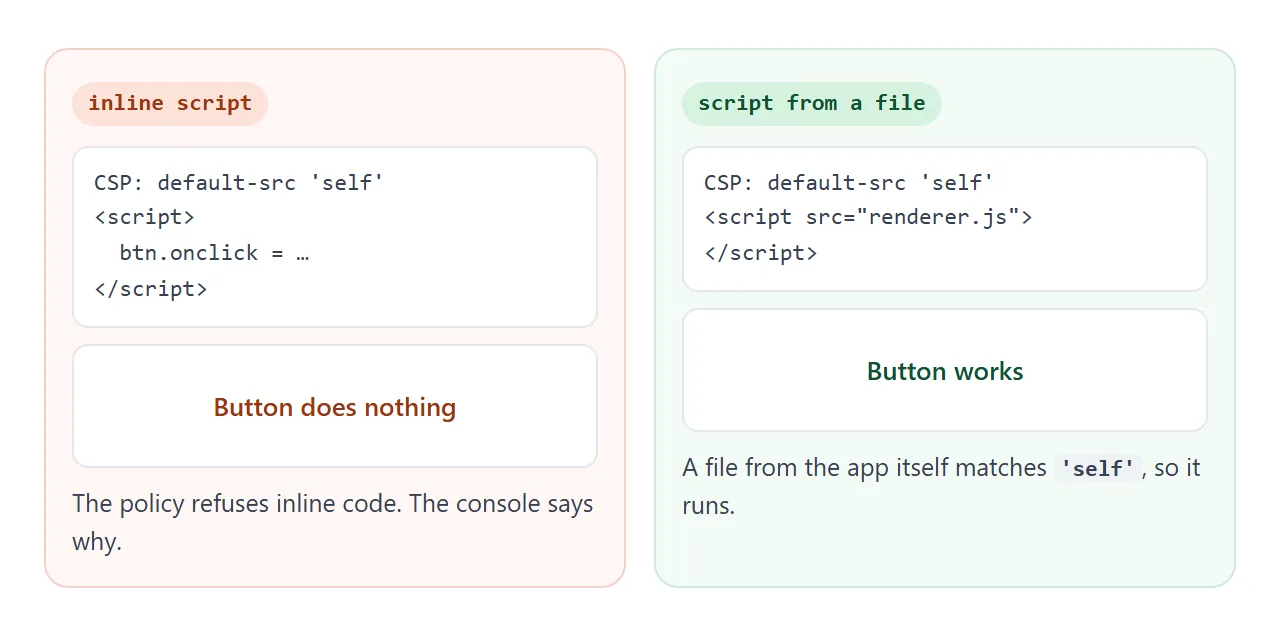
The demos on this page keep their code inline, so under that policy their buttons would do nothing. Put the code in renderer.js and load it with a src attribute.
To load a library from a web address, add its host to script-src, as Electron's security guide does with its example host.
To ship the app to other people, Electron's distribution guide recommends Electron Forge.
npx electron-forge import
npm run make
When it does not work
| What you see | Cause | Fix |
|---|---|---|
| Window opens, buttons do nothing | A CSP blocks inline script | Move the code to a script file |
| require is not defined in the page | Node.js integration is off by default | Use preload and contextBridge |
| window.versions is undefined | The page is in a browser, or no preload is set | Check for it before use |
| Blank window, file not found | The loadFile path is wrong | Use a path relative to the app folder |
| Library does not load in the window | The CSP does not list its host | Add the host to script-src |
| npm start does nothing useful | main in package.json is missing | Set main to main.js |
Share it as a link
An Electron app is a folder that other people have to install and run. Your page does not have to wait for that. A screenshot cannot be clicked. An .html attachment may open as plain code on a phone.
Opening an HTML file on a phone covers why.
To send the working page, paste it into a NOS document and choose Create share link. HTML to link walks through it. The page renders as written and its scripts run, so the people you send it to can press the buttons themselves.
A page that checks for the desktop helper, like the ones above, simply takes its browser path. If you change the code later, the same link shows the new version.