An expense tracker in JavaScript is three parts: a form that collects a description and an amount, an array that holds every expense, and a render() function that redraws the list and total. All of it fits in one HTML file.
Try it first. Add an expense, and watch the total change.
<!doctype html>
<html lang="en">
<head>
<meta charset="utf-8">
<meta name="viewport" content="width=device-width, initial-scale=1">
<title>Expense tracker</title>
<style>
  * { box-sizing: border-box; }
  body { margin: 0; padding: 16px; font-family: system-ui, sans-serif; background: #f4f5f7; color: #1d2330; }
  main { max-width: 440px; margin: 0 auto; background: #fff; border-radius: 12px; padding: 16px; box-shadow: 0 4px 16px rgba(0,0,0,.08); }
  form { display: flex; flex-wrap: wrap; gap: 8px; }
  input { font: inherit; padding: 8px 10px; border: 1px solid #c9cfd8; border-radius: 8px; min-width: 0; }
  #what { flex: 2 1 130px; }
  #amt { flex: 1 1 90px; }
  button { font: inherit; padding: 8px 14px; border: 0; border-radius: 8px; background: #2563eb; color: #fff; cursor: pointer; }
  ul { list-style: none; margin: 14px 0 0; padding: 0; }
  li { display: flex; justify-content: space-between; padding: 8px 0; border-bottom: 1px solid #eef0f4; }
  .total { display: flex; justify-content: space-between; margin: 12px 0 0; font-size: 1.1rem; }
</style>
</head>
<body>
<main>
  <form id="form">
    <input id="what" placeholder="What for?" required>
    <input id="amt" type="number" min="0.01" step="0.01" placeholder="Amount" required>
    <button>Add</button>
  </form>
  <ul id="list"></ul>
  <p class="total"><span>Total</span><b id="total"></b></p>
</main>

<script>
  const money = new Intl.NumberFormat('en-US', { style: 'currency', currency: 'USD' });
  const expenses = [
    { what: 'Coffee', cents: 450 },
    { what: 'Train ticket', cents: 1280 },
  ];

  const form = document.getElementById('form');
  const list = document.getElementById('list');

  function render() {
    // rebuild the list and the total from the array, every time
    list.replaceChildren(...expenses.map((x) => {
      const li = document.createElement('li');
      const name = document.createElement('span');
      const amount = document.createElement('span');
      name.textContent = x.what;                       // text, never markup
      amount.textContent = money.format(x.cents / 100);
      li.append(name, amount);
      return li;
    }));
    const sum = expenses.reduce((s, x) => s + x.cents, 0);
    document.getElementById('total').textContent = money.format(sum / 100);
  }

  form.addEventListener('submit', (e) => {
    e.preventDefault();                                 // no page reload
    const what = document.getElementById('what').value.trim();
    const cents = Math.round(Number(document.getElementById('amt').value) * 100);
    if (!what || !(cents > 0)) return;
    expenses.push({ what, cents });                     // money kept as whole cents
    form.reset();
    render();
    document.getElementById('what').focus();
  });

  render();
</script>
</body>
</html>
How it works: a form, an array and render()
Every change follows the same four steps, and the page is always drawn from the array.
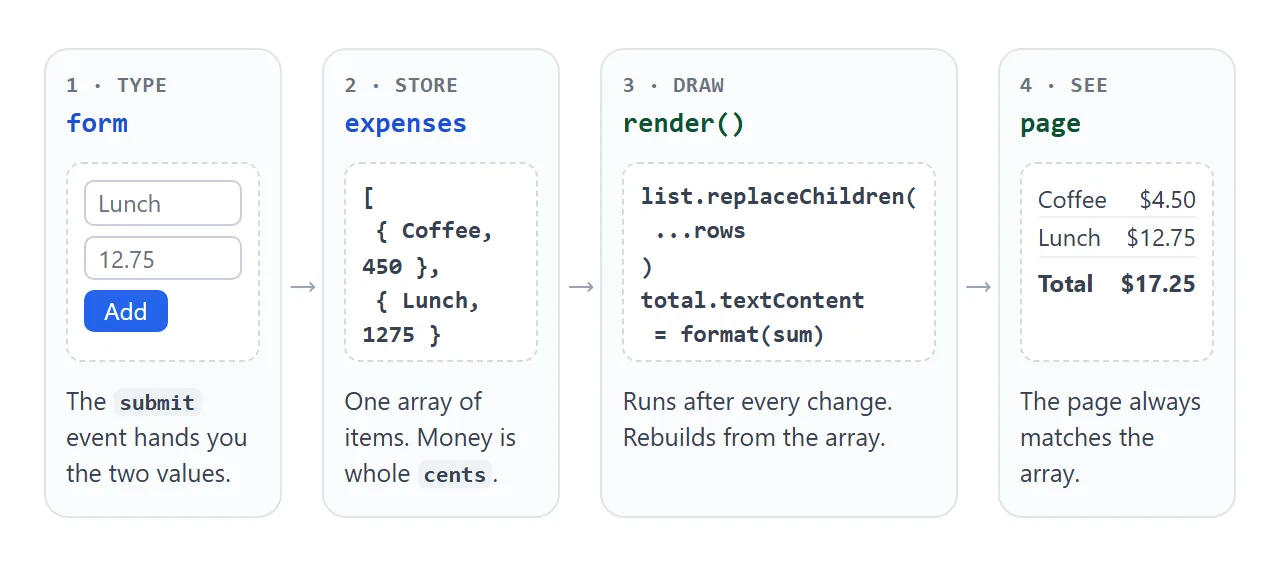
- Submit. The form's
submitevent fires when the user presses Add or hits Enter. CallpreventDefault()first so the page does not reload. - Read. Take the description with
trim(), and turn the amount into whole cents. - Store. Push
{ what, cents }into theexpensesarray. - Draw. Call
render(). It rebuilds the rows withreplaceChildrenand writes the total.
Because render() starts from the array every time, the page can never disagree with the data. Adding, deleting and filtering all become "change the array, call render".
The total is one reduce call:
const sum = expenses.reduce((s, x) => s + x.cents, 0);
Keep the 0 at the end. Without a starting value, reduce throws a TypeError on an empty array, and a tracker with no expenses yet is empty.
The same array-and-render pattern drives the simple HTML todo list, with a checkbox where this has an amount.
Keep money as whole cents
JavaScript numbers are binary floating point. Most decimal fractions cannot be stored exactly, so the sum of two prices can come out a hair off.
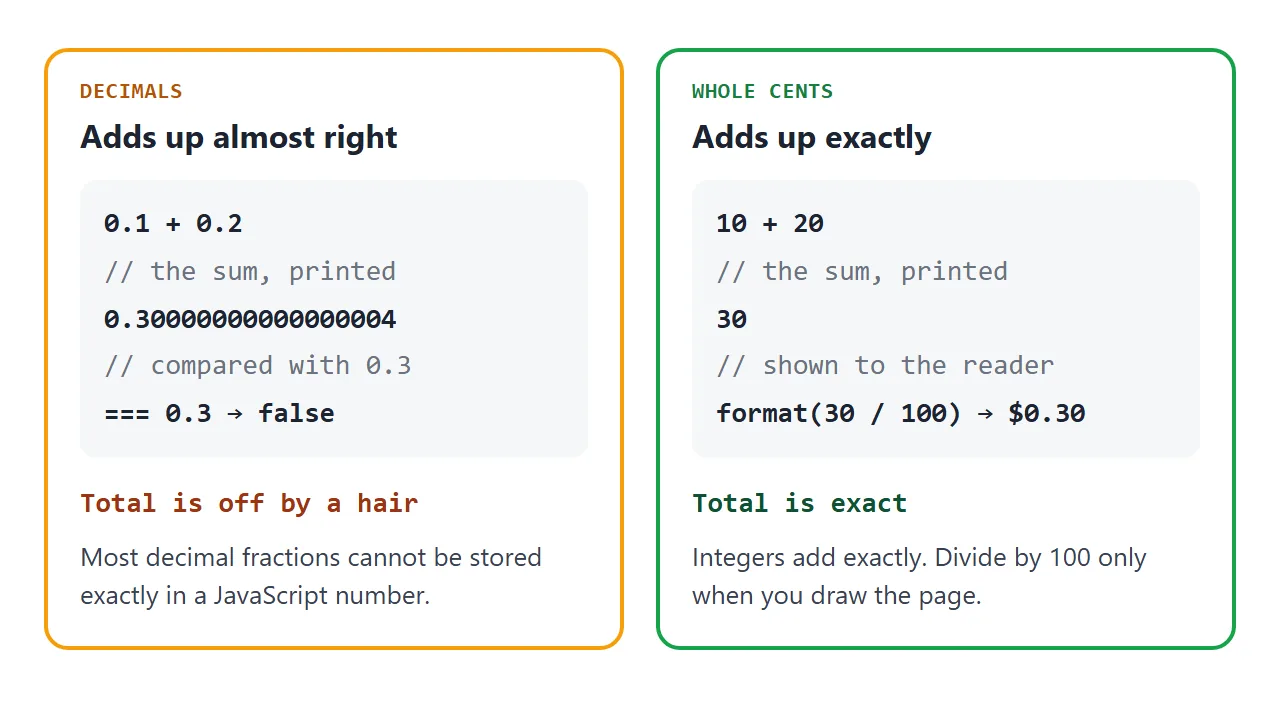
Press the buttons below. The left panel adds decimals, the right panel adds whole cents.
<!doctype html>
<html lang="en">
<head>
<meta charset="utf-8">
<meta name="viewport" content="width=device-width, initial-scale=1">
<title>Decimals vs whole cents</title>
<style>
  * { box-sizing: border-box; }
  body { margin: 0; padding: 16px; font-family: system-ui, sans-serif; background: #f4f5f7; color: #1d2330; }
  .btns { display: flex; flex-wrap: wrap; gap: 8px; margin-bottom: 14px; }
  button { font: inherit; padding: 8px 14px; border: 1px solid #c9cfd8; border-radius: 8px; background: #fff; cursor: pointer; }
  button.reset { margin-left: auto; }
  .panels { display: grid; grid-template-columns: repeat(auto-fit, minmax(230px, 1fr)); gap: 12px; }
  .panel { background: #fff; border-radius: 12px; padding: 14px; border: 2px solid; }
  .bad { border-color: #f59e0b; }
  .good { border-color: #16a34a; }
  h2 { margin: 0 0 6px; font-size: 1rem; }
  .small { margin: 0 0 8px; font-size: .85rem; color: #4b5563; }
  .val { font: 600 1.05rem ui-monospace, Consolas, monospace; overflow-wrap: anywhere; min-height: 1.5em; }
  .eq { margin: 8px 0 0; font-size: .9rem; }
  .eq b { font-family: ui-monospace, Consolas, monospace; }
  #log { margin: 14px 0 0; font-size: .9rem; color: #4b5563; }
</style>
</head>
<body>
<div class="btns">
  <button data-add="0.10">+ 0.10</button>
  <button data-add="0.20">+ 0.20</button>
  <button data-add="0.30">+ 0.30</button>
  <button class="reset" id="reset">Reset</button>
</div>

<div class="panels">
  <section class="panel bad">
    <h2>Decimals</h2>
    <p class="small">total = total + 0.1 ...</p>
    <div class="val" id="floatVal">0</div>
    <p class="eq">Equals cents / 100? <b id="floatEq">-</b></p>
  </section>
  <section class="panel good">
    <h2>Whole cents</h2>
    <p class="small">cents = cents + 10 ...</p>
    <div class="val" id="centsVal">0</div>
    <p class="eq">Shown as <b id="centsEq">-</b></p>
  </section>
</div>
<p id="log">Press + 0.10, then + 0.20, then + 0.30.</p>

<script>
  let total = 0;   // decimals
  let cents = 0;   // whole cents
  const money = new Intl.NumberFormat('en-US', { style: 'currency', currency: 'USD' });
  const $ = (id) => document.getElementById(id);

  function show() {
    $('floatVal').textContent = String(total);                       // the raw number
    $('centsVal').textContent = String(cents);
    $('floatEq').textContent = String(total === cents / 100);
    $('centsEq').textContent = money.format(cents / 100);
  }

  document.querySelectorAll('[data-add]').forEach((b) => {
    b.addEventListener('click', () => {
      const amount = Number(b.dataset.add);       // dataset values are strings
      total = total + amount;
      cents = cents + Math.round(amount * 100);
      show();
    });
  });

  $('reset').addEventListener('click', () => { total = 0; cents = 0; show(); });
  show();
</script>
</body>
</html>
The fix is to store every amount as an integer number of cents. Convert once, when the amount comes in:
const cents = Math.round(Number(amountInput.value) * 100);
The Math.round matters. Multiplying 19.99 by 100 gives 1998.9999999999998, not 1999. Math.round picks the nearest whole number, and cutting the decimals off with Math.floor would lose a cent.
Divide by 100 only when you draw the page. Not every currency has two decimals, so this step suits currencies with cents. Formatting Japanese yen, for example, gives a whole number.
Read the form without reloading the page
A form that is submitted without preventDefault() is a navigation. The browser loads a page, and everything the script built is gone. A form with no action loads its own address again, which html-form-without-action explains.
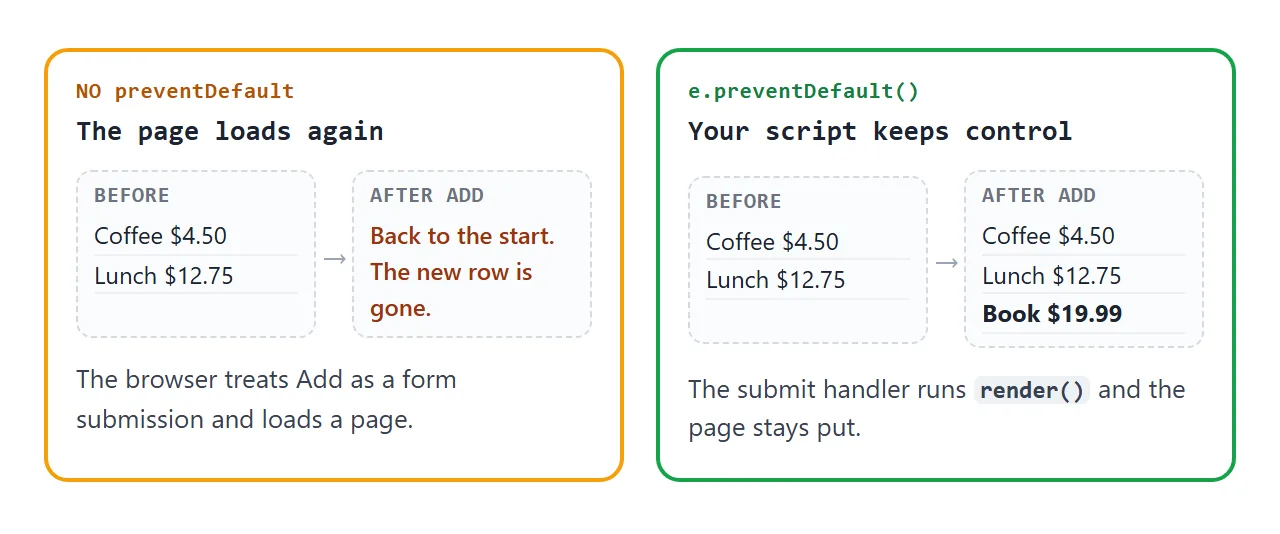
Three details make the form behave:
<input id="what" required>
<input id="amt" type="number" min="0.01" step="0.01" required>
- Validation runs first. If a field fails
required,minorstep, the browser shows its message and nosubmitevent fires. See form validation for the details. step="0.01"allows two decimals. The default step for a number input is 1, which only accepts whole numbers.valueis a string."12.5" + 1is"12.51". Wrap it inNumber(), and note thatNumber("")is 0, so also check that the cents are above zero.
Put the description on the page with textContent, not innerHTML. textContent treats a typed <b> as plain characters instead of markup. The first example above shows it: the tag appears as text.
Show amounts as currency
Intl.NumberFormat turns a number into a currency string. Build the formatter once and reuse it:
const money = new Intl.NumberFormat('en-US', { style: 'currency', currency: 'USD' });
money.format(1999 / 100);   // "$19.99"
Change the locale and currency code to match your readers, for example de-DE with EUR. The formatter picks the currency's usual number of decimals, so no toFixed is needed. The Intl.NumberFormat guide lists the options.
A finished example: budget, categories and delete
The same array scales to a fuller tracker. This version adds a budget, a bar per category, a filter and a delete button.
<!doctype html>
<html lang="en">
<head>
<meta charset="utf-8">
<meta name="viewport" content="width=device-width, initial-scale=1">
<title>Expense tracker with budget</title>
<style>
  * { box-sizing: border-box; }
  body { margin: 0; padding: 16px; font-family: system-ui, sans-serif; background: #f4f5f7; color: #1d2330; }
  main { max-width: 520px; margin: 0 auto; background: #fff; border-radius: 12px; padding: 16px; box-shadow: 0 4px 16px rgba(0,0,0,.08); }
  h1 { margin: 0 0 12px; font-size: 1.2rem; }
  input, select, button { font: inherit; padding: 8px 10px; border: 1px solid #c9cfd8; border-radius: 8px; min-width: 0; background: #fff; }
  .sum { display: grid; grid-template-columns: repeat(3, 1fr); gap: 8px; }
  .sum div { display: flex; flex-direction: column; gap: 2px; }
  .sum span { font-size: .78rem; color: #6b7280; }
  .sum b { font-size: 1.1rem; padding: 8px 0; }
  .sum input { width: 100%; }
  .meter { height: 10px; border-radius: 5px; background: #e5e7eb; margin: 6px 0 16px; overflow: hidden; }
  .meter i { display: block; height: 100%; width: 0; background: #16a34a; }
  .over .meter i { background: #f59e0b; }
  .over #left { color: #9a3412; }
  form { display: flex; flex-wrap: wrap; gap: 8px; }
  #what { flex: 2 1 140px; }
  #amt { flex: 1 1 90px; }
  #cat { flex: 1 1 100px; }
  form button { background: #2563eb; border-color: #2563eb; color: #fff; cursor: pointer; }
  .bars { margin: 16px 0 6px; display: grid; gap: 6px; }
  .bar { display: grid; grid-template-columns: 78px 1fr 72px; gap: 8px; align-items: center; font-size: .85rem; }
  .bar .track { height: 8px; background: #eef0f4; border-radius: 4px; overflow: hidden; }
  .bar .track i { display: block; height: 100%; background: #2563eb; }
  .bar em { font-style: normal; text-align: right; }
  .filter { margin: 14px 0 4px; font-size: .9rem; }
  ul { list-style: none; margin: 0; padding: 0; }
  li { display: flex; align-items: center; gap: 8px; padding: 8px 0; border-bottom: 1px solid #eef0f4; }
  li .what { flex: 1; min-width: 0; overflow-wrap: anywhere; }
  li .tag { font-size: .72rem; padding: 2px 8px; border-radius: 99px; background: #eef2ff; color: #3730a3; }
  li .del { padding: 2px 9px; cursor: pointer; color: #9a3412; }
  li.empty { color: #6b7280; }
</style>
</head>
<body>
<main id="app">
  <h1>Expense tracker</h1>

  <div class="sum">
    <div><span>Spent</span><b id="spent"></b></div>
    <div><span>Budget</span><input id="budget" type="number" min="0" step="1" value="300" aria-label="Budget"></div>
    <div><span id="leftLabel">Left</span><b id="left"></b></div>
  </div>
  <div class="meter"><i id="fill"></i></div>

  <form id="form">
    <input id="what" placeholder="What for?" required>
    <input id="amt" type="number" min="0.01" step="0.01" placeholder="Amount" required>
    <select id="cat" aria-label="Category"></select>
    <button>Add</button>
  </form>

  <div class="bars" id="bars"></div>

  <div class="filter">Show <select id="show" aria-label="Filter by category"></select></div>
  <ul id="list"></ul>
</main>

<script>
  const CATS = ['Food', 'Transport', 'Home', 'Fun'];
  const money = new Intl.NumberFormat('en-US', { style: 'currency', currency: 'USD' });
  const fmt = (cents) => money.format(cents / 100);
  const $ = (id) => document.getElementById(id);

  let nextId = 1;
  let expenses = [
    ['Groceries', 'Food', 5420], ['Metro card', 'Transport', 3000],
    ['Lamp', 'Home', 2499], ['Cinema', 'Fun', 1800], ['Lunch', 'Food', 1275],
  ].map(([what, cat, cents]) => ({ id: nextId++, what, cat, cents }));
  let filter = 'All';

  for (const c of CATS) $('cat').add(new Option(c));
  for (const c of ['All', ...CATS]) $('show').add(new Option(c));

  function render() {
    const spent = expenses.reduce((s, x) => s + x.cents, 0);
    const budget = Math.round(Number($('budget').value) * 100);   // empty box counts as 0
    const left = budget - spent;

    $('spent').textContent = fmt(spent);
    $('left').textContent = fmt(Math.abs(left));
    $('leftLabel').textContent = left < 0 ? 'Over by' : 'Left';
    $('app').classList.toggle('over', left < 0);
    $('fill').style.width = (budget > 0 ? Math.min(100, spent / budget * 100) : 100) + '%';

    // one bar per category, as a share of everything spent
    $('bars').replaceChildren(...CATS.map((c) => {
      const sum = expenses.filter((x) => x.cat === c).reduce((s, x) => s + x.cents, 0);
      const row = document.createElement('div');
      row.className = 'bar';
      row.innerHTML = '<span></span><div class="track"><i></i></div><em></em>';
      row.children[0].textContent = c;
      row.querySelector('i').style.width = (spent ? sum / spent * 100 : 0) + '%';
      row.children[2].textContent = fmt(sum);
      return row;
    }));

    const rows = filter === 'All' ? expenses : expenses.filter((x) => x.cat === filter);
    if (!rows.length) {
      const li = document.createElement('li');
      li.className = 'empty';
      li.textContent = 'Nothing here yet.';
      $('list').replaceChildren(li);
      return;
    }
    $('list').replaceChildren(...rows.map((x) => {
      const li = document.createElement('li');
      li.innerHTML = '<span class="what"></span><span class="tag"></span><b></b><button class="del" type="button">x</button>';
      li.querySelector('.what').textContent = x.what;     // user text goes in as text
      li.querySelector('.tag').textContent = x.cat;
      li.querySelector('b').textContent = fmt(x.cents);
      const del = li.querySelector('.del');
      del.dataset.id = x.id;
      del.setAttribute('aria-label', 'Delete ' + x.what);
      return li;
    }));
  }

  $('form').addEventListener('submit', (e) => {
    e.preventDefault();
    const what = $('what').value.trim();
    const cents = Math.round(Number($('amt').value) * 100);
    if (!what || !(cents > 0)) return;
    expenses.push({ id: nextId++, what, cat: $('cat').value, cents });
    $('what').value = '';
    $('amt').value = '';
    render();
    $('what').focus();
  });

  // one listener for every delete button, including rows added later
  $('list').addEventListener('click', (e) => {
    const btn = e.target.closest('button[data-id]');
    if (!btn) return;
    const id = Number(btn.dataset.id);                    // dataset gives a string
    expenses = expenses.filter((x) => x.id !== id);
    render();
  });

  $('show').addEventListener('change', () => { filter = $('show').value; render(); });
  $('budget').addEventListener('input', render);
  render();
</script>
</body>
</html>
- Budget. Left is the budget minus the sum. When it goes negative, the label reads "Over by" and the meter turns orange.
- Categories. Each bar is the sum of one category as a percentage of everything spent, set as the bar's width. No chart library is involved.
- Ids. Each expense gets an
idfrom a counter, so delete finds the right row even while the list is filtered. - Delete. One click listener on the
ulserves every button, including rows added later.
list.addEventListener('click', (e) => {
  const btn = e.target.closest('button[data-id]');
  if (!btn) return;
  expenses = expenses.filter((x) => x.id !== Number(btn.dataset.id));
  render();
});
closest() starts at the clicked element and walks up. It returns null when the click was not on a delete button.
dataset values are always strings, so convert the id with Number() before comparing it with a number.
The array lives in memory, so a reload empties it. Rows kept between visits need local storage, which is left out here because storage resets on reload in a NOS page. The single HTML file apps guide covers the trade-offs of this style.
When it does not work
| What you see | Cause | Fix |
|---|---|---|
The new row vanishes and the address gains ?what=... |
The form was submitted normally | Call e.preventDefault() in the submit handler |
| Total shows 0.30000000000000004 | Amounts are decimals | Store cents, format on display |
| Total reads "1010" instead of 20 | + joined two strings |
Wrap input values in Number() |
| 12.50 is refused with a validation message | A number input steps by 1 by default | Add step="0.01" |
| Total is a cent short | Math.floor cut the decimals |
Use Math.round |
| Total throws a TypeError on an empty list | reduce has no starting value |
Pass 0 as the second argument |
| A typed tag turns text bold | The text went in with innerHTML |
Use textContent |
| Delete button does nothing | A string id was compared with a number id | Convert with Number(btn.dataset.id) |
| Rows disappear on reload | The array lives in memory | Expected; see the storage note above |
Share it as a link
A tracker is easier to show than to describe, because the person you send it to can type their own expenses and watch the total move.
Paste the page into a NOS document and choose Create share link. HTML to link walks through it.
The page renders as written and its scripts run, so anyone with the link can open it without an account and try it. If you edit the code later, the same link shows the new version.