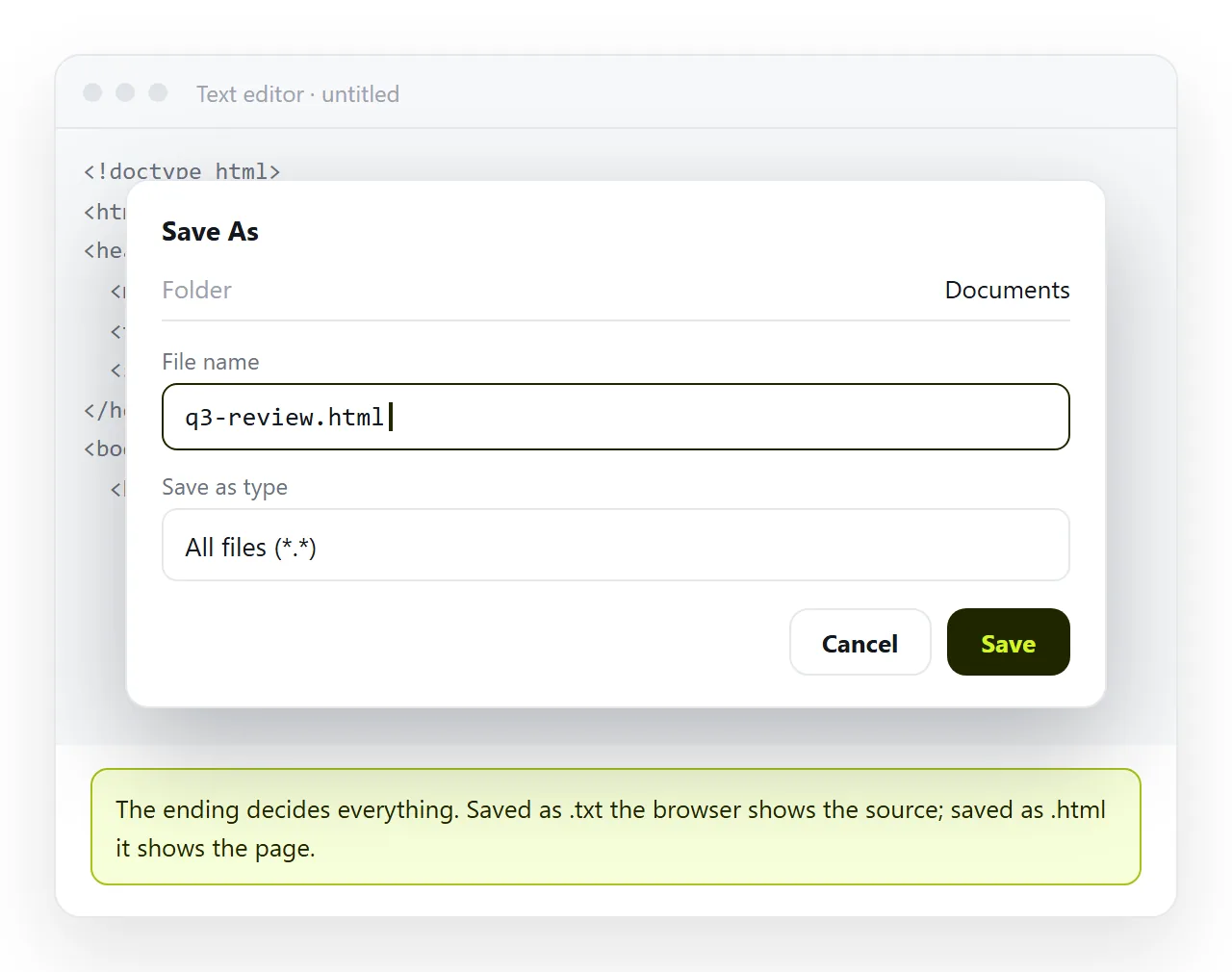
To get gemini html code to PDF, save the code as an .html file, open it in a browser so the page renders, then print that page with Save as PDF as the destination.
There is no direct conversion from a code block to a PDF. Every route that claims otherwise is doing these same two moves behind a button.
The order matters. Printing before the page has finished loading is the single most common reason a report arrives with empty boxes where the charts were.
Why the render step cannot be skipped
HTML is instructions. A PDF is a fixed picture of what those instructions produced. Something has to carry out the instructions first, and that something is a browser.
That also means the PDF records the state of the page at one moment. If a font was still arriving, the PDF keeps the fallback font. If a chart script failed, the PDF keeps the empty canvas.
So before you print, look at the rendered page in a window that has never seen your project. The HTML file opener does this, and so does a second browser profile.
What the in-chat preview does and does not prove covers why the chat's own rendering is not enough at this stage.
Gemini HTML code to PDF in five steps
- Save the complete file. Use the copy control on the code block, paste into a plain text editor, save as
report.html. Confirm the last line is</html>, because a truncated copy still renders a convincing top half. - Open it in a browser and wait. Fonts, images and any chart need to be visibly finished. Scroll the whole page once.
- Add print rules if the breaks land badly. A short print stylesheet keeps tables and sections whole and drops navigation that means nothing on paper.
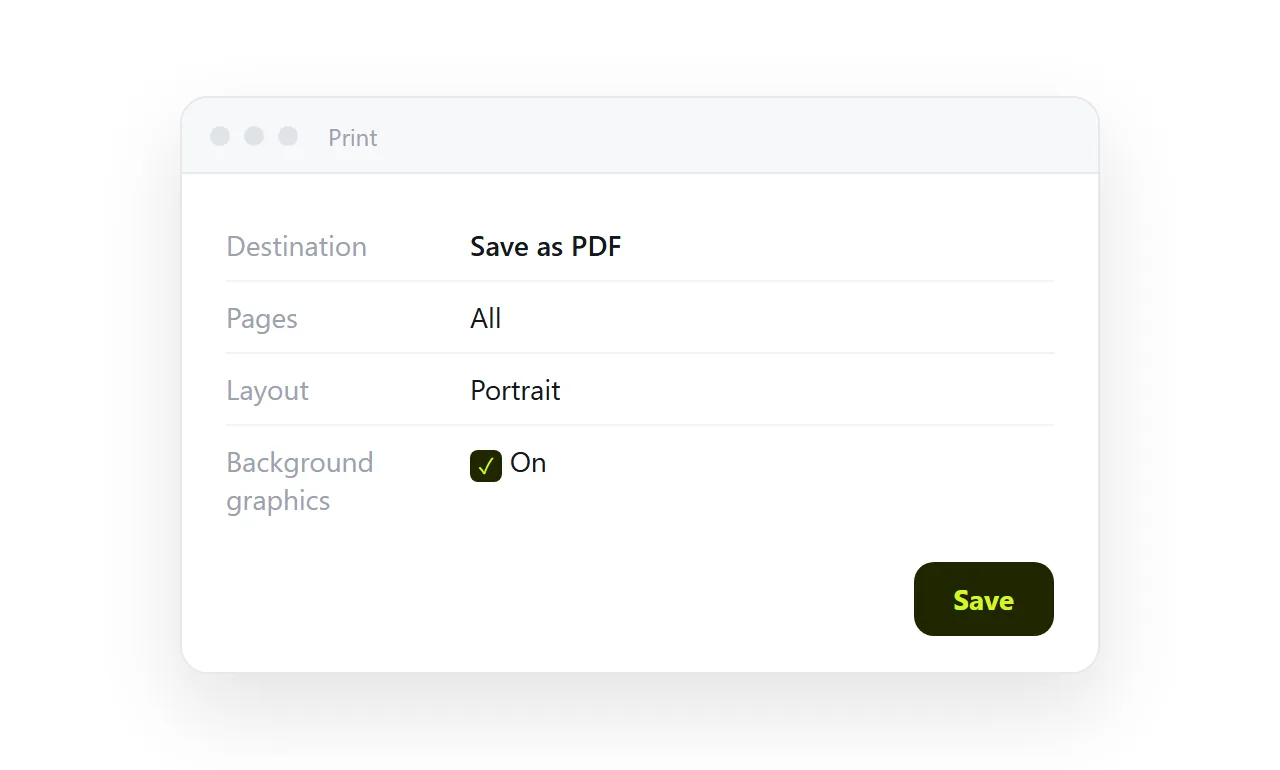
- Print to PDF. Ctrl+P or Cmd+P, destination Save as PDF. Open more settings: turn on background graphics, turn off headers and footers, set margins.
- Read the saved PDF. Not the print preview, the file. Blank charts, cut tables and washed out colour are all visible in ten seconds.
The settings that change the result most
| Setting | Default behaviour | What to do |
|---|---|---|
| Background graphics | Off, so coloured panels print white | Turn on for any styled report |
| Headers and footers | On, adds the file path and date | Turn off unless you want them |
| Margins | Default, often wide | Set to none or minimum for full bleed layouts |
| Scale | Fit to width | Leave alone unless a table is being squeezed |
| Dark theme pages | Print as dark, ink heavy | Add a print rule for white background, black text |
The dark theme row catches people out. A page designed dark renders correctly on screen and prints as a solid dark block. Add a print media rule that resets the background and text colour.
What the PDF loses
This is the part worth deciding before you print rather than after.
- Charts that respond. Hover values, tooltips and legends you can toggle become a flat picture.
- Tabs and accordions. Only the open panel prints. Whatever is collapsed is absent from the file, silently.
- Sortable tables. The reader gets your sort order and no other.
- Anything below the fold in a scrolling panel. A fixed height box with its own scrollbar prints the visible part only.
- Links that change. A live figure that was pulling a current number is frozen at the moment of printing.
- Being correctable. A PDF is finished. A fix means a new file and a second send.
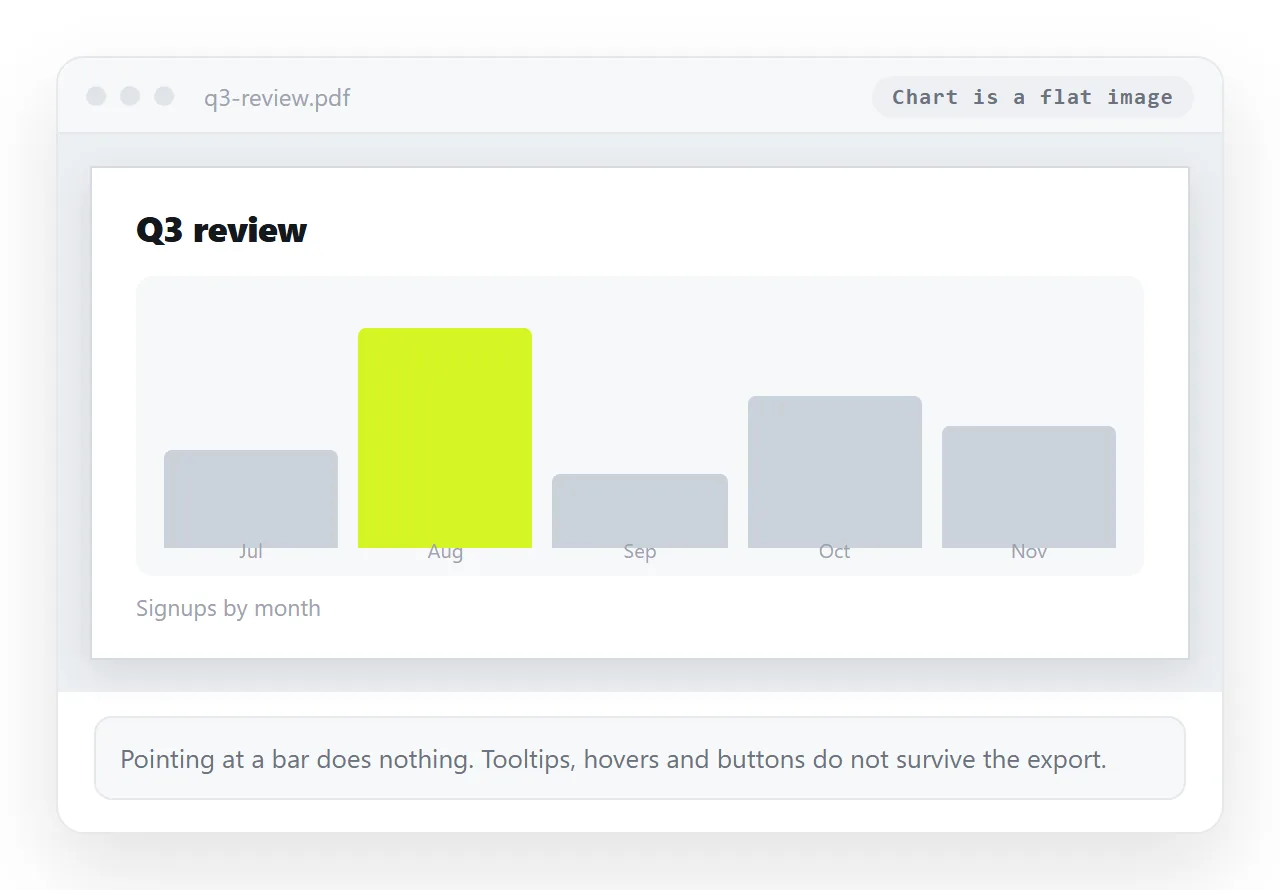
A short honesty test: open the HTML page and the PDF side by side, then try to do the thing the page was built for. If you cannot do it in the PDF, the PDF is the wrong deliverable for that reader.
When a link is the better deliverable
| The document | Send |
|---|---|
| Final, and going into a filing system or a signature flow | |
| Has numbers that will be corrected | Link |
| Has charts, tabs or sorting worth using | Link |
| Read by the same people every week | Link, same address each week |
| Read offline on a plane | |
| Discussed in a channel | Link with a preview card |
A link removes the version problem. Paste the HTML into a NOS document and it renders as written, dark theme, charts and scripts included. The document gets its own address through Share, then Share link, then Create link.
Links are unlisted by default, so they work for whoever holds them without being listed anywhere. Tick Public on the web only when you want the page to appear in search results.
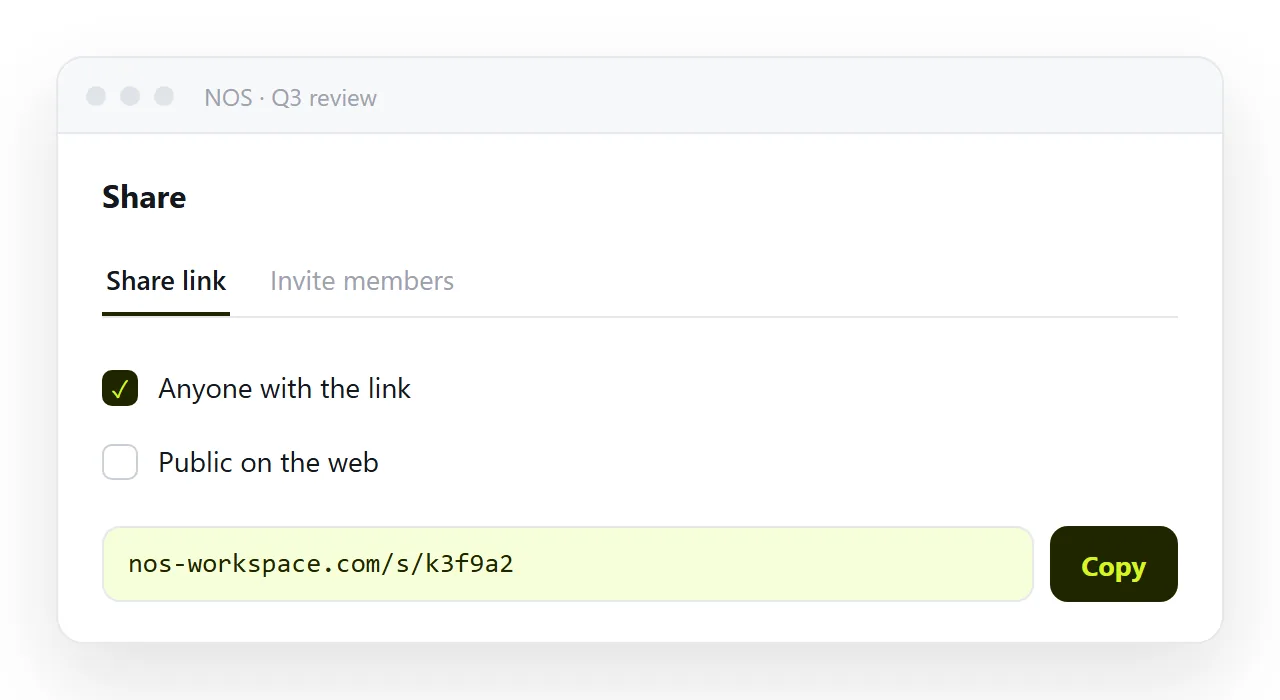
Editing the page does not move the address. You click the text in the document and correct it, and the link already in someone's inbox points at the corrected version. Turning HTML into a link is that step on its own.
Doing both
For most reports the honest answer is both, and in this order. Put the page at an address, send the link, and attach a PDF when a particular reader has told you they need one.
The link carries the working version and stays current. The PDF is a snapshot for the file, and everyone understands that a snapshot ages.
If you are weighing the two properly, PDF versus a live page sets out the trade in more detail, and AI generated HTML to PDF covers the export quirks that come from machine written markup specifically.
Before you send the PDF
Three checks, thirty seconds. Open the file itself, not the preview pane.
- Every chart shows data, not an empty frame.
- No table or section starts halfway down a page with its heading left behind.
- Coloured backgrounds are present, and dark pages have printed light.
Any of those failing sends you back to step three rather than to a new prompt. The markup is usually fine. The print settings are what moved.