Wrap the content in <figure> and put its caption in <figcaption>, either as the first child or the last child.
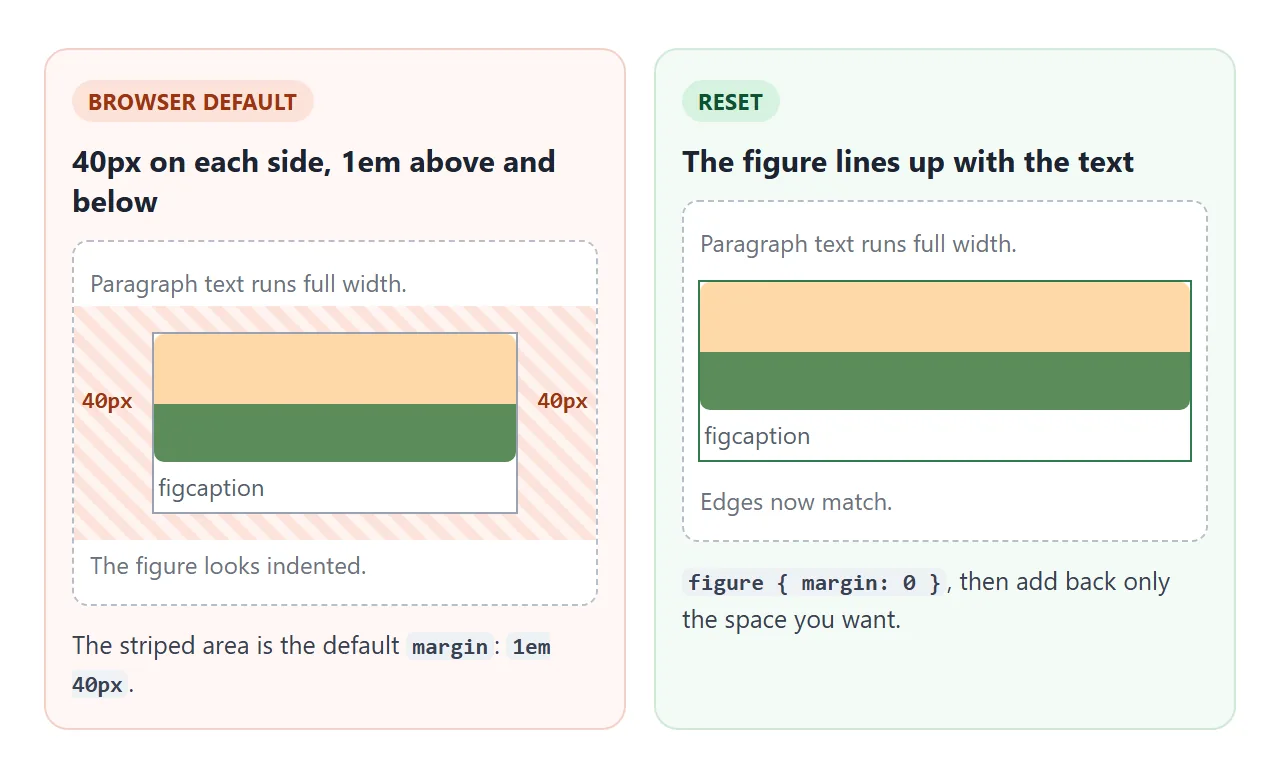
The figure can hold an image, an SVG chart, a code listing or a quote. Browsers add side margins to it by default, so most pages start with figure { margin: 0 }.
<figure>
  <img src="ridge.jpg" alt="Hills under an orange sun at dusk">
  <figcaption>The view from the ridge trail at 7 pm.</figcaption>
</figure>
Try it below. Switch between the browser default and a styled figure, and move the caption to the top, the bottom or over the picture. The stripes show the default margin.
<!doctype html>
<html lang="en">
<head>
<meta charset="utf-8">
<meta name="viewport" content="width=device-width, initial-scale=1">
<title>figure and figcaption</title>
<style>
  body { margin: 0; padding: 14px; font-family: system-ui, sans-serif; color: #1d2330; background: #fff; }
  .bar { display: flex; flex-wrap: wrap; gap: 6px; margin-bottom: 12px; }
  .bar button { font: inherit; font-size: 14px; padding: 6px 12px; border: 1px solid #cfd4dc; border-radius: 8px; background: #fff; cursor: pointer; }
  .bar button[aria-pressed="true"] { background: #1d2330; color: #fff; border-color: #1d2330; }

  /* Striped stage: wherever you see stripes, that is the figure's margin */
  .stage { max-width: 460px; background: repeating-linear-gradient(45deg, #fde2da 0 6px, #fff4f0 6px 12px); border: 1px dashed #e8a58f; }
  figure { background: #fff; outline: 1px solid #9aa3b2; }
  figure svg { display: block; width: 100%; height: auto; }

  /* "Styled": reset the default margins and give the caption a look */
  .styled figure { margin: 0; outline: none; border: 1px solid #e1e4ea; border-radius: 10px; padding: 10px; }
  .styled figcaption { font-size: 14px; color: #555e6d; padding-top: 8px; }
  .styled figcaption:first-child { padding: 0 0 8px; }

  /* Overlay: the caption sits on top of the picture */
  figure.overlay { position: relative; }
  figure.overlay figcaption { position: absolute; left: 10px; right: 10px; bottom: 10px; padding: 8px 10px;
    background: rgba(17, 24, 39, .72); color: #fff; border-radius: 6px; }

  #info { margin-top: 10px; font: 13px ui-monospace, Consolas, monospace; color: #374151; }
</style>
</head>
<body>
<div class="bar" id="look">
  <button aria-pressed="true" data-look="default">Browser default</button>
  <button aria-pressed="false" data-look="styled">Styled</button>
</div>
<div class="bar" id="pos">
  <button aria-pressed="false" data-pos="top">Caption top</button>
  <button aria-pressed="true" data-pos="bottom">Caption bottom</button>
  <button aria-pressed="false" data-pos="overlay">Overlay</button>
</div>

<div class="stage" id="stage">
  <figure id="fig">
    <svg viewBox="0 0 360 180" role="img" aria-label="Hills under a sun at dusk">
      <rect width="360" height="180" fill="#ffd9a8"/>
      <circle cx="270" cy="62" r="28" fill="#ff8a3d"/>
      <path d="M0 130 Q90 70 180 125 T360 110 V180 H0Z" fill="#5b8c5a"/>
      <path d="M0 155 Q120 110 240 150 T360 145 V180 H0Z" fill="#35613a"/>
    </svg>
    <figcaption>The view from the ridge trail at 7 pm.</figcaption>
  </figure>
</div>
<div id="info"></div>

<script>
  const fig = document.getElementById('fig');
  const cap = fig.querySelector('figcaption');
  const stage = document.getElementById('stage');
  const info = document.getElementById('info');

  function press(bar, btn) {
    bar.querySelectorAll('button').forEach(b => b.setAttribute('aria-pressed', b === btn));
  }

  function report() {
    const s = getComputedStyle(fig);
    info.textContent = 'figure margin: ' + s.marginTop + ' ' + s.marginRight + ' ' + s.marginBottom + ' ' + s.marginLeft;
  }

  document.getElementById('look').addEventListener('click', (e) => {
    const btn = e.target.closest('button'); if (!btn) return;
    press(e.currentTarget, btn);
    stage.classList.toggle('styled', btn.dataset.look === 'styled');
    report();
  });

  document.getElementById('pos').addEventListener('click', (e) => {
    const btn = e.target.closest('button'); if (!btn) return;
    press(e.currentTarget, btn);
    const pos = btn.dataset.pos;
    // The caption must stay the first or the last child, so move it in the DOM
    if (pos === 'top') fig.prepend(cap); else fig.append(cap);
    fig.classList.toggle('overlay', pos === 'overlay');
  });

  report();
</script>
</body>
</html>
What figure and figcaption are for
A figure is content that the text refers to but that stands on its own. Move it to the side of the page or to an appendix, and the paragraphs around it still read fine. That is the test the HTML spec describes.
The figcaption is the caption for everything inside that figure. It is optional, but it is the main reason to use a figure at all. Without a caption, a plain <img> or <pre> usually does the job.
Browsers also use the figcaption as the accessible name of the figure. A screen reader user hears the caption when they reach the figure, not only the image inside it.
Caption on top, below or over the picture
The caption position comes from where it sits in the HTML. It has to be the first child or the last child of the figure.
- Below: put
<figcaption>after the content. This is the usual choice for photos and charts. - On top: put it before the content. Tables of numbers and code listings often read better with the title first.
- Over the picture: keep it as the last child and position it with CSS.
figure { position: relative; }
figcaption {
  position: absolute; left: 10px; right: 10px; bottom: 10px;
  background: rgba(17, 24, 39, .72); color: #fff;
}
An overlay caption covers part of the image, so keep it short. In the example above, the buttons move the caption node itself with prepend and append. They do not reorder it with CSS, so it stays the first or last child.
The default margins
A figure is a block element with a built-in margin: 1em above and below, and 40px on each side. That is why a figure looks indented compared with the paragraph above it.
| Element | Default display | Default margin |
|---|---|---|
figure |
block | 1em 40px |
figcaption |
block | none |
blockquote |
block | 1em 40px |
Reset it once and add back only what you need:
figure { margin: 0 0 1.5em; }
figcaption { font-size: .875rem; color: #555e6d; margin-top: .5em; }
Caption vs alt text
The alt text and the caption answer different questions. alt replaces the image for someone who cannot see it: what does it show? The caption is for every reader: why is it here, where is it from, what should I notice?
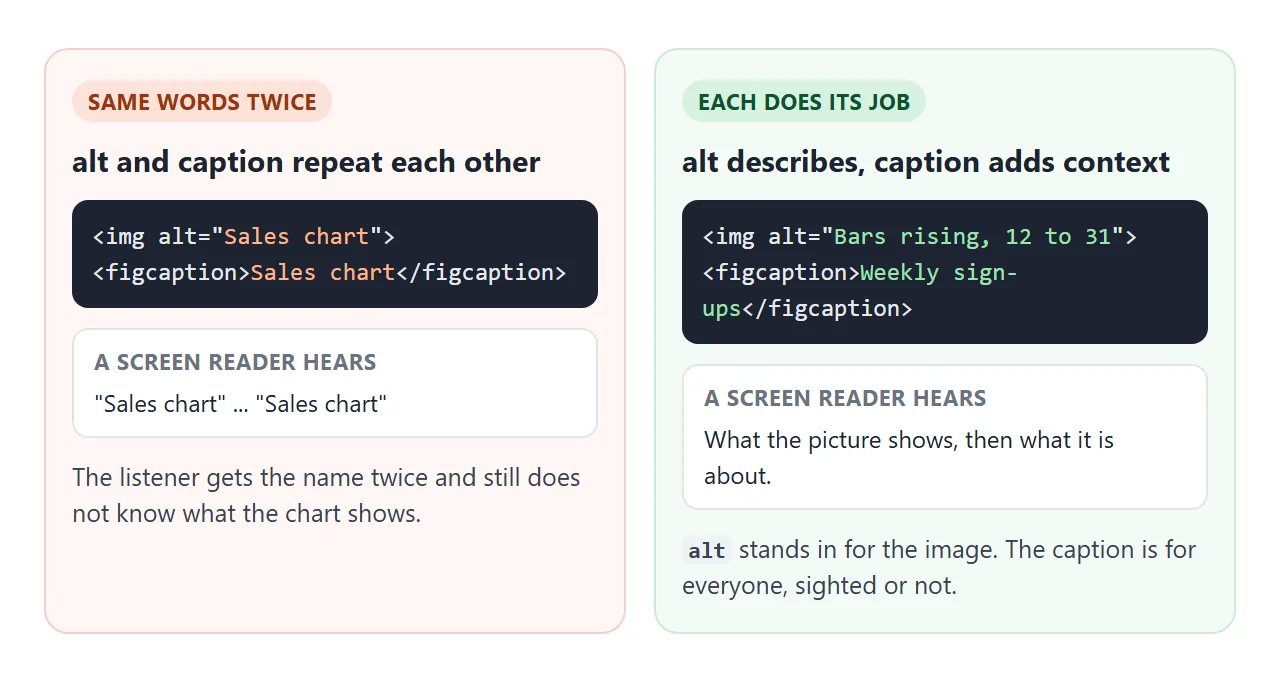
If the caption already says everything the image shows, the alt can be shorter, but do not copy the caption into it. Alt text covers what to write, and when an empty alt="" is the right answer.
What can go in a figure
Anything that has a caption and could move without breaking the text. Each one below is a figure with its own figcaption.
<!doctype html>
<html lang="en">
<head>
<meta charset="utf-8">
<meta name="viewport" content="width=device-width, initial-scale=1">
<title>What can go in a figure</title>
<style>
  body { margin: 0; padding: 14px; font-family: system-ui, sans-serif; color: #1d2330; background: #f6f7f9; }
  label { display: inline-flex; gap: 6px; align-items: center; font-size: 14px; margin-bottom: 12px; cursor: pointer; }

  /* Figures side by side: as many 260px columns as fit */
  .grid { display: grid; grid-template-columns: repeat(auto-fit, minmax(260px, 1fr)); gap: 14px; }
  figure { margin: 0; padding: 12px; background: #fff; border: 1px solid #e1e4ea; border-radius: 10px;
    display: flex; flex-direction: column; gap: 8px; }
  figcaption { font-size: 13px; color: #555e6d; line-height: 1.45; margin-top: auto; }
  figure > img, figure > svg { display: block; width: 100%; height: auto; border-radius: 6px; }

  pre { margin: 0; padding: 10px; background: #1d2330; color: #e6e9ef; border-radius: 6px;
    font: 13px/1.5 ui-monospace, Consolas, monospace; overflow-x: auto; }
  blockquote { margin: 0; padding: 4px 0 4px 12px; border-left: 3px solid #2f7d4f; font-size: 16px; line-height: 1.5; }

  /* The checkbox outlines each figure (green) and caption (orange) */
  .show figure { outline: 2px solid #2f7d4f; }
  .show figcaption { outline: 2px dashed #d9622b; outline-offset: 2px; }
</style>
</head>
<body>
<label><input type="checkbox" id="show"> Outline each figure and caption</label>

<div class="grid" id="grid">
  <!-- 1. An image: alt describes it, the caption adds context -->
  <figure>
    <img alt="A red kite flying over a green field"
         src="data:image/svg+xml,%3Csvg xmlns='http://www.w3.org/2000/svg' viewBox='0 0 240 120'%3E%3Crect width='240' height='120' fill='%23cfe8ff'/%3E%3Crect y='88' width='240' height='32' fill='%236aa84f'/%3E%3Cpath d='M150 20 L172 44 L150 68 L128 44Z' fill='%23d9362b'/%3E%3Cpath d='M150 68 Q140 90 120 96' stroke='%23333' fill='none'/%3E%3C/svg%3E">
    <figcaption>Photo 1. The school kite day, 14 May.</figcaption>
  </figure>

  <!-- 2. A chart drawn in inline SVG -->
  <figure>
    <svg viewBox="0 0 240 120" role="img" aria-label="Bar chart: 12, 18, 25 and 31 sign-ups for weeks 1 to 4">
      <rect width="240" height="120" fill="#fff"/>
      <g fill="#2f7d4f">
        <rect x="20" y="82" width="36" height="28"/><rect x="74" y="68" width="36" height="42"/>
        <rect x="128" y="52" width="36" height="58"/><rect x="182" y="38" width="36" height="72"/>
      </g>
      <line x1="10" y1="110" x2="230" y2="110" stroke="#9aa3b2"/>
      <g font-size="11" fill="#374151" text-anchor="middle">
        <text x="38" y="76">12</text><text x="92" y="62">18</text><text x="146" y="46">25</text><text x="200" y="32">31</text>
      </g>
    </svg>
    <figcaption>Chart 2. Weekly sign-ups since the launch post.</figcaption>
  </figure>

  <!-- 3. A code listing -->
  <figure>
    <pre><code>figure {
  margin: 0;
}</code></pre>
    <figcaption>Listing 3. Remove the default figure margin.</figcaption>
  </figure>

  <!-- 4. A quote: the caption names the source -->
  <figure>
    <blockquote>Now the report reads in the same order we talk about it.</blockquote>
    <figcaption>Quote 4. A reply from the March team survey.</figcaption>
  </figure>
</div>

<script>
  document.getElementById('show').addEventListener('change', (e) => {
    document.getElementById('grid').classList.toggle('show', e.target.checked);
  });
</script>
</body>
</html>
- Image:
<img>withalt, plus a caption for the context. - Chart: an inline
<svg>withrole="img"andaria-label. HTML bar chart builds one from scratch. - Code listing: a
<pre><code>block with a caption such as "Listing 3". - Quote: a
<blockquote>with the source in the caption, outside the quoted words.
To put figures side by side, place them in a grid. repeat(auto-fit, minmax(260px, 1fr)) fits as many columns as there is room for, and falls back to one column on a phone. CSS grid explains that line.
Keeping the caption as wide as the image
A figure is a block, so it stretches to the full width of its container, and so does the caption. With a narrow image and a long caption, the text runs far past the right edge of the picture.
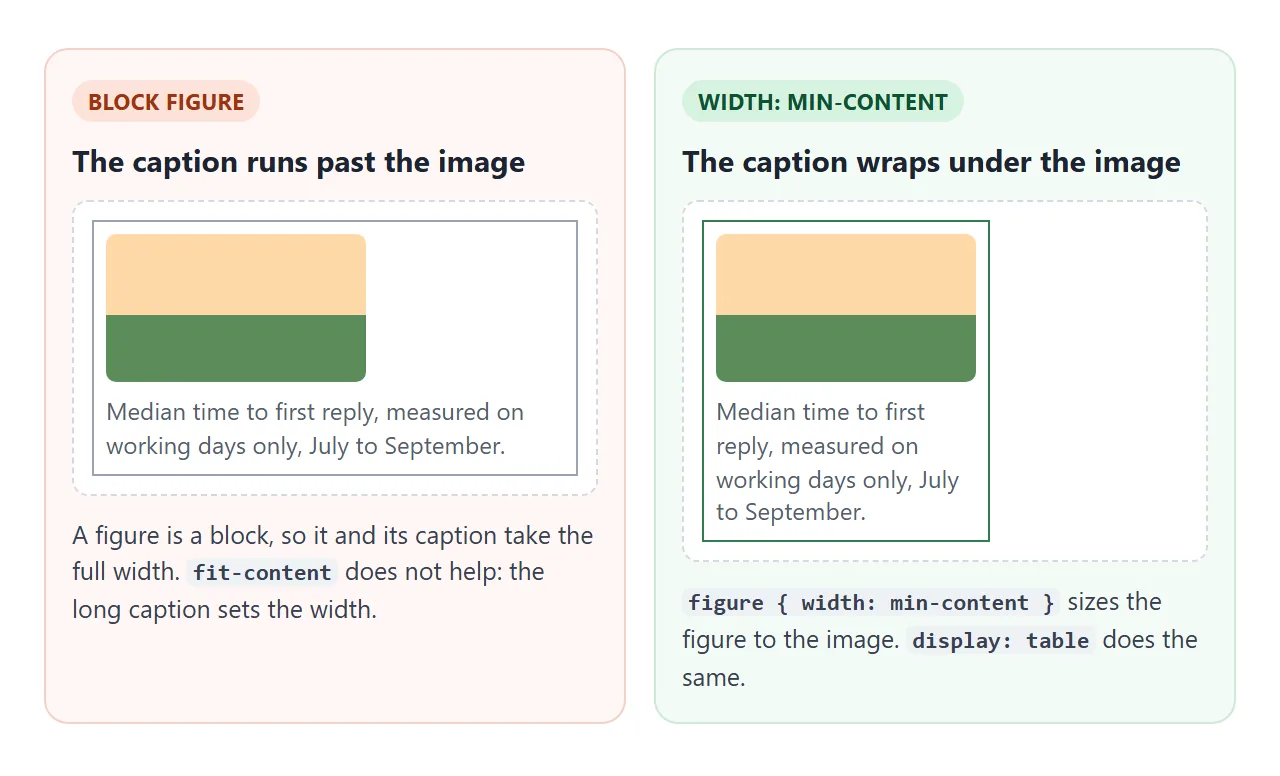
width: fit-content only helps when the caption is short. With a long caption, the caption's own length sets the width. Size the figure to its narrowest content instead:
figure { width: min-content; }
min-content makes the image the widest thing that cannot wrap, so the caption wraps to the image. display: table on the figure with display: table-caption; caption-side: bottom on the caption gives the same result.
A finished example: numbered figures
Reports and papers number their figures and refer to them in the text. A CSS counter numbers the captions, so you never renumber by hand:
body { counter-reset: fig; }
figure { counter-increment: fig; }
figcaption::before { content: "Figure " counter(fig) ". "; }
The links in the text point at each figure's id. A few lines of script write "Figure 2" into each link from the figure's current position. Click a link to jump to that figure, then move a figure and watch every number update.
<!doctype html>
<html lang="en">
<head>
<meta charset="utf-8">
<meta name="viewport" content="width=device-width, initial-scale=1">
<title>Report with numbered figures</title>
<style>
  body { margin: 0; padding: 16px; font: 15px/1.6 system-ui, sans-serif; color: #1d2330; background: #fff;
    counter-reset: fig; /* start figure numbering at 0 */ }
  article { max-width: 620px; margin: 0 auto; }
  h2 { font-size: 20px; margin: 0 0 6px; }
  p { margin: 0 0 12px; }
  button { font: inherit; font-size: 14px; padding: 6px 12px; border: 1px solid #cfd4dc; border-radius: 8px; background: #fff; cursor: pointer; margin-bottom: 12px; }

  figure { margin: 0 0 16px; padding: 12px; border: 1px solid #e1e4ea; border-radius: 10px;
    counter-increment: fig; /* each figure adds one */ }
  figure svg { display: block; width: 100%; height: auto; }
  figcaption { font-size: 13.5px; color: #555e6d; margin-top: 8px; }
  figcaption::before { content: "Figure " counter(fig) ". "; font-weight: 700; color: #1d2330; }

  /* A cross-reference link lands on the figure: highlight it */
  figure:target { border-color: #2f7d4f; box-shadow: 0 0 0 3px #d6f2df; }
  a.ref { color: #1d5fbf; }
</style>
</head>
<body>
<article>
  <h2>Q3 support report</h2>
  <p>Tickets fell for the third month in a row (<a class="ref" href="#tickets"></a>).
     Most of the drop came from billing questions, which the new help page now answers
     (<a class="ref" href="#topics"></a>). Response time held steady (<a class="ref" href="#response"></a>).</p>
  <button id="move">Move the last figure to the top</button>

  <div id="figures">
    <figure id="tickets">
      <svg viewBox="0 0 300 90" role="img" aria-label="Line falling from 420 tickets in July to 310 in September">
        <polyline points="20,20 150,48 280,72" fill="none" stroke="#2f7d4f" stroke-width="3"/>
        <g font-size="11" fill="#374151"><text x="14" y="14">420</text><text x="140" y="40">365</text><text x="262" y="88">310</text></g>
      </svg>
      <figcaption>Tickets per month, July to September.</figcaption>
    </figure>

    <figure id="topics">
      <svg viewBox="0 0 300 80" role="img" aria-label="Bars: billing 38 percent, login 27 percent, shipping 21 percent, other 14 percent">
        <g fill="#2f7d4f"><rect x="80" y="6" width="152" height="14"/><rect x="80" y="24" width="108" height="14"/>
          <rect x="80" y="42" width="84" height="14"/><rect x="80" y="60" width="56" height="14"/></g>
        <g font-size="11" fill="#374151"><text x="8" y="17">Billing</text><text x="8" y="35">Login</text>
          <text x="8" y="53">Shipping</text><text x="8" y="71">Other</text></g>
      </svg>
      <figcaption>Share of tickets by topic in September.</figcaption>
    </figure>

    <figure id="response">
      <svg viewBox="0 0 300 60" role="img" aria-label="First reply time: 2.1 hours in July, 2.0 in August, 2.1 in September">
        <g font-size="22" font-weight="700" fill="#1d2330" text-anchor="middle">
          <text x="50" y="32">2.1 h</text><text x="150" y="32">2.0 h</text><text x="250" y="32">2.1 h</text></g>
        <g font-size="11" fill="#555e6d" text-anchor="middle"><text x="50" y="52">Jul</text><text x="150" y="52">Aug</text><text x="250" y="52">Sep</text></g>
      </svg>
      <figcaption>Median time to first reply.</figcaption>
    </figure>
  </div>
</article>

<script>
  const box = document.getElementById('figures');

  // Write "Figure N" into every link, using the figure's current position
  function numberRefs() {
    const figs = [...box.querySelectorAll('figure')];
    document.querySelectorAll('a.ref').forEach((a) => {
      const n = figs.indexOf(document.querySelector(a.getAttribute('href'))) + 1;
      a.textContent = 'Figure ' + n;
    });
  }

  document.getElementById('move').addEventListener('click', () => {
    box.prepend(box.lastElementChild);  // CSS renumbers the captions by itself
    numberRefs();                       // the links need the script
  });

  numberRefs();
</script>
</body>
</html>
This is the pattern for client reports: write the figures once, reorder them freely, and the numbers stay right.
When it does not work
| What you see | Cause | Fix |
|---|---|---|
| The figure is indented on both sides | Default margin: 1em 40px |
figure { margin: 0 } |
| The caption is wider than the image | The figure is a full-width block | width: min-content on the figure, or display: table |
width: fit-content did not help |
A long caption sets the fit-content width | Use min-content instead |
| A screen reader says the same words twice | The caption repeats the alt text | Describe the image in alt, give context in the caption |
| The validator reports an error on figcaption | It is not the first or last child, or there are two | One figcaption, first or last |
| Every image on the page is wrapped in figure | figure used as a generic image box | Keep figure for captioned content; icons and logos stay plain img |
Share it as a link
A report with numbered figures and working cross-reference links is best read as a page, not as a pasted screenshot. An .html attachment may open as plain code, or not at all, on a phone.
To send it, paste the page into a NOS document and choose Create share link. HTML to link walks through it. The page renders as written and its scripts run, so readers can click a reference and land on the figure.
If you change the code later, the same link shows the new version.